Converting tables from PDF files into CSV format is a common requirement in reporting, analytics, and data integration workflows. CSV files are lightweight, widely supported, and well suited for automation, making them far more useful than static PDFs once tabular data needs to be reused.
In practice, however, converting a PDF table to CSV is rarely straightforward. PDF files are designed to preserve visual appearance rather than logical structure. A table that looks perfectly aligned on screen may not exist as rows and columns internally, which is why naïve conversion methods often fail.
This article focuses on practical PDF table to CSV conversion methods. Instead of covering every theoretical option, it explains the most commonly used approaches, how they behave in practice, and when each method is appropriate.
Table of Contents
- Common Practical Ways to Convert PDF Tables to CSV
- Method 1: Export PDF to Spreadsheet Using Acrobat
- Method 2: Online PDF Table to CSV Conversion
- Method 3: Programmatic PDF Table Extraction with Python
- Handling Real-World PDF Table Scenarios
- Key Takeaways: Converting PDF Tables to CSV
- FAQ
Common Practical Ways to Convert PDF Tables to CSV
In most real workflows, converting a PDF table to CSV falls into one of the following categories:
- Exporting tables via PDF to spreadsheet tools (such as Acrobat)
- Using online PDF table to CSV converters
- Extracting tables programmatically using Python code
Simple copy-and-paste techniques are intentionally excluded, as they usually flatten tables into plain text and require extensive manual reconstruction.
Method 1: Export PDF to Spreadsheet Using Acrobat
Exporting a PDF to a spreadsheet format and then saving it as CSV is a common choice for users who prefer desktop tools and visual inspection.
When This Method Works Well
- The PDF is text-based and well structured
- Tables have clear row and column boundaries
- Manual review and correction are acceptable
Typical Acrobat-Based Workflow
-
Open the PDF file in Acrobat
-
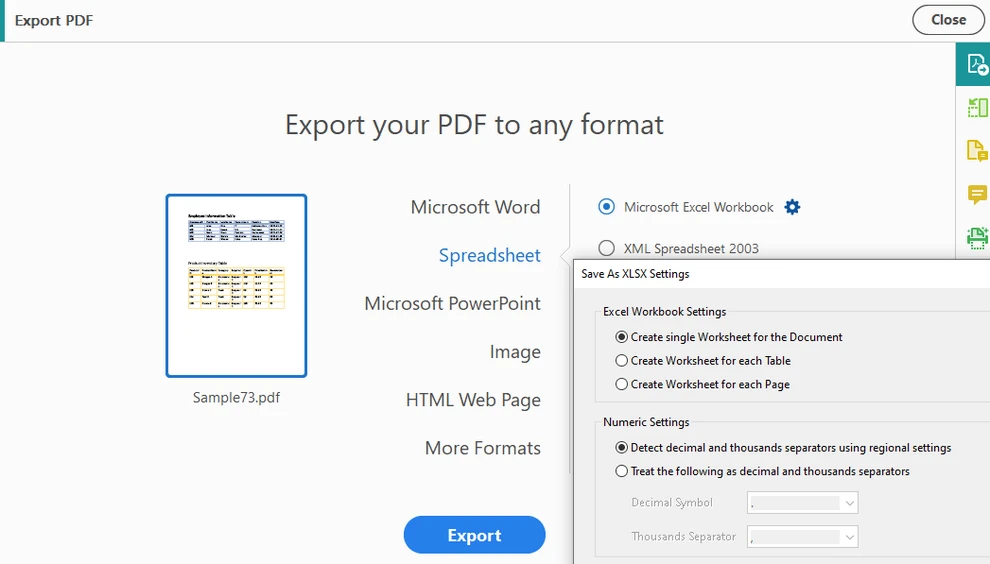
Choose Export PDF and select Spreadsheet as the output format
-
Export the document to Excel format
-
Review and adjust the table structure if necessary
-
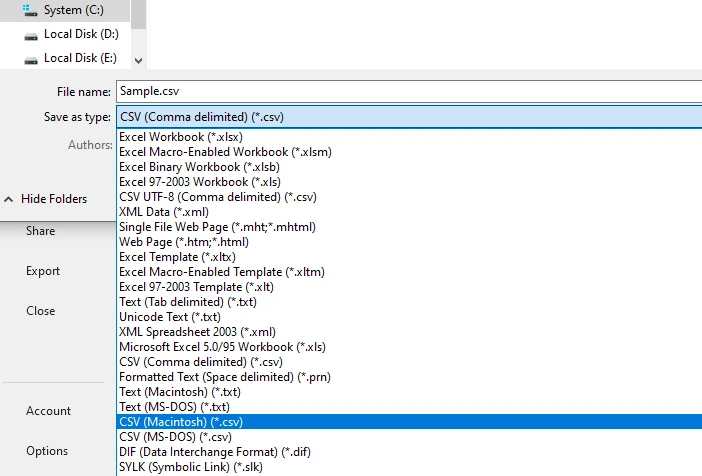
Save or export the spreadsheet as a CSV file
This workflow often produces better structural results than direct copying, especially for single-page or consistently formatted tables.
Practical Limitations
- Complex or multi-page tables may be split across sheets
- Merged cells can lead to misaligned columns in CSV output
- Manual cleanup is often required before export
- Not suitable for batch or automated processing
This approach is effective for occasional conversions where visual validation matters, but it does not scale well.
For users looking for a free alternative to Acrobat for converting PDF tables to Excel before saving as CSV, see How to Convert PDF to Excel for Free.
Method 2: Online PDF Table to CSV Conversion
Online converters are widely used because they require no installation and provide fast results.
When Online Conversion Is a Good Fit
- The PDF contains selectable (non-scanned) text
- Table layouts are relatively simple
- Only a small number of files need conversion
Typical Online PDF Table to CSV Workflow
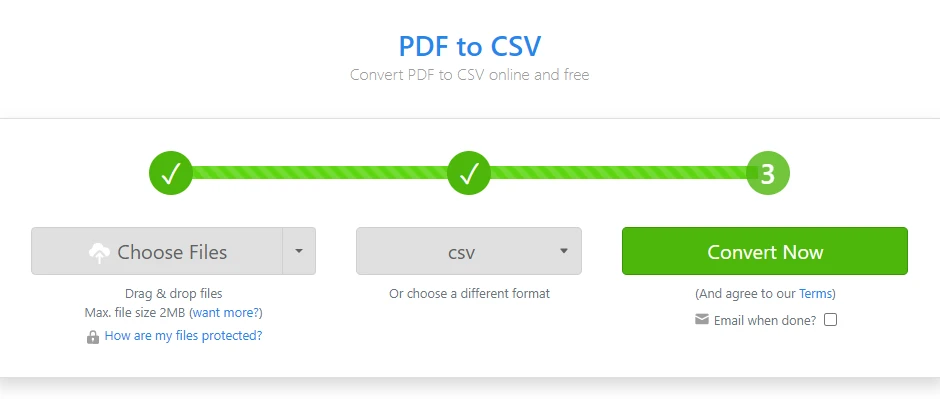
Most online tools follow a similar process (Zamzar example):
-
Open an online PDF to CSV converter
-
Upload the PDF file containing the table
-
Configure page range or table detection options, if available
-
Start the conversion process
-
Download the generated CSV file
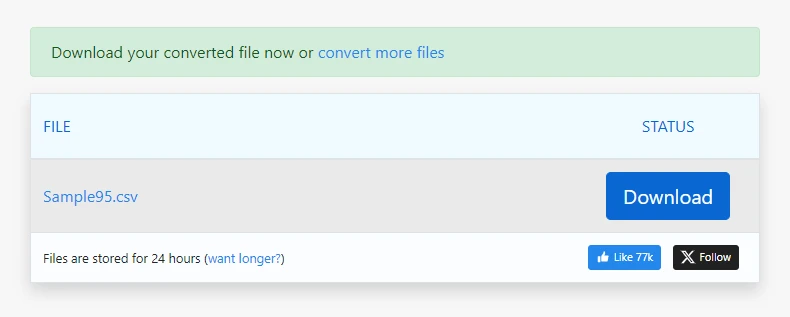
For straightforward PDFs, this process can generate usable CSV output in seconds.
Common Considerations With Online Converters
- Columns may shift when spacing is inconsistent
- Converters often export the whole PDF as CSV, not just the tables
- Line breaks inside cells may create extra rows
- Output quality varies by document layout
- File size limits and privacy concerns may apply
Online tools are best treated as a convenience option rather than a predictable or reusable solution.
Method 3: Programmatic PDF Table Extraction with Python
When accuracy, consistency, or automation is required, programmatic extraction is often the most reliable way to convert PDF tables to CSV.
Why Programmatic Extraction Is Often Preferred
- Tables can be processed page by page
- Multi-page tables can be handled consistently
- The same extraction logic can be reused in batch jobs
- Output is reproducible and easier to validate
This approach is common in data pipelines, reporting systems, and backend services that process PDFs at scale. With Spire.PDF for Python, developers can accurately extract tables from PDF documents, handle multi-page and complex layouts, and automate the conversion to CSV with minimal manual intervention.
Typical Programmatic Workflow for PDF Table to CSV
Most programmatic solutions follow a similar high-level process:
- Load the PDF document
- Iterate through each page
- Detect table structures on each page
- Extract rows and columns as structured data
- Normalize extracted text where necessary
- Write the structured data to CSV files
Python is widely used for this task because it combines readability with strong data-processing capabilities.
Example: Convert PDF Tables to CSV Using Python
Before running the example below, make sure the required PDF processing library is installed.
You can install Spire.PDF for Python using pip:
pip install spire.pdf
Once installed, you can proceed with the table extraction example.
The following example demonstrates how to convert PDF tables to CSV using Spire.PDF for Python.
import os
import csv
from spire.pdf import PdfDocument, PdfTableExtractor

# Load the PDF document
pdf = PdfDocument()
pdf.LoadFromFile("Sample.pdf")

# Create a table extractor
extractor = PdfTableExtractor(pdf)

# Normalize text to handle PDF ligatures and PUA characters
def normalize_text(text: str) -> str:
    if not text:
        return text
    if not any('\uE000' <= ch <= '\uF8FF' for ch in text):
        return text

    ligatures = {
        '\uE000': 'ff',
        '\uE001': 'fi',
        '\uE002': 'fl',
        '\uE003': 'ffl',
        '\uE004': 'ffi',
        '\uE005': 'ft',
        '\uE006': 'st',
    }
    for lig, repl in ligatures.items():
        text = text.replace(lig, repl)
    return text

# Extract tables page by page
for page_index in range(pdf.Pages.Count):
    tables = extractor.ExtractTable(page_index)
    if tables:
        for table_index, table in enumerate(tables):
            rows = []
            for r in range(table.GetRowCount()):
                row = []
                for c in range(table.GetColumnCount()):
                    cell = normalize_text(table.GetText(r, c)).replace("\n", " ")
                    row.append(cell)
                rows.append(row)

            os.makedirs("output/Tables", exist_ok=True)
            with open(
                f"output/Tables/Page{page_index + 1}-Table{table_index + 1}.csv",
                "w",
                newline="",
                encoding="utf-8",
            ) as f:
                writer = csv.writer(f)
                writer.writerows(rows)

pdf.Close()
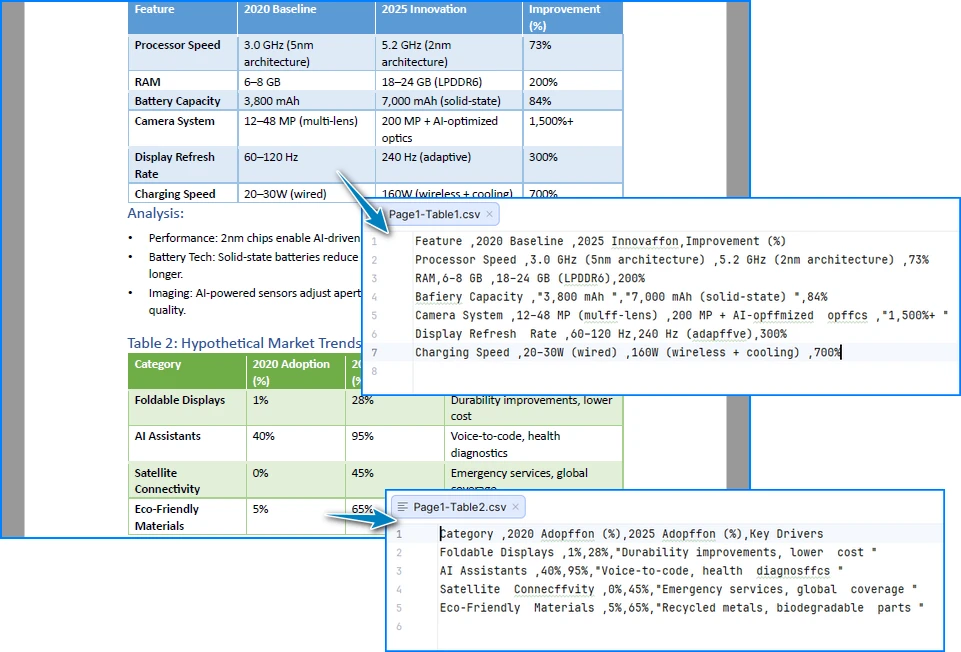
Below is a preview of the PDF table to CSV conversion results:
How This Implementation Works
This implementation focuses on preserving table structure rather than inferring layout from text positions:
- Cell-level extraction ensures rows and columns are preserved as logical units instead of being reconstructed from spacing
- Page-by-page processing prevents tables from being merged incorrectly across page boundaries
- Explicit text normalization handles common PDF issues such as ligatures and private-use Unicode characters, which can silently corrupt CSV output
- Direct CSV writing avoids intermediate formats that may introduce additional formatting artifacts
As a result, the generated CSV files are more stable and suitable for automated processing. For a step-by-step guide on extracting tables from PDF documents, see Detailed Guide: Extracting Tables from PDF.
Handling Real-World PDF Table Scenarios
In real-world workflows, PDF tables often behave differently from how they look on screen. Typical issues include:
- Tables spanning multiple pages with repeated or missing headers
- Slight column position shifts between pages
- Rows with empty, wrapped, or irregular cells
- Large batches of PDFs with similar but not identical layouts
These factors are usually where generic export tools and online converters start to produce inconsistent CSV output.
From a practical perspective, programmatic extraction is better suited to these cases because it allows:
- Page-by-page processing without accidentally merging unrelated tables
- Controlled handling of multi-page tables
- Stable column alignment even when layouts are not perfectly uniform
One additional usability detail worth noting is CSV encoding:
- When extracted data includes non-ASCII characters, CSV files opened directly in Excel may display garbled text
- Saving CSV output as UTF-8 with BOM (UTF-8-SIG) helps ensure correct character display without manual import steps
These considerations become especially relevant when working with real-world PDFs rather than idealized examples.
Key Takeaways: Converting PDF Tables to CSV
In practice, converting a PDF table to CSV usually comes down to three options:
- Acrobat export works well for occasional, visually verified conversions, such as single-page invoices or reports
- Online converters are convenient for simple, one-off tasks with straightforward tables
- Programmatic extraction offers the most reliable results for complex, multi-page, or repeated workflows, especially in automated pipelines
Choosing the right method depends less on the tool itself and more on how the extracted data will be used.
FAQ
Can scanned PDF tables be converted to CSV directly?
No. Scanned PDFs require OCR before table extraction is possible. For a step-by-step guide on extracting text from scanned PDFs using Python, see Extracting Text from Scanned PDFs with Python.
Is CSV better than Excel for extracted PDF tables? CSV is simpler and better suited for automation, while Excel is often preferred for manual review.
Is Python suitable for batch PDF table conversion? Yes. Python is widely used for large-scale and automated PDF table extraction due to its flexibility and readability.