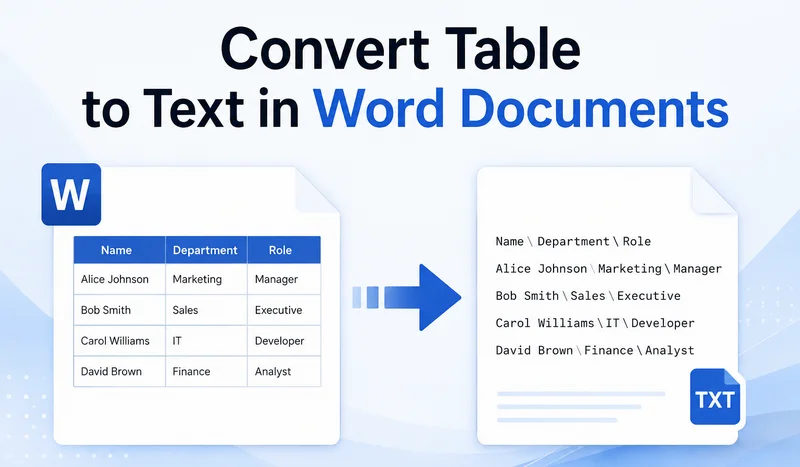
Word tables are useful for organizing data, but they can become inconvenient when you need to edit their contents as regular text. If you no longer need the table structure, you can convert a table to text using Word's built-in tool or automate the process with Python. This guide covers detailed steps for both methods, let's check them out.
- Convert Table to Text in Word with a Built-in Tool
- Convert Word Tables to Text with Python
- Export Table Data to an External TXT File
- FAQs
Convert Table to Text in Word with a Built-in Tool
Microsoft Word provides a built-in tool for converting tables to text. If you only need to convert one or two tables, the built-in tool is usually the quickest option. It removes the table structure and converts the cell contents into regular text.
How to change a table to text in MS Word:
- Step 1: Click anywhere inside the table to reveal the contextual Table Layout tab on the top ribbon.
- Step 2: Go to the Table Layout tab at the top menu, and click the Convert to Text button in the Data group.
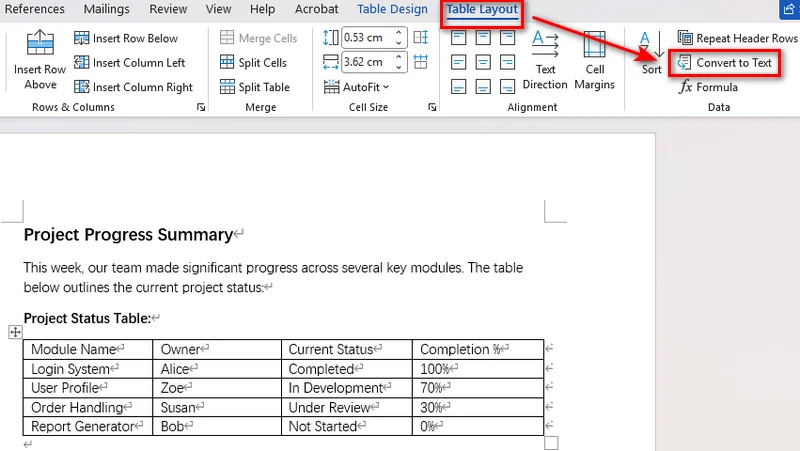
- Step 3: Select your preferred delimiter (tabs, commas, paragraph marks, or a custom character) to separate column values.
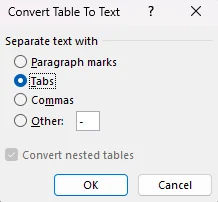
- Step 4: Click OK to transform the table into regular text paragraphs instantly.
Converting to Text vs. Hiding Borders
Hiding table borders only changes how the table looks. The cells, columns, and table structure remain in place, so the content is still constrained by the table layout.
Converting the table to text removes the table structure and turns the cell contents into regular paragraphs. You can then edit and format the content without the table layout.
Convert Word Tables to Text with Python
Word's built-in tool is convenient for converting individual tables, but it becomes less practical when you need to process many documents or tables. For Python developers, Free Spire.Doc for Python provides a way to automate table-to-text conversion without requiring Microsoft Word to be installed.
Converting a Table to Text
The script reads the text from each cell, joins cells in the same row with tab characters, inserts the resulting paragraphs where the table was located, and then removes the original table.
from spire.doc import *
from spire.doc.documents import *

# Initialize Document instance and load the target file
doc = Document()
doc.LoadFromFile("input.docx")

# Get the first section and target table
section = doc.Sections[0]
if section.Tables.Count > 0:
    table = section.Tables[0]

    # Extract text from cells line by line
    text_lines = []
    for j in range(table.Rows.Count):
        row = table.Rows.get_Item(j)
        row_cells_text = []
        for k in range(row.Cells.Count):
            cell = row.Cells.get_Item(k)

            # Extract text from cell paragraphs
            cell_text_pieces = []
            for p in range(cell.Paragraphs.Count):
                para_obj = cell.Paragraphs.get_Item(p)
                if para_obj.Text:
                    cell_text_pieces.append(para_obj.Text.strip())

            row_cells_text.append(" ".join(cell_text_pieces))

        # Join cell text using Tab separators
        text_lines.append("\t".join(row_cells_text))

    # Locate the table inside its parent block
    owner_block = table.OwnerTextBody
    table_index = owner_block.ChildObjects.IndexOf(table)

    # Insert new text paragraphs at the exact table position
    for line in reversed(text_lines):
        temp_para = section.AddParagraph()
        temp_para.Text = line
        section.Paragraphs.Remove(temp_para)
        owner_block.ChildObjects.Insert(table_index, temp_para)

    # Completely remove the table structure from the document structure
    owner_block.ChildObjects.Remove(table)

# Save the updated document
doc.SaveToFile("1st table to text.docx", FileFormat.Docx2016)
doc.Close()
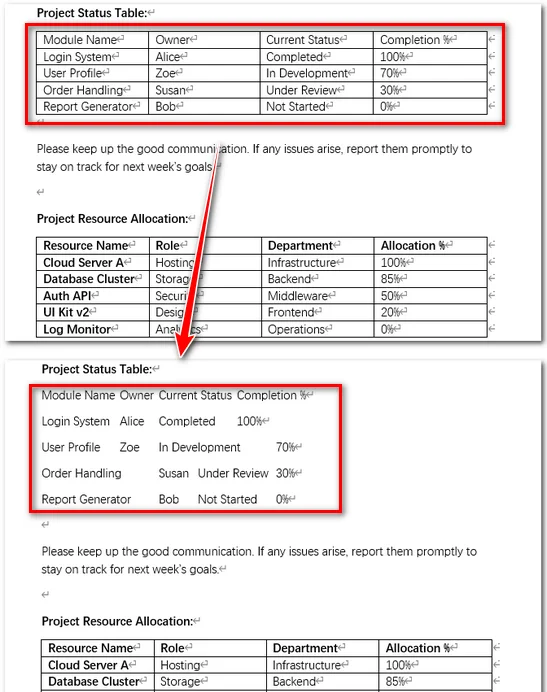
Note: Multiple paragraphs within the same cell are combined into a single line separated by spaces.
Batch Processing All Tables
To convert all tables in a document into text, reuse the conversion logic from the previous example and apply it to every table in every section. Since each table is removed after conversion, tables should be processed in reverse order. Otherwise, deleting a table shifts the indices of the remaining tables, which may cause tables to be skipped or result in index errors.
from spire.doc import *
from spire.doc.documents import *

# Create a Document object and load a Word file
doc = Document()
doc.LoadFromFile("input.docx")

# Iterate through every section in the document
for s_idx in range(doc.Sections.Count):
    section = doc.Sections[s_idx]

    # Iterate backwards through tables to avoid index shifting issues
    table_count = section.Tables.Count
    for t_idx in range(table_count - 1, -1, -1):
        table = section.Tables.get_Item(t_idx)

        # Collect text from all rows and cells
        text_lines = []
        for j in range(table.Rows.Count):
            row = table.Rows.get_Item(j)
            row_cells_text = []
            for k in range(row.Cells.Count):
                cell = row.Cells.get_Item(k)
                cell_text_pieces = []
                for p in range(cell.Paragraphs.Count):
                    para_obj = cell.Paragraphs.get_Item(p)
                    if para_obj.Text:
                        cell_text_pieces.append(para_obj.Text.strip())
                row_cells_text.append(" ".join(cell_text_pieces))
            text_lines.append("\t".join(row_cells_text))

        # Replace the table node with plain paragraphs in-place
        owner_block = table.OwnerTextBody
        table_index = owner_block.ChildObjects.IndexOf(table)

        for line in reversed(text_lines):
            temp_para = section.AddParagraph()
            temp_para.Text = line
            section.Paragraphs.Remove(temp_para)
            owner_block.ChildObjects.Insert(table_index, temp_para)

        # Safely remove the current table
        owner_block.ChildObjects.Remove(table)

# Save the final file
doc.SaveToFile("all tables to text.docx", FileFormat.Docx2016)
doc.Close()
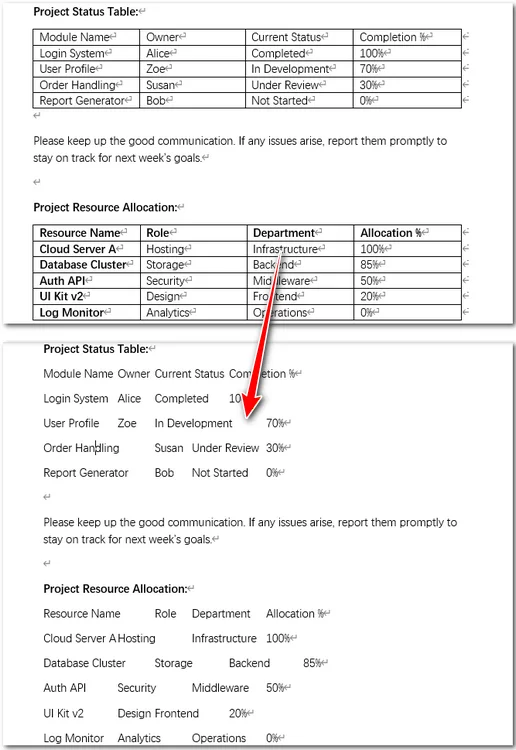
Tip: Export Table Data to an External TXT File
In many data pipeline workflows, the goal is to get information rather than modify original layout files. If you only need tabular text for database ingestion, logging, or plain text archiving, It is even easier. You can quickly extract raw cell contents and write them straight into an external text file with Free Spire.Doc.
Code Example
from spire.doc import *
from spire.doc.common import *

# Create a Document instance
doc = Document()

# Load a Word document
doc.LoadFromFile("input.docx")

# Get the first table
table = doc.Sections[0].Tables[0]

# Extract table text
tableData = ''
for j in range(table.Rows.Count):
    row = table.Rows.get_Item(j)

    for k in range(row.Cells.Count):
        cell = row.Cells.get_Item(k)

        for p in range(cell.Paragraphs.Count):
            tableData += cell.Paragraphs.get_Item(p).Text + ' '

        if k < row.Cells.Count - 1:
            tableData += '\t'

    tableData += '\n'

# Save the extracted text to a TXT file
with open("/table_text.txt", "w", encoding="utf-8") as f:
    f.write(tableData)

doc.Close()
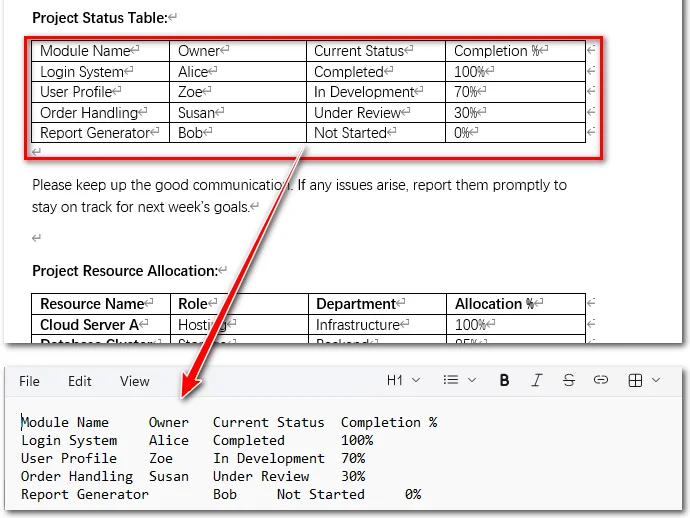
Tip: For structured tabular data, you can also convert Word tables to CSV for use in spreadsheets, databases, and other data-processing workflows.
Frequently Asked Questions
Q1: What should I do if the converted text looks misaligned?
Using tabs (\t) preserves structural spacing best. If column alignment still looks uneven in Word, select the converted paragraphs and adjust the Tab Stops on the horizontal ruler.
Q2: How can I convert text back into a table in Word?
To reverse the process, highlight your text, go to Insert > Table, and click Convert Text to Table. Select the matching delimiter (e.g., tabs or commas) to rebuild your table.
Q3: What is the shortcut key for converting a table to text in Word?
Microsoft Word does not provide a dedicated keyboard shortcut for Convert to Text. You can access the command through the Ribbon or customize a shortcut through Word's keyboard settings.
Summary
This article introduced two ways to convert tables in Word documents to text. Word's built-in tool works well for individual tables or a small number of documents, while Free Spire.Doc for Python is better suited to automated processing of multiple tables. You can also extract table contents to a TXT file for plain-text storage or further processing.