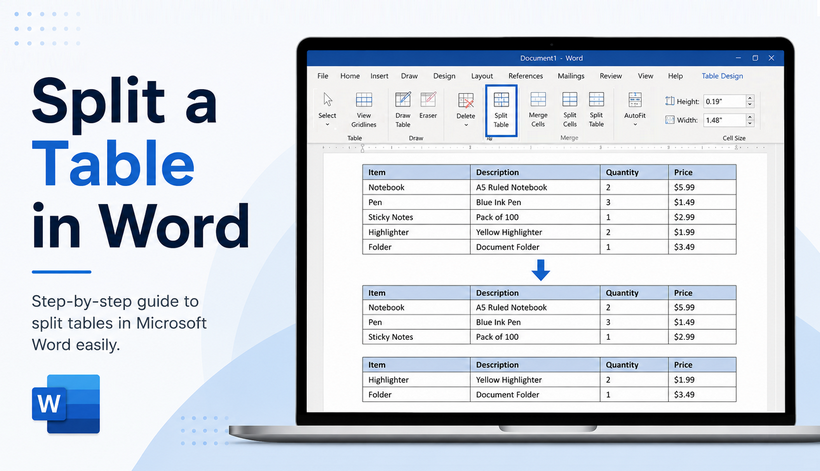
Tables are great for organizing data, but what happens when your table grows too long, or you need to insert a paragraph between rows? You don’t need to rebuild it from scratch. Instead, you can split a table in Word into two separate tables.
Learning to split Word table efficiently is a small but high-impact skill that refines your document structure, speeds up editing, and keeps all your data, styles, borders, and cell formatting fully preserved. Whether you’re a student, office worker, or developer, this guide will help you split tables confidently and correctly.
In this post, we’ll cover:
- What Does It Mean to Split a Table?
- 3 Manual Methods to Split a Table in Word
- VBA Automated Word Table Splitting
- C# Automation with Free Spire.Doc for .NET
- Frequently Asked Questions (FAQ)
What Does It Mean to Split a Table?
When you split a table in Word, you break one table into two independent tables at a chosen row. The row you select becomes the first row of the new second table.
⚠️ Note: Splitting a table is not the same as splitting cells. Splitting cells divides one cell into multiple columns/rows. Splitting a table divides the entire table structure.
Example:
Original 5-row table → Split at Row 3
- Table 1 (Upper): Rows 1–2
- Table 2 (Lower): Rows 3–5
3 Manual Methods to Split a Table in Word
Below are the most reliable manual methods to divide a table in Word, ranging from the easiest ribbon tool to full manual control.
1. Ribbon Tool (Easiest for Beginners)
The “Split Table” ribbon tool in MS Word provides a simple visual workflow with zero error risk, making it the ideal choice for new and casual Word users.
- Open your Word document and navigate to the table you want to split.
- Click anywhere inside the table to activate Table Tools (Design + Layout tabs).
- Place your cursor in the row that will start the second table.
- Go to the Table Layout tab.
- In the Merge group, click the “Split Table” button.
Result: Word instantly divides your single table into two separate tables, with the split occurring just above the row you selected.
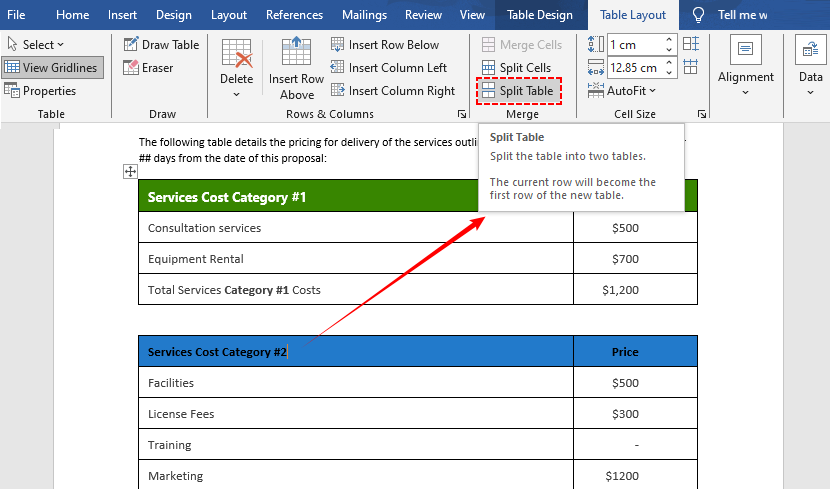
Tip: If you select multiple rows, the split will still happen above the first selected row.
After splitting a Word table into well‑organized chunks, you might need to analyze the data in Excel—learn how to export Word table to Excel for analysis.
2. Keyboard Shortcut (Fastest Option)
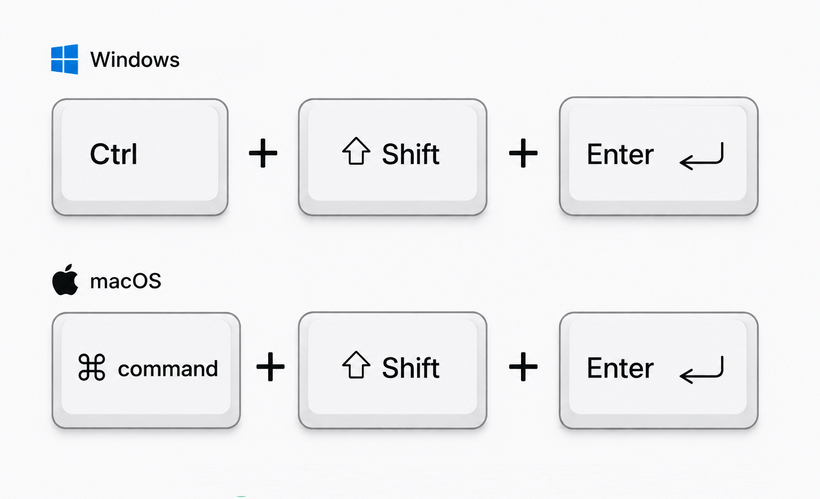
For users who prefer keyboard shortcuts (or want to save time), use the keyboard shortcut below to split a Word table in 1 second without touching the mouse.
- Windows: Ctrl + Shift + Enter
- Mac: Cmd + Shift + Enter
How to use it reliably:
- Place your cursor in any cell of the row that will be the first row of the second table.
- Press the shortcut.
- The table will split immediately at the cursor position.
Why it’s faster:
Your hands never leave the keyboard. Works in all desktop versions of Word (2016, 2019, 2021, 365, Mac).
⚠️ Note: In some international keyboard layouts, you may need to use "Ctrl + Shift + Return".
3. Cut & Paste (Full Control + Vertical Splits)
The above two methods split a table horizontally by default, but the cut-paste method can quickly split a table vertically into left/right side-by-side tables
- Select the rows or columns you want to move to a new table.
- Right-click → Cut (Ctrl+X/Cmd+X).
- Place your cursor where you want the new table.
- Right-click →Paste (Ctrl + V/Cmd+V) the cut rows or columns into the document. Word will automatically create a new table.
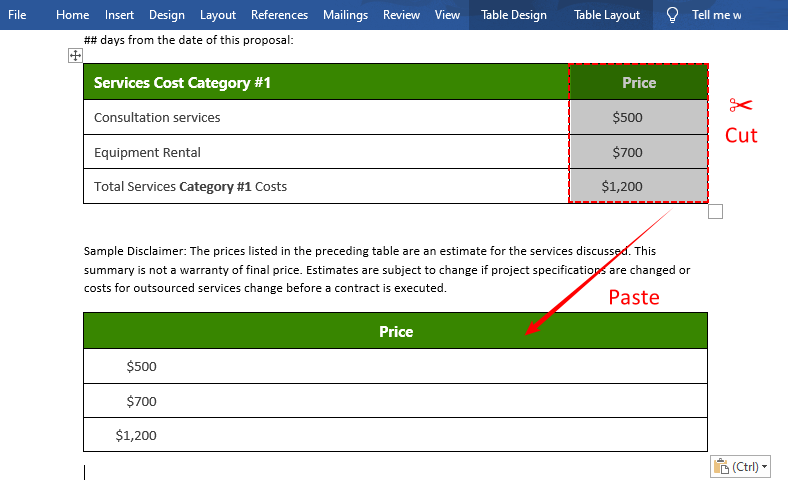
✅ Vertical splits use case: You have a wide table with 8 columns, but you want two tables of 4 columns each, side by side.
VBA Automated Word Table Splitting
Word does not have a built‑in “split all tables” feature. You must split each table individually. However, you can use a macro (VBA) to automate this.
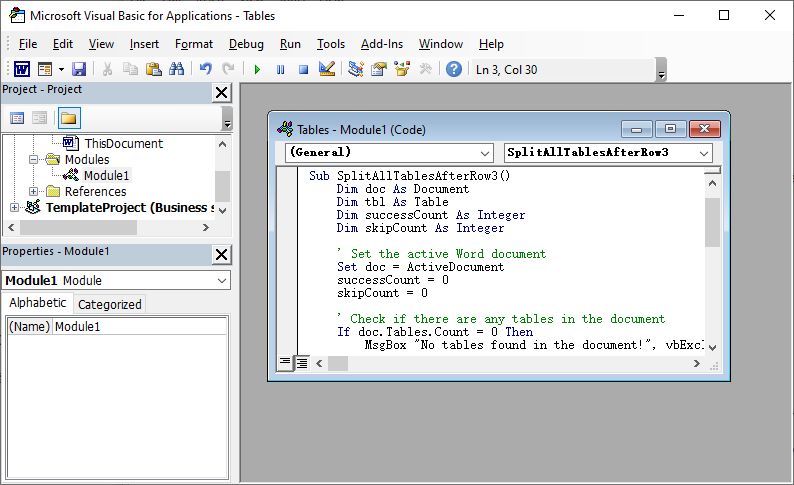
VBA Macro to split every table in a document after row 3:
Option Explicit

Sub SplitAllTablesAfterRow3()
    Dim doc As Document
    Dim tbl As Table
    Dim successCount As Integer
    Dim skipCount As Integer

    ' Set the active Word document
    Set doc = ActiveDocument
    successCount = 0
    skipCount = 0

    ' Check if there are any tables in the document
    If doc.Tables.Count = 0 Then
        MsgBox "No tables found in the document!", vbExclamation
        Exit Sub
    End If

    ' Loop through every table in the document
    For Each tbl In doc.Tables
        ' Only split tables with at least 4 rows (to split after row 3)
        If tbl.Rows.Count >= 4 Then
            ' Select the 4th row (this will be the first row of the new split table)
            tbl.Rows(4).Select
            ' Use Word's native SplitTable command (the correct method for splitting tables)
            Selection.SplitTable
            successCount = successCount + 1
        Else
            ' Skip tables that are too short to split after row 3
            skipCount = skipCount + 1
        End If
    Next tbl

    ' Show a summary of the operation
    MsgBox "Batch split completed!" & vbCrLf & _
           "Successfully split tables: " & successCount & vbCrLf & _
           "Skipped (insufficient rows): " & skipCount, vbInformation

End Sub
To use: Press "Alt+F11" to open VBA editor → Insert → Module → paste code → Run.
VBA Important Notes
- Save the document as .docm (macro-enabled Word document) to retain the macro.
- Enable macro security: Go to “File” → “Options” → “Trust Center” → “Trust Center Settings” → “Macro Settings” → Select “Enable all macros” (for trusted documents only).
C# Automation with Free Spire.Doc for .NET
For batch splitting tables in Word documents (reports, invoices, data forms), manual methods are inefficient. Instead, use Free Spire.Doc for .NET—a free library to split Word tables programmatically with C#.
Prerequisites
Install the Free Spire.Doc NuGet package:
Install-Package FreeSpire.Doc
Note: The free version has a limit of 25 tables per document. For larger documents, consider the commercial edition.
Basic C# Example: Split a Table at a Specific Row
This code loads a Word document, splits a table at a specified row index, creates a new table, and saves the modified document.
using Spire.Doc;

namespace SplitWordTable
{
    class Program
    {
        static void Main(string[] args)
        {
            //Create a Document instance
            Document doc = new Document();

            //Load a Word document
            doc.LoadFromFile("CombineTables.docx");

            //Get the first section
            Section section = doc.Sections[0];

            //Get the first table in the section
            Table table = section.Tables[0] as Table;

            //Specify to split the table from the fifth row
            int splitIndex = 4;

            //Create a new table
            Table newTable = new Table(section.Document);

            //Adds rows (from the 5th to the last row) to the new table
            for (int i = splitIndex; i < table.Rows.Count; i++)
            {
                newTable.Rows.Add(table.Rows[i].Clone());
            }

            //Delete rows from the original table
            for (int i = table.Rows.Count - 1; i >= splitIndex; i--)
            {
                table.Rows.RemoveAt(i);
            }

            //Add the new table to the section
            section.Tables.Add(newTable);

            //Save the result document
            doc.SaveToFile("SplitTable.docx", FileFormat.Docx);
        }
    }
}
Code Explanation:
- Document Initialization: Creates a blank document object to work with.
- Load File: Loads your existing Word file with the table to split.
- Section/Table Access: Targets the first section and first table (adjust indexes for multi-table docs).
- Split Index: Zero-based value → “splitIndex = 4” means to split after the 4th row.
- Clone Rows: Copies rows to the new table (preserves formatting/data).
- Clean Up Original Table: Removes the split rows from the source table.
- Save Document: Exports the modified Word file with two split tables.
Why Use Free Spire.Doc Instead of Word Interop?
| Feature | Free Spire.Doc | Microsoft.Office.Interop.Word |
|---|---|---|
| Requires Word installed | ❌ No | ✅ Yes |
| Works on headless servers | ✅ Yes | ❌ No |
| Formatting preservation | ✅ Excellent | ✅ Good |
| Free for small documents | ✅ Yes (25 tables) | ❌ No (requires Office license) |
Bonus Tip: Alongside splitting tables programmatically, you can extend your automation skills to generate new Word tables from scratch using C# and Free Spire.Doc.
Final Thoughts
Learning how to split a table in Word is a simple yet powerful skill for clean, professional documents. For one-off tasks, use the ribbon button, the Ctrl + Shift + Enter shortcut, or the cut‑and‑paste method. For bulk automation, the VBA macro or the C# method saves hours of manual work.
Whether you’re a casual Word user or a developer, this guide has everything you need to separate tables in Word perfectly every time.
Frequently Asked Questions (FAQ)
Q1: Can I split table vertically in Word?
A: Yes, use the cut/paste method. Select columns → Cut → Paste next to the original. You can adjust column widths if needed.
Q2: Does splitting a table delete any data?
A: No. All content remains exactly as it was. Splitting only changes the table structure.
Q3: How do I merge split tables back together?
A: Delete the blank paragraph between the two tables → Word auto-merges them into one. Free Spire.Doc for .NET also supports merging Word tables via C# code.
Q4: How do I split a table into more than two tables?
A: Repeat the splitting process on any of the resulting tables. For example, split Table 1, then split one of the new tables.