When you share a Word document with colleagues, clients, or printers, you expect it to look exactly the same on every device. However, if the recipient does not have the fonts used in the document installed, Word may automatically substitute them with different fonts, causing layout shifts, spacing issues, and inconsistent formatting.
Font embedding solves this problem by storing font information directly inside the document or output file. As a result, the document can preserve its original appearance even when opened on a computer that lacks the required fonts.
In this guide, you'll learn three practical ways to embed fonts in Word documents, including Word's built-in font embedding feature, PDF conversion, and a C# automation solution for developers.
Quick navigation:
- Method 1: Embed Fonts Using Microsoft Word's Built-In Feature
- Method 2: Convert Word Documents to PDF with Embedded Fonts
- Method 3: Embed Fonts in Word Documents Programmatically in C#
Prerequisites and Important Considerations
Before embedding fonts, it's helpful to understand a few limitations and requirements.
Supported Word Versions
Font embedding is supported in most modern versions of Microsoft Word, including Microsoft 365, Word 2021, Word 2019, and Word 2016. If you're using an older version, some options may be unavailable or behave differently.
Supported Font Types
Word primarily supports embedding TrueType (.ttf) and OpenType (.otf) fonts. Most modern fonts fall into one of these categories.
Font Licensing and Embedding Permissions
Not all fonts can be embedded. Font creators can define embedding permissions that determine whether a font may be included in a document. Some fonts allow full embedding, while others permit only previewing and printing. Restricted fonts cannot be embedded at all.
File Size Impact
Embedding fonts increases the size of a document because font data is stored within the file. The amount of growth depends on whether you embed the entire font or only the characters actually used in the document.
Method 1: Embed Fonts Using Microsoft Word's Built-In Feature
Microsoft Word includes a built-in option that allows you to embed fonts directly into a document. This is the simplest and most commonly used solution.
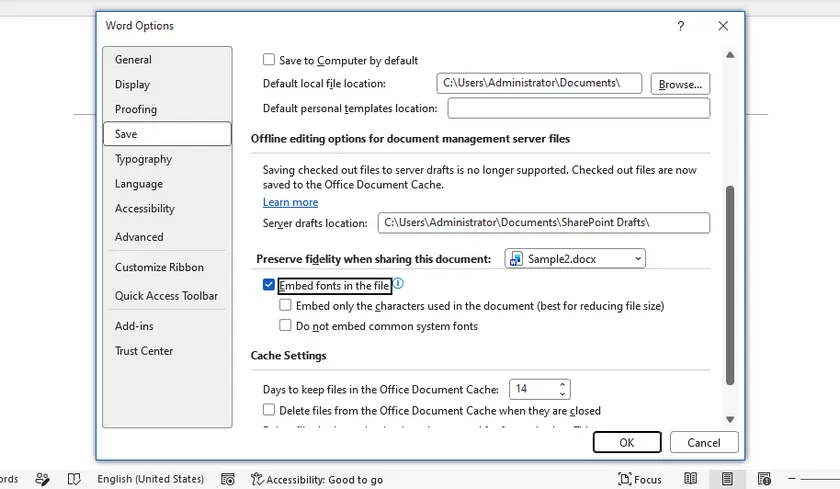
Enable Font Embedding in Word
To embed fonts:
- Open your Word document.
- Click File > Options.
- Select Save.
- Under Preserve fidelity when sharing this document, check Embed fonts in the file.
- Save the document.
After saving, Word stores font information inside the document whenever the selected fonts allow embedding.
Advanced Embedding Options
Word provides two additional options that help balance compatibility and file size:
- Embed only the characters used in the document – Embeds only the glyphs that appear in the document, reducing file size. However, if someone later adds new characters that were not included, the original font may be required.
- Do not embed common system fonts – Skips fonts that are commonly installed on most computers, further reducing file size while relying on the recipient's system to provide those fonts.
For documents intended for editing and long-term sharing, embedding all required font data is usually the safest choice. If file size is a concern, consider embedding only the used characters while keeping important custom fonts embedded.
Method 2: Convert Word Documents to PDF with Embedded Fonts
In many situations, the goal is not to edit the document but simply to ensure that it displays and prints correctly. In such cases, converting the Word document to PDF can be an effective alternative.
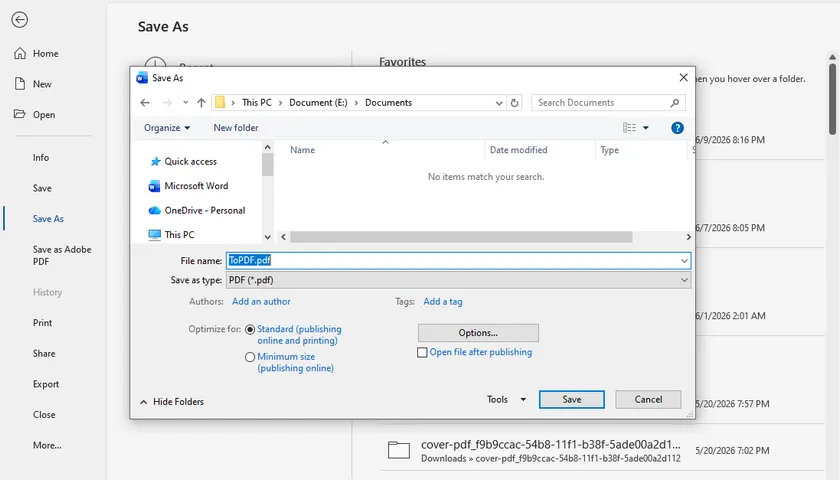
Save a Word Document as PDF
Microsoft Word can export documents directly to PDF.
- Open the document.
- Click File > Save As.
- Choose a destination folder.
- Select PDF as the file type.
- Save the file.
During PDF creation, Word typically embeds the fonts required to render the document correctly.
Verify Fonts Are Embedded
After generating the PDF, you can verify the embedded fonts using a PDF viewer.
In Adobe Acrobat Reader:
- Open the PDF.
- Select File > Properties.
- Open the Fonts tab.
Fonts marked as Embedded or Embedded Subset indicate that the font information is included in the PDF.
Advantages and Limitations
PDF files provide excellent consistency across operating systems and devices. They are ideal for document distribution, publishing, and printing.
However, PDF files are not intended for collaborative editing. If recipients need to modify the content extensively, embedding fonts directly in the Word document may be a better choice.
Method 3: Embed Fonts in Word Documents Programmatically in C#
If you generate Word documents automatically, manually configuring font settings in Word may not be practical. In such cases, programmatic font embedding provides a scalable solution.
Using Spire.Doc for .NET, you can embed custom fonts into Word documents by specifying local font files. The library supports both newly created documents and existing Word files, making it suitable for automated document workflows.
Why Use Programmatic Font Embedding?
Automated font embedding is useful for:
- Document generation systems
- Reporting applications
- Batch document processing
- Template-based workflows
- Documents that rely on custom branding fonts
Instead of requiring users to install fonts manually, the application can package the necessary font resources directly into the generated document.
Embed Fonts in a Word Document Using C#
using Spire.Doc;
using Spire.Doc.Documents;
using Spire.Doc.Fields;

namespace Embed_private_font_into_Word
{
    class Program
    {
        static void Main(string[] args)
        {
            Document document = new Document();
            Section section = document.AddSection();
            Paragraph p = section.AddParagraph();

            TextRange range = p.AppendText("Let life be beautiful like summer flowers\n"
                +"Life, thin and light-off time and time again\n"
                + "Frivolous tireless");
            range.CharacterFormat.FontName = "DeeDeeFlowers";
            range.CharacterFormat.FontSize = 20;

            document.EmbedFontsInFile = true;
            document.PrivateFontList.Add(new PrivateFontPath("DeeDeeFlowers", @"C:\Fonts\DeeDeeFlowers.ttf"));

            document.SaveToFile("result.docx", FileFormat.Docx);
        }
    }
}
In this example, a custom font is loaded from a local TTF file, applied to the document content, and embedded into the generated DOCX file. As a result, the document can display correctly even on systems where the font is not installed.
Benefits of Automated Font Embedding
Automated font embedding is especially valuable in document generation and processing workflows. In addition to embedding custom fonts, developers can programmatically modify document content, change fonts, apply formatting, and convert Word documents to PDF while maintaining a consistent appearance. Combining these operations into a single workflow reduces manual work and helps ensure reliable results across different devices and environments.
How to Check Whether Fonts Are Embedded
After embedding fonts, it is a good idea to verify the result.
For Word documents, reopen the file on another computer that does not have the original font installed. If the document displays correctly without font substitution, the embedding was successful.
For PDF files, use the Fonts section in the document properties to confirm that the fonts are listed as embedded.
Testing on a separate machine is often the most reliable way to validate the final output.
Troubleshooting Common Font Embedding Issues
Fonts Not Embedded Successfully
If the document displays correctly on your computer but uses different fonts on another device, the fonts may not have been embedded successfully. Ensure the file is saved in .docx format and that Embed fonts in the file is enabled before saving. To verify the result, open the document on a computer that does not have the original fonts installed.
Grayed-out Embed Fonts Option
This option may be unavailable when the document is opened in Compatibility Mode, set to read-only, or restricted by organizational policies. Try converting the file to the latest DOCX format and removing any editing restrictions. Updating Microsoft Word to the latest version may also restore the feature.
File Size Too Large After Embedding
Embedding fonts can noticeably increase file size, especially when multiple custom fonts are used. To reduce the impact, enable Embed only the characters used in the document and Do not embed common system fonts. Limiting the number of embedded font families can also help keep the document size manageable.
Specific Fonts Cannot Be Embedded
Some fonts include licensing restrictions that prevent embedding. If Word displays a warning or skips a font during saving, check the font's embedding permissions and consider using an embeddable alternative. If editing is not required, converting the document to PDF is often the simplest workaround.
Conclusion
Embedding fonts is one of the most effective ways to preserve the appearance of Word documents across different devices and environments. For everyday use, Word's built-in embedding feature is often sufficient. For document distribution, converting to PDF provides excellent compatibility. For automated workflows and large-scale document generation, C# font embedding offers the greatest flexibility and control.
By choosing the method that best fits your scenario, you can prevent font substitution issues and ensure that your documents always appear exactly as intended.
FAQs
Can all fonts be embedded in Word?
No. Font embedding depends on the permissions defined by the font vendor.
Does embedding fonts increase file size?
Yes. The document becomes larger because font data is stored inside the file.
What is the difference between full embedding and subset embedding?
Full embedding includes the entire font, while subset embedding includes only the characters used in the document.
Is PDF better than embedding fonts in Word?
PDF is generally better for sharing and printing, while embedded Word documents remain easier to edit.
Can I embed fonts automatically using C#?
Yes. Libraries such as Spire.Doc allow developers to embed fonts programmatically during document generation.