
Password-protected Word documents are useful for keeping sensitive information secure—but they can also become a hassle when you need to edit, share, or automate documents. This is especially common when working with files received from others or older documents with forgotten settings.
Whether you know the password or are dealing with editing restrictions , this guide covers 5 effective ways to remove protection from Word files, including free tools, built-in features, and a Python automation method using Spire.Doc.
Overview of the methods covered:
- Method 1: Remove Protection Using Microsoft Word
- Method 2: Remove Basic Editing Restrictions in Word
- Method 3: Remove Protection Using Google Docs
- Method 4: Remove Protection Using VBA Macros
- Method 5: Automate Removal Using Python (Spire.Doc)
Why Remove Protection from a Word File?
Here are some common reasons users want to remove protection:
- You already know the password and want quicker access.
- You need to edit a restricted document.
- You want to remove unnecessary limitations before sharing.
- You need to process files in bulk (automation).
The right method depends on the type of protection applied to the document.
Before You Start: Types of Word Protection
Understanding these differences is critical, because not all methods work for every case.
1. Open Password (Encryption)
Strong encryption required to open the file; cannot be bypassed without the correct password.
2. Editing Restrictions (No Password)
Files open normally with limited editing access; no protection password needed to unlock.
3. Editing Restrictions with Protection Password
Files open freely, but editing is locked. A protection password is required for official removal, and this weak protection can be bypassed by most tools.
Note: This type of protection is weaker than encryption and may be removed by some tools without needing the protection password.
Method 1: Remove Protection Using Microsoft Word
Applicable Scope: Documents with known open passwords or known protection passwords; all mainstream Word versions (2016/2019/2021/365)
Best For: Beginners, formal office scenarios, files requiring 100% format and content integrity
This is the most secure, official solution provided by Microsoft. It modifies document encryption and restriction settings natively, with zero risk of file corruption, formatting loss, or content distortion. It supports canceling both open encryption and editing restrictions, but you must enter the correct corresponding password to complete the operation.
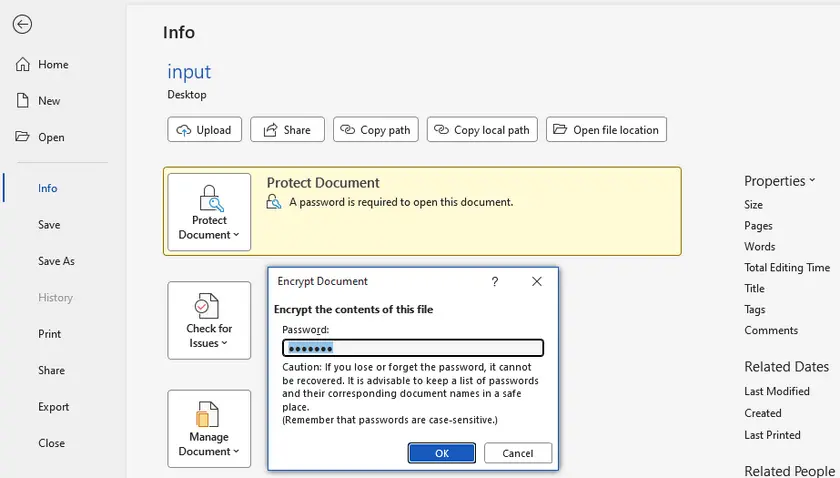
Step-by-Step Instructions
- Double-click to open the protected Word file and enter the required open password if prompted.
- Navigate to File > Info > Protect Document .
- Select Encrypt with Password .
- Delete all characters in the password input box and leave it blank.
- Click OK , then press Ctrl+S to save changes permanently.
- For editing restrictions: Go to Review > Restrict Editing, enter the protection password, and stop protection.
Method 2: Remove Basic Editing Restrictions in Word
Applicable Scope: Documents with editing limits but no protection password set; no full open encryption
Best For: Lightly restricted daily documents, quick one-click unlocking
This native Word solution targets low-level editing locks with no protection password. You can disable all restrictions in seconds without external tools or technical operations. It only works for simple permission limits and will fail if a protection password is configured.
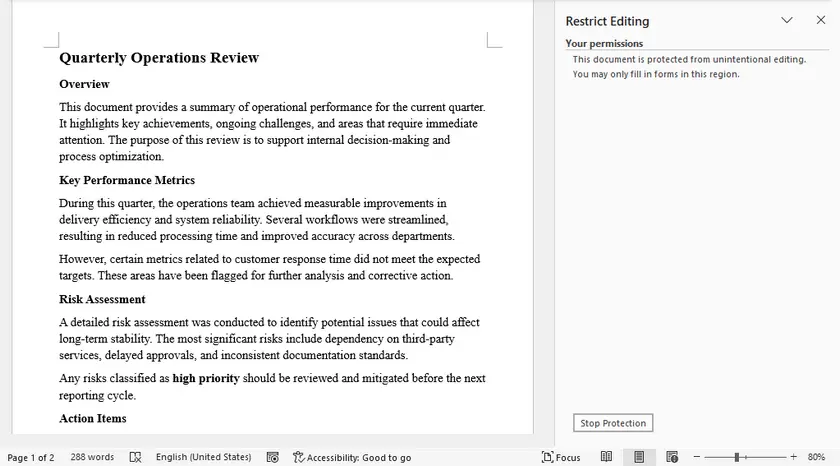
Step-by-Step Instructions
- Open the restricted Word document normally.
- Switch to the Review tab on the top ribbon.
- Click Restrict Editing on the right sidebar.
- Directly click Stop Protection; no password input is needed.
- Save the file to retain unrestricted editing access.
Method 3: Remove Protection Using Google Docs
Applicable Scope: Unencrypted Word files or files with a known open password; documents locked by protection password
Best For: Users without local Word admin rights, free cross-device unlocking, unknown protection password scenarios
Google Docs automatically strips Word’s custom editing restriction rules during format conversion. It is the most popular free trick to bypass unknown protection passwords. As long as you can open the file (with an open password if needed), all editing locks will be removed after re-downloading.
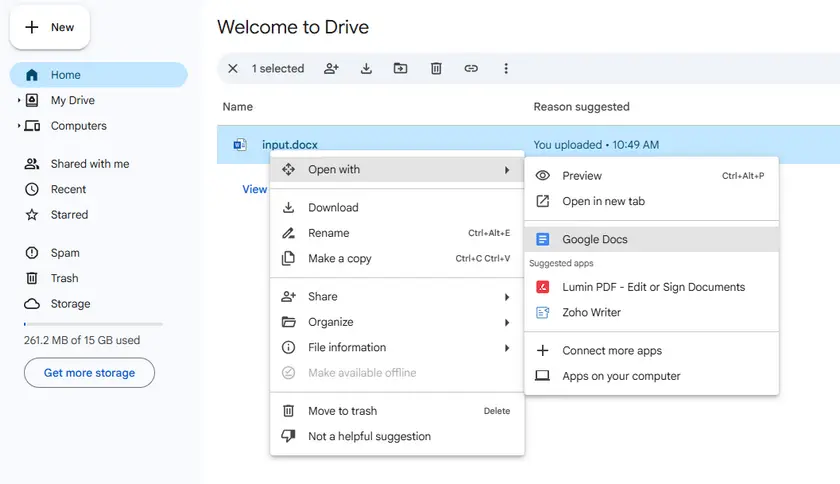
Step-by-Step Instructions
- Log in to Google Drive and upload your protected Word (.docx/.doc) file.
- Right-click the uploaded file and select Open with > Google Docs.
- Enter the open password if the document is encrypted.
- Once loaded, all editing restrictions and protection password limits are automatically lifted.
- Navigate to File > Download > Microsoft Word (.docx).
- The downloaded new file is fully unlocked and editable.
Method 4: Remove Protection Using VBA Macros
Applicable Scope: Windows-only Microsoft Word automation, requires correct passwords (does not bypass protection)
Best For: Intermediate users, offline office environments, frequent unlocking demands
VBA macros run locally in Microsoft Word and can be used to programmatically remove document protection. Unlike some online tools, this method does not bypass passwords —you must provide the correct open password to access the document and the correct editing (permission) password to remove restrictions. Once the document is accessible, the macro can automate the process of disabling protection and saving an unprotected copy. This makes it a useful offline solution for batch processing or repetitive tasks, but it cannot break or bypass any password-protected encryption.
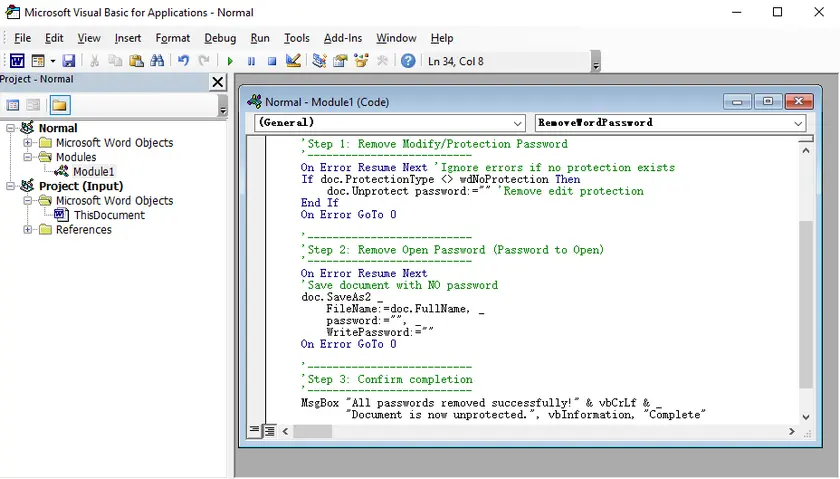
Step-by-Step Instructions (Batch Processing)
- Prepare a folder containing all the Word documents you want to unlock. Make sure you know the open password (if any) and the editing restriction password used in these files.
- Open Microsoft Word (no need to open a specific document).
- Press Alt + F11 to launch the VBA Editor.
- In the top menu, click Insert > Module to create a new module.
- Paste the batch VBA code into the module window.
- Update the following variables in the code:
- folderPath → the path to your target folder
- openPwd → the document open password (leave empty if none)
- editPwd → the editing restriction password
- Press F5 (or click Run ) to execute the macro.
- The macro will process all .docx files in the folder and save unlocked copies (e.g.,unlocked_filename.docx) in the same directory.
VBA Code:
Sub BatchRemoveProtection()

    Dim folderPath As String
    Dim fileName As String
    Dim doc As Document

    '==========================
    ' User Inputs
    '==========================
    folderPath = "C:\Docs\"   ' <-- update folder path
    Dim openPwd As String
    openPwd = ""              ' <-- set if files have open password

    Dim editPwd As String
    editPwd = "your_edit_password"   ' <-- set editing restriction password

    '==========================
    ' Loop through all DOCX files
    '==========================
    fileName = Dir(folderPath & "*.docx")

    While fileName <> ""

        ' Open document (with optional open password)
        Set doc = Documents.Open( _
            FileName:=folderPath & fileName, _
            PasswordDocument:=openPwd, _
            ReadOnly:=False)

        ' Remove editing restrictions
        If doc.ProtectionType <> wdNoProtection Then
            doc.Unprotect Password:=editPwd
        End If

        ' Remove read-only recommendation
        doc.ReadOnlyRecommended = False

        ' Save as new file
        doc.SaveAs2 _
            FileName:=folderPath & "unlocked_" & fileName, _
            Password:="", _
            WritePassword:=""

        doc.Close SaveChanges:=False

        fileName = Dir()
    Wend

    MsgBox "Batch processing completed!"

End Sub
Method 5: Automate Removal Using Python (Spire.Doc)
Applicable Scope: Bulk document processing, customized automation workflows, developer integration; files with known open passwords
Best For: Developers, enterprise batch processing, backend system integration, repetitive workflow automation
Combining Python and the Spire.Doc library enables programmable document decryption and protection removal. This method is designed for mass file processing and secondary development, with stable performance and complete format retention for formal business scenarios.
Step-by-Step Instructions
1. Install the Spire.Doc Library
pip install spire.doc
2. Remove Password with Python
from spire.doc import *
from spire.doc.common import *

# Load the document with password
document = Document()
document.LoadFromFile("input.docx", FileFormat.Auto, "open-pwd")

# Remove encryption
document.RemoveEncryption()

# Remove the editing restriction by setting the restriction type to None
document.Protect(ProtectionType.NoProtection)

# Save the unlocked document
document.SaveToFile("unlocked.docx", FileFormat.Docx)
document.Close()
Why Use Python for This Task?
- Process dozens of locked Word files in one batch.
- Embed unlocking functions into internal office systems.
- Reduce manual repetitive operations and improve work efficiency.
As a comprehensive Word library, Spire.Doc not only enables you to remove passwords and editing restrictions, but also provides powerful document cleanup capabilities such as removing watermarks, deleting hyperlinks, and modifying document structure programmatically.
You can further extend your workflow by integrating features like content extraction, formatting control, and batch document transformation for more advanced automation scenarios. This makes it easy to build end-to-end document processing pipelines without relying on Microsoft Word.
Which Method Should You Choose?
| Method | Core Use Case | Key Feature |
|---|---|---|
| Native Word Official | Known password, secure office use | Official, no file damage |
| Basic Restriction Removal | Simple editing locks, no password | Fast one-click unlock |
| Google Docs | Bypass unknown protection password | Free, no extra software |
| VBA Script | Offline Windows local unlocking | Automated unlock |
| Python + Spire.Doc | Custom automation & developer tasks | Code-based automatic processing |
Conclusion
Word document protection is designed for data security, but unreasonable restriction settings often hinder daily collaboration and editing.
We have sorted out 5 differentiated unlocking solutions covering casual office, free workaround, offline scripting, and enterprise automation. Always confirm your document’s protection type first:
- For open password encryption , both official and third party tools with the correct password work;
- For protection password editing locks , Google Docs and Python can remove editing restrictions in many cases.
Choose the corresponding solution based on your device system, network environment, and file volume to quickly remove Word protection without damaging original content and formatting.
FAQs
Q1: Can these methods crack a Word file with an unknown open password?
No. Open password adopts strong encryption. All methods above require the correct password to open the file. Only editing protection passwords can be bypassed.
Q2: Will unlocking damage my Word formatting, images or tables?
Official Word and Python Spire.Doc ensure full format retention. Google Docs may distort complex layouts; VBA has almost no impact on file content.
Q3: Is VBA safe for sensitive company documents?
Yes. The VBA script runs locally offline, with no data upload or leakage risk, making it suitable for confidential internal files.
Q4: Does this work for old .doc format and new .docx format?
All methods support mainstream .docx; Google Docs and Spire.Doc are also compatible with legacy .doc files.