Adding page borders in Microsoft Word is a simple way to enhance document appearance, whether you're creating reports, certificates, or styled documents. However, Word’s built-in border options are mainly designed for entire documents or sections, which can limit flexibility in certain layout scenarios.
In this guide, you’ll learn 4 simple and practical methods to add page borders in Word—covering the entire document, specific sections, and even any single page using reliable workarounds.
Quick Navigation:
- Method 1: Using Page Borders Feature in Word
- Method 2: Using a Shape as a Border
- Method 3: Using a Text Box as a Border
- Method 4: Using Python Add Borders Automatically
Method 1: Using Page Borders Feature in Word
The built-in Page Borders feature is the most straightforward way to add borders in Word. It works best when you want to apply borders to the entire document or a section. However, it comes with limitations when targeting a specific page.
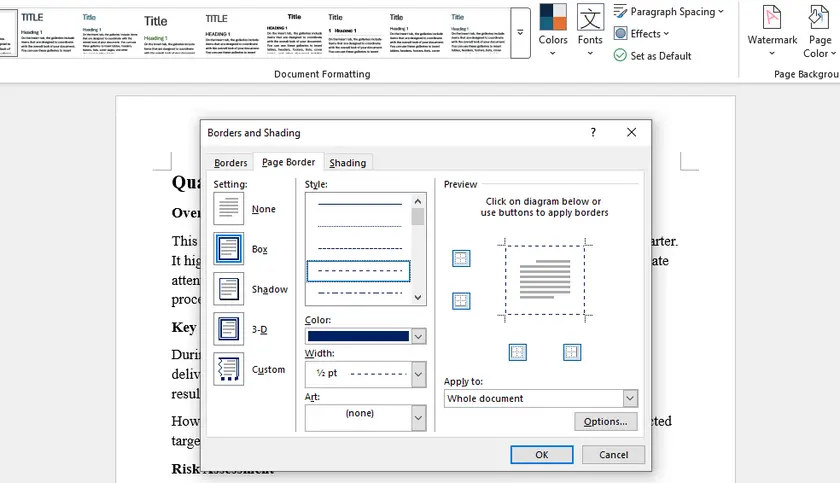
How to Add Borders to the Whole Document or a Section
- Open your Word document.
- Go to Design → Page Borders .
- In the Borders and Shading dialog:
- Choose a border style (Box, Shadow, 3-D, Custom).
- Set color and width.
- Under Apply to , select:
- Whole document, or
- This section
- Click OK .
Understanding the Limitation
Word’s Page Borders feature only provides these options:
- Whole document
- This section
- This section – First page only
- This section – All except first page
There is no direct “This page only” option.
Workaround: Apply Border to a Specific Page
To add a border to a single page using this method:
- Place your cursor at the start of the target page.
- Go to Layout → Breaks → Next Page (insert a section break).
- Place the cursor at the end of that page and insert another Next Page section break.
- Now go to Design → Page Borders .
- Select Apply to: This section – First page only .
- Click OK .
This works because the page becomes the first page of a new section.
Method 2: Using a Shape as a Border
If you need to add a border to any specific page without dealing with sections, using a shape is one of the easiest and most flexible methods. It allows full control over appearance and works independently of Word’s border limitations.
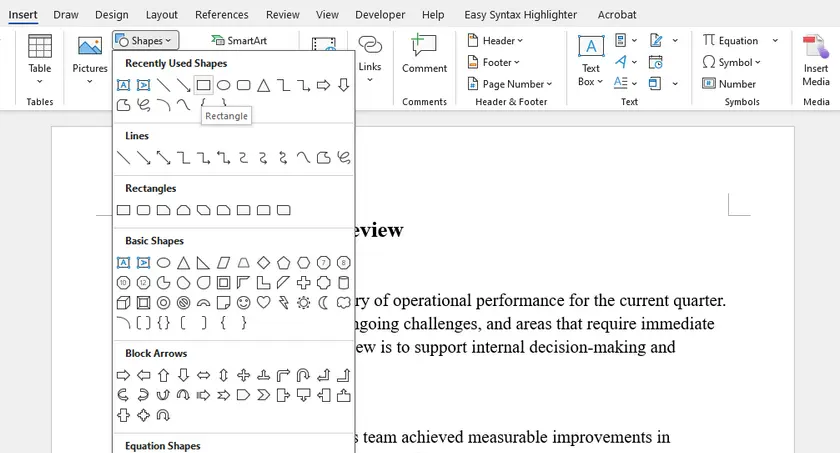
Steps
- Go to Insert → Shapes → Rectangle .
- Draw the rectangle to fit within the page margins.
- Right-click the shape → Format Shape :
- Set Fill → No Fill
- Customize Line (color, width, style)
- Set the shape layout to Behind Text .
Why Use This Method?
- Works on any page
- No need for section breaks
- Highly customizable
Method 3: Using a Text Box as a Border
If you want to add a border to any specific page with extra flexibility—such as including decorative text or designs—a Text Box is a great choice. It works independently of Word’s border limitations and does not require creating sections.
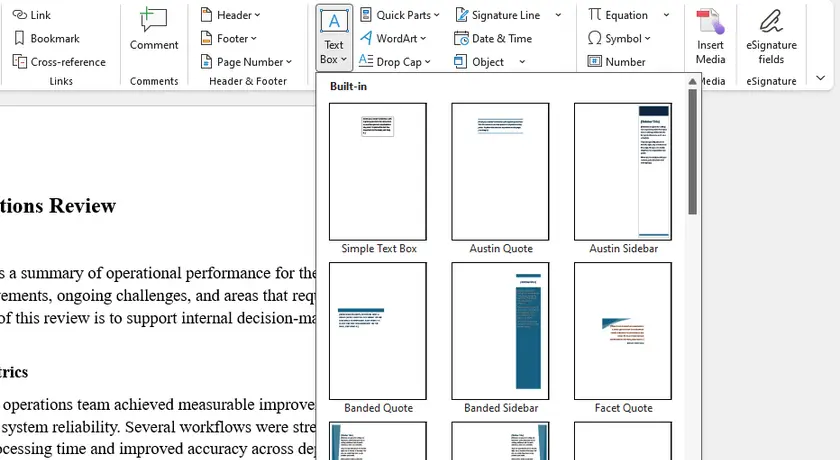
Steps
- Go to Insert → Text Box → Draw Text Box .
- Set the Text Box Layout to Behind Text to prevent moving existing content.
- Delete the placeholder text inside the Text Box.
- Adjust the Text Box position and size so it covers the page edges as desired.
- Right-click → Format Shape :
- Set Fill to No Fill
- Customize Line (color, width, style)
Why Use This Method?
- Works on any page, no section breaks needed
- Does not disturb existing content when layout is set first
- Can include decorative text or designs inside the border
- Stable and flexible for single-page borders
Tip: If you only need a simple border without text, a Shape works just as well and is slightly lighter.
Method 4: Using Python to Add Borders Automatically
If you need to apply page borders to multiple Word documents or automate the process, using Python is the most efficient solution. Libraries like Spire.Doc for Python allow you to programmatically add and customize page borders with precision.
Install Required Library
pip install spire.doc
Code Example: Add Borders to Word in Python
from spire.doc import *
from spire.doc.common import *

# Load document
doc = Document()
doc.LoadFromFile(r"C:\Users\Administrator\Desktop\Input-en.docx")

# Apply borders to all sections
for i in range(len(doc.Sections)):
    section = doc.Sections[i]
    setup = section.PageSetup
    borders = setup.Borders

    setup.PageBordersApplyType = PageBordersApplyType.AllPages
    borders.BorderType(BorderStyle.DotDotDash)
    borders.LineWidth(1)
    borders.Color(Color.get_Blue())

    # Set spacing for all sides
    for side in [borders.Top, borders.Bottom, borders.Left, borders.Right]:
        side.Space = 20.0

# Save result
doc.SaveToFile("AddWordPageBorders.docx", FileFormat.Docx)
doc.Dispose()
Output:

Why Use This Method?
- Ideal for batch processing
- Ensures consistent formatting
- Perfect for automation workflows
This approach is especially useful for generating documents like reports, invoices, or certificates at scale.
In addition to adding borders, you can also use Spire.Doc to adjust page margins for precise layout control; you can apply background colors or watermarks to Word pages, enhancing the visual design of your documents.
Quick Comparison Table
| Method | Best For | Can Target Any Page | Difficulty |
|---|---|---|---|
| Page Borders | Whole document / sections | ✗ (needs workaround) | Easy |
| Section Break + Page Borders | Specific page | √ | Medium |
| Shape | Single page or multiple pages | √ | Easy |
| Text Box | Single page with optional text/decor | √ | Easy |
| Python (Spire.Doc) | Automation / batch processing | √ | Advanced |
Conclusion
Adding page borders in Word depends on your specific needs and the level of control you want over your document:
- Page Borders are ideal for adding borders to the entire document or specific sections quickly and consistently.
- Section breaks are useful if you want to leverage Word’s built-in border feature for a single page while maintaining proper layout.
- Shapes or Text Boxes provide a fast, flexible way to add borders on any page without affecting existing content; Text Boxes are especially handy if you want to include decorative text or designs.
- Python automation is perfect for batch processing multiple documents, ensuring consistent borders across all files.
By choosing the right method, you can overcome Word’s limitations, save time, and create professional-looking documents that match your design vision.
FAQs
Why can’t I add a border to just one page in Word?
Because Word’s border feature is section-based, not page-based. There’s no built-in “this page only” option.
What’s the easiest way to add a border to a single page?
Using a shape (rectangle) is the quickest and simplest method.
Which method is best for professional documents?
For consistency, use Page Borders with sections or Python automation.
Do text boxes affect document layout?
Text Box will not disturb existing content if its layout is set to Behind Text.