
When your React app builds PDFs on the fly — an invoice that needs a company logo, a report with an embedded chart, a certificate carrying a signature — you have to place raster images onto the page programmatically. Plain JavaScript can't write into a PDF's internal structure, and standing up a backend just to stamp a logo is overkill for what is really a client-side task.
Spire.PDF for JavaScript compiles a full PDF engine to WebAssembly, so your React app can create, edit, and save PDFs entirely in the browser. Files move through an in-browser Virtual File System (VFS), so there's no network round-trip. With PdfImage and the page canvas's DrawImage method, you control exactly where and how large each image appears.
In this article, you will learn how to:
- Load an image into the VFS and turn it into a
PdfImageobject - Draw it onto a PDF page at a chosen position and size
- Add images to both brand-new and existing PDF documents
- Scale, center, and repeat images across multiple pages
- Trigger a browser download of the finished PDF
Why generate PDFs in the browser
The usual alternative is a server-side library (iText, PDFBox, and the like): the browser uploads the assets, the server renders, and the result comes back. That works, but for image stamping it adds friction:
- Latency — every render waits on a round-trip, which stings for large files or slow connections.
- Privacy — source documents and images leave the user's machine, a problem for anything sensitive.
- Cost — PDF rendering is CPU-heavy and doesn't scale for free.
With Spire.PDF for JavaScript the whole job runs in the browser via WebAssembly. Once the WASM module is loaded, rendering is local and instant, the file never leaves the device, and you pay nothing in server time.
Prerequisites
This walkthrough assumes you already have a React project with Spire.PDF for JavaScript installed and the WASM module initialized. If not, follow Integrating Spire.PDF for JavaScript in a React Project first.
You'll need:
- The
spire.pdf.base.jsandspire.pdf.base.wasmfiles in your project'spublicfolder - The WASM module reachable via
window.wasmModule.spirepdf - An image to embed (PNG, JPEG, etc.) placed where the VFS can load it
Add an image to a new PDF
The simplest scenario: create a brand-new PDF document and draw an image onto its first page. The core steps are:
-
Load the image into the VFS using
window.spire.FetchFileToVFS -
Create a
PdfDocumentand add a blank page -
Create a
PdfImagefrom the loaded file withPdfImage.FromFile -
Draw the image onto the page canvas with
page.Canvas.DrawImage - Save and download the result
function App() {
  const addImageToPdf = async () => {
    // Get the Spire.PDF WASM module
    const pdfModule = window.wasmModule?.spirepdf;

    // Check if the WASM module is ready
    if (!pdfModule) {
      alert('Spire.PDF is not ready yet');
      return;
    }

    // Load the image into VFS
    const inputImageName = 'TreePic.png';
    await window.spire.FetchFileToVFS(inputImageName, "", `${process.env.PUBLIC_URL}/data/`);

    // Create a PdfDocument object
    let doc = new pdfModule.PdfDocument();

    // Add a page
    let page = doc.Pages.Add();

    // Load the image and scale its display size proportionally
    let image = pdfModule.PdfImage.FromFile(inputImageName);
    let width = image.Width * 0.6;
    let height = image.Height * 0.6;

    // Calculate the horizontal center position and set the vertical position
    let x = (page.Canvas.ClientSize.Width - width) / 2;
    let y = 60;

    // Draw the image at the specified position on the page
    page.Canvas.DrawImage({ image: image, x: x, y: y, width: width, height: height });

    // Define the output file name in PDF format
    const outputFileName = 'AddImage.pdf';

    // Save as PDF format
    doc.SaveToFile({ fileName: outputFileName });
    doc.Close();

    // Read the generated PDF file from VFS and trigger download
    const fileArray = window.dotnetRuntime.Module.FS.readFile(outputFileName);
    const blob = new Blob([fileArray], { type: 'application/pdf' });
    const url = URL.createObjectURL(blob);
    const a = document.createElement('a');
    a.href = url;
    a.download = outputFileName;
    a.click();
    URL.revokeObjectURL(url);
  };

  return (
    <div style={{ textAlign: 'center', height: '300px' }}>
      <h1>Add Image To PDF</h1>
      <button onClick={addImageToPdf}>
        Generate
      </button>
    </div>
  );
}

export default App;
PDF document generated after adding an image
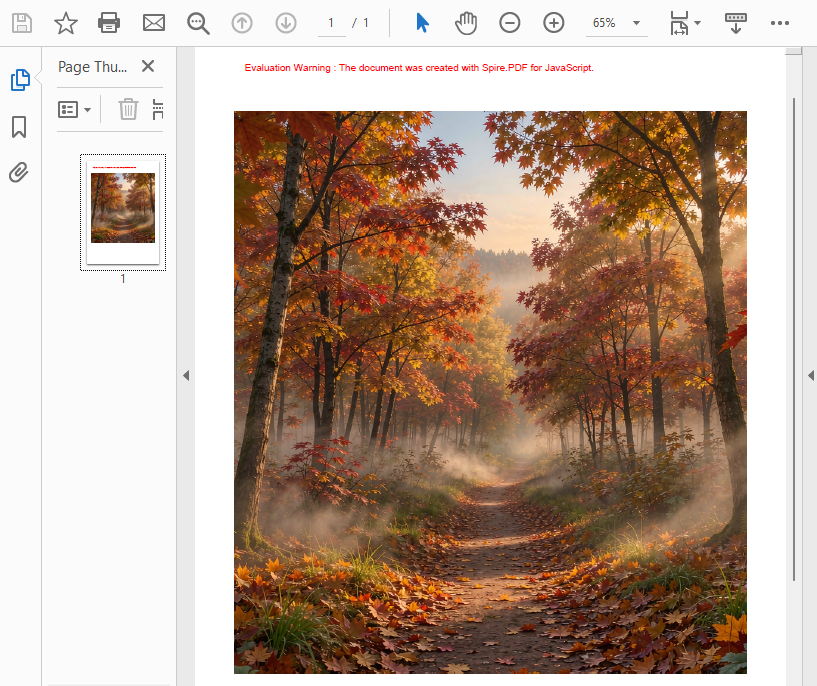
What the code does:
-
PdfImage.FromFile(inputImageName)reads the image from the VFS and creates aPdfImageobject. The original pixel dimensions are available viaimage.Widthandimage.Height. -
page.Canvas.DrawImage(...)renders the image onto the page. Thexandyparameters set the top-left corner position, andwidthandheightcontrol the display size. - The image is scaled to 60% of its original size (
* 0.6) and horizontally centered using(page.Canvas.ClientSize.Width - width) / 2.
Add an image to an existing PDF
Adding an image to an existing document follows the same pattern — the only difference is that instead of creating a new PdfDocument, you load one from the VFS and select the target page.
const addImageToExistingPdf = async () => {
  const pdfModule = window.wasmModule?.spirepdf;
  if (!pdfModule) return;

  // Load both the PDF and the image into VFS
  await window.spire.FetchFileToVFS('Report.pdf', "", `${process.env.PUBLIC_URL}/data/`);
  await window.spire.FetchFileToVFS('Logo.png', "", `${process.env.PUBLIC_URL}/data/`);

  // Load the existing PDF
  let doc = new pdfModule.PdfDocument();
  doc.LoadFromFile('Report.pdf');

  // Get the first page (or any page you want)
  let page = doc.Pages.get_Item(0);

  // Load the image and draw it at the top-right corner
  let image = pdfModule.PdfImage.FromFile('Logo.png');
  let imgWidth = 80;
  let imgHeight = 40;
  let x = page.Canvas.ClientSize.Width - imgWidth - 30; // 30pt margin from right edge
  let y = 30; // 30pt from top

  page.Canvas.DrawImage({ image: image, x: x, y: y, width: imgWidth, height: imgHeight });

  // Save and download
  const outputFileName = 'ReportWithLogo.pdf';
  doc.SaveToFile({ fileName: outputFileName });
  doc.Close();

  const fileArray = window.dotnetRuntime.Module.FS.readFile(outputFileName);
  const blob = new Blob([fileArray], { type: 'application/pdf' });
  const url = URL.createObjectURL(blob);
  const a = document.createElement('a');
  a.href = url;
  a.download = outputFileName;
  a.click();
  URL.revokeObjectURL(url);
};
Key difference from the new-document example: doc.LoadFromFile('Report.pdf') loads an existing PDF instead of starting from scratch, and doc.Pages.get_Item(0) retrieves a page from the loaded document. The rest of the drawing logic is identical.
When the page already holds an image you need to change rather than layer a new one on top, see Replacing and Removing Images from PDFs in JavaScript (React).
Scaling and positioning
The DrawImage method gives you full control over where and how large the image appears. Here are the most common patterns:
Proportional scaling — multiply both dimensions by the same factor to preserve the aspect ratio:
let scale = 0.5; // 50% of original size
let width = image.Width * scale;
let height = image.Height * scale;
Fixed width, auto height — set the width and calculate height to preserve the aspect ratio:
let targetWidth = 200;
let width = targetWidth;
let height = image.Height * (targetWidth / image.Width);
Horizontal centering — place the image equidistant from the left and right page margins:
let x = (page.Canvas.ClientSize.Width - width) / 2;
Vertical centering — place the image equidistant from the top and bottom of the page:
let y = (page.Canvas.ClientSize.Height - height) / 2;
Custom position — use absolute coordinates (origin is top-left, units are points; 1 point = 1/72 inch):
let x = 72;  // 1 inch from left
let y = 144; // 2 inches from top
Add images to multiple pages
To add the same image (e.g., a logo or watermark) to every page in a document, loop through the Pages collection:
const addImageToAllPages = async () => {
  const pdfModule = window.wasmModule?.spirepdf;
  if (!pdfModule) return;

  await window.spire.FetchFileToVFS('Business_Data_Overview.pdf', "", `${process.env.PUBLIC_URL}/data/`);
  await window.spire.FetchFileToVFS('Logo.png', "", `${process.env.PUBLIC_URL}/data/`);

  let doc = new pdfModule.PdfDocument();
  doc.LoadFromFile('Business_Data_Overview.pdf');

  let image = pdfModule.PdfImage.FromFile('Logo.png');
  let imgWidth = 60;
  let imgHeight = 30;

  // Loop through all pages and draw the logo in the top-right corner
  for (let i = 0; i < doc.Pages.Count; i++) {
    let page = doc.Pages.get_Item(i);
    let x = page.Canvas.ClientSize.Width - imgWidth - 20;
    let y = 20;
    page.Canvas.DrawImage({ image: image, x: x, y: y, width: imgWidth, height: imgHeight });
  }

  const outputFileName = 'AllPagesWithLogo.pdf';
  doc.SaveToFile({ fileName: outputFileName });
  doc.Close();

  const fileArray = window.dotnetRuntime.Module.FS.readFile(outputFileName);
  const blob = new Blob([fileArray], { type: 'application/pdf' });
  const url = URL.createObjectURL(blob);
  const a = document.createElement('a');
  a.href = url;
  a.download = outputFileName;
  a.click();
  URL.revokeObjectURL(url);
};
This pattern is useful for adding watermarks, company logos, or page stamps uniformly across a multi-page document.
Download the result
After saving the PDF to the VFS with doc.SaveToFile(), you need to read it back and trigger a browser download. This two-step pattern — save to VFS, then read from VFS — is used in every Spire.PDF for JavaScript example:
// 1. Save the PDF to the VFS
doc.SaveToFile({ fileName: 'Output.pdf' });
doc.Close();

// 2. Read the file from VFS as a byte array
const fileArray = window.dotnetRuntime.Module.FS.readFile('Output.pdf');

// 3. Create a Blob and trigger download
const blob = new Blob([fileArray], { type: 'application/pdf' });
const url = URL.createObjectURL(blob);
const a = document.createElement('a');
a.href = url;
a.download = 'Output.pdf';
a.click();
URL.revokeObjectURL(url);
The same pattern applies when saving images (use type: 'image/png' or type: 'image/jpeg' in the Blob constructor).
FAQ
How do I precisely control the position and size of an image?
The x and y parameters of DrawImage set the coordinates of the image's top-left corner (in points, where 1 point = 1/72 inch). The width and height parameters set the display size. To scale proportionally, read image.Width and image.Height and multiply both by the same factor. To center horizontally, calculate x = (page.Canvas.ClientSize.Width - width) / 2.
Can I add multiple images to the same page?
Yes. Call page.Canvas.DrawImage(...) once for each image, with different x/y coordinates. The images are drawn in the order you call the method, so later images appear on top of earlier ones if they overlap.
What image formats are supported?
Spire.PDF for JavaScript supports common raster formats including PNG, JPEG, BMP, and GIF. Use PdfImage.FromFile(filename) to load any of these from the VFS.
Does adding an image affect existing content on the page?
No. DrawImage adds a new image object to the page without modifying existing text, graphics, or other images. The image is drawn on top of the existing content at the specified coordinates. To pull an image out of an existing PDF so you can reuse it elsewhere, see Extract Images from a PDF in JavaScript (React).