
A folder of images is awkward to hand to someone. A PDF is one file, opens everywhere, prints predictably, and — the part people actually care about — holds a fixed order. That is why scanned pages, photo sets, receipt photos, and exported design frames so often get assembled into a PDF before they go anywhere.
Building that PDF in the browser is a different problem from rendering a PDF to an image. You are not decoding something that already exists; you are making decisions a document format would normally make for you: how big is the page, where does the image sit on it, what happens when an image is a different shape from the page, and in what order do the pages come out.
Spire.PDF for JavaScript exposes those decisions through a page canvas. You add a page, load an image, draw it onto that page at a size you compute, and save. Everything runs client-side through WebAssembly, so the images never get uploaded.
Why images end up in PDFs
The scenarios share one shape: several images that need to behave like one document.
- Scanned or photographed multipage documents — a contract photographed page by page, reassembled into a single file that can be filed or emailed.
- Photo sets and portfolios — one image per page, in an order someone chose.
- Receipts and expense reports — a dozen phone photos that accounting wants as one attachment.
- Design and diagram exports — frames exported from a tool, collected into something reviewable.
In each case the PDF is not really about the PDF format. It is about getting a stable, single-file, ordered artifact out of a pile of images.
Prerequisites
This walkthrough assumes a React project with Spire.PDF for JavaScript installed and the WASM module initialized. For setup, see Integrating Spire.PDF for JavaScript in a React Project.
You will need:
- One or more image files loaded into the VFS
- The WASM module reachable at
window.wasmModule.spirepdf
One image, one page
The basic flow is four steps: create a document, add a page, load the image, draw it. The interesting part is the drawing — you have to decide how large the image should be on the page.
function App() {
  const convertImageToPDF = async () => {
    // Get the Spire.PDF WASM module
    const pdfModule = window.wasmModule?.spirepdf;

    // Check if the WASM module is ready
    if (!pdfModule) {
      alert('Spire.PDF is not ready yet');
      return;
    }

    // Load the image file into VFS
    const inputFileName = 'Scenery.png';
    await window.spire.FetchFileToVFS(inputFileName, "", `${process.env.PUBLIC_URL}/data/`);

    // Create a PdfDocument object
    let doc = new pdfModule.PdfDocument();

    // Add a page
    let page = doc.Pages.Add();

    // Load the image
    let image = pdfModule.PdfImage.FromFile(inputFileName);

    // Calculate the scale ratio so the image fits the page completely
    let widthFitRate = image.PhysicalDimension.Width / page.Canvas.ClientSize.Width;
    let heightFitRate = image.PhysicalDimension.Height / page.Canvas.ClientSize.Height;
    let fitRate = Math.max(widthFitRate, heightFitRate);

    // Calculate the scaled dimensions of the image
    let fitWidth = image.PhysicalDimension.Width / fitRate;
    let fitHeight = image.PhysicalDimension.Height / fitRate;

    // Center the image on the page
    let x = (page.Canvas.ClientSize.Width - fitWidth) / 2;
    let y = (page.Canvas.ClientSize.Height - fitHeight) / 2;

    // Draw the image onto the page
    page.Canvas.DrawImage({ image: image, x: x, y: y, width: fitWidth, height: fitHeight });

    const outputFileName = 'ImageToPDF.pdf';

    // Save as PDF format
    doc.SaveToFile({ fileName: outputFileName, fileFormat: pdfModule.FileFormat.PDF });
    doc.Close();

    // Read the converted file from VFS and trigger download
    const fileArray = window.dotnetRuntime.Module.FS.readFile(outputFileName);
    const blob = new Blob([fileArray], { type: 'application/pdf' });
    const url = URL.createObjectURL(blob);
    const a = document.createElement('a');
    a.href = url;
    a.download = outputFileName;
    a.click();
    URL.revokeObjectURL(url);
  };

  return (
    <div style={{ textAlign: 'center', height: '300px' }}>
      <h1>Convert Image To PDF</h1>
      <button onClick={convertImageToPDF}>
        Generate
      </button>
    </div>
  );
}

export default App;
PDF document generated after loading an image via PdfImage.FromFile and drawing it with Canvas.DrawImage
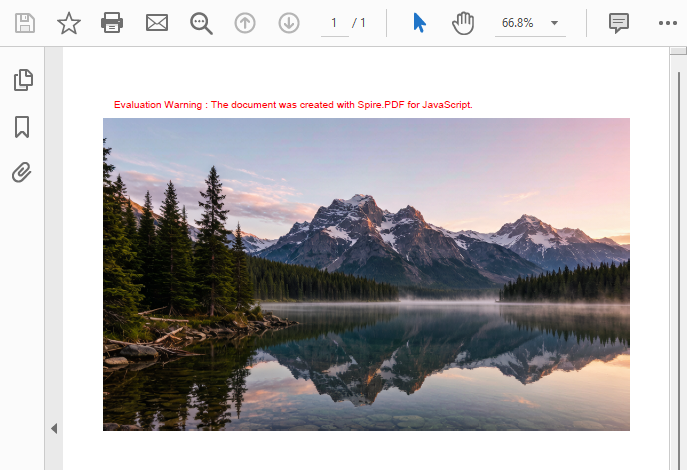
Extract the sizing into a helper, because it is the one piece of this code you will reuse in every other recipe below. The math: take page.Canvas.ClientSize — the drawable area of the page, in points — as your budget, compare it against the image's natural PhysicalDimension, and divide both dimensions by a single ratio so the aspect ratio survives. Bury it in a function so the bug-prone part lives in exactly one place:
// Contain: scale until the whole image fits inside the page
function fitContain(imgW, imgH, pageW, pageH) {
  const rate = Math.max(imgW / pageW, imgH / pageH);
  const width = imgW / rate;
  const height = imgH / rate;
  return { width, height, x: (pageW - width) / 2, y: (pageH - height) / 2 };
}
Now the draw call in the example above shrinks to three lines, and the "contain or cover" decision moves out of the math and into a function name:
let page = doc.Pages.Add();
let box = fitContain(
  image.PhysicalDimension.Width, image.PhysicalDimension.Height,
  page.Canvas.ClientSize.Width, page.Canvas.ClientSize.Height
);
page.Canvas.DrawImage({ image: image, x: box.x, y: box.y, width: box.width, height: box.height });
Math.max is the "contain" choice — scale by the more restrictive axis so the whole image stays visible. If you instead want to fill the page and clip the overflow, swap in Math.min; the section on sizing gives you the fitCover counterpart and a margin variant.
Many images, one document
One image per page means one Pages.Add() and one DrawImage per image. Loop over an array of filenames and the array order becomes the page order — which is exactly what you want when the user has just finished dragging thumbnails into sequence.
const combineImagesToPdf = async () => {
  const pdfModule = window.wasmModule?.spirepdf;
  if (!pdfModule) return;

  // The order of this array is the order of pages in the PDF
  const imageFiles = ['scan_01.png', 'scan_02.png', 'scan_03.png', 'scan_04.png'];

  for (const fileName of imageFiles) {
    await window.spire.FetchFileToVFS(fileName, "", `${process.env.PUBLIC_URL}/data/`);
  }

  let doc = new pdfModule.PdfDocument();

  for (const fileName of imageFiles) {
    let page = doc.Pages.Add();
    let image = pdfModule.PdfImage.FromFile(fileName);

    let box = fitContain(
      image.PhysicalDimension.Width, image.PhysicalDimension.Height,
      page.Canvas.ClientSize.Width, page.Canvas.ClientSize.Height
    );

    page.Canvas.DrawImage({ image: image, x: box.x, y: box.y, width: box.width, height: box.height });
  }

  const outputFileName = 'ScannedDocument.pdf';
  doc.SaveToFile({ fileName: outputFileName, fileFormat: pdfModule.FileFormat.PDF });
  doc.Close();

  const fileArray = window.dotnetRuntime.Module.FS.readFile(outputFileName);
  const blob = new Blob([fileArray], { type: 'application/pdf' });
  const url = URL.createObjectURL(blob);
  const a = document.createElement('a');
  a.href = url;
  a.download = outputFileName;
  a.click();
  URL.revokeObjectURL(url);
};
Two practical notes. Because each page is sized independently, images of different dimensions are fine — a landscape photo and a portrait scan can sit in the same document without any special handling. And because the whole document is built in memory before SaveToFile, the download happens once at the end regardless of how many images went in.
You may also like: Assembling images is the reverse of rendering. If you already have a PDF and want each of its pages as a picture instead, see How to Convert PDF Pages to Images in JavaScript (React).
Sizing: fit the image to the page
There are two reasonable ways to put an image on a page, and which one you want depends on whether losing part of the image is acceptable.
Contain (Math.max) |
Cover (Math.min) |
|
|---|---|---|
| What it does | Scales until the entire image fits | Scales until the page is filled |
| Whole image visible | Yes | No — the overflow is clipped |
| Empty space | Possible, on one axis | None |
| Right for | Scans, documents, anything that must stay complete | Full-bleed photos, cover pages, slides |
The first example uses contain — the fitContain helper. Switching to cover is the mirror of that function: Math.min instead of Math.max, filling the page and letting the canvas clip whatever overflows, with centering offsets that go negative:
// Cover: fill the page, clipping whatever overflows
function fitCover(imgW, imgH, pageW, pageH) {
  const rate = Math.min(imgW / pageW, imgH / pageH);
  const width = imgW / rate;
  const height = imgH / rate;
  return {
    width, height,
    x: (pageW - width) / 2,   // negative when the image is wider than the page
    y: (pageH - height) / 2   // negative when it is taller
  };
}
If you want a visible margin instead of edge-to-edge output, shrink the usable area rather than the image — feed the margin-adjusted budget into the same fitContain helper:
const margin = 36; // 36 points = 0.5 inch
let usableWidth = page.Canvas.ClientSize.Width - margin * 2;
let usableHeight = page.Canvas.ClientSize.Height - margin * 2;

let box = fitContain(
  image.PhysicalDimension.Width, image.PhysicalDimension.Height,
  usableWidth, usableHeight
);
page.Canvas.DrawImage({ image: image, x: box.x, y: box.y, width: box.width, height: box.height });
One thing worth knowing about PhysicalDimension: it reflects the image's physical size, which is not always its pixel size. A 4000 × 3000 photo saved with a different DPI tag will report different numbers than you might expect. This is why the ratio-based approach above is safer than hardcoding pixel dimensions — it works regardless of how the image was tagged.
Load images from memory
PdfImage.FromFile expects the image to already be in the VFS. That is not always where your images live — an API response, a database blob, or a canvas export all give you bytes in memory instead. PdfImage.FromStream takes those bytes directly.
// Read image bytes from VFS and build a memory stream
let bytes = window.dotnetRuntime.Module.FS.readFile(inputFileName);
let stream = new pdfModule.Stream(bytes);

// Load the image from the memory stream
let image = pdfModule.PdfImage.FromStream(stream);
From there it is the same as any other image — compute the size and draw it:
let page = doc.Pages.Add();
let box = fitContain(
  image.PhysicalDimension.Width, image.PhysicalDimension.Height,
  page.Canvas.ClientSize.Width, page.Canvas.ClientSize.Height
);
page.Canvas.DrawImage({ image: image, x: box.x, y: box.y, width: box.width, height: box.height });
The same bytes shape works regardless of where it came from. If your images arrive as an ArrayBuffer from fetch, wrap it in a Uint8Array before constructing the stream:
const response = await fetch('/api/images/invoice-001');
const bytes = new Uint8Array(await response.arrayBuffer());
let stream = new pdfModule.Stream(bytes);
let image = pdfModule.PdfImage.FromStream(stream);
This is the pattern to reach for when the PDF is assembled server-triggered images, user uploads held in state, or anything generated at runtime by a canvas — no round trip through the VFS required.
Recommended article: Spire.PDF can also draw onto the pages of a PDF you already have open, not just the new documents above. For placing images into an existing document, see How to Add Images to a PDF in JavaScript (React).
Common issues
The image comes out stretched or squashed.
This is almost always two different scale factors. Compute a single fitRate and divide both width and height by it — never scale the axes independently.
The image is tiny in the middle of a big empty page. Expected, when the image's aspect ratio is far from the page's. A panoramic photo on a portrait page will always leave bands above and below. Either accept it (correct for documents), switch to cover, or use the margin-adjusted version to at least keep the whitespace symmetric.
The image is cut off at the edges.
You are using cover behaviour, intentionally or not. Check whether fitRate used Math.min; switch to Math.max if the whole image must be visible.
A high-resolution photo produces a huge PDF.
The image is embedded at its own resolution. If file size matters, downscale before drawing — draw it to a canvas at the target size, export, and use those bytes with PdfImage.FromStream.
Nothing happens on the first click.
The WASM module loads asynchronously. The if (!pdfModule) return; guard exists for that reason; in a real app, gate the button on module readiness rather than alerting.
FAQ
Can I insert images into an existing PDF instead of creating a new one?
Yes. The examples here create a new document, but you can open an existing PDF and draw onto its pages the same way. See How to Add Images to a PDF in JavaScript (React) for that workflow.
Which image formats can I load?
Common bitmap formats — PNG, JPEG, BMP and similar — are supported by PdfImage.FromFile and PdfImage.FromStream. Use FromStream when the format is unknown at build time or the bytes come from a network response.
Can I control the page order?
Yes. Pages are created in the order you call Pages.Add(), so sorting your filename array sorts the output. That is the mechanism behind drag-to-reorder interfaces: reorder the array, rebuild the PDF.
Does this require a backend?
No. The document is assembled in the browser by the WebAssembly module, and the finished PDF is returned as bytes you turn into a Blob. Images never leave the device.
Can I mix portrait and landscape images in one PDF?
Yes. Each page is sized and drawn independently, so a portrait scan and a landscape photo can sit next to each other. If you want uniform page orientation, that is a reason to use a fixed page size and let the images scale to it.
I have a PDF and want its pages as images, not the other way round.
That is the reverse operation — rendering rather than assembling. See How to Convert PDF Pages to Images in JavaScript (React).
Do I need the image in the VFS?
Only for FromFile. FromStream accepts bytes from anywhere — a fetch response, a canvas export, or state — and skips the VFS entirely.
See Also
The assembly recipes here build a brand-new document. If your images need to go into an existing PDF — drawing onto pages you already have — see How to Add Images to a PDF in JavaScript (React). The other useful pieces of the image-PDF pipeline: