When developers hear "protect a Word document," the first thing that often comes to mind is encryption — setting a password so that nobody can open the file. But there is a second, equally important layer of document security: restricting what a reader can do once the document is open. A contract template sent to a client should let them fill in the blanks without altering the agreed terms. A final draft circulated for review should permit comments but block direct edits to the body text. These scenarios call for editing restrictions, not open-password encryption.
Spire.Doc for JavaScript brings this capability directly into the browser through WebAssembly. Using a virtual file system (VFS) to manage fonts and file resources, it processes Word documents entirely on the client side — no backend server, no file upload, no round-trip latency. The Protect method accepts a ProtectionType enum value together with a password, and applies the corresponding editing restriction to the document.
This article walks through the five protection types available in Spire.Doc for JavaScript, compares them in a single reference table, and then demonstrates how to apply a protection type to the whole document and how to lock only specific sections while leaving others editable.
Protection vs. Encryption: Two Different Goals
Before diving into the protection types, it is worth drawing a clear line between two concepts that are frequently conflated:
- Encryption (open password) controls who can open the document. Without the password, the file contents are inaccessible.
- Editing restrictions (protection type) control what a reader can change after the document is already open. The reader can view the content freely; the restriction limits which editing actions are available.
Editing restrictions do not prevent selection, copying, or searching — they only block modifications. If your goal is to stop the content from being taken away, you need encryption. If your goal is to stop the content from being changed while still allowing it to be read, you need an editing restriction. The two mechanisms are complementary and can be used together, but they serve distinct purposes.
Protection Types at a Glance
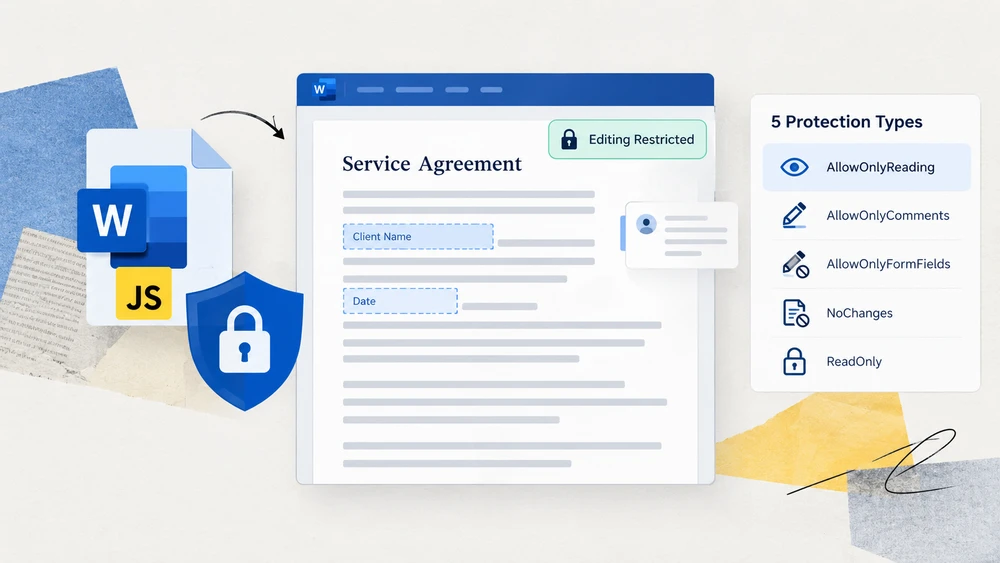
Spire.Doc for JavaScript exposes five ProtectionType enum values. Each one defines a different editable scope — from fully open to fully locked. The table below summarizes all five so you can pick the right one at a glance.
| ProtectionType | Effect on the Document | Typical Use Case |
|---|---|---|
NoProtection |
No restriction applied; all editing actions are available. | Removing an existing restriction or starting from a clean state. |
AllowOnlyReading |
The document can be viewed but not edited. Ribbon editing commands are disabled. | Final reports, published notices, or any read-only deliverable. |
AllowOnlyComments |
Readers can add comments but cannot modify the body text. | Review cycles where reviewers should leave feedback without altering content. |
AllowOnlyFormFields |
Only form fields are editable; the rest of the document is locked. | Contracts, surveys, and templates with fill-in-the-blank areas. |
AllowOnlyRevisions |
All edits are accepted as tracked changes and can be reviewed later. | Collaborative drafting where every change must be visible and reversible. |
How to choose: If the reader should not change anything, use AllowOnlyReading. If the reader should only fill in designated blanks, use AllowOnlyFormFields. If the reader should leave feedback without touching the text, use AllowOnlyComments. If every change should be tracked for later review, use AllowOnlyRevisions. If you need to remove a previously applied restriction, use NoProtection.
Apply a Protection Type to the Whole Document
The most straightforward approach is to protect the entire document with a single ProtectionType value. The workflow has three stages: load the font files and the target Word document into the WASM virtual file system via FetchFileToVFS; instantiate a Document, load the file, and call Protect with the desired protection type and the password that will later lift the restriction; then save the document, read the generated file from VFS, wrap it as a Blob, and trigger a browser download.
The example below uses AllowOnlyReading, but you can swap in any of the five ProtectionType values from the table above.
function App() {
  const protectWithSpecifiedType = async () => {
    const docModule = window.wasmModule?.spiredoc;
    if (!docModule) {
      alert('Spire.Doc is not ready yet');
      return;
    }

    const inputFileName = 'Template.docx';
    await window.spire.FetchFileToVFS(inputFileName, '', `${process.env.PUBLIC_URL}/data/`);

    // Load the document
    const doc = new docModule.Document();
    doc.LoadFromFile(inputFileName);

    // Protect the document with the "AllowOnlyReading" type; the password lifts the restriction
    doc.Protect({ type: docModule.ProtectionType.AllowOnlyReading, password: "123456" });

    // Define the output file name and save
    const outputFileName = "SpecifiedProtectionType.docx";
    doc.SaveToFile({ fileName: outputFileName, fileFormat: docModule.FileFormat.Docx2013 });
    doc.Dispose();

    const modifiedFileArray = window.dotnetRuntime.Module.FS.readFile(outputFileName);
    const blob = new Blob([modifiedFileArray], { type: 'application/vnd.openxmlformats-officedocument.wordprocessingml.document' });
    const url = URL.createObjectURL(blob);
    const a = document.createElement('a');
    a.href = url;
    a.download = outputFileName;
    a.click();
    URL.revokeObjectURL(url);
  };

 return (
    <div style={{ textAlign: 'center', height: '300px' }}>
      <h1>Protect a Document with a Specified Type</h1>
      <button onClick={protectWithSpecifiedType}>Generate</button>
    </div>
  );
}
export default App;
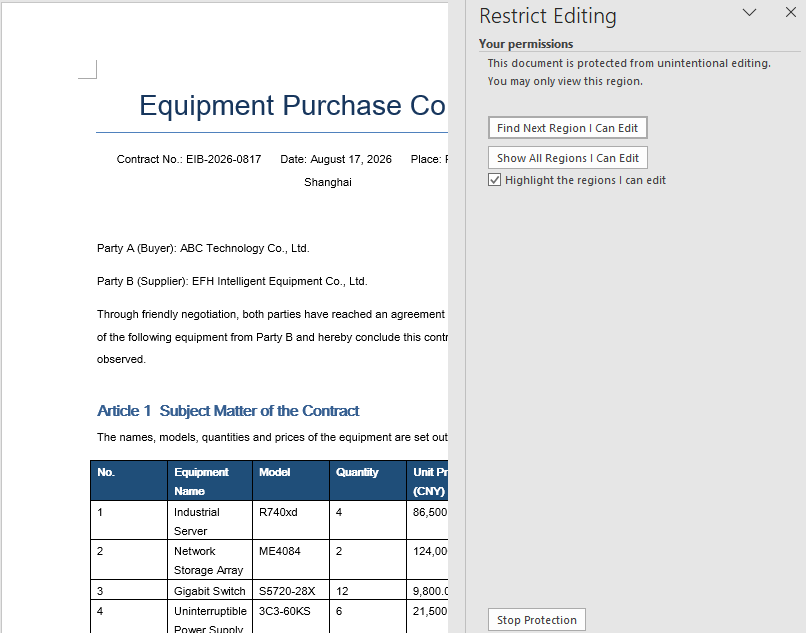
Once the document is protected with the AllowOnlyReading type, its content can only be viewed and the editing commands on the ribbon are restricted.
Lock Only Specified Sections
Protecting the entire document uniformly works well for simple deliverables, but many real-world documents need a finer touch. A quotation template, for instance, may have fixed terms that must stay locked alongside a section where the client enters their details. Spire.Doc for JavaScript handles this by combining whole-document protection with per-section overrides.
The strategy is: first protect the whole document with AllowOnlyFormFields, then set the ProtectForm property of any section that should remain editable to false. This selectively releases individual sections while the rest of the document stays locked.
The workflow has three stages: load the font files into the WASM virtual file system via FetchFileToVFS; instantiate a Document, create sections with AddSection and write content into them, call Protect to lock the whole document for form fields only, and set ProtectForm to false on the section to be released; then save the document, read the generated file from VFS, wrap it as a Blob, and trigger a browser download.
function App() {
  const lockSpecifiedSections = async () => {
    const docModule = window.wasmModule?.spiredoc;
    if (!docModule) {
      alert('Spire.Doc is not ready yet');
      return;
    }

    // Create a new document and add two sections
    const doc = new docModule.Document();
    let s1 = doc.AddSection();
    let s2 = doc.AddSection();

    // Write content into each of the two sections
    s1.AddParagraph().AppendText("Spire.Doc demo, section 1");
    s2.AddParagraph().AppendText("Spire.Doc demo, section 2");

    // Protect the whole document for form fields only
    doc.Protect({ type: docModule.ProtectionType.AllowOnlyFormFields, password: "123" });

    // Release section 2 on its own so that it can be edited
    s2.ProtectForm = false;

    // Define the output file name and save
    const outputFileName = 'LockSpecifiedSections.docx';
    doc.SaveToFile({ fileName: outputFileName, fileFormat: docModule.FileFormat.Docx2013 });
    doc.Dispose();

    const modifiedFileArray = window.dotnetRuntime.Module.FS.readFile(outputFileName);
    const blob = new Blob([modifiedFileArray], { type: 'application/vnd.openxmlformats-officedocument.wordprocessingml.document' });
    const url = URL.createObjectURL(blob);
    const a = document.createElement('a');
    a.href = url;
    a.download = outputFileName;
    a.click();
    URL.revokeObjectURL(url);
  };

 return (
    <div style={{ textAlign: 'center', height: '300px' }}>
      <h1>Lock Specified Sections of a Word Document</h1>
      <button onClick={lockSpecifiedSections}>Generate</button>
    </div>
  );
}
export default App;
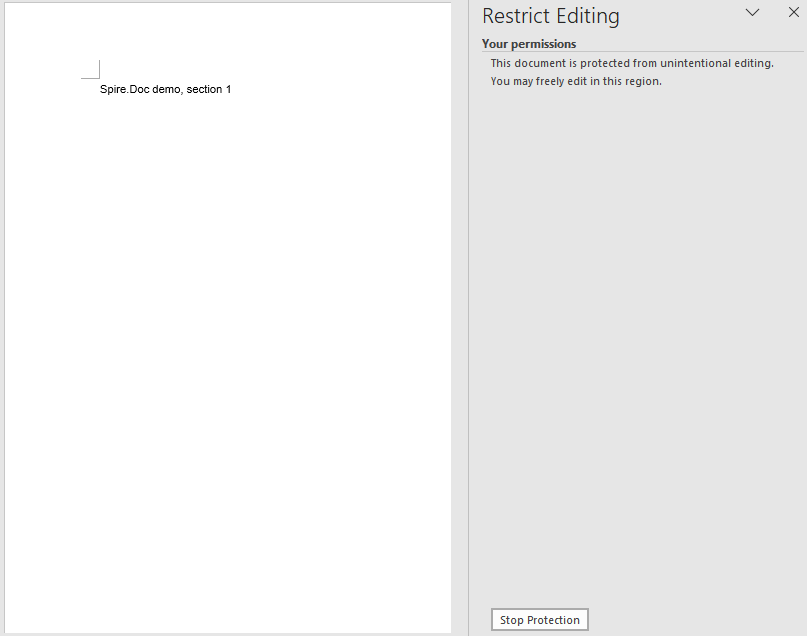
Once section 2 has been released, only section 1 keeps its editing restriction in the document.
FAQ
A section is still not editable after ProtectForm = false
The ProtectForm property only takes effect when the document has been protected with AllowOnlyFormFields. If a different protection type such as AllowOnlyReading is active, setting ProtectForm to false on an individual section will not release it — the whole-document restriction takes precedence.
To fix this, make sure the protection type passed to Protect is AllowOnlyFormFields before releasing individual sections:
doc.Protect({ type: wasmModule.ProtectionType.AllowOnlyFormFields, password: "123" });
s2.ProtectForm = false;
A protected document can still be selected and copied
All five protection types restrict editing behavior, not reading behavior. AllowOnlyReading, for example, prevents changes to the body text but does not block text selection, copying, or searching. This is by design — editing restrictions control what users can modify, not what they can view or extract.
If the content must not be copyable or viewable by unauthorized users, use document encryption (an open password) instead of an editing restriction. The two approaches address different threats and can be combined when both confidentiality and edit control are required:
doc.Protect({ type: wasmModule.ProtectionType.AllowOnlyReading, password: "123456" });