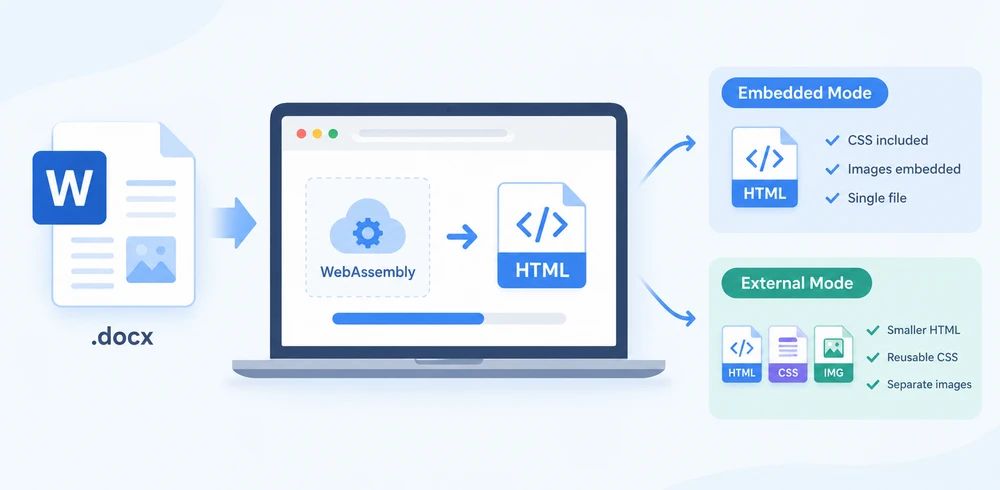
Word documents are often the starting point for web content — articles, product specs, and compliance docs all need to live on a website eventually. Getting from .docx to clean HTML without a backend conversion service is the challenge. Spire.Doc for JavaScript makes this possible by running a full document-processing engine on WebAssembly, reading the Word file through a virtual file system (VFS), performing the conversion locally, and letting you download the resulting HTML — all client-side, with no server round-trip.
Two export strategies dominate the workflow, and choosing between them is the real decision:
- Embedded mode bundles CSS and images directly into the HTML file, producing a single self-contained document that opens anywhere.
- External mode writes CSS and images to separate files, giving you smaller HTML, reusable stylesheets, and individual image assets you can manage independently.
This article walks through both approaches in a React project and compares them side by side. For setup, refer to Integrating Spire.Doc for JavaScript in a React Project. The examples below assume Spire.Doc is installed and the WebAssembly module is initialized.
Basic Conversion: Embed Everything in One File
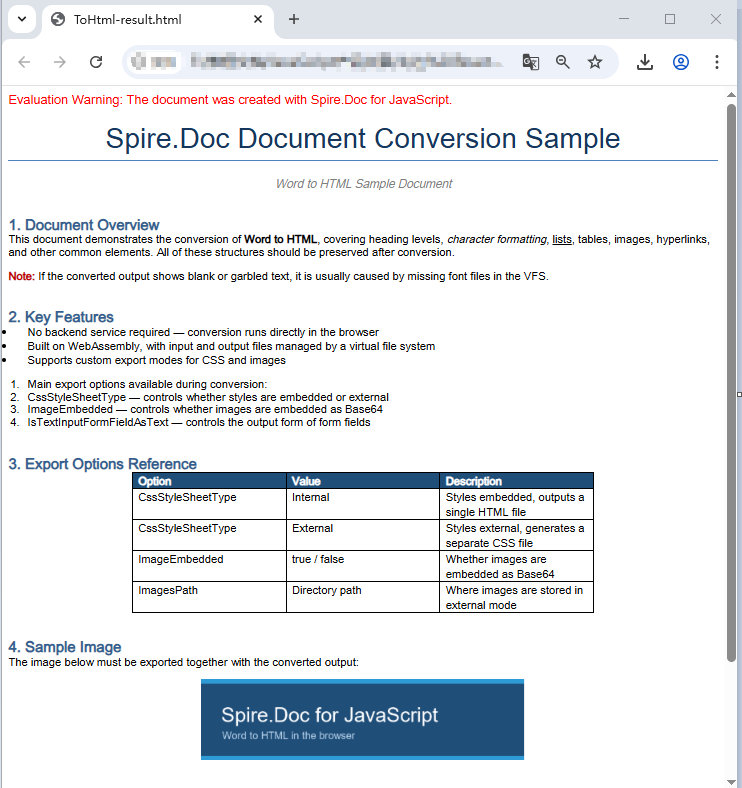
The simplest way to publish a Word document as a web page is to produce a single HTML file that contains everything — markup, styles, and images — in one self-contained package. This is ideal when you need a portable artifact that renders correctly no matter where it is opened, with no missing-file references or broken links.
The conversion follows three steps. First, load the font file and the source Word document into the WASM virtual file system using FetchFileToVFS. Second, create a Document instance, load the file, configure HtmlExportOptions to embed both CSS and images, and call SaveToFile to write the HTML. Third, read the generated file back from VFS, wrap it in a Blob, and trigger a browser download.
function App() {
  const wordToHtml = async () => {
    // Get the Spire.Doc WASM module
    const docModule = window.wasmModule?.spiredoc;

    // Check if the module is ready
    if (!docModule) {
      alert('Spire.Doc is not ready yet');
      return;
    }

    // Load fonts and the Word file into VFS
    await window.spire.FetchFileToVFS('ARIALUNI.TTF', '/Library/Fonts/', `${process.env.PUBLIC_URL}/static/font/`);
    const inputFileName = 'ToHtml.docx';
    await window.spire.FetchFileToVFS(inputFileName, '', `${process.env.PUBLIC_URL}/static/data/`);

    // Load the Word document
    const wordDocument = new docModule.Document();
    wordDocument.LoadFromFile(inputFileName);

    // Embed the CSS styles into the HTML and embed images as Base64
    wordDocument.HtmlExportOptions.CssStyleSheetType = docModule.CssStyleSheetType.Internal;
    wordDocument.HtmlExportOptions.ImageEmbedded = true;

    // Convert the document to HTML
    const outputFileName = 'ToHtml-result.html';
    wordDocument.SaveToFile({ fileName: outputFileName, fileFormat: docModule.FileFormat.Html });

    // Read the converted file from VFS and trigger download
    const fileArray = window.dotnetRuntime.Module.FS.readFile(outputFileName);
    const blob = new Blob([fileArray], { type: 'text/html;charset=utf-8' });
    const url = URL.createObjectURL(blob);
    const a = window.document.createElement('a');
    a.href = url;
    a.download = outputFileName;
    a.click();
    URL.revokeObjectURL(url);

    // Release resources
    wordDocument.Dispose();
  };

  return (
    <div style={{ textAlign: 'center', height: '300px' }}>
      <h1>Convert Word To HTML</h1>
      <button onClick={wordToHtml}>
        Generate
      </button>
    </div>
  );
}

export default App;
HTML page generated from a Word document via SaveToFile
Export Options: Separate CSS and Images
Embedding everything into one file is convenient, but it has trade-offs. A large document with many images produces a very big HTML file, and every page that shares the same styling carries its own duplicate copy of the CSS. When you want to maintain styles centrally, reuse image assets across pages, or keep the HTML payload small for faster initial rendering, you should export CSS and images as separate files instead.
HtmlExportOptions gives you fine-grained control over how each resource type is written. You can direct the CSS to a named stylesheet file, send images to a dedicated directory, and even control how form fields are serialized. The result is no longer a single file but a directory structure containing the HTML, the stylesheet, and the image files.
The workflow mirrors the embedded approach, with two additions. Before conversion, create an output directory in VFS and use CssStyleSheetFileName and ImagesPath to tell Spire.Doc where to write each resource type. After conversion, read the entire output directory recursively, package everything into a zip archive using JSZip, and download it in one operation.
import JSZip from 'jszip';

function App() {
  const wordToHtmlWithOptions = async () => {
    // Get the Spire.Doc WASM module
    const docModule = window.wasmModule?.spiredoc;

    // Check if the module is ready
    if (!docModule) {
      alert('Spire.Doc is not ready yet');
      return;
    }

    // Load fonts and the Word file into VFS
    await window.spire.FetchFileToVFS('ARIALUNI.TTF', '/Library/Fonts/', `${process.env.PUBLIC_URL}/static/font/`);
    const inputFileName = 'ToHtml.docx';
    await window.spire.FetchFileToVFS(inputFileName, '', `${process.env.PUBLIC_URL}/static/data/`);

    // Create the output directory in VFS
    const outputDirectoryName = 'ToHTMLFolder/';
    window.dotnetRuntime.Module.FS.mkdirTree(outputDirectoryName);

    // Load the Word document
    const wordDocument = new docModule.Document();
    wordDocument.LoadFromFile(inputFileName);

    // Export the CSS styles to a separate file
    wordDocument.HtmlExportOptions.CssStyleSheetFileName = outputDirectoryName + 'sample.css';
    wordDocument.HtmlExportOptions.CssStyleSheetType = docModule.CssStyleSheetType.External;

    // Export images to a separate directory
    wordDocument.HtmlExportOptions.ImageEmbedded = false;
    wordDocument.HtmlExportOptions.ImagesPath = outputDirectoryName + 'Demo/';

    // Export form fields as plain text
    wordDocument.HtmlExportOptions.IsTextInputFormFieldAsText = true;

    // Convert the document to HTML
    const outputFileName = 'ToHtmlExportOption-out.html';
    wordDocument.SaveToFile({ fileName: outputFileName, fileFormat: docModule.FileFormat.Html });

    // Release resources
    wordDocument.Dispose();

    // Read the output directory recursively and write each level of files into the zip
    const zip = new JSZip();
    const addFilesToZip = async (folderPath, zipFolder) => {
      let items = await window.dotnetRuntime.Module.FS.readdir(folderPath);
      items = items.filter((item) => item !== '.' && item !== '..');
      for (const item of items) {
        const itemPath = `${folderPath}/${item}`;
        try {
          const fileData = await window.dotnetRuntime.Module.FS.readFile(itemPath);
          zipFolder.file(item, fileData);
        } catch (error) {
          const zipSubFolder = zipFolder.folder(item);
          await addFilesToZip(itemPath, zipSubFolder);
        }
      }
    };

    // Package the HTML file together with the resource directory
    zip.file(outputFileName, window.dotnetRuntime.Module.FS.readFile(outputFileName));
    await addFilesToZip(outputDirectoryName, zip);
    const zipBlob = await zip.generateAsync({ type: 'blob' });
    const url = URL.createObjectURL(zipBlob);

    // Trigger download
    const a = window.document.createElement('a');
    a.href = url;
    a.download = 'ToHTMLFolder.zip';
    a.click();
    URL.revokeObjectURL(url);
  };

  return (
    <div style={{ textAlign: 'center', height: '300px' }}>
      <h1>Convert Word To HTML With Export Options</h1>
      <button onClick={wordToHtmlWithOptions}>
        Generate
      </button>
    </div>
  );
}

export default App;
HTML, CSS, and image files generated after configuring the export options
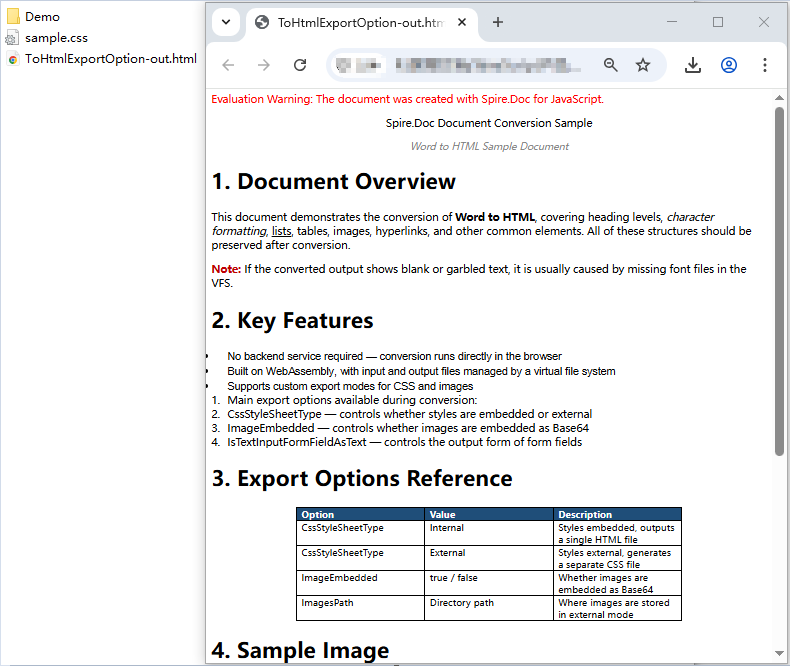
One detail worth noting: Spire.Doc does not place images directly in the directory specified by ImagesPath. Instead, it creates an external_images subfolder inside that directory to hold the image files. The resulting structure looks like Demo/external_images/*.png, which is why addFilesToZip walks the directory tree recursively rather than reading a flat list of files.
Embedded vs. External: Choosing the Right Strategy
Both export modes produce valid HTML from the same Word document, but they serve different publishing needs. The table below summarizes the key differences to help you decide which approach fits your workflow.
| Aspect | Embedded (Single File) | External (Separate Files) |
|---|---|---|
| Output | One .html file with inline CSS and Base64 images |
HTML + .css + image files in a directory |
| File size | Larger — all assets are Base64-encoded into the HTML | Smaller HTML; total size is similar but assets are individual files |
| Portability | Fully self-contained; opens correctly anywhere with no dependencies | Requires all files to stay together; relative paths must be preserved |
| Download mechanism | Single file download via Blob | Zip archive download (e.g., with JSZip) |
| Style reuse | Each document carries its own copy of the CSS | Multiple pages can share one stylesheet file |
| Image management | Images are Base64 strings inside the HTML; cannot be referenced or cached separately | Images are individual files that can be cached, lazy-loaded, or reused |
| Initial render speed | Slower for large documents — the browser must parse one big file | Faster initial HTML parse; CSS and images load in parallel |
| Best for | Email attachments, one-off previews, archival snapshots, sharing a single document | CMS content migration, multi-page publishing, knowledge bases, sites with shared styling |
| Maintainability | Low — changing a style means regenerating the entire file | High — edit the CSS file once and all linked pages update |
Quick decision guide:
- Choose embedded when you need a single, portable artifact — for example, generating a preview that a user downloads and opens offline, or attaching a converted document to an email.
- Choose external when you are publishing to a web platform where multiple documents share the same design system, where you want to cache or lazy-load images, or where the HTML file size matters for performance.
FAQ
Fonts in the exported HTML do not match the original document
If the fonts in your converted HTML look different from the source Word file, the cause is almost always missing font data in the WASM virtual file system. Spire.Doc relies on fonts loaded into VFS to perform accurate layout calculations and font-name resolution during conversion. When a required font is not available, the engine substitutes a fallback font, and the font-family declarations in the output CSS will not match what the original document specifies. For documents that use symbol fonts such as Wingdings, the affected characters may also render as garbled text.
The fix is straightforward: preload the necessary font files into VFS via FetchFileToVFS before you run the conversion. For documents containing Chinese, Japanese, or Korean text, use a font with broad Unicode coverage such as ARIALUNI.TTF:
await window.spire.FetchFileToVFS(
  'ARIALUNI.TTF', '/Library/Fonts/', '/'
);
Exported HTML loses its styles and images when opened
When you use external mode (CssStyleSheetType.External with ImageEmbedded = false), the CSS and image files are written to separate locations, and the HTML references them through relative paths. If you download only the HTML file without its accompanying resources, the browser cannot resolve those paths and the page falls back to unstyled plain text with broken images.
To avoid this, always package the HTML together with its resource directory — the addFilesToZip approach shown in the export-options section handles this by bundling everything into a single zip download. Alternatively, if you do not actually need separate resource files, switch to embedded mode so everything stays in one self-contained HTML file:
wordDocument.HtmlExportOptions.CssStyleSheetType = docModule.CssStyleSheetType.Internal;
wordDocument.HtmlExportOptions.ImageEmbedded = true;