Reading a 100-page PDF document without any navigation can be frustrating and inefficient. Whether it is a business report, e-book, or technical manual, a well-structured table of contents significantly improves navigation. It also helps readers quickly understand the document structure.
However, because PDF is a fixed-layout format, modifying its pages after generation is tricky. This guide introduces the three popular methods to help you add a table of contents to PDF files efficiently with online editors, Adobe Acrobat, and Python.
- Methodology Comparison: Choose Your Approach
- Add a Clickable Table of Contents in PDF Online
- Create a Table of Contents in Adobe PDF
- Add Table of Contents in PDF Automatically via Python
- Tips for Designing a TOC
Methodology Comparison: Choose Your Approach
Before digging into the step-by-step tutorials, you can first get a general overview of the methods introduced in this article. Depending on your current document status and technical background, there is always a solution that fits your needs.
| Method | Best For | Technical Logic | Pros | Cons |
|---|---|---|---|---|
| Online Editors | Completed PDFs, tight deadlines | Reverse Generation: Auto-scans text to create bookmarks, then prints a TOC page. | Incredibly fast; No installation required. | Free tiers have size limits; AI layout errors. |
| Adobe Acrobat Pro | Publisher-grade accuracy, print layouts | Visual Layering: Manual text layout or back-to-source conversion. | Industry standard; Flawless cross-platform links. | Expensive license; High manual labor for long files. |
| Spire.PDF (Code) | Developers, batch server automation | Programmatic Bookmark Generation: Renders fonts via exact X/Y coordinates. | Infinite scaling; 100% automated workflows. | Requires basic programming baseline. |
How to Add a Table of Contents to PDF Online
If you are dealing with a PDF document and need a quick turnaround, web-based tools can be the top choice. Online editors like PDFelement are lightweight and easy to use, allowing you to easily perform various edits directly in your browser simply by uploading your document.
Next, we will demonstrate how to create a clickable table of contents in a PDF using online tools, taking PDFelement as an example.
- Step 1. Go to PDFelement and upload your PDF document.
- Step 2. Navigate to the navigation panel tools and select Auto-Bookmark. The web engine will scan font sizes and line breaks to map out your document's hierarchy.
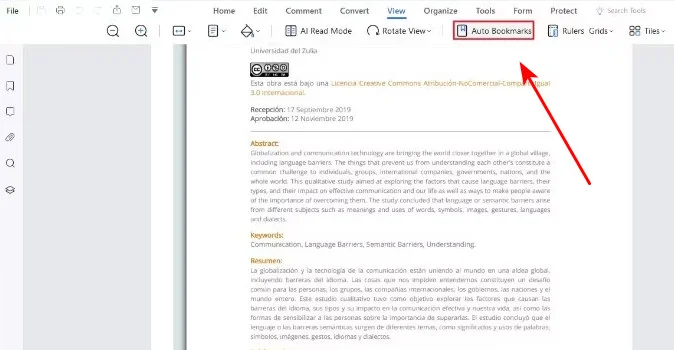
- Step 3. Click on the bookmark options dropdown menu and choose Create Contents Page. The tool will generate a new table of contents page at the beginning of the document.
Note: While online tools are excellent for quick fixes, always review your document after downloading. Complex layouts with floating images can sometimes confuse the auto-detection algorithms, requiring a few manual text tweaks.
How to Create a Clickable Table of Contents in Adobe PDF
Adobe Acrobat is one of the most widely used PDF editors and is commonly used in professional publishing environments. Unlike lightweight web-based tools, it provides advanced editing, compatibility, and document management features. Adobe Acrobat supports both direct PDF editing and document conversion workflows. You can either manually create navigation links inside the PDF or convert the file back to Word to generate a dynamic TOC automatically.
Let’s take a look at how to add a table of contents to a PDF using Adobe Acrobat Pro through these two approaches.
Create a PDF Table of Content in Adobe
Adobe helps you map the content links directly on the PDF canvas using invisible touch targets. Here are the step-by-step instructions.
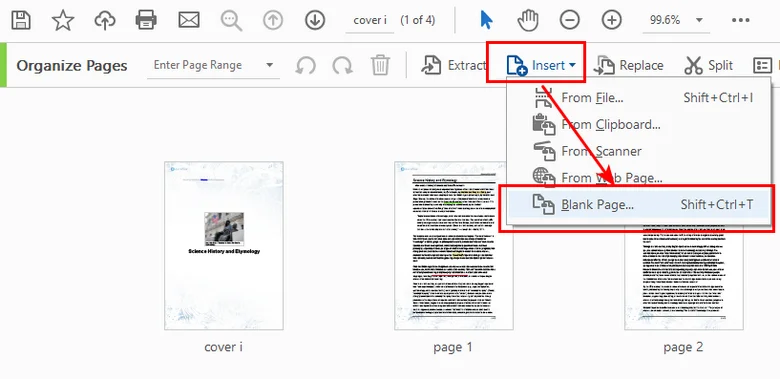
- Step 1. Open the Organize Pages tool. Click Insert > Blank Page and position it right after your cover sheet to create room for your new index.
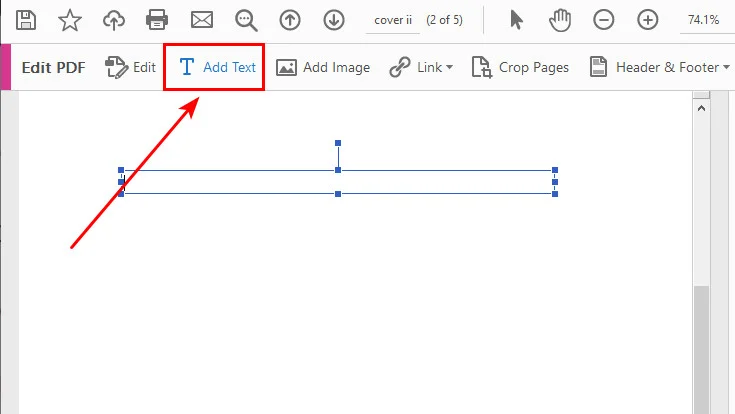
- Step 2. Switch to the Edit PDF tool. Draw a text box on your new blank page and type out your chapter index layout (e.g., Chapter 1: Market Trends .......... Page 4).
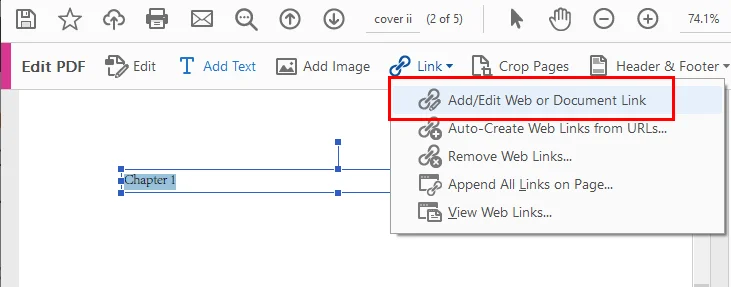
- Step 3. Select the Link tool from the top toolbar, click Add/Edit Web or Document Link, and drag an invisible rectangular box directly over your typed "Chapter 1" text layer.
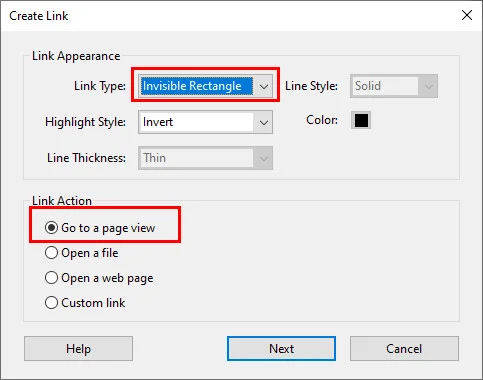
- Step 4. In the pop-up link configuration window, set the link action to Go to a page view. Scroll through your document in the background until Chapter 1 fills your screen nicely, then click Set Link. Repeat this process for the remaining chapters.
Convert back to Word and Add TOC
In addition to building a table of contents directly inside the PDF, you can also convert the file back to a Word document and generate an index. Compared to the former method, this approach requires less manual effort, especially when dealing with long documents.
- Step 1: Open your document in Acrobat, navigate to the Export PDF pane, and select Microsoft Word Document.

- Step 2: Open the newly generated Word file, select your section headers, and apply standard Heading 1 / Heading 2 styles from the Home ribbon.
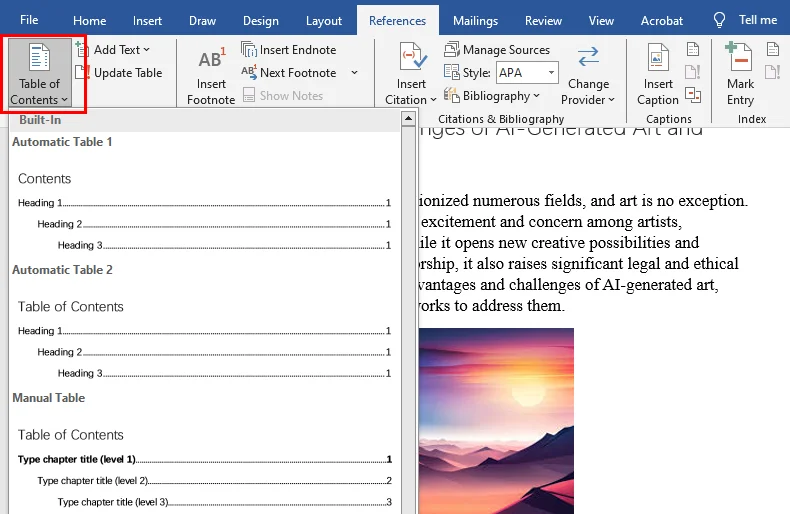
- Step 3: Move your cursor to the first page, go to References > Table of Contents, and drop in a dynamic, native index page.
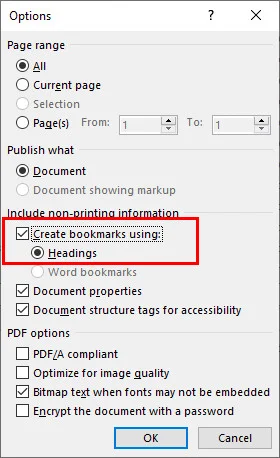
- Step 4: Choose Save As and select PDF. In the save window options, make sure to verify that Create bookmarks using headings is checked to automatically seal your multi-layered navigation.
Also Read: How to Change PDF Page Size: Online, Adobe & With Code
How to Add PDF Navigation Bookmarks Automatically via Python
If you need to process large volumes of reports, invoices, or technical documents automatically, manual methods are often time-consuming. Unlike online tools or Adobe Acrobat workflows, Python libraries can generate bookmarks and navigation structures programmatically, making them ideal for large-scale automation.
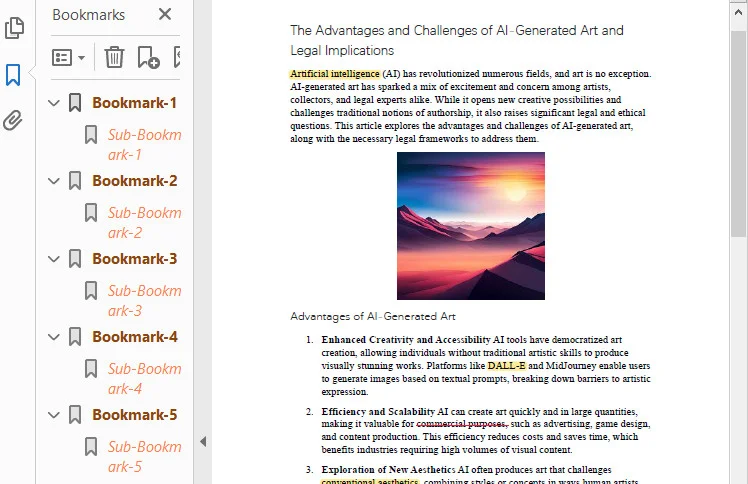
This method creates PDF bookmarks programmatically rather than generating a visible table of contents page inside the document. The bookmarks appear in the PDF reader's navigation panel and allow users to jump to specific sections quickly.
Using Free Spire.PDF for Python, developers can create bookmark structures through its simple APIs and link them to specific pages or coordinates inside the document.
Below is the complete code example:
from spire.pdf.common import *
from spire.pdf import *

# Create a PdfDocument object
doc = PdfDocument()

# Load a PDF file
doc.LoadFromFile("/input/sample.pdf")

# Loop through the pages in the PDF file
for i in range(doc.Pages.Count):
    page = doc.Pages.get_Item(i)

    # Set the title and destination for the bookmark
    bookmarkTitle = "Bookmark-{0}".format(i+1)
    bookmarkDest = PdfDestination(page, PointF(0.0, 0.0))

    # Create and configure the bookmark
    bookmark = doc.Bookmarks.Add(bookmarkTitle)
    bookmark.Color = PdfRGBColor(Color.get_SaddleBrown())
    bookmark.DisplayStyle = PdfTextStyle.Bold
    bookmark.Action = PdfGoToAction(bookmarkDest)

    # Create a collection to hold child bookmarks
    bookmarkCollection = PdfBookmarkCollection(bookmark)

    # Set the title and destination for the child bookmark
    childBookmarkTitle = "Sub-Bookmark-{0}".format(i+1)
    childBookmarkDest = PdfDestination(page, PointF(0.0, 100.0))

    # Create and configure the child bookmark
    childBookmark = bookmarkCollection.Add(childBookmarkTitle)
    childBookmark.Color = PdfRGBColor(Color.get_Coral())
    childBookmark.DisplayStyle = PdfTextStyle.Italic
    childBookmark.Action = PdfGoToAction(childBookmarkDest)

# Save the PDF file
doc.SaveToFile("/output/Bookmark.pdf")

# Close the document
doc.Close()
Below is a preview of the PDF table of contents created using Free Spire.PDF:
Tips for Creating a User-Friendly PDF Table of Contents
-
Don't Forget Dot Leaders: Always add a string of period marks (
. . . . .) between your chapter title and the page number. On wide monitors, your reader's eyes will struggle to connect text on the left with numbers on the far right without a visual guide rail. - Keep Bookmarks and Page TOC Synced: Ensure your visual index page matches your left sidebar bookmark panel exactly. When a user clicks a bookmark, it should drop them off at the exact same coordinate as clicking the text link on page one.
- Padding the Clickable Target Box: When mapping link annotations with code or the Acrobat link tool, make your bounding boxes slightly taller and wider than the actual words. This extra padding makes hitting the touch targets significantly easier for readers browsing on mobile screens.
Conclusion
Adding a clear table of contents to PDFs transforms a messy file into a professional document. Among the methods introduced, online tools are best for quick tasks, while Adobe Acrobat suits those who prefer desktop software with strict file compatibility and security. For processing massive files or integrating navigation into automated workflows, Free Spire.PDF for Python is the ultimate choice. Choose the right tool for your workload and start organizing your PDFs today!