Hyperlinks in PDFs are incredibly useful for digital navigation. However, there are many situations where these same hyperlinks can be distracting or redundant. Perhaps you’re preparing a document for printing, sharing a static report, or simply want to keep the layout clean. Whatever your reason, learning how to remove hyperlinks from PDF files is an essential skill.
This guide shares four reliable methods to remove hyperlinks from PDF—from a free built‑in Windows feature to professional software like Adobe Acrobat Pro, and even an automated C# solution for developers.
Here’s what you’ll learn:
- Method 1: Built-in “Print to PDF” Feature
- Method 2: Using Adobe Acrobat Pro
- Method 3: Free Online PDF Hyperlink Removers
- Method 4: C# Automation with Free Spire.PDF
- Pro Tips After Disabling Hyperlinks in PDF
- FAQs About Removing PDF Hyperlinks
Method 1: Built-in “Print to PDF” Feature
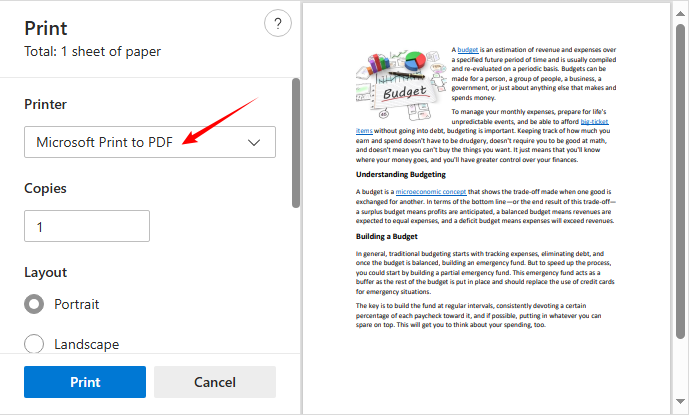
If you want a quick solution without downloading apps, use the built-in “Print to PDF” feature to “flatten” the PDF document and remove all hyperlinks with a single click.
Step-by-Step:
- Open the PDF file with hyperlinks using your default PDF viewer (e.g., Microsoft Edge).
- Click the Print icon or use the “Ctrl+P” shortcut (Windows).
- In the “Printer” dropdown menu, select “Microsoft Print to PDF”.
- Click Print and choose a location to save the new PDF.
- Open the saved file—all hyperlinks will be removed.
When to use this: A quick, one‑time removal when you don’t need to edit the file afterward.
Method 2: Using Adobe Acrobat Pro
Adobe Acrobat Pro is the industry standard for PDF editing. Unlike the “Print to PDF” workaround, Acrobat allows you to delete hyperlink in PDF individually or in bulk without flattening the document, preserving full editability.
Adobe Acrobat Remove Hyperlinks:
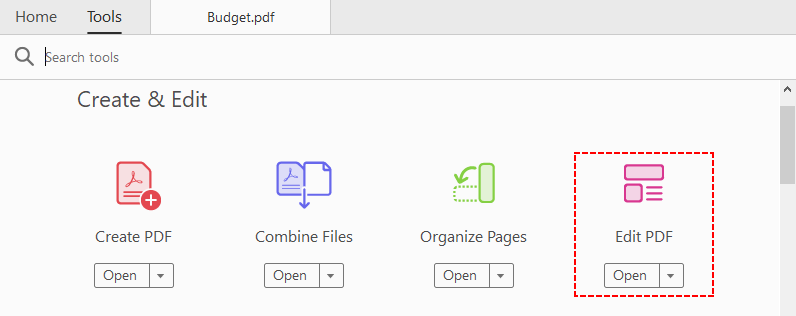
- Open your PDF in Adobe Acrobat Pro.
- Click Tools in the top menu, then select “Edit PDF”.
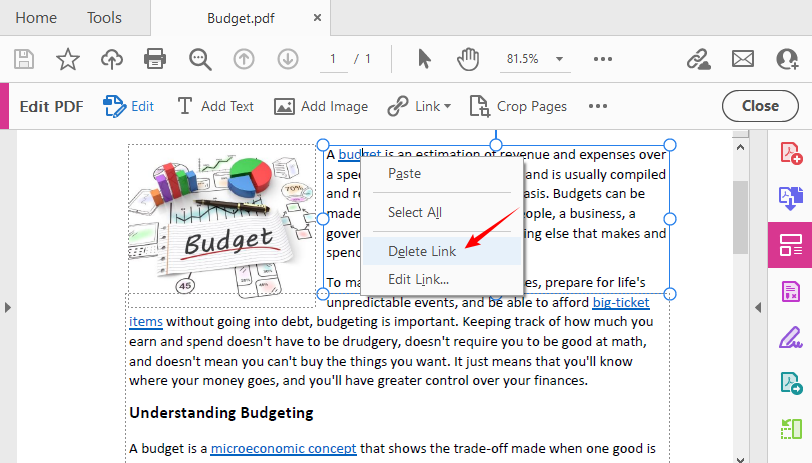
- To remove a single hyperlink: Right‑click the linked text/image and select “Delete Link”.
-
To remove all links from PDF:
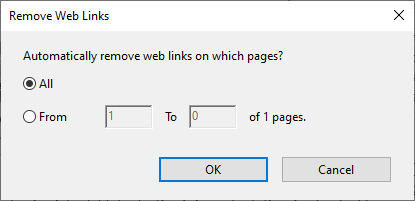
- Click “Link > Remove Web Links”.
- A pop‑up window will appear asking which pages you want to process. Select “All” (or choose a page range like 1–5).
- Click “OK”. Acrobat will scan every page and delete every web link annotation.
Best for: Professionals, businesses, and anyone who needs precise control and highly accurate results.
Method 3: Free Online PDF Hyperlink Removers
For casual users without access to Adobe Acrobat, free web-based tools (such as PDFQ, Zia Sign) provide a hassle-free way to remove hyperlink in PDF online for free, though they may have file size limits or require an internet connection.
Example of using PDFQ:
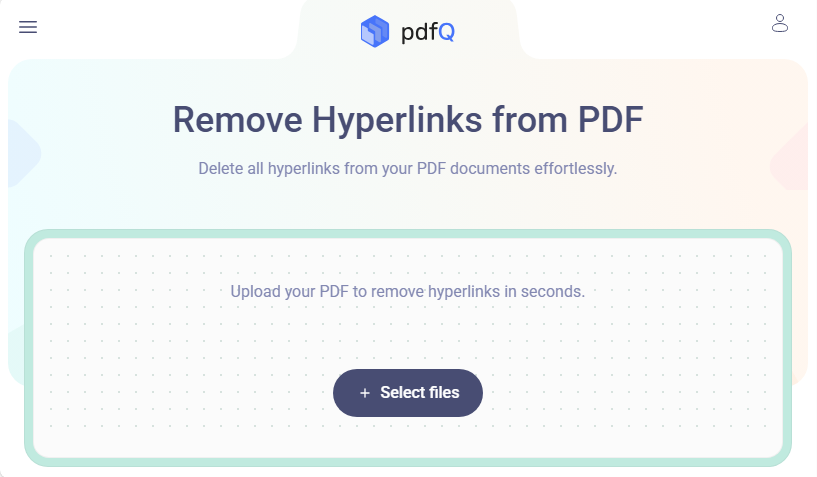
- Go to PDFQ remove hyperlink tool.
- Click “Select files” to upload your PDF.
- The tool will automatically scan and remove all hyperlinks.
- Preview the cleaned PDF to confirm all hyperlinks are gone.
- Download the hyperlink-free PDF file.
Most PDF link remover tools delete hyperlinks from all PDF pages. If you need selective link removal (e.g., only pages 5–10), simply split the PDF into the required page ranges before running the tool.
Security Note: Avoid uploading confidential, legal, or medical PDFs to any online service. For sensitive files, use offline methods (Method 1, 2, or 4).
Method 4: C# Automation with Free Spire.PDF
For developers or IT teams who need to automate hyperlink removal across hundreds of files, Free Spire.PDF for .NET is a reliable, code-based solution. This free .NET library supports a wide range of PDF processing features, including hyperlink addition and deletion.
C# Code to Remove All Hyperlinks from PDF
The following code loads a PDF, iterates through every page, identifies all web link annotations, and removes them.
using Spire.Pdf;
using Spire.Pdf.Annotations;
using System;

namespace DeleteHyperlink
{
    internal class Program
    {
        static void Main(string[] args)
        {
            // Create an object of PdfDocument
            PdfDocument pdf = new PdfDocument();

            // Load a PDF file
            pdf.LoadFromFile("Sample.pdf");

            // Remove all hyperlinks in the document
            // Loop through each page
            foreach (PdfPageBase page in pdf.Pages)
            {
                // Get the annotation collection of the page
                PdfAnnotationCollection collection = page.Annotations;
                // Iterate backwards to safely remove items
                for (int i = collection.Count - 1; i >= 0; i--)
                {
                    PdfAnnotation annotation = collection[i];
                    // Check if the annotation is a hyperlink (URI widget)
                    if (annotation is PdfUriAnnotationWidget)
                    {
                        PdfUriAnnotationWidget url = (PdfUriAnnotationWidget)annotation;
                        // Remove the hyperlink
                        collection.Remove(url);
                    }
                }
            }

            // Save the updated document
            pdf.SaveToFile("DeleteHyperlinks.pdf");
            pdf.Dispose();
        }
    }
}
Free Spire.PDF provides the PdfUriAnnotationWidget class to represent clickable web/URL hyperlink annotations in PDFs. If an annotation is detected as this web link type, call the Remove() method to disable links in PDF.
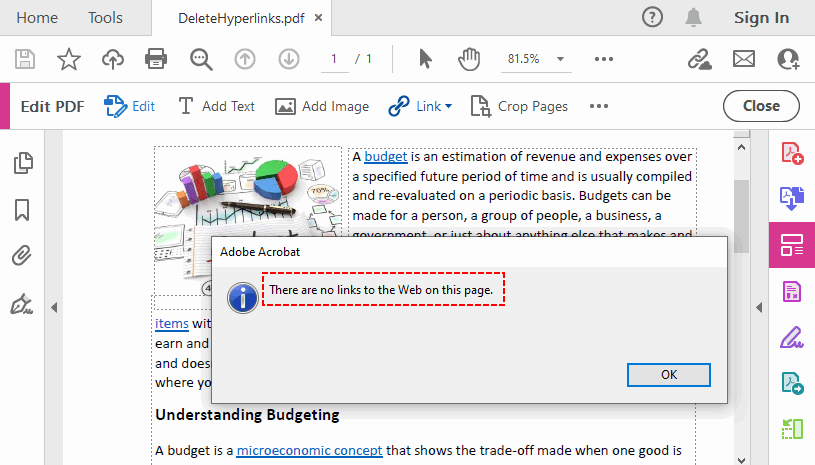
Result: The clickable links in PDF are removed and the underlying text remains unchanged (blue color, underline).
Optional: Remove Only a Specific Hyperlink
If you want to delete a single designated hyperlink (e.g., the second hyperlink on the first page), replace the inner loop with:
PdfPageBase page = pdf.Pages[0];
if (page.Annotations.Count > 1)
{
    page.AnnotationsWidget.RemoveAt(1); // zero-based index
}
✔ Pros: Supports batch automation, free for commercial & non-commercial use (10-page per file limit), fully preserves PDF editability and formatting.
✘ Cons: Requires basic C# programming knowledge, needs NuGet installation of the FreeSpire.PDF package.
Pro Tips After Disabling Hyperlinks in PDF
- Double-check your document: Some tools may delete text if used incorrectly. Always keep a backup of the original PDF.
- Flatten for Security: If you want to ensure links cannot be re-enabled, print the PDF to a new PDF using “Print to PDF” (Method 1).
- Reduce PDF file size: After link removal, use an online compressor or Acrobat’s “Save as Optimized” to shrink the file.
- Check for hidden links: Images, buttons, and even blank spaces can contain links. Use Acrobat’s “Edit” mode to see all annotations.
Conclusion
Removing hyperlinks from PDFs is simple and requires no advanced skills. This guide provides 4 reliable methods for every scenario: The free Print to PDF for quick one‑time fixes, Adobe Acrobat Pro for professional precision, online tools for browser‑based edits without installation, or a C# script (Free Spire.PDF) for batch processing by developers.
Choose the method that best fits your document type, skill level, and specific requirements to create clean, professional, link‑free PDFs in minutes. All approaches preserve your original content and layout while removing unwanted hyperlinks, resulting in polished final documents.
FAQs About Removing PDF Hyperlinks
Q1: Does removing hyperlinks delete the text?
No. Removing a link only deletes the clickable annotation—the text remains unchanged. However, if you use a destructive method (like deleting the text box), you may lose content.
Q2: What’s the fastest way to remove all hyperlinks at once?
- For small PDFs: The built-in Print to PDF feature (10 seconds).
- For large/editable PDFs: Adobe Acrobat Pro’s bulk link removal.
- For batch processing: The C# + Free Spire.PDF automation method.
Q3: Will removing hyperlinks break my PDF’s formatting?
No. Tools like Adobe Acrobat and the C# script only delete hyperlink annotations, preserving all layout, text, and images. The Print to PDF method flattens the PDF but keeps formatting unchanged (loses editability only).
Q4: Are online PDF link removers safe?
Only for non‑sensitive documents. Avoid uploading confidential, legal, or medical PDFs to untrusted online services. For such files, use offline methods (Methods 1, 2, 4).