PDF watermarks are widely used for copyright protection, branding, document tracking, and confidentiality notices. Whether you want to add a simple “CONFIDENTIAL” label or place a company logo across every page, watermarking helps prevent unauthorized distribution and makes document ownership clear.
In this guide, you’ll learn several practical ways to add watermarks to PDF documents — from professional desktop tools to free online solutions and Python automation.
Quick Navigation:
- Method 1: Add Watermark to PDF Using Adobe Acrobat Pro
- Method 2: Add Watermark to PDF Online
- Method 3: Add Watermark to PDF Using LibreOffice Draw
- Method 4: Add Watermark to PDF Using Spire.PDF for Python
When Should You Use PDF Watermarks?
PDF watermarks are useful whenever you need to identify, protect, or brand a document. They help readers immediately understand the document’s status or ownership without changing the original content itself. Both businesses and individual users commonly use watermarks for security, copyright, and workflow management purposes.
Here are some common situations where PDF watermarks are helpful:
- Protect confidential files
- Prevent unauthorized distribution
- Mark draft versions
- Add company branding
- Identify document ownership
Depending on your workflow, you can add watermarks manually using desktop tools or automate the process using Python libraries for large-scale PDF processing.
Method 1: Add Watermark to PDF Using Adobe Acrobat Pro
Best For: Professional users who need precise control and high-quality output.
When it comes to editing PDFs, Adobe Acrobat Pro is still considered the industry standard. Its watermarking feature is highly stable and gives users detailed control over how watermarks appear across pages. You can add both text and image watermarks, adjust opacity, rotate them diagonally, and even apply them only to specific page ranges.
For businesses handling contracts, reports, or confidential documents, Acrobat offers one of the most reliable ways to watermark PDFs while preserving the original layout and formatting.
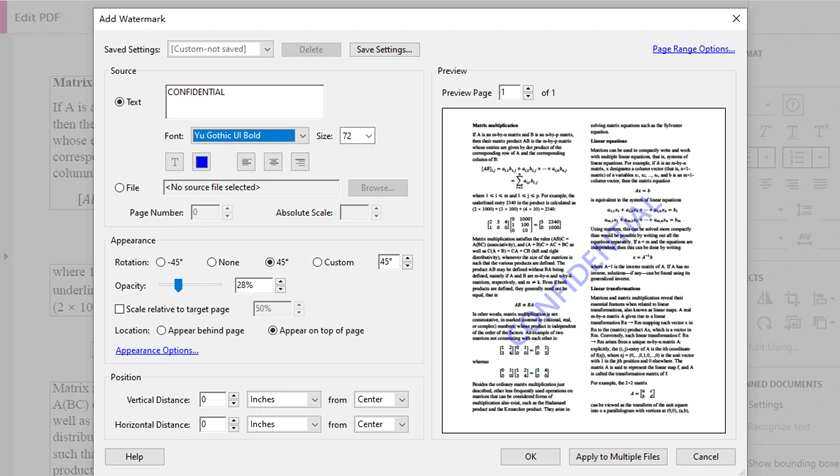
Step-by-Step: Add Watermark in Adobe Acrobat Pro
- Open your PDF in Adobe Acrobat Pro.
- Go to Tools → Edit PDF → Watermark → Add.
- Choose your watermark type:
- Text watermark, or
- Image watermark (File)
- Depending on your choice:
- If Text: enter text, then customize font, color, opacity, rotation
- If Image: select image, then adjust scale, opacity, position
- Preview the result.
- Click OK and save the document.
Pros
- Professional-quality results
- Excellent formatting preservation
- Powerful customization options
Cons
- Requires paid subscription
- Expensive for occasional users
Method 2: Add Watermark to PDF Online
Best For: Users who want a fast solution without installing software.
If you only need to watermark a PDF occasionally, online tools are often the fastest option. Most web-based PDF editors allow you to upload a file, insert a text or image watermark, and download the updated PDF within minutes. The entire process happens in the browser, making it convenient for users on different operating systems.
Online tools are especially useful for lightweight tasks such as adding a “Draft” label, placing a company logo, or marking internal documents before sharing them. However, because files must be uploaded to remote servers, they may not be ideal for confidential or highly sensitive PDFs.
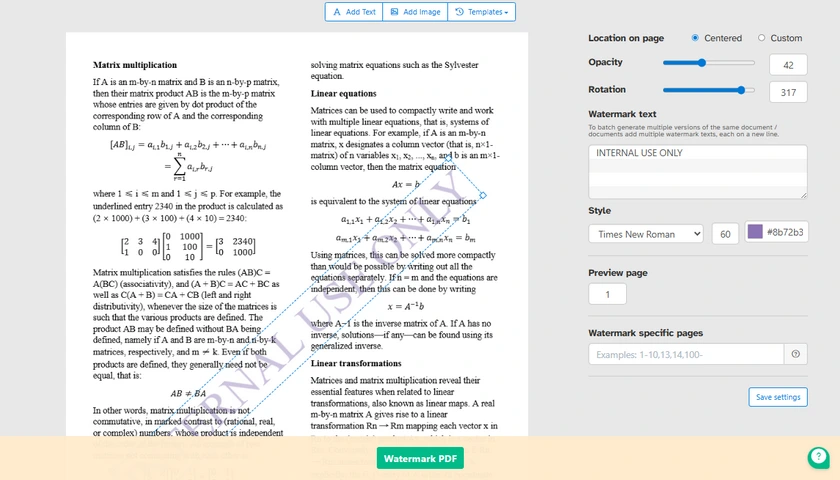
General Steps to Add Watermark to PDF Online
- Open an online PDF watermark tool.
- Upload your PDF file.
- Choose your watermark type:
- Text watermark, or
- Image watermark
- Depending on your choice:
- If Text: enter your watermark text
- If Image: upload your logo or image file
- Customize the watermark settings:
- Size
- Rotation
- Transparency
- Position
- Preview the result.
- Download the processed PDF.
Pros
- Very easy to use
- No installation required
- Works on Windows, macOS, Linux, and mobile devices
Cons
- Privacy concerns for sensitive files
- Upload size limitations
- Internet connection required
Method 3: Add Watermark to PDF Using LibreOffice Draw
Best For: Users looking for a completely free desktop solution.
For users who prefer offline tools but don't want to pay for premium PDF editors, LibreOffice Draw provides a practical alternative. Although it is not designed specifically for PDF watermarking, it can open PDF files directly and allows users to place text or images on top of existing pages.
This method works particularly well for simple watermarking tasks, especially when dealing with short documents. Since LibreOffice Draw is completely free and open source, it remains a popular choice among students, freelancers, and Linux users who need occasional PDF editing features.

Steps to Watermark PDF Using LibreOffice
-
Launch LibreOffice Draw.
-
Go to File → Open, then select and open your target PDF file.
-
Add your watermark accordingly:
- For text watermark: Click Insert → Text Box, drag to draw a box and type your watermark content.
- For image watermark: Click Insert → Image to import your logo or picture.
-
Adjust transparency and other settings:
- Text Transparency: Double-click to highlight all text, right-click → Character, open the Font Effects tab, then drag the slider to adjust text transparency.
- Image Transparency: Single-click to select the inserted image, right-click → Area, directly drag the transparency slider to make the image semi-transparent.
- Customize font size, color, rotation angle and placement freely.
-
Copy and paste the edited watermark to cover all pages.
-
When done, navigate to File → Export As → Export as PDF to save your final PDF file.
Pros
- Completely free
- Open-source
- No subscription required
Cons
- Slower when handling large PDFs
- Less convenient for batch processing
Method 4: Add Watermark to PDF Using Spire.PDF for Python
Best For: Developers who need automated PDF watermarking with reliable formatting preservation.
The methods above work well for manual editing, but they become inefficient when you need to process large numbers of PDF files automatically. In development workflows, watermarking is often part of a larger automation pipeline — such as generating invoices, protecting internal reports, or branding exported documents.
This is where Spire.PDF for Python becomes useful. It allows developers to add both text and image watermarks programmatically while maintaining accurate PDF rendering. Compared with many lightweight PDF libraries, it offers better control over watermark appearance, including transparency, rotation, font styling, and positioning.
Install Spire.PDF for Python
Install the library using pip:
pip install spire.pdf
Add Text Watermark to PDF in Python
The following example adds a rotated semi-transparent text watermark to every page in a PDF document.
from spire.pdf import *
from spire.pdf.common import *
import math

# Create an object of PdfDocument class
doc = PdfDocument()

# Load a PDF document from the specified path
doc.LoadFromFile("Input.pdf")

# Create an object of PdfTrueTypeFont class for the watermark font
font = PdfTrueTypeFont("Times New Roman", 48.0, 0, True)

# Specify the watermark text
text = "DO NOT COPY"

# Measure the dimensions of the text to ensure proper positioning
text_width = font.MeasureString(text).Width
text_height = font.MeasureString(text).Height

# Loop through each page in the document
for i in range(doc.Pages.Count):

    # Get the current page
    page = doc.Pages.get_Item(i)

    # Save the current canvas state
    state = page.Canvas.Save()

    # Calculate the center coordinates of the page
    x = page.Canvas.Size.Width / 2
    y = page.Canvas.Size.Height / 2

    # Translate the coordinate system to the center
    page.Canvas.TranslateTransform(x, y)

    # Rotate the watermark
    page.Canvas.RotateTransform(-45.0)

    # Set transparency
    page.Canvas.SetTransparency(0.7)

    # Draw the watermark text
    page.Canvas.DrawString(
        text,
        font,
        PdfBrushes.get_Blue(),
        PointF(-text_width / 2, -text_height / 2)
    )

    # Restore the canvas state
    page.Canvas.Restore(state)

# Save the modified PDF
doc.SaveToFile("output/TextWatermark.pdf")

# Dispose resources
doc.Dispose()
Customization Options
This example demonstrates several commonly used watermark settings:
- Font customization
Change the font family, size, and style to match your document design.
- Rotation angle
The watermark is rotated -45° to create a diagonal appearance across the page.
- Transparency control
The SetTransparency() method allows the watermark to remain visible without blocking document content.
- Centered positioning
The code automatically places the watermark at the center of each page.
These settings can be adjusted easily depending on whether you want a subtle background watermark or a more prominent security label.
Add Image Watermark to PDF in Python
Besides text watermarks, you can also place logos, stamps, or branding images onto PDF pages.
# Load the watermark image from the specified path
image = PdfImage.FromFile("logo.png")

# Get the width and height of the loaded image for positioning
imageWidth = float(image.Width)
imageHeight = float(image.Height)

# Loop through each page in the document to apply the watermark
for i in range(doc.Pages.Count):

    # Get the current page
    page = doc.Pages.get_Item(i)

    # Set the transparency of the watermark to 50%
    page.Canvas.SetTransparency(0.5)

    # Get the dimensions of the current page
    pageWidth = page.ActualSize.Width
    pageHeight = page.ActualSize.Height

    # Calculate the x and y coordinates to center the image on the page
    x = (pageWidth - imageWidth) / 2
    y = (pageHeight - imageHeight) / 2

    # Draw the image at the calculated center position on the page
    page.Canvas.DrawImage(image, x, y, imageWidth, imageHeight)
What Can You Customize?
With image watermarks, you can easily customize:
- Transparency level
- Watermark size
- Position on the page
- Logo or branding image
- Watermark placement across multiple pages
In addition to adding watermarks, Spire.PDF for Python also provides a wide range of PDF processing capabilities. You can use it to create, edit, merge, split, and convert PDF documents programmatically. This makes it a versatile solution for building complete PDF automation workflows in Python applications.
Comparison of All Methods
| Method | Ease of Use | Cost | Best For | Automation |
|---|---|---|---|---|
| Adobe Acrobat Pro | Easy | Paid | Professional editing | No |
| Online Tools | Very Easy | Free/Freemium | Quick tasks | No |
| LibreOffice Draw | Medium | Free | Free desktop editing | No |
| Spire.PDF for Python | Medium | Free/Commercial | Developers & automation | Yes |
Conclusion
Adding watermarks to PDFs can range from a simple one-time task to a fully automated document-processing workflow. Tools like Adobe Acrobat and online editors are suitable for occasional manual editing, while LibreOffice Draw offers a capable free alternative for offline use.
For developers and businesses handling PDFs at scale, programmatic solutions provide much greater flexibility. Spire.PDF for Python makes it possible to add both text and image watermarks with precise control over transparency, rotation, fonts, and positioning, making it well suited for automated PDF generation and document protection workflows.
FAQs About PDF Watermark
Can I add a watermark to a PDF for free?
Absolutely. You can use free desktop software such as LibreOffice Draw or various free online PDF editors to insert text and image watermarks with no paid subscription required. Besides, the free edition of Spire.PDF also enables PDF watermark insertion, with a limit of up to 10 pages per document.
Can I add an image watermark instead of text?
Yes. Most PDF tools support both text and image watermarks, including logos, stamps, and branded graphics.
How do I add a watermark to all pages in a PDF?
Most PDF editors include an option to apply the watermark to every page automatically. In Python, this is usually done by looping through all pages.
Will adding a watermark reduce PDF quality?
Usually no. Text watermarks have minimal impact, while image watermarks may slightly increase file size depending on the image used.
Which method is best for batch watermarking PDFs?
Programmatic solutions are best for batch processing. Libraries like Spire.PDF for Python can automate watermarking across large numbers of PDF files.