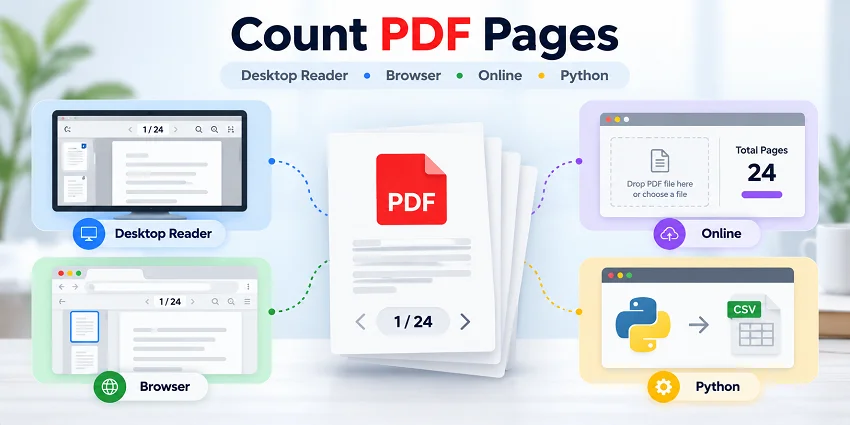
Need to check whether a PDF meets a submission page limit, prepare it for printing, or confirm that it contains the expected number of pages? You can quickly count PDF pages using a desktop PDF reader, a web browser, or an online tool. For recurring tasks, Python can automate the process and generate page-count reports.
This guide provides step-by-step instructions for all four methods. It also explains why a PDF's total page count may differ from the page numbers printed in the document.
PDF Page Counting Methods at a Glance
The best method depends on which tools you have available, how many PDFs you need to check, and whether the task is occasional or recurring. Compare your options below.
| Method | Best For | Limitations |
|---|---|---|
| Desktop PDF reader (Adobe Acrobat Reader) | Counting PDF pages offline | Requires an installed PDF reader; manual checking |
| Web browser (Chrome or Edge) | Counting PDF pages offline without a dedicated PDF reader | Best suited for one file at a time |
| Online PDF page counter | Quickly counting pages in one or multiple PDFs online | May require uploading PDFs; privacy and feature limitations vary by service |
| Python | Automated or recurring PDF page counting tasks | Requires a Python environment and basic coding knowledge |
Method 1: Count PDF Pages with a Desktop PDF Reader
Desktop PDF readers let you check the total number of pages in a PDF offline without uploading the file. If you already use one to read or review PDF documents, you can quickly find the page count in its navigation controls. The steps below use Adobe Acrobat Reader as an example.
Step-by-Step Instructions
-
Open the PDF.
Launch Adobe Acrobat Reader, select Menu > Open (or File > Open, depending on your interface), and choose your PDF file. -
Locate the page indicator.
In the newer Acrobat interface, the page navigation controls typically appear at the bottom of the right-hand panel. Their location may vary in older versions. -
Read the total page count.
The indicator shows the current page and the total number of pages, such as 1 / 24. The first number is the current page; the second is the total number of pages in the PDF.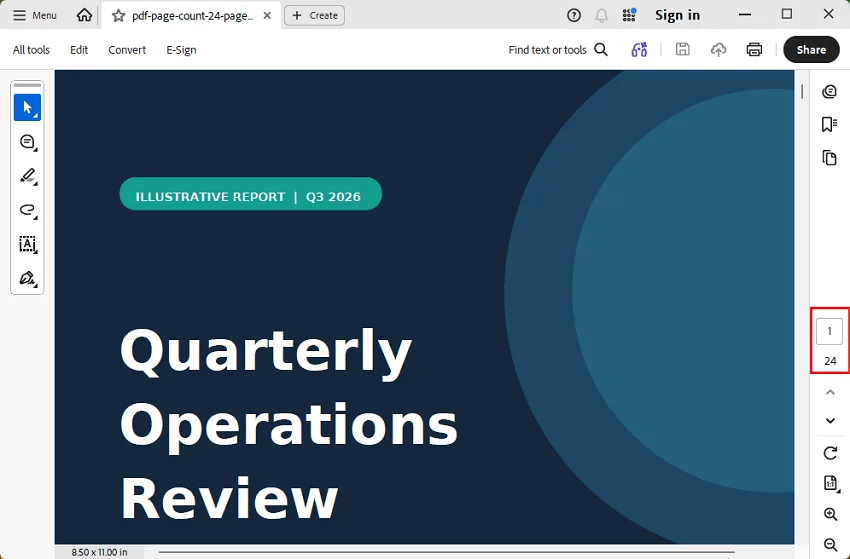
Note: Some PDFs use custom page labels, such as Roman numerals. These labels may differ from the actual page positions, so refer to the total page count displayed in navigation controls rather than the numbers printed on individual pages.
Method 2: Count PDF Pages in a Web Browser
If you don't have a dedicated PDF reader installed, you can use a web browser like Google Chrome or Microsoft Edge to check the total number of pages in a PDF. Both browsers have built-in PDF viewers, allowing you to open local PDF files and check their page counts without uploading them online.
Step-by-Step Instructions
-
Open the PDF in your browser.
Launch Chrome or Edge, then drag a PDF file from your computer into a browser tab. Alternatively, right-click the file and choose Open with > Google Chrome or Microsoft Edge, where available. -
Find the page indicator.
Look for the page navigation field in the PDF viewer toolbar, usually near the top of the document. If the toolbar is hidden, move the pointer over the PDF. -
Check the total number of pages.
The viewer typically displays a value such as 1 / 24. This means your PDF contains 24 pages and you're currently on the first page.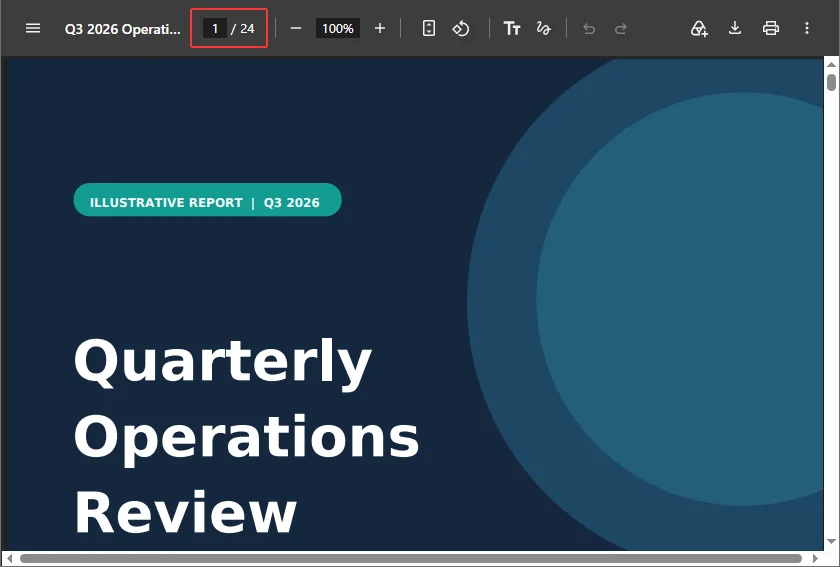
Method 3: Count PDF Pages Online
Online PDF page counters provide a quick way to check the number of pages in a PDF without installing a dedicated PDF application. You can select a file directly on a webpage and view its page count. Some tools also support multiple PDFs and allow you to export the results for record-keeping.
Option 1: NextUtils PDF Page Counter
-
Visit the NextUtils PDF Page Counter website.
-
Click Choose PDFs to select one or more PDF files, or drag and drop them onto the page.
-
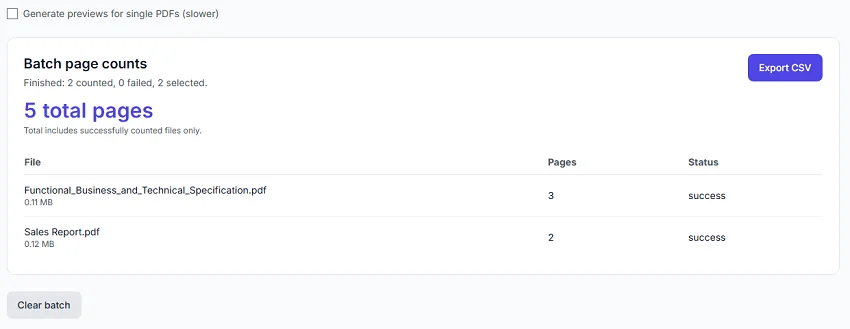
Once the files are analyzed, the tool displays the page count for each PDF and the combined total.
-
If needed, export the results as a CSV file for record-keeping or further analysis in Excel.
Option 2: OS Authority PDF Page Counter
-
Open the OS Authority PDF Page Counter website.
-
Click Choose files to select one or more PDFs from your device, or drag and drop them onto the page.
-
Click Count pages to start the process.
-
View the page count for each PDF and the combined total. You can also copy the results or download them as a CSV file.
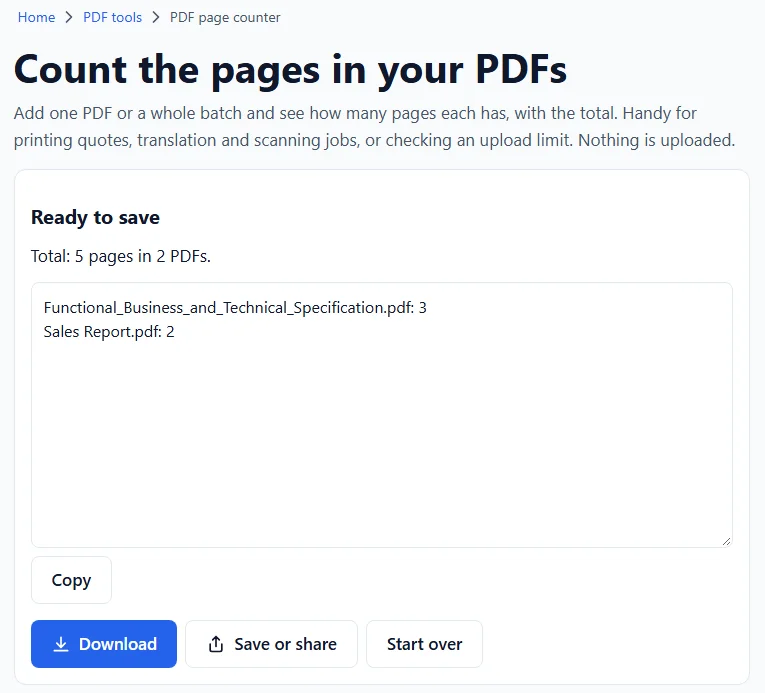
File limits: NextUtils supports up to 50 PDFs per batch, with a 50 MB limit per file. OS Authority allows up to 100 PDFs per batch on computers, 50 on tablets, and 20 on phones.
Privacy note: Both tools state that PDF files are processed locally in your browser rather than uploaded to a server. However, other online services may require file uploads, and privacy practices and usage limits can vary. Always review a service's current privacy information before processing sensitive documents.
Method 4: Automate PDF Page Counting with Python
If you need to check PDF page counts regularly, such as when new reports arrive or documents are prepared for printing, manually selecting files each time can become repetitive. Python allows you to automatically scan a folder, count the pages in each PDF, and save the results to a report. You can also schedule the script to run at regular intervals.
With Spire.PDF for Python, you can use the PdfDocument.Pages.Count property to retrieve page counts programmatically without opening each file in a PDF viewer.
Install Spire.PDF for Python
Install the library using pip:
pip install Spire.PDF
Automatically Count PDF Pages and Generate a Report
The following script scans a folder for PDF files, retrieves the page count of each document, and saves the results to a CSV report. It also records files that cannot be read and calculates the combined page count of successfully processed PDFs.
First, create a folder named pdf_files in the same directory as your Python script and place your PDF documents inside it.
from pathlib import Path
from datetime import datetime
import csv
from spire.pdf import PdfDocument

# Set up the input folder and output report
base_dir = Path(__file__).resolve().parent
input_folder = base_dir / "pdf_files"

timestamp = datetime.now().strftime("%Y%m%d_%H%M%S")
report_file = base_dir / f"pdf_page_counts_{timestamp}.csv"

if not input_folder.is_dir():
    raise FileNotFoundError("The 'pdf_files' folder does not exist.")

# Find PDF files in the folder
pdf_files = sorted(
    file for file in input_folder.iterdir()
    if file.is_file() and file.suffix.lower() == ".pdf"
)

results = []
total_pages = 0
successful_files = 0

# Count pages in each PDF
for pdf_file in pdf_files:
    pdf = PdfDocument()

    try:
        pdf.LoadFromFile(str(pdf_file))
        count = pdf.Pages.Count

        results.append([pdf_file.name, count, "Success"])
        total_pages += count
        successful_files += 1

    except Exception as e:
        results.append([pdf_file.name, "", f"Failed: {e}"])
        print(f"Failed to read {pdf_file.name}: {e}")

    finally:
        pdf.Close()

# Save the results to a CSV report
with report_file.open("w", newline="", encoding="utf-8-sig") as f:
    writer = csv.writer(f)
    writer.writerow(["File Name", "Page Count", "Status"])
    writer.writerows(results)

print(f"Successfully counted: {successful_files} of {len(pdf_files)} PDFs")
print(f"Failed: {len(pdf_files) - successful_files}")
print(f"Total pages: {total_pages}")
print(f"Report saved to: {report_file}")
Save the script as count_pdf_pages.py and run it with:
python count_pdf_pages.py
Each run checks the PDFs in the folder and generates a timestamped CSV report that you can open in Excel. The report includes each filename, page count, and processing status. Unreadable files are recorded, and the combined total includes only successfully processed documents.
Tip: To automate recurring checks, you can schedule the script using Windows Task Scheduler or cron on macOS and Linux. The script processes only PDFs directly inside pdf_files, not those in subfolders. It reads the documents without modifying them.
Troubleshooting Common PDF Page Count Issues
1. The Page Count Does Not Match the Printed Page Numbers
- Possible cause: Cover pages, front matter, or section numbering may use separate page labels, such as Roman numerals, or may start numbering after the first PDF page.
- How to fix: Use the PDF viewer's total page count or a library's page-count property, not the page number printed in the header or footer. The actual count includes cover and blank pages.
2. A PDF Cannot Be Opened or Counted
- Possible cause: The PDF is password-protected, incomplete, or damaged.
- How to fix: Open it in a trusted PDF viewer and enter the correct password if required. Download the file again if it may be incomplete. For Python scripts, handle errors per file so one unreadable PDF does not stop the entire batch.
3. An Online Counter Fails with a Large PDF
- Possible cause: The tool may have file limits, or your browser may not have enough memory to analyze a large document or batch.
- How to fix: Try fewer files at a time, use a desktop PDF viewer, or switch to a Python script that processes the files individually.
Conclusion
For a single PDF, a desktop reader such as Adobe Acrobat Reader or a browser's built-in PDF viewer offers a straightforward way to check the total page count offline. Online page counters offer quick checks and, where supported, combined totals or CSV exports. Python is useful when you need to repeat the task automatically and keep page-count reports over time.
Whichever method you use, distinguish the PDF's actual page count from its printed page labels, especially when preparing submissions or printing estimates.
FAQs
Q: Can I Count PDF Pages Without Adobe Acrobat?
A: Yes. You can open a local PDF in Chrome or Microsoft Edge, use a browser-based page counter, or count pages programmatically with Python. You do not need Adobe Acrobat for these methods.
Q: Do Blank Pages Count Toward the Total Number of PDF Pages?
A: Yes. A blank page is still a page in the PDF document, so page counters and PDF libraries include it in the total.
Q: Can I Count Pages in Scanned PDF Files?
A: Yes. Page counting reads the PDF's document structure, so optical character recognition (OCR) is not required. A scanned PDF's pages are counted even if they contain only images.
Q: Is the PDF Page Count the Same as the Number of Printed Sheets?
A: Not necessarily. For example, a 20-page PDF printed double-sided with one PDF page per side can use 10 sheets of paper. Pages-per-sheet printing settings can change the number of physical sheets further.