Need to fix a typo, remove outdated information, or delete unwanted content from a PDF? There are several ways to remove text from a PDF, depending on how much content you need to change and whether you prefer manual editing, automation, or an online tool.
This guide covers three main methods using Adobe Acrobat, Python, and an online PDF editor, plus an alternative approach for editing text in Word before converting the document back to PDF.
How to Remove Text from PDF with Adobe Acrobat
Adobe Acrobat is one of the best-known PDF tools, so it's often one of the first options people consider when they need to edit a PDF. It lets you edit existing PDF text directly, making it a practical choice for removing a few words, correcting small sections, or updating outdated information without rebuilding the entire document.
- Step 1: Open the PDF in Adobe Acrobat. Click Edit PDF in the right-hand sidebar, or go to Edit > Edit Text & Images in the toolbar.
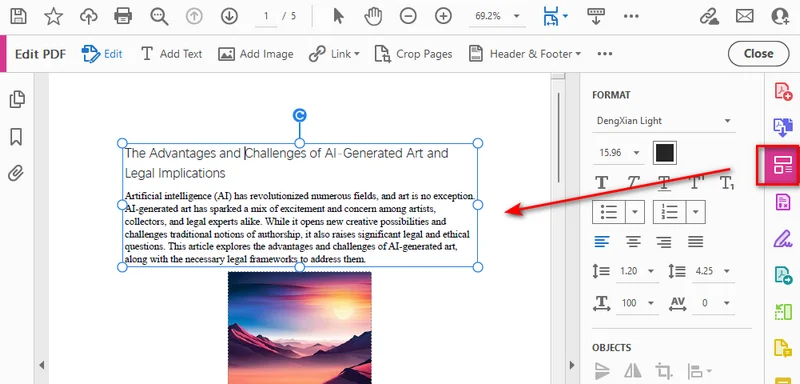
- Step 2: Select the text or text box you want to remove, then press Backspace on Windows or Delete on macOS.
Note: Editing existing text in Adobe Acrobat requires a paid subscription. If you need to remove confidential information permanently, use the Redact tool instead of simply deleting text.
How to Delete Text from PDF Using Python
If you need to remove the same text from multiple PDFs or repeat the task regularly, Python can automate the process. Free Spire.PDF for Python is a free PDF library that allows developers to create, read, edit, and save PDF documents through Python code. It provides APIs for working with PDF text, pages, images, and other document elements, making it useful for automating common PDF tasks. In this example, we'll use its PdfTextReplacer class to find specific text and replace it with an empty string, so you can remove unwanted text from a PDF without editing each occurrence manually.
Step 1: Install Free Spire.PDF for Python
First, install Free Spire.PDF for Python in your Python environment. You can use pip to install the package:
pip install Spire.Pdf.Free
Then import the library in your Python script:
from spire.pdf import *
With the library installed, you can load a PDF, process its pages, and save the result programmatically.
Step 2: Load the PDF and Remove the Target Text
The PdfTextReplacer class provides the ReplaceAllText() method for replacing matching text on a page. The following example removes every matching occurrence of the target text from the PDF pages.
from spire.pdf import *

# Define the input file, output file, and target text.
input_file = "input.pdf"
output_file = "output.pdf"
target_text = "AI-Generated"

# Load the source PDF.
pdf = PdfDocument()
pdf.LoadFromFile(input_file)

# Find and remove the target text on each page.
for i in range(pdf.Pages.Count):
    page = pdf.Pages.get_Item(i)
    replacer = PdfTextReplacer(page)
    replacer.ReplaceAllText(target_text, "")

# Save the modified PDF and release resources.
pdf.SaveToFile(output_file)
pdf.Close()
Here's the preview of the modified PDF file:
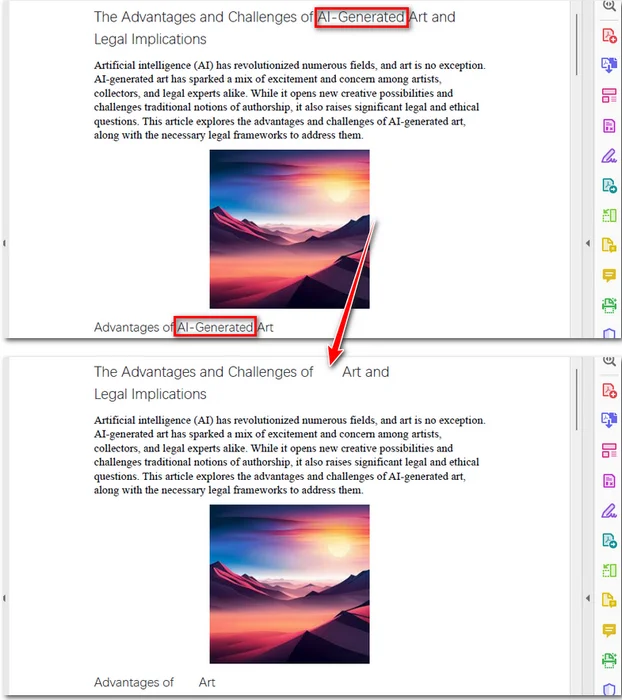
The ReplaceAllText() method uses an empty string ("") to replace every matching occurrence of the target text on a page. This allows you to quickly remove repeated text, such as a specific word or phrase, throughout a PDF. However, PDF pages use a fixed layout, so removing text does not automatically reflow the surrounding content. The original text may disappear, but the space it occupied can remain blank.
By default, the example matches the target text's capitalization. For example, "AI-Generated" and "ai-generated" may be treated as different matches. To make the replacement case-insensitive, set the ReplaceType option to ReplaceActionType.IgnoreCase before calling ReplaceAllText():
replacer.Options.ReplaceType = ReplaceActionType.IgnoreCase
replacer.ReplaceAllText(target_text, "")
How to Remove Text from PDF Online
If you want to remove text from a PDF without installing software, an online PDF editor is a convenient option. iLovePDF's Edit PDF tool lets you modify or delete existing text directly in your browser, making it useful for quick corrections and removing unwanted content.
- Step 1: Go to iLovePDF's Edit PDF tool and upload your PDF file.
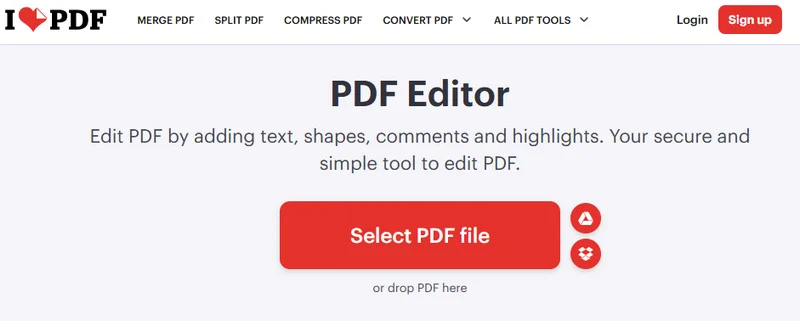
- Step 2: Click the Edit icon in the toolbar to enable editing. Select the text you want to remove, then delete the unwanted content.
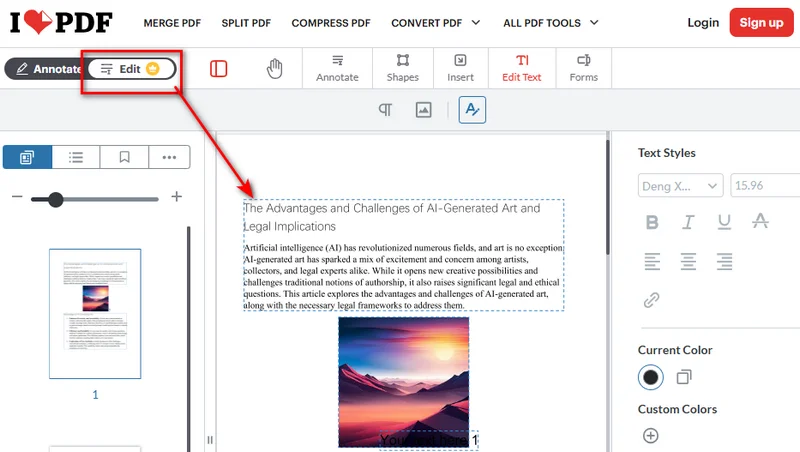
- Step 3: Review your changes and click Edit PDF to process the file. Download the edited PDF to your device.
Online editing tools are convenient for removing ordinary text, correcting errors, and updating document content. However, simply deleting text in an editor is not the same as securely redacting sensitive information. If you need to remove confidential data permanently, use a dedicated redaction tool and verify that the original text can no longer be searched, copied, or extracted. Before uploading a private document, check the service's privacy policy.
Alternative: Convert PDF to Word to Remove Text
If you need to edit larger sections of text, converting the PDF to Word can be another option. Open the converted document in Microsoft Word, delete the unwanted text, and save it back as a PDF.
However, conversion may affect the original layout, especially in documents with complex formatting, tables, or images. Check the converted document carefully before exporting it back to PDF.
Best for: Editing longer passages or making multiple changes to a PDF's content.
Which Method Should You Choose?
Each method has its own strengths and limitations. The best choice depends on how much text you need to remove, how often you process PDFs, and how you prefer to work. The table below compares the available options to help you choose the right one.
| Method | Best use case | Main limitation |
|---|---|---|
| Adobe Acrobat | Manually deleting text or making small corrections | Editing existing text requires a paid subscription |
| Free Spire.PDF for Python | Automating text replacement across multiple PDFs | May leave blank spaces where text was removed |
| iLovePDF Edit PDF | Making quick edits online without installing software | Requires uploading the PDF to an online service |
| PDF-to-Word conversion | Editing longer passages or making extensive changes | May affect the original layout during conversion |
FAQs
1. How Do I Extract Text from a PDF?
Extracting text is different from removing it. If the PDF contains selectable text, you can often copy it directly or use a PDF text extraction tool. For scanned PDFs, you may need optical character recognition (OCR) to recognize text in page images.
2. Why Can't I Delete a Text Box in a PDF?
These PDFs may contain flattened content, scanned page images, or text converted into outlines. If the text is part of an image, you will need OCR or an image-editing approach rather than ordinary PDF text editing.
3. How Can I Remove Text from a PDF Without Removing the Background?
You can usually delete text directly with a PDF editor without affecting the background. However, covering text with a white or black rectangle may also cover background patterns or images.
4. How Can I Make Text Disappear Permanently in a PDF?
Use a PDF editor to delete the text from the document. If you only cover it with a white or black rectangle, the original text may still be recoverable. For sensitive information, use a redaction tool to permanently remove the content.
Conclusion
You can remove text from a PDF using a desktop editor, Python, or an online tool. Adobe Acrobat and iLovePDF are convenient for quick edits, while Free Spire.PDF is useful for automating repeated text replacement. If you need to make extensive changes, converting the PDF to Word may be another option, although the original layout may not be fully preserved. Choose the method that fits your workflow and make PDF editing faster and more efficient.