Imagine sending an invoice PDF to a client but forgetting to include the Excel itemization sheet. Or worse, emailing a technical report without the source code. Merging everything into one place can prevent such mistakes. Knowing how to attach a file to a PDF ensures your readers get all the data they need in a single document. In this guide, you will learn how to add attachments to PDF files with Adobe and how to automate it using Python.
- Understanding the 2 Ways to Attach Files to a PDF
- Comparison Table
- Attach a File to a PDF Manually using Adobe Acrobat
- Attach Documents to PDF using Free Spire.PDF
- Best Practices & Troubleshooting
Understanding the 2 Ways to Attach Files to a PDF
Before diving into the steps, it's important to understand how PDFs handle embedded files. Depending on your goal, you can choose between a clean, hidden approach or a highly visual one.
- Document-Level Attachments: Document-level attachments work much like email attachments. The external file is embedded into the PDF document and stays hidden inside the viewer's sidebar panel. This method is ideal for bundling large datasets, source code packages, or supporting documents.
Tip: If you need to package multiple related files into a single PDF container, you may also consider creating a PDF Portfolio, which provides a more structured way to organize attachments.
- File Attachment Annotations: These are page-level attachments. They display a visual icon (like a paperclip or a pin) at a specific coordinate on the page. Readers can double-click the icon to open the file immediately. It is ideal for linking a source document right next to text or a paragraph.
Quick Comparison
Choosing the right method to attach files saves time and improves your reader's experience. Use this quick breakdown to decide which approach fits your project:
| Feature | Document-Level Attachment | File Attachment Annotation |
|---|---|---|
| Visibility | Completely hidden on the page. Only visible in the attachments sidebar. | Displays a clickable icon on a specific page coordinate. |
| User Action | User must open the sidebar panel and scroll through a file list. | User reads a paragraph and double-clicks the icon directly on the page. |
| Primary Use | Archiving raw data, attaching project source code or full Excel sheets. | Contextual references, detailed chart explanations, legal proofs. |
| Recommendation | Best for automated data archiving | Best for interactive reading |
All in all, if you want to bundle raw data without messing up your PDF layout, go with Document-Level. If you want your readers to check a specific source file right after reading a paragraph, annotation is better.
Method 1: How to Attach a File to a PDF Manually using Adobe Acrobat
If you only have a few files to process and prefer an intuitive interface, attaching a file to a PDF manually via Adobe Acrobat is perfect. As one of the most popular PDF editors, Adobe Acrobat makes it easy to add attachments to PDF documents, allowing you to seamlessly embed external files either at the document level or as visual annotations.
Adding a Document-Level Attachment to PDF
- Step 1. Open your target PDF file in Adobe Acrobat.
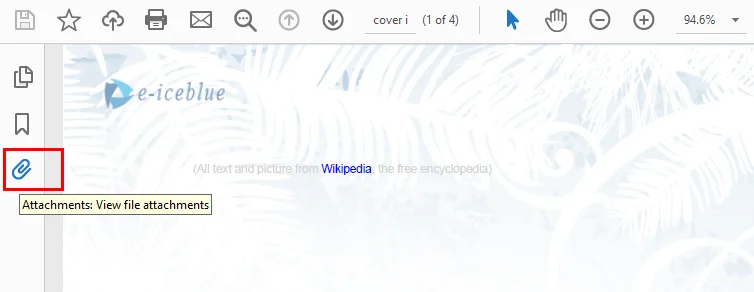
- Step 2. Expand the left navigation pane and click the Attachments icon (it looks like a paperclip).
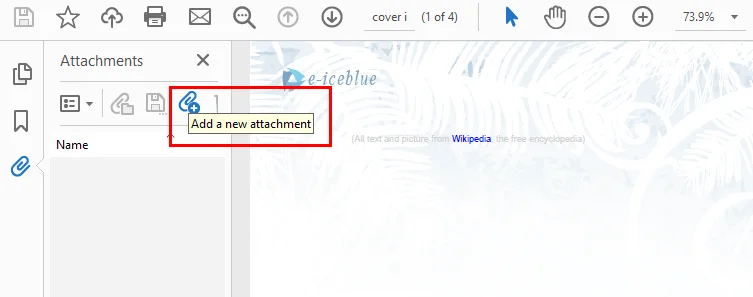
- Step 3. Click the Add files button at the top of the panel, select a file from your computer, and save the PDF.
Adding a File Attachment Annotation in PDF
- Step 1: Click Comment in the right sidebar to open the comment toolbar.
- Step 2: Click the Attach File tool on the toolbar.
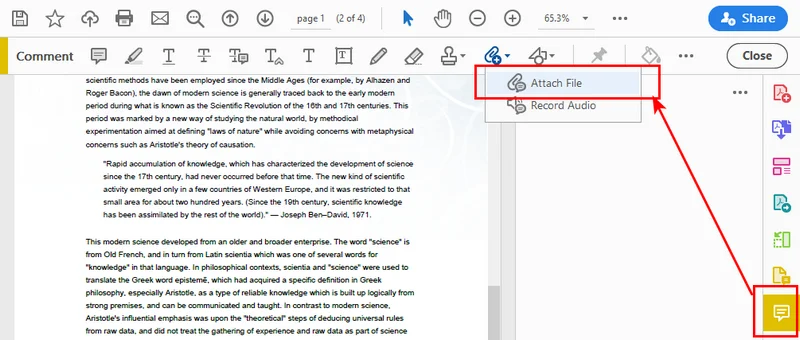
- Step 3: Click anywhere on the PDF page where you want to place the visual attachment icon.
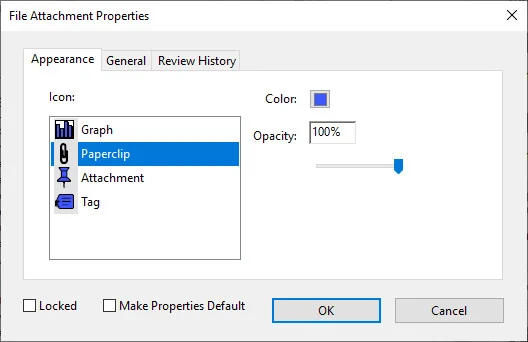
- Step 4: Select the target file from your device, choose your preferred icon style in the pop-up properties window, and save the document.
Method 2: How to Attach Documents to a PDF Programmatically using Free Spire.PDF
Attaching a few files manually is manageable, but the process quickly becomes inefficient when dealing with dozens or hundreds of documents. If you need to integrate file bundling into an automated enterprise workflow, like linking raw data sheets to invoices or source files to technical reports, doing it by hand is exhausting. To scale your document pipelines, automating file attaching becomes the most efficient and scalable solution. By leveraging Free Spire.PDF for Python, you can achieve this with just a few lines of code.
As a standalone and free community component, Free Spire.PDF for Python requires no Adobe Acrobat installation on your servers. It allows you to manipulate PDF structures seamlessly, supporting both document-level and annotation-style file attaching.
Attach a File to a PDF Directly
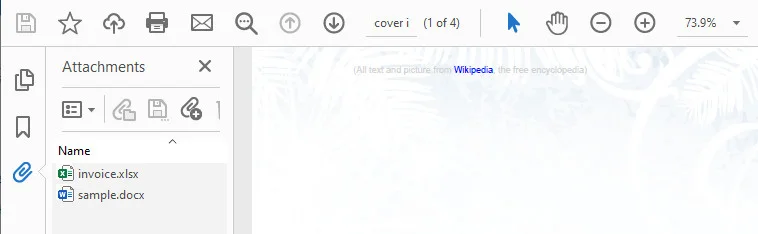
This script demonstrates how to inject files directly into the global attachment collection of a PDF. The core idea is to create a PdfAttachment object based on a local file and then use the PdfDocument.Attachments.Add() method to attach it to the source PDF file.
from spire.pdf import *
from spire.pdf.common import *

# Initialize the document object
doc = PdfDocument()

# Load your existing PDF file
doc.LoadFromFile("/input/Booklet.pdf")

# Create document-level attachments by passing the file path
attachment_1 = PdfAttachment("/sample.docx")
attachment_2 = PdfAttachment("/invoice.xlsx")

# Add the attachments to the global attachments collection
doc.Attachments.Add(attachment_1)
doc.Attachments.Add(attachment_2)

# Save the finalized PDF document
doc.SaveToFile("/output/global_attachment.pdf")
doc.Close()
Adding Attachments to a PDF as an Annotation
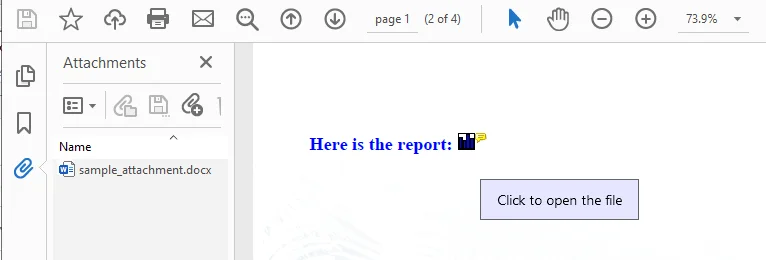
This code sample adds an external file to the PDF as an annotation attachment, which is ultimately displayed as a clickable graph icon on the first page.
The core idea is to retrieve a target page via doc.Pages.get_Item(), define the exact page coordinates using RectangleF, and initialize a PdfAttachmentAnnotation object tied to your external file. After customizing properties like the icon style, color, and hover text, you simply append it to the page's interactive layer using the page.AnnotationsWidget.Add() method.
from spire.pdf import *
from spire.pdf.common import *

# Initialize the document object and load the source PDF file
doc = PdfDocument()
doc.LoadFromFile("/input/new.pdf")

# Get the first page
page = doc.Pages.get_Item(0)

# Draw a text prompt on the PDF page canvas
text_str = "Here is the report:"
font = PdfTrueTypeFont("Times New Roman", 16.0, PdfFontStyle.Bold, True)
x = 50.0
# Calculate the Y coordinate dynamically based on the actual page height
y = doc.Pages.get_Item(0).ActualSize.Height - 300.0
page.Canvas.DrawString(text_str, font, PdfBrushes.get_Blue(), x, y)

# Read the local file into a data stream as the attachment content
data_stream = Stream("/input/sample.docx")

# Calculate position: place the icon 5.0 pixels to the right of the text prompt
text_size = font.MeasureString(text_str)
bounds = RectangleF((x + text_size.Width + 5.0), y, 15.0, 15.0)

# Create the file attachment annotation object
annotation = PdfAttachmentAnnotation(bounds, "sample_attachment.docx", data_stream)

# Customize the appearance and tooltip behavior of the annotation
annotation.Color = PdfRGBColor(Color.get_Blue())
annotation.Flags = PdfAnnotationFlags.Default
annotation.Icon = PdfAttachmentIcon.Graph
annotation.Text = "Click to open the file"

# Add the interactive annotation layer to the page widget collection
page.AnnotationsWidget.Add(annotation)

# Save the PDF document
doc.SaveToFile("/output/AnnotationAttachment1.pdf")
doc.Close()
Note: If you are working on a collaborative review layout, these annotations sync perfectly with standard PDF revision tracking fields.
Best Practices & Troubleshooting when Attaching Files to PDFs
Before you hit send on your newly updated documents, you should keep a few notes in mind to avoid common errors.
- File Size Management: When you attach a file to PDF structures, for example, embedding a 50MB video will make your PDF too large to email. Compress your files first, or use secure cloud URLs for large files.
-
Security & Blocked Formats: Modern PDF readers are highly sensitive to malware. It is recommended to attach files in safe formats like
.txt,.docx, or.xlsx. -
How to Extract Attachments: What goes in must come out. If you are building an automated pipeline, you can use
PdfAttachment.DataorPdfAttachmentAnnotation.Datato read and extract these files back out into your database later.
Conclusion
In this post, we explored how to attach a file to a PDF using two main approaches: document-level file attachments and page-level annotation attachments. We also explained both manual operations via Adobe Acrobat and code-based automation using Free Spire.PDF for Python.
Whether you need a quick manual fix for a few documents or want to integrate file bundling into an automated workflow, both approaches can help streamline the way you distribute supporting files alongside PDF documents. Choose the method that best fits your business scenario, and start optimizing your PDF pipelines today!