When you batch print PDF files such as shipping invoices, legal contracts or multi-chapter reports, keeping PDFs printed in the correct order can be challenging. Windows and mainstream PDF utilities arrange print queues by filename or modified date; mismatched file naming will mess up your printing sequence.
File naming issues usually cause this disorder, yet solutions vary by workflow: weekly manual printing or app-integrated auto execution, single-file custom page ranges or plain ordered batch print PDF files commands.
This tutorial lists five solutions, ranging from Windows File Explorer’s native operation to full C# coding automation, for different technical proficiency and scenarios. Each method builds on a shared foundation, so start with the "Before You Start" section before diving into any specific approach.
Quick Navigation:
- Before You Start: Rename PDFs for Consistent Sorting
- Method 1: Batch Print PDFs from File Explorer
- Method 2: Merge PDFs into a Single File Before Printing
- Method 3: Batch Print PDFs with Adobe Acrobat Pro
- Method 4: Print Multiple PDFs Using PowerShell
- Method 5: Batch Print PDF Files in Order Using C#
Before You Start: Rename PDFs for Consistent Sorting
Regardless of which method you use below, file naming is the foundation of print order control. Every tool — File Explorer, Adobe Acrobat, PowerShell, and even C# — retrieves files in the order the OS returns them, which is alphabetical by filename.
The fix is simple: use zero-padded numeric prefixes.
| Bad naming | Good naming |
|---|---|
| invoice.pdf | 01_invoice.pdf |
| receipt.pdf | 02_receipt.pdf |
| summary.pdf | 03_summary.pdf |
Without the leading zero, 10_file.pdf sorts before 2_file.pdf. With zero-padding (01, 02, 10), the order is always correct.
To rename files on Windows, the most straightforward approach is to do it manually in File Explorer: right-click a file → Rename , add the numeric prefix, and repeat for each file. This keeps you in full control of the sequence.
Once your files are named correctly, every method below will respect that order automatically.
Method 1: Batch Print PDFs from File Explorer
If you just need to print a handful of PDFs without installing anything, Windows File Explorer can handle it natively. This method works by sending each file to the print queue in the order they appear in the folder view — which is why correct file naming (covered above) is essential. It takes less than a minute to set up and requires no additional software, making it the best starting point for anyone who prints PDF batches only occasionally.
Steps:
- Open File Explorer and navigate to the folder containing your PDFs.
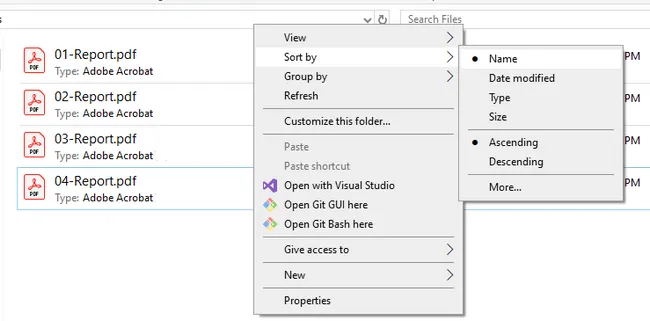
- Right-click anywhere in an empty area of the folder, select Sort by, and choose Name to sort files alphabetically. Verify the order matches your intended print sequence before proceeding.
- Select all the PDF files you want to print: press
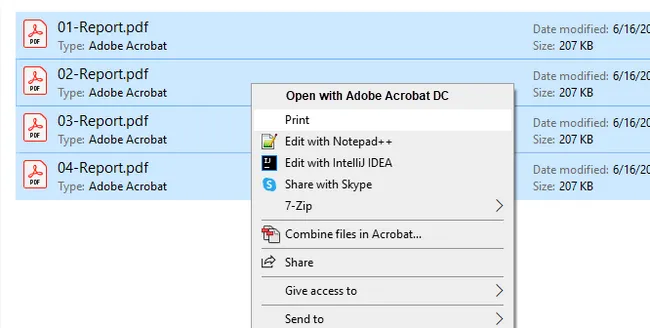
Ctrl + Ato select all, or holdCtrland click to select specific files. - Right-click the selection and choose Print .
- A print dialog will appear. Select your printer, choose paper size and number of copies, then click Print .
Limitation: File Explorer sends each PDF to the print queue as a separate job. If the printer is busy or the queue processes jobs out of order, pages may still interleave. For large batches, Method 2 or 3 is more reliable.
Method 2: Merge PDFs into a Single File Before Printing
When File Explorer's multi-job queue feels unreliable — especially for large batches where jobs can arrive at the printer faster than it processes them — merging all your PDFs into a single file first is the most foolproof solution. Instead of sending dozens of separate print jobs, you send one. The page order is locked in during the merge step, so there's no risk of the print queue reordering anything. This method works with any PDF viewer and any printer, and requires only a free tool to do the merging.
Steps:
- Open an online PDF merger tool such as PDF24 (free) .
- Add your PDF files to the merge tool. Drag them in the exact order you want them printed — the file list order becomes the page order.
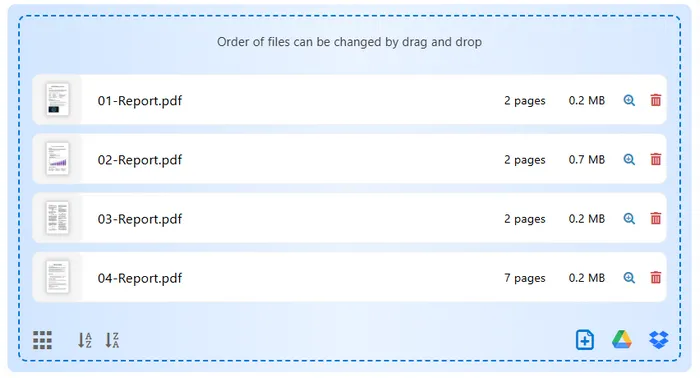
- Click Merge and save the combined PDF.
- Open the merged PDF in any PDF viewer (Edge, Chrome, or Adobe Reader).
- Press
Ctrl + P, select your printer, and print.
Best for: Print jobs where exact page sequence is critical, such as booklets, reports, or multi-chapter documents.
Method 3: Batch Print PDFs with Adobe Acrobat Pro
If you already have Adobe Acrobat Pro in your workflow, it offers the most control of any GUI-based batch printing option. Unlike File Explorer, Acrobat lets you manually reorder files in the print queue, configure different settings per file (page range, duplex, color mode), and save those configurations as reusable Actions. This makes it particularly useful for office environments where print jobs follow consistent but complex rules — for example, always printing the first document single-sided and the rest double-sided.
Steps:
- Open Adobe Acrobat Pro and click Tools in the top navigation bar.
- Scroll down and select Action Wizard to open the Actions panel.
- Click New Action . In the Create New Action dialog, set Files to be processed to a specific folder (point it to the folder containing your PDFs).
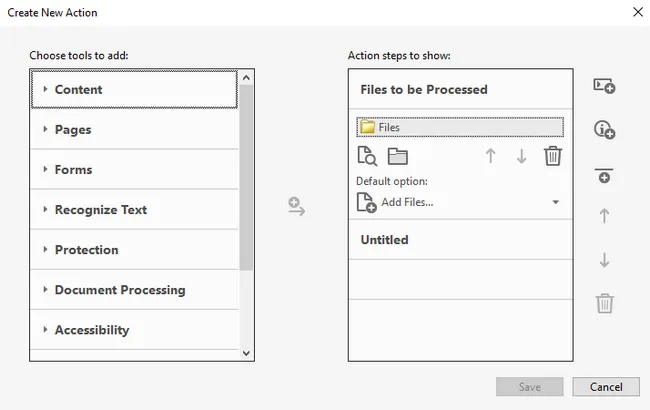
- In the Choose tools to add pane on the left, expand More Tools and double-click Print to add it as an action step.
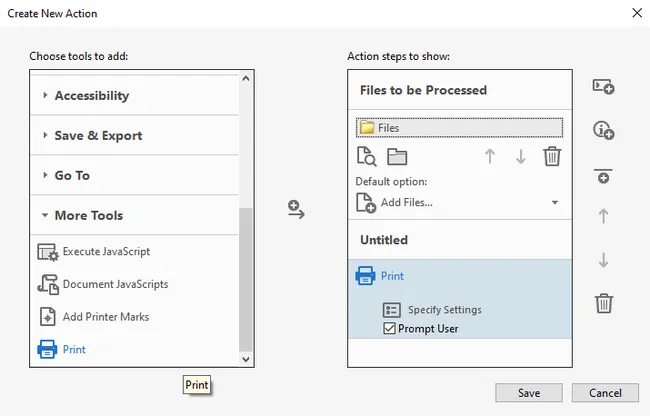
- Click Specify Settings on the Print step to configure your printer, page range, duplex, and copies. Uncheck Prompt User if you want it to run without interruption.
- Click Save , give the action a name like "Batch Print". You can then find the Batch Print action from the Actions List panel.
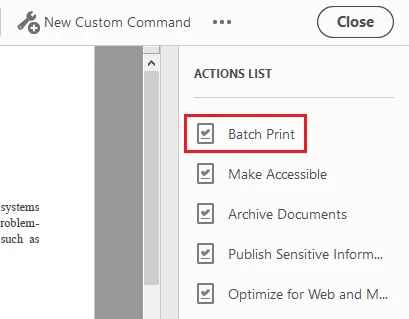
- Click "Batch Print" and then click the Start button to run it.
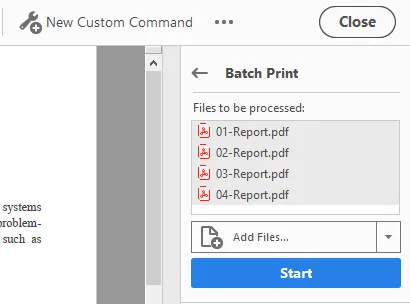
- Acrobat will process and print all PDFs in the folder in filename order.
Note: Adobe Acrobat Pro is a paid subscription. This method is most valuable when you need to reuse the same print configuration repeatedly — once the Action is saved, future batch print jobs take a single click.
Method 4: Print Multiple PDFs Using PowerShell
PowerShell is built into every modern Windows installation and requires no extra software. For users who are comfortable with a terminal, it offers a significant upgrade over File Explorer: you can schedule the script as a Windows Task, log print results, add conditional logic, and control the delay between jobs programmatically. This makes it well-suited for recurring print tasks — for example, automatically printing a folder of daily reports each morning.
Steps:
-
Open PowerShell as Administrator (search "PowerShell" in Start Menu, right-click → Run as administrator).
-
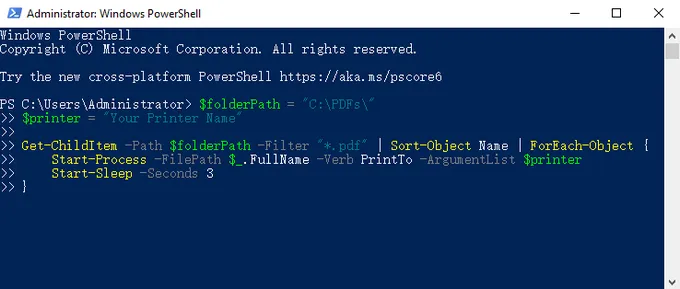
Paste the following script, replacing the folder path and printer name:
$folderPath = "C:\PDFs\"
$printer = "Your Printer Name"

Get-ChildItem -Path $folderPath -Filter "*.pdf" | Sort-Object Name | ForEach-Object {
    Start-Process -FilePath $_.FullName -Verb PrintTo -ArgumentList $printer
    Start-Sleep -Seconds 3
}
-
Press
Enterto run. The script retrieves all PDFs sorted by filename, then sends each one to the specified printer.
Key points:
-
Sort-Object Nameensures alphabetical order — this is why correct file naming matters. -
Start-Sleep -Seconds 3adds a short delay between jobs to prevent the printer queue from receiving jobs faster than it can process them. Increase this value for large files. - To find your exact printer name, run
Get-Printer | Select Namein PowerShell.
Method 5: Batch Print PDF Files in Order Using C#
For developers building .NET applications that need to trigger PDF printing programmatically — whether that's an order management system, a document archival tool, or an ERP module — Spire.PDF for .NET provides a clean, dependency-light API.
Unlike shell-based approaches, Spire.PDF doesn't rely on the system's default PDF viewer to handle printing; it renders and prints the document directly, which means it works reliably in server environments and background services where no GUI is available. The code below is a complete, runnable example that prints all PDFs in a folder in alphabetical order.
Install Spire.PDF via NuGet:
Install-Package Spire.PDF
Complete working example:
using Spire.Pdf;
using System.IO;

namespace BatchPrintPdf
{
    class Program
    {
        static void Main(string[] args)
        {
            // Specify the folder containing PDF files
            string folderPath = @"C:\PDFs\";

            // Get all PDF files in the folder, sorted by filename
            string[] files = Directory.GetFiles(folderPath, "*.pdf");

            // Loop through each PDF file
            foreach (string file in files)
            {
                // Load the PDF document
                PdfDocument doc = new PdfDocument();
                doc.LoadFromFile(file);

                // Specify printer name
                doc.PrintSettings.PrinterName = "Your Printer Name";

		// Enable silent printing
		doc.PrintSettings.PrintController = new StandardPrintController();

                // Print the PDF
                doc.Print();

                // Dispose resources
                doc.Dispose();
            }
        }
    }
}
How it works:
-
Directory.GetFiles()returns files sorted alphabetically by default — consistent with the naming convention established earlier. -
PrintSettings.PrinterNamelets you target any installed printer by name. Remove this line to use the system default printer. -
doc.Dispose()releases file handles after each print job, preventing memory leaks in long-running batches. - Spire.PDF also exposes
PrintSettings.Copies,PrintSettings.SelectPageRange(), and duplex settings if you need more control per file. For more details, check out: How to Print PDF Documents in C# (Without Adobe)
This approach integrates naturally into document management systems, ERP backends, or any .NET application that needs to trigger print jobs programmatically. Beyond batch printing, Spire.PDF supports a wide range of document operations you can incorporate into the same workflow — such as adding watermarks before printing or merging multiple PDFs in order with page numbers.
Comparison of the 5 Methods
| Method | Skill Level | Silent / No Pop-ups | Requires PDF Viewer | Best For |
|---|---|---|---|---|
| File Explorer | Beginner | No | Yes | Quick one-off jobs |
| Merge First | Beginner | No | No | Guaranteed page order |
| Adobe Acrobat Pro | Intermediate | After initial setup | Yes (Adobe itself) | Per-file print control |
| PowerShell | Intermediate | Depends on PDF viewer | Yes | Scheduled/recurring tasks |
| C# (Spire.PDF) | Developer | Yes | No | App integration |
Troubleshooting Common PDF Printing Issues
Files print in the wrong order even after renaming
Double-check that the sort type in File Explorer is set to Name , not Date Modified or Size . In PowerShell, confirm Sort-Object Name is in your script.
Print jobs overlap or pages interleave
The printer queue is receiving jobs faster than it can process them. In PowerShell, increase the Start-Sleep delay. In C#, consider adding Thread.Sleep(2000) between print calls. Alternatively, use Method 2 (merge first) to eliminate this problem entirely.
PDF opens but won't print silently (PowerShell/C#)
Ensure the default PDF handler supports silent printing. Adobe Reader's command-line /t flag can help, or use Spire.PDF (Method 5) which handles printing directly without opening a viewer.
"Printer not found" error in code
Run Get-Printer | Select Name in PowerShell to get the exact printer name string. Copy it verbatim — including spaces and capitalization — into your script or C# code.
Conclusion
Batch printing PDFs in the correct order isn't a single problem with a single solution — it depends on how often you print, how many files are involved, and whether printing is a manual task or part of a larger automated system.
For a one-off job, File Explorer gets it done in under a minute. If queue reliability is a concern, merging first eliminates the problem entirely. For recurring tasks, a PowerShell script runs on a schedule without any manual intervention. And for developers embedding print functionality into a .NET application, Spire.PDF's PdfDocument API gives you precise, programmatic control — no dependency on a system PDF viewer, no GUI required.
Whichever method you choose, the foundation is the same: get your file naming right before anything else. A consistent zero-padded naming scheme costs you two minutes of setup and saves every method downstream from ever producing output in the wrong order.
FAQs
Can I batch print PDFs without Adobe Acrobat?
Yes. File Explorer, PowerShell, Spire.PDF, and third-party tools like PDF24 all support batch printing without Adobe Acrobat. Adobe Acrobat Pro is only necessary if you need per-file print settings like custom page ranges.
Why does my printer print PDF files out of order?
The most common cause is inconsistent file naming. If files aren't named with numeric prefixes (e.g., 01_, 02_), the OS may sort them alphabetically by their full name, which doesn't match the intended sequence.
Can I batch print PDFs in order on a Mac?
The methods in this guide are Windows-focused, but Mac users can achieve the same result through Finder. Select all PDF files in a Finder window, right-click and choose Open With → Preview . Preview will load all files into a single sidebar — drag to reorder them, then go to File → Print to print the entire set in one job.
How many PDF files can I batch print at once using File Explorer?
Windows doesn't impose a hard limit, but in practice, selecting more than 15–20 files via File Explorer's right-click Print can cause issues — some files may be skipped or the print queue may stall. For larger batches, use the PowerShell or C# method instead, as both handle arbitrarily large file sets reliably.