The PDF Portfolio was introduced by Adobe to solve a common challenge: how to package multiple files into a single document without losing their original formats or structure. Unlike traditional merged PDFs, a PDF Portfolio keeps each file independent while organizing them within a structured container.
This makes it ideal for complex document packages such as legal submissions, project deliverables, or engineering documentation.
In this article, you’ll learn how to create a PDF Portfolio, understand its hierarchical folder structure, and explore two practical methods: using Adobe Acrobat or generating one programmatically with Spire.PDF for Python.
What Is a PDF Portfolio?
A PDF Portfolio is a standards-based PDF container defined in the PDF specification. Rather than combining content into a single stream of pages, it embeds multiple independent files within one PDF wrapper. When opened in Adobe Acrobat Pro DC or Adobe Reader, the portfolio functions similarly to a lightweight file explorer, allowing users to browse folders and open embedded files individually.
A PDF Portfolio can include:
- PDF documents
- Word and Excel files
- Images and multimedia
- Other common file formats
One of its defining characteristics is support for hierarchical folder structures, enabling logical organization of documents within the portfolio.
PDF Portfolio vs ZIP vs Attachments vs Merge
These formats are frequently confused because they all allow multiple files to be grouped together in some way. However, their structure, behavior, and use cases differ significantly.
| Aspect | PDF Portfolio | ZIP Archive | PDF with Attachments | Merged PDF |
|---|---|---|---|---|
| Primary purpose | Structured file container | File compression & transfer | Main document with extra files | Combine documents into one |
| Files remain independent | Yes | Yes | Yes | No |
| Supports folder hierarchy | Yes | Yes | No | No |
| Requires extraction before access | No | Yes | No | No |
| Best for | Organized document packages | Sending multiple files | Supplementary materials | Simple consolidation |
Key Takeaway
- Use Merged PDF when you only need one continuous document.
- Use PDF with Attachments when one file is primary and others are supporting.
- Use ZIP when compression and transfer are the priority.
- Use a PDF Portfolio when multiple files must remain independent and clearly organized within a single, structured PDF.
Understanding Portfolio Structure
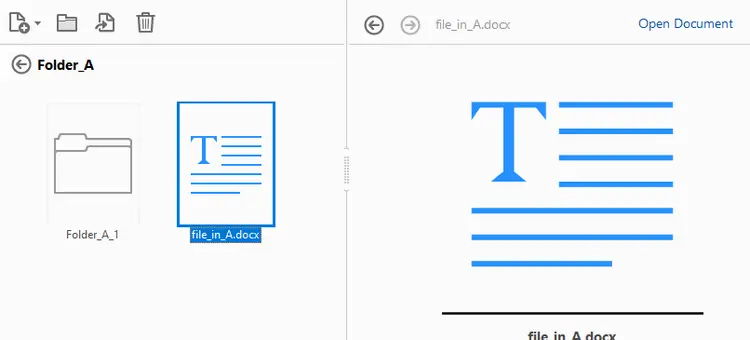
A PDF Portfolio utilizes a hierarchical folder organization, akin to a traditional file system. This structure allows for efficient sorting and easy navigation, making it ideal for managing complex document sets.
Example structure:
PDF Portfolio
│
├── root_file.xlsx
│
└── Folder_A
      ├── file_in_A.docx
      │
      └── Folder_A_1
            └── file_in_A1.xml
This demonstrates:
- Files at the root level
- First-level folders
- Nested subfolders
- Independent files at each level
There is no strict limitation on nesting depth—you can build multi-level structures to suit enterprise document packaging needs.
Method 1: Create a PDF Portfolio Using Adobe
Adobe Acrobat Pro DC is recognized as the leading tool for creating PDF Portfolios, providing a user-friendly interface that simplifies the process. This method is particularly beneficial for individuals or teams looking to present diverse documentation in an organized manner.
Steps to Create a PDF Portfolio Using Adobe
-
Open Adobe Acrobat Pro.
-
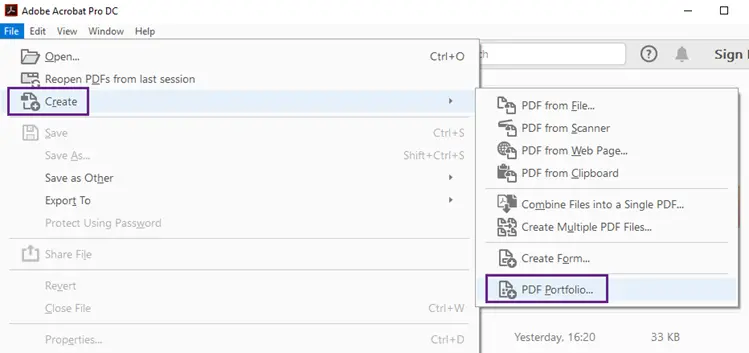
Navigate to File → Create → PDF Portfolio to start the process.
-
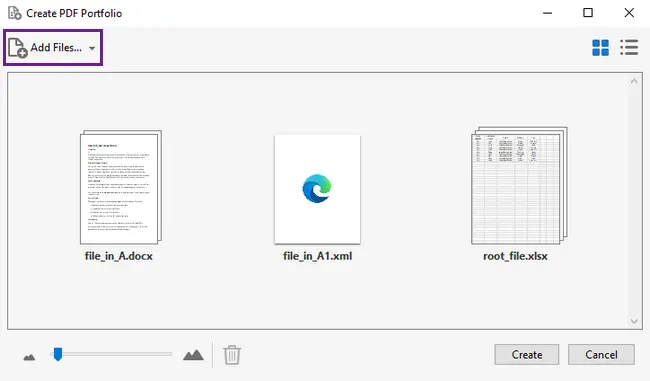
Click Add Files to import your documents.
-
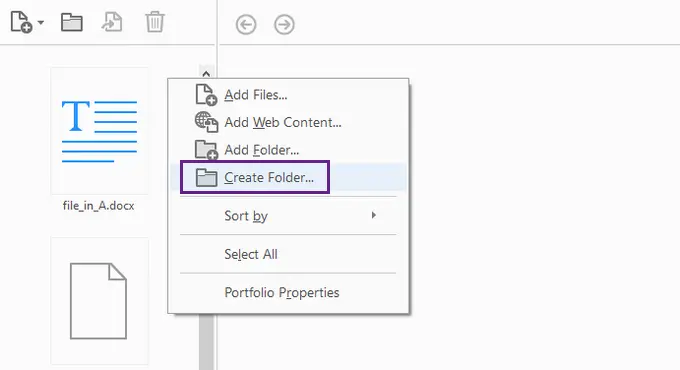
Create folders by right-clicking on the panel and selecting Create Folder.
-
Drag and drop your files into these folders.
-
Click Save to finalize your PDF Portfolio.
When to Use the Adobe Method
This approach excels in various scenarios, including:
- Occasional portfolio creation, making it straightforward for one-time projects.
- Situations where visual control over document layout is essential, allowing for immediate feedback on how the portfolio appears.
- Environments that do not require automated processes, as it supports streamlined manual workflows.
While this method is ideal for small-scale projects and individual users, it may not be suitable for large batch generation or integration into backend systems where automation is necessary.
Read Further: Create and customize PDF Portfolios
Method 2: Create a PDF Portfolio Without Adobe (Using Python)
For scenarios that require automation, server-side generation, or large-scale enterprise workflows, programmatic creation of PDF Portfolios is often more efficient. Using Spire.PDF for Python, you can effortlessly generate a standards-compliant PDF Portfolio that is fully recognized by Adobe Acrobat, ensuring compatibility and ease of use in various environments.
Install Spire.PDF for Python
Before generating a PDF Portfolio programmatically, you need to install Spire.PDF for Python.
You can install it via pip:
pip install spire.pdf
Example: Create a Nested Portfolio Structure
Here’s a practical example demonstrating how to construct a nested PDF Portfolio with Spire.PDF for Python.
from spire.pdf import PdfDocument

# ----------- Input Files -----------
root_file = "Files/root_file.xlsx"
file_in_folder_a = "Files/file_in_A.docx"
file_in_subfolder_a1 = "Files/file_in_A1.xml"

# ----------- Create PDF Portfolio -----------
document = PdfDocument()

# 1. Add one file to root
document.Collection.AddFile(root_file)

# 2. Create first-level folder
folder_a = document.Collection.Folders.CreateSubfolder("Folder_A")

# Add a file directly inside Folder_A
folder_a.AddFile(file_in_folder_a)

# 3. Create second-level subfolder inside Folder_A
subfolder_a1 = folder_a.CreateSubfolder("Folder_A_1")

# Add file inside subfolder
subfolder_a1.AddFile(file_in_subfolder_a1)

# ----------- Save -----------
document.SaveToFile("CreatePDFPortfolio_WithNestedStructure.pdf")
document.Close()

print("PDF Portfolio created successfully.")
This code illustrates:
- Root-Level File Insertion: The primary document is added to the root of the PDF Portfolio, establishing a foundation.
- Folder Creation: The first-level folder is created for organizational purposes, allowing for better content management.
- Nested Subfolder Creation: A second-level subfolder is added, demonstrating the hierarchical structure that PDF Portfolios support.
- Structured File Placement: Files are appropriately organized, making navigation intuitive for end-users.
The resulting PDF Portfolio opens seamlessly in Adobe Acrobat, preserving the full folder hierarchy and ensuring that all files remain independent and easily accessible.
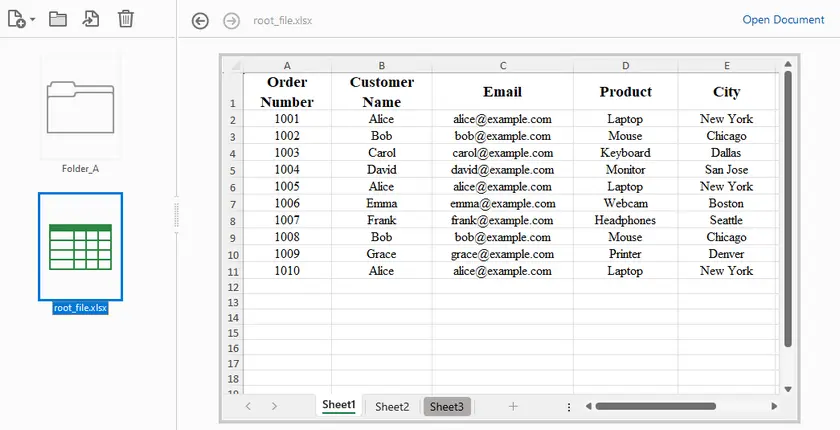
This programmatic approach is particularly advantageous for organizations needing to automate document packaging, enabling batch processing and integration into existing systems without manual intervention.
In addition to creating PDF Portfolios, Spire.PDF also supports combining multiple PDF files into a single document and attaching files as attachments to a PDF. This versatility makes it a comprehensive solution for managing diverse document needs.
Adobe vs Python: Choosing the Right Approach
| Criteria | Adobe Acrobat | Spire.PDF for Python |
|---|---|---|
| Ease of use | Very easy | Developer-oriented |
| Automation | No | Yes |
| Batch generation | No | Yes |
| Folder hierarchy | Yes | Yes |
| Suitable for enterprise systems | No | Yes |
| Requires GUI | Yes | No |
Final Thoughts
A PDF Portfolio is more than just a merged PDF or a compressed archive; it serves as a structured, standards-compliant container that maintains folder hierarchy and keeps embedded files independent.
If you need manual creation with visual customization, Adobe Acrobat or similar editors are suitable. If you require automation, scalability, and backend integration, Spire.PDF for Python provides a reliable programmatic solution to generate structured, Adobe-recognized PDF Portfolios—complete with nested folders.
For organizations managing complex document packages, the automated approach often delivers greater efficiency and flexibility.
FAQs
What is the difference between a PDF Portfolio and a merged PDF?
A merged PDF combines multiple documents into one continuous file. A PDF Portfolio keeps each file independent inside a structured container, allowing them to be opened separately.
How is a PDF Portfolio different from a ZIP file?
A ZIP file requires extraction before use. A PDF Portfolio opens directly in viewers like Adobe Acrobat Pro DC and maintains PDF compatibility while supporting folder hierarchy.
Can I create folders and subfolders inside a PDF Portfolio?
Yes. A PDF Portfolio supports hierarchical folder structures, including nested subfolders. This can be done manually in Adobe or programmatically using Spire.PDF for Python.
Can I automate PDF Portfolio creation?
Yes. Manual tools require GUI interaction. For automation, batch processing, or backend systems, developer SDKs like Spire.PDF for Python allow programmatic generation.
Can a PDF Portfolio contain non-PDF files?
Yes. It can embed Word documents, Excel files, images, and other formats while preserving their original file types inside the portfolio.