Are you wondering how to change PDF permissions to restrict editing, disable copying, lock printing, or unlock restricted PDF files? PDFs are universally used for professional documents, contracts, resumes, and official files because of their fixed formatting and secure sharing features. However, default PDF permission settings often fail to match your unique sharing and security needs.
In this guide, we will cover easy, actionable methods to edit PDF permissions using professional software, free desktop tools, reliable online platforms, and even programmatic approaches for developers.
- What PDF Permissions Can You Change?
- Method 1: Edit PDF Permissions with Adobe Acrobat Pro
- Method 2: Change PDF Permissions Using LibreOffice Draw
- Method 3: Online PDF Permission Changers
- Method 4: Change Permissions Programmatically in C#
- Final Checklist Before You Change Permissions
- Frequently Asked Questions (FAQs)
What PDF Permissions Can You Change?
PDF permissions (also called “restriction settings” or “security flags”) control core user actions. You can toggle these settings as needed:
| Permission | What it controls |
|---|---|
| Printing | Whether users can print – Low resolution or High resolution |
| Content copying | Ability to copy text or images to the clipboard |
| Document assembly | Inserting, deleting, or rotating pages |
| Commenting | Adding notes, highlights, or sticky comments |
| Form filling | Working with fillable form fields |
| Content extraction | Accessibility tools and screen readers |
| Modification | Editing text, images, or objects |
When you change permissions, you are updating these flags – for example, switching from “printing not allowed” to “high-resolution printing allowed”, or enabling commenting that was previously disabled.
Critical Note: There is no security "backdoor". You cannot legally change permissions without the owner password or the author’s consent.
Method 1: Edit PDF Permissions with Adobe Acrobat Pro
Adobe Acrobat is the official tool for modifying PDF security settings, offering full control over all PDF permission options. It is ideal for professional users who need precise security customization.
Steps to change PDF file permissions:
- Open the target PDF file in Adobe Acrobat Pro.
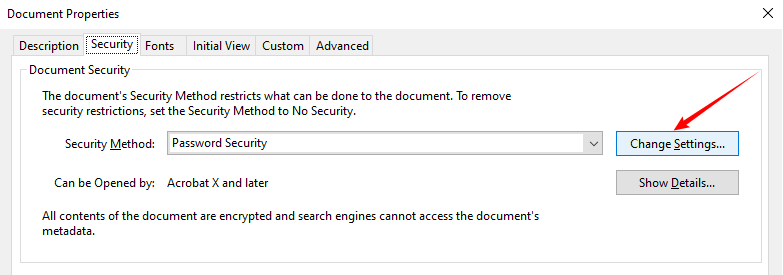
- Go to File > Properties (shortcut: Ctrl+D).
- Navigate to the Security tab – this is where all permission settings are displayed.
- Click Change Settings to modify existing permission configurations. If the file is locked, enter the permission password to unlock editable settings.
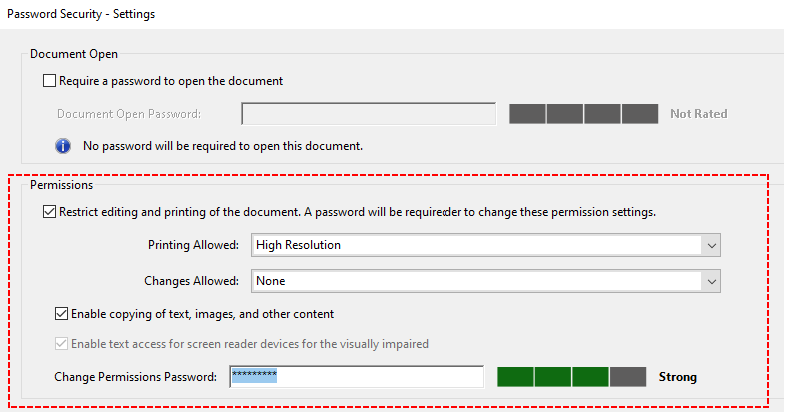
- In the “Password Security – Settings” window, customize permissions by checking or unchecking actions such as:
- Set printing allowed (None/Low/High Resolution)
- Define allowed changes (Commenting/Form Filling/None)
- Toggle content copying and accessibility access
- Set a new permission password, confirm the settings, and save the modified PDF file to apply all changes.
Note: Adobe Acrobat requires a paid subscription.
✅ Practical Examples:
- Use “Changes Allowed: None” for final, read-only contracts.
- Use “Changes Allowed: Commenting” for team reviews.
Beyond adjusting specific PDF permission settings, the same tools also let you remove PDF permissions entirely to lift all restrictions at once.
Method 2: Change PDF Permissions Using LibreOffice Draw
Don’t have Adobe? No problem. You can use LibreOffice Draw to modify PDF permissions. This tool can open and edit PDFs, then re‑export them with new permission settings. It works offline, respects your privacy, and costs nothing.
Steps to use LibreOffice Draw:
- Download and install from libreoffice.org. Choose the version for your operating system (Windows, Mac, Linux).
- Launch LibreOffice Draw and open your PDF in it.
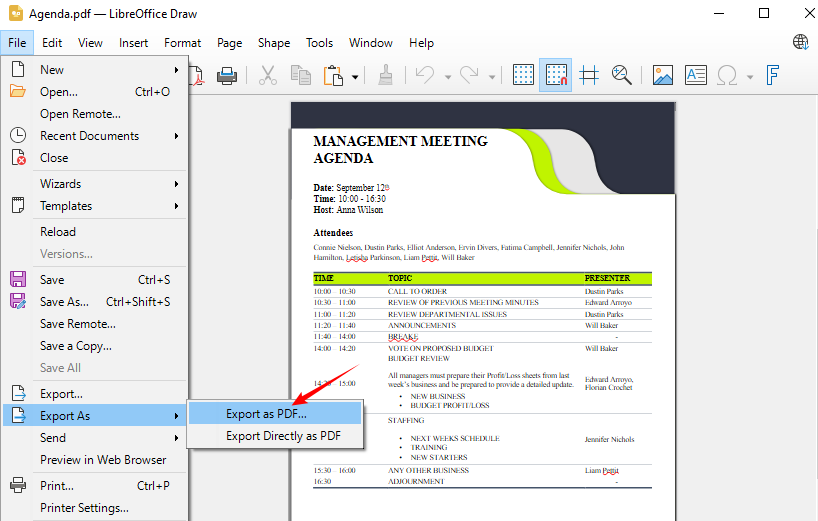
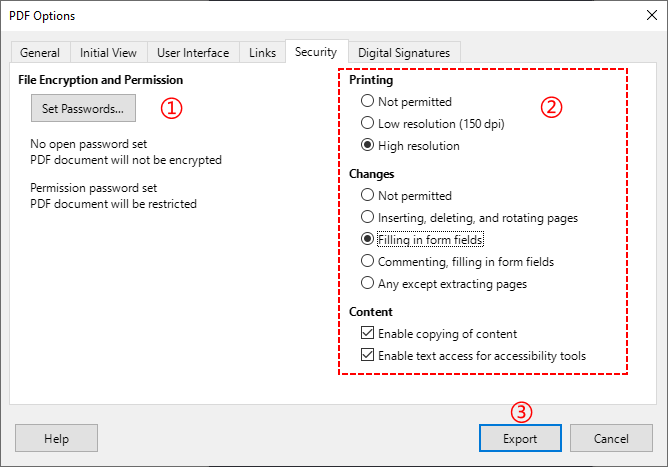
- Go to File > Export As > Export as PDF.
- Navigate to the Security tab in the PDF Options dialog.
- Set a new owner password (required to change permissions).
- Adjust the permission checkboxes as you desire. For example:
- Enable high resolution printing
- Enable form filling (build interactive form fields in PDF first)
- Enable content copying
- Enable text/access for screen readers
- Click Export and save the new PDF.
⚠️ Warning: This method rewrites the PDF. Some complex formatting (fonts, layers) may shift. Test with a copy first.
Method 3: Online PDF Permission Changers
If you rarely adjust PDF permissions and refuse to install desktop software, secure online PDF tools provide a quick, temporary solution. Tools like SwiftPDFLab and pdfup.org support browser-based PDF permission editing.
General workflow to change PDF permissions online:
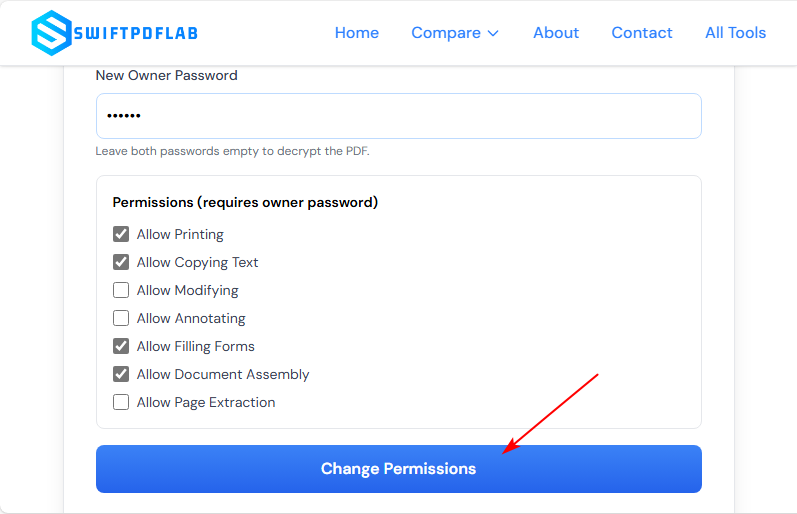
- Open a trusted online PDF permission editor on your browser (e.g., SwiftPDFLab Change Permissions tool).
- Upload your PDF file to the online platform.
- Customize printing, editing, and copying restrictions according to your requirements.
- Set a new owner password and click Change Permissions to apply new settings.
- The modified PDF file will download automatically.
Security best practice: Use a tool that auto-deletes uploads. Never upload highly confidential, private, or business-sensitive PDFs. Online tools are only recommended for non-sensitive public documents.
Method 4: Change Permissions Programmatically in C#
For developers, IT teams, or users needing batch PDF automation, you can programmatically change PDF permissions with C# using Free Spire.PDF for .NET—a free, offline .NET library that handles both permission passwords and open passwords, giving you full lifecycle control over PDF security.
C# Code Example (Enable Copying and Printing)
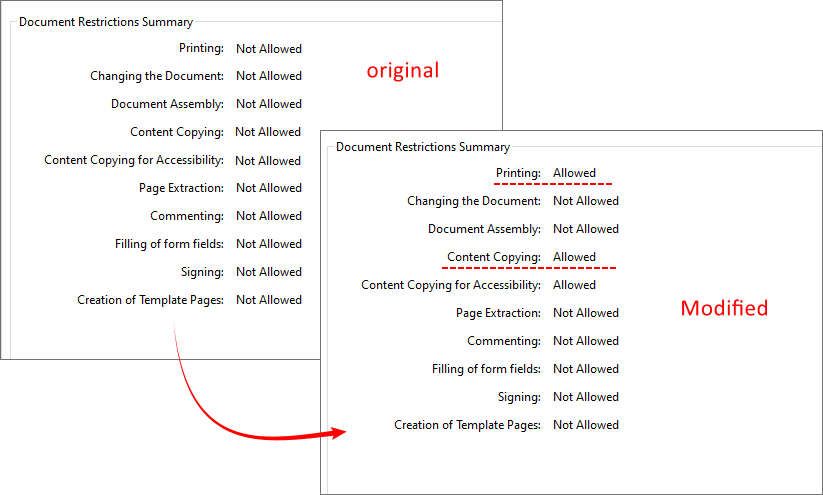
The following C# code loads a PDF, creates a new security policy, sets various permissions, and saves the PDF with the new permissions.
using Spire.Pdf;

namespace ChangeSecurityPermission
{
    class Program
    {
        static void Main(string[] args)
        {
            // 1. Create a PdfDocument object
            PdfDocument pdf = new PdfDocument();

            // 2. Load the restricted PDF file with owner password (if any)
            pdf.LoadFromFile("Agenda.pdf", "12345");

            // 3. Specify open password (leave empty if not needed)
            string openPsd = string.Empty;

            // 4. Specify a new owner password
            string permissionPsd = "abc123";

            // 5. Create a security policy using new open & owner passwords
            PdfSecurityPolicy securityPolicy = new PdfPasswordSecurityPolicy(openPsd, permissionPsd);

            // 6. Set encryption algorithm (AES 128-bit is modern and secure)
            securityPolicy.EncryptionAlgorithm = PdfEncryptionAlgorithm.AES_128;

            // 7. Define the new permissions you want to allow
            securityPolicy.DocumentPrivilege.AllowContentCopying = true; // Allow content copying
            securityPolicy.DocumentPrivilege.AllowPrint = true; // Allow printing

            // 8. Apply the new security policy to the document
            pdf.Encrypt(securityPolicy);

            // 9. Save the updated PDF to a new file
            pdf.SaveToFile("ChangePermissions.pdf");
            pdf.Close();
        }
    }
}
The PdfDocumentPrivilege object, retrieved via PdfSecurityPolicy.DocumentPrivilege, is a granular permission control class that defines exactly what users can and cannot do with the PDF (the "restriction rules"). This is where you toggle permissions such as printing, copying, editing, and form filling.
Result:
When to use this method:
- You’re comfortable with C# and .NET.
- You need to process many PDFs automatically (e.g., daily reports).
- You want to integrate permission changes into your own software.
Final Checklist Before You Change Permissions
Before starting, verify these points:
- Do you have the owner password? (Not the user/open password)
- Do you have legal rights to modify this document?
- Which permissions do you actually need? (e.g., just printing, or full copying too)
- Are you using a trusted tool (local software > online platforms)?
Once you confirm these, follow the method above that matches your budget and skill level.
Summary
Learning how to change PDF permissions empowers you to fully control your PDF files, balancing document security and flexibility. For professional users, Adobe Acrobat is the most reliable choice. LibreOffice Draw serves as a free offline alternative but may alter formatting. Online tools are for quick, non-sensitive edits, and C# with Free Spire.PDF is the best choice for secure, automated batch processing.
Always prioritize offline methods (desktop software/code) for confidential business and personal files to avoid data leakage risks. By mastering these methods, you can easily lock, restrict, or unlock PDF files to meet all your document sharing and security needs.
Frequently Asked Questions (FAQs)
Q1. Will changing PDF permissions affect existing PDF content?
No. Changing permissions only modifies the security envelope around the PDF. The content bytes remain identical. However, Method 2 (LibreOffice Draw) is an exception – because it re‑renders the PDF, formatting may change. Always use a copy with Method 2.
Q2. Can I change permissions on a digitally signed PDF?
No. Digital signatures lock the PDF to prevent tampering. You must remove the signature (requires the signer’s action) before modifying permissions.
Q3. What is the most secure way to change PDF permissions?
The most secure way is offline with Adobe Acrobat Pro or Free Spire.PDF because:
- The file never leaves your computer.
- Strong encryption (AES‑128) can be applied.
- No third‑party server can intercept the data.
Q4. Is the Free Spire.PDF method safe for production?
For internal tools and small-scale automation, yes. But note the 10‑page limit in the free version. For unlimited pages, consider the commercial version.