Have you ever downloaded a crucial PDF only to find that you cannot edit it, copy text from it, or even print it? You are likely dealing with a PDF that has permissions restrictions (often labeled as “Secured” or “Protected”). When these restrictions stand in your way, you need a reliable way to remove permissions from PDF files so you can work with the document freely.
This article will walk you through five reliable methods to remove PDF permissions —ranging from free online tools and browser tricks to professional desktop software and programmatic solutions for developers.
- What Are PDF Permissions?
- Method 1: Using the Print to PDF Trick
- Method 2: Using Adobe Acrobat Pro
- Method 3: Using Online PDF Permissions Remover
- Method 4: Using QPDF Command Line Tool
- Method 5: Using Free Spire.PDF for .NET (C#)
- Comparison of All PDF Permission Removal Methods
- Frequently Asked Questions (FAQ)
What Are PDF Permissions?
PDF permissions (also called “owner passwords” or “restrictions”) are security settings that control what users can do with a document after it is opened. Unlike a document open password that prevents viewing entirely, a permissions password allows viewing but limits actions such as:
- Printing
- Editing or modifying content
- Copying text or images
- Adding comments or annotations
- Filling in form fields
Common reasons for applying permissions:
- Protecting confidential business documents (e.g., financial reports, legal contracts)
- Preventing unauthorized modifications to official forms
- Controlling distribution of proprietary content
- Restrict form filling for unapproved users
However, these restrictions can become frustrating when you need to collaborate or extract information—and that’s where our guide comes in.
⚠️ Important: You should only remove permissions from PDFs you own or have legal authorization to modify. Unauthorized removal of PDF restrictions may violate copyright laws or terms of service.
Method 1: Using the Print to PDF Trick
The “Print to PDF” workaround is the most popular free method to bypass PDF permissions. It requires no additional software and works on most desktop devices (Windows/Mac).
Why this works
The "Print to PDF" function creates a brand-new file that inherits no restrictions from the original. But be aware that interactive elements like hyperlinks, fillable form fields, bookmarks, and digital signatures may be lost in the process.
Critical Requirement: The original PDF must allow printing. If the file has a “no printing” restriction, the print option will be grayed out, and this trick will fail.
Steps to Print to PDF:
- Open the restricted PDF in a viewer (Microsoft Edge, Chrome).
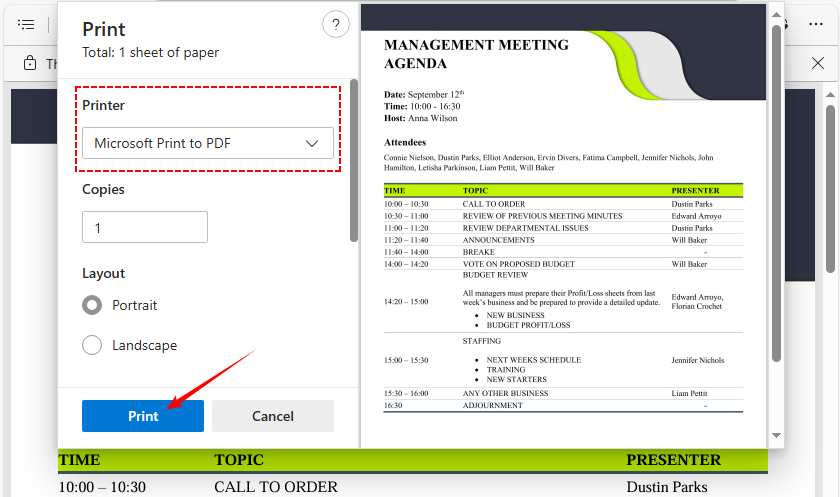
- Click the Print icon in the top right corner (or use Ctrl + P / Cmd + P).
- In the print dialog box, click the "Destination" dropdown menu.
- Select “Microsoft Print to PDF” (or “Save as PDF”) as the printer.
- Click “Print” and choose a location to save the new PDF file.
- The new file will have no permissions restrictions (but may lose some formatting).
When you use the Print to PDF workaround to remove permissions, any fillable form fields in the original document disappear—leaving you with a flat, non‑interactive file. Refer to this guide to create a fillable PDF and restore those lost fields.
Method 2: Using Adobe Acrobat Pro
If you have a subscription to Adobe Acrobat Pro DC or Standard, this is the most reliable method. Adobe Acrobat is the industry standard for PDF management, and it makes removing permissions quick and straightforward.
✅ Best For: Professionals, daily PDF editing, and sensitive files (offline processing).
Steps to use Adobe:
- Open the restricted PDF in Adobe Acrobat Pro.
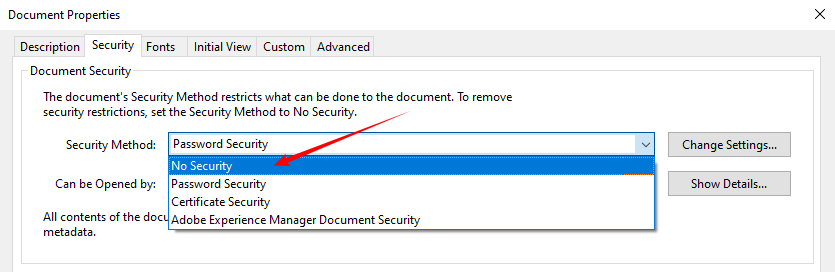
- Click "File" > "Properties", and select the "Security" tab.
- Click the "Security Method" dropdown menu.
- Change the setting from "Password Security" to "No Security."
- A dialog box will appear asking for the permissions password. Enter it and click OK.
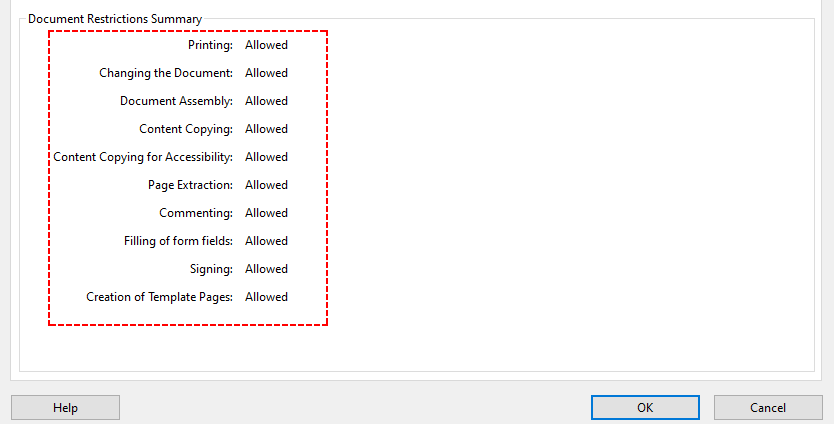
- Click OK again to save the changes. You can now edit and copy freely.
Note: If you do not know the permissions password, Adobe Acrobat Pro will not allow you to remove the restrictions. You will need to use one of the alternative methods below.
Method 3: Using Online PDF Permissions Remover
If you do not have access to a desktop browser or prefer a one-click solution, free online PDF permission remover tools are a good alternative. These tools strip the permission restrictions directly, and work on any device (Windows, Mac, iPhone, Android)
Important security note:
Never upload sensitive, confidential, or legally protected documents to a website you do not trust. For non‑sensitive files, the following services are reputable:
- Smallpdf (Unlock PDF) – Simple interface, no installation, works in browser.
- ILovePDF – Offers batch processing with a free account.
- Soda PDF – Provides both online and desktop versions.
Steps to unlock PDF permissions online:
- Go to your chosen PDF unlocker tool website.
- Upload your PDF file (drag-and-drop or click “CHOOSE FILES”).
- Wait for the tool to strip the restrictions automatically.
- Download the unlocked PDF—you can now edit, print, or copy its content.
Most online PDF unlockers do not require you to know the permissions password—they remove the restrictions by re‑encrypting the file without them.
SmallPDF Example:
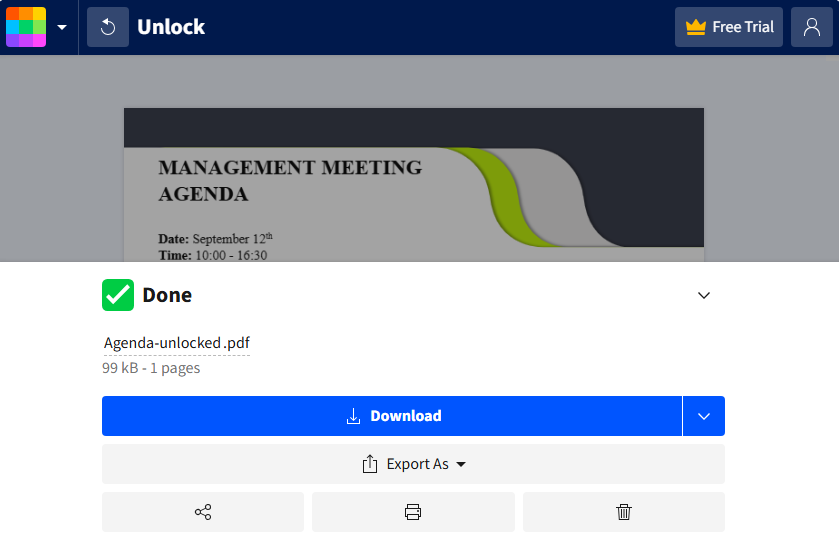
Once you’ve unlocked a restricted PDF, extracting its content for analytical purposes is often a key next step. Here’s a deep dive into the top tools and proven techniques for extracting text from PDF documents.
Method 4: Using Command Line Tools
If you’re comfortable with command-line interfaces (CLI), tools like QPDF let you remove PDF permissions quickly and efficiently. QPDF is open-source, cross-platform, and works entirely offline, making it ideal for sensitive documents or batch processing.
Steps to use QPDF:
- Download QPDF from qpdf.sourceforge.io and install it on your system (Windows, Mac, Linux).
- Open Command Prompt (Windows) or Terminal (Mac/Linux).
- Navigate to the folder where your PDF is saved.
- Enter the decryption command (replace filenames with your own):
qpdf --decrypt "Restricted.pdf" "Unlocked.pdf"
- Press Enter. QPDF will remove all permissions and save the unlocked file.
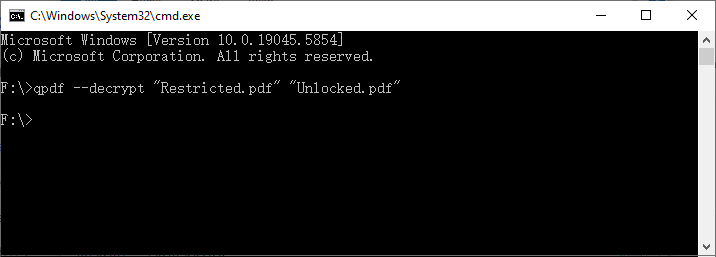
Why Use QPDF?
The best part? It runs entirely offline, so your sensitive files never leave your device. You can even script it to unlock a whole folder of PDFs in one go. And unlike the print trick, it works even if printing is locked.
Method 5: Using Free Spire.PDF for .NET (C#)
For .NET developers or anyone working with C# applications, Free Spire.PDF for .NET is a free library that lets you programmatically remove PDF permissions. It works offline and supports standard PDF encryption as well.
Install via NuGet: Install-Package FreeSpire.PDF
C# Code to Remove Permissions from PDF
The following code loads a PDF with the owner password (permission password) and then calls the Decrypt() method to strip all encryption and restrictions.
using Spire.Pdf;

namespace RemovePermissions
{
    class Program
    {
        static void Main(string[] args)
        {
            // Create a PdfDocument object
            PdfDocument pdf = new PdfDocument();

            // Load the PDF with the owner (permission) password.
            pdf.LoadFromFile(@"F:\Restricted.pdf", "123abc");

            // Decrypt the PDF – this removes all encryption and permissions
            pdf.Decrypt();

            // Save as a new PDF without any restrictions
            pdf.SaveToFile("RemovedPermissions.pdf");
        }
    }
}
Core Advantages of This Method
- Full programmability: Integrate unlock logic directly into your existing .NET apps.
- Batch processing: Unlock hundreds of restricted PDFs with a few lines of code.
- Preserves all PDF elements: Retains hyperlinks, fillable forms, bookmarks, digital signatures, and formatting.
- Cross-platform support: Works with .NET Framework (4.8+)/ .NET Standard (2.0), and is compatible with Windows, Linux, and macOS.
Pro Tip: If you only need to adjust existing permissions rather than removing them entirely, Free Spire.PDF for .NET allows you to change PDF permissions directly.
Comparison of All PDF Permission Removal Methods
Use this quick reference table to choose the best method for your needs. We’ve highlighted cost, difficulty, use cases, and password requirements for each:
| Method | Cost | Difficulty | Best For | Password Required? |
|---|---|---|---|---|
| Print to PDF Trick | 100% Free | Very Easy | Quick fixes when printing is allowed | No |
| Adobe Acrobat Pro | Paid (Subscription) | Easy | Professionals, daily editing, sensitive files | Yes |
| Free Online Tools | Free (Usually) | Very Easy | One‑off files (non‑sensitive) | Sometimes |
| QPDF (Command Line) | 100% Free | Moderate | tech users, batch processing, sensitive files | No |
| Free Spire.PDF for .NET | Free (with limits) | Moderate (C#) | Developers integrating into .NET apps | Yes |
Frequently Asked Questions (FAQ)
Q1: Is it legal to remove permissions from PDF files?
A: Yes, if you own the PDF or have explicit permission from the owner. Removing permissions from a PDF you don’t own or have rights to may violate copyright laws, terms of service, or data protection rules.
Q2: Will removing permissions affect the PDF’s quality?
A: No. Most tools (Adobe Acrobat, QPDF, Smallpdf, Free Spire.PDF) remove permissions without altering content, formatting, or resolution. The only exception is the “Print to PDF” method, which may lose interactive elements or cause minor formatting shifts.
Q3: Can I remove permissions from multiple PDFs at once?
A: Yes. Adobe Acrobat Pro (batch processing), QPDF (via scripting), and Free Spire.PDF (using loops) support bulk operations. Online tools usually limit batch processing to paid plans
Q4: I don’t know the permissions password. Can I still remove restrictions?
A: In many cases, yes. The Print to PDF trick, online unlockers, and QPDF can remove restrictions without requiring the owner password because they work by re‑creating the file. However, some high‑level encryption may require the password.
Final Words
Removing permissions from PDF depends on your needs. For quick, non‑sensitive files, use online tools like Smallpdf or the Print to PDF trick. For sensitive or professional work, offline options like Adobe Acrobat Pro or QPDF are best. Developers can integrate unlocking via Free Spire.PDF for .NET.
By following the steps in this guide, you’ll be able to unlock any PDF and access its content freely. Remember to only remove permissions from PDFs you own or have permission to modify, and always prioritize tools that protect your data (especially for sensitive files).