Printing PDF files on Windows is simple once you know the right tools to use. Whether you want a quick way to print a single PDF, need more advanced print settings, or want to automate printing in your own application, Windows offers several practical options.
In this guide, you’ll learn 5 effective ways to print PDFs on Windows, including built-in solutions, browser-based methods, and a C# programming approach for developers.
Overview of the methods covered:
- Method 1: Print PDFs Using Microsoft Edge
- Method 2: Print PDFs with Adobe Acrobat Reader
- Method 3: Print PDFs Using Google Chrome
- Method 4: Print PDFs from File Explorer (Quick Print)
- Method 5: Print PDFs Programmatically in C#
Method 1: Print PDFs Using Microsoft Edge
Best For: Everyday users who want a fast and simple printing solution
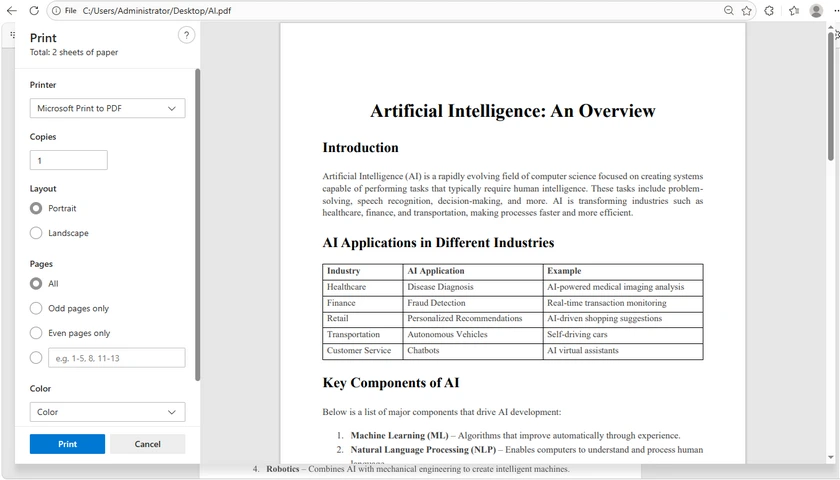
Microsoft Edge comes pre-installed on Windows 10 and Windows 11, making it one of the most accessible ways to print PDF files. The browser includes a built-in PDF viewer that supports common printing features without requiring any third-party software. For users who only need occasional PDF printing, Edge offers a lightweight and convenient solution.
Steps
- Right-click your PDF file.
- Choose Open with > Microsoft Edge .
- Press Ctrl + P or click the Print icon in the toolbar.
- Configure the print settings:
- Printer
- Copies
- Page range
- Orientation
- Color mode
- Scale
- Click Print .
Advantages
- No additional installation required
- Fast and lightweight
- Easy for beginners
Limitations
- Limited advanced printing features
- Not ideal for professional print layouts
Method 2: Print PDFs with Adobe Acrobat Reader
Best For: Accurate printing and advanced print settings
Adobe Acrobat Reader is one of the most widely used PDF applications and is known for its reliable PDF rendering engine. It provides more advanced printing capabilities than most built-in viewers, making it suitable for business documents, forms, presentations, and print-ready files. If you frequently work with complex PDFs, Acrobat Reader usually delivers the most consistent results.
Steps
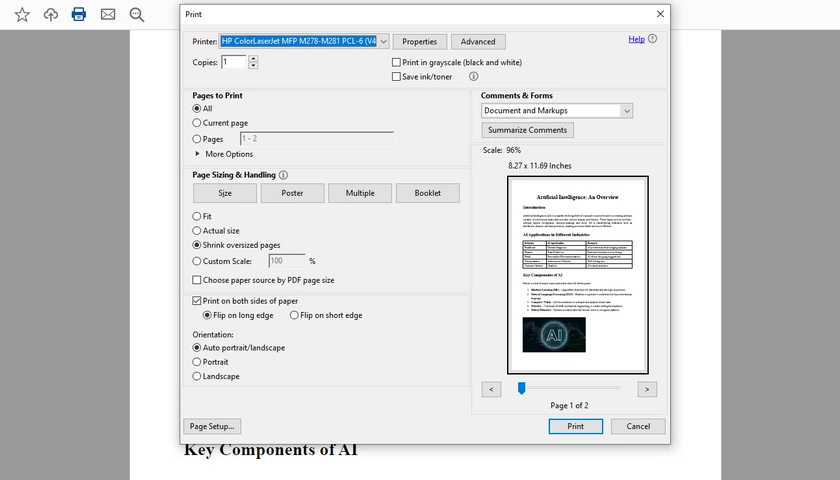
- Open the PDF file in Adobe Acrobat Reader.
- Press Ctrl + P .
- Adjust print settings such as:
- Duplex printing
- Grayscale printing
- Poster printing
- Multiple pages per sheet
- Booklet printing
- Click Print .
Advantages
- Excellent compatibility with complex PDFs
- Advanced print customization
- Accurate PDF rendering
Limitations
- Larger installation size
- Can consume more system resources
Method 3: Print PDFs Using Google Chrome
Best For: Users who frequently work inside a web browser
Google Chrome includes a built-in PDF viewer that allows users to open and print PDF files directly from the browser window. Since many people already use Chrome daily, this method is convenient and requires almost no learning curve. It is especially useful when downloading PDFs from websites or email attachments and printing them immediately.
Steps
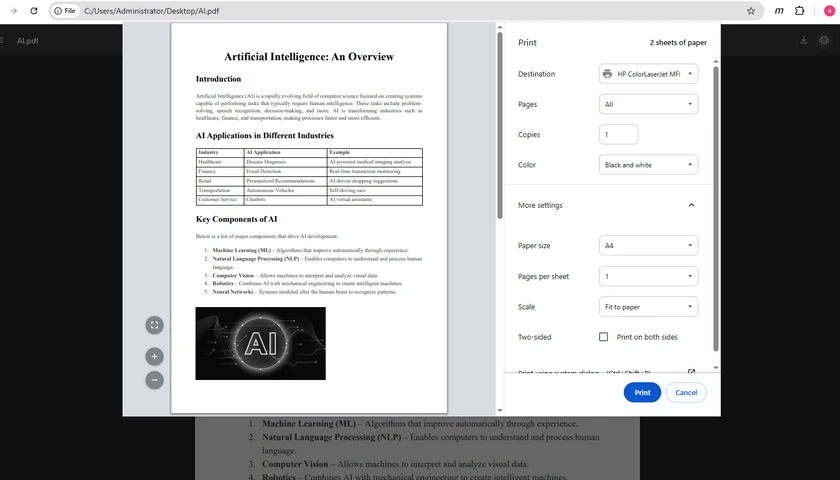
- Drag and drop the PDF into Chrome.
- Press Ctrl + P .
- Configure print settings.
- Click Print .
Advantages
- Convenient and easy to use
- Quick startup
- No dedicated PDF software required
Limitations
- Fewer professional print options
- Less suitable for very large PDFs
Method 4: Print PDFs from File Explorer (Quick Print)
Best For: One-click PDF printing
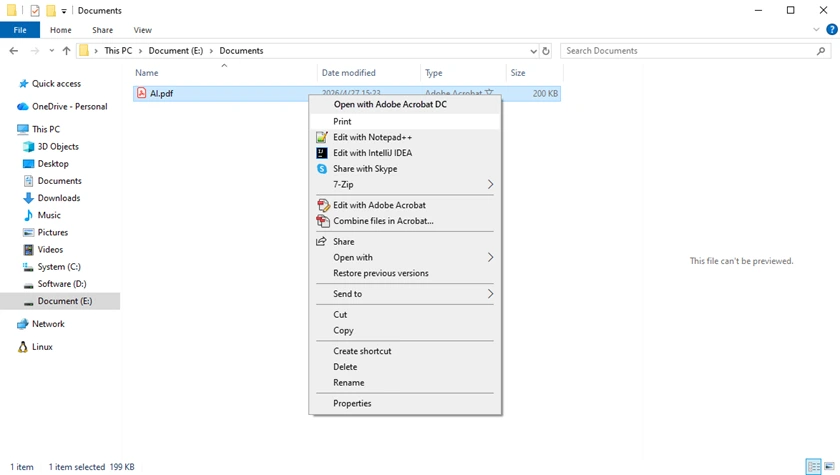
Windows File Explorer includes a built-in “Print” shortcut that allows users to print PDF files directly from the right-click context menu. This method is extremely fast because you do not need to manually open the document first. It works well for quick printing tasks, especially when dealing with simple documents or routine office workflows.
Steps
- Locate the PDF file on your computer.
- Right-click the file.
- Select Print .
Windows will automatically send the PDF to your default printer using the default PDF application.
Advantages
- Extremely fast
- Simple one-click workflow
- Useful for quick printing tasks
Limitations
- Minimal control over print settings
- Relies on the default PDF viewer
Method 5: Print PDFs Programmatically in C#
Best For: Developers building automated PDF workflows
If you need to print PDFs automatically inside desktop applications, enterprise systems, or backend services, using C# is a much more flexible solution.
With Spire.PDF for .NET, developers can print PDF files with advanced settings such as page ranges, duplex printing, grayscale printing, printer selection, and batch processing.
Install the Library
Install-Package Spire.PDF
C# Example: Print a PDF File
using Spire.Pdf;
using System.Drawing.Printing;

namespace PrintPdf
{
    class Program
    {
        static void Main(string[] args)
        {
            // Load a pdf file
            PdfDocument doc = new PdfDocument();
            doc.LoadFromFile("Input.pdf");

            // Specify the printer name
            doc.PrintSettings.PrinterName = "Your Printer Name";

            // Select a page range to print
            doc.PrintSettings.SelectPageRange(1, 5);

            // Or select discontinuous pages
            // doc.PrintSettings.SelectSomePages(new int[] { 1, 3, 5, 7 });

            // Specify copies
            doc.PrintSettings.Copies = 1;

            // Enable duplex printing
            doc.PrintSettings.Duplex = Duplex.Default;

            // Enable grayscale printing
            doc.PrintSettings.Color = false;

            // Execute printing
            doc.Print();

            // Dispose resources
            doc.Dispose();
        }
    }
}
C# Example: Batch Print PDF Files
using Spire.Pdf;
using System.IO;

namespace BatchPrintPdf
{
    class Program
    {
        static void Main(string[] args)
        {
            // Specify the folder containing PDF files
            string folderPath = @"C:\PDFs\";

            // Get all PDF files in the folder
            string[] files = Directory.GetFiles(folderPath, "*.pdf");

            // Loop through each PDF file
            foreach (string file in files)
            {
                // Load the PDF document
                PdfDocument doc = new PdfDocument();
                doc.LoadFromFile(file);

                // Specify printer name
                doc.PrintSettings.PrinterName = "Your Printer Name";

                // Print the PDF
                doc.Print();

                // Dispose resources
                doc.Dispose();
            }
        }
    }
}
Read Further: How to Print PDF Documents in C# (Without Adobe)
Advantages
- Full automation support
- Advanced print customization
- Suitable for enterprise workflows
- Supports silent and batch printing
Limitations
- Requires programming knowledge
- Needs development environment setup
As a professional .NET PDF library, Spire.PDF for .NET not only supports PDF printing, but also enables developers to create, edit, convert, split, merge, secure, and extract content from PDF documents programmatically. It is suitable for desktop applications, ASP.NET projects, cloud services, and automated document processing systems.
Quick Comparison Table
| Method | Best For | Difficulty | Advanced Features |
|---|---|---|---|
| Microsoft Edge | Basic PDF printing | Easy | Low |
| Adobe Acrobat Reader | Professional printing | Easy | High |
| Google Chrome | Browser-based printing | Easy | Medium |
| File Explorer Quick Print | One-click printing | Very Easy | Low |
| C# Programming | Automation & enterprise workflows | Advanced | Very High |
Conclusion
There are several easy ways to print PDFs on Windows, depending on your needs. For casual users, built-in tools like Microsoft Edge and Google Chrome provide fast and convenient printing. Adobe Acrobat Reader offers more professional print controls and better compatibility with complex PDF files.
For developers and enterprises, programmatic printing in C# provides the highest level of flexibility and automation. Using libraries like Spire.PDF for .NET, you can integrate PDF printing directly into your own applications and document workflows with minimal code.
FAQs
Q1. Can Windows print PDFs without Adobe Reader?
Yes. Windows users can print PDFs using built-in tools like Microsoft Edge or web browsers such as Google Chrome without installing Adobe Reader.
Q2. Why is my PDF not printing correctly?
Incorrect scaling, unsupported fonts, corrupted PDF files, or outdated printer drivers can all cause printing issues. Trying another PDF viewer or updating the printer driver often helps resolve the problem.
Q3. How do I print only specific pages from a PDF?
Most PDF viewers allow you to specify a custom page range in the print dialog. For example, you can print pages 1-3, 5, or 7-10 instead of the entire document.
Q4. Can I print PDFs in black and white?
Yes. Most PDF printing tools include a grayscale or monochrome option in the print settings. This helps reduce color ink usage.
Q5. How can developers automate PDF printing in C#?
Developers can use PDF libraries such as Spire.PDF for .NET to automate PDF printing with features like printer selection, page range printing, duplex mode, and silent printing.