
Adding video to a presentation is one of the most effective ways to increase engagement. Whether you are creating a training deck, product demo, marketing pitch, or educational material, video can make your slides more dynamic and persuasive.
This complete guide explains reliable methods to insert video in PowerPoint presentations. You will learn manual approaches for local files, online videos, linked files, and highly accurate programmatic solutions. If you need to insert video in PowerPoint, embed video in PowerPoint presentation, or automate the entire process for batch processing, this article provides the practical knowledge and technical insights you need.
1. Why Add Video to PowerPoint Presentations
Before exploring insertion methods, it's important to understand why video integration matters and what challenges you might encounter.
1.1 Benefits of Video in Presentations
Video content provides several advantages:
- Increased engagement – Visual and auditory content captures attention more effectively than static slides
- Complex demonstrations – Show processes, products, or procedures that are difficult to explain in text
- Emotional connection – Video can create stronger emotional impact than images alone
- Professional polish – High-quality video content elevates presentation quality
1.2 Common Challenges
However, inserting video presents several technical challenges:
- File size concerns – Embedded videos can dramatically increase PPT file size
- Format compatibility – Not all video formats work across different PowerPoint versions
- Playback issues – Codec problems can prevent videos from playing correctly
- Portability – Linked videos may break when sharing presentations
Understanding these challenges helps you select the right insertion method for your specific use case.
2. Overview of Reliable Methods
This guide covers four practical ways to insert video into PowerPoint presentations:
- Insert local video file – most common method, works offline
- Embed online video – keeps file size small, requires internet
- Link to external video file – balances size and control
- Programmatic insertion – automation and batch processing
Tip: Most manual methods insert videos into individual slides. If you need to insert videos across multiple presentations or automate the process, the programmatic approach is most efficient.
The most flexible method is using Python automation, which enables batch processing, server-side generation, and integration with business workflows.
3. Method 1: Insert Video from Your Computer (Local File)
The simplest way to insert video in PowerPoint slide is by adding a local video file stored on your computer.
Step-by-Step Instructions
Tip: Make sure your video file is in a supported format before starting. MP4 with H.264 encoding works best.
-
Open your PowerPoint presentation - Launch PowerPoint and open the presentation where you want to add video.
-
Navigate to the target slide - Go to the specific slide where the video should appear.
-
Click the Insert tab - Located in the top menu ribbon.
-
Select Video - In the Media group, click the Video button.
-
Choose This Device - Select "This Device" from the dropdown menu.
-
Select and insert - Browse to your video file, select it, and click Insert.
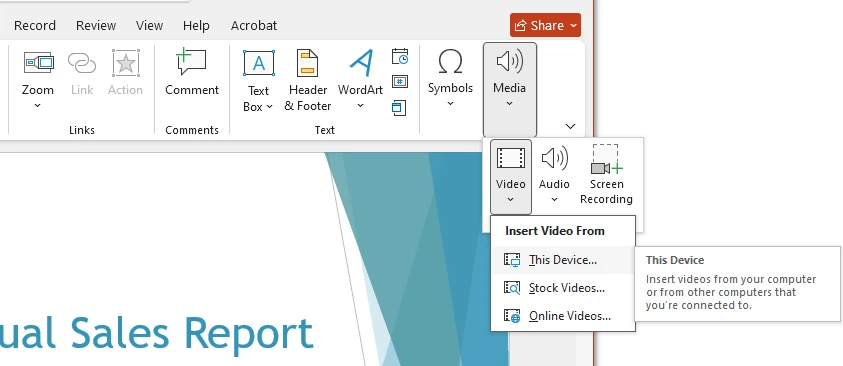
The video will appear on the slide as a media object. You can:
- Resize by dragging the corners
- Reposition by clicking and dragging
- Rotate using the rotation handle
This is the most straightforward way to insert video in PowerPoint slides, and it works entirely offline.
Supported Video Formats
PowerPoint supports several video formats, including:
- MP4 (recommended for compatibility)
- MOV
- M4V
- WEBM
For best results, use MP4 encoded with H.264 video and AAC audio.
You can find the full list of supported media formats in the official Microsoft guide on video and audio formats supported in PowerPoint.
Adjusting Playback Settings
After inserting the video, you can customize playback options:
- Start Automatically or On Click
- Play Full Screen
- Loop Until Stopped
- Trim Video
- Fade In / Fade Out
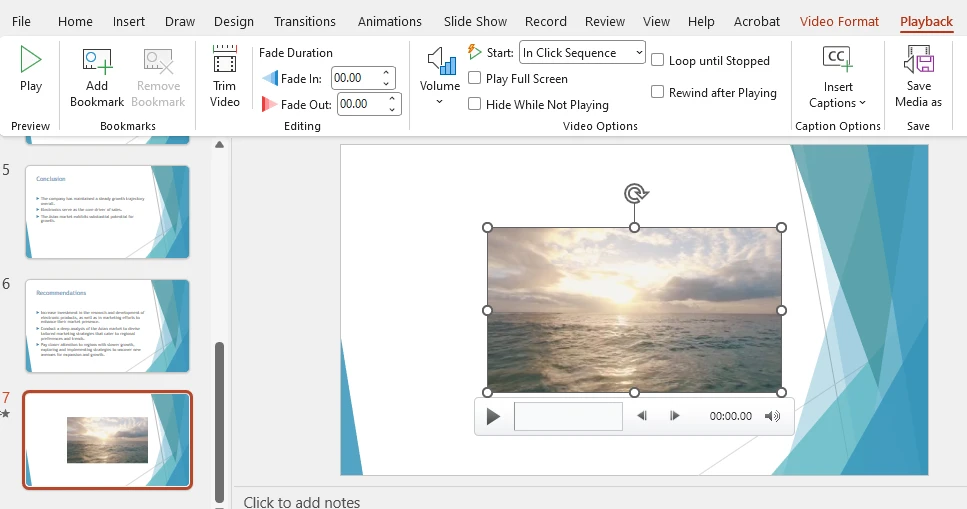
These options are available under the Playback tab once the video is selected.
Advantages and Disadvantages of Local Video Insertion
Advantages
- Easy to use
- Works offline
- Full playback control
Disadvantages
- Increases PPT file size
- May cause sharing issues if the file becomes too large
Local insertion is best for presentations that need to be portable and work offline.
Note: Embedded videos are supported in modern PPTX presentations. If you are working with an older PPT file, consider converting it to PPTX format first. See our guide on how to convert PPT to PPTX.
4. Method 2: Embed Video in PowerPoint Presentation (Online Video)
Another popular approach is to embed video in PowerPoint presentation directly from an online source such as YouTube.
This method keeps your file size small because the video is streamed rather than stored inside the presentation.
How to Embed a YouTube Video
-
Go to the slide where you want the video.
-
Click Insert → Video → Online Video.
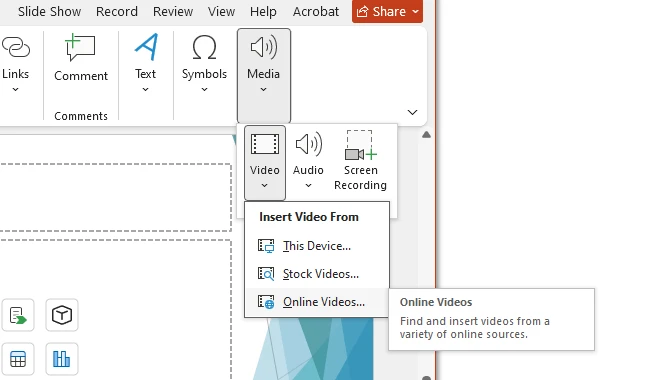
-
Paste the video URL or embed code.
-
Click Insert.
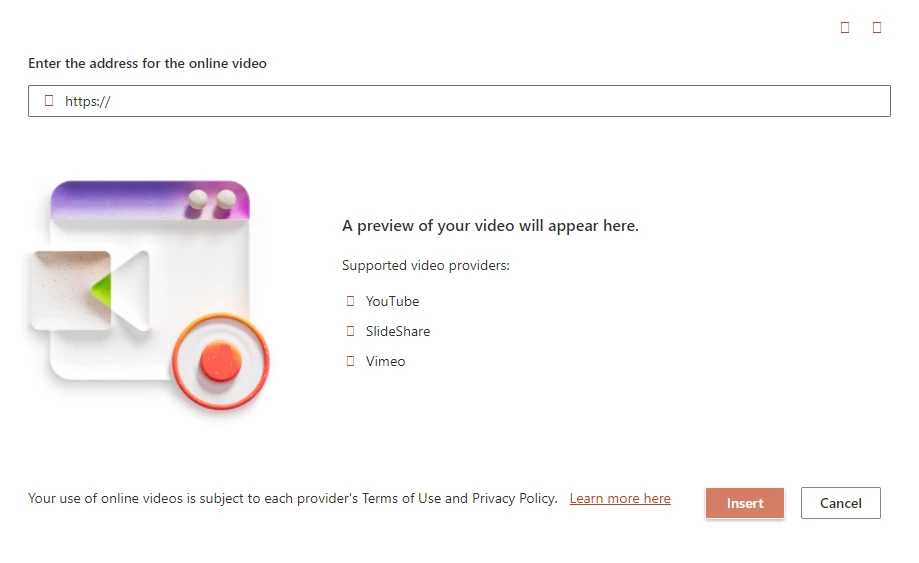
PowerPoint will create an embedded video frame on the slide.
When to Use Embedding
Embedding is ideal when:
- You want to reduce PPT file size
- The video is publicly hosted online
- You need frequently updated content
Limitations of Embedded Videos
However, there are some important considerations:
- Requires an internet connection during presentation
- May not work behind corporate firewalls
- Video could become unavailable if removed online
- Video platforms may require login before playback
If reliability is critical, local insertion may be safer.
5. Method 3: How to Attach a Video in PPT (Link Instead of Embed)
Some users ask how to attach video in PPT rather than fully embedding it.
This method links to an external video file instead of storing it inside the presentation.
Embed vs Attach: What's the Difference?
| Feature | Embed Video | Attach (Link) Video |
|---|---|---|
| Stored inside PPT | Yes | No |
| File size | Larger | Smaller |
| Internet required | No | No (if local) |
| Risk of broken link | No | Yes |
How to Link a Video File
-
Go to Insert → Video → This Device.
-
Select the video file.
-
Click the dropdown arrow next to Insert.
-
Choose Link to File instead of Insert.
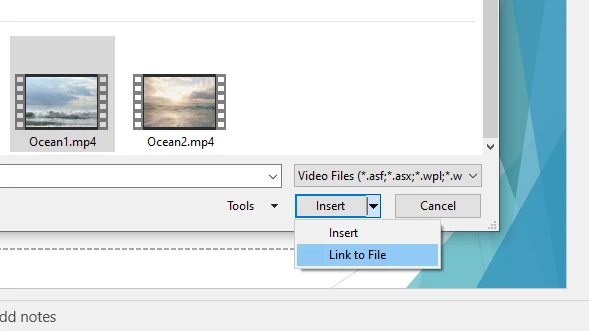
Now the PPT will reference the video externally.
When Linking Makes Sense
- Very large video files
- Shared network storage environments
- Centralized media management
Be careful when sharing the presentation — you must send the video file together.
If you are also adding data visualizations to your slides, you may want to learn how to insert a chart in PowerPoint.
6. Common Problems When Inserting Video into PowerPoint
Even when you know how to add video into PowerPoint presentation, issues can still occur.
Here are some common problems and their solutions:
6.1 Video Not Playing
Often caused by unsupported codecs.
Solution: Convert the video to MP4 (H.264 + AAC).
6.2 File Too Large
Embedding high-resolution videos can dramatically increase PPT size.
Solution: Compress media using File → Info → Compress Media.
6.3 Compatibility Issues (Mac vs Windows)
Some formats behave differently across systems.
Solution: Use MP4 for maximum compatibility.
6.4 Lag During Playback
Large videos or slow hardware can cause stuttering.
Solution: Optimize video resolution or use a linked file.
7. Method 4: Insert Video into PowerPoint Using Python (Automated Solution)
For developers and businesses, Python provides a powerful way to automate PowerPoint creation and video insertion.
Using Spire.Presentation for Python, you can insert videos into slides without requiring Microsoft Office.
Why Use Python for PowerPoint Automation?
- Batch processing of presentations
- Integration with backend systems
- Server-side document generation
- No manual UI interaction
- Repeatable workflows
Install the Library
pip install Spire.Presentation
Quick Example: Insert Video in PowerPoint with Python
If you only need a minimal example, the following code inserts a video into the first slide of a new PowerPoint presentation.
from spire.presentation import *

# Create presentation
presentation = Presentation()

# Add video to first slide
slide = presentation.Slides[0]

video_rect = RectangleF.FromLTRB(100, 100, 500, 400)
slide.Shapes.AppendVideoMedia("demo_video.mp4", video_rect)

# Save presentation
presentation.SaveToFile("video_demo.pptx", FileFormat.Pptx2019)
presentation.Dispose()
This minimal example shows how to create a new PowerPoint presentation and inserts a video into the first slide at the specified position with Python code.
### Advanced Example: Insert or Link Video in PowerPoint Using Python
Below is an enhanced example with error handling and additional options:
from spire.presentation import *
import os
from pathlib import Path


def insert_video_to_powerpoint(video_path, output_path, slide_index=0, position=(100, 100), size=(400, 300),
                               poster_image_path=None, embed_video=True):
    """
    Insert a video into PowerPoint presentation programmatically

    Args:
        video_path: Path to the video file (MP4, MOV, WMV, AVI)
        output_path: Output PowerPoint file path (.pptx)
        slide_index: Slide number (0-based) where video should be inserted
        position: Tuple (x, y) coordinates for video placement
        size: Tuple (width, height) for video dimensions
        poster_image_path: Optional path to poster/thumbnail image for the video
        embed_video: Boolean value indicating whether to embed the video (True)
                     or link to the video file (False)
    """
    try:
        # Validate input file
        if not os.path.exists(video_path):
            raise FileNotFoundError(f"Video file not found: {video_path}")

        # Check file extension
        valid_extensions = {'.mp4', '.mov', '.wmv', '.avi'}
        file_ext = Path(video_path).suffix.lower()
        if file_ext not in valid_extensions:
            print(f"Warning: {file_ext} may not be fully supported. MP4 is recommended.")

        # Create presentation object
        presentation = Presentation()

        # Ensure we have enough slides
        while presentation.Slides.Count <= slide_index:
            presentation.Slides.Append()

        # Get target slide
        slide = presentation.Slides[slide_index]

        # Create rectangle for video position and size
        video_rect = RectangleF.FromLTRB(
            position[0],
            position[1],
            position[0] + size[0],
            position[1] + size[1]
        )

        # Insert video based on embedding mode
        if embed_video:
            # Embed the video into the presentation
            video = slide.Shapes.AppendVideoMedia(video_path, video_rect)
        else:
            # Insert the video as a link (external file reference)
            video = slide.Shapes.AppendVideoMediaLink(video_path, video_rect, False)

        # Set poster image if provided
        if poster_image_path and os.path.exists(poster_image_path):
            video.PictureFill.Picture.Url = poster_image_path

        # Save the presentation
        presentation.SaveToFile(output_path, FileFormat.Pptx2019)
        print(f"Successfully created: {output_path}")
        print(f"   - Video inserted at slide {slide_index + 1}")
        print(f"   - Mode: {'Embedded' if embed_video else 'Linked'}")
        print(f"   - Position: {position}")
        print(f"   - Size: {size}")

        return True

    except Exception as e:
        print(f"Error inserting video: {e}")
        return False

    finally:
        # Clean up resources
        if 'presentation' in locals():
            presentation.Dispose()


# Usage examples
if __name__ == "__main__":

    # Example 1: Basic usage (embed video)
    insert_video_to_powerpoint(
        video_path="presentation_video.mp4",
        output_path="presentation_with_video.pptx"
    )

    # Example 2: Insert linked video
    insert_video_to_powerpoint(
        video_path="demo_video.mp4",
        output_path="linked_video_slide.pptx",
        embed_video=False
    )

    # Example 3: Custom position and size
    insert_video_to_powerpoint(
        video_path="demo_video.mp4",
        output_path="custom_video_slide.pptx",
        slide_index=2,  # Third slide
        position=(150, 100),
        size=(500, 300)
    )

    # Example 4: With poster image
    if os.path.exists("video_thumbnail.png"):
        insert_video_to_powerpoint(
            video_path="demo_video.mp4",
            output_path="video_with_poster.pptx",
            poster_image_path="video_thumbnail.png"
        )

    # Example 5: Batch processing multiple videos
    videos = [
        ("intro.mp4", 0, (100, 100)),
        ("tutorial.mp4", 1, (100, 100)),
        ("conclusion.mp4", 2, (100, 100))
    ]

    for video_file, slide_num, pos in videos:
        if os.path.exists(video_file):
            insert_video_to_powerpoint(
                video_path=video_file,
                output_path=f"batch_output_slide{slide_num}.pptx",
                slide_index=slide_num,
                position=pos
            )
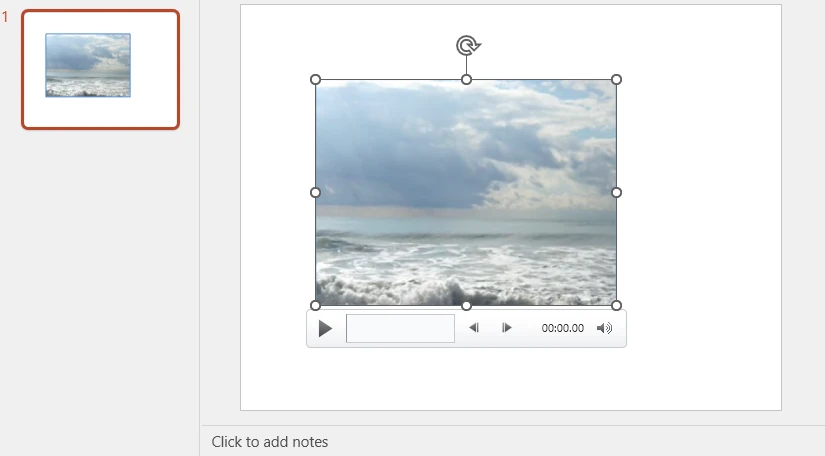
Below is a preview of the generated PowerPoint file 'video_with_poster.pptx' with video insertion:
What This Code Does
This example demonstrates how to programmatically insert a video into a PowerPoint presentation using Python. The script includes several practical features that make it suitable for real-world automation scenarios.
The function performs the following operations:
- Creates a PowerPoint presentation if one does not already exist.
- Automatically adds slides when the specified slide index does not exist.
- Inserts a video into a specific slide using customizable position and size parameters.
-
Supports two insertion modes:
- Embedded video – stores the video inside the PPT file.
- Linked video – references the video as an external file to keep the presentation smaller.
- Optionally sets a poster image that appears before the video starts playing.
- Includes error handling to prevent failures when files are missing.
- Saves the generated presentation as a PPTX file.
The provided examples demonstrate several common scenarios:
- Basic video insertion
- Linking a video instead of embedding it
- Customizing video position and size
- Adding a poster image thumbnail
- Batch inserting multiple videos across slides
Advantages of Using Spire.Presentation
- No dependency on Microsoft Office
- Works in server environments
- Supports multimedia elements
- Suitable for enterprise automation
For teams generating large numbers of presentations, this approach provides far greater scalability than manual methods.
If you need to further manage media files using Python, you can also learn how to insert or extract video and audio in PowerPoint presentations.
8. Accuracy Comparison of All Methods
| Method | Ease of Use | File Size | Internet Required | Automation | Best For |
|---|---|---|---|---|---|
| Insert Local Video | Easy | Large | No | No | Portable presentations |
| Embed Online Video | Easy | Small | Yes | No | Internet-connected presentations |
| Attach (Link) Video | Medium | Small | No | No | Large files, shared storage |
| Python Automation | Advanced | Flexible | No | Yes | Business automation workflows |
9. Best Practices for High-Quality Video Insertion
To ensure the best results, follow these best practices:
Video Preparation
- Use MP4 format with H.264 video and AAC audio
- Optimize video resolution (1080p or lower for presentations)
- Compress large videos before embedding
- Test playback on target devices
File Management
- Keep videos in the same folder as your presentation
- Use descriptive filenames
- Maintain backup copies of original video files
- Consider cloud storage for linked videos
Technical Recommendations
- Use programmatic insertion for batch workflows
- Test on both Windows and Mac systems
- Validate video playback before presentations
- Consider audience internet access for embedded videos
10. Frequently Asked Questions
1. How do I insert a video in PowerPoint without increasing file size?
Yes. You can either embed an online video or link to a local file instead of embedding it. Linking keeps the PPT file smaller but requires access to the external file.
2. How do I insert a video into a specific slide?
Simply navigate to the target slide before using Insert → Video. In automation scenarios, you can specify the slide index programmatically.
3. What is the best video format for PowerPoint?
MP4 with H.264 video and AAC audio is the most compatible format across Windows and Mac systems.
4. Why is my video not playing in PowerPoint?
Common reasons include unsupported codecs, corrupted files, or embedding issues. Converting the video to MP4 usually resolves the problem.
5. Can I automatically insert videos into PowerPoint?
Yes. Using Python libraries such as Spire.Presentation, you can programmatically insert videos into PowerPoint slides, making it ideal for batch processing and backend automation.
11. Conclusion
Now you know how to insert video in PowerPoint using multiple approaches:
- Insert a local video file
- Embed video in PowerPoint presentation from online sources
- Attach a linked video file
- Automate video insertion using Python
For individual users creating occasional presentations, PowerPoint's built-in tools are more than sufficient.
However, for developers, businesses, and enterprise workflows that require scalable document generation, automation provides a far more efficient and flexible solution.
Choosing the right method depends entirely on your use case — simplicity for manual editing, or scalability for automated production.
To explore the full capabilities of Spire.Presentation for Python without limitations, you can apply for a free temporary license.