As Excel workbooks grow in size, managing worksheets can become challenging. Unnecessary sheets may clutter navigation, confuse users, or expose sensitive data. Hiding sheets in Excel is a simple yet effective way to keep workbooks organized and controlled.
This guide covers all practical ways to hide Excel sheets, including manual methods, Very Hidden sheets using VBA, advanced workbook-level hiding, and automated batch hiding with Python.
Why Hide Sheets in Excel
Hiding sheets in Excel is not just about visual cleanup-it plays an important role in usability, data protection, and workflow control.
Key benefits include:
-
Simplify navigation
Hide irrelevant or intermediate sheets to help users focus on key data and reports.
-
Protect sensitive data
Keep internal calculations, raw data, or supporting tables out of sight.
-
Prevent accidental edits
Reduce the risk of users modifying formulas, references, or backend logic.
-
Improve workflow efficiency
Present a clean, purpose-driven workbook layout for dashboards and shared files.
How to Hide Sheets in Excel
With these benefits in mind, let's take a closer look at the different ways to hide sheets in Excel.
Hide a Single Sheet in Excel
You can hide a single worksheet when you want to temporarily remove it from view without affecting other sheets in the workbook. Excel provides several quick ways to do this.
Hide a Sheet by Right-Clicking
This is the fastest and most commonly used method for hiding a worksheet during everyday work.
Steps:
-
Select the sheet tab you want to hide.
-
Right-click the tab and choose Hide.
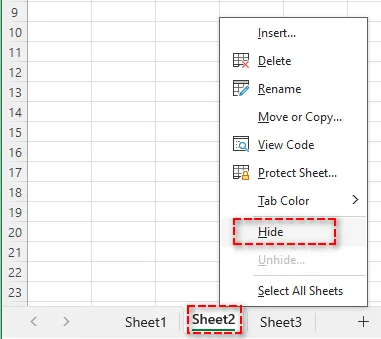
The worksheet is immediately removed from the tab bar but can be easily restored later by right-clicking any visible sheet and selecting Unhide.
Also Read: Copy a Worksheet in Excel (Manual, VBA & Python)
Hide a Sheet Using the Ribbon
If you prefer a menu-driven approach or need clearer visual guidance, you can hide a worksheet using the Ribbon.
Steps:
-
Select the sheet tab you want to hide.
-
Go to the Home tab.
-
In the Cells group, click Format, and choose Hide & Unhide under Visibility.
-
Select Hide Sheet from the context menu.
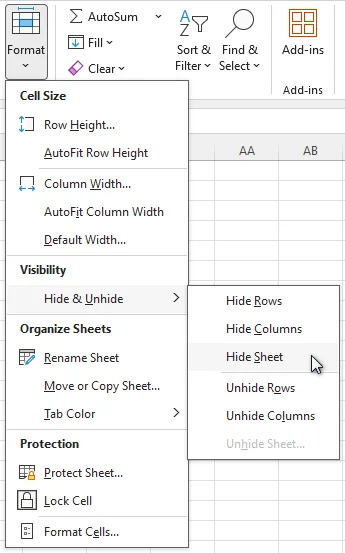
This method produces the same result as right-click hiding and is useful in structured or instructional workflows.
Hide a Sheet Using a Keyboard Shortcut
For users who prefer keyboard navigation, Excel provides a built-in shortcut that allows you to hide the active worksheet instantly, without opening any menus.
Steps:
-
Select the sheet tab you want to hide.
-
Press the following keys in sequence: Alt → H → O → U → S.

Note: This shortcut hides only the active sheet in Excel. Make sure the sheet you want to hide is active before using it.
Hide Multiple Sheets in Excel at Once
You can hide multiple worksheets at the same time when organizing large workbooks or preparing files for sharing.
Steps:
- Select the sheet tabs you want to hide:
- Adjacent sheets: Click the first tab, hold Shift, then click the last tab.
- Non-adjacent sheets: Hold Ctrl and click each tab.
- Right-click one of the selected tabs and choose Hide.
Note: At least one worksheet must remain visible in the workbook, as Excel does not allow all sheets to be hidden at the same time.
Make a Sheet Very Hidden in Excel with VBA
When standard hiding is not sufficient, you can make a worksheet Very Hidden using VBA. A Very Hidden sheet does not appear in Excel's Unhide dialog and can only be made visible again through VBA or code.
Steps:
-
Press Alt + F11 to open the VBA Editor.
-
In the Project Explorer, select the worksheet you want to hide.
-
Open the Properties window (F4).
-
Set Visible to xlSheetVeryHidden.
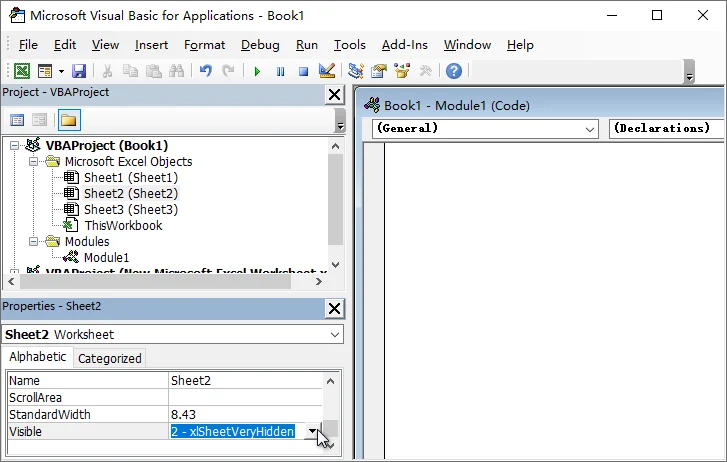
Note: Very Hidden sheets can still be referenced by Excel formulas and macros. To restore the sheet, change the Visible property back to xlSheetVisible.
This method is commonly used for templates, internal calculations, and supporting data that should not be exposed to end users.
Hide the Workbook Window in Excel
In advanced scenarios, you may want to hide the entire workbook window while keeping the workbook open in the background.
Steps:
-
Open the workbook you want to hide.
-
Go to the View tab.
-
In the Window group, click Hide.
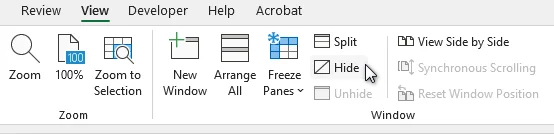
Tip: Hidden workbooks can be unhidden via View > Unhide.
Hide Sheets Automatically with Python
When you need to hide worksheets across multiple Excel files, doing it manually can be time-consuming and error-prone. By using Python with Spire.XLS for Python, you can efficiently manage worksheets, including automating sheet visibility, across large numbers of workbooks.

Steps to Batch Hide Excel Sheets with Python:
-
Install Spire.XLS for Python
Install the library from PyPI using the following command:
pip install spire.xls -
Hide Sheets Automatically with Python
The following example hides all worksheets except specified ones in every Excel file within a folder:
from spire.xls import *
import os

# Define input and output folders
input_folder = "input_excels"
output_folder = "output_excels"

# Iterate through all Excel files in the input folder
for file_name in os.listdir(input_folder):
    if file_name.endswith((".xlsx", ".xls")):
        workbook = Workbook()
        workbook.LoadFromFile(os.path.join(input_folder, file_name))

        # Loop through worksheets in each file
        for sheet in workbook.Worksheets:
            # Hide all worksheets except the specified ones
            if sheet.Name not in ["Dashboard", "Summary"]:
                sheet.Visibility = WorksheetVisibility.Hidden

        # Save the updated workbook
        workbook.SaveToFile(os.path.join(output_folder, file_name), ExcelVersion.Version2013)

        # Release resources
        workbook.Dispose()
Tip: If you need to prevent users from unhiding sheets through Excel's interface, use WorksheetVisibility.StrongHidden to create Very Hidden sheets.
Related Article: Python: Hide or Unhide Excel Worksheets
Conclusion
Hiding sheets in Excel keeps workbooks organized, protects sensitive data, and reduces user confusion. Choosing the right method depends on your control needs, how often the task is performed, and the scale of your workbook:
- For quick, temporary hiding of individual sheets, manual methods are sufficient.
- For sheets that should never be unhidden through Excel's interface, use Very Hidden sheets with VBA.
- To restrict user interaction while keeping a workbook open, hiding the workbook window is ideal.
- For consistent rules across multiple Excel files, Python automation provides the most efficient solution.
Looking for more high-quality Excel tutorials? Check out our free Excel resources.
FAQs
Q1: What is the difference between Hidden and Very Hidden sheets in Excel?
A1: Hidden sheets can be unhidden through Excel, while Very Hidden sheets can only be made visible again using VBA or automation.
Q2: Can users unhide hidden sheets in Excel?
A2: Yes. Sheets hidden using standard methods can be unhidden through Excel's Unhide option.
Q3: Can I hide an entire Excel workbook without closing it?
A3: Yes. Go to the View tab and click Hide in the Window group to hide the workbook window while keeping it open.
Q4: How can I hide sheets in multiple Excel files in a batch?
A4: By using Python with libraries such as Spire.XLS for Python, you can apply the same worksheet visibility rules across multiple Excel files in a folder and hide sheets in bulk.