When you import dates from CSV files, databases, or other applications, Excel may store them as text rather than actual date values. This can cause problems with chronological sorting, date filters, and calculations, even when the dates look correct.
You can convert text to date in Excel using Text to Columns, formulas, Power Query, or C# automation. The best approach depends on the source date format and whether you're performing a one-time conversion or managing a recurring workflow.
Choose the Right Text-to-Date Conversion Method
Before you start, choose the method that best matches your source data and conversion needs.
| Your situation | Recommended method |
|---|---|
A column of text dates in a consistent format, such as 15/01/2026
|
Use Text to Columns and select the correct date order, such as DMY. View steps |
Recognizable text dates, such as 15-Jan-2026
|
Use DATEVALUE to convert the text into an Excel date value. View steps |
Dates in a fixed or custom format, such as 20260115
|
Use DATE with text functions such as LEFT, MID, and RIGHT to extract the date components. View formulas |
| Imported dates using a different regional convention | In Power Query, use Change Type > Using Locale. View steps |
| Dates that need conversion in automated Excel workflows | Use C# to parse text dates and write actual Excel date values. View code |
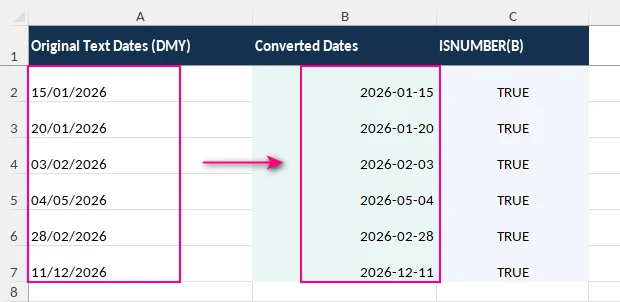
Not sure whether your dates are stored as text? By default, text is usually left-aligned in Excel, while actual date values are right-aligned. However, alignment alone isn't a reliable indicator. To check, enter =ISNUMBER(A2) in an empty cell. Excel stores recognized dates as numbers, so FALSE indicates that the cell is not numeric. If it contains a date-like string, it is stored as text. TRUE means the value is numeric, but does not by itself prove that it represents the intended date.
If you need the opposite operation, see our guide on formatting dates as text in Excel.
Method 1: Convert Text to Date Using Text to Columns
Use this method when: You want to convert an entire column of text dates without formulas, particularly when the dates follow a consistent day-month-year or month-day-year order.
Although commonly used to split text into separate columns, Excel's Text to Columns feature can also convert dates stored as text into actual Excel date values.
Step-by-Step Guide
-
Select the cells containing the text dates in one column.
-
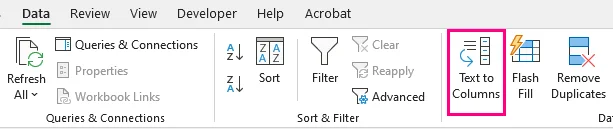
Go to Data > Text to Columns in the Data Tools group.
-
In the Convert Text to Columns Wizard, select Delimited and click Next.
-
Clear any delimiters that would split the dates, and check the Data preview to make sure each date remains in a single column. Then click Next.
-
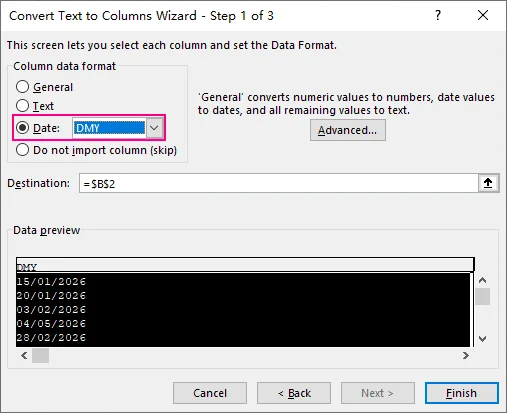
Under Column data format, select Date.
-
Choose the date order that matches the original text:
-
DMY: For dates such as
15/01/2026. -
MDY: For dates such as
01/15/2026. -
YMD: For dates such as
2026/01/15.
-
DMY: For dates such as
-
Check the Destination field. By default, Excel writes the converted dates back to the original column. To preserve the original text dates, enter or select the starting cell of an empty destination range, then click Finish.
Excel converts the recognized text strings into numeric date values. To change how the dates appear, select the converted cells, press Ctrl + 1, and choose your preferred date format under the Number tab.
Important: Select the Correct Date Order
The DMY, MDY, and YMD settings describe the order of the components in the source text, not how you want the dates to appear afterward.
For example, the text 04/05/2026 can be interpreted differently depending on the selected date order:
| Selected date order | Interpreted date |
|---|---|
| DMY (Day/Month/Year) | May 4, 2026 |
| MDY (Month/Day/Year) | April 5, 2026 |
Both interpretations are valid dates, so Excel may not report an error if you select the wrong order. Always choose the date order used in the source data and check a few converted values before processing important datasets.
Beyond date conversion, you can also use Text to Columns to split cell contents into multiple columns, such as separating names, addresses, or other combined data.
Method 2: Convert Text to Date Using DATEVALUE
Use this method when: The source dates are text strings that Excel can recognize, and you want to convert them using formulas while keeping the original data unchanged.
The DATEVALUE function converts text dates into Excel date serial numbers, which can then be formatted and used in date calculations. Unlike Text to Columns, which performs a one-time conversion, DATEVALUE uses formulas that can recalculate when the source values change.
Step-by-Step Guide
Suppose cell A2 contains 15-Jan-2026, stored as text rather than an actual Excel date.
-
Select an empty cell next to the original date, such as B2, and make sure its number format is General.
-
Enter the following formula:
=DATEVALUE(A2) -
Press Enter. In Excel's default 1900 date system, the formula returns
46037, which represents January 15, 2026. -
Drag the fill handle down to convert the remaining text dates.
-
Select the converted cells and press Ctrl + 1 to open the Format Cells dialog.
-
Under the Number tab, select Date, choose your preferred date format, and click OK.
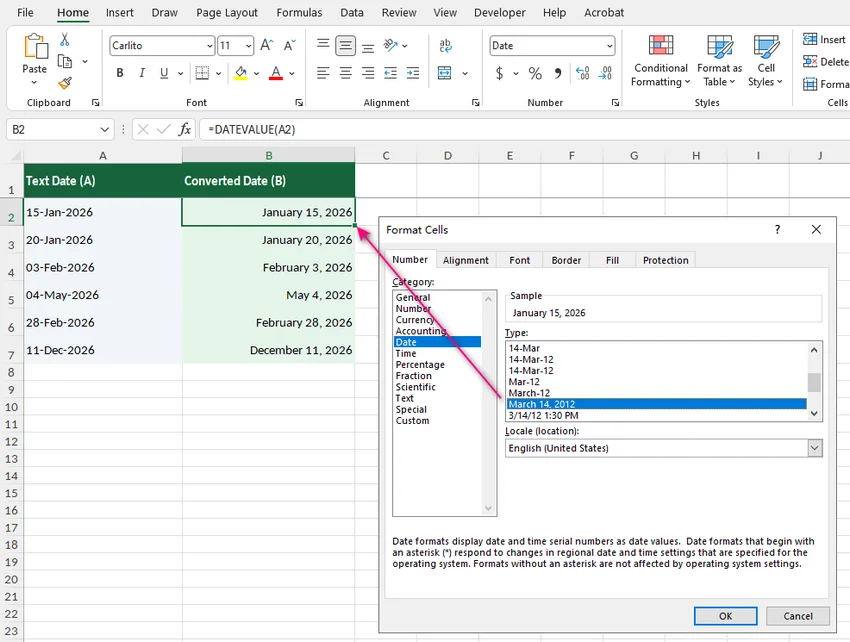
Limitation: DATEVALUE relies on Excel's date recognition rules, which can vary with regional settings. It may return #VALUE! for unsupported date strings or interpret ambiguous dates incorrectly. For formats such as YYYYMMDD, use the DATE function with text extraction functions instead.
Replace Text Dates with Permanent Date Values
The converted cells still contain formulas. If you want to replace the original text dates with permanent date values:
- Verify that the converted dates match the intended dates.
- Select and copy the converted date cells.
- Select the first cell of the original date range.
- Go to Home > Paste > Paste Special, select Values, and click OK.
- Apply a Date number format to the destination cells if necessary.
- Check the pasted dates, then delete the temporary formula column.
Note: After replacing the original text dates, the temporary DATEVALUE formulas may return #VALUE! because their source cells now contain numeric dates. This does not affect the values already pasted into the original column.
You can use the same technique to remove formulas in Excel while keeping their calculated values.
Method 3: Convert YYYYMMDD and Custom Text Formats to Date
Use this method when: Your dates are stored as eight-digit strings, numeric codes, or fixed-format text that DATEVALUE cannot reliably interpret.
For example, you might receive dates such as 20260115 or 2026.01.15 from an ERP system or database. Instead of relying on Excel's automatic date recognition, you can use LEFT, MID, and RIGHT to extract the year, month, and day, then combine them with the DATE function to create an Excel date value.
Convert YYYYMMDD to Date
Suppose cell A2 contains 20260115, stored as text or as an eight-digit number rather than an Excel date serial number.
-
Select an empty cell next to the original value, such as B2.
-
Enter the following formula:
=DATE(LEFT(A2,4),MID(A2,5,2),RIGHT(A2,2)) -
Press Enter. The formula creates an Excel date representing January 15, 2026.
-
If the remaining values follow the same YYYYMMDD format, drag the fill handle down to convert them.
-
Select the converted cells, press Ctrl + 1, and apply your preferred date format.
The formula works by extracting the individual date components:
-
LEFT(A2,4)extracts the year:2026. -
MID(A2,5,2)extracts the month:01. -
RIGHT(A2,2)extracts the day:15. -
DATE()combines these components into a numeric Excel date value.
If you apply the custom number format yyyy-mm-dd, the converted date appears as 2026-01-15.
Convert Other Fixed-Format Date Strings
You can adjust the formula to handle different date patterns, including values with separators.
The formulas below assume that the source dates are in A2:A6, in the order shown. Each formula references the corresponding cell in column A. Adjust the cell references if your data is located elsewhere.
| Original value | Input format | Formula |
|---|---|---|
| 20260115 | YYYYMMDD | =DATE(LEFT(A2,4),MID(A2,5,2),RIGHT(A2,2)) |
| 15012026 | DDMMYYYY | =DATE(RIGHT(A3,4),MID(A3,3,2),LEFT(A3,2)) |
| 01152026 | MMDDYYYY | =DATE(RIGHT(A4,4),LEFT(A4,2),MID(A4,3,2)) |
| 2026-01-15 | YYYY-MM-DD | =DATE(LEFT(A5,4),MID(A5,6,2),RIGHT(A5,2)) |
| 2026.01.15 | YYYY.MM.DD | =DATE(LEFT(A6,4),MID(A6,6,2),RIGHT(A6,2)) |
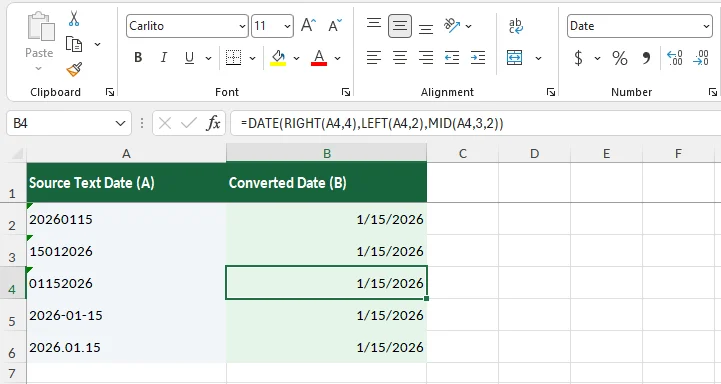
These formulas assume that the source values follow the specified pattern, with each date component in a fixed position. For example, the YYYY-MM-DD formula expects a four-digit year followed by two-digit month and day values.
Watch Out for Leading Zeros and Invalid Dates
When converting fixed-format date strings, two issues deserve particular attention.
1. Leading zeros may be lost during import.
If 01152026 (MMDDYYYY) is imported as a number, Excel removes the leading zero and stores it as 1152026. The fixed-position formula can no longer extract the components correctly.
If you know the original values follow an eight-digit MMDDYYYY pattern, you can restore the missing zero in a helper column.
For example, enter the following formula in B2:
=TEXT(A2,"00000000")
This converts 1152026 into the eight-character text string 01152026.
You can then use the restored value in B2 to construct a date in C2:
=DATE(RIGHT(B2,4),LEFT(B2,2),MID(B2,3,2))
This approach assumes that the original numeric value represents an MMDDYYYY date with an omitted leading zero. For future imports, storing the source column as text helps preserve leading zeros from the beginning.
2. The DATE function can adjust invalid date components.
The DATE function does not always return an error when the supplied month or day is outside the expected range.
For example:
=DATE(2026,2,30)
This returns March 2, 2026, because February 2026 has only 28 days.
Therefore, a formula that produces a valid Excel date does not necessarily mean the original date string was valid.
For an eight-digit YYYYMMDD source value in A2 and its converted date in B2, you can check whether the conversion preserved the original date components:
=AND(LEN(A2&"")=8,TEXT(B2,"yyyymmdd")=A2&"")
- TRUE: The source contains eight characters, and the converted date matches the original year, month, and day.
- FALSE: The source length or date components do not match and should be reviewed.
This check assumes that A2 contains a YYYYMMDD value and B2 contains a successfully calculated Excel date. If B2 contains an error, the validation formula may also return an error.
Note: If a cell already contains an Excel date serial number, such as 46037, you only need to apply a date number format. An eight-digit value such as 20260115, however, must first be interpreted as year, month, and day.
Method 4: Convert Imported Text Dates Using Power Query
Use this method when: You regularly work with imported text dates in Excel, especially from CSV files or systems that use different regional date conventions.
Power Query lets you convert text dates using a specified locale and saves the transformation steps for future refreshes.
For example, a UK source file may contain dates such as 15/01/2026, while your computer uses US regional settings. Converting the column directly to Date may produce errors because the date order does not match. Power Query's Using Locale option lets you specify how the source dates should be interpreted.
Step-by-Step Guide
-
Open your data in Power Query:
- For data already in an Excel worksheet: Select a cell in the dataset and go to Data > From Table/Range.
- For CSV files: Go to Data > Get Data > From File > From Text/CSV, select your file, and click Transform Data in the import preview.
-
If prompted when loading worksheet data, confirm the table range and header settings to open the Power Query Editor.
-
Check the Applied Steps pane. If an automatic Changed Type step has already interpreted the dates incorrectly, remove or edit that step to restore the original text values before applying the correct locale.
-
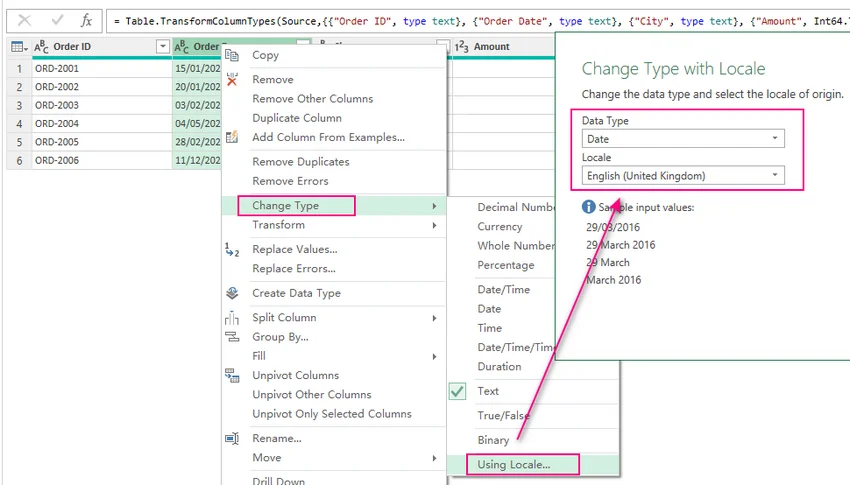
Select the column containing the text dates, right-click its header, and choose Change Type > Using Locale.
-
In the Change Type with Locale dialog, select:
- Data Type: Date
- Locale: English (United Kingdom), for DD/MM/YYYY dates.
-
Click OK. Check the converted dates in the preview to confirm that the day and month have been interpreted correctly.
-
Go to Home > Close & Load to load the converted data into Excel. By default, Power Query loads the results into a new worksheet, leaving the original source data unchanged.
For US-style MM/DD/YYYY dates, choose English (United States) instead.
Once the query is set up, you can use Data > Refresh All when the source data changes. Power Query reapplies the saved transformation steps, making this approach useful for monthly reports and recurring data imports.
Note: If a column contains different date formats, you may need to standardize the values or apply separate transformations before converting them.
Method 5: Automatically Convert Text to Date in Excel with C#
Use this method when: You need to automate text-to-date conversion during data imports, report generation, or backend processing.
Instead of opening each workbook in Excel, you can use C# to read text dates, parse them according to a specified format, and save the converted values as actual Excel dates.
Install the Required Library
This example uses Free Spire.XLS for .NET to read and modify Excel workbooks without requiring Microsoft Excel to be installed.
Install the library through NuGet:
Install-Package FreeSpire.XLS
Free edition note: When reading or writing legacy .xls files, the free edition is limited to 5 worksheets per workbook and 200 rows per worksheet. These limits do not apply to .xlsx files when using Free Spire.XLS v7.8 or later.
Convert Text Dates to Actual Date Values in C#
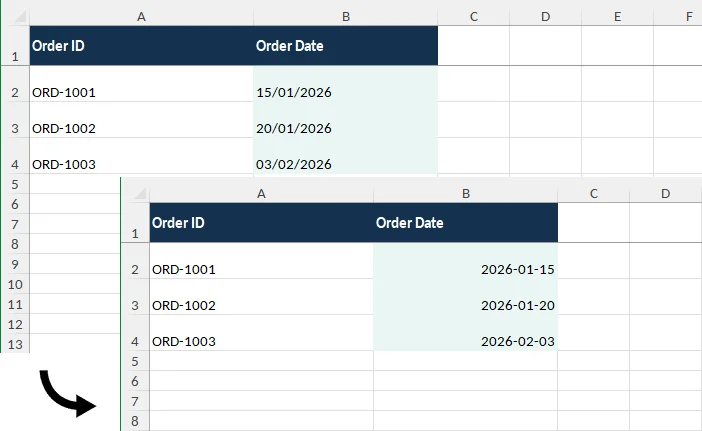
Suppose orders.xlsx contains an Order Date column (column B) in the first worksheet, with the following values stored as text:
| Order ID | Order Date |
|---|---|
| ORD-1001 | 15/01/2026 |
| ORD-1002 | 20/01/2026 |
| ORD-1003 | 03/02/2026 |
The following C# example converts these DD/MM/YYYY strings into actual Excel dates and applies the YYYY-MM-DD display format.
using System;
using System.Globalization;
using Spire.Xls;

class Program
{
    static void Main()
    {
        Workbook workbook = new Workbook();
        workbook.LoadFromFile("orders.xlsx");

        // Get the first worksheet
        Worksheet sheet = workbook.Worksheets[0];

        // Convert text dates in column B (skip the first header row)
        for (int row = 2; row <= sheet.LastDataRow; row++)
        {
            CellRange cell = sheet.Range[row, 2];
            string text = (cell.Text ?? string.Empty).Trim();

            if (string.IsNullOrEmpty(text))
                continue;

            // Parse dates using the expected DD/MM/YYYY format
            if (DateTime.TryParseExact(
                text,
                "dd/MM/yyyy",
                CultureInfo.InvariantCulture,
                DateTimeStyles.None,
                out DateTime date))
            {
                cell.DateTimeValue = date;
                cell.NumberFormat = "yyyy-mm-dd";
            }
            else
            {
                Console.WriteLine($"Skipped B{row}: {text}");
            }
        }

        workbook.SaveToFile(
            "orders_converted.xlsx",
            ExcelVersion.Version2016);

        workbook.Dispose();
    }
}
The code processes text dates in column B using DateTime.TryParseExact(), writes successfully parsed dates as Excel date values, and saves the result to orders_converted.xlsx.
Empty cells and invalid date strings are left unchanged, with unrecognized values reported in the console. To handle other date formats, adjust the format string (such as MM/dd/yyyy or yyyyMMdd).
For additional display options, see how to set number formats in Excel using C#.
Common Text-to-Date Conversion Problems and Fixes
If your text dates are not converting correctly, use the following table to identify common causes and solutions.
| Problem | Likely cause | How to fix |
|---|---|---|
DATEVALUE returns #VALUE!
|
Excel cannot recognize the date string, or it contains extra spaces or hidden characters | Check the source format and regional settings. For ordinary extra spaces, try =DATEVALUE(TRIM(A2)). |
| Dates convert with the wrong day and month | The date order was interpreted incorrectly | Use Text to Columns with the correct DMY/MDY setting or Power Query with the appropriate locale. |
Converted dates display numbers such as 46037
|
The cells contain date serial numbers but are not formatted as dates | Select the cells, press Ctrl + 1, and apply a Date number format. |
Dates such as 2026.01.15 are not recognized |
Excel cannot interpret the source format automatically | Use a fixed-position DATE formula or standardize the source format before conversion. |
| Some rows convert while others fail | The column contains mixed formats, invalid dates, or hidden characters | Inspect the failed rows and apply the appropriate conversion rule. |
Remove Hidden Spaces from Text Dates
Dates copied from websites or other applications may contain nonbreaking spaces that Excel's TRIM() function cannot remove. To handle these characters, use:
=DATEVALUE(TRIM(SUBSTITUTE(A2,CHAR(160)," ")))
This formula replaces nonbreaking spaces with ordinary spaces, removes excess spacing, and converts the cleaned text into an Excel date. It still requires a date format that Excel can recognize.
Conclusion
For occasional text-to-date conversions, Excel's Text to Columns and date formulas such as DATEVALUE and DATE offer practical solutions. Power Query is useful for recurring data imports, while C# provides an automated approach for processing Excel workbooks.
Whichever method you choose, verify that the converted values are valid Excel dates and represent the correct day and month before using them in calculations or reports.