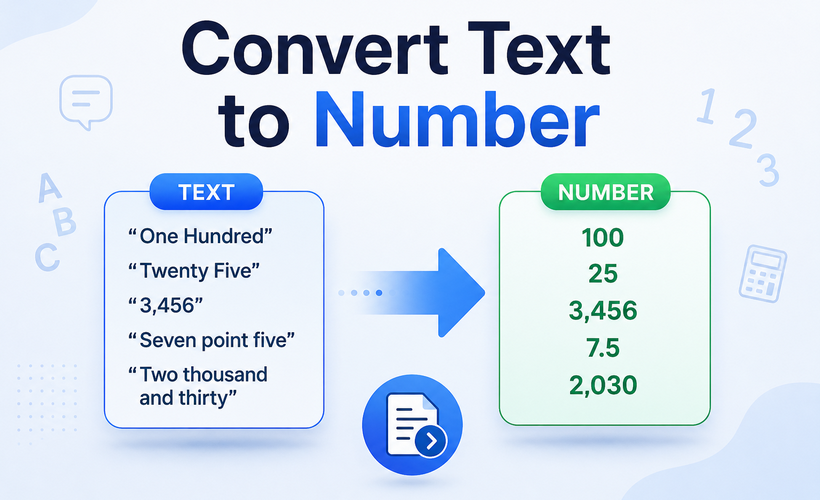
When numbers are stored as text strings in Excel, core calculation and lookup functions break silently, producing incorrect results. This issue occurs frequently with imported CSV data, database exports, web-scraped content, and values prefixed with an apostrophe to force text formatting.
Changing the cell display format is a common first attempt, but it rarely fixes the root problem. To properly convert text to numbers in Excel, you have to force the program to re‑evaluate the content as a true numeric value—not just change how it looks.
In this guide, we'll show you exactly how to change text to numbers in Excel using 7 proven methods, ranging from quick one‑click fixes to fully automated batch solutions. Each method includes clear step‑by‑step instructions, ideal use cases, and practical limitations—so you can confidently pick the right approach for your dataset size and workflow.
How to Identify Numbers Stored as Text
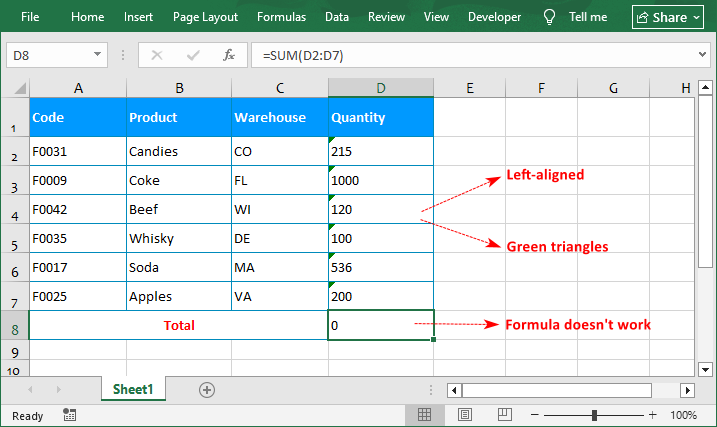
Watch for these three telltale signs that Excel is treating your numbers as text:
- Left alignment: Numbers are normally right-aligned by default. If they're aligned to the left, that's a red flag.
- Green triangle: A small green triangle appears in the top-left corner of the cell.
- Formulas don't work: Functions like SUM, AVERAGE, and COUNT ignore text values, giving you incorrect results.
Example:
Quick Reference Table: Which Method Should You Use?
Use this decision matrix to jump straight to the best solution for your specific scenario:
| Method | Best For | Speed |
|---|---|---|
| 1. Error Checking Dropdown | Small ranges with visible green triangles | ★★★★★ |
| 2. Text to Columns | Entire columns or medium-to-large datasets | ★★★★★ |
| 3. Change Cell Format | When format is manually set to Text | ★★★★ |
| 4. VALUE Formula | Preserving original raw data for audit trails, combining with other formulas | ★★★ |
| 5. Paste Special (Multiply by 1) | Quick fixes without extra columns | ★★★★ |
| 6. VBA Macro | Daily, weekly, or repetitive tasks across multiple sheets/workbooks within Excel | ★★★ |
| 7. Python + Free Spire.XLS | Batch processing multiple files, or server-side automation without installing Excel | ★★★★★ (script speed) |
Method 1: Use the Error Checking Dropdown
This is the quickest fix to convert Excel text to numbers when you see small green triangles (Excel’s built-in error indicator). It acts as a "one-click" re-evaluation for explicitly flagged cells.
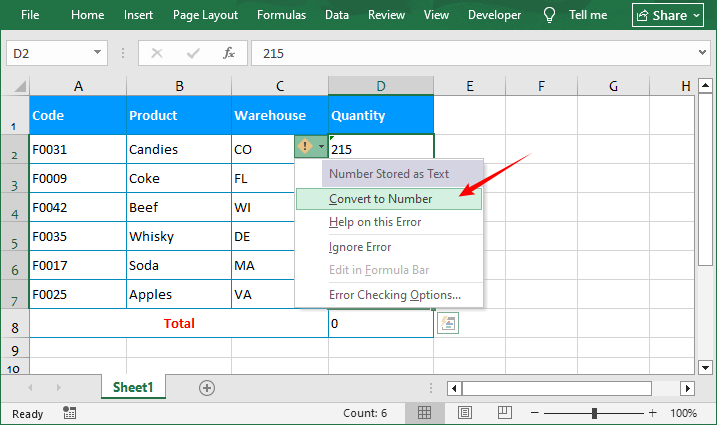
- Select all cells with the green error indicator.
- Click the yellow exclamation mark icon that appears next to the selection.
- Select “Convert to Number” from the drop-down menu.
⚠️ Troubleshooting: If you don't see the green triangle, the error checking feature may be turned off. To enable it: Go to “File” > “Options” > “Formulas”, and under "Error Checking", ensure "Enable background error checking" is checked.
Method 2: Use the Text to Columns Feature
Text to Columns is one of the most consistent and widely used methods among Excel professionals. It works even on cells that contain leading apostrophes (') or leading/trailing spaces. It forces a complete data type conversion at the binary level.
- Select the entire column or range containing your text-formatted numbers.
- Go to the Data tab and click “Text to Columns”.
- In Step 1 of the wizard, select “Delimited” and click Next.
- In Step 2, uncheck all delimiter boxes (Tab, Comma, Space, etc.) and click Next.
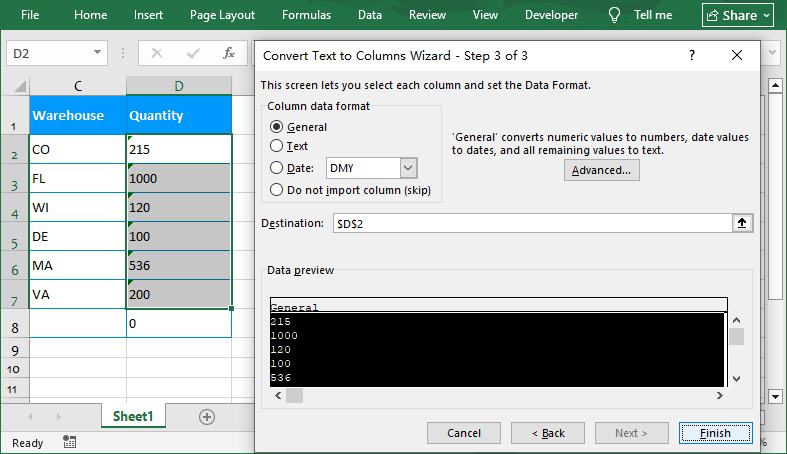
- In Step 3, under the "Column data format", select “General”.
- Click Finish. Your text will instantly convert to standard number format.
If you want to retain leading zeros in ZIP codes, ID numbers, and product codes, you can convert numbers back to text.
Method 3: Change Cell Format to General/Number
Sometimes, simply changing the cell format does the trick, but it has important limitations. It only works if cells were formatted as "Text" before data was entered.
- Select the cells with text-formatted numbers.
- Right-click and choose "Format Cells”.
- In the pop-up window, select the "Number" or "General” tab.
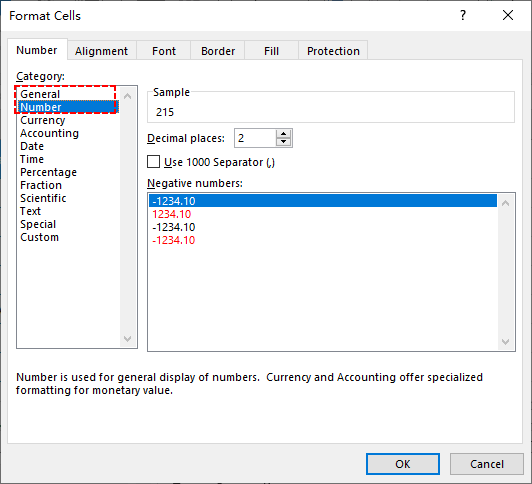
Alternatively, you can go to the “Number” group under the “Home” tab, then select the “Number" or "General” option from the drop-down box.
❌ Important Limitation: Changing cell format only updates the display setting, not the underlying cell content. If values were entered as text, you would need to double-click each cell and press “Enter” to activate the change, which is not practical for large datasets.
Method 4: Use the VALUE Function
If you want to keep your original text data intact and create a separate column of converted numbers, the VALUE function is your best option. It’s also useful for dynamic datasets that update regularly.
- Syntax: =VALUE(text)
- Example: If the text number is in cell D2, use =VALUE(D2)
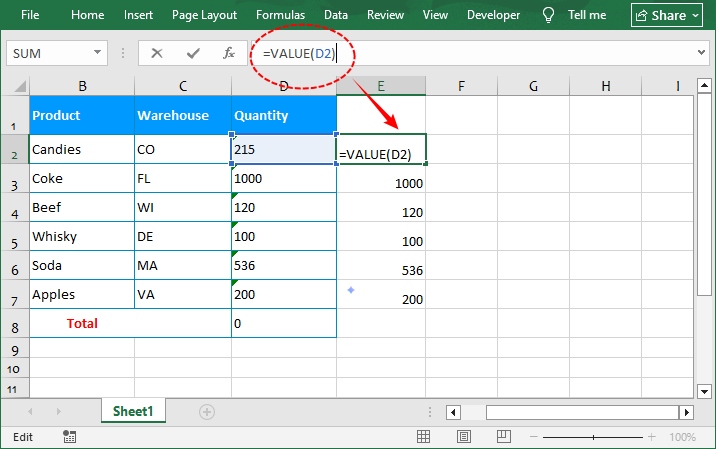
Steps to use the Excel text to number formula:
- In a blank cell next to your first text entry, type the VALUE formula referencing the text cell.
- Press Enter to generate the converted number.
- Drag the fill handle down or double-click it to apply the formula to all rows.
Alternative Formulas:
- For values with extra leading/trailing spaces, combine with TRIM: =VALUE(TRIM(D2))
- For a power-user shortcut, use double negation: =--D2, which delivers the same result for clean text numbers.
Method 5: Paste Special – Multiply by 1
Multiplying text numbers by 1 forces Excel's calculation engine to evaluate the cell contents as mathematical expressions. It’s a clever, formula-free trick that removes leading apostrophes in one step.
- Type the number 1 into any empty cell and copy it (Ctrl+C).
- Select all the cells with text-formatted numbers you want to convert.
- Right-click the selection and choose "Paste Special".
- Under the Operation section, select “Multiply”, and click OK.
You can delete the cell with the number 1 once the conversion is complete.
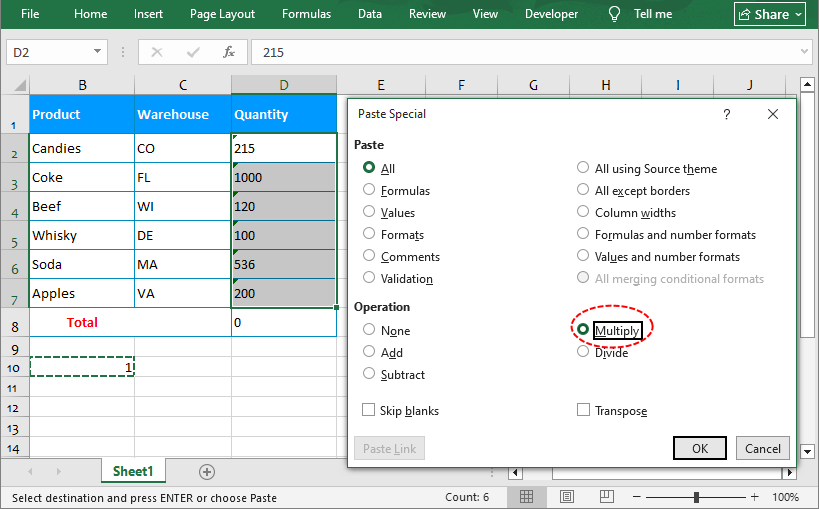
✅ Alternate Zero Trick: Instead of multiplying by 1, you can copy a blank cell, use Paste Special, and select "Add". This forces a re-evaluation without altering the numeric value at all.
Once you’ve converted your text values to proper numbers, you can pair this workflow with the remove duplicates feature in Excel to clean up duplicate records as the next step in your end-to-end data cleaning pipeline.
Method 6: VBA Macro to Convert Text to Number
If you frequently need to change text to numbers across multiple worksheets or workbooks, a VBA macro delivers one-click automation that can be assigned to a button for quick access.
Sample VBA Conversion Code:
Sub ConvertTextToNumber()
    Dim cell As Range
    Dim processedCount As Long
    Dim selectedRange As Range

    ' Ensure a range is selected
    If TypeName(Selection) <> "Range" Then
        MsgBox "Please select a range first.", vbExclamation
        Exit Sub
    End If

    ' Only loop through the intersection of the selection and the used range
    ' This prevents looping through millions of empty cells if the user selects an entire column.
    Set selectedRange = Intersect(Selection, ActiveSheet.UsedRange)
    If selectedRange Is Nothing Then
        MsgBox "No data found in the selected range.", vbInformation
        Exit Sub
    End If

    ' Turn off screen updating and auto-calculations
    Application.ScreenUpdating = False
    Application.Calculation = xlCalculationManual

    On Error Resume Next ' Centralized error handling
    For Each cell In selectedRange
        ' Check for Error Values FIRST to avoid Type Mismatch crash
        If Not IsError(cell.Value) Then
            ' Check if it is numeric text and not empty
            If IsNumeric(cell.Value) And Len(cell.Value) > 0 Then
                ' Skip if it's a date to prevent turning it into a serial number
                ' Comment out the next line if you intentionally want to convert dates.
                If Not IsDate(cell.Value) Then
                    cell.Value = CDbl(cell.Value)
                    processedCount = processedCount + 1
                End If
            End If
        End If
    Next cell
    On Error GoTo 0 ' Restore normal error handling

    ' Restore settings
    Application.Calculation = xlCalculationAutomatic
    Application.ScreenUpdating = True

    MsgBox "Conversion complete. " & processedCount & " cells converted.", vbInformation
End Sub
How to use:
- Open your Excel file and press Alt + F11 to launch the VBA Editor.
- Go to Insert > Module to create a new standard module.
- Paste the code above into the module window.
- Return to Excel, select the range you want to convert, and press Alt + F8.
- Select ConvertTextToNumber from the list and click Run.
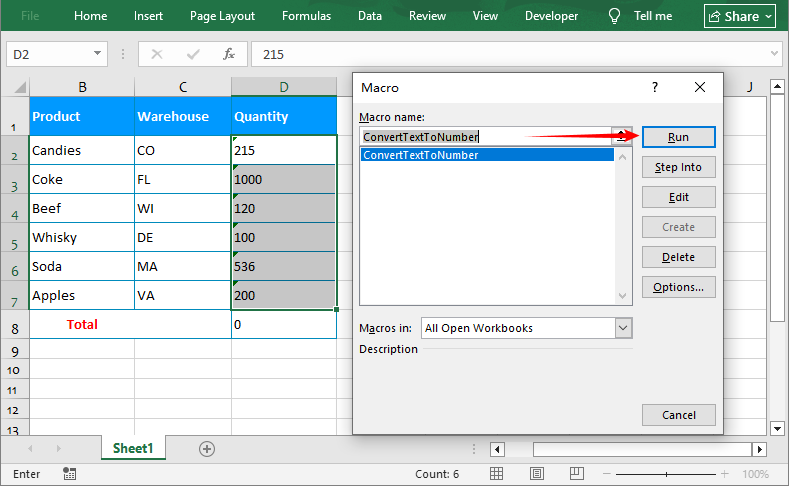
Pro Tip: To save even more time, assign the macro to the Quick Access Toolbar (QAT) so it runs with a single click.
Method 7: Programmatic Conversion with Python
If you are managing an ETL pipeline, processing dozens of Excel files on a server, or working in an environment where Microsoft Excel is not installed, Python is the ultimate solution. The Free Spire.XLS library is lightweight and specifically designed to manipulate Excel files without Microsoft interop dependencies.
Here's the complete code to convert a specific range in an existing workbook:
from spire.xls import *
from spire.xls.common import *

# Create a Workbook object
workbook = Workbook()

# Load an Excel document
workbook.LoadFromFile("Input.xlsx")

# Get a specific worksheet
worksheet = workbook.Worksheets[0]

# Get a cell range
range = worksheet.Range["D2:D7"]

# Convert text to number
range.ConvertToNumber()

# Save the workbook
workbook.SaveToFile("TextToNumbers.xlsx", ExcelVersion.Version2016)

# Dispose resources
workbook.Dispose()
What the code does:
- Loads an existing Excel file.
- Selects the first worksheet.
- Specifies a range (D2:D7 in this example) and calls .ConvertToNumber().
- Saves the result as a new file.
Pro Tip: After converting text to raw numerical values, apply a consistent number format (such as currency symbols, fixed decimals, percentage notation, or accounting format) with the same Python Excel library to wrap up the full data cleaning workflow in one script.
Final Thoughts
Learning how to change text to number in Excel is a fundamental data cleaning skill that will save you hours of frustration. Quick fixes like the error dropdown or paste special multiply work for small datasets. Text to Columns is the most reliable option for full-column conversions, and the VALUE function lets you preserve original source data.
If you regularly process data across multiple sheets or workbooks, building an automated solution with a VBA macro or a Python-based script will eliminate repetitive manual work and deliver consistent results at scale.
Next time your formulas break because numbers are stored as text, try one of these methods and get back to analyzing your data faster.
Frequently Asked Questions (FAQs)
Q: Why won’t Excel convert my text to number even after changing the cell format?
Changing the cell format from Text to Number only updates the display setting, not the underlying cell content. If data was entered as text, Excel will still treat it as text until you force a re-evaluation. Use Text to Columns, the Paste Special Multiply trick, or the VALUE function to convert the actual content, not just the format.
Q: How do I convert an entire workbook at once?
For a single manual operation, you'll need to repeat the Text to Columns or Paste Special method for each sheet. However, if you need to do this regularly:
- VBA: Modify the macro above to loop across all worksheets with For Each ws In ThisWorkbook.Worksheets.
- Python: Iterate through all sheets in a workbook (e.g., for worksheet in workbook.Worksheets:) to apply the conversion to every sheet automatically.
Q: How do I convert text to numbers in Google Sheets?
The principles are similar but slightly different:
- Quick fix: Select the range, click the Format menu > Number > Automatic.
- Formula: =VALUE(A1) works identically.
- Paste Special: Copy a cell with 0 in it, select the range, right-click > Paste special > Paste special again > check Add and click Paste.
Q: Will converting to a number delete my leading zeros (like 00123)?
Yes. Numbers don't hold leading zeros, so 00123 becomes 123. If you need those zeros (for ZIP codes or IDs), keep the column as Text. If you already converted them, you can reformat the cells with a Custom format like 00000 to make the zeros show up again.