
Unmerging cells in Excel is a straightforward task that can significantly improve your spreadsheet's usability. Whether you're cleaning up a document, preparing data for analysis, or ensuring compatibility with formulas, unmerging cells is a critical step. This guide will walk you through multiple methods to unmerge cells in Excel - from simple manual techniques to advanced automation with VBA and Python - helping you master Excel's layout and improve data management.
What You Will Learn
Why Unmerge Cells in Excel?
Merging cells can help with formatting and creating headers, but it often creates issues when sorting, filtering, or applying formulas. Unmerging cells restores individual cell functionality, making your data more manageable. Here are some reasons why you might need to unmerge cells:
- Sorting & Filtering: Merged cells can interfere with sorting and filtering operations.
- Formula Application: Formulas often don't work correctly with merged cells.
- Consistent Layout: Unmerging cells ensures uniform row and column sizes, especially for printing.
How to Unmerge Cells in Excel?
Unmerging cells in Excel can be done in several ways, depending on your needs. Below, we'll guide you through each method step by step and help you find a method that suits your needs.
Unmerge Cells Using the Merge & Center Button
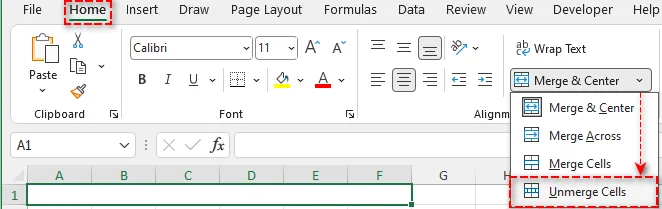
The quickest and most straightforward way to unmerge cells in Excel is through the Merge & Center button on the Home tab. This method is ideal for occasional tasks where you need to unmerge a few cells quickly. Follow these steps to unmerge your cells:
-
Select the Merged Cell: Click on the merged cell or range of cells you want to unmerge.
-
Go to the Home Tab: Navigate to the Home tab on the Excel ribbon.
-
Click Merge & Center: In the Alignment group, click the small drop-down arrow next to the Merge & Center button.
-
Choose Unmerge Cells: Select Unmerge Cells from the dropdown menu.
Pro Tip: After unmerging, Excel preserves the content of the top-left cell, leaving other cells empty. If needed, you can copy the content into the other cells for consistency.
Unmerge Cells Using the Format Cells Dialog Box
For situations where you want more control over cell formatting-such as text alignment-Excel's Format Cells dialog box provides another method to unmerge cells. Here's how to do it step by step:
-
Select the Merged Cells: Click the merged cell(s) you want to unmerge.
-
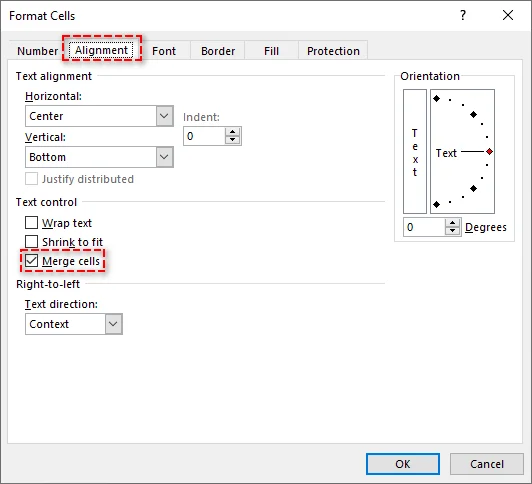
Open the Format Cells Menu: Right-click the selected cell and choose Format Cells.
-
Go to the Alignment Tab: In the dialog box, click the Alignment tab.
-
Uncheck Merge Cells: Under Text Control, uncheck the Merge cells checkbox.
-
Click OK: The selected cells will now be unmerged.
This method is useful if you want to maintain or adjust other formatting settings while unmerging.
Unmerge Cells Using a Keyboard Shortcut
Keyboard shortcuts are the fastest way to unmerge cells, especially when speed and efficiency matter. Here's the shortcut sequence to quickly unmerge cells in Excel:
-
Select the Merged Cells: Highlight the merged cells you want to unmerge using your mouse or keyboard.
-
Use the Shortcut: Press Alt + H, then M, and finally U. The selected cells will instantly unmerge.

This method eliminates the need to navigate menus, making it ideal for power users who frequently work with merged cells.
Find and Unmerge All Merged Cells in Excel
When working with large worksheets, finding merged cells manually can be slow. Excel’s Find & Select tool helps you quickly locate and clean up merged cells in bulk. Follow these steps to streamline the process:
-
Select Your Entire Sheet: Click the small triangle in the top-left corner of the sheet to select the entire worksheet.
-
Open the Find and Replace Dialog Box:
- Go to the Home tab, click Find & Select in the Editing group, and choose Find…
- Or press Ctrl + F to open the dialog directly.
-
Find All Merged Cells:
-
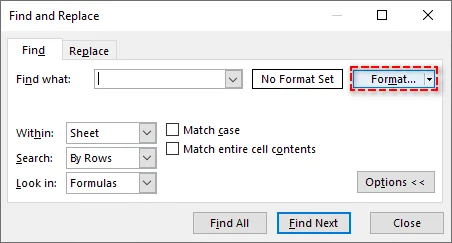
In the Find dialog, click Options to expand search options. Then click Format.
-
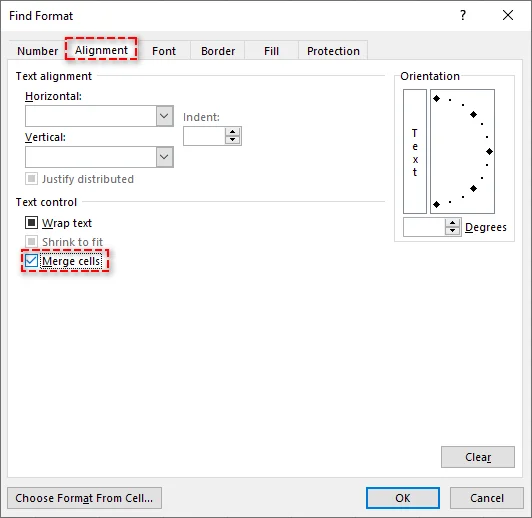
In the Find Format window, go to the Alignment tab, and check the Merge cells checkbox under Text Control.
-
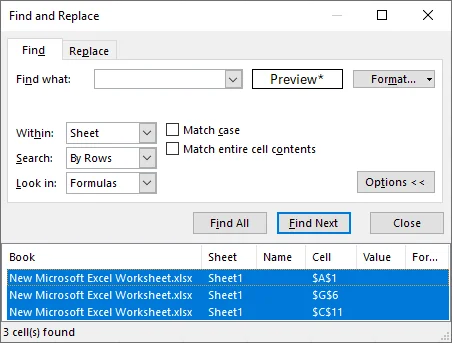
Click OK, then click Find All. Excel will display all merged cells in the selected range.
-
-
Select All Merged Cells: Press Ctrl + A to select all results from the list, then close the Find dialog.
-
Unmerge the Cells: Use any of the previously described methods to unmerge all selected cells simultaneously.
This approach is highly efficient for cleaning up large datasets or preparing Excel files for analysis.
Unmerge Cells Using VBA
VBA (Visual Basic for Applications) allows users to automate the unmerging process, especially for repetitive tasks or handling multiple worksheets. If you frequently need to unmerge cells across different sheets, VBA is an excellent choice.
Here's a simple VBA script to unmerge all cells in a specific worksheet:
Sub UnmergeAllCells()
    Dim ws As Worksheet
    Set ws = ThisWorkbook.Sheets("Sheet1")  ' Replace with your sheet name

    ' Loop through all the merged cells and unmerge them
    Dim cell As Range
    For Each cell In ws.UsedRange
        If cell.MergeCells Then
            cell.UnMerge
        End If
    Next cell
End Sub
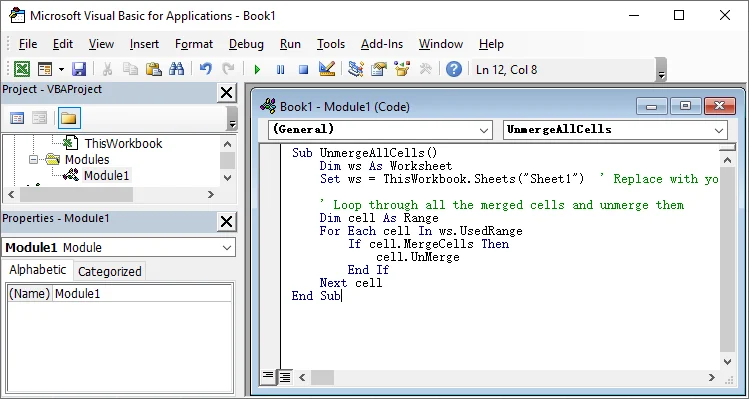
Steps to Use the VBA Script:
- Open the Excel workbook and press Alt + F11 to open the Visual Basic for Applications editor.
- Insert a new module by clicking Insert > Module.
- Paste the script above into the module window.
- Press F5 to run the macro to unmerge all cells in the worksheet.
For more details about the UnMerge method used in this VBA script, please check the official documentation from Microsoft: Range.UnMerge method (Excel).
Unmerge Cells Using Python
If you prefer not to use Excel or VBA, Python offers a flexible solution for unmerging cells programmatically. By leveraging libraries like Spire.XLS for Python, you can easily create, edit, and manipulate Excel files - including merging and splitting cells - without needing Microsoft Excel.
Here's an example of how you can unmerge cells in Excel using Python:
-
Install Spire.XLS:
First, install the Spire.XLS for Python library from PyPI by running the following command:
pip install spire-xls -
Write the Python Script to unmerge cells:
Once you have the library installed, you can write a Python script to unmerge all cells in an Excel worksheet. Here's a simple example:
from spire.xls import * # Load the Excel file workbook = Workbook() workbook.LoadFromFile("your_file.xlsx") # Replace with your file path # Get the first worksheet sheet = workbook.Worksheets[0] # Get all merged cells ranges = sheet.MergedCells # Loop through each merged range and unmerge for cell in ranges: cell.UnMerge() # Save the modified workbook workbook.SaveToFile("unmerged_file.xlsx", ExcelVersion.Version2013) # Save to a new file workbook.Dispose() # Clean up the resources -
Run the Script:
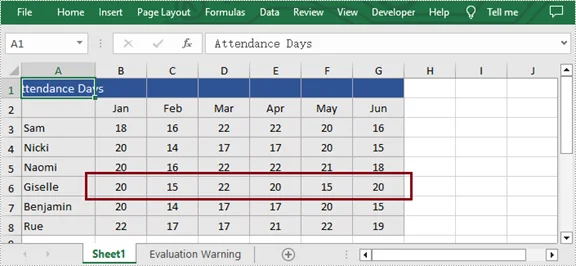
After writing the script, simply execute it. The script will unmerge all merged cells in the first worksheet and save the changes in a new Excel file.
For additional techniques like unmerging cells in a specific row, column, or range, check the full Python guide: Python: Merge or Unmerge Cells in Excel.
Conclusion: Choose the Right Method to Unmerge Cells in Excel
Unmerging cells is a crucial task in Excel to keep your data organized and functional. Here's a quick guide to help you choose the best method based on your needs:
- Quick Fix for Small Tasks: Use the Merge & Center button or Format Cells dialog box to unmerge a few cells quickly.
- Unmerge All Merged Cells: Use the Find & Select tool to locate and unmerge all merged cells in your worksheet with just a few clicks.
- Automate for Multiple Sheets: Use VBA to automate unmerging across several sheets, saving time when dealing with repetitive tasks.
- Batch Processing with Python: For handling multiple Excel files or unmerging cells in large datasets, Python offers a reliable solution without needing Excel installed.
Select the method that best fits your workflow, and streamline your data management tasks today.
FAQs
Q1: Why Should I Unmerge Cells in Excel?
A1: Unmerging cells helps ensure that data is sortable, filterable, and works with formulas, avoiding issues in calculations and data analysis.
Q2: What's the Quickest Way to Unmerge Cells in Excel?
A2: Use the keyboard shortcut: press Alt + H, then M, followed by U to instantly unmerge selected cells.
Q3: How to Unmerge All Cells in Excel?
A3: Use Find & Select to locate and unmerge all merged cells in the worksheet at once.
Q4: How to Unmerge Cells across Multiple Sheets in Excel?
A4: Use VBA to unmerge cells in multiple sheets by running a simple script that loops through all the sheets and unmerges the cells.
Q5: Can I unmerge cells automatically without having Excel installed?
A5: Yes. Use Python along with the Spire.XLS library to automatically unmerge cells in one or more Excel files, all without needing to install Microsoft Excel.