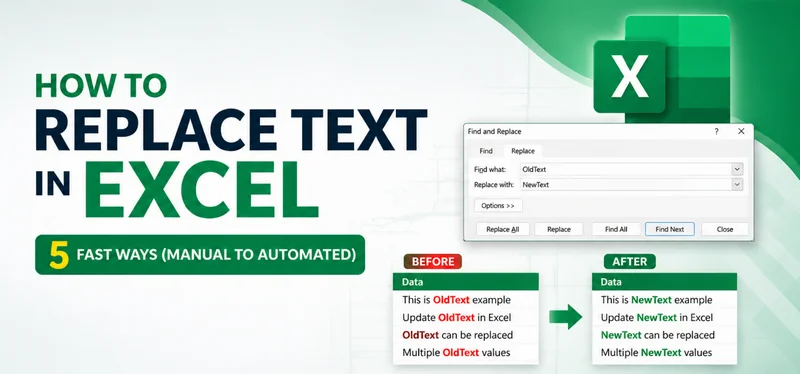
When working with large Excel workbooks, inconsistent or outdated data can quickly derail your reporting and decision-making. Manually scanning thousands of cells to fix typos is not only time-consuming but also prone to costly human errors. Mastering how to replace text in Excel efficiently is a critical skill for any data professional.
In this comprehensive guide, we explore 5 practical methods to replace text in Excel - ranging from the built-in Find & Replace tool and worksheet formulas to advanced VBA and Python automation. Whether you need to update a single cell or batch-process hundreds of workbooks, our step-by-step instructions will help you streamline your workflow and ensure data integrity.
Methods Overview
- Method 1 - Replace Text Manually with Excel's Find & Replace
- Method 2 - Replace Text by Position Using Excel's REPLACE Function
- Method 3 - Replace Text by Content Using Excel's SUBSTITUTE Function
- Method 4 - Automate Text Replacements in Excel with VBA
- Method 5 - Batch Replace Text Across Multiple Excel Files with Python
Understanding Text Replacement in Excel
Text replacement in Excel isn't just a cosmetic change-it can:
- Correct errors - fix typos or outdated codes.
- Standardize formats - unify product codes, emails, or dates.
- Improve data analysis - ensure consistency before calculations, filtering, or pivot tables.
- Save time in repetitive tasks - especially when working with large datasets or multiple files.
Below, we'll explore 5 practical ways to replace data in Excel.
Method 1 - Replace Text Manually with Excel's Find & Replace
Excel's built-in Find and Replace tool is the most efficient manual method to replace text in Excel within a single worksheet or an entire workbook. It's perfect for quick, one-off updates where formulas or automation are not required.
How to Access the Find & Replace Tool:
- Shortcut: Press Ctrl + H (Windows) or Command + Shift + H (Mac).
- Menu Path: Go to the Home tab > Editing group > Find & Select > Replace.
Step-by-Step Instructions:
-
Open the Workbook: Select the worksheet where you need to perform text replacement.
-
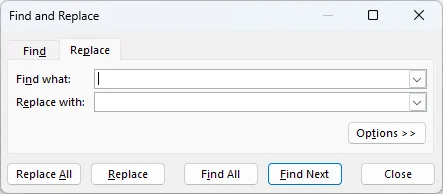
Access the Tool: Use the shortcut or menu path to trigger the Find and Replace window.
-
Input Data: In the Find what box, type the specific text or numbers you want to change. In the Replace with box, type your new content.
-
Execute Replacement: Click Replace to update the current selection and move to the next instance, or Replace All to update every instance in the sheet instantly.
Pro Tips:
Click the Options >> button to unlock advanced controls:
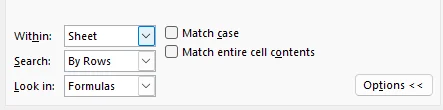
- Search Scope: Change the Within setting from Sheet to Workbook to replace text across all tabs at once.
- Pattern Matching: Use Wildcards like * (multiple characters) or ? (single character) for flexible searching (e.g., S*t matches both "Smart" and "Street").
- Precision Control: Enable Match case to replace only exact matches or Match entire cell contents to avoid replacing parts of words accidentally.
✅ Pros: Quick, intuitive, and handles formatting changes as well.
⚠️ Limitations: Manual and repetitive; not suitable for batch-processing hundreds of separate files.
You may also be interested in: 5 Ways to Wrap Text in Excel.
Method 2 - Replace Text by Position Using Excel's REPLACE Function
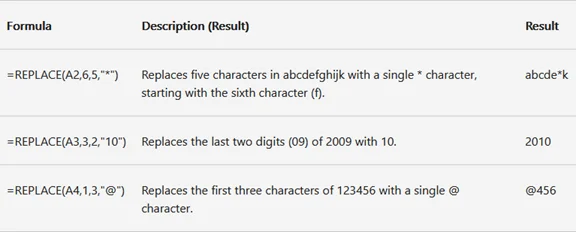
When you need to replace text in Excel based on its character position rather than the content itself, the REPLACE function is the best tool. This formula is ideal for cleaning up structured data like phone numbers, serial codes, or standardized product IDs.
Replace Function Syntax
=REPLACE(old_text, start_num, num_chars, new_text)
- old_text: The original text (or the cell reference containing the text).
- start_num: The position (index) of the first character you want to replace.
- num_chars: The total number of characters to remove.
- new_text: The new text you want to insert.
Practical Example: Masking Sensitive Data
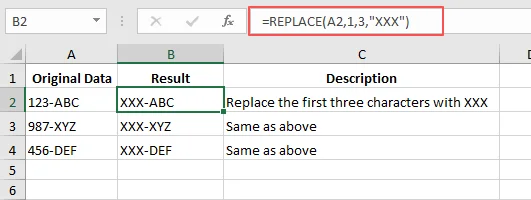
If you have a serial code "123-ABC" in cell A1 and want to change the first three numbers to "XXX":
-
Formula:
=REPLACE(A1, 1, 3, "XXX") - Result: "XXX-ABC"
Step-by-Step Implementation:
-
Select a Cell: Click on the cell where you want the updated text to appear (e.g., B2).
-
Enter the Formula: Type =REPLACE( and select the source cell (e.g., A2).
-
Define the Range: Enter the start_num (where the replacement begins) and the num_chars (how many characters to swap).
-
Add New Text: Type your replacement text inside quotation marks (e.g., "XXX").
-
Apply to List: Press Enter and use the AutoFill handle (the small green square) to drag the formula down to other rows.
Pro Tips:
- Combine with Other Functions: Use LEN() or FIND() as the start_num to handle strings of varying lengths dynamically.
-
Handle Numeric Results: The REPLACE function always returns text. To convert it back to a number for calculations, add *1 to the end of your formula (e.g.,
=REPLACE(...) * 1). - Nesting: You can nest multiple REPLACE functions in a single formula if you need to update two or more different positions at once.
✅ Pros: Perfect for structured data; ensures precise control over character replacement.
⚠️ Limitations: Less effective for data where the target text appears in different positions in each cell.
Method 3 - Replace Text by Content Using Excel's SUBSTITUTE Function
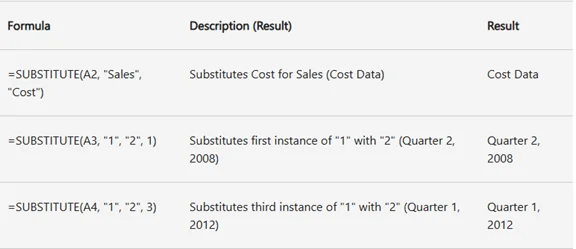
The SUBSTITUTE function is the go-to tool when you need to replace text in Excel based on specific content rather than its position. This is ideal for correcting repeated typos, updating year references, or expanding abbreviations across a large dataset.
SUBSTITUTE Function Syntax
=SUBSTITUTE(text, old_text, new_text, [instance_num])
- text: The original text (or the cell reference containing the text).
- old_text: The specific character or word you want to change.
- new_text: The text you want to insert instead.
- [instance_num]: (Optional) Specifies which occurrence to replace. If omitted, all instances are updated.
Practical Example: Bulk Updating Years
If you need to update "Report 2023" to "Report 2024" in cell A1:
-
Formula:
=SUBSTITUTE(A1, "2023", "2024") - Result: "Report 2024"
Advanced: Nested SUBSTITUTE for Multiple Updates
You can nest multiple SUBSTITUTE functions to replace several different terms in a single cell simultaneously. This is perfect for converting shorthand codes into full descriptions:
-
Formula:
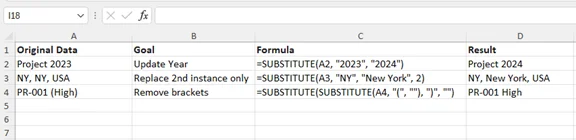
=SUBSTITUTE(SUBSTITUTE(A2, "PR", "Project"), "ML", "Milestone") - Result: Converts "PR-01, ML-05" into "Project-01, Milestone-05".
Step-by-Step Implementation:
-
Identify the Target: Click the cell where you want the cleaned data to appear.
-
Apply the Formula: Type =SUBSTITUTE( and select the source cell.
-
Define Text Strings: Enter the old_text and new_text inside double quotation marks (e.g., "old", "new").
-
Optional Instance: If you only want to replace the second occurrence of a word, add , 2 at the end before closing the parentheses.
-
Drag to Apply: Press Enter and use the AutoFill handle to apply the formula to the rest of your column.
Pro Tips:
- Case Sensitivity: SUBSTITUTE is case-sensitive. To perform a case-insensitive search, wrap your cell reference in the UPPER or LOWER function.
- Removing Text: To delete a specific word entirely, use an empty string "" as your new_text.
- Non-Destructive: Unlike Find & Replace, using formulas keeps your original data intact in the source column, providing a better audit trail.
✅ Pros: Excellent for content-based replacement; highly flexible with nesting.
⚠️ Limitations: Does not handle position-based changes; requires a helper column to store results.
Method 4 - Automate Text Replacement in Excel with VBA
When you need to replace text in Excel across multiple sheets or handle repetitive, large-scale cleanup tasks, a VBA macro is the most powerful solution. This method allows you to automate the process with a single click, saving you from manual errors.
Why Use VBA for Replacement?
- Efficiency: Update hundreds of cells instantly.
- Consistency: Ensure the same replacement logic is applied every time.
- Multi-Sheet Support: Unlike formulas, VBA can scan every tab in your workbook.
Example VBA Macro to Replace data in the Active Excel Sheet
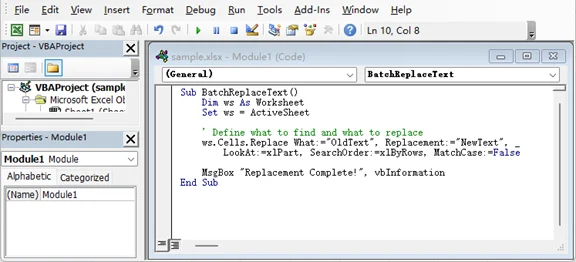
Copy and paste the following code into your VBA editor to replace specific terms across your current worksheet:
Sub BatchReplaceText()
    Dim ws As Worksheet
    Set ws = ActiveSheet

    ' Define what to find and what to replace
    ws.Cells.Replace What:="OldText", Replacement:="NewText", _
        LookAt:=xlPart, SearchOrder:=xlByRows, MatchCase:=False

    MsgBox "Replacement Complete!", vbInformation
End Sub
How to Run This Macro (Step-by-Step):
-
Open the Editor: Press Alt + F11 to open the Visual Basic for Applications window.
-
Insert a Module: Go to Insert > Module to create a blank workspace.
-
Paste the Code: Copy the script above and paste it into the module. Replace "OldText" and "NewText" with your actual data.
-
Execute the Macro: Press F5 or go back to Excel and press Alt + F8, select BatchReplaceText, and click Run.
Pro Tips:
- Precision Control: In the code above, LookAt:=xlPart allows the macro to replace text even if it's only part of a cell's content (e.g., changing "App" to "Application" within "App Store"). If you need to replace only cells that match your text exactly, change this parameter to LookAt:=xlWhole.
- Backup First: Unlike formulas, VBA actions cannot be undone (Ctrl+Z). Always save a backup copy of your file before running a macro.
- Loop Through All Sheets: You can modify the code to loop through Each ws In ThisWorkbook.Worksheets to perform a global replacement.
- Keyword Variables: For more flexibility, use InputBox to let users type the text they want to replace whenever the macro runs.
✅ Pros: Highly efficient for large datasets; automates repetitive tasks.
⚠️ Limitations: Requires the workbook to be saved as an Excel Macro-Enabled Workbook (.xlsm); cannot be undone.
Method 5 - Batch Replace Text Across Multiple Excel Files with Python
For the ultimate level of automation, using Python with the Spire.XLS library is the best way to batch replace text across multiple Excel files without even opening them. This is a game-changer for professionals managing hundreds of reports who need to maintain document formatting and structure.

Why Use Spire.XLS for Python?
- Format Preservation: Unlike other libraries, Spire.XLS keeps your fonts, colors, and layouts intact while replacing text.
- Scalability: Process thousands of workbooks in seconds-ideal for company-wide rebranding or data updates.
- Formula Support: Allows inserting various Excel formulas, making it easy to perform complex calculations, even without opening Excel.
- No Excel Required: Operates independently of Microsoft Office, making it perfect for automated server environments.
Python Code: Batch Replacement Using Spire.XLS
This script iterates through an entire folder, searches every worksheet, and replaces specific terms:
from spire.xls import *
import glob

# Path to your folder containing Excel files
files = glob.glob("C:/your_folder/*.xlsx")

for file in files:
    # Load the workbook
    workbook = Workbook()
    workbook.LoadFromFile(file)

    # Iterate through all worksheets to replace text
    for i in range(workbook.Worksheets.Count):
        sheet = workbook.Worksheets[i]

        # Find all instances of the old text
        found_ranges = sheet.FindAll("OldText", FindType.Text, ExcelFindOptions.MatchEntireCellContent)
        if found_ranges:
            for cell_range in found_ranges:
                # Apply the replacement text
                cell_range.Text = "NewText"

    # Save the updated workbook
    workbook.SaveToFile(file, ExcelVersion.Version2016)
    workbook.Dispose()

print("Batch text replacement completed successfully!")
Step-by-Step Implementation:
- Set Up Environment: Install the library via terminal:
pip install Spire.Xls - Prepare Your Script: Paste the code into an editor like VS Code or PyCharm.
- Configure Parameters: Update the folder path and replace "OldText" and "NewText" with your actual data.
- Run & Verify: Press F5 to execute the script. Verify the output files to confirm the replacement results are correct.
Pro Tips:
-
Partial Text Replacement: If a cell contains a long string (e.g., "Order: 1001") and you only want to change the number, use
cell_range.TextPartReplace("1001", "2002"). This keeps the surrounding text intact. - Case Sensitivity: The ExcelFindOptions parameter in the FindAll method allows you to toggle case-sensitive or whole-word matching for higher precision.
-
Range-Specific Finding: If you know the target data is only in a specific area, call FindAll on an XlsRange instead of the whole Sheet:
sheet.Range["A1:C10"].FindAll(). - Regex & Patterns: You can combine this with Python's re module for complex pattern matching before passing the string to the replacement loop.
✅ Pros: Unmatched speed for high-volume tasks; handles multiple files; preserves all original Excel formatting.
⚠️ Limitations: Requires a Python environment setup and basic programming knowledge.
Conclusion: Which Method Should You Choose?
Choosing the best way to replace text in Excel depends on the scale of your data and your comfort level with automation:
- Quick & Simple Edits: Use the built-in Find & Replace tool.
- Position-Based Precision: Use the REPLACE function for structured data (e.g., ID codes).
- Content-Based Logic: Use the SUBSTITUTE function for correcting specific terms.
- Workbook Automation: Use VBA macros to handle repetitive tasks across multiple sheets.
- Professional Batch Processing: Use Python to manage hundreds of files with formatting preserved.
By selecting the right workflow, you can ensure data consistency, save hours of manual labor, and eliminate human error.
Troubleshooting Common Text Replacement Issues
Even with the right tools, you might encounter roadblocks. Here are the most common issues and how to fix them:
| Issue | Likely Cause | Solution |
|---|---|---|
| Replacement didn't happen | Text doesn't exactly match the Find or old_text string. | Check for extra spaces or hidden characters. Use TRIM() or CLEAN() functions to sanitize data first. |
| Only part of the text replaced | Find & Replace settings are too restrictive. | In the Options menu, ensure Match case and Match entire cell contents is unchecked for partial replacements. |
| #VALUE! error (REPLACE) | Invalid start position or character count. | Ensure start_num and num_chars are positive integers and within the string's length. |
| Formula results are text-only | REPLACE and SUBSTITUTE always return text. | If you need a number, multiply the result by 1 (e.g., =SUBSTITUTE(...)*1) or wrap it in VALUE(). |
| VBA macro won't run | Macro security settings or protected sheets. | Enable macros in Trust Center and ensure the worksheet is unprotected before execution. |
| Python script errors | Incorrect file paths or missing dependencies. | Ensure Spire.Xls is installed. Double-check your folder path syntax (use / or \\ in Windows). |
FAQs: Replace Data in Excel
Q1: Can I replace text across multiple sheets without VBA or Python?
Yes. In the Find & Replace dialog, click Options and change the Within dropdown from "Sheet" to "Workbook". This allows you to update the entire file at once.
Q2: How do I replace text while preserving cell formatting?
Standard formulas (SUBSTITUTE) create new text in a new cell. To keep formatting in the original cell, use the manual Find & Replace tool or a professional library like Spire.XLS for Python, which is designed to modify content without stripping styles.
Q3: Can I replace text based on a specific pattern (e.g., any 3 digits)?
Yes, but you'll need Wildcards (* or ?) in the Find & Replace tool, or Regular Expressions (Regex) in a Python script for more complex patterns.
Q4: What if the target text is in a different position in every cell?
Use a dynamic formula combining REPLACE with FIND:
=IFERROR(REPLACE(A2, FIND("old", A2), LEN("old"), "new"), A2)
This locates the "old" text regardless of where it starts and replaces it with "new".
Q5: How can I automate replacements for hundreds of separate files?
The most efficient method is using Python. By leveraging glob to find files and Spire.XLS to process them, you can update thousands of workbooks in seconds without even opening Excel.