
Have you ever printed an Excel report only to find your data cutting off mid-sentence or spilling into adjacent columns? This common formatting issue doesn't just look unprofessional—it compromises readability and can lead to misunderstandings of your data. Text wrapping is the essential solution, allowing content to stay neatly contained within a cell by breaking it into multiple lines.
Whether you're a casual user formatting a single spreadsheet or a data professional processing hundreds of files, different wrapping methods offer varying levels of efficiency. This guide provides five distinct approaches, from the simple one-click button to Python automation, giving you the right tool for every text-wrapping challenge you'll encounter in Excel.
Method overview:
- Method 1: The Ribbon Button (The One-Click Wonder)
- Method 2: The Format Cells Dialog Box (For Precise Control)
- Method 3: Keyboard Shortcuts (For Speed Users)
- Method 4: Manual Line Breaks (For Exact Line Breaks)
- Method 5: Python Scripts (For Bulk Processing & Automation)
Method 1: The Ribbon Button (The One-Click Wonder)
Best for: Everyday formatting tasks and quick adjustments
When you need immediate results without navigating through menus, Excel's ribbon button provides the fastest solution. Located prominently in the Home tab, this single click can transform chaotic data into organized content.
Step-by-Step Instructions:
- Select the cell(s), row, or column you want to format.
- Go to the Home tab on the ribbon.
- In the Alignment group, click the Wrap Text button (angled text with curved arrow).
- If text remains cut off, double-click below the row number to auto-fit the row height.
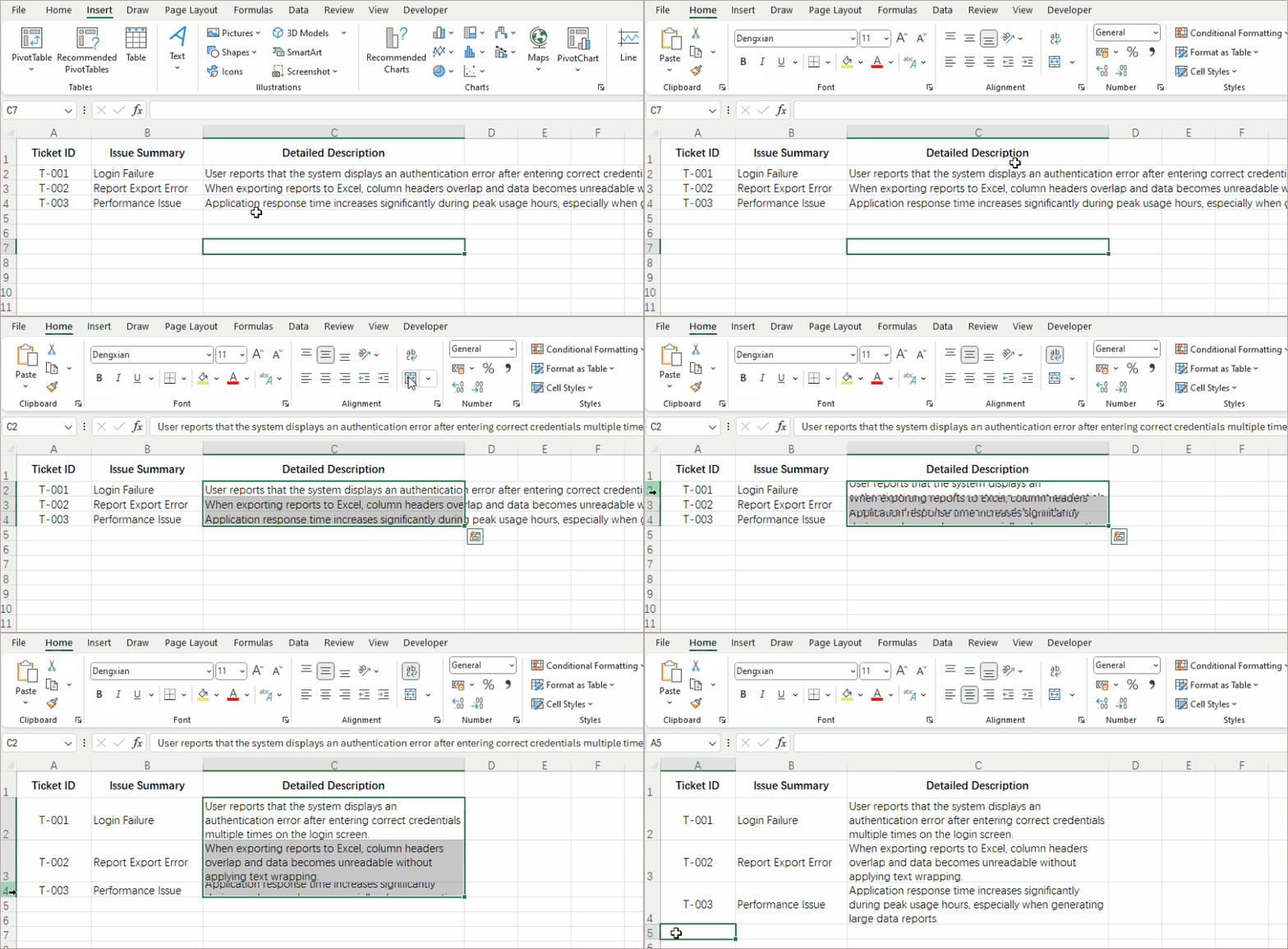
Pro Tip: Combine with the Format Painter (paintbrush icon) to quickly copy wrapping to other cells.
Method 2: The Format Cells Dialog Box (For Precise Control)
Best for: Comprehensive formatting sessions and alignment perfection
When you need more than just text wrapping—when you want to simultaneously control vertical alignment, text orientation, and other properties—the Format Cells dialog box offers complete control.
Step-by-Step Instructions:
- Select your target cells.
- Press Ctrl + 1 or right-click and choose Format Cells.
- Navigate to the Alignment tab.
- Under Text control, check the Wrap text checkbox.
- Set complementary options like vertical alignment, then click OK.
- Adjust the row height or auto-fit the row height.

Strategic Advantage: This method lets you establish a complete formatting profile in one operation, perfect for creating templates or standardized reports.
Method 3: Keyboard Shortcuts (For Speed Users)
Best for: Power users who prioritize efficiency and minimal mouse use
If you measure productivity in keystrokes saved, Excel's keyboard shortcuts will become your best friend. While there's no single-key shortcut for text wrapping, a simple three-key sequence accomplishes the task faster than any mouse-based method.
Step-by-Step Instructions:
- Select your target cells using keyboard navigation if preferred.
- Press and release Alt to activate ribbon keyboard navigation.
- Press H to select the Home tab.
- Press W to toggle Wrap Text on your selected cells.
Memory Aid: Think "Home, Wrap." With minimal practice, this sequence becomes muscle memory.
Method 4: Manual Line Breaks (For Exact Line Breaks)
Best for: Content where specific phrasing must remain together or break at logical points
Automatic text wrapping follows Excel's algorithms, but sometimes you need to decide exactly where lines break. For addresses, multi-part names, or lists within a single cell, manual control is indispensable.
Step-by-Step Instructions:
- Double-click the cell (or press F2) to enter edit mode.
- Click your cursor at the exact spot where you want the new line.
- Press Alt + Enter (Windows) or Option + Command + Enter (Mac).
- Press Enter to exit the cell.
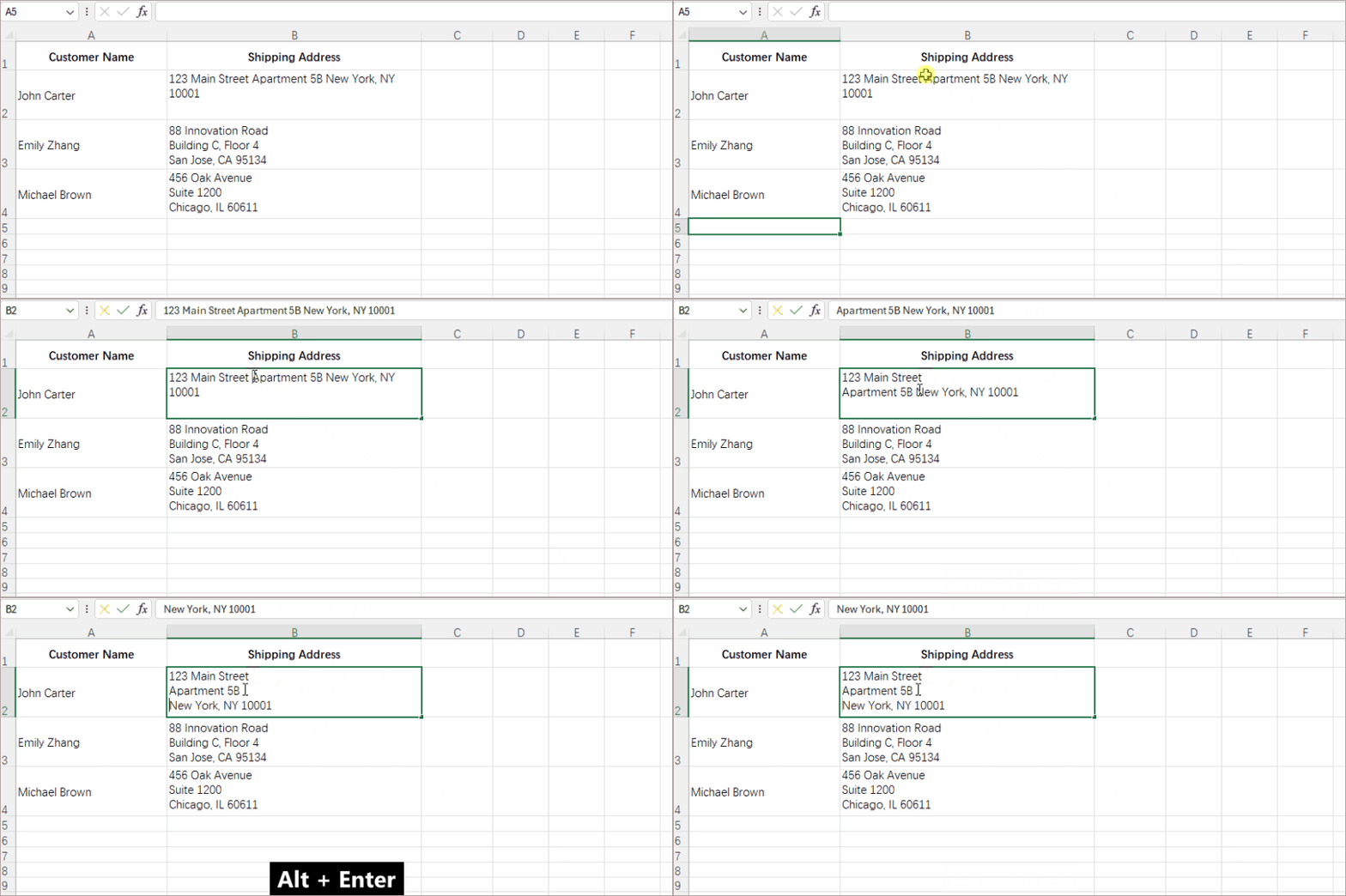
Practical Application: Perfect for formatting addresses (123 Main Street on one line, Springfield, IL 62704 on the next) or creating within-cell lists.
Method 5: Python Scripts (For Bulk Processing & Automation)
Best for: Developers, data analysts, and anyone processing multiple files programmatically
When you graduate from individual spreadsheets to batch processing, manual methods hit their limits. Python with the Spire.XLS library transforms this tedious task into an automated, scalable solution.
pip install spire.xls
- Create a Python script with this core code:
from spire.xls import *
workbook = Workbook()
workbook.LoadFromFile("input.xlsx")
sheet = workbook.Worksheets[0]
sheet.Range["B3"].Style.WrapText = True# Wrap specific cell
workbook.SaveToFile("output.xlsx", ExcelVersion.Version2016)
workbook.Dispose()
- Customize the range (e.g., "A1:C10" for a block) and run the script.
Automation Advantage: Process dozens of files in seconds with 100% consistency. Add loops for multiple ranges or conditionals to wrap only cells meeting specific criteria.
Once you’ve mastered text wrapping with Spire.XLS, you can extend your automation further by programmatically autofitting rows and columns or applying conditional formatting rules to build polished, fully automated Excel reports.
Choose the Right Method
Selecting the right text wrapping approach depends on three factors: volume, frequency, and complexity.
Quick Decision Guide:
| Scenario | Recommended Method | Time Estimate |
|---|---|---|
| Formatting 1-5 cells occasionally | Method 1 (Ribbon) or Method 3 (Shortcut) | 10-30 seconds |
| Creating templates with precise alignment | Method 2 (Format Cells) | 1-2 minutes |
| Entering addresses, lists, or structured content | Method 4 (Manual Breaks) | 30-60 seconds per cell |
| Processing 10+ files monthly | Method 5 (Python) | 2 hours initial setup, then seconds per file |
| Dynamic reports with variable content lengths | Method 5 (Python) with conditional logic | 3-4 hours setup, automated thereafter |
FAQs
Q1: Why is my wrapped text still not fully visible after applying text wrapping?
A: This usually happens because the row height hasn't adjusted automatically. Simply double-click the boundary below the row number to auto-fit the row height. In some cases, you may need to manually drag the row border to make it taller.
Q2: Can I wrap text in multiple cells at once?
A: Absolutely. Select all the cells you want to format (by dragging, holding Ctrl for non-adjacent cells, or clicking the corner button to select the entire sheet), then apply any of the first four methods. For processing entire workbooks or multiple files, Method 5 (Python) is most efficient.
Q3: What's the difference between text wrapping and "Shrink to Fit"?
A: Text wrapping breaks long text into multiple lines within the same cell, increasing row height. "Shrink to Fit" (found in Format Cells > Alignment) reduces the font size to make the text fit in a single line without changing cell dimensions. Use wrapping when you want to maintain readability; use shrinking only for limited space situations.
Q4:Does text wrapping work with Excel Online or Google Sheets?
A: Yes, with slight variations. Excel Online has a Wrap Text button in its Home tab similar to desktop Excel. Google Sheets also has a text wrapping button (icon with angled text and arrow) in its toolbar. The Alt+Enter shortcut for manual breaks works in both platforms on Windows, and Python automation can be adapted for Google Sheets using the Google Sheets API.
Conclusion
From the simplicity of a single click to the power of Python automation, these five methods cover every text wrapping need you'll encounter in Excel. Each approach has its ideal use case—whether you’re making quick edits, perfecting a report's presentation, or processing data at scale. Mastering multiple methods ensures you're never stuck with overflowing cells again.
Remember that proper text formatting is more than cosmetic—it's fundamental to clear data communication. Start with the method that best fits your current task, and gradually expand your toolkit as your Excel needs evolve. With these techniques, you can ensure your spreadsheets always present information with maximum clarity and professionalism.