Excel is widely used for data analysis and reporting, but many workflows depend on supporting documents such as PDFs, Word files, or additional spreadsheets. Instead of managing these files separately, you can insert objects in Excel to keep everything organized within a single workbook.
The Insert Object feature allows you to embed or link external files directly into a worksheet, improving accessibility while reducing document fragmentation. Knowing how to insert an object in Excel is especially valuable when building reports, sharing workbooks, or creating automated document workflows.
This guide explains how to insert objects in Excel using manual steps, VBA, and Python so you can choose the method that best fits your workflow, scalability needs, and technical environment.
Quick Navigation
- What Is an Object in Excel?
- Method 1: How to Insert Object in Excel Manually
- Method 2: Insert Object in Excel Using VBA
- Method 3: Automatically Insert Documents into Excel Using Python
- Embedded vs Linked Objects: How to Decide
- Performance and File Size Best Practices
- FAQs About Inserting Objects in Excel
What Is an Object in Excel?
When you select Insert → Object in Excel, you are using OLE (Object Linking and Embedding) technology. OLE allows one application to display or interact with content created in another application directly inside the workbook.
You can insert a wide range of file types, including:
- PDF files
- Microsoft Word documents
- PowerPoint presentations
- Images
- Other Excel workbooks
- Custom or proprietary file formats
Excel supports two main insertion models:
| Type | Stored in Workbook | Updates Automatically | File Size Impact |
|---|---|---|---|
| Embedded | Yes | No | Larger file |
| Linked | No | Yes (if source changes) | Smaller file |
Embedded Objects
Embedded objects become part of the workbook itself, making it fully self-contained. This is ideal for files that need to travel with the workbook, such as client reports, compliance records, or archived documents. The main trade-off is increased file size.
Linked Objects
Linked objects store only a reference to the original file. Excel can reflect updates to the source document automatically, keeping the workbook size smaller. This is suitable for frequently updated files, large documents, or centrally managed resources. The main risk is that moving or renaming the source file will break the link.
Method 1: How to Insert Object in Excel Manually
For everyday scenarios, manually inserting an object in Microsoft Excel is the fastest and most straightforward approach. It requires no advanced techniques and is especially effective when you only need to attach a few files.
Insert an Object from an Existing File
Follow these steps:
-
Open your Excel workbook.
-
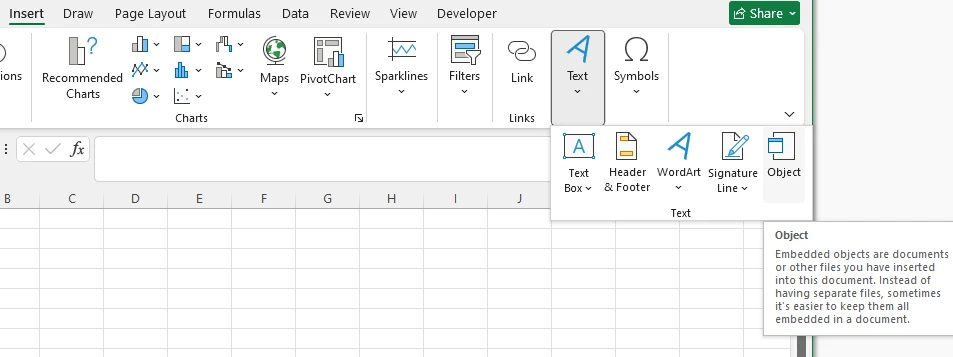
Navigate to the Insert tab.
-
Click Object within the Text group.
-
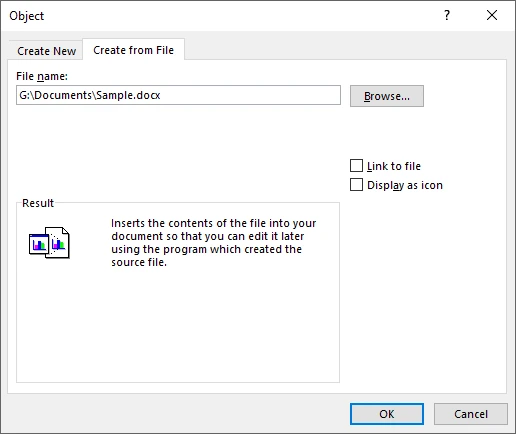
Select Create from File.
-
Click Browse and choose your file.
-
Choose one of the following options:
- Link to file — Creates a linked object instead of embedding it.
- Display as icon — Shows an icon rather than a preview of the first page or content.
-
Click OK.
The object will appear inside the worksheet and can be repositioned or resized like a shape.
Tips for Better Usability
When inserting objects in Excel, consider the following best practices to maintain clarity and functionality:
- Use icons for large files or dashboards: Displaying objects as icons keeps worksheets clean and easy to navigate, preventing layout clutter.
- Link large files when possible: Linking instead of embedding helps reduce workbook size and can improve overall performance.
- Maintain stable file paths for linked objects: To avoid broken links, keep linked files in consistent directories rather than moving or renaming them frequently.
- Test embedded objects on macOS: Some Windows-based OLE objects may not render correctly on Mac, so verify shared workbooks across platforms.
- Check editing permissions: Objects may open in read-only mode if file permissions, workbook protection, or compatibility settings restrict editing. Make sure users can access and modify objects as intended.
You may also like: How to Insert Formulas in Excel
Method 2: Insert Object in Excel Using VBA
When insertion becomes repetitive, VBA provides an efficient way to automate the process directly inside Excel.
Where to Run VBA Code
Run the macro from the Visual Basic Editor (VBE) in Microsoft Excel:
-
Open your workbook.
-
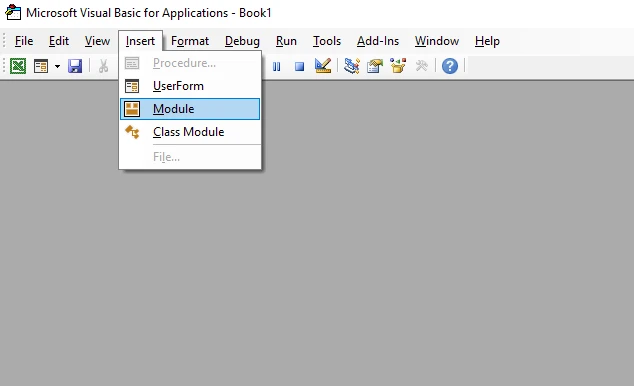
Press Alt + F11 to open the Visual Basic Editor.
-
Click Insert → Module.
-
Paste the code below into the module.
-
Press F5 to run the macro, or execute it from the Macros menu.
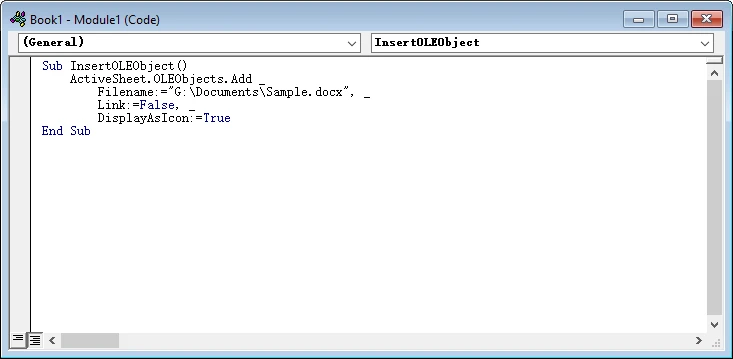
Sub InsertOLEObject()
    ActiveSheet.OLEObjects.Add _
        Filename:="G:\Documents\Sample.docx", _
        Link:=False, _
        DisplayAsIcon:=True
End Sub
Important Parameters
- Filename — Full file path
- Link — True creates a linked object; False embeds it
- DisplayAsIcon — Controls visual appearance
- IconLabel — Optional custom label
When VBA Makes Sense
VBA is a strong fit when automation still centers around Excel.
Consider VBA if you:
- Maintain structured reporting templates
- Need button-driven workflows
- Operate primarily within Microsoft environments
Note: VBA requires Excel to be installed and is not designed for cloud or server-side execution.
Method 3: Automatically Insert Documents into Excel Using Python
For automated workflows or large-scale document generation, Python provides a powerful way to insert OLE objects into Excel without relying on a local installation of Microsoft Excel. This makes it particularly suitable for backend services, reporting pipelines, and cloud-based document systems.
In this example, we’ll embed a Word document into Excel and display a preview of its first page.
Install the Required Libraries
Before running the example, install the necessary libraries:
pip install spire.xls spire.doc
Here we use:
- Spire.XLS for Python — to create the workbook and insert OLE objects
- Spire.Doc for Python — to render the Word document page as an image for preview
Example: Embed a Word Document and Display Its Preview
The following example embeds a Word document into a worksheet and renders its first page as the preview image.
from spire.xls import Workbook, Stream, OleLinkType, OleObjectType
from spire.doc import Document, ImageType

# Create a new workbook
workbook = Workbook()
sheet = workbook.Worksheets.get_Item(0)

# Path to the Word document
word_path = "Sample.docx"

# Load the Word document
doc = Document()
doc.LoadFromFile(word_path)

# Convert the first page to an image
image_stream = doc.SaveImageToStreams(0, ImageType.Bitmap)

# Insert the document and use the image as preview
ole_object = sheet.OleObjects.Add(
    word_path,
    Stream(image_stream.ToArray()),
    OleLinkType.Embed
)

# Configure the object
ole_object.ObjectType = OleObjectType.WordDocument
ole_object.DisplayAsIcon = False
ole_object.Location = sheet.Range.get_Item(2, 2)

# Save the workbook
workbook.SaveToFile("output/ExcelOLE.xlsx")
workbook.Dispose()
doc.Dispose()
Below is a preview of the generated Excel file with an embedded Word document:
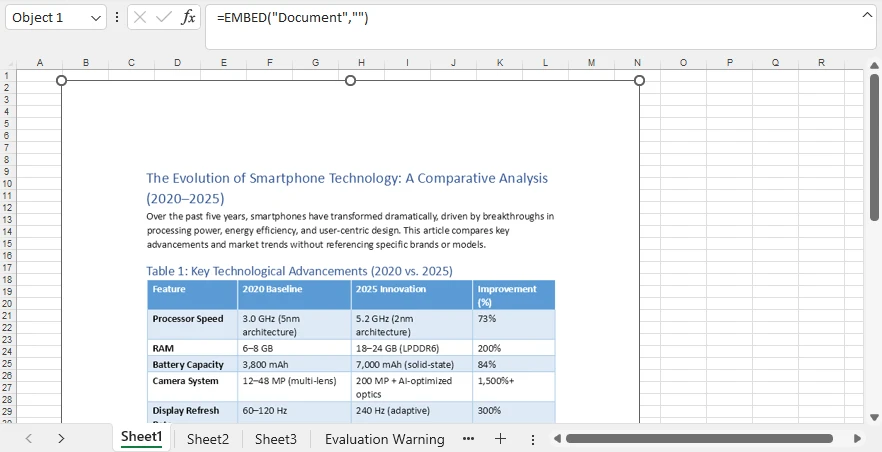
What This Script Does
- Creates an Excel workbook
- Converts the first page of a Word document into an image
- Embeds the file as an OLE object
- Displays a visual preview instead of an icon
- Positions the object at row 2, column 2
All steps run programmatically — no manual interaction required.
Insert More Than Word Documents
OLE objects are not limited to Word files. You can embed a variety of file types directly into a worksheet, including PDFs, PowerPoint presentations, Excel workbooks, OpenDocument files, images, and other attachments. This makes it easy to bundle supporting documents or create audit-ready reports in a single workbook.
You can also customize how the embedded objects appear. For example, the preview image can be generated from the document itself, replaced with a custom thumbnail, or displayed as an icon for a cleaner layout.
To convert different document types to images before insertion, you can refer to these tutorials:
After conversion, pass the image stream when creating the OLE object. This approach gives you flexibility to control object appearance while keeping reports professional and readable.
For a detailed guide on embedding PDF files into Excel using Python, see our dedicated tutorial: How to Insert PDFs into Excel Sheets.
Why This Approach Scales Well
Programmatic insertion provides deeper control than manual workflows or macros. You can precisely define object placement, adjust dimensions, choose between embedding and linking, and dynamically generate preview images.
As a result, Python becomes a strong choice for production-grade document automation where consistency and efficiency matter.
For more technical information on automating the insertion of OLE objects into Excel worksheets, please refer to: How to Insert OLE Objects into Excel Files Using Python.
Embedded vs Linked Objects: How to Decide
Choosing between embedded and linked objects depends on how the workbook will be used and how you manage the source files.
When to Choose Embedded
Select embedded objects if:
- The workbook needs to be portable or shared externally
- Access to external files is restricted
- You want to avoid broken links in automated or batch workflows
Note: Embedding increases workbook size.
When to Choose Linked
Select linked objects if:
- File size needs to remain small
- Source documents are frequently updated
- Files are stored in centralized locations and managed consistently
Caution: Moving or renaming linked files can break the connection, so proper file organization is essential.
Performance and File Size Best Practices
Inserting objects into Excel can impact workbook performance, especially when dealing with large or numerous files. Understanding best practices helps keep your workbooks efficient and responsive.
Manage File Growth
Embedding large documents can quickly increase workbook size to tens or even hundreds of megabytes. To control file growth:
- Compress documents before embedding
- Avoid including non-essential files
- Consider linking large files when portability is not required
Monitor Memory Usage
Creating many workbooks or embedding multiple objects can increase memory consumption. Minimize issues by:
- Releasing resources after saving
- Avoiding oversized files when possible
- Processing workbooks in batches for large-scale automation
Optimize Workbook Loading Speed
Workbooks with many embedded objects may open more slowly. If fast load times are critical, linking objects can help balance performance with functionality, while still maintaining access to the source content.
FAQs About Inserting Objects in Excel
Can I insert a PDF into Excel?
Yes. Use Insert → Object → Create from File to embed a PDF, or automate the process with VBA or Python.
How do I edit an embedded object?
Double-click the object to open it in its native application.
Why isn’t my linked object updating?
Confirm that the original file path has not changed and that the source file is accessible.
Can I insert objects without opening Excel?
Yes. Python libraries allow you to generate Excel files and insert OLE objects without installing Microsoft Excel.
Conclusion
Inserting objects in Excel helps transform a worksheet into a centralized documentation hub. Whether you embed files for portability, link them for efficiency, or automate insertion through VBA or Python, the right method depends on how your workflows operate.
Manual insertion is ideal for quick tasks. VBA streamlines structured Excel processes. Python enables scalable automation for modern data environments.
Selecting the appropriate approach — and following performance best practices — helps ensure your workbooks remain organized, efficient, and easy to maintain.