We’ve all run into situations like this: trying to send an email to clients, only to have it rejected because the Excel attachment is too large. Or opening a spreadsheet and watching Excel freeze for a full minute before you can even type into a cell. When problems like these start disrupting your workflow, learning how to reduce Excel file size becomes a priority to maintain productivity and ensure smooth data sharing.
In this guide, we’ll walk through several practical techniques to shrink Excel file size, with clear explanations and step-by-step instructions.
- Reduce the Size of an Excel File Manually
- Reduce Excel File Size by Handling Images
- Reduce Excel File Size using Free Spire.XLS for Python
- Reduce File Size in Excel for Large Data Sets
Quick Fixes: How to Reduce the Size of an Excel File Manually
Before diving into complex methods, you can often make an Excel file size smaller by addressing the hidden overhead that accumulates over time.
Clear Excessive Formatting
One of the most common reasons for a bloated file is ghost formatting. You might have formatted an entire column to the bottom of the sheet, which may contain 1,000 rows, even though you only have data in the first 100 rows.
The Fix: Select the empty rows or columns beyond your actual data, then go to the Home tab and click Clear → Clear All to remove all formatting, styles, and other residual data.
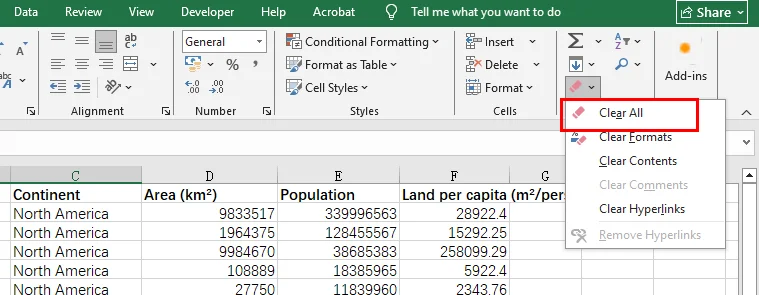
If you want to completely remove unused rows or columns, select the entire rows or columns by clicking their headers, right-click, and choose Delete.
Save as Binary Format (.xlsb)
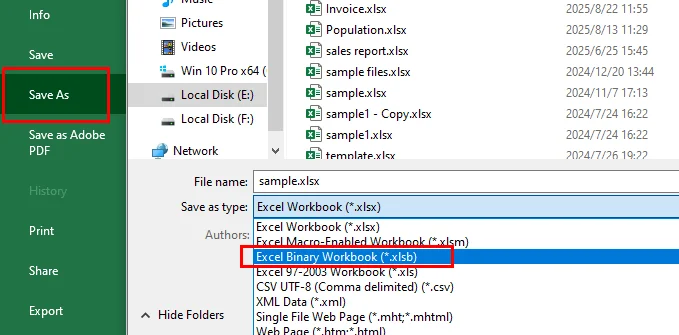
If you want to decrease Excel file size instantly without losing any data, try changing the file extension. Saving your standard .xlsx file as a binary workbook (.xlsb) can often reduce the file size of an Excel file by 30% to 50%. Binary files are faster for Excel to read and write, making them perfect for massive datasets.
The Fix: Open the Excel file, click the File tab, choose Save As, and select the .xlsb format. Alternatively, you can rename the file directly and change the extension to .xlsb, but this approach may cause file corruption and is not recommended.
Visual Optimization: How to Reduce Excel File Size by Handling Images
Images are often the biggest reason behind a massive file. If your spreadsheet contains logos, screenshots, or product photos, you must optimize them to compress the Excel file size effectively.
The Fix: Click on any image in your workbook, go to the Picture Format tab, and select Compress Pictures.
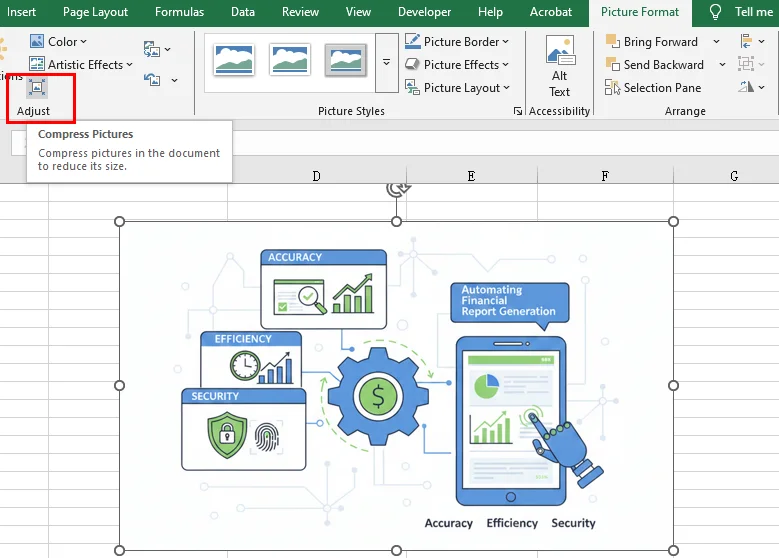
Pro Tip: Uncheck "Apply only to this picture" to compress all images at once and select "Email (96 ppi)" for the maximum reduction in weight. This is the fastest way to reduce file size in Excel when visual fidelity isn't the top priority.
Professional Approach: Reduce Excel File Size using Free Spire.XLS for Python
For developers or businesses dealing with hundreds of files, manual clicking isn't efficient enough. A more robust way to minimize Excel file size is through automation. Free Spire.XLS for Python is a powerful library that allows you to programmatically optimize spreadsheets without even opening Microsoft Excel.
Why use a programmatic approach?
While manual fixes work for one-off tasks, Free Spire.XLS allows you to implement deep optimization logic in bulk:
-
Compressing Image Quality: You can iterate through every worksheet, identify media elements, and utilize the ExcelPicture.Compress() method to programmatically decrease image quality. This significantly reduces the storage footprint while maintaining acceptable visual clarity for reports.
-
Cleaning Redundant Cell Styles: By applying the Clear(ExcelClearOptions.ClearFormat) method to specific ranges, Free Spire.XLS allows you to strip away these redundant styles and metadata, effectively thinning the file’s internal structure without affecting the underlying data.
-
Optimization of Data Storage: Blank rows or columns that appear empty but contain invisible formatting can trick Excel into expanding the used range. You can use the Worksheet.DeleteRow() and Worksheet.DeleteColumn() methods to remove these empty rows and columns. This ensures your Excel file size reduction efforts are thorough, leaving you with a clean, high-performance dataset.
The following code snippet demonstrates how to integrate these three methods to shrink Excel file size using Free Spire.XLS for Python:
from spire.xls import *
from spire.xls.common import *

# 1. Initialize and load the workbook
workbook = Workbook()
input_path = "/input/sample excel.xlsx"
output_path = "/output/Compressed_Excel_Full.xlsx"
workbook.LoadFromFile(input_path)

# 2. Iterate through worksheets to perform optimization operations
for i in range(workbook.Worksheets.Count):
    sheet = workbook.Worksheets[i]

    # Compress Image Quality
    for picture in sheet.Pictures:
        picture.Compress(50)  # Compress to 50% quality

    # Clear Specific Range Formatting
    target_range = sheet.Range["A1:D1"]
    target_range.Clear(ExcelClearOptions.ClearFormat)

    # Iterate through rows in reverse (from last to first) to avoid index shifting
    for r in range(sheet.LastRow, 0, -1):
        if sheet.Rows[r-1].IsBlank:
            sheet.DeleteRow(r)

    # Iterate through columns in reverse
    for c in range(sheet.LastColumn, 0, -1):
        if sheet.Columns[c-1].IsBlank:
            sheet.DeleteColumn(c)

# Save the file and release resources
workbook.SaveToFile(output_path, ExcelVersion.Version2016)
workbook.Dispose()

print(f"Successfully optimized! File saved to: {output_path}")
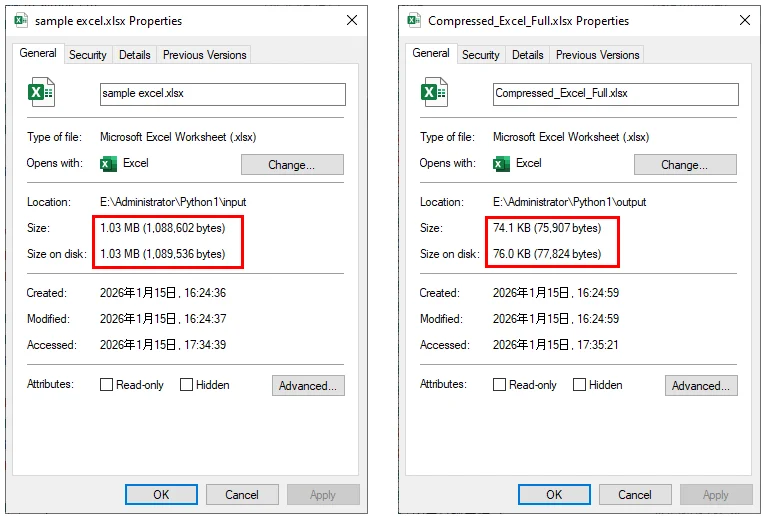
Excel File size before and after reducing with the code:
Advanced Tactics: How to Reduce File Size in Excel for Large Data Sets
When your spreadsheet is heavy due to data rather than media, you need to change how that data is stored.
Use the Data Model (Power Pivot)
If you are dealing with millions of rows, stop keeping them in standard worksheets. Importing data into the Excel Data Model (Power Pivot) uses a highly efficient compression engine (Vertipaq) that can handle massive amounts of information while keeping the file footprint remarkably small.
Remove Hidden Sheets and Objects
Sometimes, old versions of a file contain hidden sheets or objects that you’ve forgotten about. Go to the Inspect Document tool (File > Info > Check for Issues) to find and remove hidden content that might be inflating your file size.
Conclusion
Reducing Excel file size is essential for improving performance and ensuring seamless data sharing. For quick, one-off fixes, manual methods like saving as Binary Format (.xlsb) or using built-in image compression are highly effective to shrink Excel file size.
However, for developers managing high-volume data, automation is the ultimate solution. As demonstrated, Free Spire.XLS for Python provides a powerful way to minimize Excel file size by programmatically purging redundant formatting, compressing media, and cleaning up "ghost cells." By combining these manual and programmatic strategies, you can ensure your workbooks remain fast, lightweight, and professional.