
Java (485)
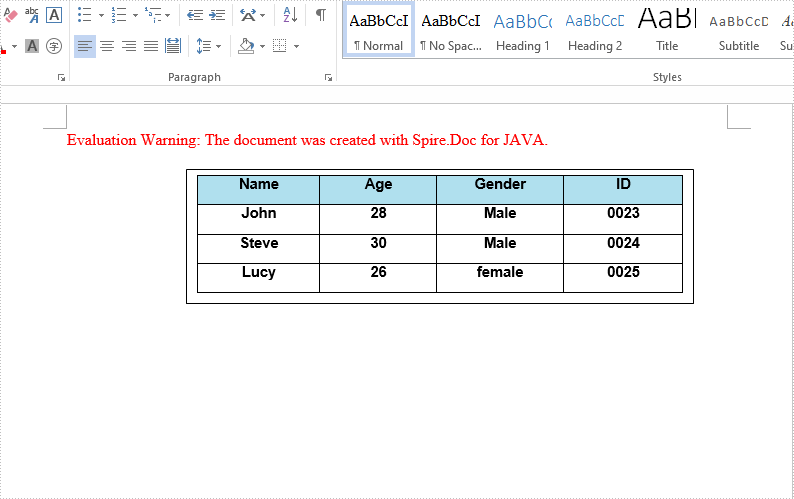
We have demonstrated how to insert text and image to textbox in a Word document by using Spire.Doc for Java. This article will demonstrate how to insert table to textbox in Word.
import com.spire.doc.*;
import com.spire.doc.documents.*;
import com.spire.doc.fields.*;

import java.awt.*;

public class insertTableIntoTextBox {
    public static void main(String[] args) throws Exception{
        //Create a new document; add a section and paragraph
        Document doc = new Document();
        Section section = doc.addSection();
        Paragraph paragraph = section.addParagraph();
        //Add a textbox to the paragraph
        TextBox textbox = paragraph.appendTextBox(380, 100);
        //Set the position of the textbox
        textbox.getFormat().setHorizontalOrigin(HorizontalOrigin.Page);
        textbox.getFormat().setHorizontalPosition(140);
        textbox.getFormat().setVerticalOrigin(VerticalOrigin.Page);
        textbox.getFormat().setVerticalPosition(50);
        //Insert table to the textbox
        Table table = textbox.getBody().addTable(true);
        //Specify the number of rows and columns of the table
        table.resetCells(4, 4);
        //Define the data
        String[][] data = new String[][]
                {
                        {"Name", "Age", "Gender", "ID"},
                        {"John", "28", "Male", "0023"},
                        {"Steve", "30", "Male", "0024"},
                        {"Lucy", "26", "female", "0025"}
                };
        //Add data to the table
        for (int i = 0; i < 4; i++) {
            TableRow dataRow = table.getRows().get(i);
            dataRow.getCells().get(i).setCellWidth(70,CellWidthType.Point);
            dataRow.setHeight(22);
            dataRow.setHeightType(TableRowHeightType.Exactly);
            for (int j = 0; j < 4; j++) {
                TextRange tableRange = table.getRows().get(i).getCells().get(j).addParagraph().appendText(data[i][j]);
                tableRange.getCharacterFormat().setFontName("Arial");
                tableRange.getCharacterFormat().setFontSize(11f);
                tableRange.getOwnerParagraph().getFormat().setHorizontalAlignment(HorizontalAlignment.Center);
                tableRange.getCharacterFormat().setBold(true);
            }
        }
        //Set the background color for the first row
        TableRow row = table.getRows().get(0);
        for (int z = 0; z < row.getCells().getCount(); z++) {
            row.getCells().get(z).getCellFormat().getShading().setBackgroundPatternColor(new Color(176,224,238));
        }
        //Apply style to the table
        table.applyStyle(DefaultTableStyle.Table_Grid_5);
        //Save the document
        String output = "output/insertTableIntoTextBox1.docx";
        doc.saveToFile(output, FileFormat.Docx_2013);
    }
}
The effective screenshot after insert table to Textbox in Word:
Published in
Textbox
Tagged under
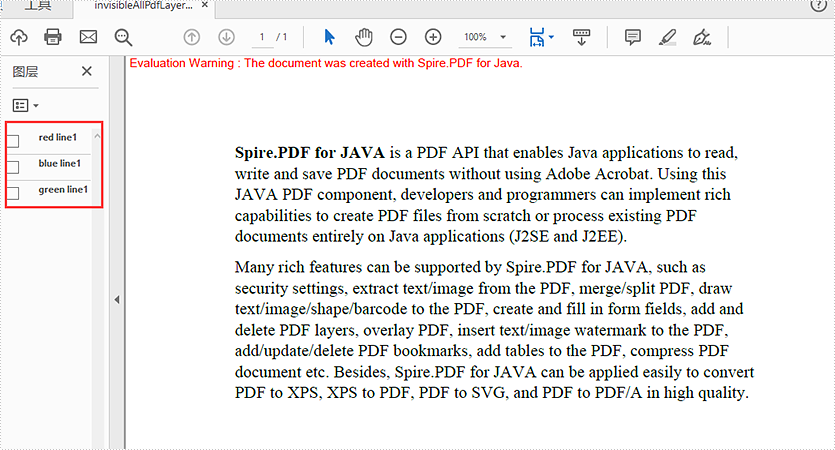
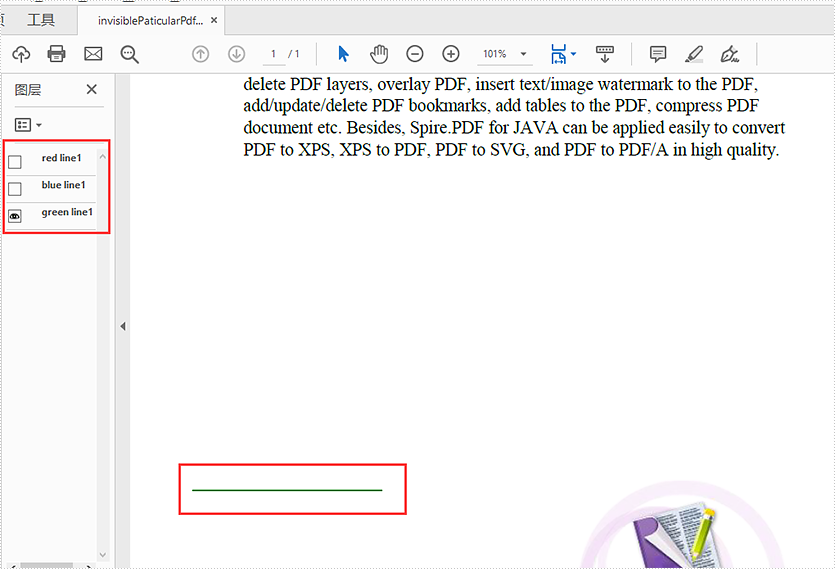
This article will demonstrate how to hide and display Layers in a PDF document using Spire.PDF for Java.
Hide all layers:
import com.spire.pdf.*;
import com.spire.pdf.graphics.layer.*;

public class invisibleAllPdfLayers {
    public static void main(String[] args) {
        //Load the sample document
        PdfDocument doc = new PdfDocument();
        doc.loadFromFile("layerSample.pdf");

        for (int i = 0; i < doc.getLayers().getCount(); i++)
        {
            //Show all the Pdf layers
            //doc.getLayers().get(i).setVisibility(PdfVisibility.On);
            //Set all the Pdf layers invisible
            doc.getLayers().get(i).setVisibility(PdfVisibility.Off);
        }

        //Save to document to file
        doc.saveToFile("output/invisibleAllPdfLayers.pdf", FileFormat.PDF);
    }
}
Hide some of the PDF layers:
import com.spire.pdf.*;
import com.spire.pdf.graphics.layer.*;

public class invisibleParticularPdfLayers {
    public static void main(String[] args) {
        //Load the sample document
        PdfDocument doc = new PdfDocument();
        doc.loadFromFile("layerSample.pdf");

        //Hide the first layer by index
        doc.getLayers().get(0).setVisibility(PdfVisibility.Off);

        //Hide the layer by name with blue line1
        for (int i = 0; i < doc.getLayers().getCount(); i++)
        {
            if("blue line1".equals(doc.getLayers().get(i).getName())){
                doc.getLayers().get(i).setVisibility(PdfVisibility.Off);
            }
        }

        //Save to document to file
        doc.saveToFile("output/invisiblePaticularPdfLayers.pdf", FileFormat.PDF);
    }
}
Published in
Document Operation
Tagged under
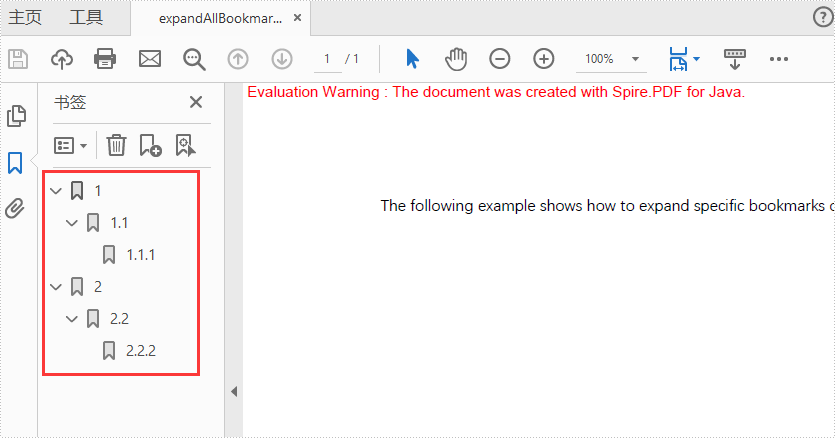
This article will demonstrate how to expand or collapse the bookmarks when viewing the PDF files.
Expand all bookmarks on PDF
import com.spire.pdf.PdfDocument;

public class expandBookmarks {
    public static void main(String[] args) {

        PdfDocument doc = new PdfDocument();
        doc.loadFromFile("Sample.pdf");

        //Set true to expand all bookmarks; set false to collapse all bookmarks
        doc.getViewerPreferences().setBookMarkExpandOrCollapse(true);

        doc.saveToFile("output/expandAllBookmarks_out.pdf");
        doc.close();
    }
}
Output:
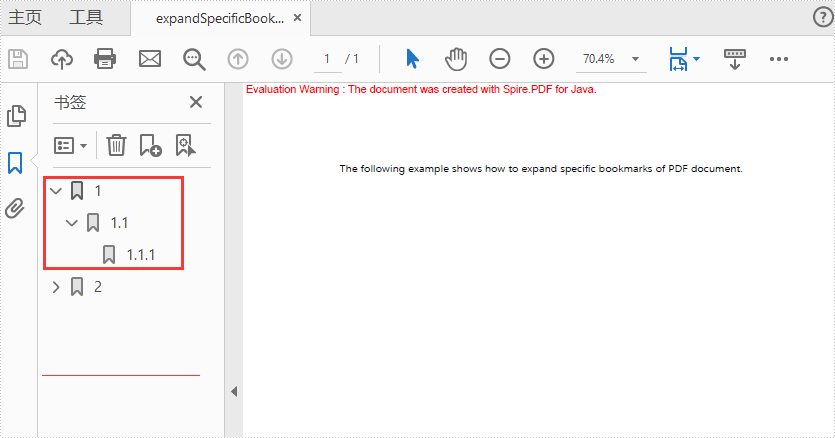
Expand specific bookmarks on PDF
import com.spire.pdf.PdfDocument;
import com.spire.pdf.bookmarks.*;

public class expandSpecificBookmarks {
    public static void main(String[] args) {

        PdfDocument doc = new PdfDocument();
        doc.loadFromFile("Sample.pdf");

        //Set BookMarkExpandOrCollapse as "true" for the first bookmarks
        doc.getBookmarks().get(0).setExpandBookmark(true);

        //Set BookMarkExpandOrCollapse as "false" for the first level of the second bookmarks
        PdfBookmarkCollection pdfBookmark = doc.getBookmarks().get(1);
        pdfBookmark.get(0).setExpandBookmark(false);

        doc.saveToFile("output/expandSpecificBookmarks_out.pdf");
        doc.close();
    }
}
Only expand the first bookmarks
Published in
Bookmark
Tagged under
