
Java (485)
Paragraph and text background color is an important element of document design in Word documents. Appropriate paragraph and text background color can serve to highlight specific paragraphs or text, enhance the contrast of text so that it is easier to read, and fill in the gaps in the layout to assist in typography. Therefore, the reasonable use of paragraph and text background color is very important when creating Word documents. This article is going to show how to set background color for paragraphs and text in Java using Spire.Doc for Java.
- Set Background Color for Paragraphs in Word Documents
- Set Background Color for Existing Text in Word Documents
Install Spire.Doc for Java
First, you're required to add the Spire.Doc.jar file as a dependency in your Java program. The JAR file can be downloaded from this link. If you use Maven, you can easily import the JAR file in your application by adding the following code to your project's pom.xml file.
<repositories>
    <repository>
        <id>com.e-iceblue</id>
        <name>e-iceblue</name>
        <url>https://repo.e-iceblue.com/nexus/content/groups/public/</url>
    </repository>
</repositories>
<dependencies>
    <dependency>
        <groupId>e-iceblue</groupId>
        <artifactId>spire.doc</artifactId>
        <version>14.8.4</version>
    </dependency>
</dependencies>
Set Background Color for Paragraphs in Word Documents
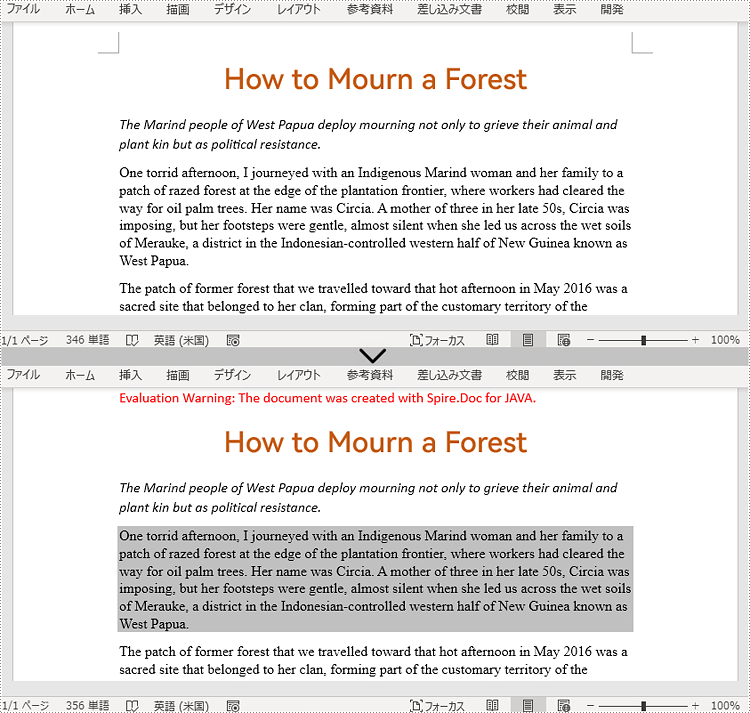
To set the background color of a paragraph, we need to get the paragraph and use the Paragraph.getFormat().setBackColor() method to change its background color. The detailed steps are as follows.
- Create an object of Document.
- Load a Word document using Document.loadFromFile() method.
- Get the first section using Document.getSections().get() method.
- Get the third paragraph using Section.getParagraphs().get() method.
- Set the background color for the paragraph using Paragraph.getFormat().setBackColor() method.
- Save the document using Document.saveToFile() method.
- Java
import com.spire.doc.Document;
import com.spire.doc.FileFormat;
import com.spire.doc.Section;
import com.spire.doc.documents.Paragraph;

import java.awt.*;

public class SetParagraphBackgroundColor {
    public static void main(String[] args) {

        //Create an object of Document
        Document document = new Document();

        //Load a Word document
        document.loadFromFile("C:/Sample.docx");

        //Get the first section
        Section section = document.getSections().get(0);

        //Get the third paragraph
        Paragraph paragraph = section.getParagraphs().get(2);

        //Set the background color of this paragraph as Light Gray
        paragraph.getFormat().setBackColor(Color.LIGHT_GRAY);

        //Save the document
        document.saveToFile("ParagraphBackgroundColor.docx", FileFormat.Docx_2013);
        document.dispose();
    }
}
Set Background Color for Existing Text in Word Documents
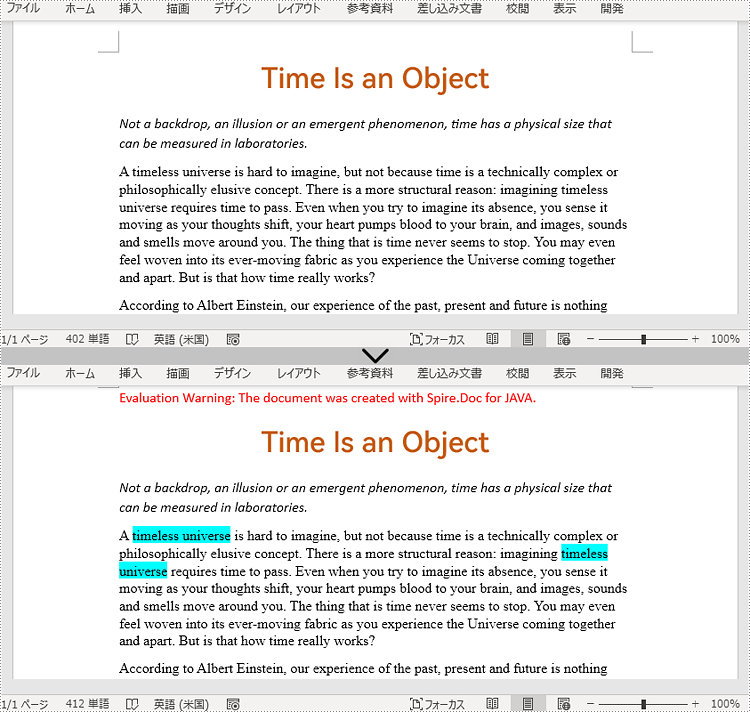
Spire.Doc for Java provides Document.findAllString() method to find all the occurrences of specific text in a Word document and TextRange.getCharacterFormat().setTextBackgroundColor() to set the background color for specific text. The detailed steps for setting the background color for existing text are as follows.
- Create an object of Document.
- Load a Word document using Document.loadFromFile() method.
- Find all the occurrences of “timeless universe” using Document.findAllString() method.
- Loop through the occurrences.
- Get each occurrence as a text range using TextSelection.getAsOneRange() method.
- Set the background color for the text range using TextRange.getCharacterFormat().setTextBackgroundColor() method.
- You can also choose an occurrence by its index from the collection, get it as a text range, and set background color only for the occurrence.
- Save the document using Document.saveToFile() method.
- Java
import com.spire.doc.Document;
import com.spire.doc.FileFormat;
import com.spire.doc.documents.TextSelection;
import com.spire.doc.fields.TextRange;

import java.awt.*;

public class SetTextBackgroundColor {
    public static void main(String[] args) {

        //Create an object of Document
        Document document = new Document();

        //Load a Word document
        document.loadFromFile("C:/Sample.docx");

        //Find the text to set background color for
        TextSelection[] textSelections = document.findAllString("timeless universe", false, true);

        //Loop through the occurrences of the text
        for (TextSelection selection : textSelections){

            //Get an occurrence as a text range
            TextRange textRange = selection.getAsOneRange();
            //Set background color for the occurrence
            textRange.getCharacterFormat().setTextBackgroundColor(Color.CYAN);
        }

        //Set the background color for the first occurrence of the text
        //TextRange textRange = textSelections[0].getAsOneRange();
        //textRange.getCharacterFormat().setTextBackgroundColor(Color.CYAN);

        //Save the document
        document.saveToFile("TextBackgroundColor.docx", FileFormat.Docx_2013);
        document.dispose();
    }
}
Apply for a Temporary License
If you'd like to remove the evaluation message from the generated documents, or to get rid of the function limitations, please request a 30-day trial license for yourself.
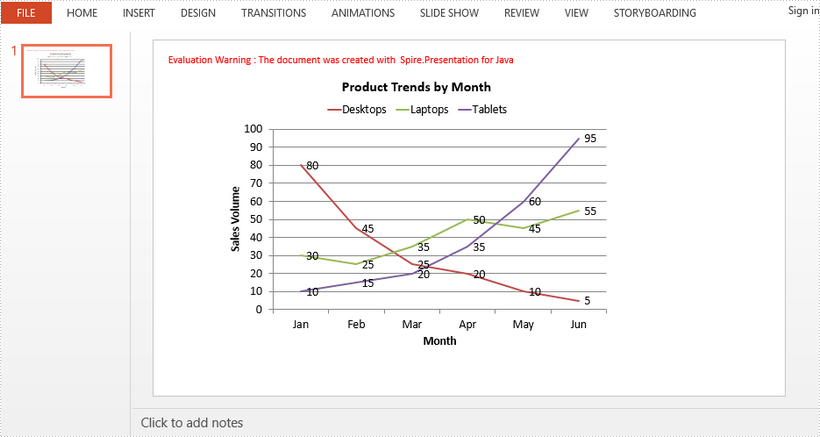
This article demonstrates how to create a line chart in a PowerPoint document using Spire.Presentation for Java.
import com.spire.presentation.FileFormat;
import com.spire.presentation.Presentation;
import com.spire.presentation.SlideSizeType;
import com.spire.presentation.charts.ChartLegendPositionType;
import com.spire.presentation.charts.ChartType;
import com.spire.presentation.charts.IChart;

import java.awt.geom.Rectangle2D;

public class LineChart {
    public static void main(String[] args) throws Exception {

        //Create a Presentation object
        Presentation presentation = new Presentation();
        presentation.getSlideSize().setType(SlideSizeType.SCREEN_16_X_9);

        //Insert a line chart
        Rectangle2D.Double rect = new   Rectangle2D.Double(100, 50, 600, 430);
        IChart chart = presentation.getSlides().get(0).getShapes().appendChart(ChartType.LINE, rect);

        //Set chart title
        chart.getChartTitle().getTextProperties().setText("Product Trends by Month");
        chart.getChartTitle().getTextProperties().isCentered(true);
        chart.getChartTitle().setHeight(30);
        chart.hasTitle(true);

        //Set axis title
        chart.getPrimaryCategoryAxis().getTitle().getTextProperties().setText("Month");
        chart.getPrimaryCategoryAxis().hasTitle(true);
        chart.getPrimaryValueAxis().getTitle().getTextProperties().setText("Sales Volume");
        chart.getPrimaryValueAxis().hasTitle(true);

        //Write data to chart as chart data
        chart.getChartData().get(0,0).setText("Month");
        chart.getChartData().get(1,0).setText("Jan");
        chart.getChartData().get(2,0).setText("Feb");
        chart.getChartData().get(3,0).setText("Mar");
        chart.getChartData().get(4,0).setText("Apr");
        chart.getChartData().get(5,0).setText("May");
        chart.getChartData().get(6,0).setText("Jun");

        chart.getChartData().get(0,1).setText("Desktops");
        chart.getChartData().get(1,1).setNumberValue(80);
        chart.getChartData().get(2,1).setNumberValue(45);
        chart.getChartData().get(3,1).setNumberValue(25);
        chart.getChartData().get(4,1).setNumberValue(20);
        chart.getChartData().get(5,1).setNumberValue(10);
        chart.getChartData().get(6,1).setNumberValue(5);

        chart.getChartData().get(0,2).setText("Laptops");
        chart.getChartData().get(1,2).setNumberValue(30);
        chart.getChartData().get(2,2).setNumberValue(25);
        chart.getChartData().get(3,2).setNumberValue(35);
        chart.getChartData().get(4,2).setNumberValue(50);
        chart.getChartData().get(5,2).setNumberValue(45);
        chart.getChartData().get(6,2).setNumberValue(55);

        chart.getChartData().get(0,3).setText("Tablets");
        chart.getChartData().get(1,3).setNumberValue(10);
        chart.getChartData().get(2,3).setNumberValue(15);
        chart.getChartData().get(3,3).setNumberValue(20);
        chart.getChartData().get(4,3).setNumberValue(35);
        chart.getChartData().get(5,3).setNumberValue(60);
        chart.getChartData().get(6,3).setNumberValue(95);

        //Set series labels
        chart.getSeries().setSeriesLabel(chart.getChartData().get("B1", "D1"));

        //Set categories labels
        chart.getCategories().setCategoryLabels(chart.getChartData().get("A2", "A7"));

        //Assign data to series values
        chart.getSeries().get(0).setValues(chart.getChartData().get("B2", "B7"));
        chart.getSeries().get(1).setValues(chart.getChartData().get("C2", "C7"));
        chart.getSeries().get(2).setValues(chart.getChartData().get("D2", "D7"));

        //Display values in data labels
        chart.getSeries().get(0).getDataLabels().setLabelValueVisible(true);
        chart.getSeries().get(1).getDataLabels().setLabelValueVisible(true);
        chart.getSeries().get(2).getDataLabels().setLabelValueVisible(true);

        //Set chart legend position
        chart.getChartLegend().setPosition(ChartLegendPositionType.TOP);

        //Save to file
        presentation.saveToFile("LineChart.pptx", FileFormat.PPTX_2013);
    }
}
When manipulating Excel data, the "Text to Columns" feature in MS Excel is a handy tool that allows users to separate text in a single cell into multiple columns. This functionality is extremely useful when dealing with data that imported in a less structured format. For Java developers, being able to replicate this operation programmatically can significantly enhance the automation of data processing tasks involving Excel spreadsheets.
This guide will walk you through how to utilize the Spire.XLS for Java library to split text into multiple columns in Excel in Java.
- Java Library for Working with Excel
- Step-by-Step Guide to Splitting Excel Text to Columns
- Handling Different Delimiters
Java Library for Working with Excel
The Spire.XLS for Java library is a practical solution for reading, writing and converting Excel XLS or XLSX files in Java. To start using it, you need to add the appropriate dependency. There are two common ways to import:
Method 1: Install via Maven
If you are using Maven, add the following to your pom.xml file:
<repositories>
    <repository>
        <id>com.e-iceblue</id>
        <name>e-iceblue</name>
        <url>https://repo.e-iceblue.com/nexus/content/groups/public/</url>
    </repository>
</repositories>
<dependencies>
    <dependency>
        <groupId>e-iceblue</groupId>
        <artifactId>spire.xls</artifactId>
        <version>16.8.4</version>
    </dependency>
</dependencies>
Method 2: Manual Installation
- Download Spire.XLS for Java package through the official website.
- Unzip it to get the Spire.Xls.jar file and then add the JAR file to your project.
Step-by-Step Guide to Splitting Excel Text to Columns
- Load Excel File and Access a Worksheet
Use the Workbook.loadFromFile() method to load the input Excel file, and then access the specific worksheet in it.
- Access Cells and Get Cell Data
Iterate through each row in the sheet. Access a specified cell and then get its text through the CellRange.getText() method.
- Split Text in Excel Cells
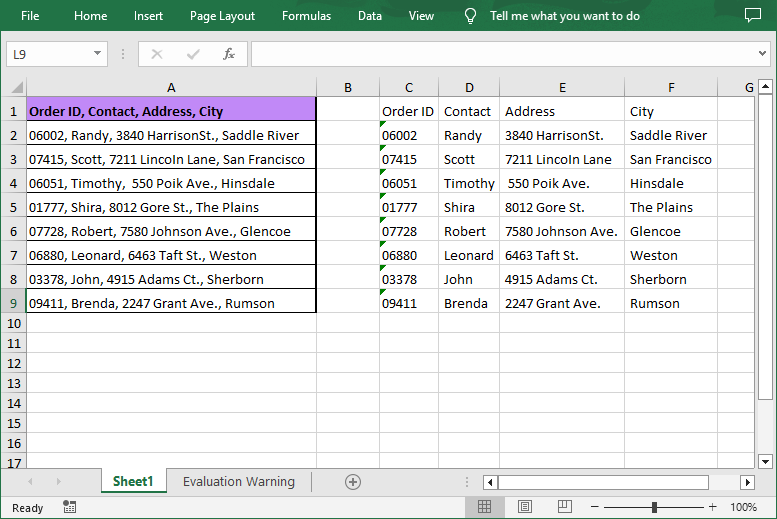
Use the String.split(String regex) method to split the cell text based on the specified delimiter (e.g., ",").
- Write the Split Text to Columns
Iterate through each split data and then write it into different columns.
- Save the Modified Excel File
Use the Workbook.saveToFile() method to save the modified Excel file.
Sample Java Code:
- Java
import com.spire.xls.*;

public class splitDataIntoMultipleColumns {
    public static void main(String[] args) {

        // Create a Workbook object
        Workbook workbook = new Workbook();

        // Load an Excel file
        workbook.loadFromFile("Data.xlsx");

        // Get the first worksheet
        Worksheet sheet = workbook.getWorksheets().get(0);

        // Iterate through each row in the worksheet
        for (int i = 0; i < sheet.getLastRow(); i++)
        {
            // Get the text of the first cell in the current row
            String text = sheet.getRange().get(i + 1, 1).getText();

            // Split the text by comma
            String[] splitText = text.split(",");

            // Iterate through each split data
            for (int j = 0; j < splitText.length; j++)
            {
                // Write the split data to different columns
                sheet.getRange().get(i + 1, j + 3).setText(splitText[j]);
            }
        }

        // Autofit column widths
        sheet.getAllocatedRange().autoFitColumns();

        // Save the result file
        workbook.saveToFile("SplitExcelData.xlsx", ExcelVersion.Version2016);
    }
}
Result File:
Handling Different Delimiters
To split text by other delimiters such as spaces, semicolons, or tabs, modify the regex in the split() method. Examples:
- Spaces: String.split(" ")
- Semicolons: String.split(";")
- Tabs: String.split("\t")
Conclusion
Splitting text into columns in Excel using Java is effortless with Spire.XLS for Java API. By automating this task, you can enhance productivity and ensure data consistency. Whether you’re processing user inputs, logs, or reports, this approach adapts to various delimiters and use cases.
Get a Free License
To fully experience the capabilities of Spire.XLS for Java without any evaluation limitations, you can request a free 30-day trial license.
