Java (485)
Hyperlinks are useful features in Excel documents, providing quick access to other relevant resources such as websites, email addresses, or specific cells within the same workbook. However, sometimes you may want to modify or delete existing hyperlinks for various reasons, such as updating broken links, correcting typos, or removing outdated information. In this article, we will demonstrate how to modify or delete hyperlinks in Excel in Java using Spire.XLS for Java library.
Install Spire.XLS for Java
First of all, you're required to add the Spire.Xls.jar file as a dependency in your Java program. The JAR file can be downloaded from this link. If you use Maven, you can easily import the JAR file in your application by adding the following code to your project's pom.xml file.
<repositories>
    <repository>
        <id>com.e-iceblue</id>
        <name>e-iceblue</name>
        <url>https://repo.e-iceblue.com/nexus/content/groups/public/</url>
    </repository>
</repositories>
<dependencies>
    <dependency>
        <groupId>e-iceblue</groupId>
        <artifactId>spire.xls</artifactId>
        <version>16.6.5</version>
    </dependency>
</dependencies>
Modify Hyperlinks in Excel in Java
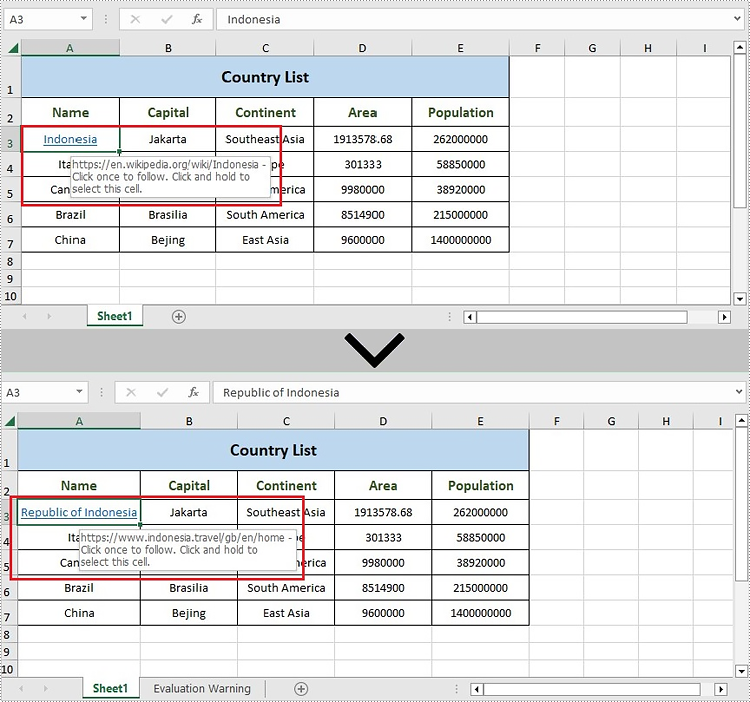
If there are issues with the functionality of a hyperlink caused by damage or spelling errors, you may need to modify it. The following steps demonstrate how to modify an existing hyperlink in an Excel file:
- Create an instance of Workbook class.
- Load an Excel file using the Workbook.loadFromFile() method.
- Get a specific worksheet using the Workbook.getWorksheets().get() method.
- Get the collection of all hyperlinks in the worksheet using the Worksheet.getHyperLinks() method.
- Change the values of TextToDisplay and Address property using the HyperLinksCollection.get().setTextToDisplay() and HyperLinksCollection.get().setAddress method.
- Save the result file using the Workbook.saveToFile() method.
- Java
import com.spire.xls.*;
import com.spire.xls.collections.HyperLinksCollection;

public class ModifyHyperlink {
    public static void main(String[] args) {
        //Create a Workbook instance
        Workbook workbook = new Workbook();

        //Load an Excel file
        workbook.loadFromFile("Sample.xlsx");

        //Get the first worksheet
        Worksheet sheet = workbook.getWorksheets().get(0);

        //Get the collection of all hyperlinks in the worksheet
        HyperLinksCollection links = sheet.getHyperLinks();

        //Change the values of TextToDisplay and Address property
        links.get(0).setTextToDisplay("Republic of Indonesia");
        links.get(0).setAddress("https://www.indonesia.travel/gb/en/home");

        //Save the document
        workbook.saveToFile("ModifyHyperlink.xlsx", ExcelVersion.Version2013);
        workbook.dispose();
    }
}
Delete Hyperlinks from Excel in Java
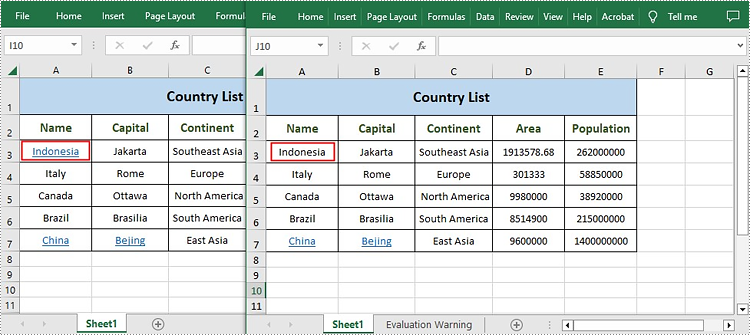
Spire.XLS for Java also offers the Worksheet.getHyperLinks().removeAt() method to remove hyperlinks. The following are the steps to delete hyperlink from Excel in Java.
- Create an instance of Workbook class.
- Load an Excel file using the Workbook.loadFromFile() method.
- Get a specific worksheet using the Workbook.getWorksheets().get() method.
- Get the collection of all hyperlinks in the worksheet using the Worksheet.getHyperLinks() method.
- Remove a specific hyperlink and keep link text using the Worksheet.getHyperLinks().removeAt() method.
- Save the result file using the Workbook.saveToFile() method.
- Java
import com.spire.xls.*;
import com.spire.xls.collections.HyperLinksCollection;

public class RemoveHyperlink {
    public static void main(String[] args) {
        //Create a Workbook instance
        Workbook workbook = new Workbook();

        //Load an Excel file
        workbook.loadFromFile("Sample.xlsx");

        //Get the first worksheet
        Worksheet sheet = workbook.getWorksheets().get(0);

        //Get the collection of all hyperlinks in the worksheet
        HyperLinksCollection links = sheet.getHyperLinks();

        //Remove the first hyperlink and keep link text
        sheet.getHyperLinks().removeAt(0);

        //Remove all content from the cell
        //sheet.getCellRange("A7").clearAll();

        //Save the document
        String output = "RemoveHyperlink.xlsx";
        workbook.saveToFile(output, ExcelVersion.Version2013);
        workbook.dispose();
    }
}
Apply for a Temporary License
If you'd like to remove the evaluation message from the generated documents, or to get rid of the function limitations, please request a 30-day trial license for yourself.
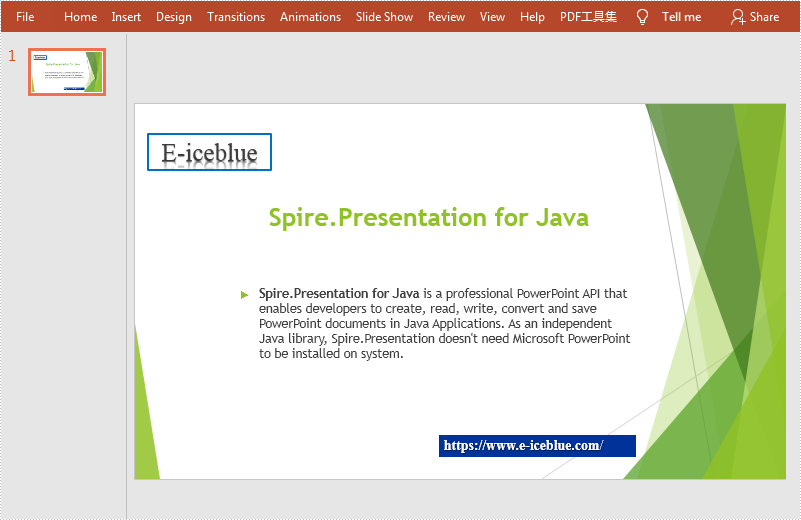
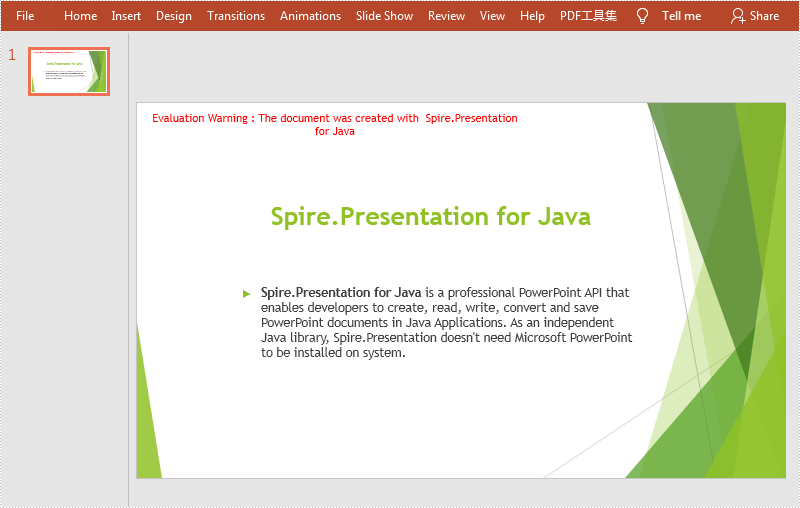
This article demonstrates how to remove text box in a PowerPoint document by using Spire.Presentation for Java.
Below is a screenshot of the original PowerPoint document:
import com.spire.presentation.*;

public class removeTextBox {
    public static void main(String[] args) throws Exception {
        //Load the sample document
        Presentation ppt = new Presentation();
        ppt.loadFromFile("sample.pptx");

        //Get the first slide
        ISlide slide = ppt.getSlides().get(0);

        //Traverse all the shapes in the slide and remove the textboxes
        for (int i = slide.getShapes().getCount() - 1; i >= 0; i--) {
            IAutoShape shape = (IAutoShape) slide.getShapes().get(i);
            if (shape.isTextBox()) {
                slide.getShapes().removeAt(i);
            }
        }

        //Save the document
        ppt.saveToFile("output/removeTextBox.pptx", FileFormat.PPTX_2013);
    }
}
Output
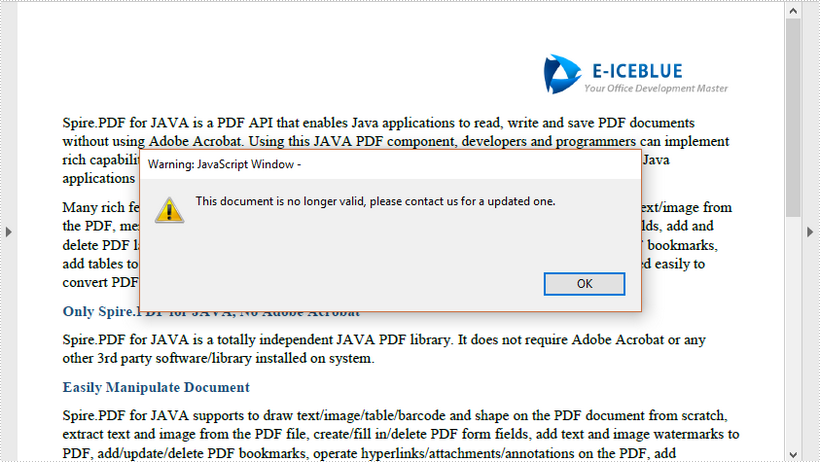
This article demonstrates how to set an expiration date for a PDF document using Spire.PDF for Java.
import com.spire.pdf.actions.PdfJavaScriptAction;

public class ExpiryDate {

    public static void main(String[] args) {

        //Create a PdfDocument object
        PdfDocument doc = new PdfDocument();

        //Load a PDF file
        doc.loadFromFile("C:\\Users\\Administrator\\Desktop\\sample.pdf");

        //Set expiration date and warning information,and close the document through JavaScript
        String javaScript = "var rightNow = new Date();"
                + "var endDate = new Date('June 20, 2020 23:59:59');"
                + "if(rightNow.getTime() > endDate)"
                + "app.alert('This document is no longer valid, please contact us for a updated one.',1);"
                + "this.closeDoc();";

        //Create a PdfJavaScriptAction object based on the javascript
        PdfJavaScriptAction js = new PdfJavaScriptAction(javaScript);

        //Set PdfJavaScriptAction as the AfterOpenAction
        doc.setAfterOpenAction(js);

        //Save to file
        doc.saveToFile("ExpirationDate.pdf", FileFormat.PDF);
    }
}