
Java (485)
Spire.Doc for Java supports embedding an external file (Word, Excel, PowerPoint, PDF, picture, video, etc.) in Word documents as an OLE object. This article gives you an example of how to insert a PDF file into a Word document.
import com.spire.doc.Document;
import com.spire.doc.FileFormat;
import com.spire.doc.Section;
import com.spire.doc.documents.OleObjectType;
import com.spire.doc.documents.Paragraph;
import com.spire.doc.fields.DocOleObject;
import com.spire.doc.fields.DocPicture;

public class InsertOLE {

    public static void main(String[] args) {

        //Create a Document object and load a Word document
        Document doc = new Document();
        doc.loadFromFile("C:\\Users\\Administrator\\Desktop\\source.docx");

        //Get the last section
        Section section = doc.getLastSection();

        //Add a paragraph
        Paragraph par = section.addParagraph();

        //Load an image which will be inserted to Word document representing the embedded file
        DocPicture pdfIcon = new DocPicture(doc);
        pdfIcon.loadImage("C:\\Users\\Administrator\\Desktop\\pdf-icon.jpg");

        //Insert a PDF file to the Word document as an OLE object
        par.appendOleObject("C:\\Users\\Administrator\\Desktop\\report.pdf", pdfIcon, OleObjectType.Adobe_Acrobat_Document);

        //Save to another file
        doc.saveToFile("EmbedDocument.docx", FileFormat.Docx_2013);
    }
}
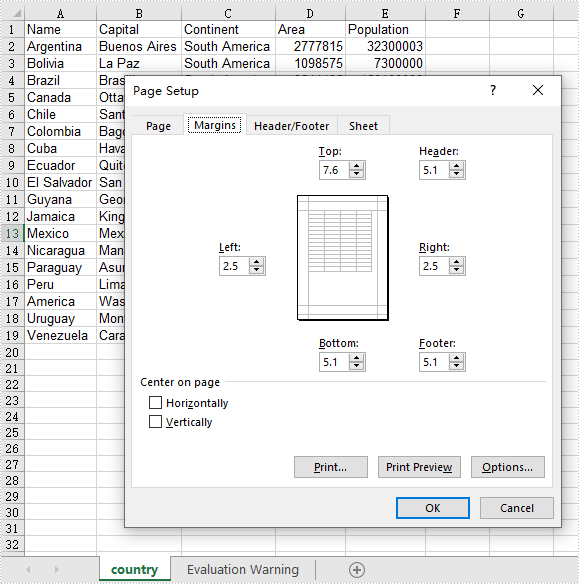
This article demonstrates how to set Excel page margins before printing the Excel worksheets in Java applications. By using Spire.XLS for Java, we could set top margin, bottom margin, left margin, right margin, header margin, and footer margin. Please note that the unit for margin is inch on Spire.XLS for Java while On Microsoft Excel, it is cm (1 inch=2.54 cm).
import com.spire.xls.*;

public class setMargins {
    public static void main(String[] args) {

        String outputFile="output/setMarginsOfExcel.xlsx";

        //Load the sample document from file
        Workbook workbook = new Workbook();
        workbook.loadFromFile("Sample.xlsx");

        //Get the first worksheet.
        Worksheet sheet = workbook.getWorksheets().get(0);

        //Get the PageSetup object of the first worksheet.
        PageSetup pageSetup = sheet.getPageSetup();

        //Set the page margins of bottom, left, right and top.
        pageSetup.setBottomMargin(2);
        pageSetup.setLeftMargin(1);
        pageSetup.setRightMargin(1);
        pageSetup.setTopMargin(3);

        //Set the margins of header and footer.
        pageSetup.setHeaderMarginInch(2);
        pageSetup.setFooterMarginInch(2);

        //Save to file.
        workbook.saveToFile(outputFile, ExcelVersion.Version2013);

    }
}
Output:
Paragraph spacing and line spacing play a vital role in the readability and overall appearance of a document. If paragraphs are tightly packed together or lines are too closely spaced, it can strain the reader's eyes and make the content appear cluttered. Knowing how to set paragraph spacing and line spacing can help you create a visually pleasing and reader-friendly document. This article will demonstrate how to set paragraph spacing and line spacing in Word documents in Java using Spire.Doc for Java.
Install Spire.Doc for Java
First, you're required to add the Spire.Doc.jar file as a dependency in your Java program. The JAR file can be downloaded from this link. If you use Maven, you can easily import the JAR file in your application by adding the following code to your project's pom.xml file.
<repositories>
    <repository>
        <id>com.e-iceblue</id>
        <name>e-iceblue</name>
        <url>https://repo.e-iceblue.com/nexus/content/groups/public/</url>
    </repository>
</repositories>
<dependencies>
    <dependency>
        <groupId>e-iceblue</groupId>
        <artifactId>spire.doc</artifactId>
        <version>14.7.0</version>
    </dependency>
</dependencies>
Set Paragraph Spacing in Word in Java
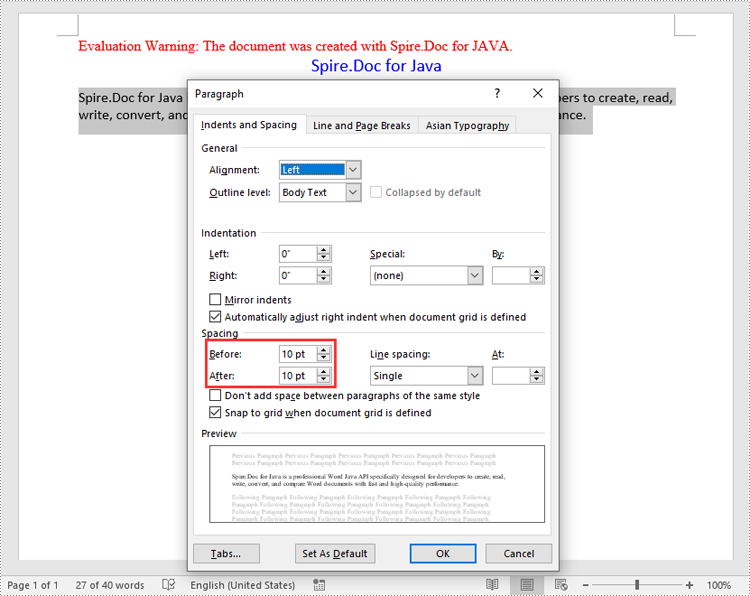
You can utilize the Paragraph.getFormat().setBeforeSpacing() and Paragraph.getFormat().setAfterSpacing() methods provided by Spire.Doc for Java to easily adjust the spacing before and after a paragraph. The detailed steps are as follows.
- Create an object of the Document class.
- Add a section to the document using Document.addSection() method.
- Add two paragraphs to the section using Section.addParagraph() methods.
- Set the spacing before and after the paragraphs using Paragraph.getFormat().setBeforeSpacing() and Paragraph.getFormat().setAfterSpacing() methods.
- Save the result document using Document.saveToFile() method.
- Java
import com.spire.doc.Document;
import com.spire.doc.FileFormat;
import com.spire.doc.Section;
import com.spire.doc.documents.HorizontalAlignment;
import com.spire.doc.documents.Paragraph;
import com.spire.doc.fields.TextRange;

import java.awt.*;

public class SetParagraphSpacing {
    public static void main(String[] args){
        // Create an object of the Document class
        Document document = new Document();
        // Add a section to the document
        Section section = document.addSection();

        // Add two paragraphs to the section
        Paragraph para1 = section.addParagraph();
        para1.getFormat().setHorizontalAlignment(HorizontalAlignment.Center);
        TextRange textRange1 = para1.appendText("Spire.Doc for Java");
        textRange1.getCharacterFormat().setTextColor(Color.BLUE);
        textRange1.getCharacterFormat().setFontName("Calibri");
        textRange1.getCharacterFormat().setFontSize(15);

        Paragraph para2 = section.addParagraph();
        TextRange textRange2 = para2.appendText("Spire.Doc for Java is a professional Word Java API specifically designed for developers to create, read, write, convert, and compare Word documents with fast and high-quality performance.");
        textRange2.getCharacterFormat().setFontName("Calibri");
        textRange2.getCharacterFormat().setFontSize(12);

        // Set the spacing after the first paragraph
        para1.getFormat().setAfterAutoSpacing(false);
        para1.getFormat().setAfterSpacing(10);

        // Set the spacing before and after the second paragraph
        para2.getFormat().setBeforeAutoSpacing(false);
        para2.getFormat().setBeforeSpacing(10);
        para2.getFormat().setAfterAutoSpacing(false);
        para2.getFormat().setAfterSpacing(10);

        // Save the result file
        document.saveToFile("SetParagraphSpacing.docx", FileFormat.Docx_2013);
        document.close();
    }
}
Set Line Spacing in Word in Java
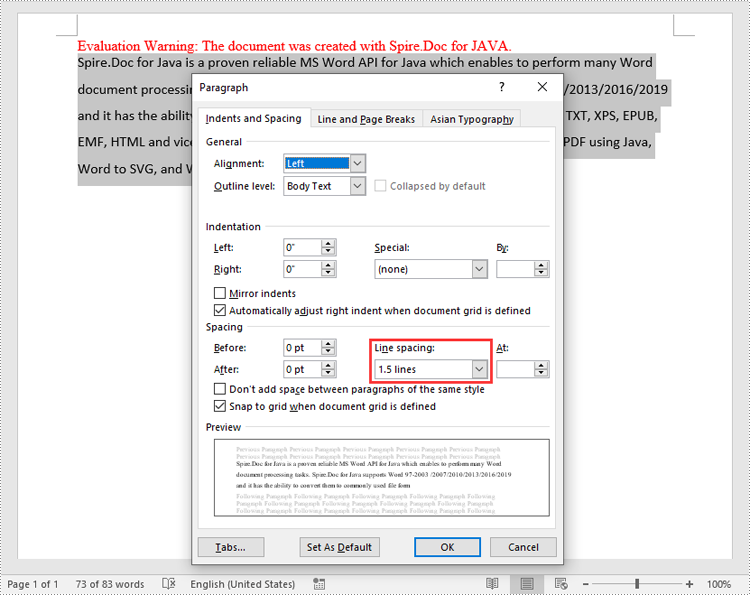
To set the pacing between lines in a paragraph, you can use the Paragraph.getFormat().setLineSpacing() method. The detailed steps are as follows.
- Create an object of the Document class.
- Add a section to the document using Document.addSection() method.
- Add a paragraph to the section using Section.addParagraph() methods.
- Set the spacing between lines in the paragraph using Paragraph.getFormat().setLineSpacing() method.
- Save the result document using Document.saveToFile() method.
- Java
import com.spire.doc.Document;
import com.spire.doc.FileFormat;
import com.spire.doc.LineSpacingRule;
import com.spire.doc.Section;
import com.spire.doc.documents.Paragraph;
import com.spire.doc.fields.TextRange;

public class SetLineSpacing {
    public static void main(String[] args) {
        // Create an object of the Document class
        Document document = new Document();
        // Add a section
        Section section = document.addSection();

        // Add a paragraph to the section
        Paragraph para = section.addParagraph();
        TextRange textRange = para.appendText("Spire.Doc for Java is a proven reliable MS Word API for Java which enables to perform many Word document processing tasks. Spire.Doc for Java supports Word 97-2003 /2007/2010/2013/2016/2019 and it has the ability to convert them to commonly used file formats like XML, RTF, TXT, XPS, EPUB, EMF, HTML and vice versa. Furthermore, it supports to convert Word Doc/Docx to PDF using Java, Word to SVG, and Word to PostScript in high quality.");
        textRange.getCharacterFormat().setFontName("Calibri");
        textRange.getCharacterFormat().setFontSize(12);

        // Set line spacing rule
        para.getFormat().setLineSpacingRule(LineSpacingRule.Multiple);
        // Set line spacing value (The line spacing rule "Multiple" with value 18 sets the line spacing to "1.5 lines", value 12 sets the line spacing to "Single")
        para.getFormat().setLineSpacing(18);

        // Save the result file
        document.saveToFile("SetLineSpacing.docx", FileFormat.Docx_2013);
        document.close();
    }
}
Apply for a Temporary License
If you'd like to remove the evaluation message from the generated documents, or to get rid of the function limitations, please request a 30-day trial license for yourself.
