
Java (485)
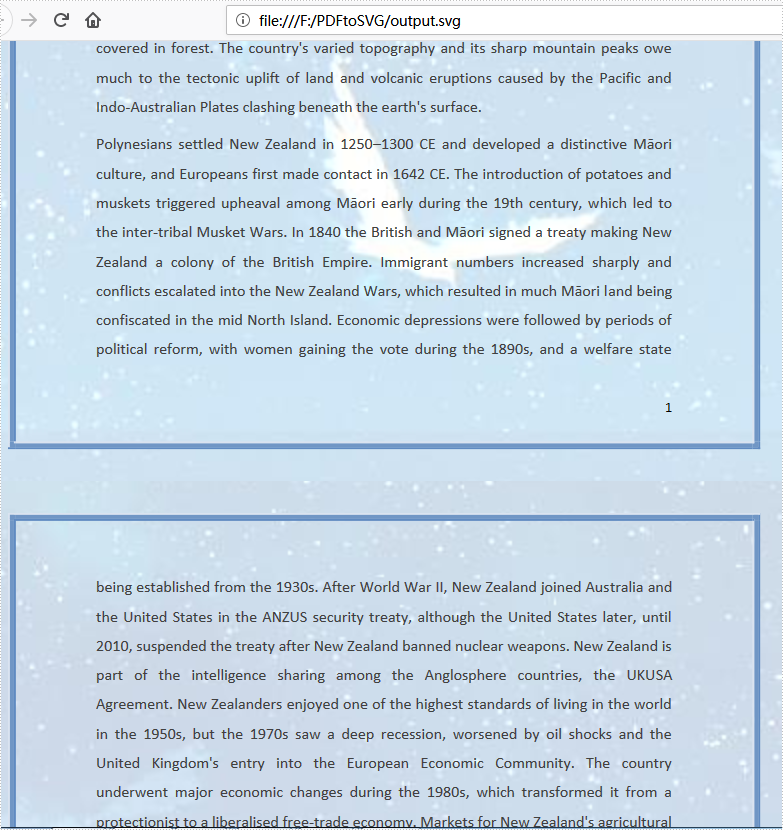
In the article of convert PDF to SVG by Spire.PDF, each page on the PDF file has been saved as a single SVG file. For example, if the PDF contains 10 pages, we will get 10 SVG files separately. From version 2.7.6, Spire.PDF for Java supports to convert a multipage PDF to one single SVG file in Java.
import com.spire.pdf.*;


public class PDFtoSVG {
    public static void main(String[] args) throws Exception {

        String inputPath = "Sample.pdf";

        PdfDocument document = new PdfDocument();
        document.loadFromFile(inputPath);

        document.getConvertOptions().setOutputToOneSvg(true);

        document.saveToFile("output.svg", FileFormat.SVG);
        document.close();
    }
}
Effective screenshot of the resulted one SVG file:
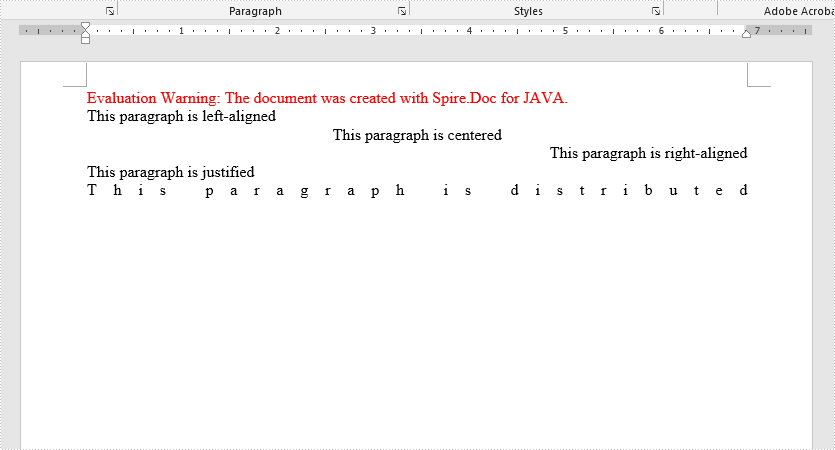
In Microsoft Word, we can set the text alignment of a paragraph as left/center/right/justified/distributed. In this article, we will demonstrate how to achieve this function programmatically in Java using Spire.Doc for Java.
Install Spire.Doc for Java
First of all, you're required to add the Spire.Doc.jar file as a dependency in your Java program. The JAR file can be downloaded from this link. If you use Maven, you can easily import the JAR file in your application by adding the following code to your project's pom.xml file.
<repositories>
    <repository>
        <id>com.e-iceblue</id>
        <name>e-iceblue</name>
        <url>https://repo.e-iceblue.com/nexus/content/groups/public/</url>
    </repository>
</repositories>
<dependencies>
    <dependency>
        <groupId>e-iceblue</groupId>
        <artifactId>spire.doc</artifactId>
        <version>14.8.4</version>
    </dependency>
</dependencies>
Set Paragraph Alignments in Word
Spire.Doc for Java provides the ParagraphFormat class to work with paragraph formatting. You can use Paragraph.getFormat() method to get the ParagraphFormat object, and then use ParagraphFormat.setHorizontalAlignment() method to set the text alignment for the paragraph.
The following are the steps to set the text alignment for a paragraph in a Word document:
- Create a Document instance.
- Add a section to the document using Document.addSection() method.
- Add a paragraph to the section using Section.addParagraph() method, then append text to the paragraph using Paragraph.appendText() method.
- Get the ParagraphFormat object using Paragraph.getFormat() method.
- Set text alignment for the paragraph using ParagraphFormat.setHorizontalAlignment() method.
- Save the result document using Document.saveToFile() method.
- Java
import com.spire.doc.Document;
import com.spire.doc.FileFormat;
import com.spire.doc.Section;
import com.spire.doc.documents.HorizontalAlignment;
import com.spire.doc.documents.Paragraph;
import com.spire.doc.formatting.ParagraphFormat;

public class ParagraphAlignments {
    public static void main(String[] args) {
        //Create a Document instance
        Document document = new Document();

        //Add a section
        Section section = document.addSection();

        //Add a paragraph and make it left-aligned
        Paragraph para = section.addParagraph();
        para.appendText("This paragraph is left-aligned");
        ParagraphFormat format = para.getFormat();
        format.setHorizontalAlignment(HorizontalAlignment.Left);

        //Add a paragraph and make it centered
        para = section.addParagraph();
        para.appendText("This paragraph is centered");
        format = para.getFormat();
        format.setHorizontalAlignment(HorizontalAlignment.Center);

        //Add a paragraph and make it right-aligned
        para = section.addParagraph();
        para.appendText("This paragraph is right-aligned");
        format = para.getFormat();
        format.setHorizontalAlignment(HorizontalAlignment.Right);

        //Add a paragraph and make it justified
        para = section.addParagraph();
        para.appendText("This paragraph is justified");
        format = para.getFormat();
        format.setHorizontalAlignment(HorizontalAlignment.Justify);

        //Add a paragraph and make it distributed
        para = section.addParagraph();
        para.appendText("This paragraph is distributed");
        format = para.getFormat();
        format.setHorizontalAlignment(HorizontalAlignment.Distribute);

        //Save the result document
        document.saveToFile("ParagraphAlignments.docx", FileFormat.Docx_2013);
    }
}
Apply for a Temporary License
If you'd like to remove the evaluation message from the generated documents, or to get rid of the function limitations, please request a 30-day trial license for yourself.
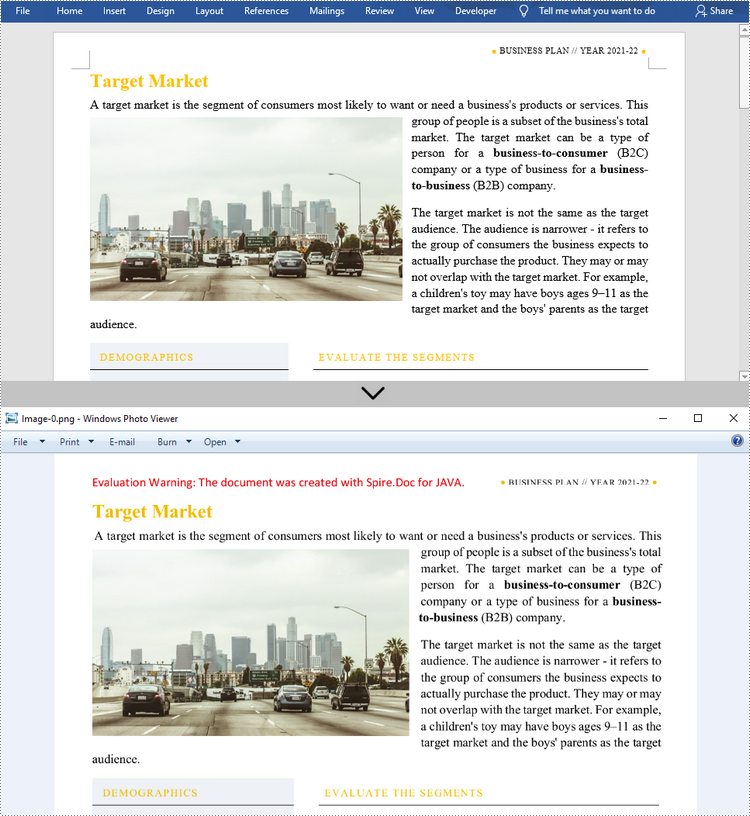
There are many reasons why you might need to convert Word documents to images. For example, a lot of devices can open and display images directly without any special software, and when images are transmitted their content is difficult to be tampered with. In this article, you will learn how to convert Word to popular image formats such as JPG, PNG and SVG using Spire.Doc for Java.
- Convert Word to JPG in Java
- Convert Word to SVG in Java
- Convert Word to PNG with Customized Resolution
Install Spire.Doc for Java
First, you're required to add the Spire.Doc.jar file as a dependency in your Java program. The JAR file can be downloaded from this link. If you use Maven, you can easily import the JAR file in your application by adding the following code to your project's pom.xml file.
<repositories>
    <repository>
        <id>com.e-iceblue</id>
        <name>e-iceblue</name>
        <url>https://repo.e-iceblue.com/nexus/content/groups/public/</url>
    </repository>
</repositories>
<dependencies>
    <dependency>
        <groupId>e-iceblue</groupId>
        <artifactId>spire.doc</artifactId>
        <version>14.8.4</version>
    </dependency>
</dependencies>
Convert Word to JPG in Java
Spire.Doc for Java offers the Document.saveToImages() method to convert a whole Word document into individual BufferedImage images. Then, each BufferedImage can be saved as a BMP, EMF, JPEG, PNG, GIF, or WMF file. The following are the steps to convert Word to JPG using this library.
- Create a Document object.
- Load a Word document using Document.loadFromFile() method.
- Convert the document to BufferedImage images using Document.saveToImages() method.
- Loop through the image collection to get the specific one.
- Re-write the image with different color space.
- Write the BufferedImage to a JPG file.
- Java
import com.spire.doc.Document;
import com.spire.doc.documents.ImageType;
import javax.imageio.ImageIO;
import java.awt.image.BufferedImage;
import java.io.File;
import java.io.IOException;

public class ConvertWordToJPG {

    public static void main(String[] args) throws IOException {

        //Create a Document object
        Document doc = new Document();

        //Load a Word document
        doc.loadFromFile("C:\\Users\\Administrator\\Desktop\\ConvertTemplate.docx");

        //Convert the whole document into individual buffered images
        BufferedImage[] images = doc.saveToImages(ImageType.Bitmap);

        //Loop through the images
        for (int i = 0; i < images.length; i++) {

            //Get the specific image
            BufferedImage image = images[i];

            //Re-write the image with a different color space
            BufferedImage newImg = new BufferedImage(image.getWidth(), image.getHeight(), BufferedImage.TYPE_INT_RGB);
            newImg.getGraphics().drawImage(image, 0, 0, null);

            //Write to a JPG file
            File file = new File("C:\\Users\\Administrator\\Desktop\\Images\\" + String.format(("Image-%d.jpg"), i));
            ImageIO.write(newImg, "JPEG", file);
        }
    }
}
Convert Word to SVG in Java
Using Spire.Doc for Java, you can save a Word document as a list of byte arrays. Each byte array can then be written as a SVG file. The detailed steps to convert Word to SVG are as follows.
- Create a Document object.
- Load a Word file using Document.loadFromFile() method.
- Save the document as a list of byte arrays using Document.saveToSVG() method.
- Loop through the items in the list to get a specific byte array.
- Write the byte array to a SVG file.
- Java
import com.spire.doc.Document;
import java.io.FileOutputStream;
import java.io.IOException;
import java.util.List;

public class ConvertWordToSVG {

    public static void main(String[] args) throws IOException {

        //Create a Document object
        Document doc = new Document();

        //Load a Word document
        doc.loadFromFile("C:\\Users\\Administrator\\Desktop\\ConvertTemplate.docx");

        //Save the document as a list of byte arrays
        List<byte[]> svgBytes = doc.saveToSVG();

        //Loop through the items in the list
        for (int i = 0; i < svgBytes.size(); i++)
        {
            //Get a specific byte array
            byte[] byteArray = svgBytes.get(i);

            //Specify the output file name
            String outputFile = String.format("Image-%d.svg", i);

            //Write the byte array to a SVG file
            try (FileOutputStream stream = new FileOutputStream("C:\\Users\\Administrator\\Desktop\\Images\\" + outputFile)) {
                stream.write(byteArray);
            }
        }
    }
}
Convert Word to PNG with Customized Resolution
An image with higher resolution is generally more clear. You can customize the image resolution while converting Word to PNG by following the following steps.
- Create a Document object.
- Load a Word file using Document.loadFromFile() method.
- Convert the document to BufferedImage images with the specified resolution using Document.saveToImages() method.
- Loop through the image collection to get the specific one and save it as a PNG file.
- Java
import com.spire.doc.Document;
import com.spire.doc.documents.ImageType;
import javax.imageio.ImageIO;
import java.awt.image.BufferedImage;
import java.io.File;
import java.io.IOException;

public class ConvertWordToPNG {

    public static void main(String[] args) throws IOException {

        //Create a Document object
        Document doc = new Document();

        //Load a Word document
        doc.loadFromFile("C:\\Users\\Administrator\\Desktop\\ConvertTemplate.docx");

        //Convert the whole document into individual buffered images with customized resolution
        BufferedImage[] images = doc.saveToImages(0, doc.getPageCount(), ImageType.Bitmap, 150, 150);

        //Loop through the images
        for (int i = 0; i < images.length; i++) {

            //Get the specific image
            BufferedImage image = images[i];

            //Write to a PNG file
            File file = new File("C:\\Users\\Administrator\\Desktop\\Images\\" + String.format(("Image-%d.png"), i));
            ImageIO.write(image, "PNG", file);
        }
    }
}
Apply for a Temporary License
If you'd like to remove the evaluation message from the generated documents, or to get rid of the function limitations, please request a 30-day trial license for yourself.
