
Java (485)
Master PDF Compression in Java: Reduce PDF File Size Efficiently
2023-06-27 08:23:00 Written by hayes Liu
Handling large PDF files is a common challenge for Java developers. PDFs with high-resolution images, embedded fonts, and multimedia content can quickly become heavy, slowing down applications, increasing storage costs, and creating a poor user experience—especially on mobile devices.
Mastering PDF compression in Java is essential to reduce file size efficiently while maintaining document quality. This step-by-step guide demonstrates how to compress and optimize PDF files in Java. You’ll learn how to compress document content, optimize images, fonts, and metadata, ensuring faster file transfers, improved performance, and a smoother user experience in your Java applications.
What You Will Learn
- Setting Up Your Development Environment
- Reduce PDF File Size by Compressing Document Content in Java
- Reduce PDF File Size by Optimizing Specific Elements in Java
- Full Java Example that Combines All PDF Compressing Techniques
- Best Practices for PDF Compression
- Conclusion
- FAQs
1. Setting Up Your Development Environment
Before implementing PDF compression in Java, ensure your development environment is properly configured.
1.1. Prerequisites
- Java Development Kit (JDK): Ensure you have JDK 1.8 or later installed.
- Build Tool: Maven or Gradle is recommended for dependency management.
- Integrated Development Environment (IDE): IntelliJ IDEA or Eclipse is suitable.
1.2. Adding Dependencies
To programmatically compress PDF files, you need a PDF library that supports compression features. Spire.PDF for Java provides APIs for loading, reading, editing, and compressing PDF documents. You can include it via Maven or Gradle.
Maven (pom.xml):
Add the following repository and dependency to your project's pom.xml file within the <repositories> and <dependencies> tags, respectively:
<repositories>
    <repository>
        <id>com.e-iceblue</id>
        <name>e-iceblue</name>
        <url>https://repo.e-iceblue.com/nexus/content/groups/public/</url>
    </repository>
</repositories>
<dependencies>
    <dependency>
        <groupId>e-iceblue</groupId>
        <artifactId>spire.pdf</artifactId>
        <version>12.9.0</version>
    </dependency>
</dependencies>
Gradle (build.gradle):
For Gradle users, add the repository and dependency as follows:
repositories {
    mavenCentral()
    maven {
        url "https://repo.e-iceblue.com/nexus/content/groups/public/"
    }
}

dependencies {
    implementation 'e-iceblue:spire.pdf:11.8.0'
}
After adding the dependency, refresh your Maven or Gradle project to download the necessary JAR files.
2. Reduce PDF File Size by Compressing Document Content in Java
One of the most straightforward techniques for reducing PDF file size is to apply document content compression. This approach automatically compresses the internal content streams of the PDF, such as text and graphics data, without requiring any manual fine-tuning. It is especially useful when you want a quick and effective solution that minimizes file size while maintaining document integrity.
The following example demonstrates how to enable and apply content compression in a PDF file using Java.
import com.spire.pdf.conversion.compression.PdfCompressor;

public class CompressContent {
    public static void main(String[] args){
        // Create a compressor
        PdfCompressor compressor = new PdfCompressor("test.pdf");

        // Enable document content compression
        compressor.getOptions().setCompressContents(true);

        // Compress and save
        compressor.compressToFile("ContentCompression.pdf");
    }
}
Key Points:
- setCompressContents(true) enables document content compression.
- Original PDFs remain unchanged; compressed files are saved separately.
3. Reduce PDF File Size by Optimizing Specific Elements in Java
Beyond compressing content streams, developers can also optimize individual elements of the PDF, such as images, fonts, and metadata. This allows for granular control over file size optimization.
3.1. Image Compression
Images are frequently the primary reason for large files. By lowering the image quality, you can significantly minimize the size of image-heavy PDF files.
import com.spire.pdf.conversion.compression.ImageCompressionOptions;
import com.spire.pdf.conversion.compression.ImageQuality;
import com.spire.pdf.conversion.compression.PdfCompressor;

public class CompressImages {
    public static void main(String[] args){
        // Load the PDF document
        PdfCompressor compressor = new PdfCompressor("test.pdf");

        // Get image compression options
        ImageCompressionOptions imageCompression = compressor.getOptions().getImageCompressionOptions();

        // Compress images and set quality
        imageCompression.setCompressImage(true);          // Enable image compression
        imageCompression.setImageQuality(ImageQuality.Low); // Set image quality (Low, Medium, High)
        imageCompression.setResizeImages(true);           // Resize images to reduce size

        // Save the compressed PDF
        compressor.compressToFile("ImageCompression.pdf");
    }
}
Key Points:
- setCompressImage(true) enables image compression.
- setImageQuality(...) adjusts the output image quality; the lower the quality, the smaller the image size.
- setResizeImages(true) enables image resizing.
3.2. Font Compression or Unembedding
When a PDF uses custom fonts, the entire font file might be embedded, even if only a few characters are used. Font compression or unembedding is a technique that reduces the size of embedded fonts by compressing them or removing them entirely from the PDF.
import com.spire.pdf.conversion.compression.PdfCompressor;
import com.spire.pdf.conversion.compression.TextCompressionOptions;

public class CompressPDFWithOptions {
    public static void main(String[] args){
        // Load the PDF document
        PdfCompressor compressor = new PdfCompressor("test.pdf");

        // Get text compression options
        TextCompressionOptions textCompression = compressor.getOptions().getTextCompressionOptions();

        // Compress fonts
        textCompression.setCompressFonts(true);

        // Optional: unembed fonts to reduce size
        // textCompression.setUnembedFonts(true);

        // Save the compressed PDF
        compressor.compressToFile("FontOptimization.pdf");
    }
}
Key Points:
- setCompressFonts(true) compresses embedded fonts while preserving document appearance.
- setUnembedFonts(true) removes embedded fonts entirely, which may reduce file size but could affect text rendering if the fonts are not available on the system.
3.3 Metadata Removal
PDFs often store metadata such as author details, timestamps, and editing history that aren’t needed for viewing. Removing metadata reduces file size and protects sensitive information.
import com.spire.pdf.conversion.compression.PdfCompressor;

public class CompressPDFWithOptions {
    public static void main(String[] args){
        // Load the PDF document
        PdfCompressor compressor = new PdfCompressor("test.pdf");

        // Remove metadata
        compressor.getOptions().setRemoveMetadata(true);

        // Save the compressed PDF
        compressor.compressToFile("MetadataRemoval.pdf");
    }
}
4. Full Java Example that Combines All PDF Compressing Techniques
After exploring both document content compression and element-specific optimizations (images, fonts, and metadata), let’s explore how to apply all these techniques together in one workflow.
import com.spire.pdf.conversion.compression.ImageQuality;
import com.spire.pdf.conversion.compression.OptimizationOptions;
import com.spire.pdf.conversion.compression.PdfCompressor;

public class CompressPDFWithAllTechniques {
    public static void main(String[] args){
        // Initialize compressor
        PdfCompressor compressor = new PdfCompressor("test.pdf");

        // Enable document content compression
        OptimizationOptions options = compressor.getOptions();
        options.setCompressContents(true);

        // Optimize images (downsampling and compression)
        options.getImageCompressionOptions().setCompressImage(true);
        options.getImageCompressionOptions().setImageQuality(ImageQuality.Low);
        options.getImageCompressionOptions().setResizeImages(true);

        // Optimize fonts (compression or unembedding)
        // Compress fonts
        options.getTextCompressionOptions().setCompressFonts(true);
        // Optional: unembed fonts to reduce size
        // options.getTextCompressionOptions().setUnembedFonts(true);

        // Remove unnecessary metadata
        options.setRemoveMetadata(true);

        // Save the compressed PDF
        compressor.compressToFile("CompressPDFWithAllTechniques.pdf");
    }
}
Reviewing the Compression Effect:
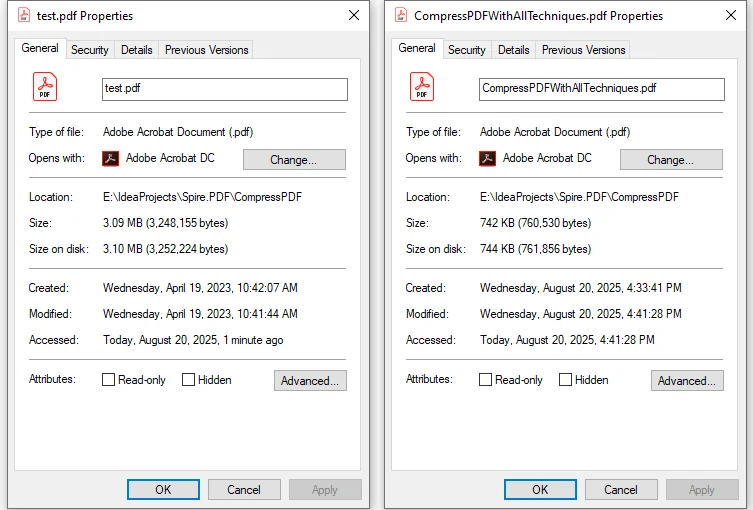
After running the code, the original sample PDF of 3.09 MB was reduced to 742 KB. The compression ratio is approximately 76%.
5. Best Practices for PDF Compression
When applying PDF compression in Java, it’s important to follow some practical guidelines to ensure the file size is reduced effectively without sacrificing usability or compatibility.
- Choose methods based on content: PDF compression depends heavily on the type of content. Text-based files may only require content and font optimization, while image-heavy documents benefit more from image compression. In many cases, combining multiple techniques yields the best results.
- Balance quality with file size: Over-compression may influence the document's readability, so it’s important to maintain a balance.
- Test across PDF readers: Ensure compatibility with Adobe Acrobat, browser viewers, and mobile apps.
6. Conclusion
Compressing PDF in Java is not just about saving disk space—it directly impacts performance, user experience, and system efficiency. Using Libraries like Spire.PDF for Java, developers can implement fine-grained compression techniques, from compressing content, optimizing images and fonts, to cleaning up unused metadata.
By applying the right strategies, you can minimize PDF size in Java significantly without sacrificing quality. This leads to faster file transfers, lower storage costs, and smoother rendering across platforms. Mastering these compression methods ensures your Java applications remain responsive and efficient, even when handling complex, resource-heavy PDFs.
7. FAQs
Q1: Can I reduce PDF file size in Java without losing quality?
A1: Yes. Spire.PDF allows selective compression of images, fonts, and other objects while maintaining readability and layout.
Q2: Will compressed PDFs remain compatible with popular PDF readers?
A2: Yes. Compressed PDFs remain compatible with Adobe Acrobat, browser viewers, mobile apps, and other standard PDF readers.
Q3: What’s the difference between image compression and font compression?
A3: Image compression reduces the size of embedded images, while font compression reduces embedded font data or removes unused fonts. Both techniques together optimize file size effectively.
Q4: How do I choose the best compression strategy?
A4: Consider the PDF content. Use image compression for image-heavy PDFs and font compression for text-heavy PDFs. Often, combining both techniques yields the best results without affecting readability.
Q5: Can I automate PDF compression for multiple files in Java?
A5: Yes. You can write Java scripts to batch compress multiple PDFs by applying the same compression settings consistently across all files.
This article will show you have to replace the content of a bookmark in Word using Spire.Doc for Java.
Replace bookmark content with text
import com.spire.doc.*;
import com.spire.doc.documents.*;

public class ReplaceBookmark {
    public static void main(String[] args){
        //load the Word document
        Document doc = new Document("Bookmark.docx");

        //locate the bookmark."SimpleBookmark"
        BookmarksNavigator bookmarkNavigator = new BookmarksNavigator(doc);
        bookmarkNavigator.moveToBookmark("SimpleBookmark");

        //replace the content of the bookmark with text
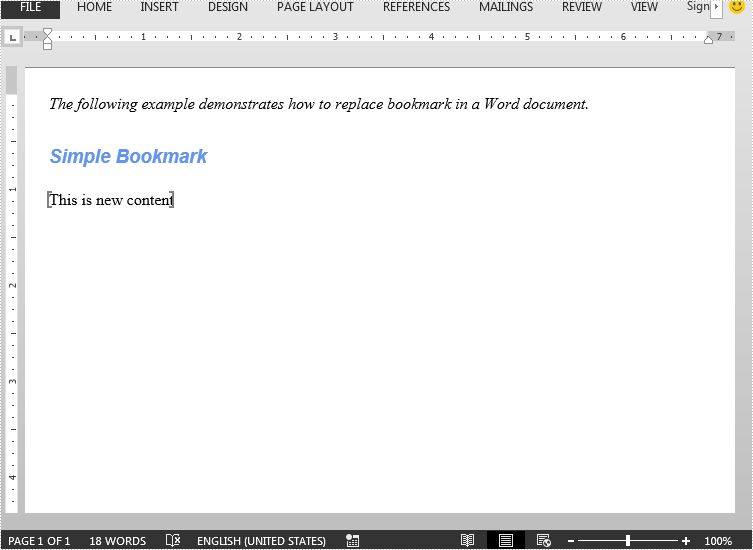
        bookmarkNavigator.replaceBookmarkContent("This is new content", false);

        //save the resultant document
        doc.saveToFile("ReplaceWithText.docx", FileFormat.Docx);
    }
}
Replace bookmark content with HTML string
import com.spire.doc.*;
import com.spire.doc.documents.*;
import com.spire.doc.fields.ParagraphBase;
public class ReplaceBookmark {
public static void main(String[] args){
//load the Word document
Document doc = new Document("Bookmark.docx");
//add a temp section
Section tempSection = doc.addSection();
//add a paragraph and append Html string
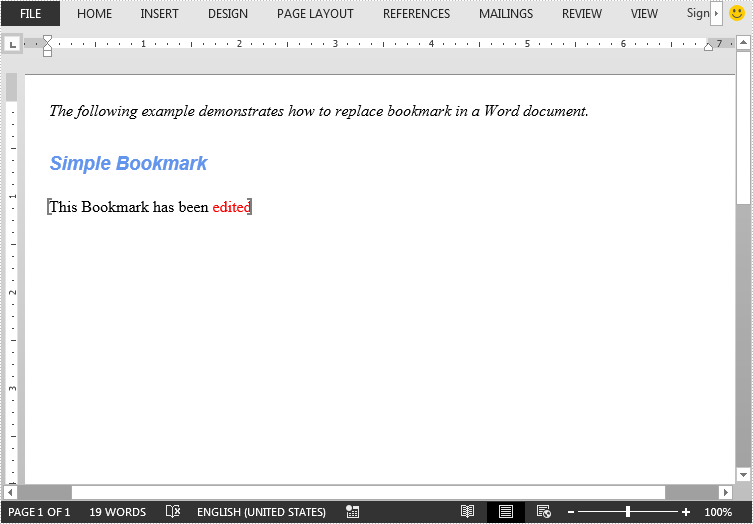
String html = "This Bookmark has been edited
";
tempSection.addParagraph().appendHTML(html);
//Get the first item and the last item of the paragraph
ParagraphBase firstItem = (ParagraphBase)tempSection.getParagraphs().get(0).getItems().getFirstItem();
ParagraphBase lastItem = (ParagraphBase)tempSection.getParagraphs().get(0).getItems().getLastItem();
//create a TextBodySelection object
TextBodySelection selection = new TextBodySelection(firstItem, lastItem);
//create a TextBodyPart object
TextBodyPart bodyPart = new TextBodyPart(selection);
//locate the bookmark "SimpleBookmark"
BookmarksNavigator bookmarkNavigator = new BookmarksNavigator(doc);
bookmarkNavigator.moveToBookmark("SimpleBookmark");
//replace the content of the bookmark with Html string
bookmarkNavigator.replaceBookmarkContent(bodyPart);
//remove the temp section
doc.getSections().remove(tempSection);
//save the resultant document
doc.saveToFile("ReplaceWithHTMLString.docx", FileFormat.Docx);
}
}
Replace bookmark content with table
import com.spire.doc.*;
import com.spire.doc.documents.*;

public class ReplaceBookmark {
    public static void main(String[] args){
        //load the Word document
        Document doc = new Document("Bookmark.docx");

        String[][] data =
                {
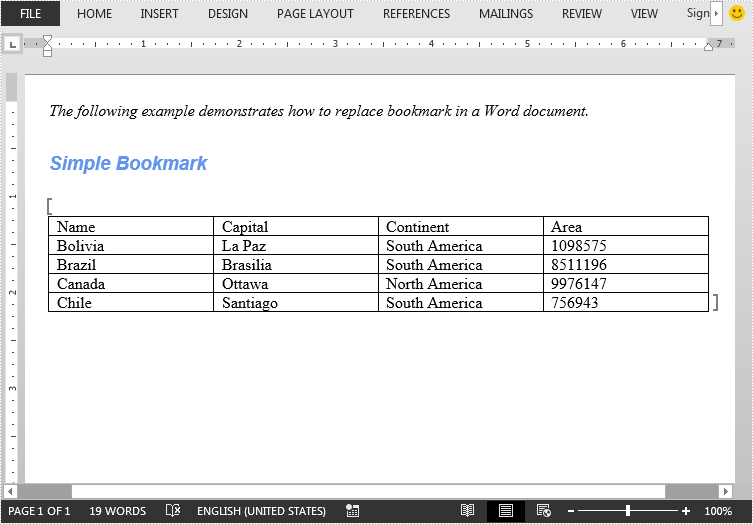
                        new String[]{"Name", "Capital", "Continent", "Area"},
                        new String[]{"Bolivia", "La Paz", "South America", "1098575"},
                        new String[]{"Brazil", "Brasilia", "South America", "8511196"},
                        new String[]{"Canada", "Ottawa", "North America", "9976147"},
                        new String[]{"Chile", "Santiago", "South America", "756943"},
                };

        //create a table
        Table table = new Table(doc,true);
        table.resetCells(5, 4);
        for (int i = 0; i < data.length; i++) {
            TableRow dataRow = table.getRows().get(i);
            for (int j = 0; j < data[i].length; j++) {
                dataRow.getCells().get(j).addParagraph().appendText(data[i][j]);
            }
        }

        //create a TextBodyPart object
        TextBodyPart bodyPart= new TextBodyPart(doc);
        bodyPart.getBodyItems().add(table);

        //locate the bookmark "SimpleBookmark"
        BookmarksNavigator bookmarkNavigator = new BookmarksNavigator(doc);
        bookmarkNavigator.moveToBookmark("SimpleBookmark");

        //replace the content of the bookmark with table
        bookmarkNavigator.replaceBookmarkContent(bodyPart);

        //save the resultant document
        doc.saveToFile("ReplaceWithTable.docx", FileFormat.Docx);
    }
}
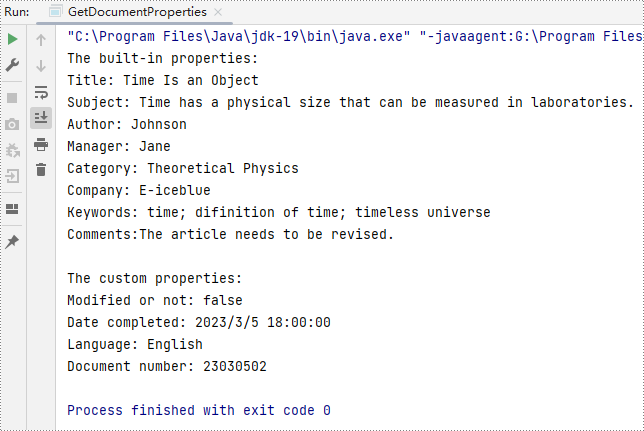
Document properties are some important information contained in Word documents, including title, subject, author, company, keywords, etc. Reading this information can help identify the document, quickly determine the document type or source, and improve the efficiency of document storage and organization. However, if the document properties such as author and company are inappropriate for others to know, you can remove them to protect privacy. This article is going to show how to read or remove document properties in Word documents programmatically using Spire.Doc for Java.
- Read Built-in and Custom Properties from Word Documents
- Remove Built-in and Custom Properties from Word Documents
Install Spire.Doc for Java
First, you're required to add the Spire.Doc.jar file as a dependency in your Java program. The JAR file can be downloaded from this link. If you use Maven, you can easily import the JAR file in your application by adding the following code to your project's pom.xml file.
<repositories>
    <repository>
        <id>com.e-iceblue</id>
        <name>e-iceblue</name>
        <url>https://repo.e-iceblue.com/nexus/content/groups/public/</url>
    </repository>
</repositories>
<dependencies>
    <dependency>
        <groupId>e-iceblue</groupId>
        <artifactId>spire.doc</artifactId>
        <version>14.8.4</version>
    </dependency>
</dependencies>
Read Built-in and Custom Properties from Word Documents
There are two types of properties in Word documents: built-in properties and custom properties. Built-in properties are some predefined properties, while custom properties are properties with custom names, types, and values. The detailed steps for reading the two kinds of document properties are as follows:
- Create an object of Document.
- Load a Word document using Document.loadFromFile() method.
- Get all the built-in properties and custom properties using Document.getBuiltinDocumentProperties() method and Document.getCustomDocumentProperties() method.
- Get each built-in property using methods under BuiltinDocumentProperties class.
- Loop through the custom properties to get their name and value using methods under CustomDocumentProperties class.
- Java
import com.spire.doc.BuiltinDocumentProperties;
import com.spire.doc.CustomDocumentProperties;
import com.spire.doc.Document;

public class GetDocumentProperties {
    public static void main(String[] args) {

        //Create an object of Document
        Document document = new Document();

        //Load a Word document
        document.loadFromFile("C:/Sample.docx");

        //Create an object of StringBuilder
        StringBuilder properties = new StringBuilder();

        //Get all the built-in properties and custom properties
        BuiltinDocumentProperties builtinDocumentProperties = document.getBuiltinDocumentProperties();
        CustomDocumentProperties customDocumentProperties = document.getCustomDocumentProperties();

        //Get each built-in property
        String title = builtinDocumentProperties.getTitle();
        String subject = builtinDocumentProperties.getSubject();
        String author = builtinDocumentProperties.getAuthor();
        String manager = builtinDocumentProperties.getManager();
        String category = builtinDocumentProperties.getCategory();
        String company = builtinDocumentProperties.getCompany();
        String keywords = builtinDocumentProperties.getKeywords();
        String comments = builtinDocumentProperties.getComments();

        //Set string format for displaying
        String builtinProperties = String.format("The built-in properties:\r\nTitle: " + title
                + "\r\nSubject: " + subject + "\r\nAuthor: " + author
                + "\r\nManager: " + manager + "\r\nCategory: " + category
                + "\r\nCompany: " + company + "\r\nKeywords: "+ keywords
                + "\r\nComments:" + comments
        );

        //Add the built-in properties to the StringBuilder object
        properties.append(builtinProperties);

        //Get each custom property
        properties.append("\r\n\r\nThe custom properties:");
        for (int i = 0; i < customDocumentProperties.getCount(); i++) {
            String customProperties = String.format("\r\n" + customDocumentProperties.get(i).getName() + ": " + document.getCustomDocumentProperties().get(i).getValue());

            //Add the custom properties to the StringBuilder object
            properties.append(customProperties);
        }

        //Output the properties of the document
        System.out.println(properties);
    }
}
Remove Built-in and Custom Properties from Word Documents
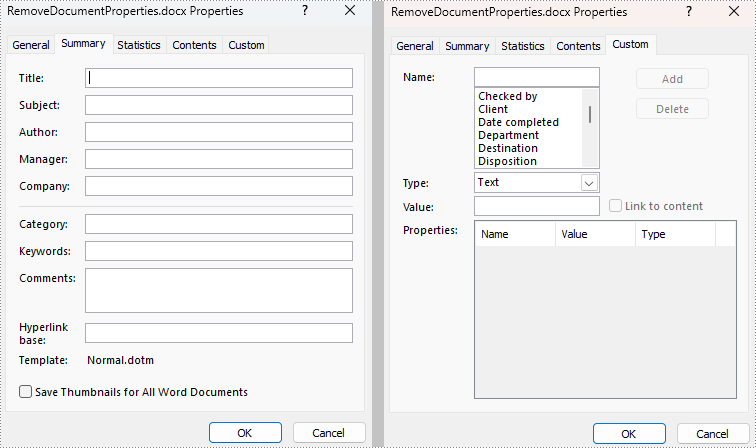
Built-in document properties can be removed by setting their values as empty. For custom document properties, we can use the CustomDocumentProperties.get().getName() method to get their name and then use CustomDocumentProperties.remove() method to remove them. The detailed steps are as follows:
- Create an object of Document.
- Load a Word document using Document.loadFromFile() method.
- Get all built-in properties and custom properties using Document.getBuiltinDocumentProperties() method and Document.getCustomDocumentProperties() method.
- Remove the built-in properties by setting their values as empty using methods under BuiltinDocumentProperties class.
- Get the count of custom properties using CustomDocumentProperties.getCount() method.
- Loop through the custom properties, get their names by using CustomDocumentProperties.get().getName() method, and remove each custom property by their name using CustomDocumentProperties.remove() method.
- Save the document using Document.saveToFile() method.
- Java
import com.spire.doc.BuiltinDocumentProperties;
import com.spire.doc.CustomDocumentProperties;
import com.spire.doc.Document;
import com.spire.doc.FileFormat;

public class RemoveDocumentProperties {
    public static void main(String[] args) {

        //Create an object of Document
        Document document = new Document();

        //Load a Word document
        document.loadFromFile("C:/Sample.docx");

        //Get all built-in properties and custom properties
        BuiltinDocumentProperties builtinDocumentProperties = document.getBuiltinDocumentProperties();
        CustomDocumentProperties customDocumentProperties = document.getCustomDocumentProperties();

        //Remove built-in properties by setting their value to empty
        builtinDocumentProperties.setTitle("");
        builtinDocumentProperties.setSubject("");
        builtinDocumentProperties.setAuthor("");
        builtinDocumentProperties.setManager("");
        builtinDocumentProperties.setCompany("");
        builtinDocumentProperties.setCategory("");
        builtinDocumentProperties.setKeywords("");
        builtinDocumentProperties.setComments("");

        //Get the count of custom properties
        int count = customDocumentProperties.getCount();

        //Loop through the custom properties to remove them
        for (int i = count; i > 0; i-- ){

            //Get the name of a custom property
            String name = customDocumentProperties.get(i-1).getName();

            //Remove the custom property by its name
            customDocumentProperties.remove(name);
        }

        //Save the document
        document.saveToFile("RemoveDocumentProperties.docx", FileFormat.Auto);
        document.dispose();
    }
}
Apply for a Temporary License
If you'd like to remove the evaluation message from the generated documents, or to get rid of the function limitations, please request a 30-day trial license for yourself.
