
Java (485)
The properties of a document are a set of information about the document and its content, such as title, subject, author's name, manager, company, category, keywords (also known as tags), and comments. This information does not appear in the content of the document, but it can help you better search, sort, and filter files. In this article, you will learn how to add document properties to Word documents in Java using Spire.Doc for Java.
- Add Built-in Document Properties to a Word Document
- Add Custom Document Properties to a Word Document
Install Spire.Doc for Java
First, you're required to add the Spire.Doc.jar file as a dependency in your Java program. The JAR file can be downloaded from this link. If you use Maven, you can easily import the JAR file in your application by adding the following code to your project's pom.xml file.
<repositories>
    <repository>
        <id>com.e-iceblue</id>
        <name>e-iceblue</name>
        <url>https://repo.e-iceblue.com/nexus/content/groups/public/</url>
    </repository>
</repositories>
<dependencies>
    <dependency>
        <groupId>e-iceblue</groupId>
        <artifactId>spire.doc</artifactId>
        <version>14.8.4</version>
    </dependency>
</dependencies>
Add Built-in Document Properties to a Word Document in Java
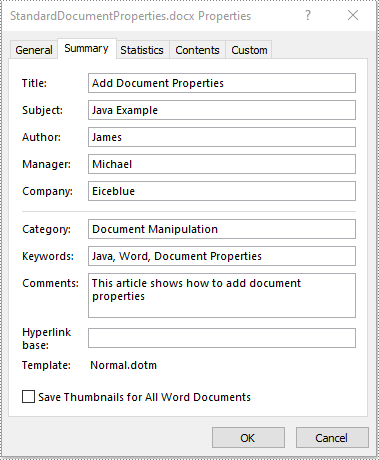
A built-in document property (also known as a standard document property) consists of a name and a value. You cannot set or change the name of a built-in document property as it’s predefined by Microsoft Word, but you can set or change its value. The following steps demonstrate how to set values for built-in document properties in a Word document in Java using Spire.Doc for Java:
- Initialize an instance of Document class.
- Load a Word document using Document.loadFromFile() method.
- Access the built-in document properties of the document using Document.getBuiltinDocumentProperties() method.
- Set the values of specific document properties such as title, subject and author using setTitle(), setSubject() and setAuthor() methods provided by BuiltinDocumentProperties class.
- Save the result document using Document.saveToFile() method.
- Java
import com.spire.doc.BuiltinDocumentProperties;
import com.spire.doc.Document;
import com.spire.doc.FileFormat;

public class AddBuiltinDocumentProperties {
    public static void main(String []args) throws Exception {
        //Create a Document instance
        Document document = new Document();
        //Load a Word document
        document.loadFromFile("Sample.docx");

        //Access the built-in document properties of the document
        BuiltinDocumentProperties standardProperties = document.getBuiltinDocumentProperties();
        //Set the values of specific built-in document properties
        standardProperties.setTitle("Add Document Properties");
        standardProperties.setSubject("Java Example");
        standardProperties.setAuthor("James");
        standardProperties.setCompany("Eiceblue");
        standardProperties.setManager("Michael");
        standardProperties.setCategory("Document Manipulation");
        standardProperties.setKeywords("Java, Word, Document Properties");
        standardProperties.setComments("This article shows how to add document properties");

        //Save the result document
        document.saveToFile("AddStandardDocumentProperties.docx", FileFormat.Docx_2013);
    }
}
Add Custom Document Properties to a Word Document in Java
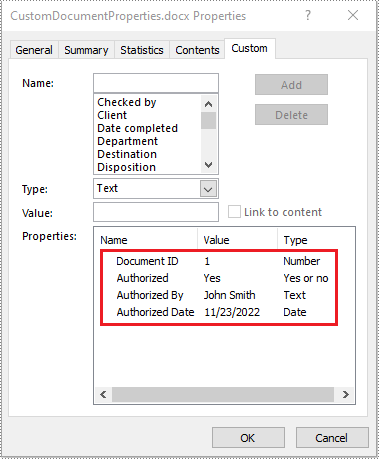
A custom document property can be defined by a document author or user. Each custom document property should contain a name, a value and a data type. The data type can be one of these four types: Text, Date, Number and Yes or No. The following steps demonstrate how to add custom document properties with different data types to a Word document in Java using Spire.Doc for Java:
- Initialize an instance of Document class.
- Load a Word document using Document.loadFromFile() method.
- Access the custom document properties of the document using Document.getCustomDocumentProperties() method.
- Add custom document properties with different data types to the document using CustomDocumentProperties.add(String, Object) method.
- Save the result document using Document.saveToFile() method.
- Java
import com.spire.doc.CustomDocumentProperties;
import com.spire.doc.Document;
import com.spire.doc.FileFormat;

import java.util.Date;

public class AddCustomDocumentProperties {
    public static void main(String []args) throws Exception {
        //Create a Document instance
        Document document = new Document();
        //Load a Word document
        document.loadFromFile("Sample.docx");

        //Access the custom document properties of the document
        CustomDocumentProperties customProperties = document.getCustomDocumentProperties();
        //Add custom document properties with different data types to the document
        customProperties.add("Document ID", 1);
        customProperties.add("Authorized", true);
        customProperties.add("Authorized By", "John Smith");
        customProperties.add("Authorized Date", new Date());

        //Save the result document
        document.saveToFile("AddCustomDocumentProperties.docx", FileFormat.Docx_2013);
    }
}
Apply for a Temporary License
If you'd like to remove the evaluation message from the generated documents, or to get rid of the function limitations, please request a 30-day trial license for yourself.
Sometimes we need to merge several related Word documents to make a more complete one. To merge documents with MS Word, you need to manually copy and paste contents or import contents from other documents, which can be tedious. Luckily, Spire.Doc for Java provides 2 easy ways to merge Word documents by programming. This article will show the detailed steps to merge Word documents.
Install Spire.Doc for Java
First, you're required to add the Spire.Doc.jar file as a dependency in your Java program. The JAR file can be downloaded from this link. If you use Maven, you can easily import the JAR file in your application by adding the following code to your project's pom.xml file.
<repositories>
    <repository>
        <id>com.e-iceblue</id>
        <name>e-iceblue</name>
        <url>https://repo.e-iceblue.com/nexus/content/groups/public/</url>
    </repository>
</repositories>
<dependencies>
    <dependency>
        <groupId>e-iceblue</groupId>
        <artifactId>spire.doc</artifactId>
        <version>14.8.4</version>
    </dependency>
</dependencies>
Merge Documents by Inserting the Entire File
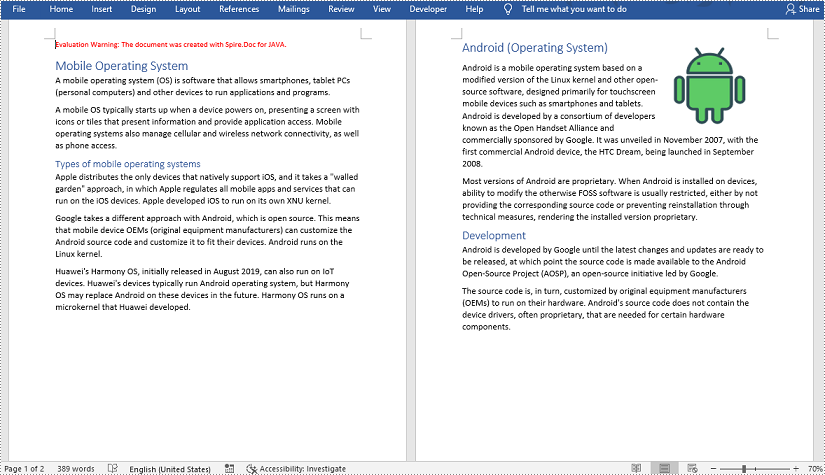
The method Document.insertTextFromFile() provided by Spire.Doc allows merging Word documents by inserting other documents entirely into a document with the inserted contents starting from a new page.
The detailed steps of merging documents by inserting the entire file are as follows:
- Create an object of Document class and load a Word document from disk.
- Insert another Word document entirely to the loaded document using Document.insertTextFromFile() method.
- Save the result document using Document.saveToFile() method.
- Java
import com.spire.doc.*;

public class merge {
    public static void main(String[] args) {
        //Create an object of Document and load a Word document from disk
        Document document = new Document("C:/Samples/Sample1.docx");

        //Insert another Word document entirely to the document
        document.insertTextFromFile("C:/Samples/Sample2.docx", FileFormat.Docx_2013);

        //Save the result document
        document.saveToFile("MergingResult.docx", FileFormat.Docx_2013);
    }
}
Merge Documents by Cloning Contents
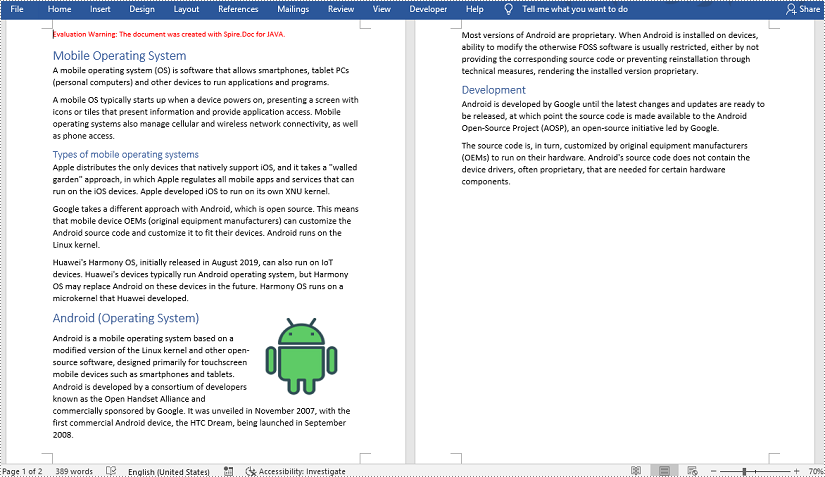
If you want to merge documents without starting a new page, you can clone the contents of other documents to add to the end of a document.
The detailed steps of merging documents by cloning contents are as follows:
- Create two objects of Document and load the two Word documents from disk.
- Loop through the second document to get all the sections using Document.getSections() method, then loop through all the sections to get their child objects using Section.getBod().getChildObjects() method, then get the last section of the first document using Document.getLastSection() method, and then add the child objects to the last section of the first document using Body.getChildObjects().add() method.
- Save the result document using Document.saveToFile() method.
- Java
import com.spire.doc.*;

public class mergeDocuments {
    public static void main(String[] args){
        //Create two Document objects and load two Word documents from disk
        Document document1 = new Document("C:/Samples/Sample1.docx");
        Document document2 = new Document("C:/Samples/Sample2.docx");

        //Loop through the second document to get all the sections
        for (Object sectionObj : (Iterable) document2.getSections()) {
            Section sec=(Section)sectionObj;
            //Loop through the sections of the second document to get their child objects
            for (Object docObj :(Iterable ) sec.getBody().getChildObjects()) {
                DocumentObject obj=(DocumentObject)docObj;

                //Get the last section of the first document
                Section lastSection = document1.getLastSection();

                //Add the child objects to the last section of the first document
                Body body = lastSection.getBody();
                body.getChildObjects().add(obj.deepClone());
            }
        }

        //Save the result document
        document1.saveToFile("MergingResult.docx", FileFormat.Docx_2013);
    }
}
Apply for a Temporary License
If you'd like to remove the evaluation message from the generated documents, or to get rid of the function limitations, please request a 30-day trial license for yourself.
Footnotes are commonly used in Word documents to provide additional information or detailed explanations for the content. Long and complex words and phrases can make writings difficult for readers to travel through. But providing explanations in the main text would break the coherence of writings and make them much more tedious. Fortunately, footnotes can help writers to give information and explanations at the end of the page, without disrupting the fluency and concision of writings. This article demonstrates how to use Spire.Doc for Java to insert or remove footnotes in Word.
Install Spire.Doc for Java
First, you're required to add the Spire.Doc.jar file as a dependency in your Java program. The JAR file can be downloaded from this link. If you use Maven, you can easily import the JAR file in your application by adding the following code to your project's pom.xml file.
<repositories>
    <repository>
        <id>com.e-iceblue</id>
        <name>e-iceblue</name>
        <url>https://repo.e-iceblue.com/nexus/content/groups/public/</url>
    </repository>
</repositories>
<dependencies>
    <dependency>
        <groupId>e-iceblue</groupId>
        <artifactId>spire.doc</artifactId>
        <version>14.8.4</version>
    </dependency>
</dependencies>
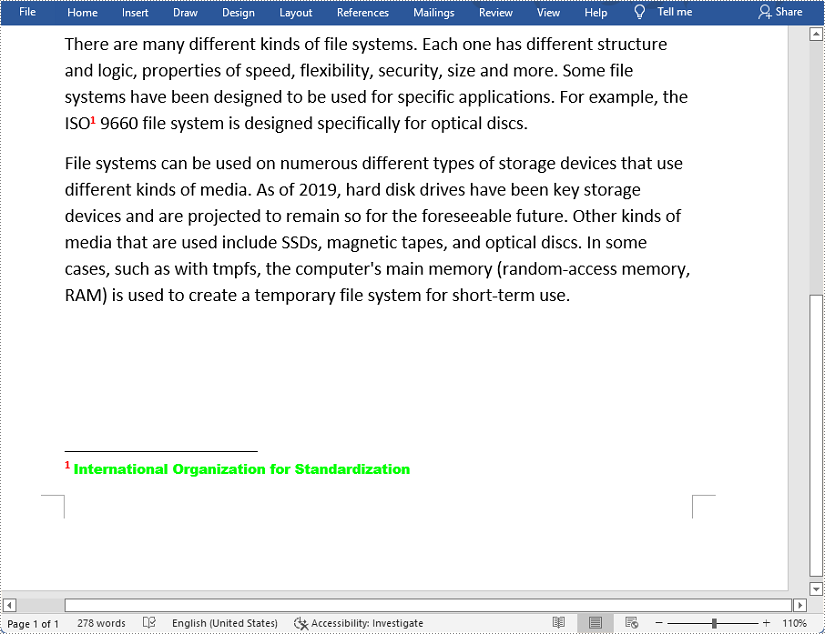
Insert a Footnote into a Word Document
The detailed steps of inserting footnote are as follows:
- Create an object of Document class.
- Load a Word document form disk using Document.loadFromFile() method.
- Find the text to be noted using Document.findString() method.
- Add a footnote using Paragraph.getChildObjects().insert() method.
- Add a paragraph in the footnote using Footnote.getTextBody().addParagraph() method.
- Add text in the added paragraph using Paragraph.appendText() method.
- Set the text format of the footnote using the methods under CharacterFormat object returned by TextRange.getCharacterFormat() method.
- Set the text format of the marker using the methods under CharaterFormat object returned by Footnote.getMarkerCharacterFormat() method.
- Save the document using Document.saveToFile() method.
- Java
import com.spire.doc.*;
import com.spire.doc.documents.*;
import com.spire.doc.fields.*;
import java.awt.*;

public class insertFootnote {
    public static void main(String[] args) {
        //Create an object of Document class
        Document document = new Document();

        //Load a Word document from disk
        document.loadFromFile("D:/Samples/Sample.docx");

        //Find the word to be cited
        TextSelection selection = document.findString("ISO", false, true);

        //Add a footnote
        TextRange textRange = selection.getAsOneRange();
        Paragraph paragraph = textRange.getOwnerParagraph();
        int index = paragraph.getChildObjects().indexOf(textRange);
        Footnote footnote = paragraph.appendFootnote(FootnoteType.Footnote);
        paragraph.getChildObjects().insert(index + 1, footnote);

        //Add a paragraph in the footnote
        Paragraph paragraph1 = footnote.getTextBody().addParagraph();

        //Add text in the added paragraph
        textRange = paragraph1.appendText("International Organization for Standardization");

        //Set the text format of the footnote
        textRange.getCharacterFormat().setFontName("Arial Black");
        textRange.getCharacterFormat().setFontSize(10);
        textRange.getCharacterFormat().setTextColor(Color.yellow);

        //Set the text format of the marker
        footnote.getMarkerCharacterFormat().setFontName("Calibri");
        footnote.getMarkerCharacterFormat().setFontSize(12);
        footnote.getMarkerCharacterFormat().setBold(true);
        footnote.getMarkerCharacterFormat().setTextColor(Color.red);

        //Save the document
        String output = "output/insertFootnote.docx";
        document.saveToFile(output, FileFormat.Docx_2010);
    }
}
Remove Footnotes from a Word Document
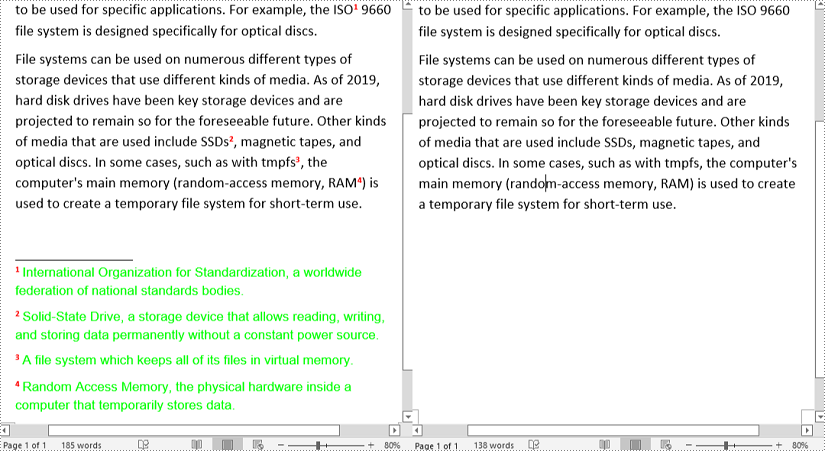
The detailed steps of removing footnotes are as follows:
- Create an object of Document class.
- Load a Word document from disk using Document.loadFromFile() method.
- Loop through sections, then paragraphs and then their child objects to get a specific child object and determine if it is a footnote.
- Remove a specific footnote using Paragraph.getChildObjects().removeAt() method.
- Save the document using Document.saveToFile() method.
- Java
import com.spire.doc.*;
import com.spire.doc.fields.*;
import com.spire.doc.documents.*;
import java.util.*;
public class RemoveFootnote {
public static void main(String[] args) {
//Create an object of Document class
Document document = new Document();
//Load a Word document from disk
document.loadFromFile("D:/Samples/Sample.docx");
//Loop through the sections
for (int i = 0; i < document.getSections().getCount(); i++) {
//Get a specific section
Section section = document.getSections().get(i);
//Loop through the paragraphs in the section
for (int j = 0; j < section.getParagraphs().getCount(); j++)
{
//Get a specific paragraph
Paragraph para = section.getParagraphs().get(j);
//Create a list
ListFootnote> footnotes = new ArrayList<>();
//Loop through the child objects in the paragraph
for (int k = 0, cnt = para.getChildObjects().getCount(); k < cnt; k++)
{
//Get a specific child object
ParagraphBase pBase = (ParagraphBase)para.getChildObjects().get(k);
//Determine if the child object is a footnote
if (pBase instanceof Footnote)
{
Footnote footnote = (Footnote)pBase;
//Add the footnote to the list
footnotes.add(footnote);
}
}
if (footnotes != null) {
//Loop through the footnotes in the list
for (int y = 0; y < footnotes.size(); y++) {
//Remove a specific footnote
para.getChildObjects().remove(footnotes.get(y));
}
}
}
}
//Save the document
document.saveToFile("output/removeFootnote.docx", FileFormat.Docx);
}
}
Apply for a Temporary License
If you'd like to remove the evaluation message from the generated documents, or to get rid of the function limitations, please request a 30-day trial license for yourself.
