
Java (485)
The appearance of a document conveys more than just document's message; it also reveals the information about the creator. A well-organized document that includes consistently formatted content and appropriate graphics, and that contains no spelling or grammatical mistakes, inspires greater trust in your ability to deliver a product or service.
Using Spire.Doc for Java, you're able to format entire paragraphs as well as individual words or phrases. This article focuses on introducing how to apply various types of formatting to characters in a Word document in Java using Spire.Doc for Java.
- Font Name
- Font Size
- Font Color
- Highlight Color
- Bold
- Italic
- Underline
- Strikethrough
- Border
- Shadow Effect
- Emphasis Mark
- Subscript and Superscript
Install Spire.Doc for Java
First of all, you're required to add the Spire.Doc.jar file as a dependency in your Java program. The JAR file can be downloaded from this link. If you use Maven, you can easily import the JAR file in your application by adding the following code to your project's pom.xml file.
<repositories>
    <repository>
        <id>com.e-iceblue</id>
        <name>e-iceblue</name>
        <url>https://repo.e-iceblue.com/nexus/content/groups/public/</url>
    </repository>
</repositories>
<dependencies>
    <dependency>
        <groupId>e-iceblue</groupId>
        <artifactId>spire.doc</artifactId>
        <version>14.7.0</version>
    </dependency>
</dependencies>
Apply Formatting to Characters in Word in Java
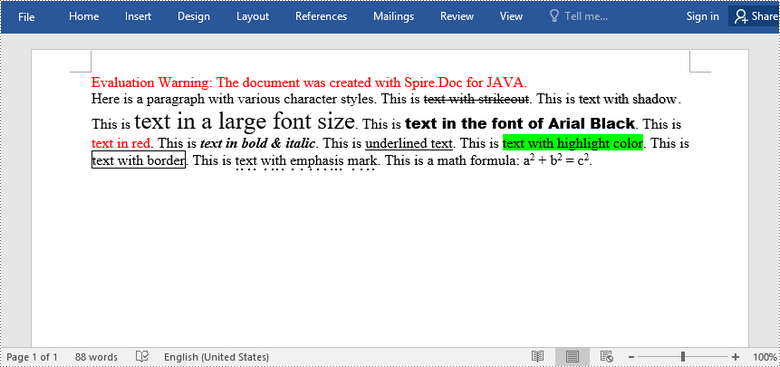
In order to apply formatting to a piece of text, you need to get the text in a TextRange and then format the characters within the TextRange using the methods under CharacterFormat class. The following are the steps to set character formatting in a Word document using Spire.Doc for Java.
- Create a Document object.
- Add a section to the document using Document.addSection() method.
- Add a paragraph to the section using Section.addParagraph() method.
- Append text to the paragraph using Paragraph.appendText() method and return a TextRange object.
- Apply formatting such as font name, font size, border and highlight color to the characters within the text range using the methods under CharacterFormat class.
- Save the document to a Word file using Document.saveToFile() method.
- Java
import com.spire.doc.Document;
import com.spire.doc.FileFormat;
import com.spire.doc.Section;
import com.spire.doc.documents.BorderStyle;
import com.spire.doc.documents.Paragraph;
import com.spire.doc.documents.SubSuperScript;
import com.spire.doc.documents.UnderlineStyle;
import com.spire.doc.fields.TextRange;
import com.spire.doc.fields.shape.Emphasis;

import java.awt.*;

public class ApplyFormattingToCharacters {

    public static void main(String[] args) {

        //Create a Document object
        Document document = new Document();

        //Add a section
        Section sec = document.addSection();

        //Add a paragraph
        Paragraph paragraph = sec.addParagraph();
        paragraph.appendText("Here is a paragraph with various character styles. This is ");

        //Append text to the paragraph and return a TextRange object
        TextRange tr = paragraph.appendText("text with strikeout");

        //Set the character format to strikeout via TextRange object
        tr.getCharacterFormat().isStrikeout(true);

        //Apply shadow effect to text
        paragraph.appendText(". This is ");
        tr = paragraph.appendText("text with shadow");
        tr.getCharacterFormat().isShadow (true);

        //Set font size
        paragraph.appendText(". This is ");
        tr = paragraph.appendText("text in a large font size");
        tr.getCharacterFormat().setFontSize(20);

        //Set font name
        paragraph.appendText(". This is ");
        tr = paragraph.appendText("text in the font of Arial Black");
        tr.getCharacterFormat().setFontName("Arial Black");

        //Set font color
        paragraph.appendText(". This is ");
        tr = paragraph.appendText("text in red");
        tr.getCharacterFormat().setTextColor(Color.red);

        //Apply bold & italic to text
        paragraph.appendText(". This is ");
        tr = paragraph.appendText("text in bold & italic");
        tr.getCharacterFormat().setBold(true);
        tr.getCharacterFormat().setItalic(true);

        //Apply underline to text
        paragraph.appendText(". This is ");
        tr = paragraph.appendText("underlined text");
        tr.getCharacterFormat().setUnderlineStyle(UnderlineStyle.Single);

        //Apply background color to text
        paragraph.appendText(". This is ");
        tr = paragraph.appendText("text with highlight color");
        tr.getCharacterFormat().setHighlightColor(Color.green);

        //Apply border to text
        paragraph.appendText(". This is ");
        tr = paragraph.appendText("text with border");
        tr.getCharacterFormat().getBorder().setBorderType(BorderStyle.Single);
        tr.getCharacterFormat().getBorder().setColor(Color.black);

        //Apply emphasis mark to text
        paragraph.appendText(". This is ");
        tr = paragraph.appendText("text with emphasis mark");
        tr.getCharacterFormat().setEmphasisMark(Emphasis.Dot_Below);

        //Apply superscript to text
        paragraph.appendText(". This is a math formula: a");
        tr = paragraph.appendText("2");
        tr.getCharacterFormat().setSubSuperScript(SubSuperScript.Super_Script);
        paragraph.appendText(" + b");
        tr = paragraph.appendText("2");
        tr.getCharacterFormat().setSubSuperScript(SubSuperScript.Super_Script);
        paragraph.appendText(" = c");
        tr = paragraph.appendText("2");
        tr.getCharacterFormat().setSubSuperScript(SubSuperScript.Super_Script);
        paragraph.appendText(".");

        //Save to file
        document.saveToFile("output/SetCharacterFormat.docx", FileFormat.Docx);
    }
}
Apply for a Temporary License
If you'd like to remove the evaluation message from the generated documents, or to get rid of the function limitations, please request a 30-day trial license for yourself.
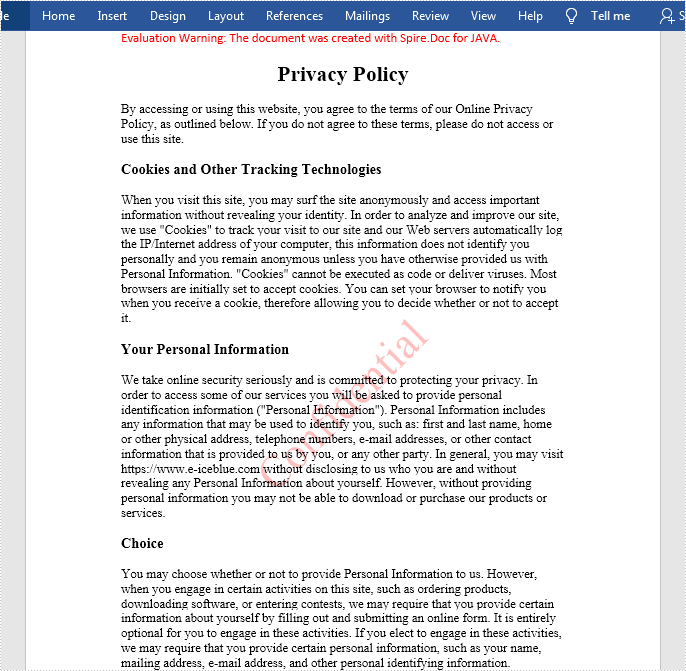
A watermark is a very light image or text that sits in the background of a document. When you need to send a document to others, it’s common to add a watermark to the document to prevent unwarranted use or remind readers that the document is confidential or is a draft, sample, etc. In this article, you will learn how to programmatically add a text watermark or an image watermark to a Word document using Spire.Doc for Java.
Install Spire.Doc for Java
First of all, you're required to add the Spire.Doc.jar file as a dependency in your Java program. The JAR file can be downloaded from this link. If you use Maven, you can easily import the JAR file in your application by adding the following code to your project's pom.xml file.
<repositories>
    <repository>
        <id>com.e-iceblue</id>
        <name>e-iceblue</name>
        <url>https://repo.e-iceblue.com/nexus/content/groups/public/</url>
    </repository>
</repositories>
<dependencies>
    <dependency>
        <groupId>e-iceblue</groupId>
        <artifactId>spire.doc</artifactId>
        <version>14.7.0</version>
    </dependency>
</dependencies>
Add a Text Watermark to Word
The detailed steps are as follows:
- Create a Document instance.
- Load a sample Word document using Document.loadFromFile() method.
- Get the first section using Document.getSections().get() method.
- Create a TextWatermark instance.
- Set the text, font size, color and layout of the text watermark using the methods offered by TextWatermark class.
- Add the text watermark to sample document using Section.getDocument().setWatermark() method.
- Save the document to file using Document.saveToFile() method.
- Java
import com.spire.doc.*;
import com.spire.doc.documents.WatermarkLayout;
import java.awt.*;

public class WordTextWatermark {
    public static void main(String[] args) {
        //Create a Document instance
        Document document = new Document();

        //Load a sample Word document
        document.loadFromFile("Sample.docx");

        //Get the first section
        Section section = document.getSections().get(0);

        //Create a TextWatermark instance
        TextWatermark txtWatermark = new TextWatermark();

        //Set the format of the text watermark
        txtWatermark.setText("Confidential");
        txtWatermark.setFontSize(40);
        txtWatermark.setColor(Color.red);
        txtWatermark.setLayout(WatermarkLayout.Diagonal);

        //Add the text watermark to document
        section.getDocument().setWatermark(txtWatermark);

        //Save the document to file
        document.saveToFile("out/result.docx", FileFormat.Docx);
    }

}
Add an Image Watermark to Word
The detailed steps are as follows:
- Create a Document instance.
- Load a sample Word document using Document.loadFromFile() method.
- Create a PictureWatermark instance.
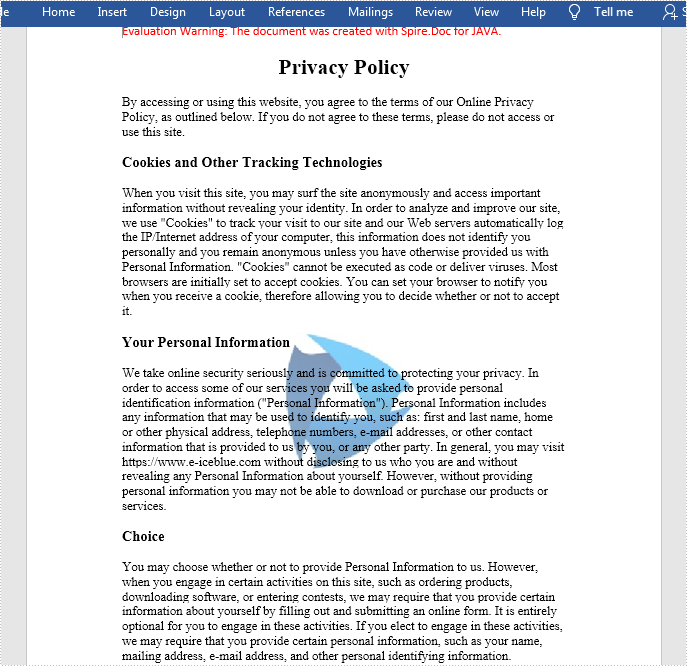
- Load an image as the image watermark using PictureWatermark.setPicture() method, and then set scaling as well as washout property of the image watermark using PictureWatermark.setScaling() method and PictureWatermark.isWashout() method.
- Add the image watermark to sample document using Document.setWatermark() method.
- Save the document to file using Document.saveToFile() method.
- Java
import com.spire.doc.*;


public class WordImageWatermark {
    public static void main(String[] args)  throws Exception{
        //Create a Document instance
        Document document = new Document();

        //Load a sample Word document
        document.loadFromFile("Sample.docx");

        //Create a PictureWatermark instance
        PictureWatermark picture = new PictureWatermark();

        //Set the format of the picture watermark
        picture.setPicture("logo.png");
        picture.setScaling(100);
        picture.isWashout(false);

        //Add the image watermark to document
        document.setWatermark(picture);

        //Save the result file
        document.saveToFile("out/result2.docx",FileFormat.Docx );
    }
}
Apply for a Temporary License
If you'd like to remove the evaluation message from the generated documents, or to get rid of the function limitations, please request a 30-day trial license for yourself.

Spire.Doc for Java is a professional Word API that empowers Java applications to create, convert, manipulate and print Word documents without dependency on Microsoft Word.
By using this multifunctional library, developers are able to process copious tasks effortlessly, such as inserting images, shapes, lists, hyperlink, pages, digital signature, WordArt, variables, bookmark, watermark, barcodes, page breaks, section breaks, math equations, and setting header and footer, creating table, setting background image, setting fonts, adding footnote/endnote etc.


