
Annotation (5)
Once a PDF reaches the review stage it becomes a file that gets passed back and forth: one page needs its key points marked, another needs a note on what to change, and the final copy needs an "Approved" stamp. Adding these marks by hand in a reader one at a time does not scale once there are many documents, and the next revision means doing it all over again. Build the marks into the generation flow and annotations come out together with the document.
Spire.PDF for JavaScript loads, modifies, and saves PDF documents in the browser with WebAssembly. Annotations are generated locally and files are read and written through a virtual file system (VFS), with no backend involved. This article uses PdfPage.Annotations to carry eight kinds of annotations: text markup, free text, popup, stamps, lines and polygons, plus web links, file links, and in-document jump links.
This article covers eight core features:
- Add a Text Markup Annotation
- Add a Free Text Annotation
- Add a Popup Annotation
- Add a Stamp Annotation
- Add a Shape Annotation
- Add a Web Link Annotation
- Add a File Link Annotation
- Add a Document Link Annotation
For installation and project setup, see How to Integrate Spire.PDF for JavaScript in a React Project. The examples below assume Spire.PDF is installed and the WebAssembly module is initialized.
Add a Text Markup Annotation
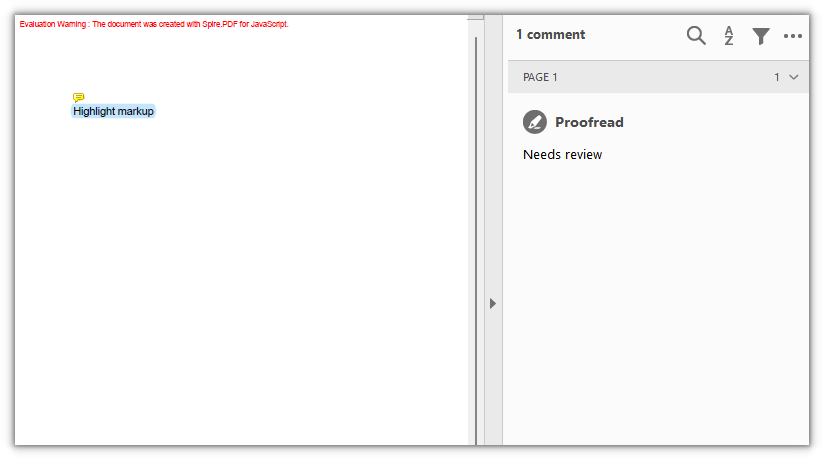
PdfTextMarkupAnnotation overlays a mark on existing text without changing the text itself. Set TextMarkupAnnotationType to Highlight and pick a color with TextMarkupColor to get the most common effect, a highlight that leaves the body text color untouched. The marked area is bounded by four corner points (QuadPoints) in absolute page coordinates, so clear the page margins first to make the canvas and the corner points line up. title and text are written into the annotation as its author and note; they are not drawn on the page and show up in the reader's comment panel.
function App() {
  const addTextMarkupAnnotation = async () => {
    // Get the Spire.PDF WASM module
    const pdfModule = window.wasmModule?.spirepdf;

    // Check that the module is ready
    if (!pdfModule) {
      alert('Spire.PDF is not ready yet');
      return;
    }

    // The sample text on the page needs a font; load it into the VFS first
    await window.spire.FetchFileToVFS('ARIALUNI.TTF', '/Library/Fonts/', `${process.env.PUBLIC_URL}/font/`);

    const doc = new pdfModule.PdfDocument();

    // Zero the page margins so the canvas coordinates line up with the annotation's corner points
    const margins = new pdfModule.PdfMargins();
    margins.Top = 0;
    margins.Bottom = 0;
    margins.Left = 0;
    margins.Right = 0;
    doc.PageSettings.Margins = margins;

    const page = doc.Pages.Add();

    const font = new pdfModule.PdfTrueTypeFont({
      fontFamily: 'Arial Unicode MS',
      size: 14,
      style: pdfModule.PdfFontStyle.Regular,
      unicode: true,
    });
    const brush = pdfModule.PdfBrushes.get_Black();

    const text = 'Highlight markup';

    // Draw the target text on the page first
    page.Canvas.DrawString({ s: text, font, brush, x: 80, y: 120 });

    // Measure the text so the markup covers it exactly
    const size = font.MeasureString({ text });
    const rect = new pdfModule.RectangleF({ x: 80, y: 120, width: size.Width, height: size.Height });

    const annotation = new pdfModule.PdfTextMarkupAnnotation({ title: 'Proofread', text: 'Needs review', rect, font });

    // Marked area: the four corner points of the text rectangle
    annotation.QuadPoints = [
      new pdfModule.PointF(rect.Left, rect.Top),
      new pdfModule.PointF(rect.Right, rect.Top),
      new pdfModule.PointF(rect.Left, rect.Bottom),
      new pdfModule.PointF(rect.Right, rect.Bottom),
    ];
    annotation.TextMarkupAnnotationType = pdfModule.PdfTextMarkupAnnotationType.Highlight;
    annotation.TextMarkupColor = new pdfModule.PdfRGBColor({ color: pdfModule.Color.get_LightSkyBlue() });

    page.Annotations.Add(annotation);

    const outputFileName = 'TextMarkupAnnotation.pdf';
    doc.SaveToFile(outputFileName);
    doc.Close();

    // Read the generated file from the VFS and trigger the download
    const fileArray = window.dotnetRuntime.Module.FS.readFile(outputFileName);
    const blob = new Blob([fileArray], { type: 'application/pdf' });
    const url = URL.createObjectURL(blob);
    const a = document.createElement('a');
    a.href = url;
    a.download = outputFileName;
    a.click();
    URL.revokeObjectURL(url);
  };

  return (
    <div style={{ textAlign: 'center', height: '300px' }}>
      <h1>Add a Text Markup Annotation</h1>
      <button onClick={addTextMarkupAnnotation}>Add Annotation</button>
    </div>
  );
}

export default App;
A piece of text on the page covered by a highlight markup:
Add a Free Text Annotation
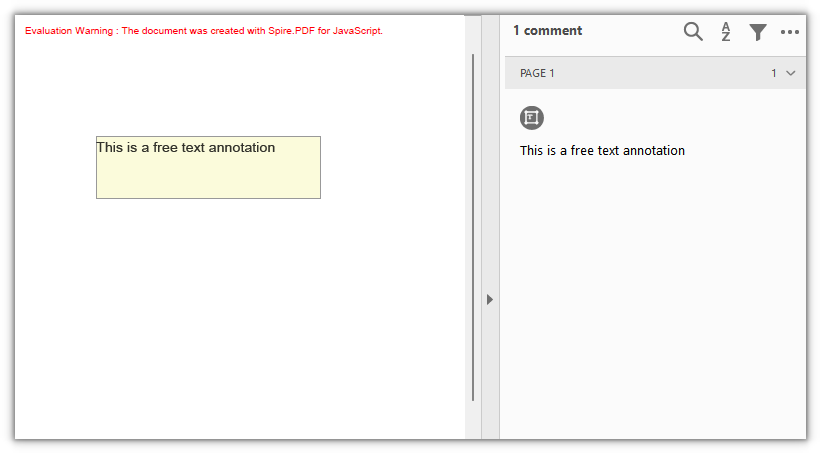
PdfFreeTextAnnotation draws a block of text directly on the page as a text box, which is common for notes, comments, or fill-in fields. The box position and size come from the rectangle passed to the constructor, and the font, border, background, and opacity can all be set afterward.
function App() {
  const addFreeTextAnnotation = async () => {
    // Get the Spire.PDF WASM module
    const pdfModule = window.wasmModule?.spirepdf;

    // Check that the module is ready
    if (!pdfModule) {
      alert('Spire.PDF is not ready yet');
      return;
    }

    // The text box needs a font; load it into the VFS first
    await window.spire.FetchFileToVFS('ARIALUNI.TTF', '/Library/Fonts/', `${process.env.PUBLIC_URL}/font/`);

    const doc = new pdfModule.PdfDocument();
    const page = doc.Pages.Add();

    const rect = new pdfModule.RectangleF({ x: 80, y: 120, width: 220, height: 60 });

    // The rectangle is passed to the constructor, so it decides the annotation's position and size
    const annotation = new pdfModule.PdfFreeTextAnnotation(rect);
    annotation.Text = 'This is a free text annotation';
    annotation.Font = new pdfModule.PdfTrueTypeFont({
      fontFamily: 'Arial Unicode MS',
      size: 14,
      style: pdfModule.PdfFontStyle.Regular,
      unicode: true,
    });
    annotation.Border = new pdfModule.PdfAnnotationBorder({ borderWidth: 1 });
    annotation.BorderColor = new pdfModule.PdfRGBColor({ color: pdfModule.Color.get_Gray() });
    annotation.Color = new pdfModule.PdfRGBColor({ color: pdfModule.Color.get_LightGoldenrodYellow() });
    annotation.Opacity = 0.8;

    page.Annotations.Add(annotation);

    const outputFileName = 'FreeTextAnnotation.pdf';
    doc.SaveToFile(outputFileName);
    doc.Close();

    // Read the generated file from the VFS and trigger the download
    const fileArray = window.dotnetRuntime.Module.FS.readFile(outputFileName);
    const blob = new Blob([fileArray], { type: 'application/pdf' });
    const url = URL.createObjectURL(blob);
    const a = document.createElement('a');
    a.href = url;
    a.download = outputFileName;
    a.click();
    URL.revokeObjectURL(url);
  };

  return (
    <div style={{ textAlign: 'center', height: '300px' }}>
      <h1>Add a Free Text Annotation</h1>
      <button onClick={addFreeTextAnnotation}>Add Annotation</button>
    </div>
  );
}

export default App;
A block of free text with a border and a background on the page:
Add a Popup Annotation
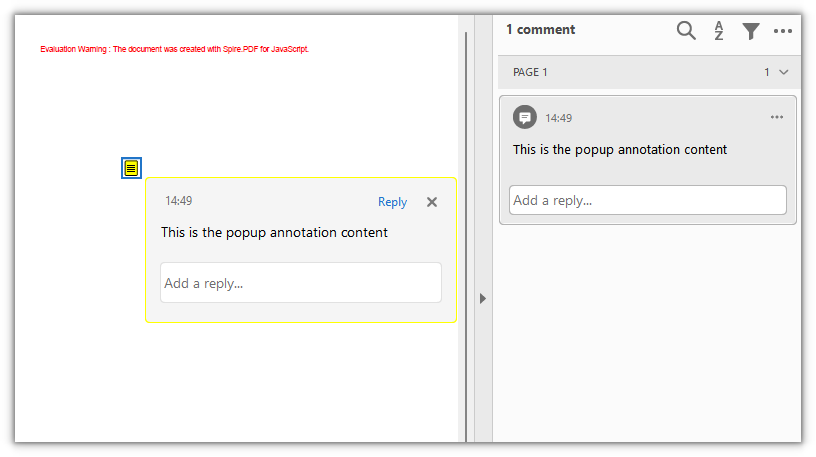
PdfPopupAnnotation places an expandable popup window that leaves only an icon when collapsed, which suits a longer note that should not take up page space. The icon style is set with Icon, whose values include Note, Comment, Help, Insert, Key, NewParagraph, and Paragraph.
function App() {
  const addPopupAnnotation = async () => {
    // Get the Spire.PDF WASM module
    const pdfModule = window.wasmModule?.spirepdf;

    // Check that the module is ready
    if (!pdfModule) {
      alert('Spire.PDF is not ready yet');
      return;
    }

    const doc = new pdfModule.PdfDocument();
    const page = doc.Pages.Add();

    // A collapsed popup annotation is just an icon, so a zero-size rectangle marks its spot
    const rect = new pdfModule.RectangleF({ x: 120, y: 160, width: 0, height: 0 });

    const annotation = new pdfModule.PdfPopupAnnotation({ rectangle: rect, text: 'This is the popup annotation content' });
    annotation.Icon = pdfModule.PdfPopupIcon.Note;
    annotation.Open = true;
    annotation.Color = new pdfModule.PdfRGBColor({ color: pdfModule.Color.get_Yellow() });

    page.Annotations.Add(annotation);

    const outputFileName = 'PopupAnnotation.pdf';
    doc.SaveToFile(outputFileName);
    doc.Close();

    // Read the generated file from the VFS and trigger the download
    const fileArray = window.dotnetRuntime.Module.FS.readFile(outputFileName);
    const blob = new Blob([fileArray], { type: 'application/pdf' });
    const url = URL.createObjectURL(blob);
    const a = document.createElement('a');
    a.href = url;
    a.download = outputFileName;
    a.click();
    URL.revokeObjectURL(url);
  };

  return (
    <div style={{ textAlign: 'center', height: '300px' }}>
      <h1>Add a Popup Annotation</h1>
      <button onClick={addPopupAnnotation}>Add Annotation</button>
    </div>
  );
}

export default App;
A popup annotation on the page, with its content expanded next to the icon:
Add a Stamp Annotation
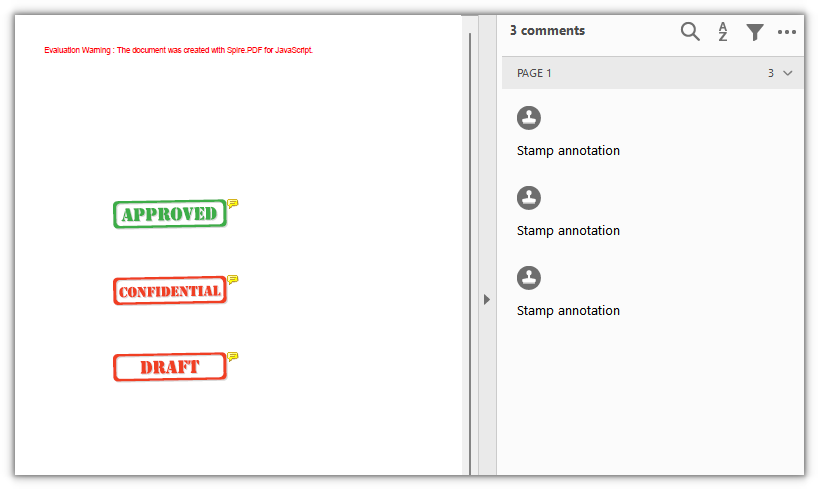
PdfRubberStampAnnotation is used to place a stamp. It ships with a set of ready-made icons, so setting Icon produces a stamped frame with text and no need to draw the appearance yourself. The available icons include Approved, Confidential, Draft, Final, Expired, Sold, TopSecret, NotForPublicRelease, and a dozen or so more.
function App() {
  const addStampAnnotations = async () => {
    // Get the Spire.PDF WASM module
    const pdfModule = window.wasmModule?.spirepdf;

    // Check that the module is ready
    if (!pdfModule) {
      alert('Spire.PDF is not ready yet');
      return;
    }

    const doc = new pdfModule.PdfDocument();
    const page = doc.Pages.Add();

    // Place three common stamps with built-in icons
    const stamps = [
      { icon: pdfModule.PdfRubberStampAnnotationIcon.Approved, y: 200, color: pdfModule.Color.get_LightGreen() },
      { icon: pdfModule.PdfRubberStampAnnotationIcon.Confidential, y: 300, color: pdfModule.Color.get_LightPink() },
      { icon: pdfModule.PdfRubberStampAnnotationIcon.Draft, y: 400, color: pdfModule.Color.get_LightBlue() },
    ];

    for (const stamp of stamps) {
      const rect = new pdfModule.RectangleF({ x: 100, y: stamp.y, width: 150, height: 60 });

      const annotation = new pdfModule.PdfRubberStampAnnotation({ rectangle: rect, text: 'Stamp annotation' });
      annotation.Icon = stamp.icon;
      annotation.Color = new pdfModule.PdfRGBColor({ color: stamp.color });

      page.Annotations.Add(annotation);
    }

    const outputFileName = 'StampAnnotation.pdf';
    doc.SaveToFile(outputFileName);
    doc.Close();

    // Read the generated file from the VFS and trigger the download
    const fileArray = window.dotnetRuntime.Module.FS.readFile(outputFileName);
    const blob = new Blob([fileArray], { type: 'application/pdf' });
    const url = URL.createObjectURL(blob);
    const a = document.createElement('a');
    a.href = url;
    a.download = outputFileName;
    a.click();
    URL.revokeObjectURL(url);
  };

  return (
    <div style={{ textAlign: 'center', height: '300px' }}>
      <h1>Add a Stamp Annotation</h1>
      <button onClick={addStampAnnotations}>Add Stamp</button>
    </div>
  );
}

export default App;
Three built-in icon stamps:
Add a Shape Annotation
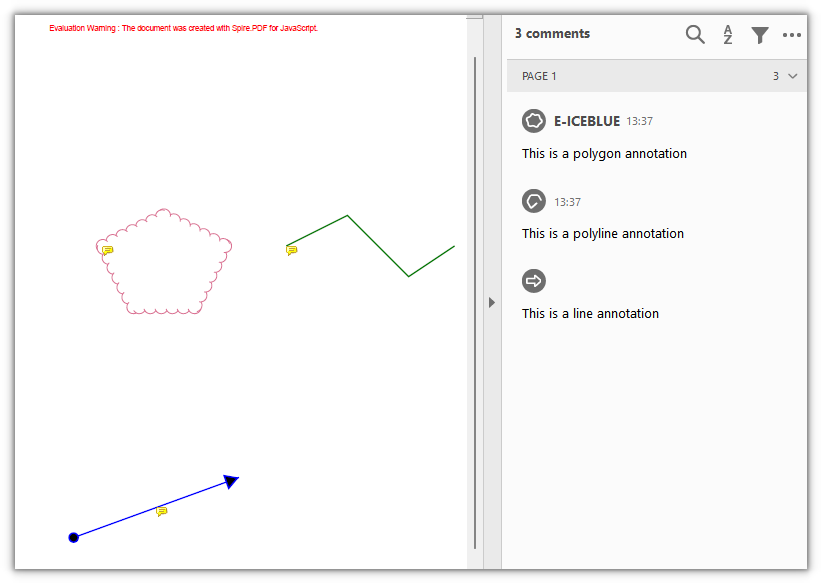
Shape annotations attach geometric figures to the page as independent objects, unlike drawing directly on the canvas: they carry their own properties and notes, and readers can recognize and select them individually. The three classes cover lines, polygons, and polylines:
| Class | Description |
|---|---|
PdfLineAnnotation |
A straight line, with configurable line endings and arrows |
PdfPolygonAnnotation |
A closed polygon bounded by several vertices |
PdfPolyLineAnnotation |
An open polyline connected by several vertices |
A polygon regenerates its appearance before it is added to the page, so set Author and Subject first; otherwise Add fails on a null reference.
function App() {
  const addShapeAnnotations = async () => {
    // Get the Spire.PDF WASM module
    const pdfModule = window.wasmModule?.spirepdf;

    // Check that the module is ready
    if (!pdfModule) {
      alert('Spire.PDF is not ready yet');
      return;
    }

    const doc = new pdfModule.PdfDocument();
    const page = doc.Pages.Add();

    // Line: given a start and an end point, with arrows at both ends
    const line = new pdfModule.PdfLineAnnotation({ linePoints: [80, 120, 300, 200], text: 'This is a line annotation' });
    line.lineBorder.BorderStyle = pdfModule.PdfLineBorderStyle.Solid;
    line.lineBorder.BorderWidth = 2;
    line.BeginLineStyle = pdfModule.PdfLineEndingStyle.Circle;
    line.EndLineStyle = pdfModule.PdfLineEndingStyle.ClosedArrow;
    line.BackColor = new pdfModule.PdfRGBColor({ color: pdfModule.Color.get_Blue() });
    page.Annotations.Add(line);

    // Polygon: vertices joined head to tail into a closed region
    const polygonPoints = [
      new pdfModule.PointF(80, 300),
      new pdfModule.PointF(160, 260),
      new pdfModule.PointF(240, 300),
      new pdfModule.PointF(200, 380),
      new pdfModule.PointF(120, 380),
      new pdfModule.PointF(80, 300),
    ];
    const polygon = new pdfModule.PdfPolygonAnnotation(page, polygonPoints);
    polygon.Color = new pdfModule.PdfRGBColor({ color: pdfModule.Color.get_PaleVioletRed() });
    polygon.Text = 'This is a polygon annotation';
    polygon.Author = 'E-ICEBLUE';
    polygon.Subject = 'polygon annotation demo';
    polygon.BorderEffect = pdfModule.PdfBorderEffect.BigCloud;
    polygon.ModifiedDate = new Date();
    page.Annotations.Add(polygon);

    // Polyline: vertices connected in order, not closed
    const polylinePoints = [
      new pdfModule.PointF(320, 300),
      new pdfModule.PointF(400, 260),
      new pdfModule.PointF(480, 340),
      new pdfModule.PointF(540, 300),
    ];
    const polyline = new pdfModule.PdfPolyLineAnnotation(page, polylinePoints);
    polyline.Color = new pdfModule.PdfRGBColor({ color: pdfModule.Color.get_Green() });
    polyline.Text = 'This is a polyline annotation';
    polyline.Border = new pdfModule.PdfAnnotationBorder({ borderWidth: 2 });
    page.Annotations.Add(polyline);

    const outputFileName = 'ShapeAnnotation.pdf';
    doc.SaveToFile(outputFileName);
    doc.Close();

    // Read the generated file from the VFS and trigger the download
    const fileArray = window.dotnetRuntime.Module.FS.readFile(outputFileName);
    const blob = new Blob([fileArray], { type: 'application/pdf' });
    const url = URL.createObjectURL(blob);
    const a = document.createElement('a');
    a.href = url;
    a.download = outputFileName;
    a.click();
    URL.revokeObjectURL(url);
  };

  return (
    <div style={{ textAlign: 'center', height: '300px' }}>
      <h1>Add a Shape Annotation</h1>
      <button onClick={addShapeAnnotations}>Add Shape</button>
    </div>
  );
}

export default App;
Line, polygon, and polyline annotations on the same page:
Add a Web Link Annotation
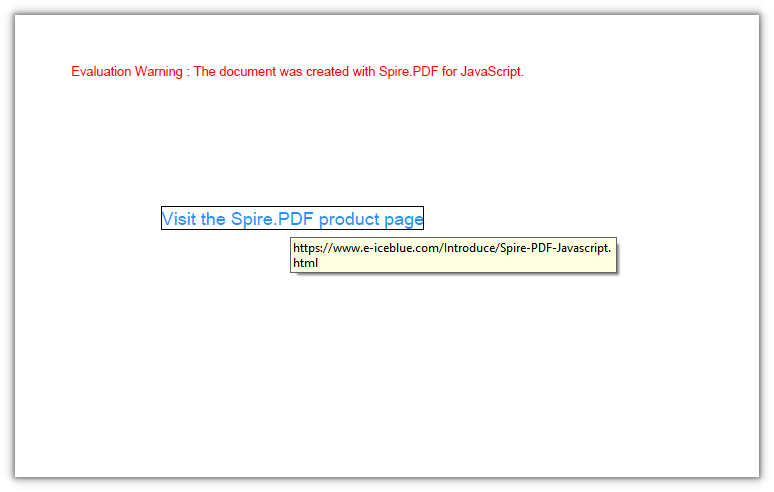
PdfUriAnnotation turns a rectangular area into a link to a URL; when clicked, the reader hands it to the browser to open.
function App() {
  const addWebLinkAnnotation = async () => {
    // Get the Spire.PDF WASM module
    const pdfModule = window.wasmModule?.spirepdf;

    // Check that the module is ready
    if (!pdfModule) {
      alert('Spire.PDF is not ready yet');
      return;
    }

    // The page needs a font; load it into the VFS first
    await window.spire.FetchFileToVFS('ARIALUNI.TTF', '/Library/Fonts/', `${process.env.PUBLIC_URL}/font/`);

    const doc = new pdfModule.PdfDocument();
    const page = doc.Pages.Add();

    const font = new pdfModule.PdfTrueTypeFont({ fontFamily: 'Arial Unicode MS', size: 14, style: pdfModule.PdfFontStyle.Regular, unicode: true });
    const text = 'Visit the Spire.PDF product page';

    // A link area is invisible, so draw some text first as the clickable entry
    page.Canvas.DrawString({ s: text, font, brush: pdfModule.PdfBrushes.get_DodgerBlue(), x: 80, y: 120 });
    const size = font.MeasureString({ text });

    const rect = new pdfModule.RectangleF({ x: 80, y: 120, width: size.Width, height: size.Height });
    const link = new pdfModule.PdfUriAnnotation({ rectangle: rect });
    link.Uri = 'https://www.e-iceblue.com/Introduce/Spire-PDF-Javascript.html';

    page.Annotations.Add(link);

    const outputFileName = 'WebLinkAnnotation.pdf';
    doc.SaveToFile(outputFileName);
    doc.Close();

    // Read the generated file from the VFS and trigger the download
    const fileArray = window.dotnetRuntime.Module.FS.readFile(outputFileName);
    const blob = new Blob([fileArray], { type: 'application/pdf' });
    const url = URL.createObjectURL(blob);
    const a = document.createElement('a');
    a.href = url;
    a.download = outputFileName;
    a.click();
    URL.revokeObjectURL(url);
  };

  return (
    <div style={{ textAlign: 'center', height: '300px' }}>
      <h1>Add a Web Link Annotation</h1>
      <button onClick={addWebLinkAnnotation}>Add Link</button>
    </div>
  );
}

export default App;
A web link annotation pointing to the product page, with the link area covering the text:
Add a File Link Annotation
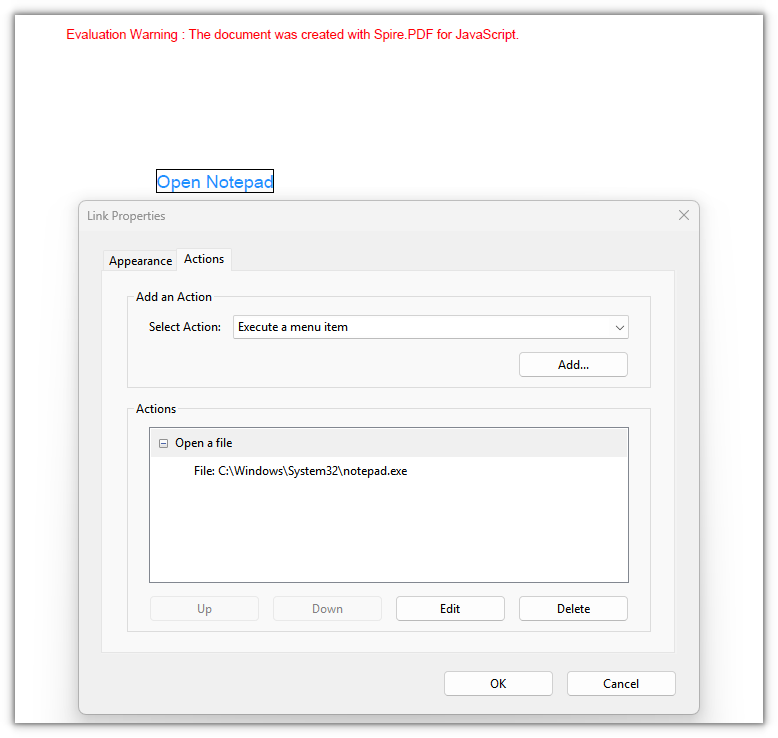
PdfFileLinkAnnotation turns an area into a file link; when clicked, the reader opens the specified file through its system association.
function App() {
  const addFileLinkAnnotation = async () => {
    // Get the Spire.PDF WASM module
    const pdfModule = window.wasmModule?.spirepdf;

    // Check that the module is ready
    if (!pdfModule) {
      alert('Spire.PDF is not ready yet');
      return;
    }

    // The page needs a font; load it into the VFS first
    await window.spire.FetchFileToVFS('ARIALUNI.TTF', '/Library/Fonts/', `${process.env.PUBLIC_URL}/font/`);

    const doc = new pdfModule.PdfDocument();
    const page = doc.Pages.Add();

    const font = new pdfModule.PdfTrueTypeFont({ fontFamily: 'Arial Unicode MS', size: 14, style: pdfModule.PdfFontStyle.Regular, unicode: true });
    const text = 'Open Notepad';

    // Draw some text first as the clickable entry for the file link
    page.Canvas.DrawString({ s: text, font, brush: pdfModule.PdfBrushes.get_DodgerBlue(), x: 80, y: 120 });
    const size = font.MeasureString({ text });

    const rect = new pdfModule.RectangleF({ x: 80, y: 120, width: size.Width, height: size.Height });
    const link = new pdfModule.PdfFileLinkAnnotation(rect, 'C:\\Windows\\System32\\notepad.exe');

    page.Annotations.Add(link);

    const outputFileName = 'FileLinkAnnotation.pdf';
    doc.SaveToFile(outputFileName);
    doc.Close();

    // Read the generated file from the VFS and trigger the download
    const fileArray = window.dotnetRuntime.Module.FS.readFile(outputFileName);
    const blob = new Blob([fileArray], { type: 'application/pdf' });
    const url = URL.createObjectURL(blob);
    const a = document.createElement('a');
    a.href = url;
    a.download = outputFileName;
    a.click();
    URL.revokeObjectURL(url);
  };

  return (
    <div style={{ textAlign: 'center', height: '300px' }}>
      <h1>Add a File Link Annotation</h1>
      <button onClick={addFileLinkAnnotation}>Add Link</button>
    </div>
  );
}

export default App;
A file link annotation that opens the specified file through its system association when clicked:
Add a Document Link Annotation
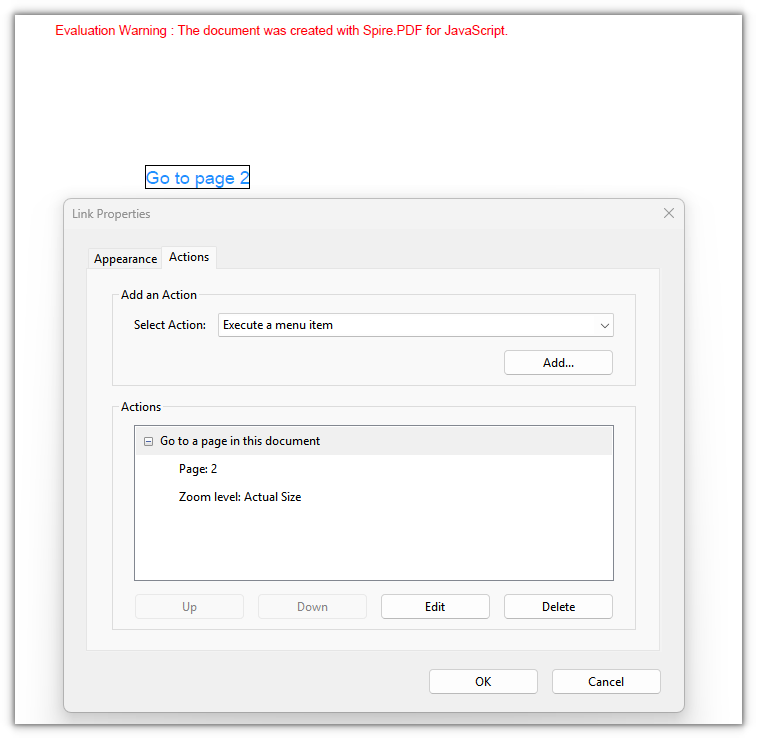
PdfDocumentLinkAnnotation handles in-document jumps: when clicked, it moves to the page and position given by a PdfDestination.
function App() {
  const addDocumentLinkAnnotation = async () => {
    // Get the Spire.PDF WASM module
    const pdfModule = window.wasmModule?.spirepdf;

    // Check that the module is ready
    if (!pdfModule) {
      alert('Spire.PDF is not ready yet');
      return;
    }

    // The page needs a font; load it into the VFS first
    await window.spire.FetchFileToVFS('ARIALUNI.TTF', '/Library/Fonts/', `${process.env.PUBLIC_URL}/font/`);

    const doc = new pdfModule.PdfDocument();
    const page = doc.Pages.Add();

    // Append a second page as the jump target
    const target = doc.Pages.Add();

    const font = new pdfModule.PdfTrueTypeFont({ fontFamily: 'Arial Unicode MS', size: 14, style: pdfModule.PdfFontStyle.Regular, unicode: true });
    target.Canvas.DrawString({ s: 'This is the destination page', font, brush: pdfModule.PdfBrushes.get_Black(), x: 80, y: 120 });

    const text = 'Go to page 2';
    page.Canvas.DrawString({ s: text, font, brush: pdfModule.PdfBrushes.get_DodgerBlue(), x: 80, y: 120 });
    const size = font.MeasureString({ text });

    // Destination: 80 points down from the top of page 2, at 100% zoom
    const destination = new pdfModule.PdfDestination({ page: target });
    destination.Mode = pdfModule.PdfDestinationMode.Location;
    destination.Location = new pdfModule.PointF(0, 80);
    destination.Zoom = 1;

    const rect = new pdfModule.RectangleF({ x: 80, y: 120, width: size.Width, height: size.Height });
    const link = new pdfModule.PdfDocumentLinkAnnotation({ rectangle: rect, destination });

    page.Annotations.Add(link);

    const outputFileName = 'DocumentLinkAnnotation.pdf';
    doc.SaveToFile(outputFileName);
    doc.Close();

    // Read the generated file from the VFS and trigger the download
    const fileArray = window.dotnetRuntime.Module.FS.readFile(outputFileName);
    const blob = new Blob([fileArray], { type: 'application/pdf' });
    const url = URL.createObjectURL(blob);
    const a = document.createElement('a');
    a.href = url;
    a.download = outputFileName;
    a.click();
    URL.revokeObjectURL(url);
  };

  return (
    <div style={{ textAlign: 'center', height: '300px' }}>
      <h1>Add a Document Link Annotation</h1>
      <button onClick={addDocumentLinkAnnotation}>Add Link</button>
    </div>
  );
}

export default App;
A link on page 1 pointing to a position on page 2:
FAQ
Text on the page renders as boxes or blank
Cause: The body text and the annotation text both need a Unicode TrueType font. If the font is not loaded into the VFS, or PdfTrueTypeFont is used without unicode: true, the glyphs cannot be resolved and the saved file shows boxes or nothing at all.
Solution: Load the font file into /Library/Fonts/ in the VFS first, then reference the same font name with unicode enabled:
// Load the font into the VFS
await window.spire.FetchFileToVFS('ARIALUNI.TTF', '/Library/Fonts/', `${process.env.PUBLIC_URL}/font/`);

// Use the same font name and enable unicode
const font = new pdfModule.PdfTrueTypeFont({ fontFamily: 'Arial Unicode MS', size: 14, style: pdfModule.PdfFontStyle.Regular, unicode: true });
Link annotations leave no visible trace on the page
Cause: Link annotations only define a clickable area and an action; they draw no appearance of their own. Most readers do not draw a border around links, so the page looks unchanged after saving — which does not mean the annotation was not written.
Solution: To make it visible, draw text or a shape at the same rectangle and lay the link on top:
// Draw visible text first, then build the link from a rectangle of the same size
page.Canvas.DrawString({ s: text, font, brush: pdfModule.PdfBrushes.get_DodgerBlue(), x: 80, y: 120 });
const size = font.MeasureString({ text });
const rect = new pdfModule.RectangleF({ x: 80, y: 120, width: size.Width, height: size.Height });
const link = new pdfModule.PdfUriAnnotation({ rectangle: rect });
link.Uri = 'https://www.e-iceblue.com/';
The text markup annotation does not cover the text
Cause: The marked area is decided by QuadPoints, which uses absolute page coordinates and does not follow the text and align itself, while the canvas origin is pushed aside by the page margins. When the two are out of step, the mark lands beside the text or over empty space.
Solution: Zero the page margins first so the canvas and the corner points share one coordinate system, then measure the text with MeasureString and derive the four corner points from it:
const margins = new pdfModule.PdfMargins();
margins.Top = 0; margins.Bottom = 0; margins.Left = 0; margins.Right = 0;
doc.PageSettings.Margins = margins;

const size = font.MeasureString({ text: 'Highlight markup' });
const rect = new pdfModule.RectangleF({ x: 80, y: 120, width: size.Width, height: size.Height });
annotation.QuadPoints = [
  new pdfModule.PointF(rect.Left, rect.Top),
  new pdfModule.PointF(rect.Right, rect.Top),
  new pdfModule.PointF(rect.Left, rect.Bottom),
  new pdfModule.PointF(rect.Right, rect.Bottom),
];
Get a Free License
If you want to remove the evaluation message from the resulting documents, or to get rid of the functional limitations, please contact sales for a temporary license valid for 30 days.
Delete Annotations from a PDF Document in React with JavaScript
2026-10-10 09:00:05 Written by Nina TangA PDF moving through a workflow carries markup from the previous review round: a highlighted point, a change request, a sticky note that says "to confirm". Passing those traces on as-is invites misreading, and can leak internal discussion along with them. Deleting them one by one in a reader does not scale once there are many documents.
This article uses Spire.PDF for JavaScript to delete annotations from a PDF document. It loads, modifies, and saves PDF documents in the browser with WebAssembly; everything runs locally, files are read and written through a virtual file system (VFS), and no backend is involved. Deletion works on the PdfPage.Annotations collection: remove one entry by index, or clear a whole page in a single call.
This article covers two core features:
For installation and project setup, see How to Integrate Spire.PDF for JavaScript in a React Project. The examples below assume Spire.PDF is installed and the WebAssembly module is initialized.
Delete a Specific Annotation
Spire.PDF for JavaScript exposes the PdfPage.Annotations collection for managing a page's annotations. RemoveAt() removes one entry by index, starting at 0. the collection is ordered, so once an entry is removed the indices of the annotations after it shift down by one.
function App() {
  const deleteSpecificAnnotation = async () => {
    // Get the Spire.PDF WASM module
    const pdfModule = window.wasmModule?.spirepdf;

    // Check that the module is ready
    if (!pdfModule) {
      alert('Spire.PDF is not ready yet');
      return;
    }

    // Load the PDF with annotations into the VFS
    const inputFileName = 'DocumentWithAnnotations.pdf';
    await window.spire.FetchFileToVFS(inputFileName, "", `${process.env.PUBLIC_URL}/data/`);

    // Create a PdfDocument object and load the PDF document
    let doc = new pdfModule.PdfDocument();
    doc.LoadFromFile(inputFileName);

    // Delete the annotation at index 0 on page 1
    doc.Pages.get_Item(0).Annotations.RemoveAt(0);

    const outputFileName = 'DeleteSpecificAnnotation.pdf';
    doc.SaveToFile(outputFileName);
    doc.Close();

    // Read the generated file from the VFS and trigger the download
    const fileArray = window.dotnetRuntime.Module.FS.readFile(outputFileName);
    const blob = new Blob([fileArray], { type: 'application/pdf' });
    const url = URL.createObjectURL(blob);
    const a = document.createElement('a');
    a.href = url;
    a.download = outputFileName;
    a.click();
    URL.revokeObjectURL(url);
  };

  return (
    <div style={{ textAlign: 'center', height: '300px' }}>
      <h1>Delete a Specific Annotation</h1>
      <button onClick={deleteSpecificAnnotation} id="btn-1">
        Delete
      </button>
    </div>
  );
}

export default App;
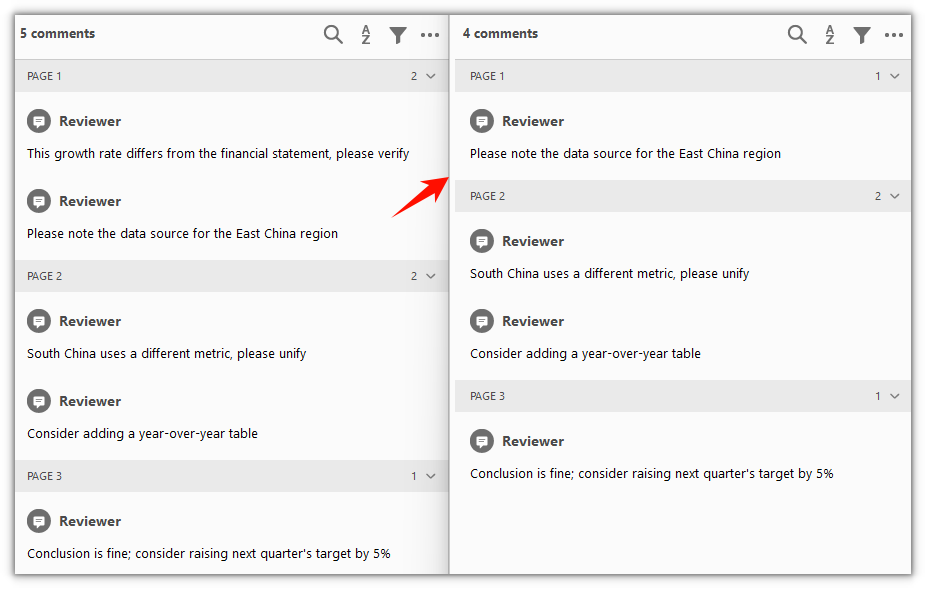
The annotation at index 0 on page 1 is removed and the remaining annotations are unchanged
Delete All Annotations from the Document
Spire.PDF for JavaScript also provides the PdfAnnotationCollection.Clear() method, which wipes every annotation on a page at once. It does not distinguish by type or count — the whole page is cleared together. To clear an entire document, walk doc.Pages and call it once per page.
function App() {
  const deleteAllAnnotations = async () => {
    // Get the Spire.PDF WASM module
    const pdfModule = window.wasmModule?.spirepdf;

    // Check that the module is ready
    if (!pdfModule) {
      alert('Spire.PDF is not ready yet');
      return;
    }

    // Load the PDF with annotations into the VFS
    const inputFileName = 'DocumentWithAnnotations.pdf';
    await window.spire.FetchFileToVFS(inputFileName, "", `${process.env.PUBLIC_URL}/data/`);

    // Create a PdfDocument object and load the PDF document
    let doc = new pdfModule.PdfDocument();
    doc.LoadFromFile(inputFileName);

    // Walk every page and clear all its annotations
    for (let i = 0; i < doc.Pages.Count; i++) {
      doc.Pages.get_Item(i).Annotations.Clear();
    }

    const outputFileName = 'DeleteAllAnnotations.pdf';
    doc.SaveToFile(outputFileName);
    doc.Close();

    // Read the generated file from the VFS and trigger the download
    const fileArray = window.dotnetRuntime.Module.FS.readFile(outputFileName);
    const blob = new Blob([fileArray], { type: 'application/pdf' });
    const url = URL.createObjectURL(blob);
    const a = document.createElement('a');
    a.href = url;
    a.download = outputFileName;
    a.click();
    URL.revokeObjectURL(url);
  };

  return (
    <div style={{ textAlign: 'center', height: '300px' }}>
      <h1>Delete All Annotations from the Document</h1>
      <button onClick={deleteAllAnnotations} id="btn-2">
        Clear
      </button>
    </div>
  );
}

export default App;
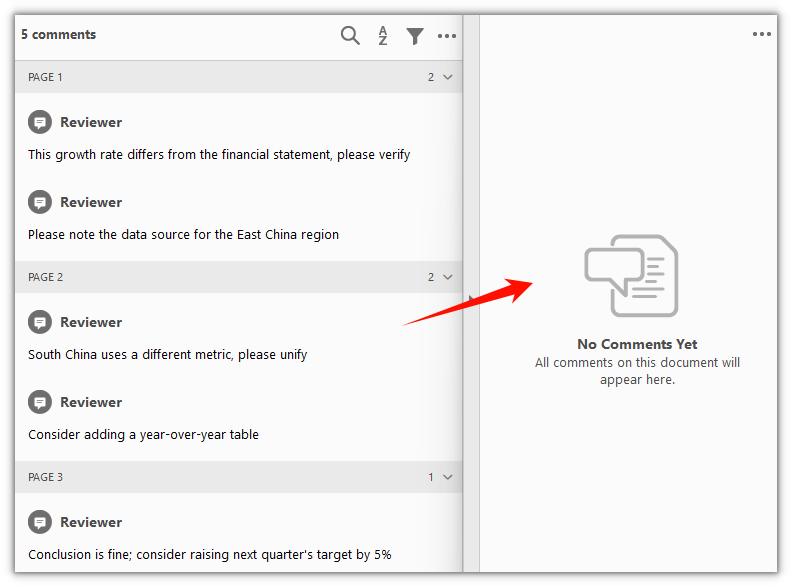
Annotations are cleared from every page and the body content is left untouched
FAQ
The wrong annotation got deleted
Cause: RemoveAt(index) locates an entry by index, and a text annotation or free-text annotation often generates a popup child annotation automatically. Both count in the Annotations collection, so the actual index does not line up with the number of notes you see on the page.
Solution: Walk the collection first, check each entry's index and type, then decide which one to remove. To remove only the text annotation itself, skip the popup child:
const annotations = doc.Pages.get_Item(0).Annotations;
for (let i = 0; i < annotations.Count; i++) {
  // A popup annotation is a child derived from a text annotation; skip it
  if (annotations.get_Item(i) instanceof pdfModule.PdfPopupAnnotationWidget) continue;
  annotations.RemoveAt(i);
  break;
}
Forward loop deletion skips half the annotations
Cause: After RemoveAt() removes one entry, the indices of every annotation after it drop by one. Deleting with a forward loop for (let i = 0; i < annotations.Count; i++) skips the entry right after each removed one.
Solution: Delete in reverse order, or just call Clear() on the page:
// Delete in reverse to avoid skipping entries as indices shift down
const annotations = doc.Pages.get_Item(0).Annotations;
for (let i = annotations.Count - 1; i >= 0; i--) {
  annotations.RemoveAt(i);
}
Does Clear() wipe the body content too
Cause: Clear() operates on the current page's Annotations collection, and that collection holds annotation objects only — no body text, images, or form fields.
Solution: Clear() removes annotations only and leaves the page body as it is. To clear just some pages, call it per page instead of walking the whole document:
// Clear annotations on page 2 (index 1) only
doc.Pages.get_Item(1).Annotations.Clear();
Get a Free License
If you want to remove the evaluation message from the resulting documents, or to get rid of the functional limitations, please contact sales for a temporary license valid for 30 days.
Extract Annotations from a PDF Document in React with JavaScript
2026-10-10 08:59:24 Written by Nina TangWhen a PDF reaches the review stage, feedback rarely lands in the body text — it shows up as margin notes: change this, confirm that, something still in doubt. Pulling those notes into a list by opening a reader and copying each one does not scale once there are many documents.
This article uses Spire.PDF for JavaScript to extract a specific annotation and all annotations from a PDF document. It loads and reads PDF documents in the browser with WebAssembly; everything runs locally, files are read and written through a virtual file system (VFS), and no backend is involved.
This article covers two core features:
For installation and project setup, see How to Integrate Spire.PDF for JavaScript in a React Project. The examples below assume Spire.PDF is installed and the WebAssembly module is initialized.
Extract a Specific Annotation
Spire.PDF for JavaScript exposes the PdfPage.Annotations collection for reading existing annotations on a page. Take a single annotation by index, check its type with instanceof, and you can read that annotation's content, author, name, and modified date.
function App() {
  const extractSpecificAnnotation = async () => {
    // Get the Spire.PDF WASM module
    const pdfModule = window.wasmModule?.spirepdf;

    // Check that the module is ready
    if (!pdfModule) {
      alert('Spire.PDF is not ready yet');
      return;
    }

    // Load the PDF with annotations into the VFS
    const inputFileName = 'Annotated_Report.pdf';
    await window.spire.FetchFileToVFS(inputFileName, "", `${process.env.PUBLIC_URL}/data/`);

    // Create a PdfDocument object and load the PDF document
    const doc = new pdfModule.PdfDocument();
    doc.LoadFromFile(inputFileName);

    // Get the annotation collection of the first page
    const page = doc.Pages.get_Item(0);
    const annotations = page.Annotations;

    // Pick the annotation to read; here, the first one in the collection
    const index = 0;
    const target = annotations.get_Item(index);

    let content = `Reading annotation #${index + 1}\r\n`;

    // Check the annotation type: only a text annotation carries an author and a name
    if (target instanceof pdfModule.PdfTextAnnotationWidget) {
      const styled = new pdfModule.PdfStyledAnnotationWidget(target.H);
      content += `Content: ${styled.Text}\r\n`;

      const annot = new pdfModule.PdfAnnotation(target.H);
      content += `Modified date: ${annot.ModifiedDate.toString()}\r\n`;
      content += `Name: ${annot.Name}\r\n`;

      const markup = new pdfModule.PdfMarkUpAnnotationWidget(target.H);
      content += `Author: ${markup.Author}\r\n`;
    } else {
      content += 'This annotation is not a text annotation.\r\n';
    }

    // Define the output file name and release the document
    const outputFileName = 'SpecificAnnotationInfo.txt';
    doc.Close();

    // Write the content to the VFS and trigger the download
    window.dotnetRuntime.Module.FS.writeFile(outputFileName, content);
    const fileArray = window.dotnetRuntime.Module.FS.readFile(outputFileName);
    const blob = new Blob([fileArray], { type: 'text/plain' });
    const url = URL.createObjectURL(blob);
    const a = document.createElement('a');
    a.href = url;
    a.download = outputFileName;
    a.click();
    URL.revokeObjectURL(url);
  };

  return (
    <div style={{ textAlign: 'center', height: '300px' }}>
      <h1>Extract a Specific Annotation</h1>
      <button onClick={extractSpecificAnnotation}>
        Extract
      </button>
    </div>
  );
}

export default App;
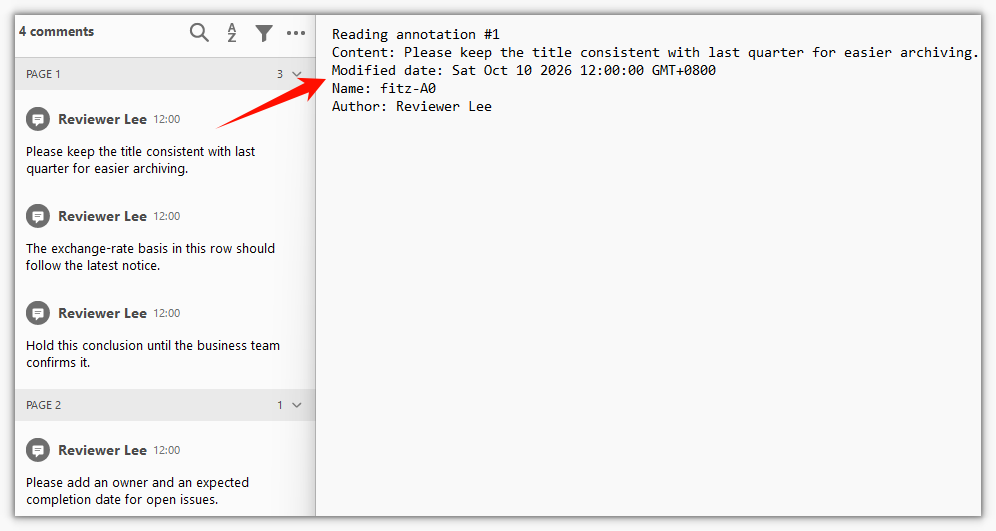
Content, author, name, and modified date read from a single annotation:
Extract All Annotations from the Document
Spire.PDF for JavaScript also lets you walk the annotation collection in order to export a page's annotations in one pass. A text annotation comes with a popup child annotation, and the content lives on the text annotation; skip popups by type while iterating so the same mark is not recorded twice.
function App() {
  const extractAllAnnotations = async () => {
    // Get the Spire.PDF WASM module
    const pdfModule = window.wasmModule?.spirepdf;

    // Check that the module is ready
    if (!pdfModule) {
      alert('Spire.PDF is not ready yet');
      return;
    }

    // Load the PDF with annotations into the VFS
    const inputFileName = 'Annotated_Report.pdf';
    await window.spire.FetchFileToVFS(inputFileName, "", `${process.env.PUBLIC_URL}/data/`);

    // Create a PdfDocument object and load the PDF document
    const doc = new pdfModule.PdfDocument();
    doc.LoadFromFile(inputFileName);

    let content = '';

    // Walk the annotations page by page
    for (let p = 0; p < doc.Pages.Count; p++) {
      const annotations = doc.Pages.get_Item(p).Annotations;

      for (let i = 0; i < annotations.Count; i++) {
        const item = annotations.get_Item(i);

        // A text annotation derives a popup child; the content is on the text annotation, so skip popups to avoid duplicates
        if (item instanceof pdfModule.PdfPopupAnnotationWidget) {
          continue;
        }

        const annot = new pdfModule.PdfAnnotation(item.H);
        content += `Content: ${annot.Text}\r\n`;
        content += `Modified date: ${annot.ModifiedDate.toString()}\r\n\r\n`;
      }
    }

    // Define the output file name and release the document
    const outputFileName = 'AllAnnotationsInfo.txt';
    doc.Close();

    // Write the content to the VFS and trigger the download
    window.dotnetRuntime.Module.FS.writeFile(outputFileName, content);
    const fileArray = window.dotnetRuntime.Module.FS.readFile(outputFileName);
    const blob = new Blob([fileArray], { type: 'text/plain' });
    const url = URL.createObjectURL(blob);
    const a = document.createElement('a');
    a.href = url;
    a.download = outputFileName;
    a.click();
    URL.revokeObjectURL(url);
  };

  return (
    <div style={{ textAlign: 'center', height: '300px' }}>
      <h1>Extract All Annotations from the Document</h1>
      <button onClick={extractAllAnnotations}>
        Extract
      </button>
    </div>
  );
}

export default App;
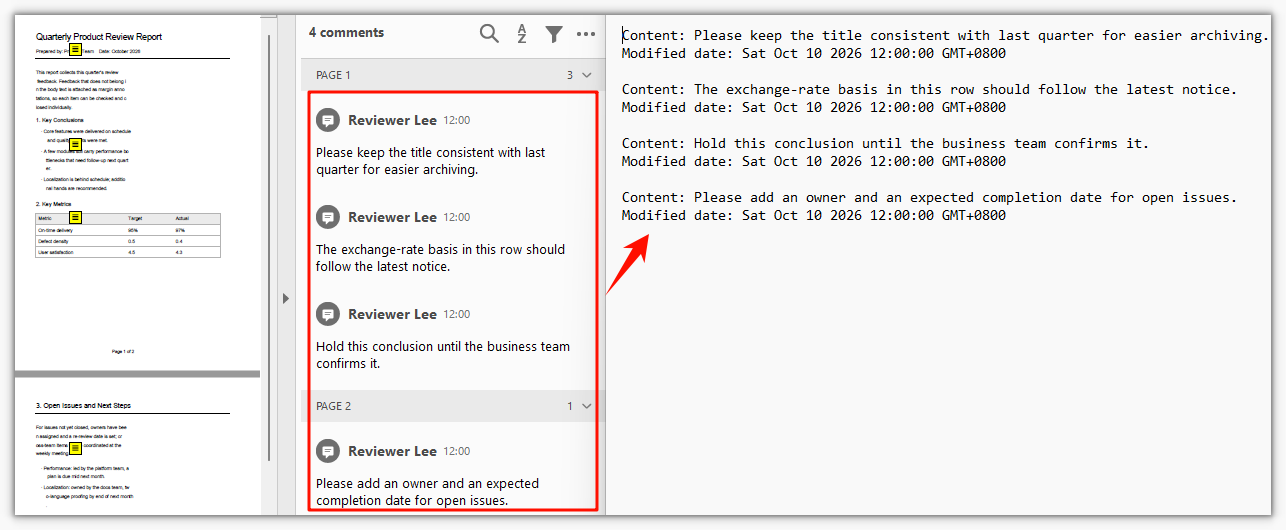
Content and modified date collected from every page, with popup child annotations skipped:
FAQ
Why the loop finds more annotations than you see on the page
Cause: Every text annotation (sticky note) is made of two objects in the PDF — the annotation itself and a popup child. They are a parent-child pair, and the content exists only on the parent. The Annotations collection lists both, so the same mark gets counted twice.
Solution: Check the type while iterating and skip popups:
// The popup child annotation has empty content; skipping it avoids duplicates
if (item instanceof pdfModule.PdfPopupAnnotationWidget) {
  continue;
}
Why the annotation at a given index has no content or author
Cause: The order in the collection does not have to match what you see in a reader. Index 0 may point at a popup child annotation, or the annotation may not be a text annotation at all (a link or a stamp, say), so fields such as Author and Name come back empty.
Solution: Confirm the type with instanceof before reading values. To locate one particular mark, iterate the collection and filter by content or author instead of hard-coding an index:
if (target instanceof pdfModule.PdfTextAnnotationWidget) {
  const markup = new pdfModule.PdfMarkUpAnnotationWidget(target.H);
  console.log(markup.Author);
}
The output is empty when the input document has no annotations
Cause: When the document itself has no annotations, Annotations.Count is 0, the loop never runs, and the exported txt is empty. That is not a read failure — there is simply nothing to extract.
Solution: Check whether the collection is empty before reading and give the caller a clear signal:
const annotations = doc.Pages.get_Item(0).Annotations;
if (annotations.Count === 0) {
  alert('This document has no annotations');
  return;
}
Get a Free License
If you want to remove the evaluation message from the resulting documents, or to get rid of the functional limitations, please contact sales for a temporary license valid for 30 days.
Once a contract or approval form is finalized, it often needs an "Approved" stamp or a timestamp in the corner to record who confirmed it and when. Doing this in desktop software means stamping each file by hand, which gets slow as the pile grows; sending the document to a server to process means the file leaves the local machine.
Spire.PDF for JavaScript loads, modifies, and saves PDF documents in the browser with WebAssembly. Stamps are generated locally and files are read and written through a virtual file system (VFS), with no backend involved. The library treats a stamp as a type of annotation: PdfRubberStampAnnotation sets the stamp's position and size on the page, while its appearance comes from a PdfTemplate assigned through PdfAppearance — draw an image on the template for an image stamp, or text for a text stamp.
This article covers three core features:
For installation and project setup, see How to Integrate Spire.PDF for JavaScript in a React Project. The examples below assume Spire.PDF is installed and the WebAssembly module is initialized.
Add an Image Stamp
Spire.PDF for JavaScript provides the PdfRubberStampAnnotation class for placing a stamp at a given position on the page. It only defines the stamp's position and size; the appearance is set through PdfAppearance.
function App() {
  const addImageStamp = async () => {
    // Get the Spire.PDF WASM module
    const pdfModule = window.wasmModule?.spirepdf;

    // Check that the module is ready
    if (!pdfModule) {
      alert('Spire.PDF is not ready yet');
      return;
    }

    // Load the PDF and the stamp image into the VFS
    const inputFileName = 'SampleDocument.pdf';
    await window.spire.FetchFileToVFS(inputFileName, "", `${process.env.PUBLIC_URL}/data/`);
    const stampImageName = 'Seal.png';
    await window.spire.FetchFileToVFS(stampImageName, "", `${process.env.PUBLIC_URL}/data/`);

    // Create a PdfDocument object and load the document
    let doc = new pdfModule.PdfDocument();
    doc.LoadFromFile(inputFileName);

    // Get the first page
    let page = doc.Pages.get_Item(0);

    // Load the stamp image
    let image = pdfModule.PdfImage.FromFile(stampImageName);

    // Scale the image to fit within 120 points
    const maxSize = 120;
    const scale = Math.min(maxSize / image.Width, maxSize / image.Height, 1);
    const stampWidth = image.Width * scale;
    const stampHeight = image.Height * scale;

    // Create a template the same size as the stamp and fill it with the image
    let template = new pdfModule.PdfTemplate({ width: stampWidth, height: stampHeight });
    template.Graphics.DrawImage({ image: image, x: 0, y: 0, width: stampWidth, height: stampHeight });

    // Frame the stamp in the bottom-right corner; the rectangle matches the template
    let rect = new pdfModule.RectangleF({
      location: new pdfModule.PointF(page.ActualSize.Width - stampWidth - 40, page.ActualSize.Height - stampHeight - 40),
      size: new pdfModule.SizeF({ width: stampWidth, height: stampHeight })
    });

    // Create the stamp annotation and set the template as its appearance
    let stamp = new pdfModule.PdfRubberStampAnnotation({ rectangle: rect });
    let appearance = new pdfModule.PdfAppearance(stamp);
    appearance.Normal = template;
    stamp.Appearance = appearance;

    // Add the stamp annotation to the page's annotation collection
    page.AnnotationsWidget.Add(stamp);

    // Save the document
    const outputFileName = 'ImageStamp.pdf';
    doc.SaveToFile(outputFileName);
    doc.Close();

    // Read the generated file from the VFS and trigger the download
    const fileArray = window.dotnetRuntime.Module.FS.readFile(outputFileName);
    const blob = new Blob([fileArray], { type: 'application/pdf' });
    const url = URL.createObjectURL(blob);
    const a = document.createElement('a');
    a.href = url;
    a.download = outputFileName;
    a.click();
    URL.revokeObjectURL(url);
  };

  return (
    <div style={{ textAlign: 'center', height: '300px' }}>
      <h1>Add an Image Stamp</h1>
      <button onClick={addImageStamp}>
        Add Stamp
      </button>
    </div>
  );
}

export default App;
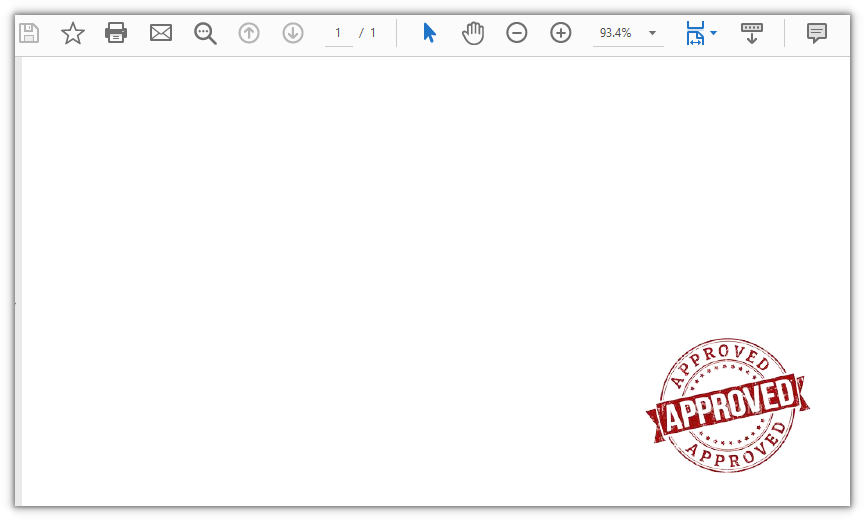
A PDF document with an image stamp in the bottom-right corner:
Add a Text Stamp
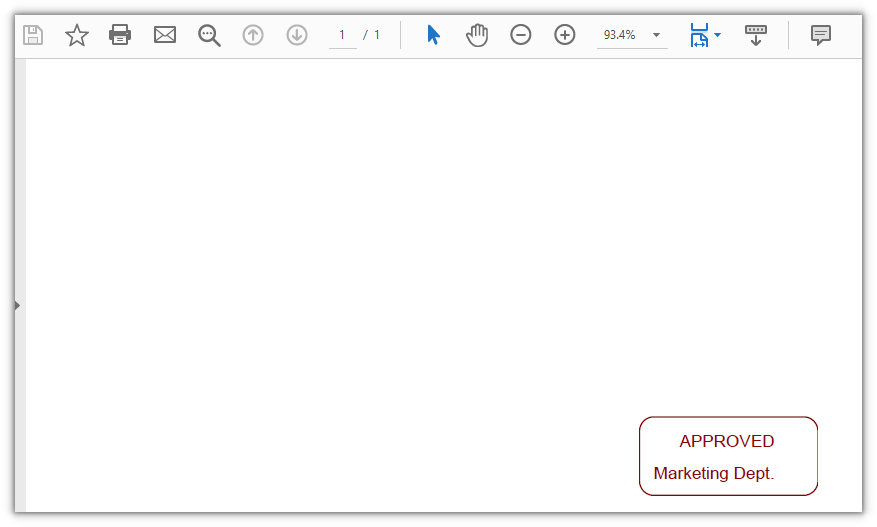
Spire.PDF for JavaScript also provides PdfPath, PdfPen, and PdfTrueTypeFont for drawing text as a stamp. PdfPath builds a rounded rectangle from four arcs, DrawPath strokes it into a border, and DrawString writes the text inside — a text stamp with a border.
function App() {
  const addTextStamp = async () => {
    // Get the Spire.PDF WASM module
    const pdfModule = window.wasmModule?.spirepdf;

    // Check that the module is ready
    if (!pdfModule) {
      alert('Spire.PDF is not ready yet');
      return;
    }

    // Load a font into the VFS font directory
    await window.spire.FetchFileToVFS('ARIAL.TTF', '/Library/Fonts/', `${process.env.PUBLIC_URL}/font/`);

    // Load the PDF into the VFS
    const inputFileName = 'SampleDocument.pdf';
    await window.spire.FetchFileToVFS(inputFileName, "", `${process.env.PUBLIC_URL}/data/`);

    // Create a PdfDocument object and load the document
    let doc = new pdfModule.PdfDocument();
    doc.LoadFromFile(inputFileName);

    // Get the first page
    let page = doc.Pages.get_Item(0);

    // Create the template that holds the stamp
    let template = new pdfModule.PdfTemplate({ width: 125, height: 55 });

    // Build the font from the file in the VFS and prepare the brush
    let font = new pdfModule.PdfTrueTypeFont({ fontFile: '/Library/Fonts/ARIAL.TTF', size: 12, style: pdfModule.PdfFontStyle.Bold });
    let brush = new pdfModule.PdfSolidBrush({ pdfRGBColor: new pdfModule.PdfRGBColor({ color: pdfModule.Color.get_DarkRed() }) });
    let pen = new pdfModule.PdfPen({ brush: brush });

    // Build a rounded-rectangle path from four arcs and a line
    const radius = 20;
    let path = new pdfModule.PdfPath();
    path.AddArc({ x: 0, y: 0, width: radius, height: radius, startAngle: 180, sweepAngle: 90 });
    path.AddArc({ x: template.Width - radius, y: 0, width: radius, height: radius, startAngle: 270, sweepAngle: 90 });
    path.AddArc({ x: template.Width - radius, y: template.Height - radius, width: radius, height: radius, startAngle: 0, sweepAngle: 90 });
    path.AddArc({ x: 0, y: template.Height - radius, width: radius, height: radius, startAngle: 90, sweepAngle: 90 });
    path.AddLine({ x1: 0, y1: template.Height - radius, x2: 0, y2: radius / 2 });

    // Stroke the path into the stamp border
    template.Graphics.DrawPath({ pen: pen, path: path });

    // Write two lines of text inside the border
    template.Graphics.DrawString({ s: 'APPROVED', font: font, brush: brush, point: new pdfModule.PointF(28, 10) });
    template.Graphics.DrawString({ s: 'Marketing Dept.', font: font, brush: brush, point: new pdfModule.PointF(10, 32) });

    // Frame the stamp in the bottom-right corner; the rectangle matches the template
    let rect = new pdfModule.RectangleF({
      location: new pdfModule.PointF(page.ActualSize.Width - template.Width - 40, page.ActualSize.Height - template.Height - 40),
      size: template.Size
    });

    // Create the stamp annotation and set the template as its appearance
    let stamp = new pdfModule.PdfRubberStampAnnotation({ rectangle: rect });
    let appearance = new pdfModule.PdfAppearance(stamp);
    appearance.Normal = template;
    stamp.Appearance = appearance;

    // Add the stamp annotation to the page's annotation collection
    page.AnnotationsWidget.Add(stamp);

    // Save the document
    const outputFileName = 'TextStamp.pdf';
    doc.SaveToFile(outputFileName);
    doc.Close();

    // Read the generated file from the VFS and trigger the download
    const fileArray = window.dotnetRuntime.Module.FS.readFile(outputFileName);
    const blob = new Blob([fileArray], { type: 'application/pdf' });
    const url = URL.createObjectURL(blob);
    const a = document.createElement('a');
    a.href = url;
    a.download = outputFileName;
    a.click();
    URL.revokeObjectURL(url);
  };

  return (
    <div style={{ textAlign: 'center', height: '300px' }}>
      <h1>Add a Text Stamp</h1>
      <button onClick={addTextStamp}>
        Add Stamp
      </button>
    </div>
  );
}

export default App;
A text stamp with a rounded border and the word APPROVED:
Add a Date and Time Stamp
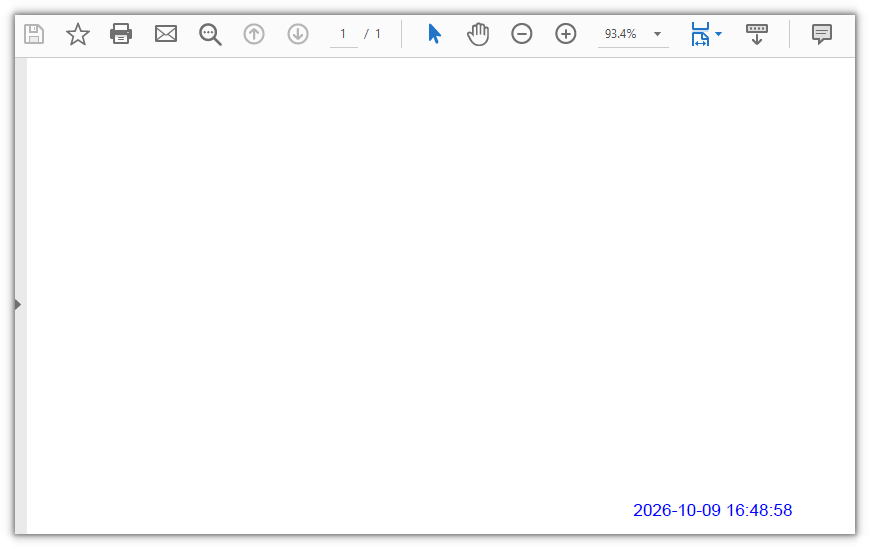
Spire.PDF for JavaScript also provides PdfTemplate for rendering arbitrary content as a stamp appearance. The code below draws a single line of the current time on the template: the string is generated with the browser's native Date, and since DrawString draws any plain string, the stamp content changes with the moment it is generated.
function App() {
  const addDateTimeStamp = async () => {
    // Get the Spire.PDF WASM module
    const pdfModule = window.wasmModule?.spirepdf;

    // Check that the module is ready
    if (!pdfModule) {
      alert('Spire.PDF is not ready yet');
      return;
    }

    // Load a font into the VFS font directory
    await window.spire.FetchFileToVFS('ARIAL.TTF', '/Library/Fonts/', `${process.env.PUBLIC_URL}/font/`);

    // Load the PDF into the VFS
    const inputFileName = 'SampleDocument.pdf';
    await window.spire.FetchFileToVFS(inputFileName, "", `${process.env.PUBLIC_URL}/data/`);

    // Create a PdfDocument object and load the document
    let doc = new pdfModule.PdfDocument();
    doc.LoadFromFile(inputFileName);

    // Get the first page
    let page = doc.Pages.get_Item(0);

    // Get the current date and time
    const now = new Date();
    const pad = (value) => String(value).padStart(2, '0');
    let timeString = `${now.getFullYear()}-${pad(now.getMonth() + 1)}-${pad(now.getDate())} ${pad(now.getHours())}:${pad(now.getMinutes())}:${pad(now.getSeconds())}`;

    // Create a template sized for the text
    let template = new pdfModule.PdfTemplate({ width: 150, height: 16 });

    // Prepare the font and brush
    let font = new pdfModule.PdfTrueTypeFont({ fontFile: '/Library/Fonts/ARIAL.TTF', size: 12 });
    let brush = new pdfModule.PdfSolidBrush({ pdfRGBColor: new pdfModule.PdfRGBColor({ color: pdfModule.Color.get_Blue() }) });

    // Draw the time text onto the template
    template.Graphics.DrawString({ s: timeString, font: font, brush: brush, point: new pdfModule.PointF(0, 0) });

    // Frame the stamp in the bottom-right corner; the rectangle matches the template
    let rect = new pdfModule.RectangleF({
      location: new pdfModule.PointF(page.ActualSize.Width - template.Width - 20, page.ActualSize.Height - template.Height - 20),
      size: template.Size
    });

    // Create the stamp annotation and set the template as its appearance
    let stamp = new pdfModule.PdfRubberStampAnnotation({ rectangle: rect });
    let appearance = new pdfModule.PdfAppearance(stamp);
    appearance.Normal = template;
    stamp.Appearance = appearance;

    // Add the stamp annotation to the page's annotation collection
    page.AnnotationsWidget.Add(stamp);

    // Save the document
    const outputFileName = 'DateTimeStamp.pdf';
    doc.SaveToFile(outputFileName);
    doc.Close();

    // Read the generated file from the VFS and trigger the download
    const fileArray = window.dotnetRuntime.Module.FS.readFile(outputFileName);
    const blob = new Blob([fileArray], { type: 'application/pdf' });
    const url = URL.createObjectURL(blob);
    const a = document.createElement('a');
    a.href = url;
    a.download = outputFileName;
    a.click();
    URL.revokeObjectURL(url);
  };

  return (
    <div style={{ textAlign: 'center', height: '300px' }}>
      <h1>Add a Date and Time Stamp</h1>
      <button onClick={addDateTimeStamp}>
        Add Stamp
      </button>
    </div>
  );
}

export default App;
A stamp in the page corner recording the current date and time:
FAQ
The stamp is too large and its position is off
Cause: A stamp's position and size on the page come from the rectangle of PdfRubberStampAnnotation, and the appearance fills that rectangle. When the template size and the rectangle size differ, the appearance is stretched; when the rectangle uses the image's pixel dimensions without scaling, the stamp can cover the body text or run off the page.
Solution: Work out the target display size first, give the template and the rectangle the same width and height, then position them relative to the page size:
// Give the template and the rectangle the same width and height
let template = new pdfModule.PdfTemplate({ width: stampWidth, height: stampHeight });
let rect = new pdfModule.RectangleF({
  location: new pdfModule.PointF(page.ActualSize.Width - stampWidth - 40, page.ActualSize.Height - stampHeight - 40),
  size: template.Size
});
Text in the stamp renders as hollow boxes
Cause: PdfTrueTypeFont loads a font file through fontFile. If that file does not contain the glyphs for the text (for example, a Western font used with non-Latin characters), those characters have no glyph to draw and render as a row of boxes.
Solution: Use a font that contains the glyphs, and load the file into the VFS font directory /Library/Fonts/ first:
await window.spire.FetchFileToVFS('ARIAL.TTF', '/Library/Fonts/', `${process.env.PUBLIC_URL}/font/`);
const font = new pdfModule.PdfTrueTypeFont({ fontFile: '/Library/Fonts/ARIAL.TTF', size: 12 });
How to customize the date and time format
Cause: DrawString draws exactly the string you pass in, so the format is decided entirely by the code that builds the string. Methods such as toLocaleString depend on the browser's locale, so the output can differ from one environment to another.
Solution: For a fixed format, build the string from the Date getters:
const now = new Date();
const pad = (value) => String(value).padStart(2, '0');
const timeString = `${now.getFullYear()}-${pad(now.getMonth() + 1)}-${pad(now.getDate())} ${pad(now.getHours())}:${pad(now.getMinutes())}`;
Get a Free License
If you want to remove the evaluation message from the resulting documents, or to get rid of the functional limitations, please contact sales for a temporary license valid for 30 days.
PDF annotations provide a convenient way to add comments, highlights, notes, links, stamps, and other interactive elements to a document without changing its original content. They are widely used in document review, proofreading, collaboration, and approval workflows.
With Spire.PDF for JavaScript, developers can programmatically add different types of annotations to PDF documents directly in React applications. This article demonstrates how to add two commonly used annotation types: markup annotations for highlighting specific text and popup annotations for attaching comments to a page.
On this page:
- Install Spire.PDF for JavaScript in a React Project
- Add a Markup Annotation to PDF with JavaScript
- Add a Popup Annotation to PDF with JavaScript
- Markup Annotation vs. Popup Annotation
- Working with Other PDF Annotation Types
- Conclusion
- FAQs
Install Spire.PDF for JavaScript in a React Project
Before working with PDF annotations, you need to integrate Spire.PDF for JavaScript into your React application.
You can install the required package through npm:
npm i spire.office
Then copy the required JavaScript, WebAssembly, and framework files to the public folder of your React project so that they can be loaded by the application at runtime.
For detailed installation and configuration instructions, refer to:
How to Integrate Spire.PDF for JavaScript in a React Project
The examples below assume that Spire.PDF has already been configured and that the input PDF file is available in the public folder.
Add a Markup Annotation to PDF with JavaScript
Markup annotations are commonly used during document review. They allow developers to highlight, underline, strike out, or otherwise mark specific text in a PDF.
In this example, we first locate a specific sentence in the PDF using PdfTextFinder. Once the text is found, its bounding rectangles are retrieved and a highlight annotation is created for each corresponding area.
The following React code demonstrates how to highlight specified text in a PDF document:
import React, { useEffect, useState } from 'react';

function App() {
  const [ready, setReady] = useState(false);

  useEffect(() => {
    (async () => {
      const publicUrl = process.env.PUBLIC_URL || '';
      await import(/* webpackIgnore: true */ `${publicUrl}/spire.common.js`);
      const spireModule = await import(/* webpackIgnore: true */ `${publicUrl}/spire.pdf.js`);
      const rawModule = spireModule.default || spireModule;

      window.wasmModule = typeof rawModule === 'function'
        ? await rawModule({ locateFile: p => p.endsWith('.wasm') ? `${publicUrl}/${p}` : p })
        : rawModule;

      setReady(true);
    })();
  }, []);

  const addMarkupAnnotation = async () => {
    const wasmModule = window.wasmModule.spirepdf;
    const inputFileName = 'input.pdf';
    const outputFileName = 'MarkupAnnotation.pdf';

    await window.spire.FetchFileToVFS(inputFileName, '/', `${process.env.PUBLIC_URL || ''}/`);

    const doc = new wasmModule.PdfDocument();
    doc.LoadFromFile(inputFileName);

    const page = doc.Pages.get_Item(0);
    const finder = new wasmModule.PdfTextFinder(page);
    finder.Options.Parameter = wasmModule.TextFindParameter.IgnoreCase;

    const TARGET_TEXT = 'Artificial Intelligence (AI) is a rapidly evolving field of computer science focused on creating ' +
    'systems capable of performing tasks that typically require human intelligence.';

    const textFragment = finder.Find(TARGET_TEXT).get(0);
    const bounds = textFragment.Bounds.toArray();

    bounds.forEach((rect) => {
      const annotation = new wasmModule.PdfTextMarkupAnnotation(
        'Administrator',
        'This is a markup annotation.',
        rect
      );

      annotation.TextMarkupAnnotationType =
        wasmModule.PdfTextMarkupAnnotationType.Highlight;

      annotation.TextMarkupColor =
        new wasmModule.PdfRGBColor({
          color: wasmModule.Color.get_LightYellow()
        });

      page.AnnotationsWidget.Add(annotation);
    });

    doc.SaveToFile(outputFileName);
    doc.Close();
    finder.Dispose();

    const fileArray = window.dotnetRuntime.Module.FS.readFile(outputFileName);
    const url = URL.createObjectURL(
      new Blob([fileArray], { type: 'application/pdf' })
    );

    const link = document.createElement('a');
    link.href = url;
    link.download = outputFileName;
    link.click();

    URL.revokeObjectURL(url);
  };

  return (
    <div style={{ textAlign: 'center', padding: 30 }}>
      <h1>Add Markup Annotation to PDF</h1>
      <button onClick={addMarkupAnnotation} disabled={!ready}>
        Add Markup Annotation
      </button>
    </div>
  );
}

export default App;
Output:

How the Code Works
The annotation process can be divided into several main steps.
First, FetchFileToVFS() loads input.pdf into the WebAssembly virtual file system. A PdfDocument object is then created to load and manipulate the document.
await window.spire.FetchFileToVFS(
  inputFileName,
  '/',
  `${process.env.PUBLIC_URL || ''}/`
);

const doc = new wasmModule.PdfDocument();
doc.LoadFromFile(inputFileName);
Next, the first PDF page is obtained and passed to PdfTextFinder. Setting TextFindParameter.IgnoreCase allows the search to ignore differences in uppercase and lowercase characters.
const page = doc.Pages.get_Item(0);
const finder = new wasmModule.PdfTextFinder(page);

finder.Options.Parameter =
  wasmModule.TextFindParameter.IgnoreCase;
The target text is then located, and its bounding rectangles are retrieved:
const textFragment = finder.Find(TARGET_TEXT).get(0);
const bounds = textFragment.Bounds.toArray();
A sentence may span multiple lines, so its location can consist of several rectangles. The code therefore loops through all returned bounds and creates a PdfTextMarkupAnnotation for each one.
bounds.forEach((rect) => {
  const annotation = new wasmModule.PdfTextMarkupAnnotation(
    'Administrator',
    'This is a markup annotation.',
    rect
  );

  annotation.TextMarkupAnnotationType =
    wasmModule.PdfTextMarkupAnnotationType.Highlight;

  page.AnnotationsWidget.Add(annotation);
});
In this example, the annotation type is set to Highlight and its color is set to light yellow.
Finally, the modified PDF is saved to the virtual file system and converted to a Blob, allowing the browser to download the resulting file.
Add a Popup Annotation to PDF with JavaScript
Popup annotations are useful when comments or notes need to be attached to a particular position on a PDF page. Instead of marking existing text, a popup annotation creates an annotation icon that readers can interact with in compatible PDF viewers.
The following example adds a comment annotation to the first page of a PDF:
import React, { useEffect, useState } from 'react';

function App() {
  const [ready, setReady] = useState(false);

  useEffect(() => {
    (async () => {
      const publicUrl = process.env.PUBLIC_URL || '';
      await import(/* webpackIgnore: true */ `${publicUrl}/spire.common.js`);
      const spireModule = await import(/* webpackIgnore: true */ `${publicUrl}/spire.pdf.js`);
      const rawModule = spireModule.default || spireModule;

      window.wasmModule = typeof rawModule === 'function'
        ? await rawModule({ locateFile: p => p.endsWith('.wasm') ? `${publicUrl}/${p}` : p })
        : rawModule;

      setReady(true);
    })();
  }, []);

  const addPopupAnnotation = async () => {
    const wasmModule = window.wasmModule.spirepdf;
    const inputFileName = 'input.pdf';
    const outputFileName = 'PopupAnnotation.pdf';

    await window.spire.FetchFileToVFS(
      inputFileName,
      '/',
      `${process.env.PUBLIC_URL || ''}/`
    );

    const doc = new wasmModule.PdfDocument();
    doc.LoadFromFile(inputFileName);

    const page = doc.Pages.get_Item(0);

    const rect = new wasmModule.RectangleF({
      x: 155,
      y: 105,
      width: 0,
      height: 0
    });

    const annotation = new wasmModule.PdfPopupAnnotation({
      rectangle: rect,
      text: 'This is a popup annotation.'
    });

    annotation.Icon = wasmModule.PdfPopupIcon.Comment;

    annotation.Color =
      new wasmModule.PdfRGBColor({
        color: wasmModule.Color.get_Red()
      });

    page.Annotations.Add(annotation);

    doc.SaveToFile(outputFileName);
    doc.Close();

    const fileArray =
      window.dotnetRuntime.Module.FS.readFile(outputFileName);

    const url = URL.createObjectURL(
      new Blob([fileArray], { type: 'application/pdf' })
    );

    const link = document.createElement('a');
    link.href = url;
    link.download = outputFileName;
    link.click();

    URL.revokeObjectURL(url);
  };

  return (
    <div style={{ textAlign: 'center', padding: 30 }}>
      <h1>Add Popup Annotation to PDF</h1>
      <button onClick={addPopupAnnotation} disabled={!ready}>
        Add Popup Annotation
      </button>
    </div>
  );
}

export default App;
Output:

How the Code Works
After loading the PDF, the first page is retrieved:
const page = doc.Pages.get_Item(0);
A RectangleF object is then created to define the position of the popup annotation on the page.
const rect = new wasmModule.RectangleF({
  x: 155,
  y: 105,
  width: 0,
  height: 0
});
Next, a PdfPopupAnnotation object is created. Its rectangle property determines where the annotation appears, while text defines the comment displayed by the annotation.
const annotation = new wasmModule.PdfPopupAnnotation({
  rectangle: rect,
  text: 'This is a popup annotation.'
});
The icon style and color can also be customized:
annotation.Icon = wasmModule.PdfPopupIcon.Comment;

annotation.Color =
  new wasmModule.PdfRGBColor({
    color: wasmModule.Color.get_Red()
  });
Finally, the annotation is added to the page using:
page.Annotations.Add(annotation);
The modified PDF is then saved and downloaded in the browser.
Markup Annotation vs. Popup Annotation
Although both annotation types are designed to add review information to PDF documents, they serve different purposes.
| Annotation Type | Typical Use | Positioning |
|---|---|---|
| Markup Annotation | Highlighting or marking existing PDF text | Based on the bounds of selected text |
| Popup Annotation | Adding comments or notes at a particular location | Based on page coordinates |
Markup annotations are particularly suitable for reviewing existing content because the annotation can follow the exact location of the target text. Popup annotations are more flexible when a comment needs to be associated with a general area rather than a specific text fragment.
Working with Other PDF Annotation Types
The examples above cover only two annotation types, but the overall process is similar when creating other annotations supported by Spire.PDF for JavaScript.
A typical annotation workflow is:
- Load the PDF document.
- Get the page where the annotation should be placed.
- Determine the annotation position or target content.
- Create the appropriate annotation object.
- Configure properties such as text, color, icon, border, or destination.
- Add the annotation to the PDF page.
- Save the modified document.
For example, free text annotations can be used to display text directly on a page, stamp annotations can represent review states such as approval, and link annotations can connect PDF content to web pages, external files, or other locations in the same document.
The annotation class and available properties will differ, but the basic implementation pattern remains largely the same.
Conclusion
Annotations make PDF documents more interactive and are particularly useful in reviewing, commenting, collaboration, and approval scenarios.
With Spire.PDF for JavaScript, React applications can create PDF annotations programmatically in the browser. In this article, we demonstrated how to locate text and apply a markup annotation , as well as how to place a popup annotation at specified coordinates on a PDF page.
Using the same general approach, developers can further implement free text, stamps, shapes, links, and other annotation types according to their application requirements.
FAQs
1. What types of PDF annotations can be added with Spire.PDF for JavaScript?
Spire.PDF for JavaScript supports various annotation types, including markup annotations, free text annotations, popup annotations, stamp annotations, shape annotations, web link annotations, file link annotations, and document link annotations.
The exact classes and properties used depend on the annotation type.
2. Can I highlight text automatically instead of specifying coordinates manually?
Yes. You can use PdfTextFinder to search for specific text in a PDF and retrieve its bounding rectangles. These rectangles can then be used to position markup annotations automatically.
This approach is useful for workflows such as automatically highlighting keywords, review terms, or specific sentences.
3. Why does the markup example create multiple annotations for one sentence?
A sentence may span multiple lines in a PDF. In this case, the text finder can return multiple bounding rectangles representing different portions of the same text.
Creating an annotation for each rectangle ensures that the entire target text is highlighted correctly across line breaks.
4. Can I customize the appearance of PDF annotations?
Yes. Depending on the annotation type, properties such as color, icon, annotation text, position, markup type, and other appearance settings can be customized.
For example, the markup annotation in this tutorial uses a light-yellow highlight, while the popup annotation uses a red comment icon.
5. Are the annotations preserved when the PDF is downloaded?
Yes. The annotations are written into the output PDF when SaveToFile() is called. After the file is downloaded, they can be viewed in PDF readers that support standard PDF annotations.
Get a Free License
To fully experience the capabilities of Spire.PDF for JavaScript without any evaluation limitations, you can request a 30-day free trial license.
