In everyday data analysis, a scatter chart is an intuitive tool for examining the relationship between two numeric variables — for example, exploring the correlation between product price and sales, or income and spending. With a scatter chart, you can quickly spot how data points are distributed and any potential relationships. Spire.XLS for JavaScript creates scatter charts directly in the browser based on WebAssembly, and manages input/output files through a virtual file system (VFS), with no backend service required.
This article covers two core features:
For installation and project configuration, refer to Integrating Spire.XLS for JavaScript in a React Project. The examples below assume Spire.XLS is installed and the WebAssembly module is initialized.
Create a Basic Scatter Chart
A scatter chart places two sets of numeric values on the horizontal and vertical axes, using the position of each point to show how the two variables correspond. Compared with reading a table, it makes clusters, gaps and upward or downward relationships easier to see. Mapping the source data onto the chart and fixing its position on the worksheet is all it takes to start examining that relationship.
Creating a basic scatter chart:
| Syntax | Result |
|---|---|
workbook.LoadFromFile(...) |
Loads the workbook that contains the source data |
sheet.Charts.Add({ chartType: xlsModule.ExcelChartType.ScatterMarkers }) |
Adds a scatter chart with data markers to the worksheet |
chart.DataRange = sheet.Range.get("B2:B13") |
Sets the data range used by the chart |
chart.Series.get(0).CategoryLabels = sheet.Range.get("A2:A13") |
Uses column A for the horizontal axis |
chart.Series.get(0).Values = sheet.Range.get("B2:B13") |
Uses column B for the vertical axis |
chart.LeftColumn / TopRow / RightColumn / BottomRow |
Positions the chart on the worksheet |
chart.ChartTitle, PrimaryCategoryAxis.Title, PrimaryValueAxis.Title |
Sets the chart title and the axis titles |
workbook.SaveToFile(...) |
Saves the workbook with the scatter chart to the VFS |
The steps are:
- Load the font file and the source data file into the VFS.
- Create a
Workbookobject, load the Excel document withWorkbook.LoadFromFile(), and get the first worksheet withWorkbook.Worksheets.get(0). - Use the
Worksheets.Charts.Add()method with theScatterMarkerschart type to add a scatter chart. - Set the chart's
DataRangeandSeriesDataFromRange, and specify the horizontal and vertical axis data withSeries.get(0).CategoryLabelsandSeries.get(0).Values. - Set the chart position with the
LeftColumn,TopRow,RightColumnandBottomRowproperties. - Set the chart title with the
ChartTitleproperty, and set the X-axis and Y-axis titles with thePrimaryCategoryAxis.TitleandPrimaryValueAxis.Titleproperties. - Use the
Workbook.SaveToFile()method to save the document, then release resources withDispose().
Here is a complete code example showing how to create a basic scatter chart in React:
function App() {
  const createScatterChart = async () => {
    // Get the Spire.XLS WASM module
    const xlsModule = window.wasmModule?.spirexls;

    // Check whether the module is ready
    if (!xlsModule) {
      alert('Spire.Xls is not ready yet');
      return;
    }

    // Load the font and Excel file into the VFS
    await window.spire.FetchFileToVFS('ARIAL.TTF', '/Library/Fonts/', `${process.env.PUBLIC_URL}/font/`);
    const inputFileName = 'ScatterChartData.xlsx';
    await window.spire.FetchFileToVFS(inputFileName, '', `${process.env.PUBLIC_URL}data/`);

    // Load the workbook
    const workbook = new xlsModule.Workbook();
    workbook.LoadFromFile({ fileName: inputFileName });

    // Get the first worksheet
    const sheet = workbook.Worksheets.get(0);

    // Add a scatter chart with data markers
    let chart = sheet.Charts.Add({ chartType: xlsModule.ExcelChartType.ScatterMarkers });

    // Set the chart's data range
    chart.DataRange = sheet.Range.get("B2:B13");
    chart.SeriesDataFromRange = false;

    // Set the series data: column A for the X-axis and column B for the Y-axis
    chart.Series.get(0).CategoryLabels = sheet.Range.get("A2:A13");
    chart.Series.get(0).Values = sheet.Range.get("B2:B13");

    // Set the position of the chart
    chart.LeftColumn = 1;
    chart.TopRow = 15;
    chart.RightColumn = 10;
    chart.BottomRow = 32;

    // Set the chart title
    chart.ChartTitle = "Scatter Chart";

    // Set the X-axis and Y-axis titles
    chart.PrimaryCategoryAxis.Title = "Car Price";
    chart.PrimaryValueAxis.Title = "Salary";

    // Save the document
    const outputFileName = 'CreateScatterChart_output.xlsx';
    workbook.SaveToFile({ fileName: outputFileName });

    // Release resources
    workbook.Dispose();

    // Read the converted file from the VFS and trigger a download
    const fileArray = window.dotnetRuntime.Module.FS.readFile(outputFileName);
    const blob = new Blob([fileArray], { type: 'application/vnd.openxmlformats-officedocument.spreadsheetml.sheet' });
    const url = URL.createObjectURL(blob);
    const a = document.createElement('a');
    a.href = url;
    a.download = outputFileName;
    a.click();
    URL.revokeObjectURL(url);
  };

  return (
    <div style={{ textAlign: 'center', height: '300px' }}>
      <h1>Create Scatter Chart</h1>
      <button onClick={createScatterChart}>
        Start
      </button>
    </div>
  );
}

export default App;
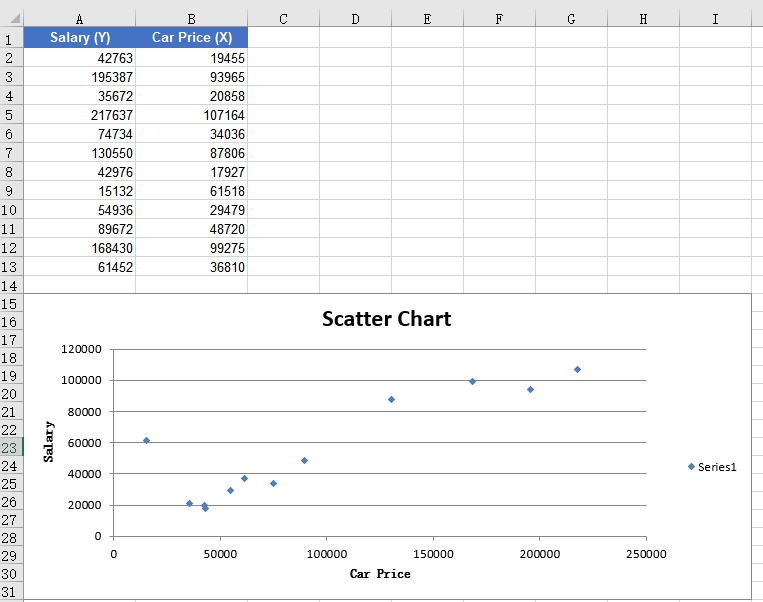
The chart after creating a basic scatter chart:
Add a Trend Line to the Scatter Chart
A trend line adds a fitted curve on top of the scatter points to summarize the overall direction of the data. The more scattered the points are, the more useful the trend line becomes for judging whether the variables rise, fall or stay roughly flat together. Adding an exponential trend line to the chart's data series records that trend in the workbook.
Adding a trend line to the scatter chart:
| Syntax | Result |
|---|---|
sheet.Charts.Add({ chartType: xlsModule.ExcelChartType.ScatterMarkers }) |
Adds a scatter chart with data markers |
chart.Series.get(0).TrendLines.Add({ type: xlsModule.TrendLineType.Exponential }) |
Adds an exponential trend line to the first series |
workbook.SaveToFile(...) |
Saves the workbook with the trend line to the VFS |
The steps are:
- Load the font file and the source data file into the VFS.
- Create a
Workbookobject, load the Excel document withLoadFromFile(), and get the first worksheet withWorkbook.Worksheets.get(0). - Use the
Worksheets.Charts.Add()method to add a scatter chart, and setDataRange,CategoryLabelsandValues. - Set the chart title with the
ChartTitleproperty, and set the X-axis and Y-axis titles with the axis title properties. - Use the
Series.get(0).TrendLines.Add()method to add an exponential trend line to the first data series. - Use the
Workbook.SaveToFile()method to save the document, then release resources withDispose().
Here is a complete code example showing how to add an exponential trend line to a scatter chart in React:
function App() {
  const addTrendLine = async () => {
    // Get the Spire.XLS WASM module
    const xlsModule = window.wasmModule?.spirexls;

    // Check whether the module is ready
    if (!xlsModule) {
      alert('Spire.Xls is not ready yet');
      return;
    }

    // Load the font and Excel file into the VFS
    await window.spire.FetchFileToVFS('ARIAL.TTF', '/Library/Fonts/', `${process.env.PUBLIC_URL}/font/`);
    const inputFileName = 'ScatterChartData.xlsx';
    await window.spire.FetchFileToVFS(inputFileName, '', `${process.env.PUBLIC_URL}data/`);

    // Load the workbook
    const workbook = new xlsModule.Workbook();
    workbook.LoadFromFile({ fileName: inputFileName });

    // Get the first worksheet
    const sheet = workbook.Worksheets.get(0);

    // Add a scatter chart
    let chart = sheet.Charts.Add({ chartType: xlsModule.ExcelChartType.ScatterMarkers });
    chart.DataRange = sheet.Range.get("B2:B13");
    chart.SeriesDataFromRange = false;
    chart.Series.get(0).CategoryLabels = sheet.Range.get("A2:A13");
    chart.Series.get(0).Values = sheet.Range.get("B2:B13");

    // Set the position of the chart
    chart.LeftColumn = 1;
    chart.TopRow = 15;
    chart.RightColumn = 10;
    chart.BottomRow = 32;

    // Set the chart title
    chart.ChartTitle = "Scatter Chart with Trend Line";

    // Set the X-axis and Y-axis titles
    chart.PrimaryCategoryAxis.Title = "Car Price";
    chart.PrimaryValueAxis.Title = "Salary";

    // Add an exponential trend line to the first data series
    chart.Series.get(0).TrendLines.Add({ type: xlsModule.TrendLineType.Exponential });

    // Save the document
    const outputFileName = 'ScatterChartTrendLine_output.xlsx';
    workbook.SaveToFile({ fileName: outputFileName });

    // Release resources
    workbook.Dispose();

    // Read the converted file from the VFS and trigger a download
    const fileArray = window.dotnetRuntime.Module.FS.readFile(outputFileName);
    const blob = new Blob([fileArray], { type: 'application/vnd.openxmlformats-officedocument.spreadsheetml.sheet' });
    const url = URL.createObjectURL(blob);
    const a = document.createElement('a');
    a.href = url;
    a.download = outputFileName;
    a.click();
    URL.revokeObjectURL(url);
  };

  return (
    <div style={{ textAlign: 'center', height: '300px' }}>
      <h1>Add Trend Line to Scatter Chart</h1>
      <button onClick={addTrendLine}>
        Start
      </button>
    </div>
  );
}

export default App;
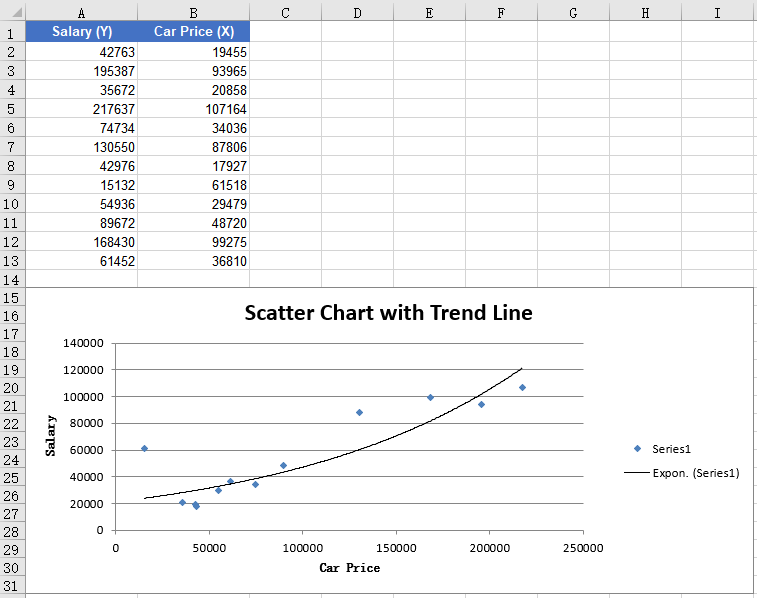
The scatter chart after adding a trend line:
FAQ
Data points are all clustered at the bottom-left of the axes
Cause: The data range set for the chart includes the header row or empty cells. These non-numeric contents are treated as zero or ignored, so all data points cluster at the bottom-left of the axes.
Solution: Make sure the chart data range starts from the data rows (for example sheet.Range.get("A2:A13")), and that CategoryLabels and Values point to the same row range so the X and Y values correspond one-to-one.
Adding an exponential trend line fails
Cause: An exponential trend line requires all data values to be positive. When the data contains zero or negative values, the exponential regression fit cannot be completed, and the trend line may fail to be added or may not be displayed.
Solution: Check whether the data contains zero or negative values. If necessary, use a trend line type that fits the current data, such as linear (Linear) or polynomial (Polynomial).
How do the horizontal and vertical axis values correspond?
Cause: A scatter chart takes the horizontal axis from CategoryLabels and the vertical axis from Values. If the two ranges cover different rows or start at different rows, the points are paired incorrectly and may even fall outside the plot area.
Solution: Point CategoryLabels and Values at the same row range, for example rows 2 through 13, and change only the column. Each horizontal value then has a matching vertical value.
Obtain a Free License
Spire.XLS for JavaScript offers a 30-day full-featured free trial license with no functional limitations. Apply here to evaluate before purchasing.