Excel does not have a built-in watermark feature, but in scenarios such as contracts, reports, and internal documents, we often need to mark files with identifiers like "Confidential" or "Sample" to prevent information from being copied and distributed at will. Spire.XLS for JavaScript processes Excel documents directly in the browser based on WebAssembly, and manages input and output files through a virtual file system (VFS), with no backend service required. With the header image feature, you can easily add and remove watermarks in worksheets.
This article covers two core features:
For installation and project configuration, refer to Integrating Spire.XLS for JavaScript in a React Project. The examples below assume Spire.XLS is installed and the WebAssembly module is initialized.
Add a Watermark to an Excel Worksheet
Excel does not have a built-in watermark feature, yet contracts, reports and internal documents often need to mark their origin or scope of use. A watermark lays pale text across the center of the page, leaving the body readable while signaling what the document is for. Drawing the watermark as an image the size of the page and placing it in the header makes it appear on every page.
Adding a watermark to an Excel worksheet:
| Syntax | Result |
|---|---|
sheet.PageSetup.PageWidth / PageHeight |
Gets the page size used to draw a matching watermark image |
watermarkCanvas.toBlob(...) and FS.writeFile(...) |
Creates the watermark image and writes it to the VFS |
new xlsModule.Stream(imgFileName) |
Reads the watermark image stream from the VFS |
sheet.PageSetup.LeftHeaderImage = watermark |
Sets the watermark image as the left header image |
sheet.PageSetup.LeftHeader = "&G" |
Displays the image in the header |
sheet.ViewMode = xlsModule.ViewMode.Layout |
Switches to Page Layout view for previewing |
workbook.SaveToFile(...) |
Saves the watermarked workbook to the VFS |
The steps are:
- Load the font file and the input file into the VFS.
- Create a
Workbookobject, load the Excel document withLoadFromFile(), and get the first worksheet withWorkbook.Worksheets.get(0). - Use the Canvas API to draw a watermark image that matches the page size: a white background with centered LightCoral text rotated -45°.
- Save the watermark image to the virtual file system (VFS) and load it with a
Streamobject. - Set the watermark image as the left header image (
LeftHeaderImage) and set the header text to the image placeholder&G. - Switch the worksheet to Page Layout view with
ViewMode.Layoutto preview the watermark effect. - Use the
Workbook.SaveToFile()method to save the document, then release resources withWorkbook.Dispose().
Here is a complete code example showing how to add a watermark to a worksheet in React:
function App() {
  const addWatermark = async () => {
    // Get the Spire.XLS WASM module
    const xlsModule = window.wasmModule?.spirexls;

    // Check whether the module is ready
    if (!xlsModule) {
      alert('Spire.Xls is not ready yet');
      return;
    }

    // Load the font and the Excel file into the VFS
    await window.spire.FetchFileToVFS('ARIAL.TTF', '/Library/Fonts/', `${process.env.PUBLIC_URL}/font/`);
    const inputFileName = 'Watermark.xlsx';
    await window.spire.FetchFileToVFS(inputFileName, '', `${process.env.PUBLIC_URL}data/`);

    // Load the workbook
    const workbook = new xlsModule.Workbook();
    workbook.LoadFromFile({ fileName: inputFileName });

    // Get the first worksheet
    const sheet = workbook.Worksheets.get(0);

    // Define the watermark text, text color, and background color
    const watermarkText = 'Internal Use';
    const textColor = 'lightcoral';
    const backColor = 'white';

    // Draw the watermark image according to the page size (white background with centered text rotated -45°)
    const drawWatermarkImage = (text, color, bg, width, height) => {
      const canvas = document.createElement('canvas');
      canvas.width = width;
      canvas.height = height;
      const ctx = canvas.getContext('2d');
      // Draw the background
      ctx.fillStyle = bg;
      ctx.fillRect(0, 0, width, height);
      // Set the text style and draw the rotated text at the center of the page
      ctx.fillStyle = color;
      ctx.font = 'bold 48px Arial';
      ctx.textAlign = 'center';
      ctx.textBaseline = 'middle';
      ctx.save();
      ctx.translate(width / 2, height / 2);
      ctx.rotate(-Math.PI / 4);
      ctx.fillText(text, 0, 0);
      ctx.restore();
      return canvas;
    };

    // Draw the watermark image and write it to the virtual file system (VFS)
    const watermarkCanvas = drawWatermarkImage(watermarkText, textColor, backColor, sheet.PageSetup.PageWidth, sheet.PageSetup.PageHeight);
    const watermarkBlob = await new Promise((resolve) => watermarkCanvas.toBlob(resolve, 'image/png'));
    const watermarkBytes = new Uint8Array(await watermarkBlob.arrayBuffer());
    const imgFileName = 'Watermark.png';
    window.dotnetRuntime.Module.FS.writeFile(imgFileName, watermarkBytes);

    // Load the watermark image
    const watermark = new xlsModule.Stream(imgFileName);

    // Set the watermark image as the left header image and display it with the &G placeholder
    sheet.PageSetup.LeftHeaderImage = watermark;
    sheet.PageSetup.LeftHeader = "&G";

    // Switch to Page Layout view to preview the watermark effect
    sheet.ViewMode = xlsModule.ViewMode.Layout;

    // Save the document
    const outputFileName = 'AddWatermark_output.xlsx';
    workbook.SaveToFile({ fileName: outputFileName, version: xlsModule.ExcelVersion.Version2010 });

    // Release resources
    workbook.Dispose();

    // Read the converted file from the VFS and trigger a download
    const fileArray = window.dotnetRuntime.Module.FS.readFile(outputFileName);
    const blob = new Blob([fileArray], { type: 'application/vnd.openxmlformats-officedocument.spreadsheetml.sheet' });
    const url = URL.createObjectURL(blob);
    const a = document.createElement('a');
    a.href = url;
    a.download = outputFileName;
    a.click();
    URL.revokeObjectURL(url);
  };

  return (
    <div style={{ textAlign: 'center', height: '300px' }}>
      <h1>Add Watermark to Excel</h1>
      <button onClick={addWatermark}>
        Start
      </button>
    </div>
  );
}

export default App;
The worksheet after adding a watermark:

Remove a Watermark from an Excel Worksheet
Because the watermark is carried by the header, removing it means clearing the reference in that header. Once the header text is empty, the image is no longer displayed and the body of the worksheet stays as it is.
Removing a watermark from an Excel worksheet:
| Syntax | Result |
|---|---|
workbook.LoadFromFile(...) |
Loads the watermarked workbook |
workbook.Worksheets.get(0) |
Gets the first worksheet to process |
sheet.PageSetup.LeftHeader = "" |
Clears the left header text and the image placeholder |
workbook.SaveToFile(...) |
Saves the workbook without the watermark to the VFS |
The steps are:
- Load the watermarked Excel file into the VFS.
- Create a
Workbookobject, load the document withLoadFromFile(), and get the first worksheet withWorkbook.Worksheets.get(0). - Set
PageSetup.LeftHeaderto an empty string to remove the watermark image placeholder from the header. - Use the
Workbook.SaveToFile()method to save the document, then release resources withWorkbook.Dispose().
Here is a complete code example showing how to remove a watermark from a worksheet in React:
function App() {
  const removeWatermark = async () => {
    // Get the Spire.XLS WASM module
    const xlsModule = window.wasmModule?.spirexls;

    // Check whether the module is ready
    if (!xlsModule) {
      alert('Spire.Xls is not ready yet');
      return;
    }

    // Load the watermarked Excel file into the VFS
    const inputFileName = 'AddWatermark.xlsx';
    await window.spire.FetchFileToVFS(inputFileName, '', `${process.env.PUBLIC_URL}data/`);

    // Load the workbook
    const workbook = new xlsModule.Workbook();
    workbook.LoadFromFile({ fileName: inputFileName });

    // Get the first worksheet
    const sheet = workbook.Worksheets.get(0);

    // Clear the left header text to remove the watermark
    sheet.PageSetup.LeftHeader = "";

    // Save the document
    const outputFileName = 'RemoveWatermark_output.xlsx';
    workbook.SaveToFile({ fileName: outputFileName, version: xlsModule.ExcelVersion.Version2010 });

    // Release resources
    workbook.Dispose();

    // Read the converted file from the VFS and trigger a download
    const fileArray = window.dotnetRuntime.Module.FS.readFile(outputFileName);
    const blob = new Blob([fileArray], { type: 'application/vnd.openxmlformats-officedocument.spreadsheetml.sheet' });
    const url = URL.createObjectURL(blob);
    const a = document.createElement('a');
    a.href = url;
    a.download = outputFileName;
    a.click();
    URL.revokeObjectURL(url);
  };

  return (
    <div style={{ textAlign: 'center', height: '300px' }}>
      <h1>Remove Watermark from Excel</h1>
      <button onClick={removeWatermark}>
        Start
      </button>
    </div>
  );
}

export default App;
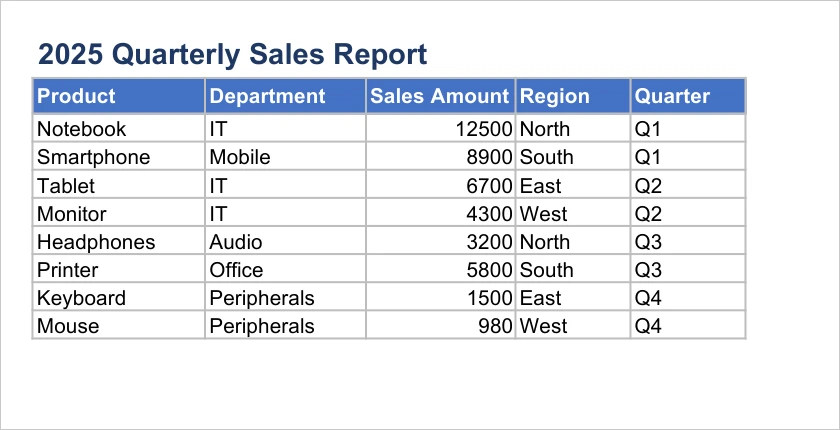
The worksheet after removing the watermark:
FAQ
The watermark is not visible in Normal view
Cause: A watermark implemented through a header image is only displayed in Page Layout view and print preview, and is not visible in Excel's Normal view.
Solution: Switch the worksheet view to Page Layout mode to preview the watermark, for example by setting sheet.ViewMode = xlsModule.ViewMode.Layout in the code.
The watermark position is different from expected
Cause: A header image watermark is displayed in the header area, and its horizontal position can be controlled by the left, center, and right header positions. If the position does not match expectations, it is usually because the header position set is inconsistent with the requirement.
Solution: Choose LeftHeaderImage, CenterHeaderImage, or RightHeaderImage to set the watermark image according to your needs, and set the corresponding image placeholder &G with the LeftHeader, CenterHeader, or RightHeader property.
Residual content remains in the file after removing the watermark
Cause: The watermark is implemented through a header image. If only part of the header area is cleared, other areas (such as the left or right header) may still contain the watermark image.
Solution: Make sure to clear the text of all header areas where the watermark was set, including LeftHeader, CenterHeader, and RightHeader.
Obtain a Free License
Spire.XLS for JavaScript offers a 30-day full-featured free trial license with no functional limitations. Apply here to evaluate before purchasing.