

Excel files are widely used to enter, organize, and present tabular data, while JSON is commonly used by APIs and applications to exchange structured data between systems. Converting between these formats allows developers to import spreadsheet data into applications and export application data to Excel for reporting, analysis, or sharing.
In this tutorial, you’ll learn how to convert Excel to JSON and JSON to Excel in C# using Spire.XLS for .NET.
What We Will Cover:
- Why Convert Between Excel and JSON
- Prerequisites & Package Installation
- Basic Excel to JSON Conversion in C# .NET
- Advanced Excel to JSON Conversion Scenarios
- Convert JSON to Excel in C# .NET
- Tips and Best Practices
- FAQs
- Conclusion
Why Convert Between Excel and JSON?
Converting data between Excel (.xlsx or .xls) and JSON formats is a standard requirement in .NET applications for the following development tasks:
- Data Ingestion: Parses business-generated spreadsheets into standard server-side objects for backend processing.
- API Integration: Formats tabular data into standard JSON payloads required by web APIs and microservices.
- Frontend Serialization: Transforms structured server-side data into lightweight JSON format for consumption by web clients and JavaScript frameworks.
- NoSQL Storage: Prepares relational or tabular spreadsheet data for direct migration into document databases like MongoDB or Cosmos DB.
- Automated Reporting: Converts dynamic JSON application data into readable Excel reports for end users.
Prerequisites and Package Installation
Before you begin, ensure your development environment meets these specific requirements.
- Visual Studio (2019 or later recommended)
- .NET Environment: .NET Framework 4.0+, .NET Core 3.1+, or .NET 5.0+.
- NuGet Packages:
- Spire.XLS for .NET (version 15.11.3 or higher)
- Newtonsoft.Json (required for JSON serialization, deserialization and custom formatting)
Installing the Required NuGet Packages
Option 1: Using .NET Package Manager Console
Open your project in Visual Studio and run the following commands in the Package Manager Console:
Install-Package Spire.XLS
Install-Package Newtonsoft.Json
Option 2: Using .NET CLI
For cross-platform developers using terminal-based environments, execute the following commands inside the project's root folder:
dotnet add package Spire.XLS
dotnet add package Newtonsoft.Json
Basic Excel to JSON Conversion in C# .NET
Starting with Spire.XLS for .NET 15.11.3, developers can export an Excel workbook directly to JSON by calling the SaveToFile() method.
This method is suitable when you want to convert the whole workbook and do not need to customize the generated JSON structure.
Steps to Convert an Excel Workbook to JSON
- Instantiate a new
Workbookobject. - Use
LoadFromFile()to load your Excel workbook. - Call
SaveToFile()and specifyFileFormat.Jsonas the output format to export the workbook to JSON.
Complete Code Example
using System;
using Spire.Xls;

namespace ConvertExcelToJSON
{
    class Program
    {
        static void Main(string[] args)
        {
            string inputFile = @"Sample.xlsx";
            string outputFile = @"output.json";

            try
            {
                // Create a Workbook object
                using (Workbook workbook = new Workbook())
                {
                    // Load the Excel file
                    workbook.LoadFromFile(inputFile);

                    // Save the entire workbook into a single JSON file
                    // Supported in Spire.XLS 15.11.3 and later
                    workbook.SaveToFile(outputFile, FileFormat.Json);
                }
            }
            catch (Exception ex)
            {
                Console.WriteLine($"Error during conversion: {ex.Message}");
            }
        }
    }
}
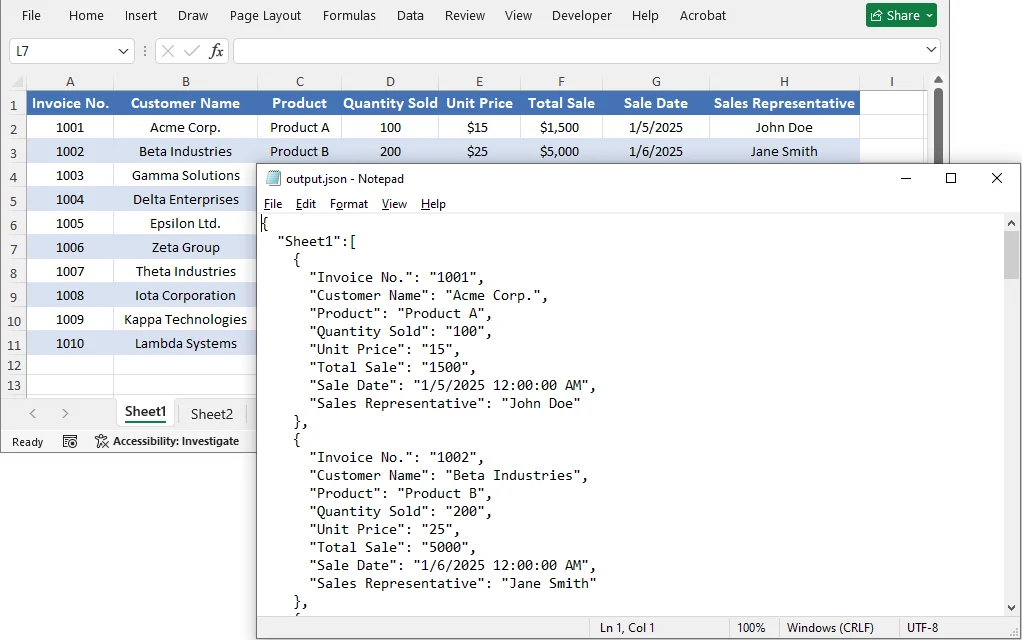
The Output JSON:
The converted JSON structure corresponds to the Excel data as follows:
- Worksheet name → Becomes a key in the outermost JSON object.
- Data in each worksheet → Becomes an array, where each object represents a single row.
- Header row values → Become the default field names for each data object.
Advanced Excel to JSON Conversion Scenarios
While saving the entire workbook to JSON is convenient, there are scenarios where you need more control—such as converting only a specific worksheet, cell range, or customizing the JSON output format. Spire.XLS provides flexible approaches to achieve these custom conversions.
Worksheet to JSON
To convert only a specific worksheet rather than the entire workbook, copy the target worksheet to a new workbook and then save that workbook as JSON.
Steps to Convert a Specific Worksheet to JSON
- Load the source workbook using
LoadFromFile(). - Get the target worksheet by its index or name.
- Create a new
Workbookobject for the output. - Use the
Worksheets.AddCopy()method to copy the target worksheet to the new workbook. - Call
SaveToFile()withFileFormat.Jsonon the new workbook.
Complete Code Example
using System;
using Spire.Xls;

namespace ConvertWorksheetToJSON
{
    class Program
    {
        static void Main(string[] args)
        {
            string inputFile = @"Sample.xlsx";
            string outputFile = @"sheet_output.json";

            try
            {
                using (Workbook sourceWorkbook = new Workbook())
                {
                    sourceWorkbook.LoadFromFile(inputFile);

                    // Access the first worksheet by index (or by name: sourceWorkbook.Worksheets["sheetName"])
                    Worksheet targetSheet = sourceWorkbook.Worksheets[0];

                    using (Workbook newWorkbook = new Workbook())
                    {
                        // Remove default worksheets from the new workbook
                        newWorkbook.Worksheets.Clear();

                        // Copy the target worksheet into the new workbook
                        newWorkbook.Worksheets.AddCopy(targetSheet);

                        // Save the single worksheet as JSON
                        newWorkbook.SaveToFile(outputFile, FileFormat.Json);
                    }
                }
            }
            catch (Exception ex)
            {
                Console.WriteLine($"Error: {ex.Message}");
            }
        }
    }
}
Cell Range to JSON
If you only need to export a portion of worksheet data—such as a specific table or range—copy the desired range to a new workbook and then save the result file as JSON.
Steps to Convert a Cell Range to JSON
- Load the source workbook.
- Get the target worksheet containing the data.
- Define the range you want to export (e.g., worksheet.Range["A1:D3"]).
- Instantiate a new
Workbookobject. - Copy the range data to a new worksheet in the new workbook with
Worksheet.Copy(). - Call
SaveToFile()with FileFormat.Json to save the new workbook as a .json file.
Complete Code Example
using System;
using Spire.Xls;

namespace ConvertExcelToJSON
{
    class Program
    {
        static void Main(string[] args)
        {
            string inputFile = @"Sample.xlsx";
            string outputFile = @"range_output.json";

            try
            {
                using (Workbook sourceWorkbook = new Workbook())
                {
                    sourceWorkbook.LoadFromFile(inputFile);
                    Worksheet sourceWorksheet = sourceWorkbook.Worksheets[0];

                    // Define the range to export (e.g., A1:D3)
                    CellRange sourceRange = sourceWorksheet.Range["A1:D3"];

                    using (Workbook targetWorkbook = new Workbook())
                    {
                        // Remove the default worksheets
                        targetWorkbook.Worksheets.Clear();

                        // Add a worksheet for the selected range
                        Worksheet targetWorksheet = targetWorkbook.Worksheets.Add("RangeData");

                        // Create a destination range with the same dimensions
                        CellRange destinationRange = targetWorksheet.Range["A1:D3"];

                        // Copy values and styles to the new workbook
                        sourceWorksheet.Copy(sourceRange, destinationRange, true);

                        // Export the isolated range to JSON
                        targetWorkbook.SaveToFile(outputFile, FileFormat.Json);
                    }
                }
            }
            catch (Exception ex)
            {
                Console.WriteLine($"Error exporting cell range: {ex.Message}");
            }
        }
    }
}
Customize JSON Output Formatting
The SaveToFile() method provides a quick conversion, but the output format is fixed. If you need greater control over the JSON output, export the worksheet data to a DataTable with ExportDataTable() and serialize it with Newtonsoft.Json. This allows you to customize property names, null handling, date formats, and indentation.
Steps for Custom JSON Output Formatting
- Load the Excel File.
- Access the worksheet and export its data to a DataTable using
ExportDataTable(). - Configure
JsonSerializerSettingsto define formatting rules (camelCase, null handling, date format, etc.). - Serialize the DataTable using
JsonConvert.SerializeObject()with the settings. - Save the JSON string to a file.
Complete Code Example
using System;
using System.Data;
using System.IO;
using Spire.Xls;
using Newtonsoft.Json;
using Newtonsoft.Json.Serialization;

namespace ConvertExcelToJSON
{
    class Program
    {
        static void Main(string[] args)
        {
            string excelFilePath = @"Sample.xlsx";
            string jsonOutputPath = "custom_output.json";

            try
            {
                using (Workbook workbook = new Workbook())
                {
                    workbook.LoadFromFile(excelFilePath);
                    Worksheet worksheet = workbook.Worksheets[0];

                    // Convert tabular data directly into an in-memory DataTable structure
                    DataTable dataTable = worksheet.ExportDataTable(worksheet.AllocatedRange, true);

                    // Define custom JSON serialization rules
                    JsonSerializerSettings settings = new JsonSerializerSettings
                    {
                        Formatting = Formatting.Indented, // Structured, readable format
                        ContractResolver = new CamelCasePropertyNamesContractResolver(), // camelCase naming conventions
                        NullValueHandling = NullValueHandling.Ignore, // Omit null fields from output string
                        DateFormatString = "yyyy-MM-dd" // Explicit date string overrides
                    };

                    // Serialize the data structure to string with settings applied
                    string jsonResult = JsonConvert.SerializeObject(dataTable, settings);

                    // Write string payload out to target destination
                    File.WriteAllText(jsonOutputPath, jsonResult);
                }
            }
            catch (Exception ex)
            {
                Console.WriteLine($"Error during custom serialization: {ex.Message}");
            }
        }
    }
}
Explanation of Customization Options
| Setting | Purpose |
|---|---|
| Formatting = Formatting.Indented | Produces human‑readable JSON with line breaks and indentation. |
| CamelCasePropertyNamesContractResolver | Applies camelCase naming to compatible column names, which is a common convention in JSON APIs. |
| NullValueHandling = NullValueHandling.Ignore | Omits values represented as null or DBNull.Value. |
| DateFormatString = "yyyy-MM-dd" | Formats values represented as DateTime or DateTimeOffset. |
Note on Column Names with Spaces:
When Excel headers contain spaces (e.g., "First Name"), the generated JSON keys will retain those spaces. Consumers must use bracket notation (obj["First Name"]) instead of dot notation. For cleaner camelCase property names, normalize the DataTable column names by iterating DataTable.Columns — e.g., remove spaces or apply a custom naming convention before serialization.
You can further customize the output by adding custom JsonConverter implementations, modifying date handling, or using different ContractResolver strategies. For more details, refer to the Newtonsoft.Json documentation.
How to Convert JSON to Excel in C# .NET
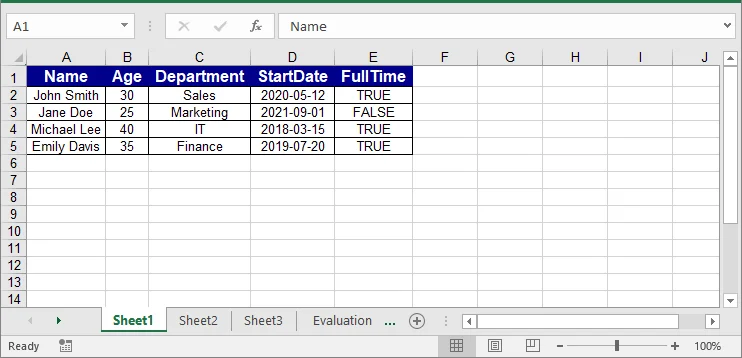
To convert JSON to Excel, deserialize the JSON data into a DataTable, then insert the table into an Excel worksheet.
Steps to Import JSON into Excel
- Load the JSON data from a file, API response, or string variable.
- Use
Newtonsoft.Json.JsonConvert.DeserializeObject<DataTable>()to convert the JSON data to a DataTable. - Instantiate a new
Workbookobject. - Use
InsertDataTable()to transfer data to a worksheet in the new workbook. - Style headers and data cells for better readability.
- Save the new workbook as an Excel file.
Complete Code Example
using System;
using System.Data;
using System.Drawing;
using Spire.Xls;
using Newtonsoft.Json;

namespace ConvertJSONToExcel
{
    class Program
    {
        static void Main(string[] args)
        {
            // Sample JSON array
            string jsonInput = @"
            [
                {""Name"":""John Smith"",""Age"":30,""Department"":""Sales"",""StartDate"":""2020-05-12"",""FullTime"":true},
                {""Name"":""Jane Doe"",""Age"":25,""Department"":""Marketing"",""StartDate"":""2021-09-01"",""FullTime"":false},
                {""Name"":""Michael Lee"",""Age"":40,""Department"":""IT"",""StartDate"":""2018-03-15"",""FullTime"":true},
                {""Name"":""Emily Davis"",""Age"":35,""Department"":""Finance"",""StartDate"":""2019-07-20"",""FullTime"":true}
            ]";

            string excelOutputPath = "output.xlsx";

            try
            {
                // Deserialize the JSON array into a DataTable
                DataTable dataTable = JsonConvert.DeserializeObject<DataTable>(jsonInput);

                using (Workbook workbook = new Workbook())
                {
                    Worksheet worksheet = workbook.Worksheets[0];

                    // Insert the data and column headers starting at cell A1
                    worksheet.InsertDataTable(dataTable, true, 1, 1);

                    // --- Define Header Styles ---
                    CellStyle headerStyle = workbook.Styles.Add("HeaderStyle");
                    headerStyle.Font.IsBold = true;
                    headerStyle.Font.Size = 12;
                    headerStyle.Font.Color = Color.White;
                    headerStyle.Color = Color.DarkBlue;
                    headerStyle.HorizontalAlignment = HorizontalAlignType.Center;
                    headerStyle.VerticalAlignment = VerticalAlignType.Center;

                    // Apply the style to the header row
                    int colCount = dataTable.Columns.Count;
                    worksheet.Range[1, 1, 1, colCount].CellStyleName = "HeaderStyle";

                    // --- Define Data Row Styles ---
                    CellStyle dataStyle = workbook.Styles.Add("DataStyle");
                    dataStyle.HorizontalAlignment = HorizontalAlignType.Center;
                    dataStyle.VerticalAlignment = VerticalAlignType.Center;
                    dataStyle.Borders[BordersLineType.EdgeLeft].LineStyle = LineStyleType.Thin;
                    dataStyle.Borders[BordersLineType.EdgeRight].LineStyle = LineStyleType.Thin;
                    dataStyle.Borders[BordersLineType.EdgeTop].LineStyle = LineStyleType.Thin;
                    dataStyle.Borders[BordersLineType.EdgeBottom].LineStyle = LineStyleType.Thin;

                    // Apply the style to data rows
                    int rowCount = dataTable.Rows.Count;
                    worksheet.Range[2, 1, rowCount + 1, colCount].CellStyleName = "DataStyle";

                    // Autofit column widths
                    worksheet.AllocatedRange.AutoFitColumns();

                    // Save the workbook as an XLSX file
                    workbook.SaveToFile(excelOutputPath, ExcelVersion.Version2016);
                }
            }
            catch (Exception ex)
            {
                Console.WriteLine($"Conversion exception thrown: {ex.Message}");
            }
        }
    }
}
Handling Wrapped or Nested JSON
The direct DataTable deserialization works best with a flat JSON array. If the records are wrapped inside a root object or contain nested objects and arrays, extract and flatten the required values before converting them to a DataTable.
For example, the following JSON string contains both a root wrapper and nested data:
string jsonInput = @"
{
  ""status"": ""success"",
  ""data"": [
    {
      ""Name"": ""John Smith"",
      ""Department"": {
        ""Id"": 10,
        ""Name"": ""Sales""
      },
      ""Skills"": [
        ""Negotiation"",
        ""CRM""
      ]
    },
    {
      ""Name"": ""Jane Doe"",
      ""Department"": {
        ""Id"": 20,
        ""Name"": ""Marketing""
      },
      ""Skills"": [
        ""Content Writing"",
        ""Analytics""
      ]
    }
  ]
}";
The following method extracts the data array, flattens the nested values, and returns a DataTable:
using System.Data;
using System.IO;
using System.Linq;
using Newtonsoft.Json;
using Newtonsoft.Json.Linq;

private static DataTable ConvertNestedJsonToDataTable(string jsonInput)
{
    // Parse either a root object or a root array.
    JToken rootToken = JToken.Parse(jsonInput);

    // Accept a root array or an array stored in the "data" property.
    JArray records = rootToken as JArray
        ?? ((rootToken as JObject)?["data"] as JArray)
        ?? throw new InvalidDataException(
            "The JSON does not contain a valid record array.");

    // Flatten nested objects and arrays into tabular fields.
    var flattenedRecords = records.Select(record => new
    {
        Name = (string)record["Name"] ?? string.Empty,

        // Convert the nested Department object into separate columns.
        DepartmentId = (int?)record["Department"]?["Id"],
        DepartmentName =
            (string)record["Department"]?["Name"] ?? string.Empty,

        // Join the Skills array into a comma-separated string.
        Skills = string.Join(
            ", ",
            record["Skills"]?.Values<string>()
                ?? Enumerable.Empty<string>())
    });

    // Convert the flattened records into a DataTable.
    string flattenedJson =
        JsonConvert.SerializeObject(flattenedRecords);

    DataTable dataTable =
        JsonConvert.DeserializeObject<DataTable>(flattenedJson);

    if (dataTable == null || dataTable.Columns.Count == 0)
        throw new InvalidDataException(
            "The JSON contains no tabular records.");

    return dataTable;
}
The returned DataTable can then be inserted into a worksheet using InsertDataTable():
DataTable nestedTable = ConvertNestedJsonToDataTable(jsonInput);
worksheet.InsertDataTable(nestedTable, true, 1, 1);
Note: This mapping is based on the structure of the sample JSON. For other JSON schemas, adjust the selected properties and output columns accordingly.
Tips and Best Practices
When converting between Excel and JSON, following these best practices will help ensure data integrity and usability:
- Validate Data Types: Ensure that data types (dates, numbers, booleans) are correctly formatted to avoid issues during conversion.
- Handle Empty Cells: Decide how to treat empty cells (convert to null, omit, or use default values) to maintain data integrity.
- Use Consistent Naming Conventions: Standardize column names in Excel for clear and consistent JSON keys.
- Test Thoroughly: Always test the conversion processes to ensure valid JSON output and accurate Excel representation.
- Include Headers: When converting JSON to Excel, always insert headers for improved readability and usability.
FAQs
Do I need Microsoft Excel installed to use these examples?
No. Spire.XLS is a standalone .NET library that reads, writes, and converts Excel files without any dependency on Microsoft Office or Excel Interop.
Can I convert older .xls (97–2003) files as well as .xlsx to JSON?
Yes. LoadFromFile() automatically detects the file format, so the same code works for both .xls and .xlsx sources.
Can I convert nested JSON to Excel?
JsonConvert.DeserializeObject<DataTable>() works with flat JSON arrays. For nested JSON, flatten the structure into a simple list of objects before calling InsertDataTable().
Does this approach work in ASP.NET Core or other cross-platform .NET apps?
Yes. Spire.XLS supports .NET Framework, .NET Core, and .NET 5–10, so the same code runs in console apps, ASP.NET Core services, and cross-platform (Linux/macOS) environments.
Conclusion
This tutorial demonstrated how to convert Excel workbooks, individual worksheets, and cell ranges to JSON, as well as how to import JSON data into Excel in C#. By combining Spire.XLS with Newtonsoft.Json, you can handle both straightforward conversions and scenarios that require custom formatting or nested data processing.
Get a Free License
To fully experience the capabilities of Spire.XLS for .NET without any evaluation limitations, you can request a free 30-day trial license.

