Como Contar Páginas em PDFs: 4 Métodos Fáceis
Sumário
- Métodos de contagem de páginas de PDF em resumo
- Método 1: Contar páginas de PDF com um leitor de PDF para desktop
- Método 2: Contar páginas de PDF em um navegador da web
- Método 3: Contar páginas de PDF online
- Método 4: Automatizar a contagem de páginas de PDF com Python
- Solução de problemas comuns de contagem de páginas de PDF
- Conclusão
- Perguntas frequentes
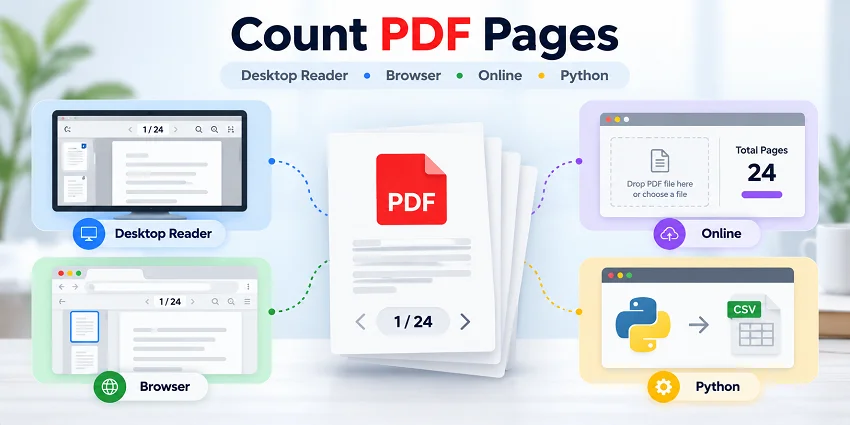
Precisa verificar se um PDF atende a um limite de páginas para envio, prepará-lo para impressão ou confirmar que ele contém o número esperado de páginas? Você pode contar rapidamente as páginas de um PDF usando um leitor de PDF para desktop, um navegador da web ou uma ferramenta online. Para tarefas recorrentes, o Python pode automatizar o processo e gerar relatórios de contagem de páginas.
Este guia fornece instruções passo a passo para todos os quatro métodos. Ele também explica por que a contagem total de páginas de um PDF pode diferir dos números de página impressos no documento.
Métodos de contagem de páginas de PDF em resumo
O melhor método depende das ferramentas disponíveis, de quantos PDFs você precisa verificar e se a tarefa é ocasional ou recorrente. Compare suas opções abaixo.
| Método | Melhor para | Limitações |
|---|---|---|
| Leitor de PDF para desktop (Adobe Acrobat Reader) | Contar páginas de PDF offline | Requer um leitor de PDF instalado; verificação manual |
| Navegador da web (Chrome ou Edge) | Contar páginas de PDF offline sem um leitor de PDF dedicado | Mais adequado para um arquivo por vez |
| Contador de páginas de PDF online | Contar rapidamente páginas em um ou vários PDFs online | Pode exigir upload de PDFs; limitações de privacidade e recursos variam conforme o serviço |
| Python | Tarefas automatizadas ou recorrentes de contagem de páginas de PDF | Requer um ambiente Python e conhecimento básico de programação |
Método 1: Contar páginas de PDF com um leitor de PDF para desktop
Leitores de PDF para desktop permitem verificar o número total de páginas de um PDF offline sem fazer upload do arquivo. Se você já usa um para ler ou revisar documentos PDF, pode encontrar rapidamente a contagem de páginas nos controles de navegação. As etapas abaixo usam o Adobe Acrobat Reader como exemplo.
Instruções passo a passo
Abra o PDF.
Inicie o Adobe Acrobat Reader, selecione Menu > Abrir (ou Arquivo > Abrir, dependendo da interface) e escolha seu arquivo PDF.Localize o indicador de página.
Na interface mais recente do Acrobat, os controles de navegação de página geralmente aparecem na parte inferior do painel direito. A localização pode variar em versões mais antigas.Leia a contagem total de páginas.
O indicador mostra a página atual e o número total de páginas, como 1 / 24. O primeiro número é a página atual; o segundo é o número total de páginas do PDF.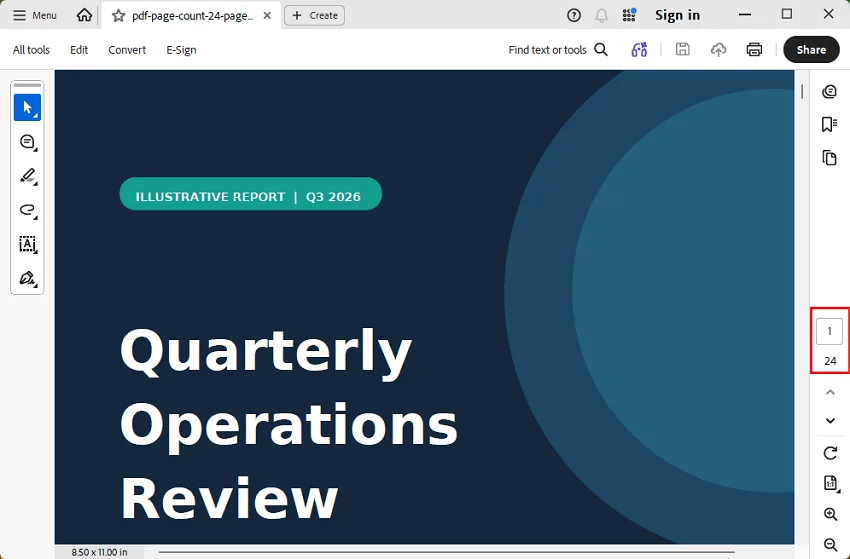
Observação: Alguns PDFs usam rótulos de página personalizados, como algarismos romanos. Esses rótulos podem diferir das posições reais das páginas, portanto, consulte a contagem total de páginas exibida nos controles de navegação em vez dos números impressos em páginas individuais.
Método 2: Contar páginas de PDF em um navegador da web
Se você não tiver um leitor de PDF dedicado instalado, pode usar um navegador da web como o Google Chrome ou o Microsoft Edge para verificar o número total de páginas de um PDF. Ambos os navegadores têm visualizadores de PDF integrados, permitindo abrir arquivos PDF locais e verificar suas contagens de páginas sem fazer upload deles online.
Instruções passo a passo
Abra o PDF no seu navegador.
Inicie o Chrome ou o Edge e arraste um arquivo PDF do seu computador para uma aba do navegador. Como alternativa, clique com o botão direito no arquivo e escolha Abrir com > Google Chrome ou Microsoft Edge, quando disponível.Encontre o indicador de página.
Procure o campo de navegação de página na barra de ferramentas do visualizador de PDF, geralmente perto da parte superior do documento. Se a barra de ferramentas estiver oculta, mova o ponteiro sobre o PDF.Verifique o número total de páginas.
O visualizador normalmente exibe um valor como 1 / 24. Isso significa que seu PDF contém 24 páginas e você está atualmente na primeira página.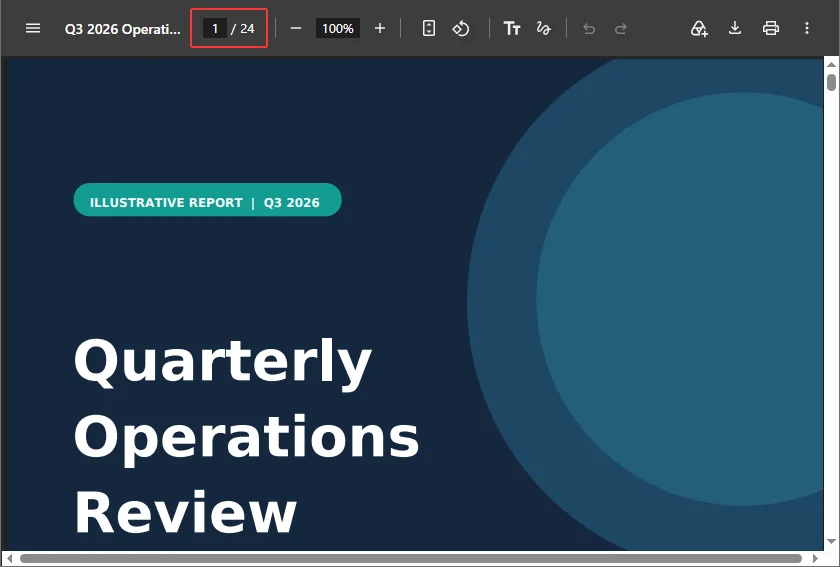
Método 3: Contar páginas de PDF online
Contadores de páginas de PDF online oferecem uma maneira rápida de verificar o número de páginas de um PDF sem instalar um aplicativo de PDF dedicado. Você pode selecionar um arquivo diretamente em uma página da web e visualizar sua contagem de páginas. Algumas ferramentas também oferecem suporte a vários PDFs e permitem exportar os resultados para registro.
Opção 1: Contador de páginas de PDF do NextUtils
Acesse o site do Contador de páginas de PDF do NextUtils.
Clique em Escolher PDFs para selecionar um ou mais arquivos PDF ou arraste e solte-os na página.
Depois que os arquivos são analisados, a ferramenta exibe a contagem de páginas de cada PDF e o total combinado.
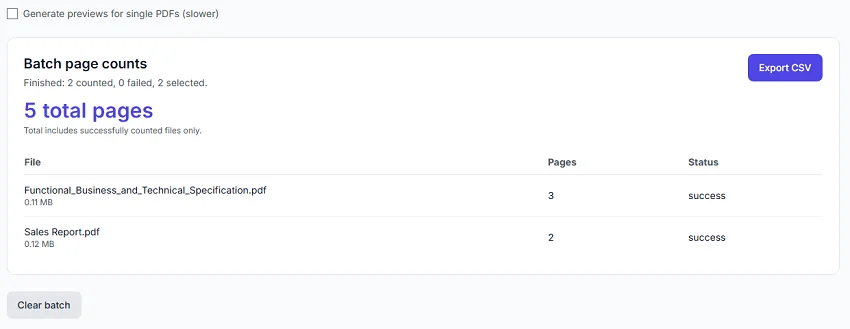
Se necessário, exporte os resultados como um arquivo CSV para registro ou análise posterior no Excel.
Opção 2: Contador de páginas de PDF do OS Authority
Abra o site do Contador de páginas de PDF do OS Authority.
Clique em Escolher arquivos para selecionar um ou mais PDFs do seu dispositivo ou arraste e solte-os na página.
Clique em Contar páginas para iniciar o processo.
Visualize a contagem de páginas de cada PDF e o total combinado. Você também pode copiar os resultados ou baixá-los como um arquivo CSV.
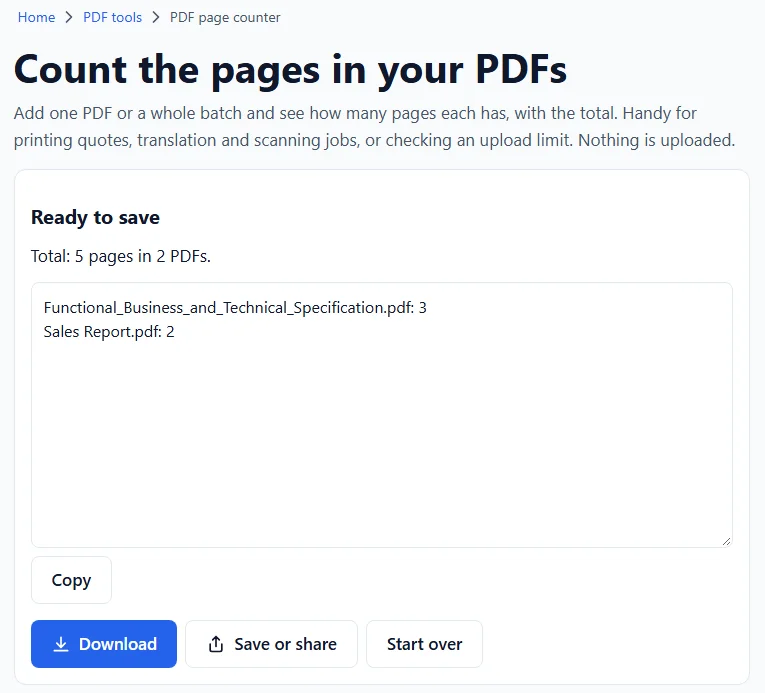
Limites de arquivo: O NextUtils oferece suporte a até 50 PDFs por lote, com limite de 50 MB por arquivo. O OS Authority permite até 100 PDFs por lote em computadores, 50 em tablets e 20 em celulares.
Observação de privacidade: Ambas as ferramentas afirmam que os arquivos PDF são processados localmente no seu navegador, em vez de serem enviados a um servidor. No entanto, outros serviços online podem exigir upload de arquivos, e as práticas de privacidade e os limites de uso podem variar. Sempre revise as informações de privacidade atuais de um serviço antes de processar documentos confidenciais.
Método 4: Automatizar a contagem de páginas de PDF com Python
Se você precisa verificar contagens de páginas de PDF regularmente, como quando novos relatórios chegam ou documentos são preparados para impressão, selecionar arquivos manualmente a cada vez pode se tornar repetitivo. O Python permite verificar automaticamente uma pasta, contar as páginas de cada PDF e salvar os resultados em um relatório. Você também pode agendar a execução do script em intervalos regulares.
Com o Spire.PDF para Python, você pode usar a propriedade PdfDocument.Pages.Count para obter contagens de páginas programaticamente sem abrir cada arquivo em um visualizador de PDF.
Instalar o Spire.PDF para Python
Instale a biblioteca usando pip:
pip install Spire.PDF
Contar automaticamente páginas de PDF e gerar um relatório
O script a seguir verifica uma pasta em busca de arquivos PDF, obtém a contagem de páginas de cada documento e salva os resultados em um relatório CSV. Ele também registra arquivos que não podem ser lidos e calcula a contagem combinada de páginas dos PDFs processados com sucesso.
Primeiro, crie uma pasta chamada pdf_files no mesmo diretório do seu script Python e coloque seus documentos PDF dentro dela.
from pathlib import Path
from datetime import datetime
import csv
from spire.pdf import PdfDocument

# Set up the input folder and output report
base_dir = Path(__file__).resolve().parent
input_folder = base_dir / "pdf_files"

timestamp = datetime.now().strftime("%Y%m%d_%H%M%S")
report_file = base_dir / f"pdf_page_counts_{timestamp}.csv"

if not input_folder.is_dir():
    raise FileNotFoundError("The 'pdf_files' folder does not exist.")

# Find PDF files in the folder
pdf_files = sorted(
    file for file in input_folder.iterdir()
    if file.is_file() and file.suffix.lower() == ".pdf"
)

results = []
total_pages = 0
successful_files = 0

# Count pages in each PDF
for pdf_file in pdf_files:
    pdf = PdfDocument()

    try:
        pdf.LoadFromFile(str(pdf_file))
        count = pdf.Pages.Count

        results.append([pdf_file.name, count, "Success"])
        total_pages += count
        successful_files += 1

    except Exception as e:
        results.append([pdf_file.name, "", f"Failed: {e}"])
        print(f"Failed to read {pdf_file.name}: {e}")

    finally:
        pdf.Close()

# Save the results to a CSV report
with report_file.open("w", newline="", encoding="utf-8-sig") as f:
    writer = csv.writer(f)
    writer.writerow(["File Name", "Page Count", "Status"])
    writer.writerows(results)

print(f"Successfully counted: {successful_files} of {len(pdf_files)} PDFs")
print(f"Failed: {len(pdf_files) - successful_files}")
print(f"Total pages: {total_pages}")
print(f"Report saved to: {report_file}")
Salve o script como count_pdf_pages.py e execute-o com:
python count_pdf_pages.py
Cada execução verifica os PDFs na pasta e gera um relatório CSV com carimbo de data/hora que você pode abrir no Excel. O relatório inclui o nome de cada arquivo, a contagem de páginas e o status de processamento. Arquivos ilegíveis são registrados, e o total combinado inclui apenas documentos processados com sucesso.
Dica: Para automatizar verificações recorrentes, você pode agendar o script usando o Agendador de Tarefas do Windows ou o cron no macOS e Linux. O script processa apenas PDFs diretamente dentro de pdf_files, não aqueles em subpastas. Ele lê os documentos sem modificá-los.
Solução de problemas comuns de contagem de páginas de PDF
1. A contagem de páginas não corresponde aos números de página impressos
- Possível causa: Páginas de capa, elementos pré-textuais ou a numeração de seções podem usar rótulos de página separados, como algarismos romanos, ou podem começar a numeração após a primeira página do PDF.
- Como corrigir: Use a contagem total de páginas do visualizador de PDF ou a propriedade de contagem de páginas de uma biblioteca, não o número de página impresso no cabeçalho ou rodapé. A contagem real inclui páginas de capa e páginas em branco.
2. Um PDF não pode ser aberto ou contado
- Possível causa: O PDF está protegido por senha, incompleto ou danificado.
- Como corrigir: Abra-o em um visualizador de PDF confiável e insira a senha correta, se necessário. Baixe o arquivo novamente se ele puder estar incompleto. Para scripts Python, trate erros por arquivo para que um PDF ilegível não interrompa o lote inteiro.
3. Um contador online falha com um PDF grande
- Possível causa: A ferramenta pode ter limites de arquivo, ou seu navegador pode não ter memória suficiente para analisar um documento ou lote grande.
- Como corrigir: Tente menos arquivos por vez, use um visualizador de PDF para desktop ou mude para um script Python que processe os arquivos individualmente.
Conclusão
Para um único PDF, um leitor para desktop como o Adobe Acrobat Reader ou o visualizador de PDF integrado de um navegador oferece uma maneira direta de verificar a contagem total de páginas offline. Contadores de páginas online oferecem verificações rápidas e, quando compatíveis, totais combinados ou exportações CSV. O Python é útil quando você precisa repetir a tarefa automaticamente e manter relatórios de contagem de páginas ao longo do tempo.
Independentemente do método usado, diferencie a contagem real de páginas do PDF de seus rótulos de página impressos, especialmente ao preparar envios ou estimativas de impressão.
Perguntas frequentes
P: Posso contar páginas de PDF sem o Adobe Acrobat?
R: Sim. Você pode abrir um PDF local no Chrome ou no Microsoft Edge, usar um contador de páginas baseado em navegador ou contar páginas programaticamente com Python. Você não precisa do Adobe Acrobat para esses métodos.
P: As páginas em branco contam para o número total de páginas do PDF?
R: Sim. Uma página em branco ainda é uma página no documento PDF, portanto, contadores de páginas e bibliotecas de PDF a incluem no total.
P: Posso contar páginas em arquivos PDF digitalizados?
R: Sim. A contagem de páginas lê a estrutura do documento PDF, portanto, o reconhecimento óptico de caracteres (OCR) não é necessário. As páginas de um PDF digitalizado são contadas mesmo que contenham apenas imagens.
P: A contagem de páginas do PDF é igual ao número de folhas impressas?
R: Não necessariamente. Por exemplo, um PDF de 20 páginas impresso em frente e verso com uma página de PDF por lado pode usar 10 folhas de papel. Configurações de impressão de páginas por folha podem alterar ainda mais o número de folhas físicas.
PDF 페이지 수 세는 방법: 쉬운 4가지 방법
PDF가 제출 페이지 제한을 충족하는지 확인해야 하거나, 인쇄를 준비하거나, 예상한 페이지 수가 포함되어 있는지 확인해야 하나요? 데스크톱 PDF 리더, 웹 브라우저 또는 온라인 도구를 사용하여 PDF 페이지 수를 빠르게 셀 수 있습니다. 반복적인 작업의 경우 Python으로 프로세스를 자동화하고 페이지 수 보고서를 생성할 수 있습니다.
이 가이드에서는 네 가지 방법 모두에 대한 단계별 지침을 제공합니다. 또한 PDF의 전체 페이지 수가 문서에 인쇄된 페이지 번호와 다를 수 있는 이유도 설명합니다.
PDF 페이지 수 세는 방법 한눈에 보기
가장 좋은 방법은 사용 가능한 도구, 확인해야 하는 PDF 수, 작업이 일회성인지 반복적인지에 따라 달라집니다. 아래에서 옵션을 비교해 보세요.
| 방법 | 적합한 용도 | 제한 사항 |
|---|---|---|
| 데스크톱 PDF 리더(Adobe Acrobat Reader) | 오프라인에서 PDF 페이지 수 세기 | PDF 리더가 설치되어 있어야 함, 수동 확인 필요 |
| 웹 브라우저(Chrome 또는 Edge) | 전용 PDF 리더 없이 오프라인에서 PDF 페이지 수 세기 | 한 번에 한 파일에 가장 적합 |
| 온라인 PDF 페이지 카운터 | 온라인에서 하나 또는 여러 PDF의 페이지 수를 빠르게 세기 | PDF 업로드가 필요할 수 있음, 개인정보 보호 및 기능 제한은 서비스마다 다름 |
| Python | 자동화되거나 반복적인 PDF 페이지 수 세기 작업 | Python 환경과 기본적인 코딩 지식 필요 |
방법 1: 데스크톱 PDF 리더로 PDF 페이지 수 세기
데스크톱 PDF 리더를 사용하면 파일을 업로드하지 않고 오프라인에서 PDF의 전체 페이지 수를 확인할 수 있습니다. 이미 PDF 문서를 읽거나 검토하는 데 사용하고 있다면 탐색 컨트롤에서 페이지 수를 빠르게 찾을 수 있습니다. 아래 단계는 Adobe Acrobat Reader를 예로 사용합니다.
단계별 지침
PDF를 엽니다.
Adobe Acrobat Reader를 실행하고 메뉴 > 열기(또는 인터페이스에 따라 파일 > 열기)를 선택한 다음 PDF 파일을 선택합니다.페이지 표시기를 찾습니다.
최신 Acrobat 인터페이스에서는 페이지 탐색 컨트롤이 일반적으로 오른쪽 패널 하단에 나타납니다. 이전 버전에서는 위치가 다를 수 있습니다.전체 페이지 수를 확인합니다.
표시기에는 현재 페이지와 전체 페이지 수가 표시됩니다(예: 1 / 24). 첫 번째 숫자는 현재 페이지이고, 두 번째 숫자는 PDF의 전체 페이지 수입니다.
참고: 일부 PDF는 로마 숫자와 같은 사용자 지정 페이지 레이블을 사용합니다. 이러한 레이블은 실제 페이지 위치와 다를 수 있으므로 개별 페이지에 인쇄된 숫자가 아니라 탐색 컨트롤에 표시되는 전체 페이지 수를 참조하세요.
방법 2: 웹 브라우저에서 PDF 페이지 수 세기
전용 PDF 리더가 설치되어 있지 않은 경우 Google Chrome 또는 Microsoft Edge와 같은 웹 브라우저를 사용하여 PDF의 전체 페이지 수를 확인할 수 있습니다. 두 브라우저 모두 내장 PDF 뷰어가 있어 로컬 PDF 파일을 온라인에 업로드하지 않고도 열어 페이지 수를 확인할 수 있습니다.
단계별 지침
브라우저에서 PDF를 엽니다.
Chrome 또는 Edge를 실행한 다음 컴퓨터에서 PDF 파일을 브라우저 탭으로 끌어다 놓습니다. 또는 파일을 마우스 오른쪽 버튼으로 클릭하고 사용 가능한 경우 연결 프로그램 > Google Chrome 또는 Microsoft Edge를 선택합니다.페이지 표시기를 찾습니다.
일반적으로 문서 상단 근처에 있는 PDF 뷰어 도구 모음에서 페이지 탐색 필드를 찾습니다. 도구 모음이 숨겨져 있으면 포인터를 PDF 위로 이동하세요.전체 페이지 수를 확인합니다.
뷰어에는 일반적으로 1 / 24와 같은 값이 표시됩니다. 이는 PDF에 24페이지가 있으며 현재 첫 페이지에 있다는 의미입니다.
방법 3: 온라인에서 PDF 페이지 수 세기
온라인 PDF 페이지 카운터는 전용 PDF 애플리케이션을 설치하지 않고 PDF의 페이지 수를 빠르게 확인할 수 있는 방법을 제공합니다. 웹페이지에서 직접 파일을 선택하고 페이지 수를 볼 수 있습니다. 일부 도구는 여러 PDF를 지원하고 기록용으로 결과를 내보낼 수도 있습니다.
옵션 1: NextUtils PDF 페이지 카운터
NextUtils PDF 페이지 카운터 웹사이트를 방문합니다.
PDF 선택을 클릭하여 하나 이상의 PDF 파일을 선택하거나 페이지로 끌어다 놓습니다.
파일이 분석되면 도구에 각 PDF의 페이지 수와 합계가 표시됩니다.
필요한 경우 기록용 또는 Excel에서 추가 분석을 위해 결과를 CSV 파일로 내보냅니다.
옵션 2: OS Authority PDF 페이지 카운터
OS Authority PDF 페이지 카운터 웹사이트를 엽니다.
파일 선택을 클릭하여 기기에서 하나 이상의 PDF를 선택하거나 페이지로 끌어다 놓습니다.
페이지 세기를 클릭하여 프로세스를 시작합니다.
각 PDF의 페이지 수와 합계를 확인합니다. 결과를 복사하거나 CSV 파일로 다운로드할 수도 있습니다.
파일 제한: NextUtils는 배치당 최대 50개의 PDF를 지원하며 파일당 50MB 제한이 있습니다. OS Authority는 컴퓨터에서 배치당 최대 100개의 PDF, 태블릿에서 50개, 휴대폰에서 20개를 허용합니다.
개인정보 보호 참고: 두 도구 모두 PDF 파일이 서버에 업로드되지 않고 브라우저에서 로컬로 처리된다고 명시합니다. 그러나 다른 온라인 서비스는 파일 업로드가 필요할 수 있으며 개인정보 보호 관행과 사용 제한은 다를 수 있습니다. 민감한 문서를 처리하기 전에 항상 서비스의 현재 개인정보 보호 정보를 검토하세요.
방법 4: Python으로 PDF 페이지 수 세기 자동화
새 보고서가 도착할 때나 인쇄를 위해 문서를 준비할 때처럼 PDF 페이지 수를 정기적으로 확인해야 하는 경우, 매번 수동으로 파일을 선택하는 작업이 반복될 수 있습니다. Python을 사용하면 폴더를 자동으로 검사하고 각 PDF의 페이지 수를 세고 결과를 보고서로 저장할 수 있습니다. 스크립트가 정기적으로 실행되도록 예약할 수도 있습니다.
Spire.PDF for Python을 사용하면 PDF 뷰어에서 각 파일을 열지 않고도 PdfDocument.Pages.Count 속성을 사용하여 프로그래밍 방식으로 페이지 수를 가져올 수 있습니다.
Spire.PDF for Python 설치
pip를 사용하여 라이브러리를 설치합니다:
pip install Spire.PDF
PDF 페이지 수를 자동으로 세고 보고서 생성
다음 스크립트는 폴더에서 PDF 파일을 검사하고, 각 문서의 페이지 수를 가져오고, 결과를 CSV 보고서로 저장합니다. 또한 읽을 수 없는 파일을 기록하고 성공적으로 처리된 PDF의 총 페이지 수를 계산합니다.
먼저 Python 스크립트와 같은 디렉터리에 pdf_files라는 폴더를 만들고 PDF 문서를 그 안에 넣습니다.
from pathlib import Path
from datetime import datetime
import csv
from spire.pdf import PdfDocument

# Set up the input folder and output report
base_dir = Path(__file__).resolve().parent
input_folder = base_dir / "pdf_files"

timestamp = datetime.now().strftime("%Y%m%d_%H%M%S")
report_file = base_dir / f"pdf_page_counts_{timestamp}.csv"

if not input_folder.is_dir():
    raise FileNotFoundError("The 'pdf_files' folder does not exist.")

# Find PDF files in the folder
pdf_files = sorted(
    file for file in input_folder.iterdir()
    if file.is_file() and file.suffix.lower() == ".pdf"
)

results = []
total_pages = 0
successful_files = 0

# Count pages in each PDF
for pdf_file in pdf_files:
    pdf = PdfDocument()

    try:
        pdf.LoadFromFile(str(pdf_file))
        count = pdf.Pages.Count

        results.append([pdf_file.name, count, "Success"])
        total_pages += count
        successful_files += 1

    except Exception as e:
        results.append([pdf_file.name, "", f"Failed: {e}"])
        print(f"Failed to read {pdf_file.name}: {e}")

    finally:
        pdf.Close()

# Save the results to a CSV report
with report_file.open("w", newline="", encoding="utf-8-sig") as f:
    writer = csv.writer(f)
    writer.writerow(["File Name", "Page Count", "Status"])
    writer.writerows(results)

print(f"Successfully counted: {successful_files} of {len(pdf_files)} PDFs")
print(f"Failed: {len(pdf_files) - successful_files}")
print(f"Total pages: {total_pages}")
print(f"Report saved to: {report_file}")
스크립트를 count_pdf_pages.py로 저장하고 다음 명령으로 실행합니다:
python count_pdf_pages.py
실행할 때마다 폴더의 PDF를 확인하고 Excel에서 열 수 있는 타임스탬프가 포함된 CSV 보고서를 생성합니다. 보고서에는 각 파일 이름, 페이지 수, 처리 상태가 포함됩니다. 읽을 수 없는 파일은 기록되며, 합계에는 성공적으로 처리된 문서만 포함됩니다.
팁: 반복적인 확인을 자동화하려면 Windows 작업 스케줄러 또는 macOS 및 Linux의 cron을 사용하여 스크립트를 예약할 수 있습니다. 이 스크립트는 하위 폴더가 아닌 pdf_files 내부에 직접 있는 PDF만 처리합니다. 문서를 수정하지 않고 읽습니다.
일반적인 PDF 페이지 수 관련 문제 해결
1. 페이지 수가 인쇄된 페이지 번호와 일치하지 않음
- 가능한 원인: 표지 페이지, 앞부분 또는 섹션 번호 매기기가 로마 숫자와 같은 별도의 페이지 레이블을 사용하거나 첫 PDF 페이지 이후부터 번호 매기기를 시작할 수 있습니다.
- 해결 방법: 머리글 또는 바닥글에 인쇄된 페이지 번호가 아니라 PDF 뷰어의 전체 페이지 수 또는 라이브러리의 페이지 수 속성을 사용하세요. 실제 수에는 표지와 빈 페이지가 포함됩니다.
2. PDF를 열거나 페이지 수를 셀 수 없음
- 가능한 원인: PDF가 암호로 보호되어 있거나, 불완전하거나, 손상되었을 수 있습니다.
- 해결 방법: 신뢰할 수 있는 PDF 뷰어에서 열고 필요한 경우 올바른 암호를 입력하세요. 파일이 불완전할 수 있는 경우 다시 다운로드하세요. Python 스크립트의 경우 읽을 수 없는 PDF 하나가 전체 배치를 중단하지 않도록 파일별로 오류를 처리하세요.
3. 온라인 카운터가 큰 PDF에서 실패함
- 가능한 원인: 도구에 파일 제한이 있거나 브라우저에 큰 문서 또는 배치를 분석할 충분한 메모리가 없을 수 있습니다.
- 해결 방법: 한 번에 더 적은 파일을 시도하거나, 데스크톱 PDF 뷰어를 사용하거나, 파일을 개별적으로 처리하는 Python 스크립트로 전환하세요.
결론
단일 PDF의 경우 Adobe Acrobat Reader와 같은 데스크톱 리더 또는 브라우저의 내장 PDF 뷰어를 사용하면 오프라인에서 전체 페이지 수를 간단하게 확인할 수 있습니다. 온라인 페이지 카운터는 빠른 확인과, 지원되는 경우 합계 또는 CSV 내보내기를 제공합니다. Python은 작업을 자동으로 반복하고 시간 경과에 따른 페이지 수 보고서를 유지해야 할 때 유용합니다.
어떤 방법을 사용하든 특히 제출물을 준비하거나 인쇄 견적을 낼 때 PDF의 실제 페이지 수와 인쇄된 페이지 레이블을 구분하세요.
자주 묻는 질문
질문: Adobe Acrobat 없이 PDF 페이지 수를 셀 수 있나요?
답변: 예. Chrome 또는 Microsoft Edge에서 로컬 PDF를 열거나, 브라우저 기반 페이지 카운터를 사용하거나, Python으로 프로그래밍 방식으로 페이지 수를 셀 수 있습니다. 이러한 방법에는 Adobe Acrobat이 필요하지 않습니다.
질문: 빈 페이지도 PDF 전체 페이지 수에 포함되나요?
답변: 예. 빈 페이지도 PDF 문서의 페이지이므로 페이지 카운터와 PDF 라이브러리에서 총계에 포함합니다.
질문: 스캔한 PDF 파일의 페이지 수를 셀 수 있나요?
답변: 예. 페이지 수 세기는 PDF의 문서 구조를 읽으므로 광학 문자 인식(OCR)이 필요하지 않습니다. 스캔한 PDF의 페이지는 이미지만 포함되어 있어도 계산됩니다.
질문: PDF 페이지 수는 인쇄 매수와 같은가요?
답변: 반드시 그렇지는 않습니다. 예를 들어 한 면에 PDF 페이지 하나씩 양면 인쇄하는 20페이지 PDF는 10장의 용지를 사용할 수 있습니다. 용지당 페이지 인쇄 설정에 따라 실제 용지 매수가 더 달라질 수 있습니다.
Come contare le pagine nei PDF: 4 metodi semplici
Indice
- Metodi per contare le pagine PDF in sintesi
- Metodo 1: contare le pagine PDF con un lettore PDF desktop
- Metodo 2: contare le pagine PDF in un browser web
- Metodo 3: contare le pagine PDF online
- Metodo 4: automatizzare il conteggio delle pagine PDF con Python
- Risoluzione dei problemi comuni relativi al conteggio delle pagine PDF
- Conclusione
- Domande frequenti
Devi verificare se un PDF rispetta il limite di pagine per una consegna, prepararlo per la stampa o confermare che contenga il numero di pagine previsto? Puoi contare rapidamente le pagine di un PDF usando un lettore PDF desktop, un browser web o uno strumento online. Per attività ricorrenti, Python può automatizzare il processo e generare report sul conteggio delle pagine.
Questa guida fornisce istruzioni dettagliate per tutti e quattro i metodi. Spiega anche perché il numero totale di pagine di un PDF può differire dai numeri di pagina stampati nel documento.
Metodi per contare le pagine PDF in sintesi
Il metodo migliore dipende dagli strumenti disponibili, da quanti PDF devi controllare e se l'attività è occasionale o ricorrente. Confronta le opzioni di seguito.
| Metodo | Ideale per | Limitazioni |
|---|---|---|
| Lettore PDF desktop (Adobe Acrobat Reader) | Conteggio delle pagine PDF offline | Richiede un lettore PDF installato; controllo manuale |
| Browser web (Chrome o Edge) | Conteggio delle pagine PDF offline senza un lettore PDF dedicato | Più adatto a un file alla volta |
| Contatore di pagine PDF online | Conteggio rapido delle pagine in uno o più PDF online | Può richiedere il caricamento dei PDF; privacy e limitazioni delle funzionalità variano a seconda del servizio |
| Python | Attività di conteggio delle pagine PDF automatizzate o ricorrenti | Richiede un ambiente Python e conoscenze di programmazione di base |
Metodo 1: contare le pagine PDF con un lettore PDF desktop
I lettori PDF desktop consentono di verificare il numero totale di pagine di un PDF offline senza caricare il file. Se ne usi già uno per leggere o rivedere documenti PDF, puoi trovare rapidamente il conteggio delle pagine nei relativi controlli di navigazione. I passaggi seguenti usano Adobe Acrobat Reader come esempio.
Istruzioni dettagliate
Apri il PDF.
Avvia Adobe Acrobat Reader, seleziona Menu > Apri (o File > Apri, a seconda dell'interfaccia), e scegli il file PDF.Individua l'indicatore di pagina.
Nella nuova interfaccia di Acrobat, i controlli di navigazione delle pagine in genere compaiono nella parte inferiore del pannello di destra. La loro posizione può variare nelle versioni precedenti.Leggi il numero totale di pagine.
L'indicatore mostra la pagina corrente e il numero totale di pagine, ad esempio 1 / 24. Il primo numero è la pagina corrente; il secondo è il numero totale di pagine nel PDF.
Nota: Alcuni PDF usano etichette di pagina personalizzate, come i numeri romani. Queste etichette possono differire dalle posizioni effettive delle pagine, quindi fai riferimento al numero totale di pagine visualizzato nei controlli di navigazione anziché ai numeri stampati sulle singole pagine.
Metodo 2: contare le pagine PDF in un browser web
Se non hai installato un lettore PDF dedicato, puoi usare un browser web come Google Chrome o Microsoft Edge per verificare il numero totale di pagine di un PDF. Entrambi i browser dispongono di visualizzatori PDF integrati, che consentono di aprire file PDF locali e controllarne il numero di pagine senza caricarli online.
Istruzioni dettagliate
Apri il PDF nel browser.
Avvia Chrome o Edge, quindi trascina un file PDF dal computer in una scheda del browser. In alternativa, fai clic con il pulsante destro del mouse sul file e scegli Apri con > Google Chrome o Microsoft Edge, se disponibile.Trova l'indicatore di pagina.
Cerca il campo di navigazione delle pagine nella barra degli strumenti del visualizzatore PDF, di solito vicino alla parte superiore del documento. Se la barra degli strumenti è nascosta, sposta il puntatore sul PDF.Controlla il numero totale di pagine.
Il visualizzatore in genere mostra un valore come 1 / 24. Ciò significa che il PDF contiene 24 pagine e che al momento ti trovi sulla prima pagina.
Metodo 3: contare le pagine PDF online
I contatori di pagine PDF online offrono un modo rapido per verificare il numero di pagine di un PDF senza installare un'applicazione PDF dedicata. Puoi selezionare un file direttamente su una pagina web e visualizzarne il conteggio delle pagine. Alcuni strumenti supportano anche più PDF e consentono di esportare i risultati per la registrazione.
Opzione 1: contatore di pagine PDF NextUtils
Visita il sito web Contatore di pagine PDF NextUtils.
Fai clic su Scegli PDF per selezionare uno o più file PDF, oppure trascinali sulla pagina.
Una volta analizzati i file, lo strumento mostra il conteggio delle pagine per ciascun PDF e il totale combinato.
Se necessario, esporta i risultati come file CSV per la registrazione o per ulteriori analisi in Excel.
Opzione 2: contatore di pagine PDF OS Authority
Apri il sito web Contatore di pagine PDF OS Authority.
Fai clic su Scegli file per selezionare uno o più PDF dal dispositivo, oppure trascinali sulla pagina.
Fai clic su Conta pagine per avviare il processo.
Visualizza il conteggio delle pagine per ciascun PDF e il totale combinato. Puoi anche copiare i risultati o scaricarli come file CSV.
Limiti dei file: NextUtils supporta fino a 50 PDF per batch, con un limite di 50 MB per file. OS Authority consente fino a 100 PDF per batch sui computer, 50 su tablet e 20 su telefoni.
Nota sulla privacy: Entrambi gli strumenti dichiarano che i file PDF vengono elaborati localmente nel browser e non caricati su un server. Tuttavia, altri servizi online possono richiedere il caricamento dei file, e le pratiche sulla privacy e i limiti di utilizzo possono variare. Rivedi sempre le informazioni sulla privacy aggiornate di un servizio prima di elaborare documenti sensibili.
Metodo 4: automatizzare il conteggio delle pagine PDF con Python
Se devi controllare regolarmente il numero di pagine dei PDF, ad esempio quando arrivano nuovi report o quando i documenti vengono preparati per la stampa, selezionare manualmente i file ogni volta può diventare ripetitivo. Python consente di analizzare automaticamente una cartella, contare le pagine di ciascun PDF e salvare i risultati in un report. Puoi anche pianificare l'esecuzione dello script a intervalli regolari.
Con Spire.PDF for Python, puoi usare la proprietà PdfDocument.Pages.Count per ottenere il numero di pagine a livello di codice senza aprire ciascun file in un visualizzatore PDF.
Installa Spire.PDF per Python
Installa la libreria usando pip:
pip install Spire.PDF
Conta automaticamente le pagine PDF e genera un report
Il seguente script analizza una cartella alla ricerca di file PDF, recupera il conteggio delle pagine di ciascun documento e salva i risultati in un report CSV. Registra anche i file che non possono essere letti e calcola il conteggio totale delle pagine dei PDF elaborati correttamente.
Innanzitutto, crea una cartella denominata pdf_files nella stessa directory dello script Python e inserisci i tuoi documenti PDF al suo interno.
from pathlib import Path
from datetime import datetime
import csv
from spire.pdf import PdfDocument

# Set up the input folder and output report
base_dir = Path(__file__).resolve().parent
input_folder = base_dir / "pdf_files"

timestamp = datetime.now().strftime("%Y%m%d_%H%M%S")
report_file = base_dir / f"pdf_page_counts_{timestamp}.csv"

if not input_folder.is_dir():
    raise FileNotFoundError("The 'pdf_files' folder does not exist.")

# Find PDF files in the folder
pdf_files = sorted(
    file for file in input_folder.iterdir()
    if file.is_file() and file.suffix.lower() == ".pdf"
)

results = []
total_pages = 0
successful_files = 0

# Count pages in each PDF
for pdf_file in pdf_files:
    pdf = PdfDocument()

    try:
        pdf.LoadFromFile(str(pdf_file))
        count = pdf.Pages.Count

        results.append([pdf_file.name, count, "Success"])
        total_pages += count
        successful_files += 1

    except Exception as e:
        results.append([pdf_file.name, "", f"Failed: {e}"])
        print(f"Failed to read {pdf_file.name}: {e}")

    finally:
        pdf.Close()

# Save the results to a CSV report
with report_file.open("w", newline="", encoding="utf-8-sig") as f:
    writer = csv.writer(f)
    writer.writerow(["File Name", "Page Count", "Status"])
    writer.writerows(results)

print(f"Successfully counted: {successful_files} of {len(pdf_files)} PDFs")
print(f"Failed: {len(pdf_files) - successful_files}")
print(f"Total pages: {total_pages}")
print(f"Report saved to: {report_file}")
Salva lo script come count_pdf_pages.py ed eseguilo con:
python count_pdf_pages.py
Ogni esecuzione controlla i PDF nella cartella e genera un report CSV con timestamp che puoi aprire in Excel. Il report include ciascun nome file, il conteggio delle pagine e lo stato di elaborazione. I file illeggibili vengono registrati e il totale combinato include solo i documenti elaborati correttamente.
Suggerimento: Per automatizzare i controlli ricorrenti, puoi pianificare lo script usando l'Utilità di pianificazione di Windows o cron su macOS e Linux. Lo script elabora solo i PDF direttamente all'interno di pdf_files, non quelli nelle sottocartelle. Legge i documenti senza modificarli.
Risoluzione dei problemi comuni relativi al conteggio delle pagine PDF
1. Il conteggio delle pagine non corrisponde ai numeri di pagina stampati
- Causa possibile: Le pagine di copertina, i preliminari o la numerazione delle sezioni possono usare etichette di pagina separate, come i numeri romani, oppure iniziare la numerazione dopo la prima pagina del PDF.
- Come risolvere: Usa il numero totale di pagine del visualizzatore PDF o la proprietà di conteggio delle pagine di una libreria, non il numero di pagina stampato nell'intestazione o nel piè di pagina. Il conteggio effettivo include copertine e pagine vuote.
2. Impossibile aprire o conteggiare un PDF
- Causa possibile: Il PDF è protetto da password, incompleto o danneggiato.
- Come risolvere: Aprilo in un visualizzatore PDF affidabile e inserisci la password corretta, se richiesta. Scarica di nuovo il file se potrebbe essere incompleto. Per gli script Python, gestisci gli errori per singolo file in modo che un PDF illeggibile non interrompa l'intero batch.
3. Un contatore online non funziona con un PDF di grandi dimensioni
- Causa possibile: Lo strumento potrebbe avere limiti di file, oppure il browser potrebbe non disporre di memoria sufficiente per analizzare un documento o un batch di grandi dimensioni.
- Come risolvere: Prova con meno file alla volta, usa un visualizzatore PDF desktop o passa a uno script Python che elabori i file singolarmente.
Conclusione
Per un singolo PDF, un lettore desktop come Adobe Acrobat Reader o il visualizzatore PDF integrato in un browser offre un modo semplice per controllare il numero totale di pagine offline. I contatori di pagine online offrono controlli rapidi e, se supportati, totali combinati o esportazioni CSV. Python è utile quando devi ripetere l'attività automaticamente e conservare i report sul conteggio delle pagine nel tempo.
Qualunque metodo tu usi, distingui il conteggio effettivo delle pagine del PDF dalle etichette di pagina stampate, soprattutto quando prepari consegne o stime di stampa.
Domande frequenti
D: Posso contare le pagine PDF senza Adobe Acrobat?
R: Sì. Puoi aprire un PDF locale in Chrome o Microsoft Edge, usare un contatore di pagine basato su browser oppure contare le pagine a livello di codice con Python. Non hai bisogno di Adobe Acrobat per questi metodi.
D: Le pagine vuote contano nel numero totale di pagine del PDF?
R: Sì. Una pagina vuota è comunque una pagina del documento PDF, quindi i contatori di pagine e le librerie PDF la includono nel totale.
D: Posso contare le pagine nei file PDF scansionati?
R: Sì. Il conteggio delle pagine legge la struttura del documento PDF, quindi non è necessaria la scansione ottica (OCR). Le pagine di un PDF scansionato vengono conteggiate anche se contengono solo immagini.
D: Il conteggio delle pagine PDF coincide con il numero di fogli stampati?
R: Non necessariamente. Ad esempio, un PDF di 20 pagine stampato fronte-retro con una pagina PDF per lato può usare 10 fogli di carta. Le impostazioni di stampa delle pagine per foglio possono modificare ulteriormente il numero di fogli fisici.
Comment compter les pages dans les PDF : 4 méthodes simples
Table des matières
- Aperçu des méthodes de comptage des pages PDF
- Méthode 1 : compter les pages PDF avec un lecteur PDF de bureau
- Méthode 2 : compter les pages PDF dans un navigateur Web
- Méthode 3 : compter les pages PDF en ligne
- Méthode 4 : automatiser le comptage des pages PDF avec Python
- Résolution des problèmes courants de comptage des pages PDF
- Conclusion
- FAQ
Vous devez vérifier si un PDF respecte une limite de pages pour une soumission, le préparer pour l'impression ou confirmer qu'il contient le nombre de pages attendu ? Vous pouvez compter rapidement les pages d'un PDF à l'aide d'un lecteur PDF de bureau, d'un navigateur Web ou d'un outil en ligne. Pour les tâches récurrentes, Python peut automatiser le processus et générer des rapports de nombre de pages.
Ce guide fournit des instructions étape par étape pour les quatre méthodes. Il explique également pourquoi le nombre total de pages d'un PDF peut différer des numéros de page imprimés dans le document.
Aperçu des méthodes de comptage des pages PDF
La meilleure méthode dépend des outils dont vous disposez, du nombre de PDF que vous devez vérifier et du caractère ponctuel ou récurrent de la tâche. Comparez vos options ci-dessous.
| Méthode | Idéal pour | Limites |
|---|---|---|
| Lecteur PDF de bureau (Adobe Acrobat Reader) | Compter les pages PDF hors ligne | Nécessite un lecteur PDF installé ; vérification manuelle |
| Navigateur Web (Chrome ou Edge) | Compter les pages PDF hors ligne sans lecteur PDF dédié | Idéal pour un fichier à la fois |
| Compteur de pages PDF en ligne | Compter rapidement les pages d'un ou de plusieurs PDF en ligne | Peut nécessiter le téléversement des PDF ; les limites de confidentialité et de fonctionnalités varient selon le service |
| Python | Tâches de comptage des pages PDF automatisées ou récurrentes | Nécessite un environnement Python et des connaissances de base en programmation |
Méthode 1 : compter les pages PDF avec un lecteur PDF de bureau
Les lecteurs PDF de bureau permettent de vérifier le nombre total de pages d'un PDF hors ligne sans téléverser le fichier. Si vous en utilisez déjà un pour lire ou examiner des documents PDF, vous pouvez trouver rapidement le nombre de pages dans ses commandes de navigation. Les étapes ci-dessous utilisent Adobe Acrobat Reader à titre d'exemple.
Instructions étape par étape
Ouvrez le PDF.
Lancez Adobe Acrobat Reader, sélectionnez Menu > Ouvrir (ou Fichier > Ouvrir, selon votre interface), puis choisissez votre fichier PDF.Repérez l'indicateur de page.
Dans l'interface Acrobat récente, les commandes de navigation de page apparaissent généralement en bas du panneau de droite. Leur emplacement peut varier dans les versions plus anciennes.Lisez le nombre total de pages.
L'indicateur affiche la page actuelle et le nombre total de pages, par exemple 1 / 24. Le premier nombre correspond à la page actuelle ; le second au nombre total de pages du PDF.
Remarque : Certains PDF utilisent des étiquettes de page personnalisées, comme les chiffres romains. Ces étiquettes peuvent différer des positions réelles des pages ; référez-vous donc au nombre total de pages affiché dans les commandes de navigation plutôt qu'aux numéros imprimés sur chaque page.
Méthode 2 : compter les pages PDF dans un navigateur Web
Si vous n'avez pas de lecteur PDF dédié installé, vous pouvez utiliser un navigateur Web comme Google Chrome ou Microsoft Edge pour vérifier le nombre total de pages d'un PDF. Les deux navigateurs disposent de visionneuses PDF intégrées, ce qui vous permet d'ouvrir des fichiers PDF locaux et de vérifier leur nombre de pages sans les téléverser en ligne.
Instructions étape par étape
Ouvrez le PDF dans votre navigateur.
Lancez Chrome ou Edge, puis faites glisser un fichier PDF de votre ordinateur vers un onglet du navigateur. Vous pouvez également cliquer avec le bouton droit sur le fichier et choisir Ouvrir avec > Google Chrome ou Microsoft Edge, lorsque cette option est disponible.Trouvez l'indicateur de page.
Recherchez le champ de navigation de page dans la barre d'outils de la visionneuse PDF, généralement près du haut du document. Si la barre d'outils est masquée, déplacez le pointeur sur le PDF.Vérifiez le nombre total de pages.
La visionneuse affiche généralement une valeur telle que 1 / 24. Cela signifie que votre PDF contient 24 pages et que vous êtes actuellement sur la première page.
Méthode 3 : compter les pages PDF en ligne
Les compteurs de pages PDF en ligne offrent un moyen rapide de vérifier le nombre de pages d'un PDF sans installer d'application PDF dédiée. Vous pouvez sélectionner un fichier directement sur une page Web et afficher son nombre de pages. Certains outils prennent également en charge plusieurs PDF et permettent d'exporter les résultats pour les archiver.
Option 1 : compteur de pages PDF NextUtils
Visitez le site Web du compteur de pages PDF NextUtils.
Cliquez sur Choisir des PDF pour sélectionner un ou plusieurs fichiers PDF, ou faites-les glisser-déposer sur la page.
Une fois les fichiers analysés, l'outil affiche le nombre de pages de chaque PDF et le total combiné.
Si nécessaire, exportez les résultats dans un fichier CSV pour les archiver ou les analyser plus en détail dans Excel.
Option 2 : compteur de pages PDF OS Authority
Ouvrez le site Web du compteur de pages PDF OS Authority.
Cliquez sur Choisir des fichiers pour sélectionner un ou plusieurs PDF sur votre appareil, ou faites-les glisser-déposer sur la page.
Cliquez sur Compter les pages pour lancer le processus.
Affichez le nombre de pages de chaque PDF et le total combiné. Vous pouvez également copier les résultats ou les télécharger sous forme de fichier CSV.
Limites de fichiers : NextUtils prend en charge jusqu'à 50 PDF par lot, avec une limite de 50 Mo par fichier. OS Authority autorise jusqu'à 100 PDF par lot sur ordinateur, 50 sur tablette et 20 sur téléphone.
Remarque sur la confidentialité : Les deux outils indiquent que les fichiers PDF sont traités localement dans votre navigateur plutôt que téléversés sur un serveur. Toutefois, d'autres services en ligne peuvent exiger le téléversement de fichiers, et les pratiques en matière de confidentialité ainsi que les limites d'utilisation peuvent varier. Consultez toujours les informations de confidentialité actuelles d'un service avant de traiter des documents sensibles.
Méthode 4 : automatiser le comptage des pages PDF avec Python
Si vous devez vérifier régulièrement le nombre de pages de PDF, par exemple à l'arrivée de nouveaux rapports ou lors de la préparation de documents pour l'impression, sélectionner manuellement les fichiers à chaque fois peut devenir répétitif. Python vous permet d'analyser automatiquement un dossier, de compter les pages de chaque PDF et d'enregistrer les résultats dans un rapport. Vous pouvez également planifier l'exécution du script à intervalles réguliers.
Avec Spire.PDF pour Python, vous pouvez utiliser la propriété PdfDocument.Pages.Count pour récupérer le nombre de pages par programmation sans ouvrir chaque fichier dans une visionneuse PDF.
Installer Spire.PDF pour Python
Installez la bibliothèque avec pip :
pip install Spire.PDF
Compter automatiquement les pages PDF et générer un rapport
Le script suivant analyse un dossier à la recherche de fichiers PDF, récupère le nombre de pages de chaque document et enregistre les résultats dans un rapport CSV. Il enregistre également les fichiers qui ne peuvent pas être lus et calcule le nombre total de pages des PDF traités avec succès.
Tout d'abord, créez un dossier nommé pdf_files dans le même répertoire que votre script Python et placez-y vos documents PDF.
from pathlib import Path
from datetime import datetime
import csv
from spire.pdf import PdfDocument

# Set up the input folder and output report
base_dir = Path(__file__).resolve().parent
input_folder = base_dir / "pdf_files"

timestamp = datetime.now().strftime("%Y%m%d_%H%M%S")
report_file = base_dir / f"pdf_page_counts_{timestamp}.csv"

if not input_folder.is_dir():
    raise FileNotFoundError("The 'pdf_files' folder does not exist.")

# Find PDF files in the folder
pdf_files = sorted(
    file for file in input_folder.iterdir()
    if file.is_file() and file.suffix.lower() == ".pdf"
)

results = []
total_pages = 0
successful_files = 0

# Count pages in each PDF
for pdf_file in pdf_files:
    pdf = PdfDocument()

    try:
        pdf.LoadFromFile(str(pdf_file))
        count = pdf.Pages.Count

        results.append([pdf_file.name, count, "Success"])
        total_pages += count
        successful_files += 1

    except Exception as e:
        results.append([pdf_file.name, "", f"Failed: {e}"])
        print(f"Failed to read {pdf_file.name}: {e}")

    finally:
        pdf.Close()

# Save the results to a CSV report
with report_file.open("w", newline="", encoding="utf-8-sig") as f:
    writer = csv.writer(f)
    writer.writerow(["File Name", "Page Count", "Status"])
    writer.writerows(results)

print(f"Successfully counted: {successful_files} of {len(pdf_files)} PDFs")
print(f"Failed: {len(pdf_files) - successful_files}")
print(f"Total pages: {total_pages}")
print(f"Report saved to: {report_file}")
Enregistrez le script sous le nom count_pdf_pages.py et exécutez-le avec :
python count_pdf_pages.py
Chaque exécution vérifie les PDF du dossier et génère un rapport CSV horodaté que vous pouvez ouvrir dans Excel. Le rapport inclut le nom de chaque fichier, le nombre de pages et l'état du traitement. Les fichiers illisibles sont enregistrés, et le total combiné ne comprend que les documents traités avec succès.
Conseil : Pour automatiser les vérifications récurrentes, vous pouvez planifier le script à l'aide du Planificateur de tâches Windows ou de cron sur macOS et Linux. Le script traite uniquement les PDF directement dans pdf_files, et non ceux des sous-dossiers. Il lit les documents sans les modifier.
Résolution des problèmes courants de comptage des pages PDF
1. Le nombre de pages ne correspond pas aux numéros de page imprimés
- Cause possible : Les pages de couverture, les pages liminaires ou la numérotation des sections peuvent utiliser des étiquettes de page distinctes, comme les chiffres romains, ou commencer la numérotation après la première page du PDF.
- Solution : Utilisez le nombre total de pages de la visionneuse PDF ou la propriété de nombre de pages d'une bibliothèque, et non le numéro de page imprimé dans l'en-tête ou le pied de page. Le décompte réel inclut les pages de couverture et les pages blanches.
2. Impossible d'ouvrir ou de compter un PDF
- Cause possible : Le PDF est protégé par mot de passe, incomplet ou endommagé.
- Solution : Ouvrez-le dans une visionneuse PDF fiable et saisissez le mot de passe correct si nécessaire. Téléchargez à nouveau le fichier s'il peut être incomplet. Pour les scripts Python, gérez les erreurs fichier par fichier afin qu'un PDF illisible n'arrête pas tout le lot.
3. Un compteur en ligne échoue avec un PDF volumineux
- Cause possible : L'outil peut avoir des limites de fichiers, ou votre navigateur peut ne pas disposer de suffisamment de mémoire pour analyser un document ou un lot volumineux.
- Solution : Essayez avec moins de fichiers à la fois, utilisez une visionneuse PDF de bureau ou passez à un script Python qui traite les fichiers individuellement.
Conclusion
Pour un seul PDF, un lecteur de bureau tel qu'Adobe Acrobat Reader ou la visionneuse PDF intégrée d'un navigateur offre un moyen simple de vérifier le nombre total de pages hors ligne. Les compteurs de pages en ligne permettent des vérifications rapides et, lorsqu'ils le prennent en charge, des totaux combinés ou des exportations CSV. Python est utile lorsque vous devez répéter la tâche automatiquement et conserver des rapports de nombre de pages au fil du temps.
Quelle que soit la méthode utilisée, distinguez le nombre réel de pages du PDF de ses étiquettes de page imprimées, en particulier lors de la préparation de soumissions ou d'estimations d'impression.
FAQ
Q : Puis-je compter les pages d'un PDF sans Adobe Acrobat ?
R : Oui. Vous pouvez ouvrir un PDF local dans Chrome ou Microsoft Edge, utiliser un compteur de pages basé sur navigateur ou compter les pages par programmation avec Python. Vous n'avez pas besoin d'Adobe Acrobat pour ces méthodes.
Q : Les pages blanches sont-elles comptées dans le nombre total de pages d'un PDF ?
R : Oui. Une page blanche reste une page du document PDF ; les compteurs de pages et les bibliothèques PDF l'incluent donc dans le total.
Q : Puis-je compter les pages des fichiers PDF numérisés ?
R : Oui. Le comptage des pages lit la structure du document PDF ; la reconnaissance optique de caractères (OCR) n'est donc pas nécessaire. Les pages d'un PDF numérisé sont comptées même si elles ne contiennent que des images.
Q : Le nombre de pages d'un PDF est-il identique au nombre de feuilles imprimées ?
R : Pas nécessairement. Par exemple, un PDF de 20 pages imprimé en recto verso avec une page PDF par face peut utiliser 10 feuilles de papier. Les paramètres d'impression de pages par feuille peuvent modifier encore davantage le nombre de feuilles physiques.
Cómo contar páginas en PDF: 4 métodos sencillos
Tabla de contenido
- Métodos para contar páginas PDF de un vistazo
- Método 1: Contar páginas PDF con un lector de PDF de escritorio
- Método 2: Contar páginas PDF en un navegador web
- Método 3: Contar páginas PDF en línea
- Método 4: Automatizar el recuento de páginas PDF con Python
- Solución de problemas comunes con el recuento de páginas PDF
- Conclusión
- Preguntas frecuentes
¿Necesitas comprobar si un PDF cumple con el límite de páginas de un envío, prepararlo para imprimir o confirmar que contiene el número de páginas esperado? Puedes contar rápidamente las páginas de un PDF usando un lector de PDF de escritorio, un navegador web o una herramienta en línea. Para tareas recurrentes, Python puede automatizar el proceso y generar informes de recuento de páginas.
Esta guía proporciona instrucciones paso a paso para los cuatro métodos. También explica por qué el número total de páginas de un PDF puede diferir de los números de página impresos en el documento.
Métodos para contar páginas PDF de un vistazo
El mejor método depende de las herramientas que tengas disponibles, de cuántos PDF necesites comprobar y de si la tarea es ocasional o recurrente. Compara tus opciones a continuación.
| Método | Ideal para | Limitaciones |
|---|---|---|
| Lector de PDF de escritorio (Adobe Acrobat Reader) | Contar páginas PDF sin conexión | Requiere un lector de PDF instalado; comprobación manual |
| Navegador web (Chrome o Edge) | Contar páginas PDF sin conexión sin un lector de PDF dedicado | Ideal para un archivo a la vez |
| Contador de páginas PDF en línea | Contar rápidamente páginas en uno o varios PDF en línea | Puede requerir subir los PDF; las limitaciones de privacidad y funciones varían según el servicio |
| Python | Tareas de conteo de páginas PDF automatizadas o recurrentes | Requiere un entorno de Python y conocimientos básicos de programación |
Método 1: Contar páginas PDF con un lector de PDF de escritorio
Los lectores de PDF de escritorio te permiten comprobar el número total de páginas de un PDF sin conexión y sin subir el archivo. Si ya usas uno para leer o revisar documentos PDF, puedes encontrar rápidamente el recuento de páginas en sus controles de navegación. Los pasos siguientes usan Adobe Acrobat Reader como ejemplo.
Instrucciones paso a paso
Abre el PDF.
Inicia Adobe Acrobat Reader, selecciona Menú > Abrir (o Archivo > Abrir, según tu interfaz), y elige tu archivo PDF.Ubica el indicador de página.
En la interfaz más reciente de Acrobat, los controles de navegación de páginas suelen aparecer en la parte inferior del panel derecho. Su ubicación puede variar en versiones anteriores.Lee el total de páginas.
El indicador muestra la página actual y el número total de páginas, por ejemplo, 1 / 24. El primer número es la página actual; el segundo es el número total de páginas del PDF.
Nota: Algunos PDF usan etiquetas de página personalizadas, como números romanos. Estas etiquetas pueden diferir de las posiciones reales de las páginas, así que consulta el número total de páginas que se muestra en los controles de navegación en lugar de los números impresos en cada página.
Método 2: Contar páginas PDF en un navegador web
Si no tienes instalado un lector de PDF dedicado, puedes usar un navegador web como Google Chrome o Microsoft Edge para comprobar el número total de páginas de un PDF. Ambos navegadores tienen visores de PDF integrados, lo que te permite abrir archivos PDF locales y comprobar su número de páginas sin subirlos en línea.
Instrucciones paso a paso
Abre el PDF en tu navegador.
Inicia Chrome o Edge, luego arrastra un archivo PDF desde tu computadora a una pestaña del navegador. Como alternativa, haz clic derecho en el archivo y elige Abrir con > Google Chrome o Microsoft Edge, cuando esté disponible.Encuentra el indicador de página.
Busca el campo de navegación de páginas en la barra de herramientas del visor de PDF, normalmente cerca de la parte superior del documento. Si la barra de herramientas está oculta, mueve el puntero sobre el PDF.Comprueba el número total de páginas.
El visor normalmente muestra un valor como 1 / 24. Esto significa que tu PDF contiene 24 páginas y actualmente estás en la primera página.
Método 3: Contar páginas PDF en línea
Los contadores de páginas PDF en línea ofrecen una forma rápida de comprobar el número de páginas de un PDF sin instalar una aplicación de PDF dedicada. Puedes seleccionar un archivo directamente en una página web y ver su número de páginas. Algunas herramientas también admiten varios PDF y permiten exportar los resultados para llevar un registro.
Opción 1: Contador de páginas PDF de NextUtils
Visita el sitio web del Contador de páginas PDF de NextUtils.
Haz clic en Elegir PDF para seleccionar uno o varios archivos PDF, o arrástralos y suéltalos en la página.
Una vez analizados los archivos, la herramienta muestra el recuento de páginas de cada PDF y el total combinado.
Si es necesario, exporta los resultados como un archivo CSV para llevar un registro o realizar más análisis en Excel.
Opción 2: Contador de páginas PDF de OS Authority
Abre el sitio web del Contador de páginas PDF de OS Authority.
Haz clic en Elegir archivos para seleccionar uno o varios PDF de tu dispositivo, o arrástralos y suéltalos en la página.
Haz clic en Contar páginas para iniciar el proceso.
Consulta el recuento de páginas de cada PDF y el total combinado. También puedes copiar los resultados o descargarlos como un archivo CSV.
Límites de archivos: NextUtils admite hasta 50 PDF por lote, con un límite de 50 MB por archivo. OS Authority permite hasta 100 PDF por lote en computadoras, 50 en tabletas y 20 en teléfonos.
Nota de privacidad: Ambas herramientas indican que los archivos PDF se procesan localmente en tu navegador en lugar de subirse a un servidor. Sin embargo, otros servicios en línea pueden requerir la carga de archivos, y las prácticas de privacidad y los límites de uso pueden variar. Revisa siempre la información de privacidad actual de un servicio antes de procesar documentos confidenciales.
Método 4: Automatizar el recuento de páginas PDF con Python
Si necesitas comprobar el número de páginas de PDF con regularidad, por ejemplo, cuando llegan nuevos informes o se preparan documentos para imprimir, seleccionar archivos manualmente cada vez puede resultar repetitivo. Python te permite escanear automáticamente una carpeta, contar las páginas de cada PDF y guardar los resultados en un informe. También puedes programar el script para que se ejecute a intervalos regulares.
Con Spire.PDF para Python, puedes usar la propiedad PdfDocument.Pages.Count para obtener el número de páginas de forma programática sin abrir cada archivo en un visor de PDF.
Instalar Spire.PDF para Python
Instala la biblioteca usando pip:
pip install Spire.PDF
Contar páginas PDF automáticamente y generar un informe
El siguiente script escanea una carpeta en busca de archivos PDF, obtiene el número de páginas de cada documento y guarda los resultados en un informe CSV. También registra los archivos que no se pueden leer y calcula el número total de páginas de los PDF procesados correctamente.
Primero, crea una carpeta llamada pdf_files en el mismo directorio que tu script de Python y coloca tus documentos PDF dentro de ella.
from pathlib import Path
from datetime import datetime
import csv
from spire.pdf import PdfDocument

# Set up the input folder and output report
base_dir = Path(__file__).resolve().parent
input_folder = base_dir / "pdf_files"

timestamp = datetime.now().strftime("%Y%m%d_%H%M%S")
report_file = base_dir / f"pdf_page_counts_{timestamp}.csv"

if not input_folder.is_dir():
    raise FileNotFoundError("The 'pdf_files' folder does not exist.")

# Find PDF files in the folder
pdf_files = sorted(
    file for file in input_folder.iterdir()
    if file.is_file() and file.suffix.lower() == ".pdf"
)

results = []
total_pages = 0
successful_files = 0

# Count pages in each PDF
for pdf_file in pdf_files:
    pdf = PdfDocument()

    try:
        pdf.LoadFromFile(str(pdf_file))
        count = pdf.Pages.Count

        results.append([pdf_file.name, count, "Success"])
        total_pages += count
        successful_files += 1

    except Exception as e:
        results.append([pdf_file.name, "", f"Failed: {e}"])
        print(f"Failed to read {pdf_file.name}: {e}")

    finally:
        pdf.Close()

# Save the results to a CSV report
with report_file.open("w", newline="", encoding="utf-8-sig") as f:
    writer = csv.writer(f)
    writer.writerow(["File Name", "Page Count", "Status"])
    writer.writerows(results)

print(f"Successfully counted: {successful_files} of {len(pdf_files)} PDFs")
print(f"Failed: {len(pdf_files) - successful_files}")
print(f"Total pages: {total_pages}")
print(f"Report saved to: {report_file}")
Guarda el script como count_pdf_pages.py y ejecútalo con:
python count_pdf_pages.py
Cada ejecución comprueba los PDF de la carpeta y genera un informe CSV con marca de tiempo que puedes abrir en Excel. El informe incluye el nombre de cada archivo, el número de páginas y el estado de procesamiento. Los archivos ilegibles se registran, y el total combinado incluye solo los documentos procesados correctamente.
Consejo: Para automatizar comprobaciones recurrentes, puedes programar el script usando el Programador de tareas de Windows o cron en macOS y Linux. El script procesa solo los PDF que están directamente dentro de pdf_files, no los de subcarpetas. Lee los documentos sin modificarlos.
Solución de problemas comunes con el recuento de páginas PDF
1. El recuento de páginas no coincide con los números de página impresos
- Posible causa: Las portadas, las páginas preliminares o la numeración de secciones pueden usar etiquetas de página separadas, como números romanos, o pueden comenzar la numeración después de la primera página del PDF.
- Cómo solucionarlo: Usa el recuento total de páginas del visor de PDF o la propiedad de recuento de páginas de una biblioteca, no el número de página impreso en el encabezado o pie de página. El recuento real incluye las portadas y las páginas en blanco.
2. No se puede abrir o contar un PDF
- Posible causa: El PDF está protegido con contraseña, está incompleto o está dañado.
- Cómo solucionarlo: Ábrelo en un visor de PDF de confianza e introduce la contraseña correcta si es necesario. Vuelve a descargar el archivo si puede estar incompleto. Para scripts de Python, gestiona los errores por archivo para que un PDF ilegible no detenga todo el lote.
3. Un contador en línea falla con un PDF grande
- Posible causa: Es posible que la herramienta tenga límites de archivo, o que tu navegador no tenga suficiente memoria para analizar un documento o lote grande.
- Cómo solucionarlo: Prueba con menos archivos a la vez, usa un visor de PDF de escritorio o cambia a un script de Python que procese los archivos individualmente.
Conclusión
Para un solo PDF, un lector de escritorio como Adobe Acrobat Reader o el visor de PDF integrado de un navegador ofrece una forma sencilla de comprobar el número total de páginas sin conexión. Los contadores de páginas en línea ofrecen comprobaciones rápidas y, cuando se admite, totales combinados o exportaciones CSV. Python es útil cuando necesitas repetir la tarea automáticamente y conservar informes de recuento de páginas a lo largo del tiempo.
Cualquiera que sea el método que uses, distingue el recuento real de páginas del PDF de las etiquetas de página impresas, especialmente cuando prepares envíos o estimaciones de impresión.
Preguntas frecuentes
P: ¿Puedo contar páginas PDF sin Adobe Acrobat?
R: Sí. Puedes abrir un PDF local en Chrome o Microsoft Edge, usar un contador de páginas basado en el navegador o contar páginas de forma programática con Python. No necesitas Adobe Acrobat para estos métodos.
P: ¿Las páginas en blanco cuentan para el número total de páginas de un PDF?
R: Sí. Una página en blanco sigue siendo una página del documento PDF, por lo que los contadores de páginas y las bibliotecas de PDF la incluyen en el total.
P: ¿Puedo contar páginas en archivos PDF escaneados?
R: Sí. El recuento de páginas lee la estructura del documento PDF, por lo que no se requiere reconocimiento óptico de caracteres (OCR). Las páginas de un PDF escaneado se cuentan aunque solo contengan imágenes.
P: ¿El recuento de páginas de un PDF es lo mismo que el número de hojas impresas?
R: No necesariamente. Por ejemplo, un PDF de 20 páginas impreso a doble cara con una página del PDF por cara puede usar 10 hojas de papel. La configuración de páginas por hoja puede cambiar aún más el número de hojas físicas.
So zählen Sie Seiten in PDFs: 4 einfache Methoden
Inhaltsverzeichnis
- PDF-Seitenzählmethoden auf einen Blick
- Methode 1: PDF-Seiten mit einem Desktop-PDF-Reader zählen
- Methode 2: PDF-Seiten in einem Webbrowser zählen
- Methode 3: PDF-Seiten online zählen
- Methode 4: PDF-Seitenzählung mit Python automatisieren
- Fehlerbehebung bei häufigen Problemen mit der PDF-Seitenanzahl
- Fazit
- FAQs
Müssen Sie prüfen, ob eine PDF das Seitenlimit für eine Einreichung einhält, sie für den Druck vorbereiten oder bestätigen, dass sie die erwartete Seitenzahl enthält? Sie können PDF-Seiten schnell mit einem Desktop-PDF-Reader, einem Webbrowser oder einem Online-Tool zählen. Für wiederkehrende Aufgaben kann Python den Prozess automatisieren und Seitenzahlenberichte erstellen.
Dieser Leitfaden enthält Schritt-für-Schritt-Anleitungen für alle vier Methoden. Außerdem wird erklärt, warum die Gesamtzahl der Seiten einer PDF von den im Dokument gedruckten Seitenzahlen abweichen kann.
PDF-Seitenzählmethoden auf einen Blick
Die beste Methode hängt davon ab, welche Tools Ihnen zur Verfügung stehen, wie viele PDFs Sie prüfen müssen und ob die Aufgabe gelegentlich oder wiederkehrend ist. Vergleichen Sie Ihre Optionen unten.
| Methode | Am besten geeignet für | Einschränkungen |
|---|---|---|
| Desktop-PDF-Reader (Adobe Acrobat Reader) | PDF-Seiten offline zählen | Erfordert einen installierten PDF-Reader; manuelle Prüfung |
| Webbrowser (Chrome oder Edge) | PDF-Seiten offline ohne einen dedizierten PDF-Reader zählen | Am besten für eine Datei gleichzeitig geeignet |
| Online-PDF-Seitenzähler | Schnelles Zählen von Seiten in einer oder mehreren PDFs online | Kann das Hochladen von PDFs erfordern; Datenschutz- und Funktionsbeschränkungen variieren je nach Dienst |
| Python | Automatisierte oder wiederkehrende Aufgaben zur PDF-Seitenzählung | Erfordert eine Python-Umgebung und grundlegende Programmierkenntnisse |
Methode 1: PDF-Seiten mit einem Desktop-PDF-Reader zählen
Desktop-PDF-Reader ermöglichen es Ihnen, die Gesamtzahl der Seiten in einer PDF offline zu prüfen, ohne die Datei hochzuladen. Wenn Sie bereits einen zum Lesen oder Prüfen von PDF-Dokumenten verwenden, können Sie die Seitenzahl schnell in den Navigationssteuerelementen finden. In den folgenden Schritten wird Adobe Acrobat Reader als Beispiel verwendet.
Schritt-für-Schritt-Anleitung
Öffnen Sie die PDF.
Starten Sie Adobe Acrobat Reader, wählen Sie Menü > Öffnen (oder Datei > Öffnen, je nach Ihrer Benutzeroberfläche), und wählen Sie Ihre PDF-Datei aus.Suchen Sie die Seitenanzeige.
In der neueren Acrobat-Oberfläche erscheinen die Navigationssteuerelemente für Seiten normalerweise unten im rechten Bereich. In älteren Versionen kann ihre Position variieren.Lesen Sie die Gesamtseitenzahl ab.
Die Anzeige zeigt die aktuelle Seite und die Gesamtzahl der Seiten an, z. B. 1 / 24. Die erste Zahl ist die aktuelle Seite; die zweite ist die Gesamtzahl der Seiten in der PDF.
Hinweis: Einige PDFs verwenden benutzerdefinierte Seitenbeschriftungen, z. B. römische Ziffern. Diese Beschriftungen können von den tatsächlichen Seitenpositionen abweichen. Beziehen Sie sich daher auf die in den Navigationssteuerelementen angezeigte Gesamtseitenzahl und nicht auf die auf den einzelnen Seiten gedruckten Zahlen.
Methode 2: PDF-Seiten in einem Webbrowser zählen
Wenn Sie keinen dedizierten PDF-Reader installiert haben, können Sie einen Webbrowser wie Google Chrome oder Microsoft Edge verwenden, um die Gesamtzahl der Seiten in einer PDF zu prüfen. Beide Browser verfügen über integrierte PDF-Viewer, mit denen Sie lokale PDF-Dateien öffnen und ihre Seitenzahlen prüfen können, ohne sie online hochzuladen.
Schritt-für-Schritt-Anleitung
Öffnen Sie die PDF in Ihrem Browser.
Starten Sie Chrome oder Edge, und ziehen Sie eine PDF-Datei von Ihrem Computer in einen Browser-Tab. Alternativ können Sie mit der rechten Maustaste auf die Datei klicken und, sofern verfügbar, Öffnen mit > Google Chrome oder Microsoft Edge auswählen.Suchen Sie die Seitenanzeige.
Suchen Sie in der PDF-Viewer-Symbolleiste nach dem Seitennavigationsfeld, normalerweise oben im Dokument. Wenn die Symbolleiste ausgeblendet ist, bewegen Sie den Zeiger über die PDF.Prüfen Sie die Gesamtzahl der Seiten.
Der Viewer zeigt normalerweise einen Wert wie 1 / 24 an. Das bedeutet, dass Ihre PDF 24 Seiten enthält und Sie sich derzeit auf der ersten Seite befinden.
Methode 3: PDF-Seiten online zählen
Online-PDF-Seitenzähler bieten eine schnelle Möglichkeit, die Anzahl der Seiten in einer PDF zu prüfen, ohne eine dedizierte PDF-Anwendung zu installieren. Sie können eine Datei direkt auf einer Webseite auswählen und ihre Seitenzahl anzeigen. Einige Tools unterstützen auch mehrere PDFs und ermöglichen den Export der Ergebnisse zur Dokumentation.
Option 1: NextUtils PDF-Seitenzähler
Besuchen Sie die Website des NextUtils PDF-Seitenzählers.
Klicken Sie auf PDFs auswählen, um eine oder mehrere PDF-Dateien auszuwählen, oder ziehen Sie sie per Drag-and-drop auf die Seite.
Sobald die Dateien analysiert wurden, zeigt das Tool die Seitenzahl für jede PDF und die Gesamtsumme an.
Bei Bedarf können Sie die Ergebnisse als CSV-Datei für die Dokumentation oder weitere Analysen in Excel exportieren.
Option 2: OS Authority PDF-Seitenzähler
Öffnen Sie die Website des OS Authority PDF-Seitenzählers.
Klicken Sie auf Dateien auswählen, um eine oder mehrere PDFs von Ihrem Gerät auszuwählen, oder ziehen Sie sie per Drag-and-drop auf die Seite.
Klicken Sie auf Seiten zählen, um den Vorgang zu starten.
Sehen Sie sich die Seitenzahl für jede PDF und die Gesamtsumme an. Sie können die Ergebnisse auch kopieren oder als CSV-Datei herunterladen.
Dateigrenzen: NextUtils unterstützt bis zu 50 PDFs pro Stapel mit einem Limit von 50 MB pro Datei. OS Authority erlaubt bis zu 100 PDFs pro Stapel auf Computern, 50 auf Tablets und 20 auf Smartphones.
Datenschutzhinweis: Beide Tools geben an, dass PDF-Dateien lokal in Ihrem Browser verarbeitet und nicht auf einen Server hochgeladen werden. Andere Online-Dienste können jedoch das Hochladen von Dateien erfordern, und Datenschutzpraktiken sowie Nutzungslimits können variieren. Prüfen Sie stets die aktuellen Datenschutzinformationen eines Dienstes, bevor Sie vertrauliche Dokumente verarbeiten.
Methode 4: PDF-Seitenzählung mit Python automatisieren
Wenn Sie PDF-Seitenzahlen regelmäßig prüfen müssen, etwa wenn neue Berichte eintreffen oder Dokumente für den Druck vorbereitet werden, kann das manuelle Auswählen von Dateien jedes Mal repetitiv werden. Mit Python können Sie automatisch einen Ordner durchsuchen, die Seiten in jeder PDF zählen und die Ergebnisse in einem Bericht speichern. Sie können das Skript auch so planen, dass es in regelmäßigen Abständen ausgeführt wird.
Mit Spire.PDF for Python können Sie die Eigenschaft PdfDocument.Pages.Count verwenden, um Seitenzahlen programmgesteuert abzurufen, ohne jede Datei in einem PDF-Viewer zu öffnen.
Spire.PDF for Python installieren
Installieren Sie die Bibliothek mit pip:
pip install Spire.PDF
PDF-Seiten automatisch zählen und einen Bericht erstellen
Das folgende Skript durchsucht einen Ordner nach PDF-Dateien, ruft die Seitenzahl jedes Dokuments ab und speichert die Ergebnisse in einem CSV-Bericht. Es zeichnet auch Dateien auf, die nicht gelesen werden können, und berechnet die kombinierte Seitenzahl erfolgreich verarbeiteter PDFs.
Erstellen Sie zunächst einen Ordner namens pdf_files im selben Verzeichnis wie Ihr Python-Skript, und legen Sie Ihre PDF-Dokumente darin ab.
from pathlib import Path
from datetime import datetime
import csv
from spire.pdf import PdfDocument

# Set up the input folder and output report
base_dir = Path(__file__).resolve().parent
input_folder = base_dir / "pdf_files"

timestamp = datetime.now().strftime("%Y%m%d_%H%M%S")
report_file = base_dir / f"pdf_page_counts_{timestamp}.csv"

if not input_folder.is_dir():
    raise FileNotFoundError("The 'pdf_files' folder does not exist.")

# Find PDF files in the folder
pdf_files = sorted(
    file for file in input_folder.iterdir()
    if file.is_file() and file.suffix.lower() == ".pdf"
)

results = []
total_pages = 0
successful_files = 0

# Count pages in each PDF
for pdf_file in pdf_files:
    pdf = PdfDocument()

    try:
        pdf.LoadFromFile(str(pdf_file))
        count = pdf.Pages.Count

        results.append([pdf_file.name, count, "Success"])
        total_pages += count
        successful_files += 1

    except Exception as e:
        results.append([pdf_file.name, "", f"Failed: {e}"])
        print(f"Failed to read {pdf_file.name}: {e}")

    finally:
        pdf.Close()

# Save the results to a CSV report
with report_file.open("w", newline="", encoding="utf-8-sig") as f:
    writer = csv.writer(f)
    writer.writerow(["File Name", "Page Count", "Status"])
    writer.writerows(results)

print(f"Successfully counted: {successful_files} of {len(pdf_files)} PDFs")
print(f"Failed: {len(pdf_files) - successful_files}")
print(f"Total pages: {total_pages}")
print(f"Report saved to: {report_file}")
Speichern Sie das Skript als count_pdf_pages.py, und führen Sie es aus mit:
python count_pdf_pages.py
Bei jeder Ausführung werden die PDFs im Ordner geprüft und ein CSV-Bericht mit Zeitstempel erzeugt, den Sie in Excel öffnen können. Der Bericht enthält den jeweiligen Dateinamen, die Seitenzahl und den Verarbeitungsstatus. Nicht lesbare Dateien werden aufgezeichnet, und die Gesamtsumme enthält nur erfolgreich verarbeitete Dokumente.
Tipp: Um wiederkehrende Prüfungen zu automatisieren, können Sie das Skript mit dem Windows-Aufgabenplaner oder cron unter macOS und Linux planen. Das Skript verarbeitet nur PDFs direkt in pdf_files, nicht in Unterordnern. Es liest die Dokumente, ohne sie zu verändern.
Fehlerbehebung bei häufigen Problemen mit der PDF-Seitenanzahl
1. Die Seitenanzahl stimmt nicht mit den gedruckten Seitenzahlen überein
- Mögliche Ursache: Titelblätter, Vorspann oder Abschnittsnummerierungen können separate Seitenbeschriftungen wie römische Ziffern verwenden oder die Nummerierung erst nach der ersten PDF-Seite beginnen.
- Behebung: Verwenden Sie die Gesamtseitenzahl des PDF-Viewers oder die Seitenzahl-Eigenschaft einer Bibliothek, nicht die in der Kopf- oder Fußzeile gedruckte Seitenzahl. Die tatsächliche Anzahl umfasst Titel- und Leerseiten.
2. Eine PDF kann nicht geöffnet oder gezählt werden
- Mögliche Ursache: Die PDF ist passwortgeschützt, unvollständig oder beschädigt.
- Behebung: Öffnen Sie sie in einem vertrauenswürdigen PDF-Viewer, und geben Sie bei Bedarf das richtige Passwort ein. Laden Sie die Datei erneut herunter, wenn sie unvollständig sein könnte. Behandeln Sie bei Python-Skripten Fehler pro Datei, damit eine nicht lesbare PDF nicht den gesamten Stapel stoppt.
3. Ein Online-Zähler schlägt bei einer großen PDF fehl
- Mögliche Ursache: Das Tool hat möglicherweise Dateigrenzen, oder Ihr Browser hat nicht genügend Arbeitsspeicher, um ein großes Dokument oder einen großen Stapel zu analysieren.
- Behebung: Versuchen Sie es mit weniger Dateien gleichzeitig, verwenden Sie einen Desktop-PDF-Viewer, oder wechseln Sie zu einem Python-Skript, das die Dateien einzeln verarbeitet.
Fazit
Für eine einzelne PDF bietet ein Desktop-Reader wie Adobe Acrobat Reader oder der integrierte PDF-Viewer eines Browsers eine unkomplizierte Möglichkeit, die Gesamtseitenzahl offline zu prüfen. Online-Seitenzähler bieten schnelle Prüfungen und, sofern unterstützt, Gesamtsummen oder CSV-Exporte. Python ist nützlich, wenn Sie die Aufgabe automatisch wiederholen und Seitenzahlenberichte über die Zeit aufbewahren müssen.
Unabhängig von der verwendeten Methode sollten Sie die tatsächliche Seitenzahl der PDF von den gedruckten Seitenbeschriftungen unterscheiden, insbesondere bei der Vorbereitung von Einreichungen oder Druckkostenschätzungen.
FAQs
F: Kann ich PDF-Seiten ohne Adobe Acrobat zählen?
A: Ja. Sie können eine lokale PDF in Chrome oder Microsoft Edge öffnen, einen browserbasierten Seitenzähler verwenden oder Seiten mit Python programmgesteuert zählen. Für diese Methoden benötigen Sie Adobe Acrobat nicht.
F: Zählen leere Seiten zur Gesamtzahl der PDF-Seiten?
A: Ja. Eine leere Seite ist dennoch eine Seite im PDF-Dokument, daher schließen Seitenzähler und PDF-Bibliotheken sie in die Gesamtzahl ein.
F: Kann ich Seiten in gescannten PDF-Dateien zählen?
A: Ja. Beim Zählen von Seiten wird die Dokumentstruktur der PDF gelesen, daher ist keine optische Zeichenerkennung (OCR) erforderlich. Die Seiten einer gescannten PDF werden gezählt, auch wenn sie nur Bilder enthalten.
F: Entspricht die PDF-Seitenanzahl der Anzahl gedruckter Blätter?
A: Nicht unbedingt. Beispielsweise kann eine PDF mit 20 Seiten, die beidseitig mit einer PDF-Seite pro Seite gedruckt wird, 10 Blatt Papier verbrauchen. Druckeinstellungen für Seiten pro Blatt können die Anzahl der physischen Blätter weiter verändern.
Как посчитать страницы в PDF: 4 простых способа
Содержание
- Краткий обзор методов подсчета страниц PDF
- Способ 1: Подсчет страниц PDF с помощью настольной программы для чтения PDF
- Способ 2: Подсчет страниц PDF в веб-браузере
- Способ 3: Подсчет страниц PDF онлайн
- Способ 4: Автоматизация подсчета страниц PDF с помощью Python
- Устранение типичных проблем с подсчетом страниц PDF
- Заключение
- Часто задаваемые вопросы
Нужно проверить, соответствует ли PDF лимиту страниц для подачи, подготовить его к печати или убедиться, что он содержит ожидаемое количество страниц? Вы можете быстро подсчитать страницы PDF с помощью настольной программы для чтения PDF, веб-браузера или онлайн-инструмента. Для повторяющихся задач Python может автоматизировать процесс и создавать отчеты о количестве страниц.
В этом руководстве приведены пошаговые инструкции для всех четырех способов. Оно также объясняет, почему общее количество страниц PDF может отличаться от номеров страниц, напечатанных в документе.
Краткий обзор методов подсчета страниц PDF
Лучший метод зависит от доступных инструментов, количества PDF-файлов, которые нужно проверить, и от того, является ли задача разовой или повторяющейся. Сравните варианты ниже.
| Метод | Лучше всего подходит для | Ограничения |
|---|---|---|
| Настольная программа для чтения PDF (Adobe Acrobat Reader) | Подсчет страниц PDF офлайн | Требуется установленная программа для чтения PDF; проверка вручную |
| Веб-браузер (Chrome или Edge) | Подсчет страниц PDF офлайн без специальной программы для чтения PDF | Лучше всего подходит для одного файла за раз |
| Онлайн-счетчик страниц PDF | Быстрый подсчет страниц в одном или нескольких PDF онлайн | Может требовать загрузки PDF; конфиденциальность и ограничения функций зависят от сервиса |
| Python | Автоматизированные или повторяющиеся задачи подсчета страниц PDF | Требуется среда Python и базовые знания программирования |
Способ 1: Подсчет страниц PDF с помощью настольной программы для чтения PDF
Настольные программы для чтения PDF позволяют проверить общее количество страниц в PDF офлайн без загрузки файла. Если вы уже используете одну из них для чтения или просмотра PDF-документов, вы можете быстро узнать количество страниц в элементах навигации. В приведенных ниже шагах в качестве примера используется Adobe Acrobat Reader.
Пошаговые инструкции
Откройте PDF.
Запустите Adobe Acrobat Reader, выберите Меню > Открыть (или Файл > Открыть в зависимости от вашего интерфейса) и выберите файл PDF.Найдите индикатор страницы.
В более новом интерфейсе Acrobat элементы навигации по страницам обычно отображаются внизу правой панели. В старых версиях их расположение может отличаться.Прочитайте общее количество страниц.
Индикатор показывает текущую страницу и общее количество страниц, например 1 / 24. Первое число — текущая страница; второе — общее количество страниц в PDF.
Примечание: Некоторые PDF используют пользовательские метки страниц, например римские цифры. Эти метки могут отличаться от фактических позиций страниц, поэтому ориентируйтесь на общее количество страниц, отображаемое в элементах навигации, а не на номера, напечатанные на отдельных страницах.
Способ 2: Подсчет страниц PDF в веб-браузере
Если у вас не установлена специальная программа для чтения PDF, вы можете использовать веб-браузер, например Google Chrome или Microsoft Edge, чтобы проверить общее количество страниц в PDF. Оба браузера имеют встроенные средства просмотра PDF, позволяющие открывать локальные PDF-файлы и проверять количество страниц без их загрузки в интернет.
Пошаговые инструкции
Откройте PDF в браузере.
Запустите Chrome или Edge, затем перетащите PDF-файл с компьютера на вкладку браузера. Либо щелкните файл правой кнопкой мыши и выберите Открыть с помощью > Google Chrome или Microsoft Edge, если это доступно.Найдите индикатор страницы.
Найдите поле навигации по страницам на панели инструментов средства просмотра PDF, обычно в верхней части документа. Если панель инструментов скрыта, наведите указатель на PDF.Проверьте общее количество страниц.
Средство просмотра обычно отображает значение, например 1 / 24. Это означает, что ваш PDF содержит 24 страницы, и сейчас вы находитесь на первой странице.
Способ 3: Подсчет страниц PDF онлайн
Онлайн-счетчики страниц PDF предоставляют быстрый способ проверить количество страниц в PDF без установки специального приложения для работы с PDF. Вы можете выбрать файл прямо на веб-странице и просмотреть количество его страниц. Некоторые инструменты также поддерживают несколько PDF-файлов и позволяют экспортировать результаты для ведения учета.
Вариант 1: Счетчик страниц PDF NextUtils
Перейдите на веб-сайт Счетчик страниц PDF NextUtils.
Нажмите Выбрать PDF, чтобы выбрать один или несколько PDF-файлов, либо перетащите их на страницу.
После анализа файлов инструмент отображает количество страниц для каждого PDF и общее количество.
При необходимости экспортируйте результаты в файл CSV для ведения учета или дальнейшего анализа в Excel.
Вариант 2: Счетчик страниц PDF OS Authority
Откройте веб-сайт Счетчик страниц PDF OS Authority.
Нажмите Выбрать файлы, чтобы выбрать один или несколько PDF-файлов с устройства, либо перетащите их на страницу.
Нажмите Подсчитать страницы, чтобы запустить процесс.
Просмотрите количество страниц для каждого PDF и общее количество. Вы также можете скопировать результаты или скачать их в виде файла CSV.
Ограничения файлов: NextUtils поддерживает до 50 PDF-файлов в пакете при ограничении 50 МБ на файл. OS Authority допускает до 100 PDF-файлов в пакете на компьютерах, 50 на планшетах и 20 на телефонах.
Примечание о конфиденциальности: Оба инструмента утверждают, что PDF-файлы обрабатываются локально в вашем браузере, а не загружаются на сервер. Однако другие онлайн-сервисы могут требовать загрузки файлов, а практики конфиденциальности и ограничения использования могут различаться. Всегда проверяйте актуальную информацию о конфиденциальности сервиса перед обработкой конфиденциальных документов.
Способ 4: Автоматизация подсчета страниц PDF с помощью Python
Если вам нужно регулярно проверять количество страниц PDF, например когда поступают новые отчеты или документы готовятся к печати, ручной выбор файлов каждый раз может стать утомительным. Python позволяет автоматически сканировать папку, подсчитывать страницы в каждом PDF и сохранять результаты в отчет. Вы также можете запланировать запуск скрипта через регулярные интервалы.
С помощью Spire.PDF for Python вы можете использовать свойство PdfDocument.Pages.Count, чтобы получать количество страниц программно, не открывая каждый файл в средстве просмотра PDF.
Установка Spire.PDF for Python
Установите библиотеку с помощью pip:
pip install Spire.PDF
Автоматический подсчет страниц PDF и создание отчета
Следующий скрипт сканирует папку на наличие PDF-файлов, получает количество страниц каждого документа и сохраняет результаты в отчет CSV. Он также записывает файлы, которые не удается прочитать, и вычисляет общее количество страниц успешно обработанных PDF.
Сначала создайте папку с именем pdf_files в том же каталоге, что и ваш скрипт Python, и поместите в нее PDF-документы.
from pathlib import Path
from datetime import datetime
import csv
from spire.pdf import PdfDocument

# Set up the input folder and output report
base_dir = Path(__file__).resolve().parent
input_folder = base_dir / "pdf_files"

timestamp = datetime.now().strftime("%Y%m%d_%H%M%S")
report_file = base_dir / f"pdf_page_counts_{timestamp}.csv"

if not input_folder.is_dir():
    raise FileNotFoundError("The 'pdf_files' folder does not exist.")

# Find PDF files in the folder
pdf_files = sorted(
    file for file in input_folder.iterdir()
    if file.is_file() and file.suffix.lower() == ".pdf"
)

results = []
total_pages = 0
successful_files = 0

# Count pages in each PDF
for pdf_file in pdf_files:
    pdf = PdfDocument()

    try:
        pdf.LoadFromFile(str(pdf_file))
        count = pdf.Pages.Count

        results.append([pdf_file.name, count, "Success"])
        total_pages += count
        successful_files += 1

    except Exception as e:
        results.append([pdf_file.name, "", f"Failed: {e}"])
        print(f"Failed to read {pdf_file.name}: {e}")

    finally:
        pdf.Close()

# Save the results to a CSV report
with report_file.open("w", newline="", encoding="utf-8-sig") as f:
    writer = csv.writer(f)
    writer.writerow(["File Name", "Page Count", "Status"])
    writer.writerows(results)

print(f"Successfully counted: {successful_files} of {len(pdf_files)} PDFs")
print(f"Failed: {len(pdf_files) - successful_files}")
print(f"Total pages: {total_pages}")
print(f"Report saved to: {report_file}")
Сохраните скрипт как count_pdf_pages.py и запустите его с помощью:
python count_pdf_pages.py
При каждом запуске проверяются PDF-файлы в папке и создается отчет CSV с отметкой времени, который можно открыть в Excel. Отчет включает имя каждого файла, количество страниц и статус обработки. Нечитаемые файлы записываются, а общее количество включает только успешно обработанные документы.
Совет: Чтобы автоматизировать повторяющиеся проверки, вы можете запланировать запуск скрипта с помощью Планировщика заданий Windows или cron в macOS и Linux. Скрипт обрабатывает только PDF-файлы непосредственно в pdf_files, а не в подпапках. Он читает документы, не изменяя их.
Устранение типичных проблем с подсчетом страниц PDF
1. Количество страниц не совпадает с напечатанными номерами страниц
- Возможная причина: Титульные страницы, вводная часть или нумерация разделов могут использовать отдельные метки страниц, например римские цифры, или начинать нумерацию после первой страницы PDF.
- Как исправить: Используйте общее количество страниц в средстве просмотра PDF или свойство количества страниц библиотеки, а не номер страницы, напечатанный в верхнем или нижнем колонтитуле. Фактическое количество включает титульные и пустые страницы.
2. PDF не открывается или не поддается подсчету
- Возможная причина: PDF защищен паролем, неполный или поврежден.
- Как исправить: Откройте его в надежном средстве просмотра PDF и введите правильный пароль, если требуется. Загрузите файл снова, если он может быть неполным. Для скриптов Python обрабатывайте ошибки по каждому файлу, чтобы один нечитаемый PDF не останавливал весь пакет.
3. Онлайн-счетчик не справляется с большим PDF
- Возможная причина: У инструмента могут быть ограничения по файлам, или в вашем браузере может не хватать памяти для анализа большого документа или пакета.
- Как исправить: Попробуйте обрабатывать меньше файлов за раз, используйте настольное средство просмотра PDF или перейдите на скрипт Python, который обрабатывает файлы по отдельности.
Заключение
Для одного PDF настольная программа для чтения, такая как Adobe Acrobat Reader, или встроенное средство просмотра PDF в браузере предлагает простой способ проверить общее количество страниц офлайн. Онлайн-счетчики страниц позволяют быстро выполнить проверку и, где это поддерживается, получить общие итоги или экспорт в CSV. Python полезен, когда нужно автоматически повторять задачу и сохранять отчеты о количестве страниц с течением времени.
Какой бы метод вы ни использовали, отличайте фактическое количество страниц PDF от напечатанных меток страниц, особенно при подготовке материалов для подачи или оценке печати.
Часто задаваемые вопросы
Вопрос: Можно ли подсчитать страницы PDF без Adobe Acrobat?
Ответ: Да. Вы можете открыть локальный PDF в Chrome или Microsoft Edge, использовать счетчик страниц в браузере или подсчитать страницы программно с помощью Python. Для этих методов Adobe Acrobat не нужен.
Вопрос: Учитываются ли пустые страницы в общем количестве страниц PDF?
Ответ: Да. Пустая страница по-прежнему является страницей PDF-документа, поэтому счетчики страниц и библиотеки PDF включают ее в общее количество.
Вопрос: Можно ли подсчитать страницы в отсканированных PDF-файлах?
Ответ: Да. Подсчет страниц считывает структуру PDF-документа, поэтому оптическое распознавание символов (OCR) не требуется. Страницы отсканированного PDF подсчитываются, даже если они содержат только изображения.
Вопрос: Совпадает ли количество страниц PDF с количеством печатных листов?
Ответ: Не обязательно. Например, PDF из 20 страниц, напечатанный двусторонним способом с одной страницей PDF на каждой стороне, может использовать 10 листов бумаги. Настройки печати нескольких страниц на листе могут еще больше изменить количество физических листов.
How to Count Pages in PDFs: 4 Easy Methods
Table of Contents
Need to check whether a PDF meets a submission page limit, prepare it for printing, or confirm that it contains the expected number of pages? You can quickly count PDF pages using a desktop PDF reader, a web browser, or an online tool. For recurring tasks, Python can automate the process and generate page-count reports.
This guide provides step-by-step instructions for all four methods. It also explains why a PDF's total page count may differ from the page numbers printed in the document.
PDF Page Counting Methods at a Glance
The best method depends on which tools you have available, how many PDFs you need to check, and whether the task is occasional or recurring. Compare your options below.
| Method | Best For | Limitations |
|---|---|---|
| Desktop PDF reader (Adobe Acrobat Reader) | Counting PDF pages offline | Requires an installed PDF reader; manual checking |
| Web browser (Chrome or Edge) | Counting PDF pages offline without a dedicated PDF reader | Best suited for one file at a time |
| Online PDF page counter | Quickly counting pages in one or multiple PDFs online | May require uploading PDFs; privacy and feature limitations vary by service |
| Python | Automated or recurring PDF page counting tasks | Requires a Python environment and basic coding knowledge |
Method 1: Count PDF Pages with a Desktop PDF Reader
Desktop PDF readers let you check the total number of pages in a PDF offline without uploading the file. If you already use one to read or review PDF documents, you can quickly find the page count in its navigation controls. The steps below use Adobe Acrobat Reader as an example.
Step-by-Step Instructions
Open the PDF.
Launch Adobe Acrobat Reader, select Menu > Open (or File > Open, depending on your interface), and choose your PDF file.Locate the page indicator.
In the newer Acrobat interface, the page navigation controls typically appear at the bottom of the right-hand panel. Their location may vary in older versions.Read the total page count.
The indicator shows the current page and the total number of pages, such as 1 / 24. The first number is the current page; the second is the total number of pages in the PDF.
Note: Some PDFs use custom page labels, such as Roman numerals. These labels may differ from the actual page positions, so refer to the total page count displayed in navigation controls rather than the numbers printed on individual pages.
Method 2: Count PDF Pages in a Web Browser
If you don't have a dedicated PDF reader installed, you can use a web browser like Google Chrome or Microsoft Edge to check the total number of pages in a PDF. Both browsers have built-in PDF viewers, allowing you to open local PDF files and check their page counts without uploading them online.
Step-by-Step Instructions
Open the PDF in your browser.
Launch Chrome or Edge, then drag a PDF file from your computer into a browser tab. Alternatively, right-click the file and choose Open with > Google Chrome or Microsoft Edge, where available.Find the page indicator.
Look for the page navigation field in the PDF viewer toolbar, usually near the top of the document. If the toolbar is hidden, move the pointer over the PDF.Check the total number of pages.
The viewer typically displays a value such as 1 / 24. This means your PDF contains 24 pages and you're currently on the first page.
Method 3: Count PDF Pages Online
Online PDF page counters provide a quick way to check the number of pages in a PDF without installing a dedicated PDF application. You can select a file directly on a webpage and view its page count. Some tools also support multiple PDFs and allow you to export the results for record-keeping.
Option 1: NextUtils PDF Page Counter
Visit the NextUtils PDF Page Counter website.
Click Choose PDFs to select one or more PDF files, or drag and drop them onto the page.
Once the files are analyzed, the tool displays the page count for each PDF and the combined total.
If needed, export the results as a CSV file for record-keeping or further analysis in Excel.
Option 2: OS Authority PDF Page Counter
Open the OS Authority PDF Page Counter website.
Click Choose files to select one or more PDFs from your device, or drag and drop them onto the page.
Click Count pages to start the process.
View the page count for each PDF and the combined total. You can also copy the results or download them as a CSV file.
File limits: NextUtils supports up to 50 PDFs per batch, with a 50 MB limit per file. OS Authority allows up to 100 PDFs per batch on computers, 50 on tablets, and 20 on phones.
Privacy note: Both tools state that PDF files are processed locally in your browser rather than uploaded to a server. However, other online services may require file uploads, and privacy practices and usage limits can vary. Always review a service's current privacy information before processing sensitive documents.
Method 4: Automate PDF Page Counting with Python
If you need to check PDF page counts regularly, such as when new reports arrive or documents are prepared for printing, manually selecting files each time can become repetitive. Python allows you to automatically scan a folder, count the pages in each PDF, and save the results to a report. You can also schedule the script to run at regular intervals.
With Spire.PDF for Python, you can use the PdfDocument.Pages.Count property to retrieve page counts programmatically without opening each file in a PDF viewer.
Install Spire.PDF for Python
Install the library using pip:
pip install Spire.PDF
Automatically Count PDF Pages and Generate a Report
The following script scans a folder for PDF files, retrieves the page count of each document, and saves the results to a CSV report. It also records files that cannot be read and calculates the combined page count of successfully processed PDFs.
First, create a folder named pdf_files in the same directory as your Python script and place your PDF documents inside it.
from pathlib import Path
from datetime import datetime
import csv
from spire.pdf import PdfDocument

# Set up the input folder and output report
base_dir = Path(__file__).resolve().parent
input_folder = base_dir / "pdf_files"

timestamp = datetime.now().strftime("%Y%m%d_%H%M%S")
report_file = base_dir / f"pdf_page_counts_{timestamp}.csv"

if not input_folder.is_dir():
    raise FileNotFoundError("The 'pdf_files' folder does not exist.")

# Find PDF files in the folder
pdf_files = sorted(
    file for file in input_folder.iterdir()
    if file.is_file() and file.suffix.lower() == ".pdf"
)

results = []
total_pages = 0
successful_files = 0

# Count pages in each PDF
for pdf_file in pdf_files:
    pdf = PdfDocument()

    try:
        pdf.LoadFromFile(str(pdf_file))
        count = pdf.Pages.Count

        results.append([pdf_file.name, count, "Success"])
        total_pages += count
        successful_files += 1

    except Exception as e:
        results.append([pdf_file.name, "", f"Failed: {e}"])
        print(f"Failed to read {pdf_file.name}: {e}")

    finally:
        pdf.Close()

# Save the results to a CSV report
with report_file.open("w", newline="", encoding="utf-8-sig") as f:
    writer = csv.writer(f)
    writer.writerow(["File Name", "Page Count", "Status"])
    writer.writerows(results)

print(f"Successfully counted: {successful_files} of {len(pdf_files)} PDFs")
print(f"Failed: {len(pdf_files) - successful_files}")
print(f"Total pages: {total_pages}")
print(f"Report saved to: {report_file}")
Save the script as count_pdf_pages.py and run it with:
python count_pdf_pages.py
Each run checks the PDFs in the folder and generates a timestamped CSV report that you can open in Excel. The report includes each filename, page count, and processing status. Unreadable files are recorded, and the combined total includes only successfully processed documents.
Tip: To automate recurring checks, you can schedule the script using Windows Task Scheduler or cron on macOS and Linux. The script processes only PDFs directly inside pdf_files, not those in subfolders. It reads the documents without modifying them.
Troubleshooting Common PDF Page Count Issues
1. The Page Count Does Not Match the Printed Page Numbers
- Possible cause: Cover pages, front matter, or section numbering may use separate page labels, such as Roman numerals, or may start numbering after the first PDF page.
- How to fix: Use the PDF viewer's total page count or a library's page-count property, not the page number printed in the header or footer. The actual count includes cover and blank pages.
2. A PDF Cannot Be Opened or Counted
- Possible cause: The PDF is password-protected, incomplete, or damaged.
- How to fix: Open it in a trusted PDF viewer and enter the correct password if required. Download the file again if it may be incomplete. For Python scripts, handle errors per file so one unreadable PDF does not stop the entire batch.
3. An Online Counter Fails with a Large PDF
- Possible cause: The tool may have file limits, or your browser may not have enough memory to analyze a large document or batch.
- How to fix: Try fewer files at a time, use a desktop PDF viewer, or switch to a Python script that processes the files individually.
Conclusion
For a single PDF, a desktop reader such as Adobe Acrobat Reader or a browser's built-in PDF viewer offers a straightforward way to check the total page count offline. Online page counters offer quick checks and, where supported, combined totals or CSV exports. Python is useful when you need to repeat the task automatically and keep page-count reports over time.
Whichever method you use, distinguish the PDF's actual page count from its printed page labels, especially when preparing submissions or printing estimates.
FAQs
Q: Can I Count PDF Pages Without Adobe Acrobat?
A: Yes. You can open a local PDF in Chrome or Microsoft Edge, use a browser-based page counter, or count pages programmatically with Python. You do not need Adobe Acrobat for these methods.
Q: Do Blank Pages Count Toward the Total Number of PDF Pages?
A: Yes. A blank page is still a page in the PDF document, so page counters and PDF libraries include it in the total.
Q: Can I Count Pages in Scanned PDF Files?
A: Yes. Page counting reads the PDF's document structure, so optical character recognition (OCR) is not required. A scanned PDF's pages are counted even if they contain only images.
Q: Is the PDF Page Count the Same as the Number of Printed Sheets?
A: Not necessarily. For example, a 20-page PDF printed double-sided with one PDF page per side can use 10 sheets of paper. Pages-per-sheet printing settings can change the number of physical sheets further.
ODS para PDF: 4 Métodos (Desktop, Online e Python)
Índice
- Escolha o método certo de conversão de ODS para PDF
- Método 1: Converter ODS em PDF com o LibreOffice Calc
- Método 2: Exportar ODS para PDF com o Microsoft Excel
- Método 3: Converter um arquivo ODS em PDF com conversores online
- Método 4: Converter arquivos ODS em PDF em lote com Python
- Solução de problemas comuns de conversão de ODS para PDF
- Conclusão
- Perguntas frequentes
Um arquivo ODS (OpenDocument Spreadsheet) é comumente usado para armazenar e editar tabelas, fórmulas e gráficos em aplicativos como o LibreOffice Calc. No entanto, quando você precisa distribuir um relatório, compartilhar um orçamento ou imprimir uma planilha, converter ODS em PDF geralmente é uma escolha melhor, porque o PDF preserva o layout e pode ser aberto sem software de planilha.
Neste artigo, mostraremos 4 métodos práticos para converter ODS em PDF: usando aplicativos de desktop (LibreOffice Calc e Microsoft Excel), conversores online (CloudConvert e Zamzar) e Python para conversão em massa automatizada. Você também aprenderá como ajustar o layout da página e minimizar problemas comuns durante a conversão.
Escolha o método certo de conversão de ODS para PDF
Métodos diferentes têm vantagens diferentes dependendo do seu fluxo de trabalho. Compare-os abaixo para escolher a abordagem certa para converter seus arquivos ODS em PDF.
| Método | Ideal para | Vantagens | Desvantagens |
|---|---|---|---|
| LibreOffice Calc | Usuários que precisam de uma solução de desktop gratuita com controle de layout | Suporte nativo a ODS; configurações de impressão ajustáveis | Requer instalação; conversão manual |
| Microsoft Excel | Usuários que já têm o Excel instalado | Exportação para PDF integrada; interface familiar | Alguma formatação do ODS pode ser alterada |
| Conversores online | Usuários que precisam de conversões rápidas sem instalar software | Baseado em navegador; simples de usar | Requer upload de arquivos; controle limitado de layout; possíveis limites de tamanho de arquivo |
| Python | Desenvolvedores que precisam de conversões automatizadas ou em lote | Conversão programática; eficiente para processamento repetitivo | Requer conhecimento de Python |
Método 1: Converter ODS em PDF com o LibreOffice Calc
O LibreOffice Calc é um aplicativo de planilha gratuito e de código aberto que usa ODS como formato de planilha nativo. Isso o torna uma escolha confiável para converter arquivos ODS sensíveis à formatação, como relatórios financeiros, faturas e tabelas complexas, em PDF, preservando o layout original.
Guia passo a passo
Abra o arquivo ODS.
Inicie o LibreOffice Calc e vá em Arquivo > Abrir. Selecione o arquivo ODS que deseja converter.Ajuste o layout da página (opcional).
Vá em Formatar > Estilo da página para configurar o tamanho e a orientação do papel na guia Página. Para planilhas largas, alterne para a guia Planilha e ajuste as configurações de escala para ajustar o conteúdo em menos páginas.Visualize a saída.
Vá em Arquivo > Visualizar impressão para verificar como a planilha será organizada nas páginas do PDF.Abra a caixa de diálogo de exportação de PDF.
Selecione Arquivo > Exportar como > Exportar como PDF. Na caixa de diálogo Opções de PDF, selecione Tudo em Intervalo para exportar todos os intervalos de impressão definidos, ou o documento inteiro caso nenhum intervalo de impressão esteja definido.
Salve o PDF.
Clique em Exportar, escolha uma pasta de destino, insira um nome de arquivo e clique em Salvar para criar o PDF.
Dicas
- Para exportar apenas um intervalo de células específico, selecione as células e vá em Formatar > Intervalos de impressão > Definir para definir a área de impressão antes de exportar.
- Para impedir que tabelas largas sejam divididas horizontalmente entre páginas, vá em Formatar > Estilo da página > Planilha e escolha Reduzir intervalo(s) de impressão para largura/altura em Modo de escala. Defina Largura em páginas como 1 e desmarque Altura em páginas para permitir que o conteúdo se estenda por várias páginas verticalmente.
Método 2: Exportar ODS para PDF com o Microsoft Excel
Se você já tem o Microsoft Excel instalado, pode usar seu recurso integrado de exportação para PDF para converter arquivos ODS sem software adicional. O Excel também oferece opções de layout de página e impressão para ajudar você a controlar como a planilha aparece no PDF.
No entanto, como o Excel e o LibreOffice Calc podem tratar algumas formatações ODS de maneira diferente, é uma boa ideia revisar a planilha antes de exportá-la para PDF.
Guia passo a passo
Abra o arquivo ODS.
Inicie o Microsoft Excel e vá em Arquivo > Abrir > Procurar. Localize seu arquivo ODS e clique em Abrir.Verifique a formatação e o layout da página.
Certifique-se de que o conteúdo, a formatação e o layout da planilha apareçam como esperado. Se necessário, use a guia Layout da Página para ajustar a orientação da página, as margens e a escala.Visualize o layout do PDF.
Vá em Arquivo > Imprimir para ver como a planilha aparecerá nas páginas do PDF. Ajuste as configurações de impressão se alguma coluna ou linha estiver dividida entre páginas.Escolha o PDF como formato de saída.
Vá em Arquivo > Salvar como > Procurar e selecione PDF (*.pdf) na lista suspensa Salvar como tipo. Se necessário, clique em Opções para escolher se deseja exportar a(s) planilha(s) ativa(s) ou a pasta de trabalho inteira.
Salve o PDF.
Escolha uma pasta de destino, insira um nome de arquivo e clique em Salvar para criar o PDF.
Dica: Se sua planilha for muito larga e for dividida em várias páginas do PDF, vá em Layout da Página > Ajustar à escala, defina Largura como 1 página e deixe Altura como Automático. Você também pode selecionar um intervalo de células específico e usar Layout da Página > Área de Impressão > Definir Área de Impressão para controlar quais células são incluídas na saída.
Se você precisa de uma pasta de trabalho do Excel editável em vez de um PDF, consulte nosso guia sobre como converter ODS em Excel.
Método 3: Converter um arquivo ODS em PDF com conversores online
Se você não quer instalar software adicional, os conversores online oferecem uma maneira conveniente de converter arquivos ODS em PDF diretamente pelo navegador. Duas opções populares são CloudConvert e Zamzar, ambos compatíveis com a conversão de ODS para PDF.
No entanto, conversores online exigem que você envie arquivos para servidores de terceiros e normalmente oferecem menos controles de layout de página do que aplicativos de desktop. Para arquivos ODS sensíveis ou confidenciais, considere usar um método de conversão offline.
Opção 1: CloudConvert
Visite o conversor de ODS para PDF no site do CloudConvert.
Clique em Selecionar arquivo e escolha o arquivo ODS que deseja converter, ou arraste e solte-o na página.
Certifique-se de que PDF esteja selecionado como formato de saída e clique em Converter para iniciar a conversão.
Quando a conversão terminar, clique em Baixar para salvar o arquivo PDF no seu dispositivo.
Opção 2: Zamzar
Acesse o conversor de ODS para PDF no site do Zamzar.
Clique em Escolher arquivos e selecione o arquivo ODS do seu computador.
Certifique-se de que PDF esteja selecionado como formato de destino.
Clique em Converter agora para iniciar a conversão. Quando o processo terminar, baixe o arquivo PDF convertido.
Observação: O plano gratuito do CloudConvert oferece 10 créditos de conversão por dia, com tamanho máximo de arquivo de 1 GB e tempo máximo de processamento de 5 minutos. O serviço gratuito do Zamzar permite até duas conversões a cada 24 horas, com limite de tamanho de arquivo de 1 MB para conversões de ODS para PDF. Esses limites podem mudar.
Método 4: Converter arquivos ODS em PDF em lote com Python
Se você precisa converter vários arquivos ODS em PDF, o Python pode ajudar a automatizar o processo e eliminar trabalho manual repetitivo.
Com o Spire.XLS for Python, você pode converter planilhas ODS em PDF em lote sem instalar o Microsoft Excel ou o LibreOffice. Você também pode personalizar a conversão para exportar planilhas ou intervalos de células específicos.
Instalar o Spire.XLS for Python
Primeiro, instale o Spire.XLS for Python usando pip:
pip install spire.xls
Converter vários arquivos ODS em PDF em lote
Antes de executar o script, crie uma pasta ods_files no diretório de trabalho atual e coloque nela os arquivos ODS que deseja converter. O script abaixo converte cada pasta de trabalho ODS em um PDF separado e salva os resultados na pasta pdf_files criada automaticamente. Se uma conversão falhar, ele informará o erro e continuará processando os arquivos restantes.
Observação: Os PDFs gerados podem incluir uma marca d'água de avaliação se nenhuma licença válida for aplicada. Você pode solicitar uma licença temporária para removê-la.
from pathlib import Path
from spire.xls import Workbook, FileFormat

# Define input and output folders
input_folder = Path("ods_files")
output_folder = Path("pdf_files")
output_folder.mkdir(parents=True, exist_ok=True)

# Loop through all ODS files in the input folder
for ods_file in sorted(input_folder.iterdir()):
    if not ods_file.is_file() or ods_file.suffix.lower() != ".ods":
        continue

    # Set the output PDF path
    pdf_file = output_folder / f"{ods_file.stem}.pdf"

    # Create a Workbook object
    workbook = Workbook()

    try:
        # Load the ODS file
        workbook.LoadFromFile(str(ods_file))

        # Convert the entire workbook to PDF
        workbook.SaveToFile(str(pdf_file), FileFormat.PDF)

        print(f"Converted: {ods_file.name}")

    except Exception as e:
        print(f"Failed to convert {ods_file.name}: {e}")

    finally:
        # Release resources
        workbook.Dispose()
Opcional: Exportar uma planilha ou um intervalo de células específico
Por padrão, o script acima exporta pastas de trabalho inteiras. Se você precisar apenas de conteúdo específico, pode modificar o código de exportação de PDF dentro do bloco try.
1. Exportar uma planilha específica
Para exportar apenas a primeira planilha de cada arquivo ODS, substitua a instrução workbook.SaveToFile() por:
# Get the first worksheet
worksheet = workbook.Worksheets[0]

# Export the selected worksheet to PDF
worksheet.SaveToPdf(str(pdf_file))
Os índices de planilha começam em 0. Você pode alterar o índice para selecionar uma planilha diferente.
2. Exportar um intervalo de células específico
Para exportar apenas um intervalo de células específico, como A1:F20, substitua a instrução workbook.SaveToFile() por:
# Get the first worksheet
worksheet = workbook.Worksheets[0]

# Set the print area
worksheet.PageSetup.PrintArea = "A1:F20"

# Export the specified cell range to PDF
worksheet.SaveToPdf(str(pdf_file))
A propriedade PageSetup.PrintArea define a área a ser incluída na saída de PDF. Você pode alterar o intervalo de células e o índice da planilha conforme suas necessidades.
Dica: Para planilhas largas, você pode usar workbook.ConverterSetting.SheetFitToWidth = True antes de exportar para ajustar o conteúdo da planilha à largura da página. Revise o PDF gerado para garantir que o texto permaneça legível.
Solução de problemas comuns de conversão de ODS para PDF
Mesmo quando a conversão é bem-sucedida, o PDF pode não ficar como esperado. Aqui estão quatro problemas comuns e como resolvê-los.
1. Colunas são cortadas ou divididas entre páginas
Causa possível: A planilha é mais larga que a área imprimível da página.
Como corrigir: Mude para orientação paisagem, revise o tamanho do papel e as margens ou ajuste a escala da página para encaixar as colunas na largura da página. Evite escala excessiva, que pode dificultar a leitura do texto.
2. Algumas células ou planilhas estão faltando
Causa possível: Um intervalo de impressão, o escopo de exportação selecionado ou uma operação específica da planilha exclui o conteúdo necessário.
Como corrigir: Revise os intervalos de impressão e as opções de exportação de PDF no LibreOffice Calc ou no Microsoft Excel. Se você estiver usando Python, use
Workbook.SaveToFile()para exportar a pasta de trabalho inteira ouWorksheet.SaveToPdf()para exportar uma planilha específica. Certifique-se de que nenhuma configuração de área de impressão exclua o conteúdo de que você precisa.
3. Fontes, gráficos ou formatação parecem diferentes
Causa possível: A ferramenta de conversão renderiza alguns recursos da planilha de forma diferente do aplicativo original, ou as fontes necessárias não estão disponíveis.
Como corrigir: Compare o PDF com a planilha original. Se a formatação mudar ao converter pelo Microsoft Excel ou por um conversor online, tente exportar diretamente do LibreOffice Calc, que oferece suporte nativo a ODS. Verifique também se as fontes necessárias estão instaladas.
4. O PDF contém páginas em branco ou extras inesperadas
Causa possível: Um intervalo de impressão muito grande, formatação fora da tabela pretendida ou quebras de página manuais podem criar páginas extras.
Como corrigir: Revise o intervalo de impressão e a área usada, remova formatação desnecessária fora do relatório e verifique e remova quebras de página desnecessárias antes de exportar novamente.
Conclusão
Escolher o método certo de conversão de ODS para PDF depende das suas necessidades. O LibreOffice Calc é uma boa escolha para preservar layouts de planilha, o Microsoft Excel funciona bem se você já o tem instalado, e conversores online são convenientes para conversões ocasionais. Para processamento em lote ou fluxos de trabalho automatizados, Python com Spire.XLS oferece maior flexibilidade.
Qualquer que seja o método escolhido, revise o PDF resultante para garantir que o conteúdo, a formatação e o layout da página apareçam como esperado.
Perguntas frequentes
P: Posso converter ODS em PDF gratuitamente?
R: Sim. O LibreOffice Calc permite converter arquivos ODS em PDF gratuitamente. Conversores online como CloudConvert e Zamzar também oferecem conversões gratuitas com certos limites de tamanho de arquivo ou uso.
P: Posso converter ODS em PDF sem instalar software?
R: Sim. Você pode usar conversores online como CloudConvert ou Zamzar diretamente no navegador. No entanto, evite enviar planilhas confidenciais sem antes revisar as políticas de privacidade e tratamento de dados do serviço.
P: Fórmulas e gráficos são preservados ao converter ODS em PDF?
R: Um PDF pode preservar os resultados exibidos das fórmulas e a aparência visual dos gráficos, mas não mantém fórmulas de planilha editáveis nem a funcionalidade interativa dos gráficos. Mantenha o arquivo ODS original se precisar atualizar os dados ou as fórmulas posteriormente.
Veja também
ODS를 PDF로: 4가지 방법 (데스크톱, 온라인 및 Python)
ODS(OpenDocument Spreadsheet) 파일은 일반적으로 LibreOffice Calc와 같은 앱에서 표, 수식, 차트를 저장하고 편집하는 데 사용됩니다. 하지만 보고서를 배포하거나, 예산을 공유하거나, 스프레드시트를 인쇄해야 할 때는 ODS를 PDF로 변환하는 것이 더 나은 선택인 경우가 많습니다. PDF는 레이아웃을 유지하고 스프레드시트 소프트웨어 없이도 열 수 있기 때문입니다.
이 문서에서는 ODS를 PDF로 변환하는 4가지 실용적인 방법을 보여 드립니다. 데스크톱 앱(LibreOffice Calc & Microsoft Excel), 온라인 변환기(CloudConvert & Zamzar), 그리고 자동 대량 변환을 위한 Python을 사용하는 방법입니다. 또한 페이지 레이아웃을 조정하고 변환 중 흔히 발생하는 문제를 최소화하는 방법도 알아봅니다.
올바른 ODS-PDF 변환 방법 선택
워크플로에 따라 각 방법의 장점이 다릅니다. 아래에서 비교하여 ODS 파일을 PDF로 변환하는 데 적합한 방법을 선택하세요.
| 방법 | 적합한 대상 | 장점 | 단점 |
|---|---|---|---|
| LibreOffice Calc | 레이아웃 제어가 가능한 무료 데스크톱 솔루션이 필요한 사용자 | 기본 ODS 지원, 인쇄 설정 조정 가능 | 설치 필요, 수동 변환 |
| Microsoft Excel | Excel이 이미 설치된 사용자 | 기본 제공 PDF 내보내기, 익숙한 인터페이스 | 일부 ODS 서식이 변경될 수 있음 |
| 온라인 변환기 | 소프트웨어 설치 없이 빠른 변환이 필요한 사용자 | 브라우저 기반, 사용하기 간단함 | 파일 업로드 필요, 제한적인 레이아웃 제어, 파일 크기 제한 가능 |
| Python | 자동화 또는 일괄 변환이 필요한 개발자 | 프로그래밍 방식 변환, 반복 처리에 효율적 | Python 지식 필요 |
방법 1: LibreOffice Calc로 ODS를 PDF로 변환
LibreOffice Calc는 ODS를 기본 스프레드시트 형식으로 사용하는 무료 오픈 소스 스프레드시트 애플리케이션입니다. 따라서 재무 보고서, 송장, 복잡한 표처럼 서식에 민감한 ODS 파일을 원래 레이아웃을 유지하면서 PDF로 변환하는 데 안정적인 선택이 됩니다.
단계별 안내
ODS 파일을 엽니다.
LibreOffice Calc를 실행하고 파일 > 열기로 이동합니다. 변환할 ODS 파일을 선택합니다.페이지 레이아웃을 조정합니다(선택 사항).
서식 > 페이지 스타일로 이동하여 페이지 탭에서 용지 크기와 방향을 설정합니다. 넓은 스프레드시트의 경우 시트 탭으로 전환하고, 콘텐츠를 더 적은 페이지에 맞추도록 축소/확대 설정을 조정합니다.출력을 미리 봅니다.
파일 > 인쇄 미리 보기로 이동하여 스프레드시트가 PDF 페이지에 어떻게 배치될지 확인합니다.PDF 내보내기 대화 상자를 엽니다.
파일 > 내보내기 > PDF로 내보내기를 선택합니다. PDF 옵션 대화 상자에서 범위 아래의 전체를 선택하여 정의된 모든 인쇄 범위를 내보내거나, 인쇄 범위가 정의되지 않은 경우 문서 전체를 내보냅니다.PDF를 저장합니다.
내보내기를 클릭하고 대상 폴더를 선택한 뒤 파일 이름을 입력하고 저장을 클릭하여 PDF를 만듭니다.
팁
- 특정 셀 범위만 내보내려면 셀을 선택하고 서식 > 인쇄 범위 > 정의로 이동하여 내보내기 전에 인쇄 영역을 설정합니다.
- 넓은 표가 페이지에 걸쳐 가로로 분할되지 않도록 하려면 서식 > 페이지 스타일 > 시트로 이동하여 배율 모드에서 인쇄 범위를 너비/높이에 맞게 축소를 선택합니다. 페이지 수(너비)를 1로 설정하고 페이지 수(높이)를 선택 해제하여 콘텐츠가 세로로 여러 페이지에 걸쳐 표시되도록 합니다.
방법 2: Microsoft Excel로 ODS를 PDF로 내보내기
Microsoft Excel이 이미 설치되어 있다면 추가 소프트웨어 없이 기본 제공되는 PDF 내보내기 기능을 사용하여 ODS 파일을 변환할 수 있습니다. Excel은 또한 스프레드시트가 PDF에 표시되는 방식을 제어할 수 있도록 페이지 레이아웃 및 인쇄 옵션을 제공합니다.
하지만 Excel과 LibreOffice Calc는 일부 ODS 서식을 다르게 처리할 수 있으므로 PDF로 내보내기 전에 스프레드시트를 검토하는 것이 좋습니다.
단계별 안내
ODS 파일을 엽니다.
Microsoft Excel을 실행하고 파일 > 열기 > 찾아보기로 이동합니다. ODS 파일을 찾아 열기를 클릭합니다.서식과 페이지 레이아웃을 확인합니다.
스프레드시트의 콘텐츠, 서식, 레이아웃이 예상대로 표시되는지 확인합니다. 필요한 경우 페이지 레이아웃 탭을 사용하여 페이지 방향, 여백, 배율을 조정합니다.PDF 레이아웃을 미리 봅니다.
파일 > 인쇄로 이동하여 스프레드시트가 PDF 페이지에 어떻게 표시될지 확인합니다. 열이나 행이 페이지에 걸쳐 분할되면 인쇄 설정을 조정합니다.출력 형식으로 PDF를 선택합니다.
파일 > 다른 이름으로 저장 > 찾아보기로 이동하고 파일 형식 드롭다운 목록에서 PDF (*.pdf)를 선택합니다. 필요한 경우 옵션을 클릭하여 활성 시트를 내보낼지 통합 문서 전체를 내보낼지 선택합니다.PDF를 저장합니다.
대상 폴더를 선택하고 파일 이름을 입력한 뒤 저장을 클릭하여 PDF를 만듭니다.
팁: 스프레드시트가 너무 넓어 여러 PDF 페이지에 걸쳐 분할되는 경우 페이지 레이아웃 > 배율 맞춤으로 이동하여 너비를 1페이지로 설정하고 높이는 자동으로 둡니다. 특정 셀 범위를 선택하고 페이지 레이아웃 > 인쇄 영역 > 인쇄 영역 설정을 사용하여 출력에 포함할 셀을 제어할 수도 있습니다.
PDF 대신 편집 가능한 Excel 통합 문서가 필요하다면 ODS를 Excel로 변환하는 방법 안내를 참조하세요.
방법 3: 온라인 변환기로 ODS 파일을 PDF로 변환
추가 소프트웨어를 설치하고 싶지 않다면 온라인 변환기를 사용하여 브라우저에서 바로 ODS 파일을 PDF로 편리하게 변환할 수 있습니다. 널리 사용되는 두 가지 옵션은 CloudConvert와 Zamzar이며, 둘 다 ODS-PDF 변환을 지원합니다.
하지만 온라인 변환기는 파일을 타사 서버에 업로드해야 하며 일반적으로 데스크톱 애플리케이션보다 페이지 레이아웃 제어 기능이 적습니다. 민감하거나 기밀인 ODS 파일의 경우 대신 오프라인 변환 방법을 사용하는 것이 좋습니다.
옵션 1: CloudConvert
CloudConvert 웹사이트에서 ODS-PDF 변환기를 방문합니다.
파일 선택을 클릭하고 변환할 ODS 파일을 선택하거나 페이지로 끌어다 놓습니다.
PDF가 출력 형식으로 선택되었는지 확인한 다음 변환을 클릭하여 변환을 시작합니다.
변환이 완료되면 다운로드를 클릭하여 PDF 파일을 장치에 저장합니다.
옵션 2: Zamzar
Zamzar 웹사이트의 ODS-PDF 변환기로 이동합니다.
파일 선택을 클릭하고 컴퓨터에서 ODS 파일을 선택합니다.
PDF가 대상 형식으로 선택되었는지 확인합니다.
지금 변환을 클릭하여 변환을 시작합니다. 프로세스가 완료되면 변환된 PDF 파일을 다운로드합니다.
참고: CloudConvert의 무료 요금제는 하루 10회의 변환 크레딧을 제공하며, 최대 파일 크기는 1GB, 최대 처리 시간은 5분입니다. Zamzar의 무료 서비스는 24시간마다 최대 2회의 변환을 허용하며, ODS-PDF 변환의 파일 크기 제한은 1MB입니다. 이러한 제한은 변경될 수 있습니다.
방법 4: Python으로 ODS 파일을 PDF로 일괄 변환
여러 ODS 파일을 PDF로 변환해야 하는 경우 Python이 프로세스를 자동화하고 반복적인 수작업을 없애는 데 도움이 될 수 있습니다.
Spire.XLS for Python을 사용하면 Microsoft Excel이나 LibreOffice를 설치하지 않고도 ODS 스프레드시트를 PDF로 일괄 변환할 수 있습니다. 또한 특정 워크시트나 셀 범위를 내보내도록 변환을 사용자 지정할 수 있습니다.
Spire.XLS for Python 설치
먼저 pip를 사용하여 Spire.XLS for Python을 설치합니다:
pip install spire.xls
여러 ODS 파일을 PDF로 일괄 변환
스크립트를 실행하기 전에 현재 작업 디렉터리에 ods_files 폴더를 만들고 변환할 ODS 파일을 그 안에 넣습니다. 아래 스크립트는 각 ODS 통합 문서를 별도의 PDF로 변환하고 결과를 자동으로 생성된 pdf_files 폴더에 저장합니다. 변환이 실패하면 오류를 보고하고 나머지 파일 처리를 계속합니다.
참고: 유효한 라이선스가 적용되지 않은 경우 생성된 PDF에 평가판 워터마크가 포함될 수 있습니다. 이를 제거하려면 임시 라이선스를 요청할 수 있습니다.
from pathlib import Path
from spire.xls import Workbook, FileFormat

# Define input and output folders
input_folder = Path("ods_files")
output_folder = Path("pdf_files")
output_folder.mkdir(parents=True, exist_ok=True)

# Loop through all ODS files in the input folder
for ods_file in sorted(input_folder.iterdir()):
    if not ods_file.is_file() or ods_file.suffix.lower() != ".ods":
        continue

    # Set the output PDF path
    pdf_file = output_folder / f"{ods_file.stem}.pdf"

    # Create a Workbook object
    workbook = Workbook()

    try:
        # Load the ODS file
        workbook.LoadFromFile(str(ods_file))

        # Convert the entire workbook to PDF
        workbook.SaveToFile(str(pdf_file), FileFormat.PDF)

        print(f"Converted: {ods_file.name}")

    except Exception as e:
        print(f"Failed to convert {ods_file.name}: {e}")

    finally:
        # Release resources
        workbook.Dispose()
선택 사항: 특정 워크시트 또는 셀 범위 내보내기
기본적으로 위 스크립트는 통합 문서 전체를 내보냅니다. 특정 콘텐츠만 필요한 경우 try 블록 내부의 PDF 내보내기 코드를 수정할 수 있습니다.
1. 특정 워크시트 내보내기
각 ODS 파일의 첫 번째 워크시트만 내보내려면 workbook.SaveToFile() 문을 다음으로 바꿉니다:
# Get the first worksheet
worksheet = workbook.Worksheets[0]

# Export the selected worksheet to PDF
worksheet.SaveToPdf(str(pdf_file))
워크시트 인덱스는 0부터 시작합니다. 인덱스를 변경하여 다른 워크시트를 선택할 수 있습니다.
2. 특정 셀 범위 내보내기
A1:F20과 같은 특정 셀 범위만 내보내려면 workbook.SaveToFile() 문을 다음으로 바꿉니다:
# Get the first worksheet
worksheet = workbook.Worksheets[0]

# Set the print area
worksheet.PageSetup.PrintArea = "A1:F20"

# Export the specified cell range to PDF
worksheet.SaveToPdf(str(pdf_file))
PageSetup.PrintArea 속성은 PDF 출력에 포함할 영역을 정의합니다. 필요에 따라 셀 범위와 워크시트 인덱스를 변경할 수 있습니다.
팁: 넓은 스프레드시트의 경우 내보내기 전에 workbook.ConverterSetting.SheetFitToWidth = True를 사용하여 워크시트 콘텐츠를 페이지 너비에 맞출 수 있습니다. 텍스트를 읽을 수 있는지 생성된 PDF를 검토하세요.
일반적인 ODS-PDF 변환 문제 해결
변환이 성공하더라도 PDF가 예상과 다르게 보일 수 있습니다. 다음은 네 가지 일반적인 문제와 해결 방법입니다.
1. 열이 잘리거나 페이지에 걸쳐 분할됨
가능한 원인: 워크시트가 인쇄 가능한 페이지 영역보다 넓습니다.
해결 방법: 가로 방향으로 전환하고, 용지 크기와 여백을 검토하거나, 페이지 너비 내에 열이 맞도록 페이지 배율을 조정합니다. 텍스트를 읽기 어렵게 만들 수 있는 과도한 배율 조정은 피하세요.
2. 일부 셀 또는 워크시트가 누락됨
가능한 원인: 인쇄 범위, 선택한 내보내기 범위 또는 워크시트별 작업으로 인해 필요한 콘텐츠가 제외됩니다.
해결 방법: LibreOffice Calc 또는 Microsoft Excel에서 인쇄 범위와 PDF 내보내기 옵션을 검토합니다. Python을 사용하는 경우
Workbook.SaveToFile()을 사용하여 통합 문서 전체를 내보내거나Worksheet.SaveToPdf()를 사용하여 특정 워크시트를 내보냅니다. 필요한 콘텐츠를 제외하는 인쇄 영역 설정이 없는지 확인하세요.
3. 글꼴, 차트 또는 서식이 다르게 보임
가능한 원인: 변환 도구가 일부 스프레드시트 기능을 원본 애플리케이션과 다르게 렌더링하거나 필요한 글꼴을 사용할 수 없습니다.
해결 방법: PDF를 원본 스프레드시트와 비교합니다. Microsoft Excel 또는 온라인 변환기를 통해 변환할 때 서식이 변경되면 ODS를 기본적으로 지원하는 LibreOffice Calc에서 직접 내보내 보세요. 또한 필요한 글꼴이 설치되어 있는지 확인하세요.
4. PDF에 예기치 않은 빈 페이지나 추가 페이지가 포함됨
가능한 원인: 과도하게 큰 인쇄 범위, 의도한 표 밖의 서식 또는 수동 페이지 나누기로 인해 추가 페이지가 생성될 수 있습니다.
해결 방법: 인쇄 범위와 사용 영역을 검토하고, 보고서 밖의 불필요한 서식을 제거하며, 다시 내보내기 전에 불필요한 페이지 나누기를 제거하세요.
결론
올바른 ODS-PDF 변환 방법을 선택하는 것은 필요에 따라 달라집니다. LibreOffice Calc는 스프레드시트 레이아웃을 유지하는 데 좋은 선택이고, Microsoft Excel은 이미 설치되어 있다면 잘 작동하며, 온라인 변환기는 가끔 변환할 때 편리합니다. 일괄 처리나 자동화된 워크플로의 경우 Spire.XLS와 함께 사용하는 Python이 더 큰 유연성을 제공합니다.
어떤 방법을 선택하든 결과 PDF를 검토하여 콘텐츠, 서식, 페이지 레이아웃이 예상대로 표시되는지 확인하세요.
FAQ
Q: ODS를 PDF로 무료로 변환할 수 있나요?
A: 예. LibreOffice Calc를 사용하면 ODS 파일을 무료로 PDF로 변환할 수 있습니다. CloudConvert, Zamzar와 같은 온라인 변환기도 특정 파일 크기 또는 사용 제한이 있는 무료 변환을 제공합니다.
Q: 소프트웨어를 설치하지 않고 ODS를 PDF로 변환할 수 있나요?
A: 예. CloudConvert 또는 Zamzar와 같은 온라인 변환기를 브라우저에서 바로 사용할 수 있습니다. 하지만 해당 서비스의 개인정보 보호 및 데이터 처리 정책을 먼저 검토하지 않고 기밀 스프레드시트를 업로드하는 것은 피하세요.
Q: ODS를 PDF로 변환할 때 수식과 차트가 유지되나요?
A: PDF는 수식의 표시 결과와 차트의 시각적 모양을 유지할 수 있지만, 편집 가능한 스프레드시트 수식이나 대화형 차트 기능은 유지하지 않습니다. 나중에 데이터나 수식을 업데이트해야 하는 경우 원본 ODS 파일을 보관하세요.