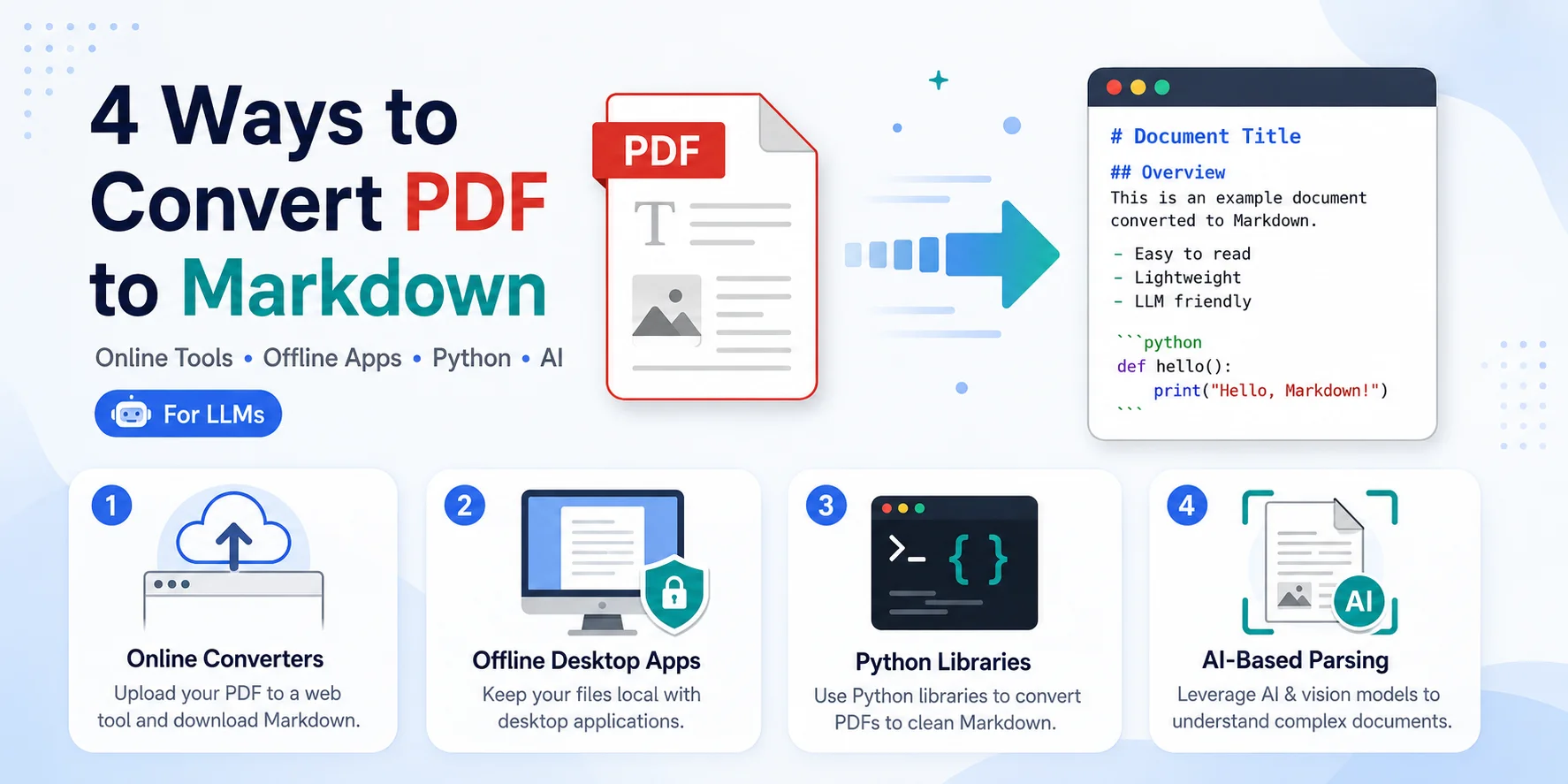
Converting PDF files to Markdown (.md) is a common headache when you need to import documents into personal knowledge bases like Obsidian, clean up text to feed into Large Language Models (LLMs), or just get rid of bloated, rigid formatting.
There is no single tool that handles every PDF perfectly. The best approach depends on whether you have a single file or thousands, how complex the layout is, and whether your data is private. Based on these common scenarios, we have outlined four practical PDF to MD methods below. Let’s dive in!
Quick Answer: Which PDF to Markdown Method Should You Use?
| Method | Best For | Privacy Level | Main Limitation |
|---|---|---|---|
| Online converters | One-off, non-sensitive PDFs | Low to medium | Files are processed by a third-party service |
| Offline desktop apps | Private notes, contracts, internal documents | High if fully local | May struggle with scanned or complex PDFs |
| Python libraries | Batch conversion and automation | High if run locally | Requires coding and dependency management |
| Multi-Modal AI | Scanned PDFs, equations, multi-column layouts | Depends on tool | Requires API costs or powerful local hardware (GPU); potential AI hallucinations. |
Method 1: Online Converters (Easiest)
If you only have a few files, your PDF is mostly standard text, and you prefer a no-code solution, free online PDF to Markdown tools offer instant conversion without any environment setup.
Top Online Converters
- CloudConvert: Highly reliable web utility that preserves basic header structures and bullet points.
- Md-to.com: A simple web tool optimized specifically for converting between Markdown and different file formats, including PDF, Word, HTML, and more.
How to Convert PDF to Markdown Online
-
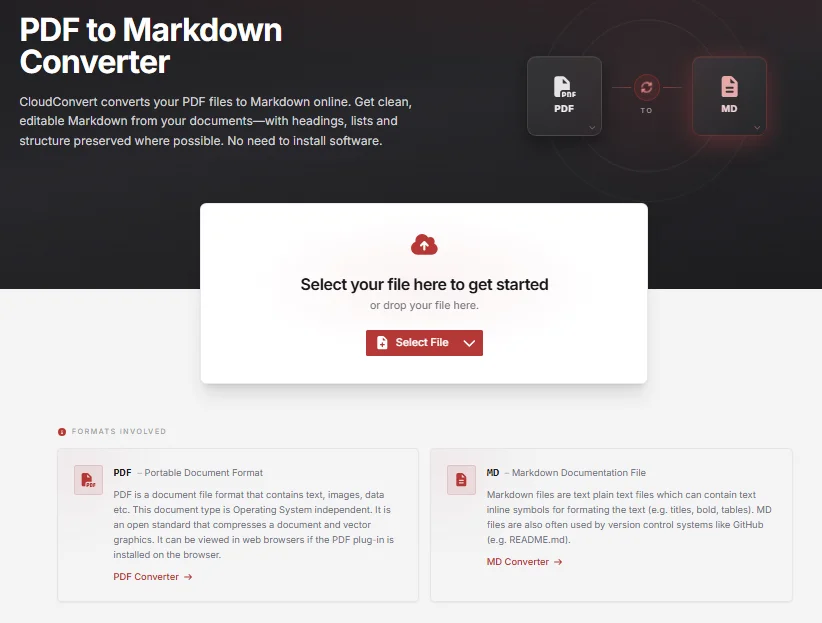
Open your chosen online converter (e.g., CloudConvert PDF to MD tool).
-
Click Select File and upload your PDF.
-
Ensure the output dropdown format is set to MD or Markdown.
-
Click Convert, wait a few seconds for the file to process, and click Download.
⚠️ Critical Notes:
- Privacy Warning: Never upload financial statements, legal contracts, or proprietary data to free online tools. For confidential files, skip to Method 2 immediately.
- Limits: Some tools restrict daily conversions or file size. Always check the current limits before uploading large PDFs.
Result:
The PDF is converted to editable Markdown with basic headings, lists, and structure preserved: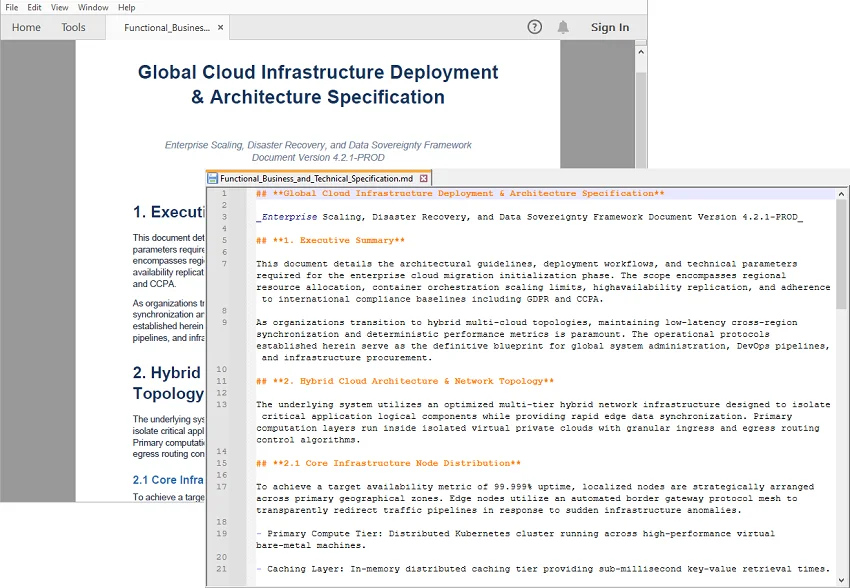
Method 2: Offline Desktop Apps (Most Secure)
If you are dealing with confidential documents, financial statements, or private notes, you should convert your files locally with desktop apps without uploading them to the cloud.
Option A: MarkItDown GUI
Best for a quick, point-and-click interface without touching code.
-
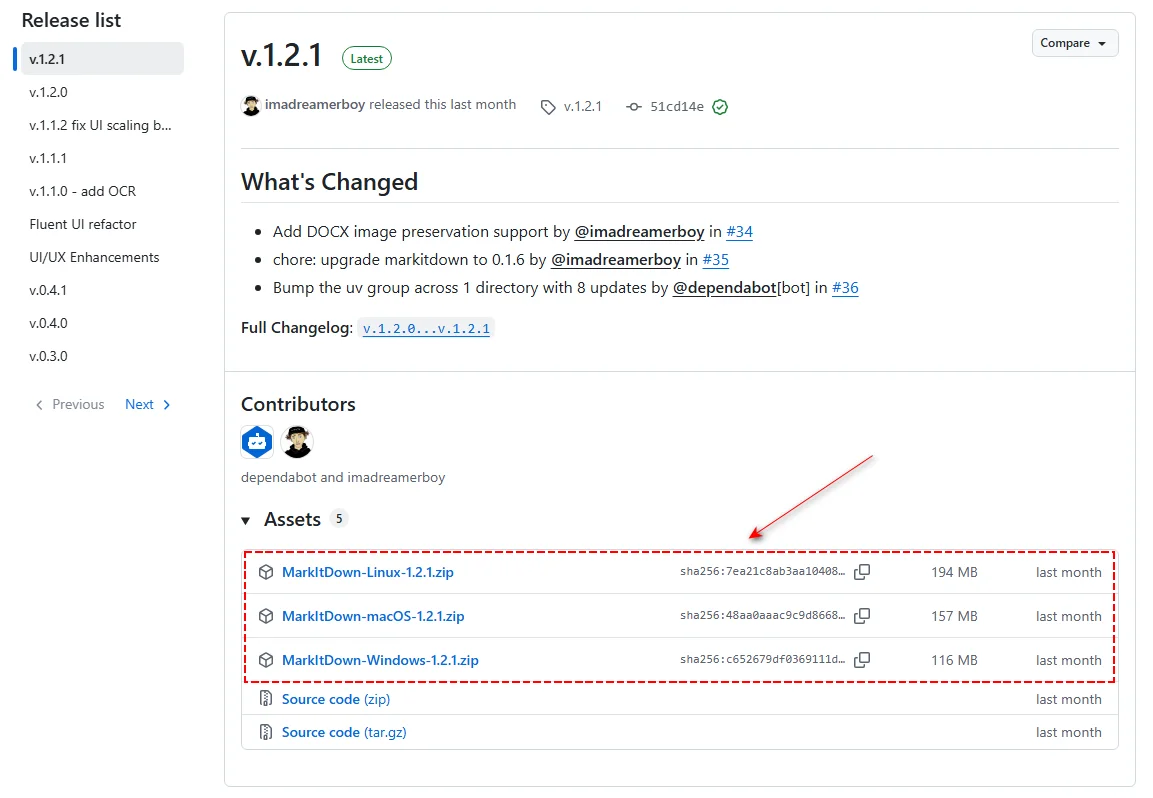
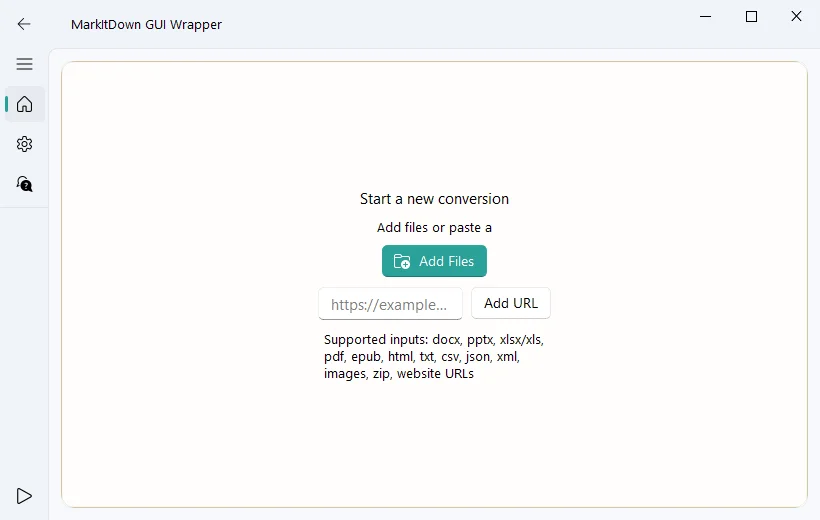
Download the latest Markitdown-gui version for your operating system (Windows, Linux, or Mac) from the GitHub releases page.
-
Extract the downloaded ZIP file and double-click MarkItDown.exe (or the Mac/Linux equivalent) to run it.
-
In the opened window, click Add Files to load your PDF, then click Convert to generate your .md file.
⚠️ Getting a blank file?
MarkItDown works best with PDFs that contain a selectable text layer. If the output is empty, your PDF may be scanned or image-based. Skip to Method 4 (Vision AI) instead.
Option B: VS Code & MarkItDown Extension
Best if you already use VS Code and want to convert files directly within your workspace.
-
Open Visual Studio Code.
-
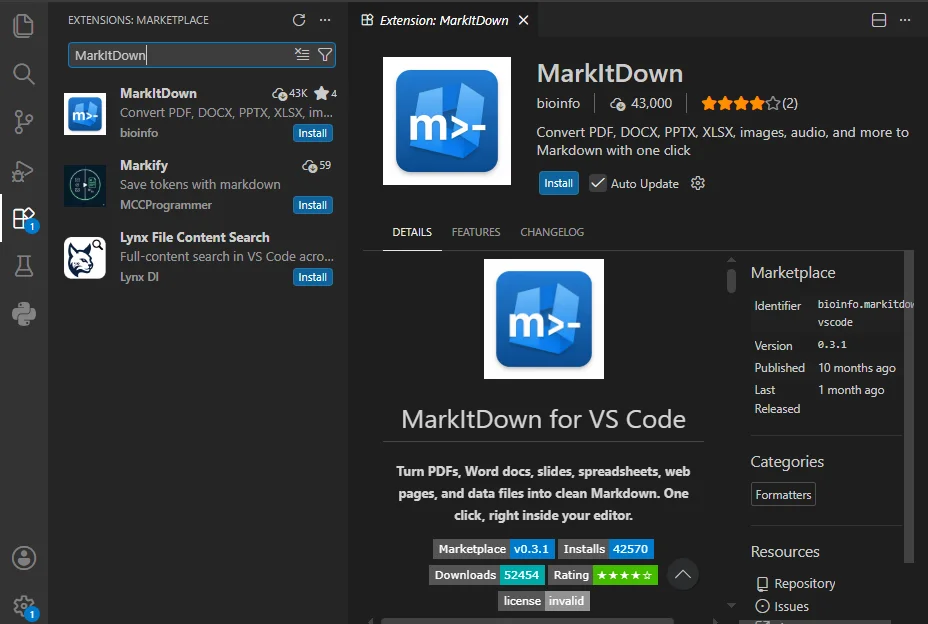
Go to the Extensions Marketplace by pressing Ctrl+Shift+X (or Cmd+Shift+X on Mac).
-
Search for MarkItDown, and click Install.
-
Open your project folder (File > Open Folder) and drag your PDF into the VS Code Explorer sidebar.
-
In the left-side Explorer sidebar, right-click the PDF filename and select MarkItDown: Convert File to Markdown.
⚠️ Do not double-click the PDF!
Opening a PDF directly inside the VS Code editor panel will just display unreadable binary garbage text. Always use the right-click menu in the sidebar.
Method 3: Python Libraries (Best for Clean Text & Bulk Automation)
If you have dozens or hundreds of text-based PDFs to convert, clicking through them manually is highly inefficient. Programmatic Python libraries allow you to build an automated pipeline to process an entire folder of documents in one go.
Option A: Microsoft MarkItDown Python Utility
Use this open-source library when you want a straightforward, completely free way to turn PDFs into Markdown.
-
Open your terminal and install the MarkItDown package via pip:
pip install "markitdown[all]" -
Create a new Python file (e.g., batch_convert.py) and paste the following code to convert all PDFs in the current directory:
import glob import os from markitdown import MarkItDown md = MarkItDown() # Get all PDF files in the current folder pdf_files = glob.glob("*.pdf") if not pdf_files: print("No PDF files found.") else: print(f"Processing {len(pdf_files)} file(s)...") for pdf_file in pdf_files: output_file = os.path.splitext(pdf_file)[0] + ".md" try: print(f"Converting: {pdf_file}") result = md.convert(pdf_file) with open(output_file, "w", encoding="utf-8") as f: f.write(result.text_content) except Exception as e: print(f"Error converting {pdf_file}: {e}") print("Done.") -
Run the script in your terminal to generate your Markdown file instantly.
Option B: Spire.PDF for Python
If you are working in an enterprise environment and require advanced, granular controls—such as targeting specific page ranges or isolating tables from regular text— Enterprise-grade libraries like Spire.PDF for Python offer dedicated APIs to handle these requirements.
-
Install the library via your terminal:
pip install Spire.PDF -
Add a Python file and paste the following code snippets to convert specific page slices from all PDFs in the current folder to Markdown:
import glob
import os
from spire.pdf.common import *
from spire.pdf import *

pdf_files = glob.glob("*.pdf")

if not pdf_files:
    print("No PDF files found.")
else:
    for pdf_file in pdf_files:
        output_file = os.path.splitext(pdf_file)[0] + "_partial.md"
        print(f"Extracting pages from: {pdf_file}")

        src_pdf = PdfDocument()
        src_pdf.LoadFromFile(pdf_file)
        extracted_pdf = PdfDocument()

        # Save specific page range to Markdown (zero-based index: 1 to 4 extracts pages 2 to 5)
        if src_pdf.Pages.Count > 1:
            extracted_pdf.InsertPageRange(src_pdf, 1, min(4, src_pdf.Pages.Count - 1))
            extracted_pdf.SaveToFile(output_file, FileFormat.Markdown)
        else:
            print(f"Skipped {pdf_file}: Less than 2 pages.")

        src_pdf.Close()
        extracted_pdf.Close()

print("Batch processing finished.")
⚠️ Developer Note:
The evaluation version of Spire.PDF has baseline page processing limits and includes watermarks. If you are testing these scenarios in an enterprise production environment, you can request a free temporary license to unlock unrestricted programmatic capabilities.
Method 4: Multi-Modal AI (Best for Scanned PDFs & Complex Layouts)
When dealing with scanned PDFs, multi-column academic papers, or complex financial tables, traditional parsers often struggle to maintain formatting. Layout-aware multi-modal AI tools can help by visually analyzing the document structure to map it accurately into Markdown.
Option A: Microsoft MarkItDown with Multi-Modal LLMs (Cloud API Setup)
You can configure Microsoft’s MarkItDown library to parse visual documents by installing its official OCR extension and connecting it to a vision-capable Large Language Model, such as OpenAI’s GPT-4o.
-
Install the core library, the OCR plugin, and the OpenAI bridge:
pip install "markitdown[all]" markitdown-ocr openai -
Run the Python script:
from markitdown import MarkItDown
from openai import OpenAI

# Initialize the OpenAI client
client = OpenAI(api_key="your-openai-api-key")

# Enable plugins to load 'markitdown-ocr' and bind it to GPT-4o for visual analysis
md = MarkItDown(
    enable_plugins=True,
    llm_client=client,
    llm_model="gpt-4o",
)

# The plugin renders the PDF pages internally and uses the LLM to structure the Markdown
result = md.convert("scanned_report.pdf")

# Print the structured markdown output
print(result.text_content)
⚠️ Cost Warning:
Since this approach sends document pages as visual tokens to OpenAI, processing hundreds of scanned pages can quickly scale up your API bill. Always test on a small, 2-page sample first.
Option B: Local Open-Source AI Models (Best for Privacy & Free Batch Tasks)
For sensitive data or large-scale document pipelines where cloud API costs might escalate, open-source document models offer a local alternative.
- MinerU (Magic-PDF): Optimized for complex scientific layouts. It is designed to strip out headers and footers while converting mathematical formulas into LaTeX markdown.
- Marker: Tailored for textbooks and multi-column documents. It helps detect reading orders to produce cleaner markdown tables and text blocks.
-
Local Vision LLMs (via Ollama): By running multi-modal models like
llama3.2-visionorminicpm-vlocally via Ollama, you can create scripts to process page screenshots directly through a local endpoint for free.
⚠️ Hardware Requirements:
Running these open-source AI tools locally generally requires a machine equipped with a dedicated graphics card (an NVIDIA GPU with CUDA support) and roughly 8GB to 16GB of VRAM to ensure efficient processing speeds.
Quick Fixes for Common PDF to MD Issues
-
The text columns got mixed up
If your PDF has a multi-column layout, standard converters may read across the whole page and jumble the text. To fix this, try AI tools that can visually read the layout and keep the columns separated. -
Images and charts are missing or broken
Markdown handles images through external file links or embedded text data (like Base64). If your images aren't showing up, double-check if the file paths or embedding codes are correct. For simpler tools that completely strip images during conversion, you will need to manually save the charts and link them in your Markdown text. -
Strange symbols and weird boxes appear
Older PDFs with custom fonts often turn into gibberish during conversion. Try using an offline desktop app (Method 2) for better local font handling. If that fails, treat it as a scanned file and let AI read it visually. -
The file is too large to convert
Some free online tools reject files over 10MB. To fix this, split the PDF file before uploading.
FAQs
Q1: Will converting a PDF to Markdown preserve hyperlinks and table of contents?
A1: Standard hyperlink tags ([Text](URL)) are usually preserved. However, internal PDF anchor links (like a clickable Table of Contents that jumps to page 5) will break, as Markdown handles document navigation differently through heading IDs (#).
Q2: Why is my PDF to Markdown output empty?
A2: Your PDF is likely scanned or image-based, so normal converters cannot read its text layer. Use OCR or Vision AI instead.
Q3: Is it safe to use online PDF to Markdown converters?
A3: Only for non-sensitive PDFs. Do not upload contracts, financial records, personal data, or internal business documents to online converters.
Final Thoughts
There is no universal best PDF to Markdown converter. The right method depends on your document type, privacy requirements, and workflow size.
In short, use online tools for convenience, offline apps for strict privacy, Python libraries for bulk automation, and AI-based methods for complex or scanned layouts.
Disclaimer: All third-party tools, platforms, and open-source projects mentioned in this article are referenced strictly for informational and educational purposes. We are not affiliated with, sponsored by, or endorsed by any of these external services.