
Inserting slide numbers in PowerPoint helps your audience follow your presentation and makes it easier to refer to specific slides during meetings, lectures, training sessions, or reviews.
You do not need to type slide numbers manually on each slide. PowerPoint can insert automatic slide numbers that update when slides are added, deleted, or rearranged.
This guide shows 4 practical ways to add slide numbers, from built-in PowerPoint options to automated methods for repetitive or batch processing tasks. Plus, it also covers advanced tips for customizing slide numbers to match your template design.
Methods Summary
| Method | Best For | Advantages | Limitations |
|---|---|---|---|
| PowerPoint Desktop | Most everyday presentations | Built-in, reliable, supports layout customization | Requires manual execution per file |
| PowerPoint for the Web | Quick browser-based edits | No desktop installation required | Fewer slide master and layout controls |
| VBA Macro | Repetitive local PowerPoint tasks | One-click automation inside PowerPoint; no external library | Requires macro-enabled PowerPoint and trusted macro settings |
| C# Automation | Batch processing multiple PowerPoint files | Can automate files without Microsoft PowerPoint installed | Requires .NET setup and programming knowledge |
1. Insert Slide Numbers in PowerPoint Desktop
Applies to: PowerPoint for Microsoft 365, PowerPoint 2024, 2021, 2019, and 2016 (desktop versions).
PowerPoint lets you add slide numbers to every slide at once, or only to the slide you are currently editing. Follow the steps below to set up your page numbers.
Add Slide Numbers to All Slides
-
Go to the Insert tab on the top ribbon.
-
Click Slide Number (or Header & Footer) in the Text section.
-
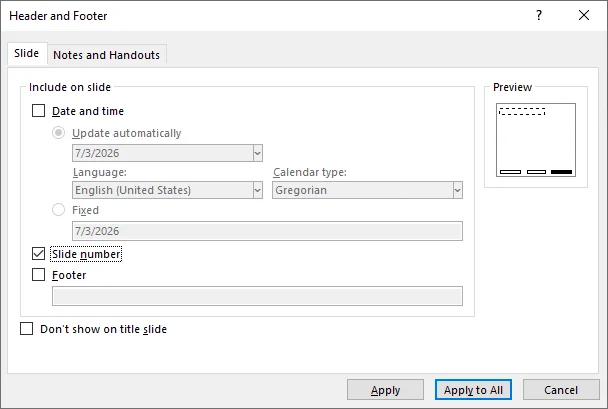
In the opened Header and Footer dialog box, check the box next to Slide number.
-
Click Apply to All.
Result:
Every slide displays its slide number in the default position defined by your current presentation theme.
Add a Slide Number to Only One Slide
- Select the specific slide where you want to add the number from the left thumbnail pane.
- Go to the Insert tab and click Slide Number (or Header & Footer).
- In the pop-up dialog box, check the box next to Slide number.
- Click Apply (do not click Apply to All).
Result:
Only the active slide receives a visible number. Other slides remain unchanged.
Advanced Tips: Customize Slide Numbers
- Hide Slide Number on Title Slide: Go to Insert > Slide Number, check the Slide number and Don't show on title slide boxes, then click Apply to All.
- Start Slide Numbering from a Custom Number: Go to Design > Slide Size > Custom Slide Size, set Number slides from: to your desired integer (e.g., 0 or 2).
- Change Font, Color, or Position of Slide Numbers: Go to View > Slide Master and select the large top parent slide. Locate the ‹#› token box, format its font/color, or drag the box to a new corner. When done, click Close Master View.
2. Add Slide Numbers Online (PowerPoint for the Web)
If you are collaborating on the cloud or editing without the desktop application installed, PowerPoint for the Web offers a quick, browser-based way to insert pagination.
How to Insert Slide Numbers in PowerPoint Online
- Open your presentation in PowerPoint for the Web.
- Go to Insert > Footer > Slide Number.
- In the pane that appears on the right, check Slide Number.
- (Optional) Check Don't show on title slide if you want to keep your cover page clean.
- Click Apply to All.
⚠️ Note on Formatting:
PowerPoint for the Web is ideal for basic numbering, but it lacks advanced design controls. If you need to move the placeholder, modify font families, or customize Master layouts, click the Editing dropdown menu in the top-right corner and select Open in Desktop App to switch to the full desktop version.
3. Automate Slide Numbering via VBA Macro (Desktop Only)
If you manage large presentation decks and need to implement custom numbering logic—such as displaying a "Page X of Y" label—standard UI menus may not be sufficient. A native VBA macro allows you to update slide numbers across the entire presentation with a single click.
How to Run a Dynamic Numbering Macro
-
Press Alt + F11 (Windows) or Option + F11 (Mac) to open the VBA editor.
-
Click Insert > Module on the top menu bar to open a new script window.
-
Copy and paste the following code into the module window:
Sub FormatAllSlideNumbers() Dim sld As Slide Dim shp As Shape Dim totalSlides As Integer Dim trField As TextRange ' Get the total number of slides in the active presentation totalSlides = ActivePresentation.Slides.Count For Each sld In ActivePresentation.Slides ' Enable slide number visibility for the current slide sld.HeadersFooters.SlideNumber.Visible = msoTrue ' Loop through shapes to find the slide number placeholder For Each shp In sld.Shapes If shp.Type = msoPlaceholder Then If shp.PlaceholderFormat.Type = ppPlaceholderSlideNumber Then ' Clear existing text to prevent duplication if the macro is re-run shp.TextFrame.TextRange.Text = "" ' Format text as "Page X of Y" With shp.TextFrame.TextRange .Text = "Page " ' Insert the dynamic slide number field (X) Set trField = .InsertSlideNumber ' Append the static total count (of Y) trField.InsertAfter " of " & totalSlides End With ' Exit the shape loop once the placeholder is updated Exit For End If End If Next shp Next sld MsgBox "Page X of Y numbering applied to all slides.", vbInformation, "Success" End Sub -
Press F5 or click the green Run triangle button on the toolbar to execute your code.
Result:
PowerPoint loops through the file, calculates the current total number of slides, and writes a "Page X of Y" label into each slide-number placeholder.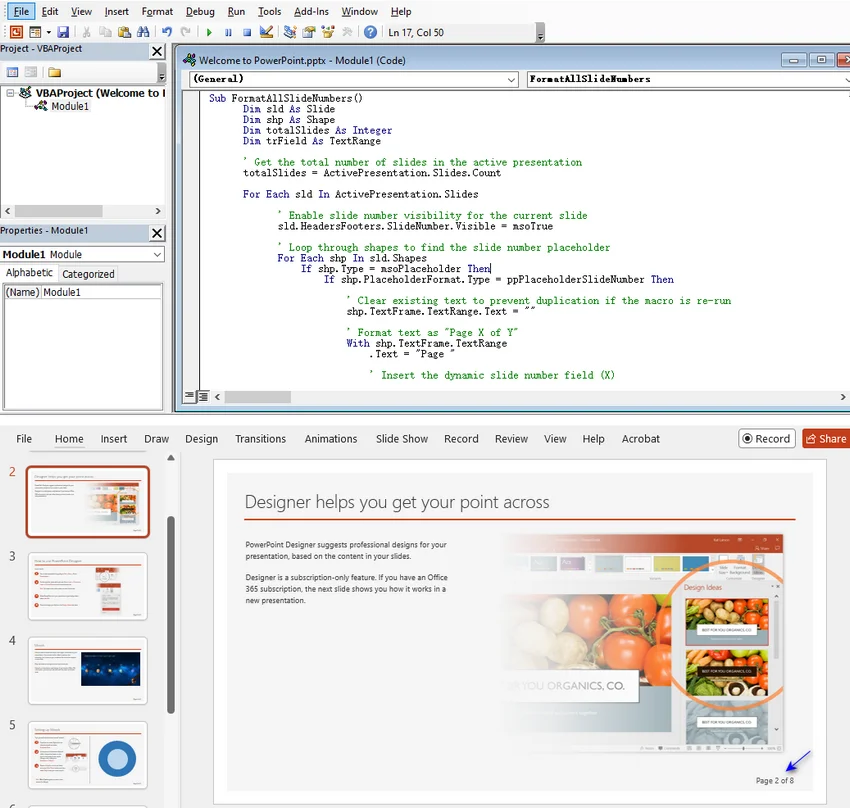
⚠️ Important Notice:
- If you add or delete slides, press F5 again to update the total "of Y" count.
- To keep this script inside your file for future edits, save the file as a Macro-Enabled Presentation (.pptm), or the code will be lost when closed.
- Ensure your Macro Settings (under File > Options > Trust Center) are configured to allow macro execution.
4. Batch Insert Slide Numbers via C# and Free Spire.Presentation
While VBA is effective, it is restricted to the desktop version of PowerPoint. If you need to automate slide numbering for multiple presentations in cloud environments or on the server side, you can process files headlessly using C# and the Free Spire.Presentation for .NET library, eliminating the need for a Microsoft Office installation.
How to Batch Insert Slide Numbers in PowerPoint in C#
-
Install the required library. Open your .NET project and install the Free Spire.Presentation NuGet package via the Package Manager Console:
PM> Install-Package FreeSpire.Presentation -
Add the C# code to your project. The following example processes all .pptx files in a specified input folder and saves the numbered files to an output folder:
using Spire.Presentation;
using System;
using System.IO;

namespace AddSlideNumber
{
    internal class Program
    {
        static void Main(string[] args)
        {
            string inputFolder = @"Input\";
            string outputFolder = @"Output\";

            Directory.CreateDirectory(outputFolder);

            foreach (string file in Directory.GetFiles(inputFolder, "*.pptx"))
            {
                Presentation presentation = new Presentation();

                try
                {
                    presentation.LoadFromFile(file);

                    // Enable slide numbers globally
                    presentation.SlideNumberVisible = true;
                    int totalSlides = presentation.Slides.Count;

                    // Loop through each slide to find and update existing slide-number placeholders as Slide X of Y
                    foreach (ISlide slide in presentation.Slides)
                    {
                        foreach (IShape shape in slide.Shapes)
                        {
                            if (shape.Placeholder != null &&
                                shape.Placeholder.Type == PlaceholderType.SlideNumber &&
                                shape is IAutoShape placeholder)
                            {
                                // Update the text safely within the existing master layout bounds
                                placeholder.TextFrame.Text = $"Slide {slide.SlideNumber} of {totalSlides}";

                                // Optional formatting adjustment
                                placeholder.TextFrame.Paragraphs[0].Alignment = TextAlignmentType.Right;
                                break; // Move to the next slide once the placeholder is updated
                            }
                        }
                    }

                    string outputFile = Path.Combine(
                        outputFolder,
                        Path.GetFileNameWithoutExtension(file) + "_numbered.pptx"
                    );

                    presentation.SaveToFile(outputFile, FileFormat.Pptx2016);
                    Console.WriteLine($"{Path.GetFileName(file)} processed successfully.");
                }
                catch (Exception ex)
                {
                    Console.WriteLine($"Error processing {Path.GetFileName(file)}: {ex.Message}");
                }
                finally
                {
                    presentation.Dispose();
                }
            }

            Console.WriteLine("All files completed.");
        }
    }
}
Developer Tips:
- This code updates slides with existing slide number placeholders. It does not force new text boxes onto slides where numbering is excluded by design. If numbers do not appear, verify that they are enabled in the PowerPoint Slide Master.
- Since this code formats slide number placeholders as a static “Slide X of Y” string, you will need to re-run the script if you rearrange, add, or remove slides later.
- This free NuGet package supports up to 10 slides per file. For larger documents, you can either split the deck into smaller files or upgrade to the full edition.
If you also want to display date and time in the footer, see our guide on how to display additional information for presentation slides in the header and footer area.
Troubleshooting: Slide Numbers Not Appearing
If your slide numbers don't show up even after clicking Insert > Slide Number > Apply to All, try these quick fixes:
- Restore Missing Placeholders: Go to View > Slide Master and select the large top master slide. Click Master Layout in the ribbon and ensure Slide Number is checked. Next, check each layout slide below the master; if the ‹#› box is missing, check the Footers box in the ribbon to force it to appear.
- Include Title Slides: If your missing number is only on the first slide, go to Insert > Slide Number, uncheck Don't show on title slide, and click Apply to All.
- Bring Numbers to Front: Large background graphics or full-bleed images often cover the slide numbers. Right-click the suspected background image or shapes, and select Send to Back to bring the page number layer to the front.
- Reset Stuck Slides: Older or copied slides can get stuck in formatting limbo and ignore master updates. Select the problematic slides in normal view, go to the Home tab, and click Reset. This forces the slides to re-align with the master layout rules.
FAQs
Q1: How do I start slide numbering from 0 or another number?
A1: Go to Design > Slide Size > Custom Slide Size. Change the Number slides from value to 0 or your desired number and click OK.
Q2: Can I format slide numbers as "Page X of Y" in PowerPoint?
A2: PowerPoint has no automated total page counter. To do this manually, go to View > Slide Master, select the slide number placeholder, and type the total slide count around the ‹#› token (e.g., Page ‹#› of 25). For batch processing, consider using VBA or C# automation.
Q3: How do I hide the slide number on the title slide?
A3: Go to Insert > Slide Number, check the box for Don't show on title slide, and click Apply to All.
Q4: How do I remove slide numbers from PowerPoint?
A4: Go to Insert > Slide Number, uncheck the Slide number box, and click Apply to All. If numbers still appear, select and delete those text boxes manually from the individual slides.
Q5: Will slide numbers appear when I export PowerPoint to PDF?
A5: Yes. Slide numbers that are visible on the slides will usually appear in the exported PDF.
Summary
Adding slide numbers in PowerPoint is simple, but the best method depends on how you work.
In practice, start with PowerPoint’s built-in UI tools first. Then consider VBA when you need local desktop automation, and C# when you need batch processing across multiple files without opening PowerPoint.