
Spire.Doc for .NET (338)
Children categories
Set position of table in Word Document as outside via Spire.Doc
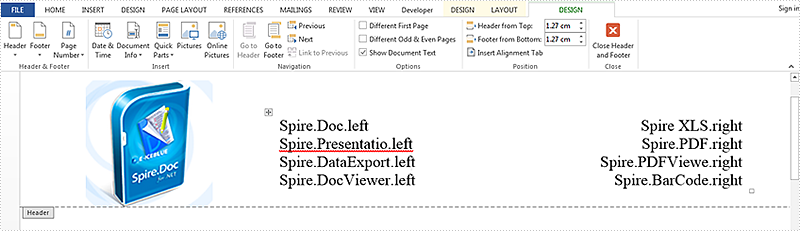
2015-05-22 08:57:03 Written by KoohjiTable in word document can make your data more logical and uncluttered, this article is talk about set absolute position of table in word document via Spire.Doc. Here try to realize placing a table on the right of an image on header.
Here are the steps:
Step 1: Create a new word document and add new section.
Document doc = new Document();
Section sec = doc.AddSection();
Step 2: Create header on Section[0].
HeaderFooter header = doc.Sections[0].HeadersFooters.Header;
Step 3: Add new paragraph on header and set HorizontalAlignment of the paragraph as left.
Paragraph paragraph = header.AddParagraph();
paragraph.Format.HorizontalAlignment = HorizontalAlignment.Left;
Step 4: Load an image for the paragraph.
DocPicture headerimage = paragraph.AppendPicture(Image.FromFile(@"1.png"));
Step 5: Add a table of 4 rows and 2 columns.
Table table = header.AddTable();
table.ResetCells(4, 2);
Step 6: Set the position of the table to the right of the image. Set WrapTextAround is true, HorizPositionAbs is outside, VertRelationTo is margin, and VertPosition is 43 to fit the height of the image.
table.TableFormat.WrapTextAround = true;
table.TableFormat.Positioning.HorizPositionAbs = HorizontalPosition.Outside;
table.TableFormat.Positioning.VertRelationTo = VerticalRelation.Margin;
table.TableFormat.Positioning.VertPosition = 43;
Step 7: Then add contents for the table, first column alignment set as left ,second column alignment set as right.
String[][] data = {
                    new string[] {"Spire.Doc.left","Spire XLS.right"},
                    new string[] {"Spire.Presentatio.left","Spire.PDF.right"},
                    new string[] {"Spire.DataExport.left","Spire.PDFViewe.right"},
                    new string []{"Spire.DocViewer.left","Spire.BarCode.right"}
                              };

            for (int r = 0; r < 4; r++)
            {
                TableRow dataRow = table.Rows[r];
                for (int c = 0; c < 2; c++)
                {
                    if (c == 0)
                    {
                        Paragraph par = dataRow.Cells[c].AddParagraph();
                        par.AppendText(data[r][c]);
                        par.Format.HorizontalAlignment = HorizontalAlignment.Left;
                        dataRow.Cells[c].Width = 180;
                    }
                    else
                    {
                        Paragraph par = dataRow.Cells[c].AddParagraph();
                        par.AppendText(data[r][c]);
                        par.Format.HorizontalAlignment = HorizontalAlignment.Right;
                        dataRow.Cells[c].Width = 180;
                    }
                }
            }
Step 8: Save the file and review it.
doc.SaveToFile("result.docx", FileFormat.Docx);
System.Diagnostics.Process.Start("result.docx");
Here is the screenshot:
Full Code:
using Spire.Doc;
using Spire.Doc.Documents;
using Spire.Doc.Fields;
using System;
using System.Drawing;
namespace SetPosition
{
    class Program
    {

        static void Main(string[] args)
        {

            Document doc = new Document();
            Section sec = doc.AddSection();

            HeaderFooter header = doc.Sections[0].HeadersFooters.Header;

            Paragraph paragraph = header.AddParagraph();
            paragraph.Format.HorizontalAlignment = HorizontalAlignment.Left;
            DocPicture headerimage = paragraph.AppendPicture(Image.FromFile(@"1.png"));

            Table table = header.AddTable();
            table.ResetCells(4, 2);

            table.TableFormat.WrapTextAround = true;
            table.TableFormat.Positioning.HorizPositionAbs = HorizontalPosition.Outside;
            table.TableFormat.Positioning.VertRelationTo = VerticalRelation.Margin;
            table.TableFormat.Positioning.VertPosition = 43;


            String[][] data = {
                    new string[] {"Spire.Doc.left","Spire XLS.right"},
                    new string[] {"Spire.Presentatio.left","Spire.PDF.right"},
                    new string[] {"Spire.DataExport.left","Spire.PDFViewe.right"},
                    new string []{"Spire.DocViewer.left","Spire.BarCode.right"}
                              };

            for (int r = 0; r < 4; r++)
            {
                TableRow dataRow = table.Rows[r];
                for (int c = 0; c < 2; c++)
                {
                    if (c == 0)
                    {
                        Paragraph par = dataRow.Cells[c].AddParagraph();
                        par.AppendText(data[r][c]);
                        par.Format.HorizontalAlignment = HorizontalAlignment.Left;
                        dataRow.Cells[c].Width = 180;
                    }
                    else
                    {
                        Paragraph par = dataRow.Cells[c].AddParagraph();
                        par.AppendText(data[r][c]);
                        par.Format.HorizontalAlignment = HorizontalAlignment.Right;
                        dataRow.Cells[c].Width = 180;
                    }
                }
            }
            doc.SaveToFile("result.docx",Spire.Doc.FileFormat.Docx);
            System.Diagnostics.Process.Start("result.docx");
        }
    }
}
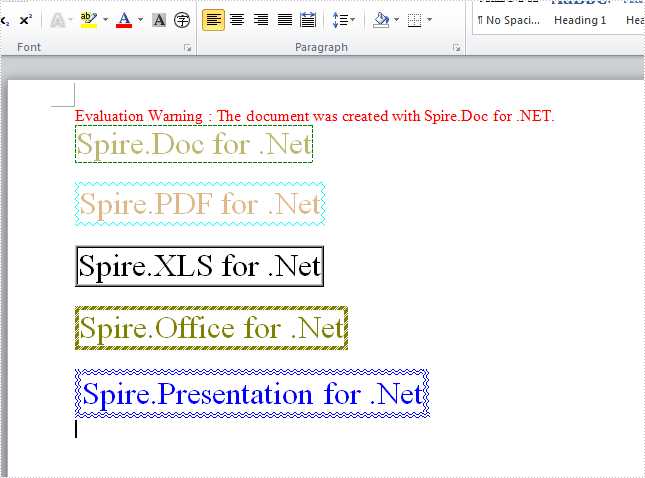
To emphasize and beautify a set of characters or sentence, applying a border around the characters or sentence is a good option. Spire.Doc enables developers to achieve this feature in C#. And there are plenty of built-in border styles available, such as: Wave, Hairline, DotDash, DashSmallGap, DashLargeGap, DoubleWave, DashDotStroker, Emboss3D, Engrave3D, TwistedLines1 and so on. The following codes show how to achieve character border with some border styles mentioned above:
Note: Before start, please make sure that Visual Studio and Spire.Doc have been installed properly. We will use Spire.Doc .dll as reference.
Step 1: Load word document
Document doc = new Document();
Section section = doc.AddSection();
Step 2: Add the characters needed to apply a border and set the border style
//DashSmallGap Border
Paragraph para = section.AddParagraph();
para.Format.HorizontalAlignment = HorizontalAlignment.Left;
TextRange tr = para.AppendText("Spire.Doc for .Net");
tr.CharacterFormat.Border.BorderType = Spire.Doc.Documents.BorderStyle.DashSmallGap;
tr.CharacterFormat.Border.Color = Color.Green;
tr.CharacterFormat.FontSize = 24;
tr.CharacterFormat.TextColor = Color.DarkKhaki;
para.AppendBreak(BreakType.LineBreak);

//Wave Border
para = section.AddParagraph();
para.Format.HorizontalAlignment = HorizontalAlignment.Left;
tr = para.AppendText("Spire.PDF for .Net");
tr.CharacterFormat.Border.BorderType = Spire.Doc.Documents.BorderStyle.Wave;
tr.CharacterFormat.Border.Color = Color.Aqua;
tr.CharacterFormat.FontSize = 24;
tr.CharacterFormat.TextColor = Color.BurlyWood;
para.AppendBreak(BreakType.LineBreak);

//Emboss3D Border
para = section.AddParagraph();
para.Format.HorizontalAlignment = HorizontalAlignment.Left;
tr = para.AppendText("Spire.XLS for .Net");
tr.CharacterFormat.Border.BorderType = Spire.Doc.Documents.BorderStyle.Emboss3D;
tr.CharacterFormat.FontSize = 24;
para.AppendBreak(BreakType.LineBreak);

//DashDotStroker Border
para = section.AddParagraph();
para.Format.HorizontalAlignment = HorizontalAlignment.Left;
tr = para.AppendText("Spire.Office for .Net");
tr.CharacterFormat.Border.BorderType = Spire.Doc.Documents.BorderStyle.DashDotStroker;
tr.CharacterFormat.Border.Color = Color.Olive;
tr.CharacterFormat.FontSize = 24;
tr.CharacterFormat.TextColor = Color.Olive;
para.AppendBreak(BreakType.LineBreak);

//DoubleWave Border
para = section.AddParagraph();
para.Format.HorizontalAlignment = HorizontalAlignment.Left;
tr = para.AppendText("Spire.Presentation for .Net");
tr.CharacterFormat.Border.BorderType = Spire.Doc.Documents.BorderStyle.DoubleWave;
tr.CharacterFormat.Border.Color = Color.Blue;
tr.CharacterFormat.FontSize = 24;
tr.CharacterFormat.TextColor = Color.Blue;
para.AppendBreak(BreakType.LineBreak);
Step 3: Save and launch word document
doc.SaveToFile("S1.docx", FileFormat.Docx);
System.Diagnostics.Process.Start("S1.docx");
Effect of screenshot:
Full Code:
using System;
using System.Collections.Generic;
using System.Linq;
using System.Text;
using Spire.Doc;
using Spire.Doc.Documents;
using Spire.Doc.Fields;
using System.Drawing;

namespace ConsoleApplication1
{
    class Program
    {
        static void Main(string[] args)
        {
            Document doc = new Document();
            Section section = doc.AddSection();

            //DashSmallGap Border
            Paragraph para = section.AddParagraph();
            para.Format.HorizontalAlignment = HorizontalAlignment.Left;
            TextRange tr = para.AppendText("Spire.Doc for .Net");
            tr.CharacterFormat.Border.BorderType = Spire.Doc.Documents.BorderStyle.DashSmallGap;
            tr.CharacterFormat.Border.Color = Color.Green;
            tr.CharacterFormat.FontSize = 24;
            tr.CharacterFormat.TextColor = Color.DarkKhaki;
            para.AppendBreak(BreakType.LineBreak);

            //Wave Border
            para = section.AddParagraph();
            para.Format.HorizontalAlignment = HorizontalAlignment.Left;
            tr = para.AppendText("Spire.PDF for .Net");
            tr.CharacterFormat.Border.BorderType = Spire.Doc.Documents.BorderStyle.Wave;
            tr.CharacterFormat.Border.Color = Color.Aqua;
            tr.CharacterFormat.FontSize = 24;
            tr.CharacterFormat.TextColor = Color.BurlyWood;
            para.AppendBreak(BreakType.LineBreak);

            //Emboss3D Border
            para = section.AddParagraph();
            para.Format.HorizontalAlignment = HorizontalAlignment.Left;
            tr = para.AppendText("Spire.XLS for .Net");
            tr.CharacterFormat.Border.BorderType = Spire.Doc.Documents.BorderStyle.Emboss3D;
            tr.CharacterFormat.FontSize = 24;
            para.AppendBreak(BreakType.LineBreak);

            //DashDotStroker Border
            para = section.AddParagraph();
            para.Format.HorizontalAlignment = HorizontalAlignment.Left;
            tr = para.AppendText("Spire.Office for .Net");
            tr.CharacterFormat.Border.BorderType = Spire.Doc.Documents.BorderStyle.DashDotStroker;
            tr.CharacterFormat.Border.Color = Color.Olive;
            tr.CharacterFormat.FontSize = 24;
            tr.CharacterFormat.TextColor = Color.Olive;
            para.AppendBreak(BreakType.LineBreak);

            //DoubleWave Border
            para = section.AddParagraph();
            para.Format.HorizontalAlignment = HorizontalAlignment.Left;
            tr = para.AppendText("Spire.Presentation for .Net");
            tr.CharacterFormat.Border.BorderType = Spire.Doc.Documents.BorderStyle.DoubleWave;
            tr.CharacterFormat.Border.Color = Color.Blue;
            tr.CharacterFormat.FontSize = 24;
            tr.CharacterFormat.TextColor = Color.Blue;
            para.AppendBreak(BreakType.LineBreak);

            doc.SaveToFile("S1.docx", FileFormat.Docx);
            System.Diagnostics.Process.Start("S1.docx");

        }
    }
}
Sometimes in word files, we type another language rather than default, and need spellers and other proofing tools adjust to the language we typed.
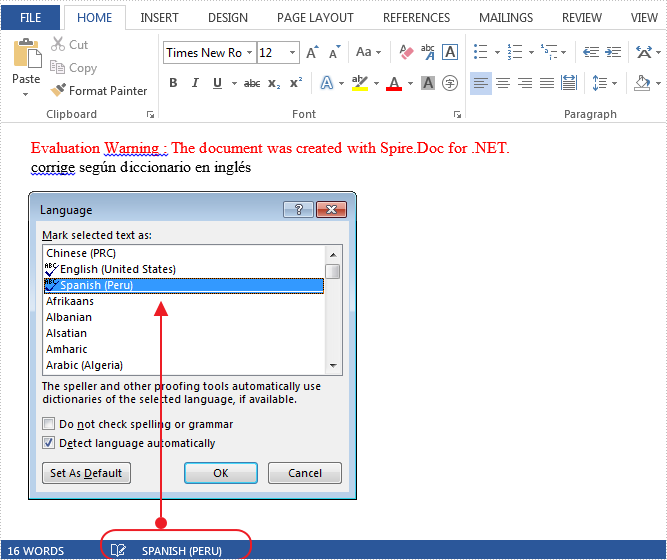
This article is talking about how to alter language dictionary as non-default language via Spire.Doc. Here take English as default language and alter to Spanish in Peru as an example.
As for more language information, refer this Link to Microsoft Locale ID Values.
Here are the steps:
Step 1: Create a new word document.
Document document = new Document();
Step 2: Add new section and paragraph to the document.
Section sec = document.AddSection();
Paragraph para = sec.AddParagraph();
Step 3: Add a textRange for the paragraph and append some Peru Spanish words.
TextRange txtRange = para.AppendText("corrige según diccionario en inglés");
txtRange.CharacterFormat.LocaleIdASCII = 10250;
Step 4: Save and review.
document.SaveToFile("result.docx", FileFormat.Docx2013);
System.Diagnostics.Process.Start("result.docx");
Here is the result screenshot.
Full Code:
using Spire.Doc.Documents;
using Spire.Doc.Fields;
namespace AlterLang
{

    class Program
    {

        static void Main(string[] args)
        {
            Document document = new Document();
            Section sec = document.AddSection();
            Paragraph para = sec.AddParagraph();
            TextRange txtRange = para.AppendText("corrige según diccionario en inglés");
            txtRange.CharacterFormat.LocaleIdASCII = 10250;
            document.SaveToFile("result.docx", FileFormat.Docx2013);
            System.Diagnostics.Process.Start("result.docx");
        }
    }
}
