
Spire.Doc for .NET (338)
Children categories
Tables in Word documents allow users to organize data in a structured, readable format. However, at times you may find that some tables are outdated or no longer serve their intended purpose, making it necessary to remove them. In this article, you will learn how to remove tables from a Word document in C# using Spire.Doc for .NET.
Install Spire.Doc for .NET
To begin with, you need to add the DLL files included in the Spire.Doc for.NET package as references in your .NET project. The DLL files can be either downloaded from this link or installed via NuGet.
PM> Install-Package Spire.Doc
Remove a Specified Table in Word in C#
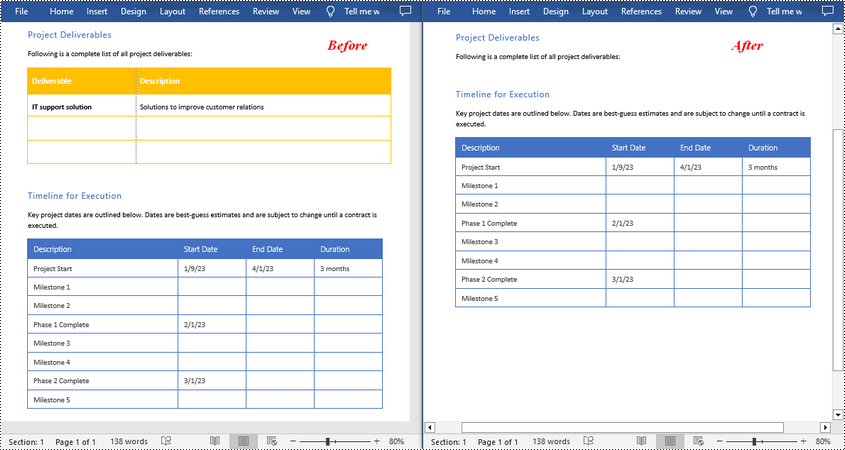
Spire.Doc for .NET provides the Section.Tables.RemoveAt(int index) method to delete a specified table in a Word document by index. The following are the detailed steps.
- Create a Document instance.
- Load a Word document using Document.LoadFromFile() method.
- Get a specified section using Document.Sections[] property.
- Delete a specified table by index using Section.Tables.RemoveAt() method.
- Save the result document using Document.SaveToFile() method.
- C#
using Spire.Doc;

namespace RemoveTable
{
    class Program
    {
        static void Main(string[] args)
        {
            //Create a Document instance
            Document doc = new Document();

            //Load a Word document
            doc.LoadFromFile("tables.docx");

            //Get the first section in the document
            Section sec = doc.Sections[0];

            //Remove the first table in the section
            sec.Tables.RemoveAt(0);

            //Save the result document
            doc.SaveToFile("RemoveATable.docx", FileFormat.Docx);
        }
    }
}
Remove All Tables in Word in C#
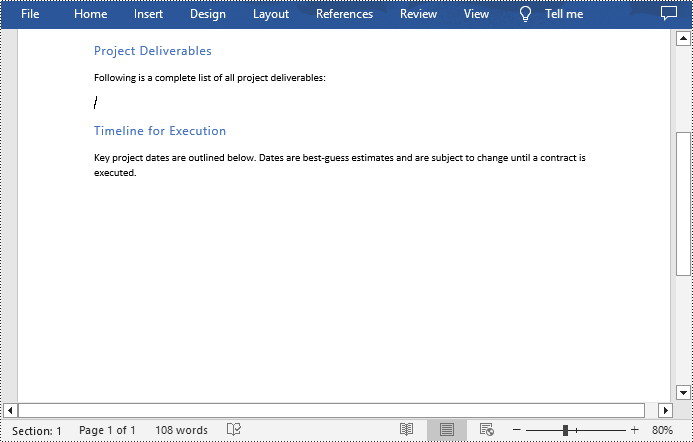
To delete all tables from a Word document, you need to iterate through all sections in the document, then iterate through all tables in each section and remove them through the Section.Tables.Remove() method. The following are the detailed steps.
- Create a Document instance.
- Load a Word document using Document.LoadFromFile() method.
- Iterate through all sections in the document.
- Iterate through all tables in each section.
- Delete the tables using Section.Tables.Remove() method.
- Save the result document using Document.SaveToFile() method.
- C#
using Spire.Doc;

namespace RemoveAllTable
{
    class Program
    {
        static void Main(string[] args)
        {
            //Create a Document instance
            Document doc = new Document();

            //Load a Word document
            doc.LoadFromFile("tables.docx");

            //Iterate through all sections in the document
            foreach (Section section in doc.Sections)
            {
                //Iterate through all tables in each section
                foreach (Table table in section.Tables)
                {
                    //Remove the tables
                    section.Tables.Remove(table);
                }
            }

            //Save the result document
            doc.SaveToFile("RemoveTables.docx", FileFormat.Docx);
        }
    }
}
Apply for a Temporary License
If you'd like to remove the evaluation message from the generated documents, or to get rid of the function limitations, please request a 30-day trial license for yourself.
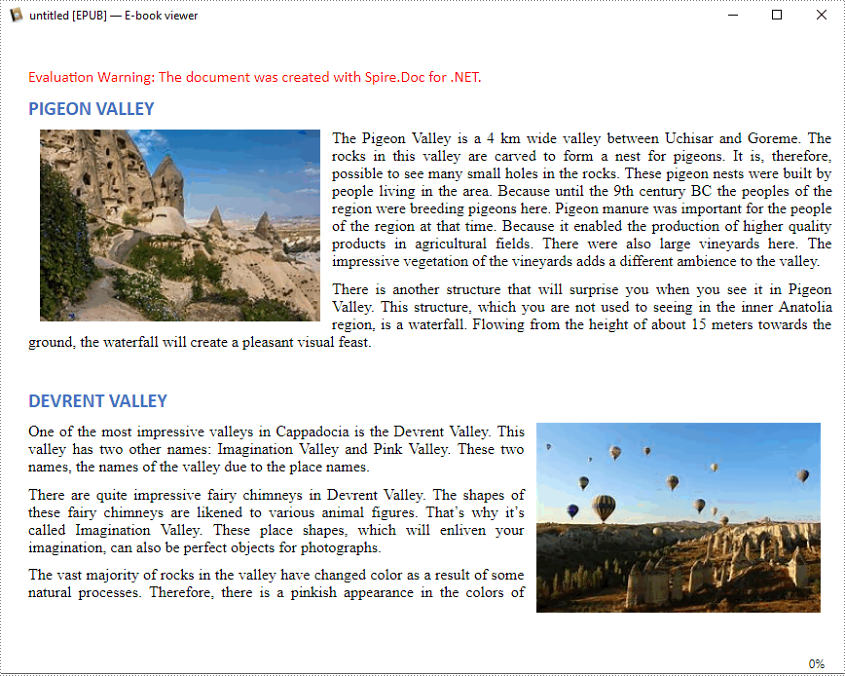
EPUB is a standard file format for publishing eBooks or other electronic documents. The content in an EPUB file is reflowable, which means that the content automatically adjusts itself to fit the screen it is being displayed on. People who want to publish their eBooks may need to convert their works stored in Word documents to EPUB files. In this article, you will learn how to programmatically achieve this task using Spire.Doc for .NET.
Install Spire.Doc for .NET
To begin with, you need to add the DLL files included in the Spire.Doc for .NET package as references in your .NET project. The DLL files can be either downloaded from this link or installed via NuGet.
PM> Install-Package Spire.Doc
Convert Word to EPUB
The detailed steps are as follows:
- Create a Document instance.
- Load a sample Word document using Document.LoadFromFile() method.
- Save the document to EPUB using Document.SaveToFile() method.
- C#
- VB.NET
using Spire.Doc;

namespace WordtoEPUB
{
    class Epub
    {
        static void Main(string[] args)
        {
            //Create a Document instance
            Document document = new Document();

            //Load a sample Word document
            document.LoadFromFile("demo.docx");

            //Convert the Word document to EPUB
            document.SaveToFile("ToEpub.epub", FileFormat.EPub);
        }
    }
}
Convert Word to EPUB with a Cover Image
The detailed steps are as follows.
- Create a Document instance.
- Load a sample Word document using Document.LoadFromFile() method.
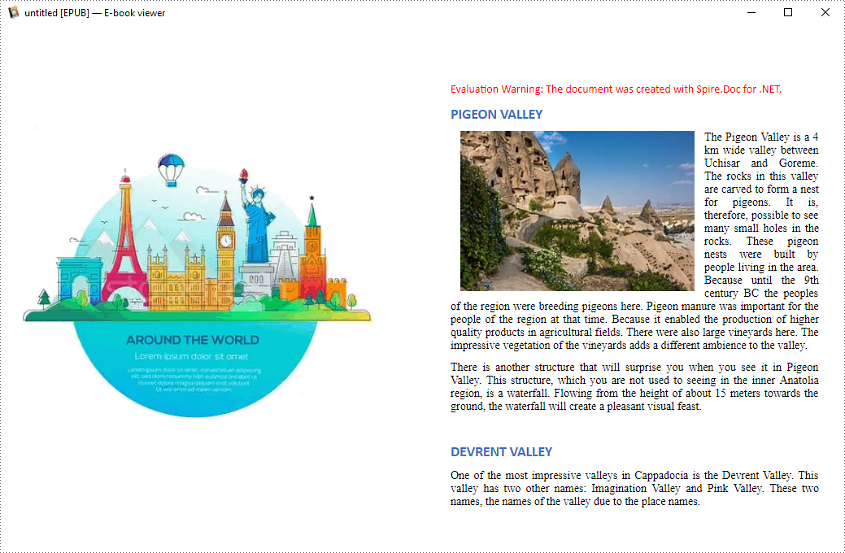
- Create a DocPicture instance, and then load an image using DocPicture.LoadImage() method.
- Save the Word document to EPUB with cover image using Document.SaveToEpub(String, DocPicture) method.
- C#
- VB.NET
using Spire.Doc;
using Spire.Doc.Fields;
using System.Drawing;

namespace ConvertWordToEpubWithCoverImage
{
    class Program
    {
        static void Main(string[] args)
        {

            //Create a Document instance
            Document doc = new Document();

            //Load a sample Word document
            doc.LoadFromFile("demo.docx");

            //Create a DocPicture instance
            DocPicture picture = new DocPicture(doc);

            //Load an image
            picture.LoadImage(Image.FromFile("CoverImage.png"));

            //Save the Word document to EPUB with cover image
            doc.SaveToEpub("ToEpubWithCoverImage.epub", picture);
        }
    }
}
Apply for a Temporary License
If you'd like to remove the evaluation message from the generated documents, or to get rid of the function limitations, please request a 30-day trial license for yourself.
Watch this quick demo video to see how multiple Word documents can be merged into one file using C# and VB.NET.
Long papers or research reports are often completed collaboratively by multiple people. To save time, each person can work on their assigned parts in separate documents and then merge these documents into one after finish editing. Apart from manually copying and pasting content from one Word document to another, this article will demonstrate the following two ways to merge Word documents programmatically using Spire.Doc for .NET .
Install Spire.Doc for .NET
To begin with, you need to add the DLL files included in the Spire.Doc for.NET package as references in your .NET project. The DLL files can be either downloaded from this link or installed via NuGet.
PM> Install-Package Spire.Doc
Merge Documents by Inserting the Entire File
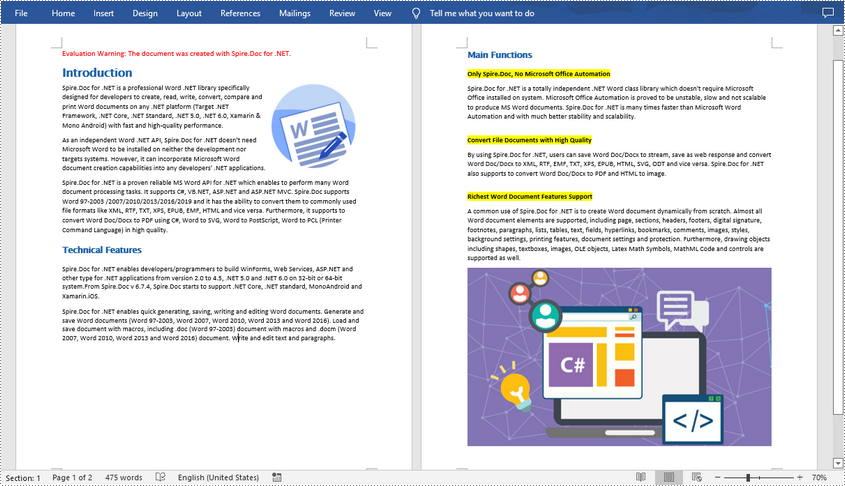
The Document.InsertTextFromFile() method provided by Spire.Doc for .NET allows merging Word documents by inserting other documents entirely into a document. Using this method, the contents of the inserted document will start from a new page. The detailed steps are as follows:
- Create a Document instance.
- Load the original Word document using Document.LoadFromFile() method.
- Insert another Word document entirely to the original document using Document.InsertTextFromFile() method.
- Save the result document using Document.SaveToFile() method.
- C#
- VB.NET
using Spire.Doc;

namespace MergeWord
{
    class Program
    {
        static void Main(string[] args)
        {
            //Create a Document instance
            Document document = new Document();

            //Load the original Word document
            document.LoadFromFile("Doc1.docx", FileFormat.Docx);

            //Insert another Word document entirely to the original document
            document.InsertTextFromFile("Doc2.docx", FileFormat.Docx);

            //Save the result document
            document.SaveToFile("MergedWord.docx", FileFormat.Docx);
        }
    }
}
Merge Documents by Cloning Contents
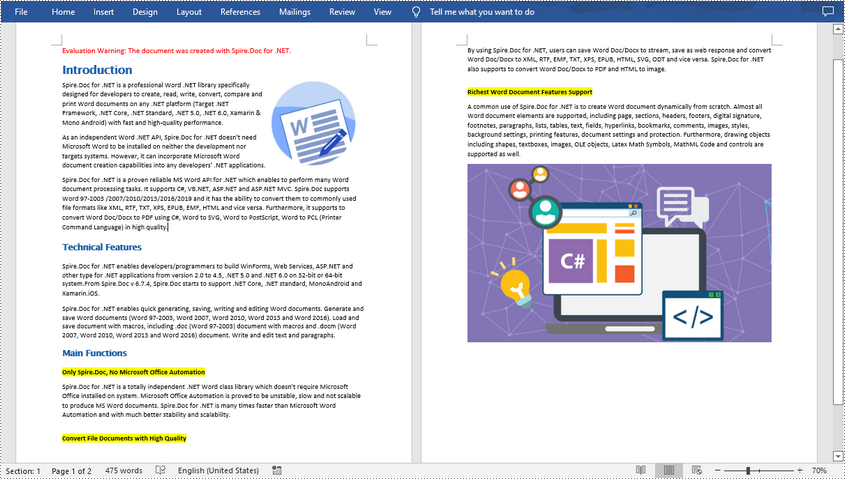
If you want to merge documents without starting a new page, you can clone the contents of other documents to add to the end of the original document. The detailed steps are as follows:
- Load two Word documents.
- Loop through the second document to get all the sections using Document.Sections property, and then loop through all the sections to get their child objects using Section.Body.ChildObjects property.
- Get the last section of the first document using Document.LastSection property, and then add the child objects to the last section of the first document using LastSection.Body.ChildObjects.Add() method.
- Save the result document using Document.SaveToFile() method.
- C#
- VB.NET
using Spire.Doc;

namespace MergeWord
{
    class Program
    {
        static void Main(string[] args)
        {
            //Load two Word documents
            Document doc1 = new Document("Doc1.docx");
            Document doc2 = new Document("Doc2.docx");

            //Loop through the second document to get all the sections
            foreach (Section section in doc2.Sections)
            {

                //Loop through the sections of the second document to get their child objects
                foreach (DocumentObject obj in section.Body.ChildObjects)
                {

                    // Get the last section of the first document
                     Section lastSection = doc1.LastSection;

                    //Add all child objects to the last section of the first document
                    lastSection.Body.ChildObjects.Add(obj.Clone());
                }
            }

            // Save the result document
            doc1.SaveToFile("MergeDocuments.docx", FileFormat.Docx);
        }
    }
}
Apply for a Temporary License
If you'd like to remove the evaluation message from the generated documents, or to get rid of the function limitations, please request a 30-day trial license for yourself.
