
Spire.PDF for .NET (290)
Assign an Icon to a PDF Button Field and Set Icon Layout in C#
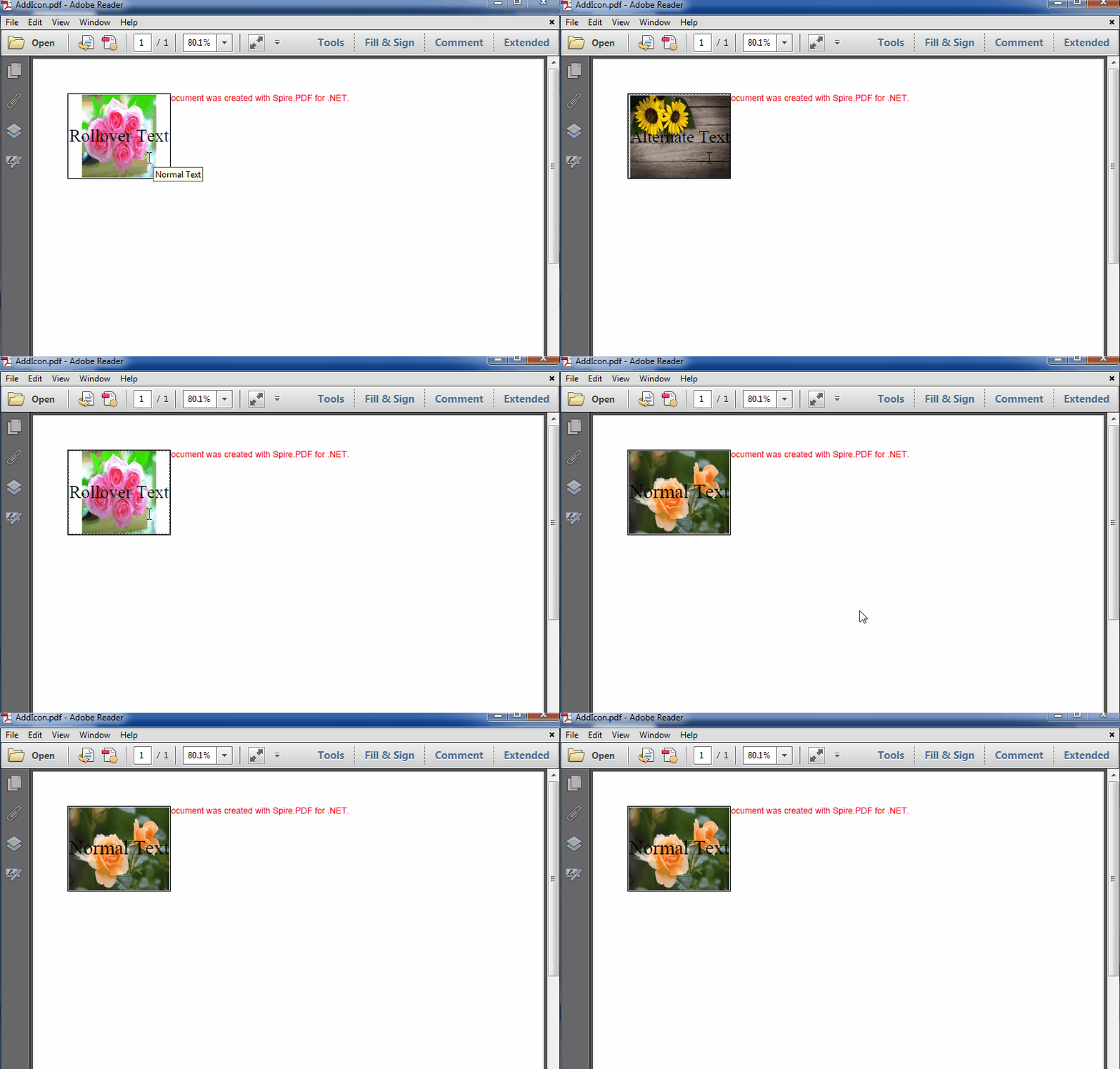
2017-06-02 07:50:05 Written by KoohjiIn PDF, buttons can be assigned icon appearances and each button can have as many as three appearances: Normal, Rollover, and Click. With Spire.PDF, not only can we assign icons to buttons, but also we can change the icons of buttons. In this article, we’re going to show you how to assign an icon to a button and set icon layout using Spire.PDF and C#. As for changing icons, please refer How to change the image on button field in C#.
Code Snippets:
Step 1: Create a PDF document and add a page to it.
PdfDocument doc = new PdfDocument();
PdfPageBase page = doc.Pages.Add();
Step 2: Create a button field.
PdfButtonField btn = new PdfButtonField(page, "button1");
btn.Bounds = new RectangleF(0, 50, 120, 100);
Step 3: Set button layout.
btn.HighlightMode = PdfHighlightMode.Push;
btn.LayoutMode = PdfButtonLayoutMode.CaptionOverlayIcon;
//Set text and icon for Normal appearance
btn.Text = "Normal Text";
btn.Icon = PdfImage.FromFile("Image.png");
//Set text and icon for Click appearance (Can only be set when highlight mode is Push)
btn.AlternateText = "Alternate Text";
btn.AlternateIcon = PdfImage.FromFile("Sunflower.jpg");
//Set text and icon for Rollover appearance (Can only be set when highlight mode is Push)
btn.RolloverText = "Rollover Text";
btn.RolloverIcon = PdfImage.FromFile("PinkRoses.jpg");
Step 4: Set icon layout.
btn.IconLayout.Spaces = new float[] { 0.5f, 0.5f };
btn.IconLayout.ScaleMode = PdfButtonIconScaleMode.Proportional;
btn.IconLayout.ScaleReason = PdfButtonIconScaleReason.Always;
btn.IconLayout.IsFitBounds = false;
Step 5: Add the button to the document.
doc.Form.Fields.Add(btn);
Step 6: Save the document.
doc.SaveToFile("AddIcon.pdf");
The resultant document looks as follows:
Full code:
using System.Drawing;
using Spire.Pdf;
using Spire.Pdf.Fields;
using Spire.Pdf.Graphics;

namespace Add_Icon_to_PDF_Button_Field
{
    class Program
    {
        static void Main(string[] args)
        {
            //Create a PDF document
            PdfDocument doc = new PdfDocument();
            PdfPageBase page = doc.Pages.Add();

            //Create a Button
            PdfButtonField btn = new PdfButtonField(page, "button1");
            btn.Bounds = new RectangleF(0, 50, 120, 100);
            btn.HighlightMode = PdfHighlightMode.Push;
            btn.LayoutMode = PdfButtonLayoutMode.CaptionOverlayIcon;
            //Set text and icon for Normal appearance
            btn.Text = "Normal Text";
            btn.Icon = PdfImage.FromFile("Image.png");
            //Set text and icon for Click appearance (Can only be set when highlight mode is Push)
            btn.AlternateText = "Alternate Text";
            btn.AlternateIcon = PdfImage.FromFile("Sunflower.jpg");
            //Set text and icon for Rollover appearance (Can only be set when highlight mode is Push)
            btn.RolloverText = "Rollover Text";
            btn.RolloverIcon = PdfImage.FromFile("PinkRoses.jpg");

            //Set icon layout
            btn.IconLayout.Spaces = new float[] { 0.5f, 0.5f };
            btn.IconLayout.ScaleMode = PdfButtonIconScaleMode.Proportional;
            btn.IconLayout.ScaleReason = PdfButtonIconScaleReason.Always;
            btn.IconLayout.IsFitBounds = false;

            //Add the button to the document
            doc.Form.Fields.Add(btn);

            //Save the document
            doc.SaveToFile("AddIcon.pdf");
        }
    }
}
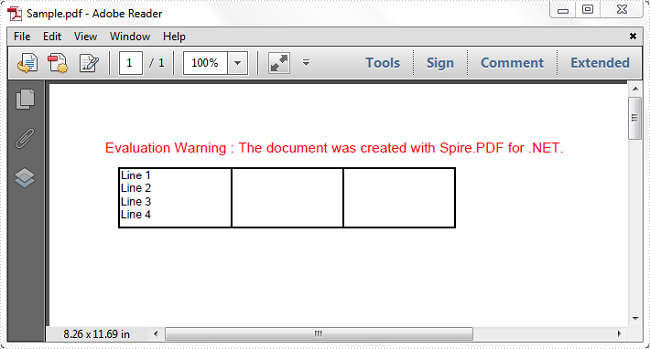
In some cases, you have several items that you want them displayed on multiple lines within a PDF grid cell. However if you don't enter a line break at a specific point in a cell, these items will appear as a whole sentence. In the article, you can learn how to insert line breaks in PDF grid cell via Spire.PDF in C#, VB.NET.
Here come the detailed steps:
Step 1: Initialize a new instance of PdfDocument and add a new page to PDF document.
PdfDocument doc = new PdfDocument();
PdfPageBase page = doc.Pages.Add();
Step 2: Create a PDF gird with one row and three columns.
PdfGrid grid = new PdfGrid();
grid.Style.CellPadding = new PdfPaddings(1, 1, 1, 1);
PdfGridRow row = grid.Rows.Add();
grid.Columns.Add(3);
grid.Columns[0].Width = 80;
grid.Columns[1].Width = 80;
grid.Columns[2].Width = 80;
Step 3: Initialize a new instance of PdfGridCellTextAndStyleList class and PdfGridCellTextAndStyle class. Set parameters of the variable textAndStyle such as text, font and brush. Add textAndStlye into PdfGridCellTextAndStyleList.
PdfGridCellTextAndStyleList lst = new PdfGridCellTextAndStyleList();
PdfGridCellTextAndStyle textAndStyle = new PdfGridCellTextAndStyle();
textAndStyle.Text = "Line 1";
textAndStyle.Font = new PdfTrueTypeFont(new System.Drawing.Font("Airal", 8f, FontStyle.Regular), true);
textAndStyle.Brush = PdfBrushes.Black;
lst.List.Add(textAndStyle);
Step 4: Repeat step 3 to add three other lines. Here you should insert '\n' to where you want this line break appears.
textAndStyle = new PdfGridCellTextAndStyle();
textAndStyle.Text = "\nLine 2";
textAndStyle.Font = new PdfTrueTypeFont(new System.Drawing.Font("Arial", 8f, FontStyle.Regular), true);
textAndStyle.Brush = PdfBrushes.Black;
lst.List.Add(textAndStyle);
textAndStyle = new PdfGridCellTextAndStyle();
textAndStyle.Text = "\nLine 3";
textAndStyle.Font = new PdfTrueTypeFont(new System.Drawing.Font("Arial", 8f, FontStyle.Regular), true);
textAndStyle.Brush = PdfBrushes.Black;
lst.List.Add(textAndStyle);
textAndStyle = new PdfGridCellTextAndStyle();
textAndStyle.Text = "\nLine 4";
textAndStyle.Font = new PdfTrueTypeFont(new System.Drawing.Font("Arial",8f, FontStyle.Regular), true);
textAndStyle.Brush = PdfBrushes.Black;
lst.List.Add(textAndStyle);
row.Cells[0].Value = lst;
Step 5: Draw the gird on PDF page and save the file.
grid.Draw(page, new PointF(10, 20));
String outputFile = "..\\..\\Sample.pdf";
doc.SaveToFile(outputFile, FileFormat.PDF);
System.Diagnostics.Process.Start(outputFile);
Result:
Full Code:
using Spire.Pdf;
using Spire.Pdf.Graphics;
using Spire.Pdf.Grid;
using System;
using System.Drawing;


namespace LineBreak
{
    class Program
    {
        static void Main(string[] args)
        {
            PdfDocument doc = new PdfDocument();
            PdfPageBase page = doc.Pages.Add();

            PdfGrid grid = new PdfGrid();
            grid.Style.CellPadding = new PdfPaddings(1, 1, 1, 1);
            PdfGridRow row = grid.Rows.Add();
            grid.Columns.Add(3);
            grid.Columns[0].Width = 80;
            grid.Columns[1].Width = 80;
            grid.Columns[2].Width = 80;

            PdfGridCellContentList lst = new PdfGridCellContentList();
            PdfGridCellContent textAndStyle = new PdfGridCellContent();
            textAndStyle.Text = "Line 1";
            textAndStyle.Font = new PdfTrueTypeFont(new System.Drawing.Font("Airal", 8f, FontStyle.Regular), true);
            textAndStyle.Brush = PdfBrushes.Black;
            lst.List.Add(textAndStyle);
            textAndStyle = new PdfGridCellContent();
            textAndStyle.Text = "\nLine 2";
            textAndStyle.Font = new PdfTrueTypeFont(new System.Drawing.Font("Arial", 8f, FontStyle.Regular), true);
            textAndStyle.Brush = PdfBrushes.Black;
            lst.List.Add(textAndStyle);
            textAndStyle = new PdfGridCellContent();
            textAndStyle.Text = "\nLine 3";
            textAndStyle.Font = new PdfTrueTypeFont(new System.Drawing.Font("Arial", 8f, FontStyle.Regular), true);
            textAndStyle.Brush = PdfBrushes.Black;
            lst.List.Add(textAndStyle);
            textAndStyle = new PdfGridCellContent();
            textAndStyle.Text = "\nLine 4";
            textAndStyle.Font = new PdfTrueTypeFont(new System.Drawing.Font("Arial", 8f, FontStyle.Regular), true);
            textAndStyle.Brush = PdfBrushes.Black;
            lst.List.Add(textAndStyle);
            row.Cells[0].Value = lst;

            grid.Draw(page, new PointF(10, 20));
            String outputFile = "..\\..\\Sample.pdf";
            doc.SaveToFile(outputFile, FileFormat.PDF);
            System.Diagnostics.Process.Start(outputFile);
        }
    }
}
Imports Spire.Pdf
Imports Spire.Pdf.Graphics
Imports Spire.Pdf.Grid
Imports System.Drawing


Namespace LineBreak
	Class Program
		Private Shared Sub Main(args As String())
			Dim doc As New PdfDocument()
			Dim page As PdfPageBase = doc.Pages.Add()

			Dim grid As New PdfGrid()
			grid.Style.CellPadding = New PdfPaddings(1, 1, 1, 1)
			Dim row As PdfGridRow = grid.Rows.Add()
			grid.Columns.Add(3)
			grid.Columns(0).Width = 80
			grid.Columns(1).Width = 80
			grid.Columns(2).Width = 80

			Dim lst As New PdfGridCellContentList()
			Dim textAndStyle As New PdfGridCellContent()
			textAndStyle.Text = "Line 1"
			textAndStyle.Font = New PdfTrueTypeFont(New System.Drawing.Font("Airal", 8F, FontStyle.Regular), True)
			textAndStyle.Brush = PdfBrushes.Black
			lst.List.Add(textAndStyle)
			textAndStyle = New PdfGridCellContent()
			textAndStyle.Text = vbLf & "Line 2"
			textAndStyle.Font = New PdfTrueTypeFont(New System.Drawing.Font("Arial", 8F, FontStyle.Regular), True)
			textAndStyle.Brush = PdfBrushes.Black
			lst.List.Add(textAndStyle)
			textAndStyle = New PdfGridCellContent()
			textAndStyle.Text = vbLf & "Line 3"
			textAndStyle.Font = New PdfTrueTypeFont(New System.Drawing.Font("Arial", 8F, FontStyle.Regular), True)
			textAndStyle.Brush = PdfBrushes.Black
			lst.List.Add(textAndStyle)
			textAndStyle = New PdfGridCellContent()
			textAndStyle.Text = vbLf & "Line 4"
			textAndStyle.Font = New PdfTrueTypeFont(New System.Drawing.Font("Arial", 8F, FontStyle.Regular), True)
			textAndStyle.Brush = PdfBrushes.Black
			lst.List.Add(textAndStyle)
			row.Cells(0).Value = lst

			grid.Draw(page, New PointF(10, 20))
			Dim outputFile As [String] = "..\..\Sample.pdf"
			doc.SaveToFile(outputFile, FileFormat.PDF)
			System.Diagnostics.Process.Start(outputFile)
		End Sub
	End Class
End Namespace
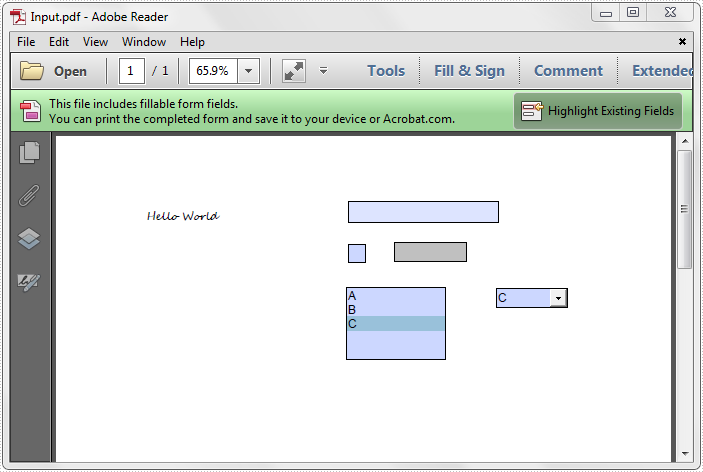
This article demonstrates how to remove a particular form field and all of the form fields from an existing PDF document using Spire.PDF.
The below sample document contains some text and five different kinds of form fields:
Remove a particular form field
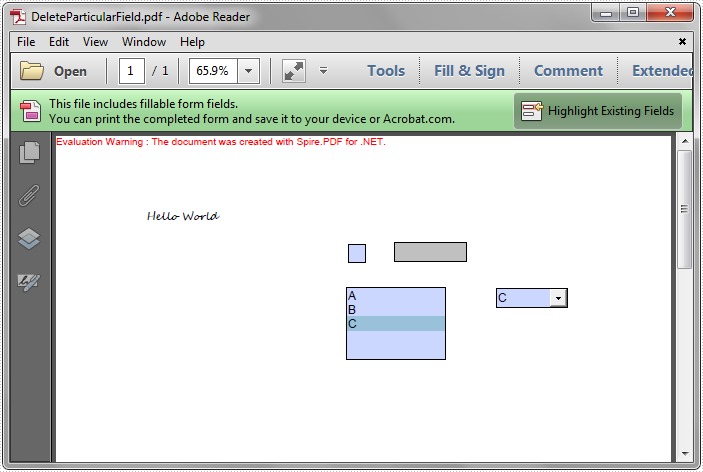
We can remove a particular form field by calling the PdfFieldCollection.Remove method. To remove the form field by index, call the PdfFieldCollection.RemoveAt method and pass the corresponding index of the form field as the argument.
using Spire.Pdf;
using Spire.Pdf.Fields;
using Spire.Pdf.Widget;


namespace RemoveSpecifiedFormfield
{
    class Program
    {
        static void Main(string[] args)
        {
            //Create PdfDocument instance
            PdfDocument pdf = new PdfDocument();

            //Load PDF file
            pdf.LoadFromFile(@"Input.pdf");

            //Get form fields
            PdfFormWidget formWidget = pdf.Form as PdfFormWidget;

            //Get and remove the first form field
            PdfField textbox = formWidget.FieldsWidget.List[0] as PdfTextBoxFieldWidget;
            formWidget.FieldsWidget.Remove(textbox);

            //Get and remove the first form field using its name
            //PdfField field = formWidget.FieldsWidget["Text1"];
            //formWidget.FieldsWidget.Remove(field);

            //Remove the form field at index 0
            //formWidget.FieldsWidget.RemoveAt(0);

            pdf.SaveToFile("DeleteParticularField.pdf");
        }

    }
}
Remove all of the form fields
To remove all of the form fields, first we need to traverse the form fields and then remove them one by one.
using Spire.Pdf;
using Spire.Pdf.Fields;
using Spire.Pdf.Widget;


namespace RemoveSpecifiedFormfield
{
    class Program
    {
        static void Main(string[] args)
        {
            //Create PdfDocument instance
            PdfDocument pdf = new PdfDocument();

            //Load PDF file
            pdf.LoadFromFile(@"Input.pdf");

            //Get form fields
            PdfFormWidget formWidget = pdf.Form as PdfFormWidget;

            //Remove all of the form fields
            for (int i = formWidget.FieldsWidget.List.Count - 1; i >= 0; i--)
            {
                PdfField field = formWidget.FieldsWidget.List[i] as PdfField;
                formWidget.FieldsWidget.Remove(field);
            }

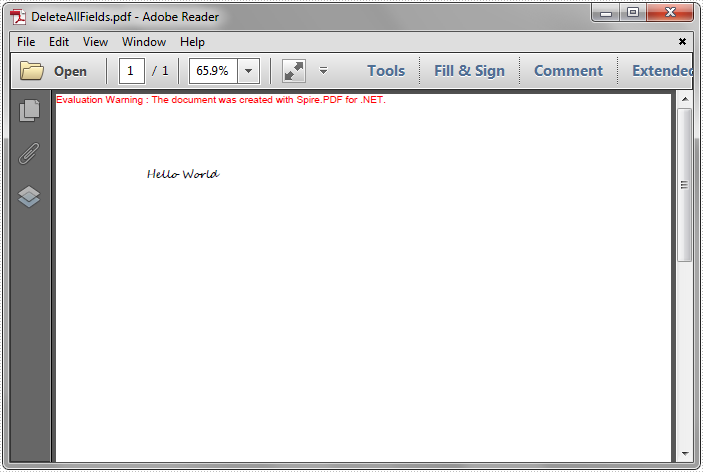
            pdf.SaveToFile("DeleteAllFields.pdf");
        }

    }
}
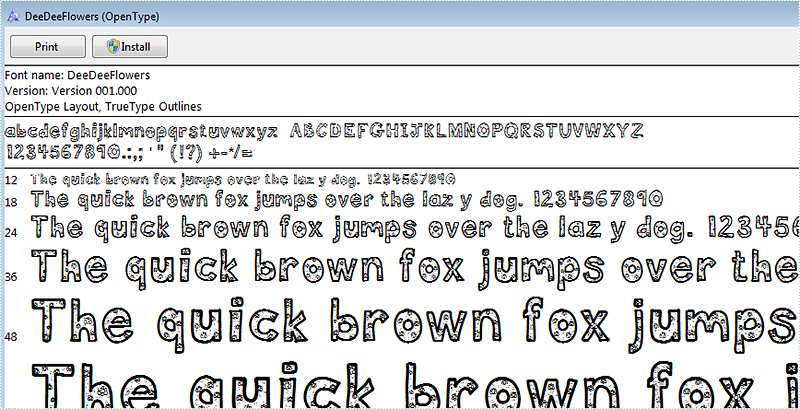
Change font can offer more variability to PDF files, now Spire.PDF can allow developers change font of pdf files without install the font to the disk. This article is talk about this realization process.
Below is the screenshot of the uninstalled font DeeDeeFlowers.ttf
Here are the steps:
Step 1: Create a new blank PDF document.
PdfDocument doc = new PdfDocument();
Step 2: Add a new page to the PDF.
PdfPageBase page = doc.Pages.Add();
Step 3: Create a TrueType font object with DeeDeeFlowers.ttf as parameter
String fontFileName = "DeeDeeFlowers.ttf";
PdfTrueTypeFont trueTypeFont = new PdfTrueTypeFont(fontFileName, 20f);
Step 4: Add text and set property.
page.Canvas.DrawString("Years may wrinkle the skin,\n"
+ " but to give up enthusiasm wrinkles the soul.\n"
+ " Worry, fear, self-distrust bows the heart\n"
+" and turns the spirit back to dust.", trueTypeFont, new PdfSolidBrush(Color.Black), 10, 10);
Step 5: Save and review.
doc.SaveToFile("result.pdf");
System.Diagnostics.Process.Start("result.pdf");
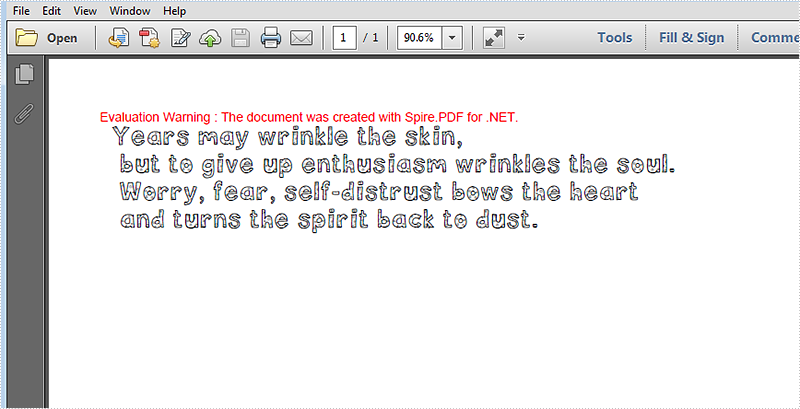
Here is the screenshot of result.pdf.
Full Code:
using Spire.Pdf;
using Spire.Pdf.Graphics;
using System;
using System.Drawing;


namespace EmbedPrivateFont
{
    class Program
    {
        static void Main(string[] args)
        {
            PdfDocument doc = new PdfDocument();
            PdfPageBase page = doc.Pages.Add();
            String fontFileName = "DeeDeeFlowers.ttf";
            PdfTrueTypeFont trueTypeFont = new PdfTrueTypeFont(fontFileName, 20f);
            page.Canvas.DrawString("Years may wrinkle the skin,\n"
            + " but to give up enthusiasm wrinkles the soul.\n"
            + " Worry, fear, self-distrust bows the heart\n"
            + " and turns the spirit back to dust.", trueTypeFont, new PdfSolidBrush(Color.Black), 10, 10);
            doc.SaveToFile("result.pdf");
            System.Diagnostics.Process.Start("result.pdf");
        }
    }
}
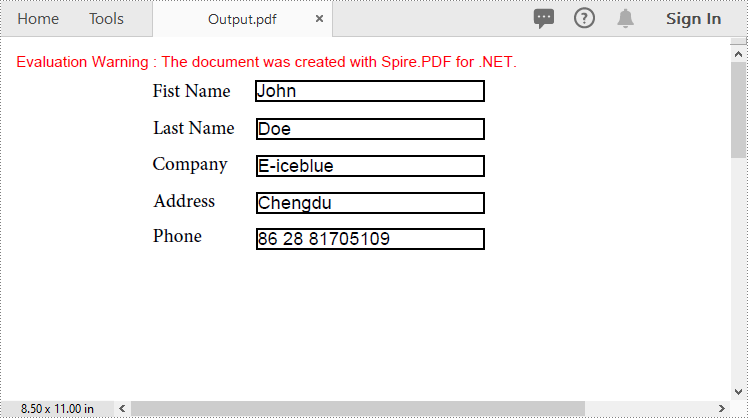
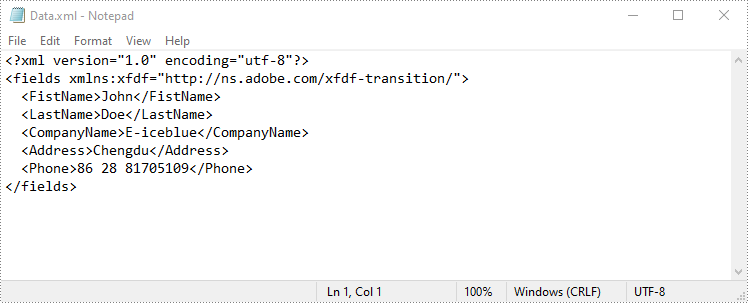
Importing and exporting PDF form data allows users to seamlessly exchange form information with external files in formats such as FDF (Forms Data Format), XFDF (XML Forms Data Format), or XML. The import function enables quick population of PDF forms using data from external sources, while the export function extracts data from PDF forms and saves it to external files. This capability simplifies data management, making it especially valuable for processing large volumes of form data or integrating with other systems. In this article, we will demonstrate how to import PDF form data from FDF, XFDF, or XML files, or export PDF form data to FDF, XFDF, or XML files in C# using Spire.PDF for .NET.
- Import PDF Form Data from FDF, XFDF or XML Files in C#
- Export PDF Form Data to FDF, XFDF or XML Files in C#
Install Spire.PDF for .NET
To begin with, you need to add the DLL files included in the Spire.PDF for.NET package as references in your .NET project. The DLLs files can be either downloaded from this link or installed via NuGet.
PM> Install-Package Spire.PDF
Import PDF Form Data from FDF, XFDF or XML Files in C#
Spire.PDF for .NET offers the PdfFormWidget.ImportData() method for importing PDF form data from FDF, XFDF, or XML files. The detailed steps are as follows.
- Create an object of the PdfDocument class.
- Load a PDF document using PdfDocument.LoadFromFile() method.
- Get the form of the PDF document using PdfDocument.Form property.
- Import form data from an FDF, XFDF or XML file using PdfFormWidget.ImportData() method.
- Save the resulting document using PdfDocument.SaveToFile() method.
- C#
using Spire.Pdf;
using Spire.Pdf.Widget;

namespace ImportPdfFormData
{
    internal class Program
    {
        static void Main(string[] args)
        {
            //Create an object of the PdfDocument class
            PdfDocument document = new PdfDocument();
            //Load a PDF document
            document.LoadFromFile("Forms.pdf");

            //Get the form of the PDF document
            PdfFormWidget loadedForm = document.Form as PdfFormWidget;

            //Import PDF form data from an XML file
            loadedForm.ImportData("Data.xml", DataFormat.Xml);

            //Import PDF form data from an FDF file
            //loadedForm.ImportData("Data.fdf", DataFormat.Fdf);

            //Import PDF form data from an XFDF file
            //loadedForm.ImportData("Data.xfdf", DataFormat.XFdf);

            //Save the resulting document
            document.SaveToFile("Output.pdf");
            //Close the PdfDocument object
            document.Close();
        }
    }
}
Export PDF Form Data to FDF, XFDF or XML Files in C#
Spire.PDF for .NET also enables you to export PDF form data to FDF, XFDF, or XML files by using the PdfFormWidget.ExportData() method. The detailed steps are as follows.
- Create an object of the PdfDocument class.
- Load a PDF document using PdfDocument.LoadFromFile() method.
- Get the form of the PDF document using PdfDocument.Form property.
- Export form data to an FDF, XFDF or XML file using PdfFormWidget.ExportData() method.
- C#
using Spire.Pdf;
using Spire.Pdf.Fields;
using Spire.Pdf.Widget;

namespace ExportPdfFormData
{
    internal class Program
    {
        static void Main(string[] args)
        {
            //Create an object of the PdfDocument class
            PdfDocument document = new PdfDocument();
            //Load a PDF document
            document.LoadFromFile("Forms.pdf");

            //Get the form of the PDF document
            PdfFormWidget loadedForm = document.Form as PdfFormWidget;

            //Export PDF form data to an XML file
            loadedForm.ExportData("Data.xml", DataFormat.Xml, "Form");

            //Export PDF form data to an FDF file
            //loadedForm.ExportData("Data.fdf", DataFormat.Fdf, "Form");

            //Export PDF form data to an XFDF file
            //loadedForm.ExportData("Data.xfdf", DataFormat.XFdf, "Form");

            //Close the PdfDocument object
            document.Close();
        }
    }
}
Apply for a Temporary License
If you'd like to remove the evaluation message from the generated documents, or to get rid of the function limitations, please request a 30-day trial license for yourself.
More...
