
Spire.PDF for .NET (290)
There can be no doubt that image and text are the most basic elements for a PDF document. In most cases, people need to insert images and text in a PDF file. While actually, things are not as easy as that. For example, you want to insert an image to your PDF document, but this image is in another PDF file, you can neither find a same picture from internet nor paste it directly to your own PDF. In such a situation, you have to extract the PDF image first and then, insert the images you want to your PDF.
This article is designed to share a method to extract images and text from PDF document for WPF via Spire.PDF for WPF. Using Spire.PDF for WPF, you can easily and quickly extract the PDF images and text, then, add any images you want to another PDF. Please follow the below steps.
Download Spire.PDF (Spire.Office) and with .NET Framework 2.0 (or above) together. Install and follow the guide below.
Step 1: Create a new project
- Create a new project in WPF Application
- Add a button in MainWindow and set the button Content property to be "Run".
- Add Spire.Pdf.Wpf.dll and System.Drawing as references. After adding the namespaces, you can view the below codes.
using System.Drawing;
using Spire.Pdf;
using Spire.Pdf.Graphics;
using System.IO;
using System.Drawing.Imaging;

namespace pdfextractwpf
{
    ///
    /// Interaction logic for MainWindow.xaml
    ///
    public partial class MainWindow : Window
    {
        public MainWindow()
        {
            InitializeComponent();
        }

        private void button1_Click(object sender, RoutedEventArgs e)
        {

        }
    }
}
Imports System.Drawing
Imports Spire.Pdf
Imports Spire.Pdf.Graphics
Imports System.IO
Imports System.Drawing.Imaging

Namespace pdfextractwpf
	'''
	''' Interaction logic for MainWindow.xaml
	'''
	Public Partial Class MainWindow
		Inherits Window
		Public Sub New()
			InitializeComponent()
		End Sub

		Private Sub button1_Click(sender As Object, e As RoutedEventArgs)
	          End Sub
	End Class
End Namespace
Step 2: Extract images and text from PDF document
Load a PDF file from system
            //Create a pdf document.
            PdfDocument doc = new PdfDocument();
            doc.LoadFromFile(@"D:\e-iceblue\Spire.PDF\Demos\Data\Sample2.pdf");
	'Create a pdf document.
	Dim doc As New PdfDocument()
        doc.LoadFromFile("D:\e-iceblue\Spire.PDF\Demos\Data\Sample2.pdf")
Extract images and text from PDF document
            StringBuilder buffer = new StringBuilder();
            IList images = new List();

            foreach (PdfPageBase page in doc.Pages)
            {
                buffer.Append(page.ExtractText());
                foreach (System.Drawing.Image image in page.ExtractImages())
                {
                    images.Add(image);
                }
            }

            doc.Close();
	Dim buffer As New StringBuilder()
	Dim images As IList(Of System.Drawing.Image) = New List(Of System.Drawing.Image)()

	For Each page As PdfPageBase In doc.Pages
		buffer.Append(page.ExtractText())
		For Each image As System.Drawing.Image In page.ExtractImages()
			images.Add(image)
		Next
	Next

	doc.Close()
Save the extracted images and text.
            //save text
            String fileName = "TextInPdf.txt";
            File.WriteAllText(fileName, buffer.ToString());

            //save image
            int index = 0;
            foreach (System.Drawing.Image image in images)
            {
                String imageFileName
                    = String.Format("Image-{0}.png", index++);
                image.Save(imageFileName, ImageFormat.Png);
            }
	'save text
	Dim fileName As [String] = "TextInPdf.txt"
	File.WriteAllText(fileName, buffer.ToString())

	'save image
	Dim index As Integer = 0
	For Each image As System.Drawing.Image In images
		Dim imageFileName As [String] = [String].Format("Image-{0}.png", System.Math.Max(System.Threading.Interlocked.Increment(index),index - 1))
		image.Save(imageFileName, ImageFormat.Png)
	Next
Step 3: Insert the extracted image to a newly built PDF file
Create a new PDF document and add a page in it
            PdfDocument newDoc = new PdfDocument();
            PdfPageBase newPage = newDoc.Pages.Add();
	Dim newDoc As New PdfDocument()
        Dim newPage As PdfPageBase = newDoc.Pages.Add()
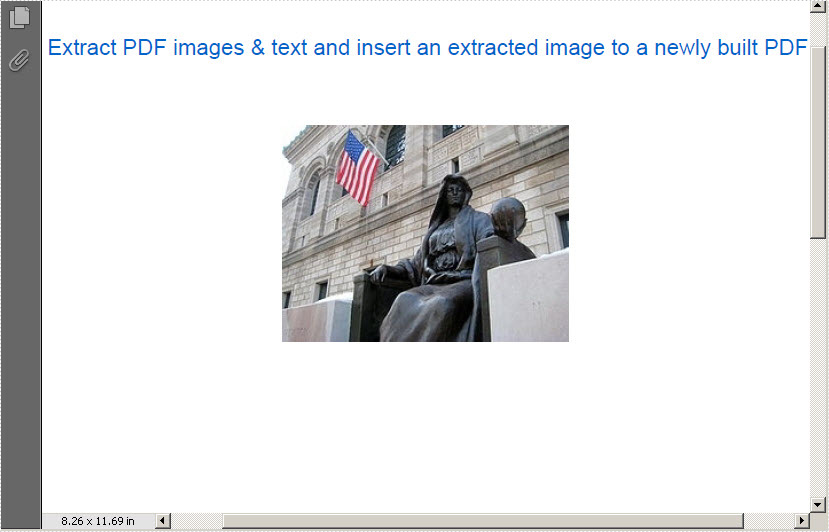
Draw the PDF text. And insert the extracted the third image in the newly built PDF document.
            newPage.Canvas.DrawString("Extract PDF images & text and insert an extracted image to a newly built PDF",
                                   new PdfFont(PdfFontFamily.Helvetica, 14.5f),
                                   new PdfSolidBrush(new PdfRGBColor(0,100,200)),
                                   10, 40);
            PdfImage img = PdfImage.FromImage(images[2]);
            float width = img.Width * 0.75f;
            float height = img.Height * 0.75f;
            float x = (newPage.Canvas.ClientSize.Width - width) / 2;

            newPage.Canvas.DrawImage(img, x, 100, width, height);
	newPage.Canvas.DrawString("Extract PDF images & text and insert an extracted image to a newly built PDF",
                                    New PdfFont(PdfFontFamily.Helvetica, 14.5F),
                                    New PdfSolidBrush(New PdfRGBColor(0, 100, 200)), 10, 40)
	Dim img As PdfImage = PdfImage.FromImage(images(2))
	Dim width As Single = img.Width * 0.75F
	Dim height As Single = img.Height * 0.75F
	Dim x As Single = (newPage.Canvas.ClientSize.Width - width) / 2
          newPage.Canvas.DrawImage(img, x, 100, width, height)
Save and launch the PDF file
            newDoc.SaveToFile("Image.pdf");
            newDoc.Close();
            System.Diagnostics.Process.Start("Image.pdf");
	newDoc.SaveToFile("Image.pdf")
	newDoc.Close()
	System.Diagnostics.Process.Start("Image.pdf")
Effecive Screenshot:
>
Spire.PDF for WPF allows its users not only to extract images and text from PDF document, but also can save the images to the most popular formats such as .PNG, JPG, BMP, GIF and so on. Click to know more
In the realm of PDF creation and editing, the ability to draw different styles of text within a PDF can greatly enhance the visual appeal and functionality of the documents. For example, you can draw transformed text to add a unique touch to the document design, or draw rotated text to create angled headings. In this article, you will learn how to draw text in PDF with different styles in C# using Spire.PDF for .NET.
Install Spire.PDF for .NET
To begin with, you need to add the DLL files included in the Spire.PDF for.NET package as references in your .NET project. The DLL files can be either downloaded from this link or installed via NuGet.
PM> Install-Package Spire.PDF
Coordinate System in Spire.PDF
The text drawn in PDF is based on the page coordinate system. When adding a new page in a PDF, the page usually consists of the content area and margins all around.
In this case, the origin of the coordinate system is located at the top left corner of the content area, with the x-axis extending horizontally to the right and the y-axis extending vertically down.

Transformation of the Coordinate System
When transforming text in PDF, you are actually transforming the coordinate system where the text is located. Spire.PDF allows to translate, scale, skew, and rotate the page coordinate. The specific methods are introduced below:
- TranslateTransform(5, 5): Translate the coordinate system 5 units to the right and 5 units downward.
- ScaleTransform(2, 2): Scale the unit lengths on both the X-axis and the Y-axis by a factor of 2.
- RotateTransform(-45): Rotate the coordinate system 45 degrees counterclockwise.
- SkewTransform(10, 10): Tilt the X-axis 10 degrees down and the Y-axis 10 degrees to the right
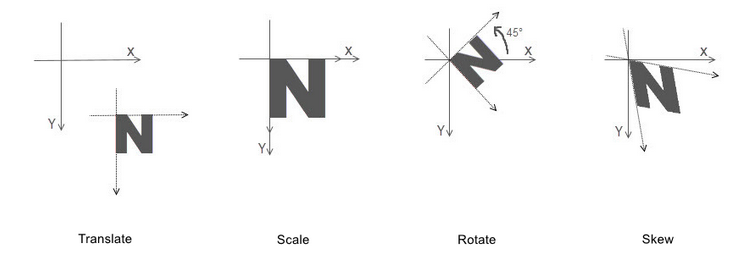
By mastering this background knowledge about the page coordinate system, you can use Spire.PDF more accurately to draw different styles of text in PDFs to achieve complex typography.
Draw Transformed Text in PDF in C#
To accomplish the task, you can scale or skew the coordinate system of a PDF page through the PdfPageBase.Canvas.ScaleTransform() or PdfPageBase.Canvas.SkewTransform() method, and then draw text on the transformed coordinate system. The following are the detailed steps.
- Create a PdfDocument instance.
- Add a page using PdfDocument.Pages.Add() method.
- Save the current drawing state using PdfPageBase.Canvas.Save() method.
- Specify the PDF font and brush.
- Translate the page coordinate system to the specified position using PdfPageBase.Canvas.TranslateTransform() method .
- Scale the current coordinate system using PdfPageBase.Canvas.ScaleTransform() method .
- Skew the current coordinate system using PdfPageBase.Canvas.SkewTransform() method.
- Draw text on the page based on the transformed coordinate system using PdfPageBase.Canvas.DrawString() method.
- Restore the previous drawing state using PdfPageBase.Canvas.Restore(state) method.
- Save the result file using PdfDocument.SaveToFile() method.
- C#
using Spire.Pdf;
using Spire.Pdf.Graphics;
using System.Drawing;

namespace PDFText
{
    class Program
    {
        static void Main(string[] args)
        {
            // Create a PdfDocument instance
            PdfDocument pdf = new PdfDocument();

            // Add a page
            PdfPageBase page = pdf.Pages.Add();

            // Save the current graphics state
            PdfGraphicsState state = page.Canvas.Save();

            // Specify the PDF font and brush
            PdfFont font = new PdfFont(PdfFontFamily.Helvetica, 18f);
            PdfSolidBrush brush1 = new PdfSolidBrush(Color.Green);
            PdfSolidBrush brush2 = new PdfSolidBrush(Color.Blue);
            PdfSolidBrush brush3 = new PdfSolidBrush(Color.Magenta);

            // Translate the coordinate system by specified coordinates
            page.Canvas.TranslateTransform(20, 280);

            // Scale the coordinate system by specified coordinates
            page.Canvas.ScaleTransform(1f, 0.6f);
            // Skew the coordinate system axes
            page.Canvas.SkewTransform(-10, 0);
            // Draw transformed text on the page
            page.Canvas.DrawString("A Powerful PDF Processing Library", font, brush1, 0, -30);

            // Skew the coordinate system axes
            page.Canvas.SkewTransform(10, 0);
            // Draw transformed text on the page
            page.Canvas.DrawString("A Powerful PDF Processing Library", font, brush2, 0, 0);

            //Scale the coordinate system by specified coordinates
            page.Canvas.ScaleTransform(1f, -1f);
            // Draw transformed text on the page
            page.Canvas.DrawString("A Powerful PDF Processing Library", font, brush3, 0, 0);

            // Restor graphics state
            page.Canvas.Restore(state);

            // Save the result document
            pdf.SaveToFile("TransformText.pdf");
            pdf.Close();

        }
    }
}

Draw Rotated Text in PDF in C#
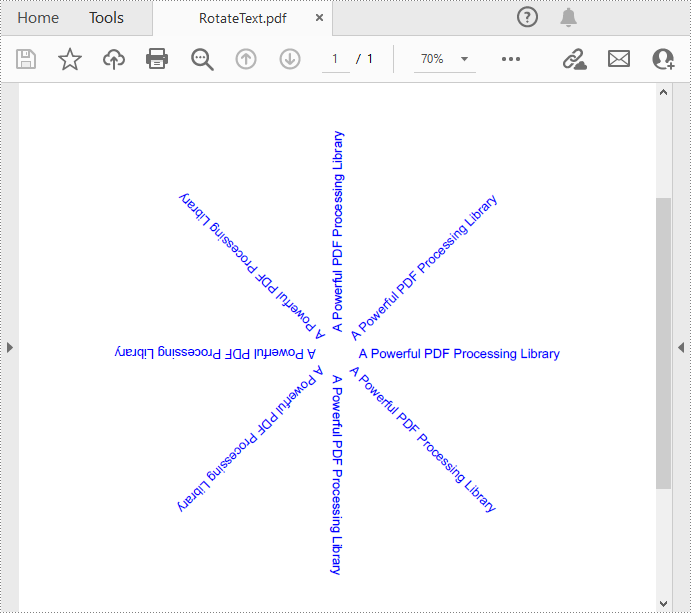
The PdfPageBase.Canvas.RotateTransform(float angle) method provided by Spire.PDF allows to rotate the page coordinate system to specified angle, and then the text drawn on the page will be presented as rotated text. The following are the detailed steps.
- Create a PdfDocument instance.
- Add a page using PdfDocument.Pages.Add() method.
- Save the current drawing state using PdfPageBase.Canvas.Save() method.
- Specify the PDF font and brush, and set PDF text alignment.
- Translate the page coordinate system to the specified position using PdfPageBase.Canvas.TranslateTransform() method.
- Rotate the coordinate system by specified degree using PdfPageBase.Canvas.RotateTransform() method.
- Draw text on the page based on the rotated coordinate system using PdfPageBase.Canvas.DrawString() method.
- Restore the previous drawing state using PdfPageBase.Canvas.Restore(state) method.
- Save the result file using PdfDocument.SaveToFile() method.
- C#
using Spire.Pdf;
using Spire.Pdf.Graphics;
using System.Drawing;

namespace PDFText
{
    class Program
    {
        static void Main(string[] args)
        {
            // Create a PdfDocument instance
            PdfDocument pdf = new PdfDocument();

            // Add a page
            PdfPageBase page = pdf.Pages.Add();

            // Save the current graphics state
            PdfGraphicsState state = page.Canvas.Save();

            // Specify the PDF font and brush
            PdfFont font = new PdfFont(PdfFontFamily.Helvetica, 12f);
            PdfSolidBrush brush = new PdfSolidBrush(Color.Blue);

            // Set PDF text alignment
            PdfStringFormat centerAlignment = new PdfStringFormat(PdfTextAlignment.Left, PdfVerticalAlignment.Middle);

            // Translate the coordinate system by specified coordinates
            page.Canvas.TranslateTransform(page.Canvas.ClientSize.Width / 2, 380);

            // Draw rotated text on the PDF page
            for (int i = 0; i < 8; i++)
            {
                page.Canvas.RotateTransform(45);
                page.Canvas.DrawString("A Powerful PDF Processing Library", font, brush, 20, 0, centerAlignment);
            }

            // Restor graphics state
            page.Canvas.Restore(state);

            // Save the result document
            pdf.SaveToFile("RotateText.pdf");
            pdf.Close();

        }
    }
}
Draw Aligned Text in PDF in C#
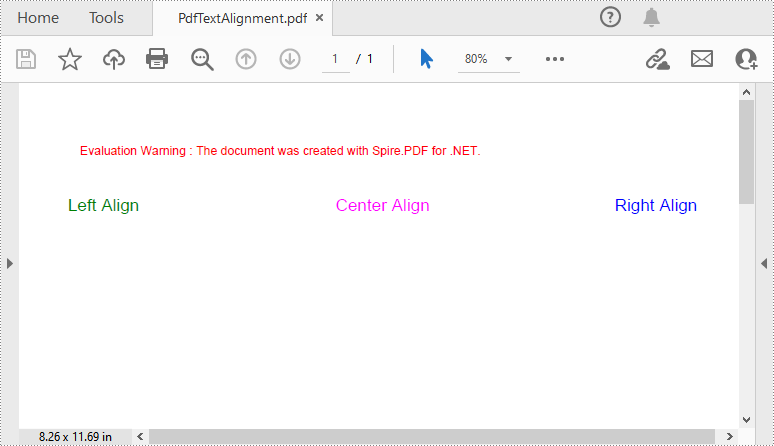
Spire.PDF for .NET provides the PdfStringFormat class to represent the text layout information. You can initialize an instance of the PdfStringFormat class and pass in two parameters PdfTextAlignment and PdfVerticalAlignment to specify a text alignment style, then draw text with the alignment style. The following are the detailed steps.
- Create a PdfDocument instance.
- Add a page using PdfDocument.Pages.Add() method.
- Save the current drawing state using PdfPageBase.Canvas.Save() method.
- Specify the PDF font and brush.
- Create a PdfStringFormat instance and pass in the PdfTextAlignment and PdfVerticalAlignment parameters to specify the text alignment style.
- Draw text with the specified alignment style on the PDF page using PdfPageBase.Canvas.DrawString() method.
- Save the result file using PdfDocument.SaveToFile() method.
- C#
using Spire.Pdf;
using Spire.Pdf.Graphics;
using System.Drawing;

namespace PDFText
{
    class Program
    {
        static void Main(string[] args)
        {
            // Create a PdfDocument instance
            PdfDocument pdf = new PdfDocument();

            // Add a page
            PdfPageBase page = pdf.Pages.Add();

            // Specify the PDF font and brush
            PdfFont font = new PdfFont(PdfFontFamily.Helvetica, 14f);
            PdfSolidBrush brush1 = new PdfSolidBrush(Color.Green);
            PdfSolidBrush brush2 = new PdfSolidBrush(Color.Blue);
            PdfSolidBrush brush3 = new PdfSolidBrush(Color.Magenta);

            // Draw left-aligned text on the PDF page
            PdfStringFormat leftAlignment = new PdfStringFormat(PdfTextAlignment.Left, PdfVerticalAlignment.Middle);
            page.Canvas.DrawString("Left Align", font, brush1, 0, 60, leftAlignment);

            // Draw right-aligned text on the PDF page
            PdfStringFormat rightAlignment = new PdfStringFormat(PdfTextAlignment.Right, PdfVerticalAlignment.Middle);
            page.Canvas.DrawString("Right Align", font, brush2, page.Canvas.ClientSize.Width, 60, rightAlignment);

            // Draw center-aligned text on the PDF page
            PdfStringFormat centerAlignment = new PdfStringFormat(PdfTextAlignment.Center, PdfVerticalAlignment.Middle);
            page.Canvas.DrawString("Center Align", font, brush3, page.Canvas.ClientSize.Width / 2, 60, centerAlignment);

            // Save the result document
            pdf.SaveToFile("PdfTextAlignment.pdf");
            pdf.Close();

        }
    }
}
Apply for a Temporary License
If you'd like to remove the evaluation message from the generated documents, or to get rid of the function limitations, please request a 30-day trial license for yourself.

doc.LoadFromFile(@"..\Sample.pdf");
System.Drawing.Image image = System.Drawing.Image.FromFile(@"..\MS.jpg");
doc.LoadFromFile("..\Sample.pdf")
Dim image As System.Drawing.Image = System.Drawing.Image.FromFile("..\MS.jpg")
//adjust image size
int width = image.Width;
int height = image.Height;
float schale = 0.7f;
System.Drawing.Size size = new System.Drawing.Size((int)(width * schale), (int)(height * schale));
Bitmap schaleImage = new Bitmap(image, size);
//draw image into the first PDF page at specific position
PdfImage pdfImage = PdfImage.FromImage(schaleImage);
PdfPageBase page0 = doc.Pages[0];
PointF position = new PointF((page0.Canvas.ClientSize.Width - schaleImage.Width) / 8, 10);
page0.Canvas.DrawImage(pdfImage, position);
'adjust image size
Dim width As Integer = image.Width
Dim height As Integer = image.Height
Dim schale As Single = 0.7F
Dim size As New System.Drawing.Size(CInt(Math.Truncate(width * schale)), CInt(Math.Truncate(height * schale)))
Dim schaleImage As New Bitmap(image, size)
'draw image into the first PDF page at specific position
Dim pdfImage__1 As PdfImage = PdfImage.FromImage(schaleImage)
Dim page0 As PdfPageBase = doc.Pages(0)
Dim position As New PointF((page0.Canvas.ClientSize.Width - schaleImage.Width) / 8, 10)
page0.Canvas.DrawImage(pdfImage__1, position)
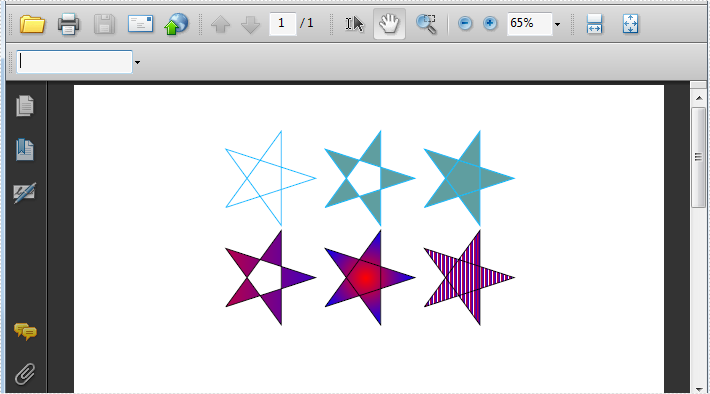
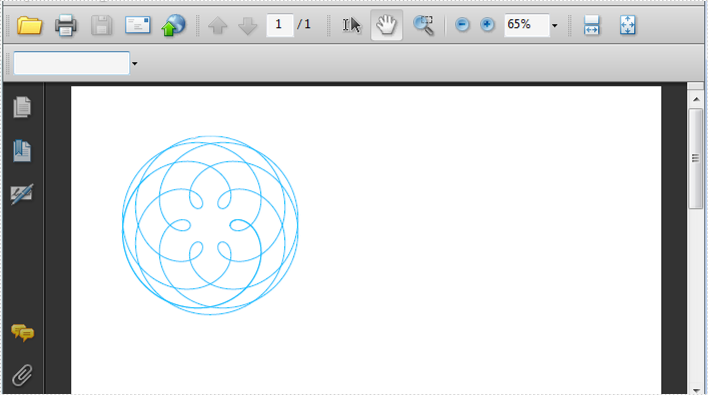
Spire.PDF can help us draw different shapes in PDF document. We can use Spire.PDF to draw rectangles in PDF, draw circles in PDF, draw arcs in PDF and draw ellipses in PDF. Besides these shapes, we can also use Spire.PDF to draw some other special shapes such as Spiral and five-pointed stars.
Draw Five-Pointed Star in PDF
By using Spire.PDF, we can draw different stars in PDF document. The sample below is showing how to draw 6 types of different five-pointed star.
using Spire.Pdf;
using Spire.Pdf.Graphics;
using System;
using System.Drawing;


namespace FivePointedStar
{
    class Program
    {
        private static void DrawStar(PdfPageBase page)
        {
            PdfDocument doc = new PdfDocument();
            PdfPageBase page = doc.Pages.Add();
            PointF[] points = new PointF[5];
            for (int i = 0; i < points.Length; i++)
            {
                float x = (float)Math.Cos(i * 2 * Math.PI / 5);
                float y = (float)Math.Sin(i * 2 * Math.PI / 5);
                points[i] = new PointF(x, y);
            }
            PdfPath path = new PdfPath();
            path.AddLine(points[2], points[0]);
            path.AddLine(points[0], points[3]);
            path.AddLine(points[3], points[1]);
            path.AddLine(points[1], points[4]);
            path.AddLine(points[4], points[2]);

            //save graphics state
            PdfDocument doc = new PdfDocument();
            PdfPageBase page = doc.Pages.Add();
            PdfGraphicsState state = page.Canvas.Save();
            PdfPen pen = new PdfPen(Color.DeepSkyBlue, 0.02f);
            PdfBrush brush1 = new PdfSolidBrush(Color.CadetBlue);

            page.Canvas.ScaleTransform(50f, 50f);
            page.Canvas.TranslateTransform(5f, 1.2f);
            page.Canvas.DrawPath(pen, path);

            page.Canvas.TranslateTransform(2f, 0f);
            path.FillMode = PdfFillMode.Alternate;
            page.Canvas.DrawPath(pen, brush1, path);

            page.Canvas.TranslateTransform(2f, 0f);
            path.FillMode = PdfFillMode.Winding;
            page.Canvas.DrawPath(pen, brush1, path);

            PdfLinearGradientBrush brush2
                = new PdfLinearGradientBrush(new PointF(-2, 0), new PointF(2, 0), Color.Red, Color.Blue);
            page.Canvas.TranslateTransform(-4f, 2f);
            path.FillMode = PdfFillMode.Alternate;
            page.Canvas.DrawPath(pen, brush2, path);

            PdfRadialGradientBrush brush3
                = new PdfRadialGradientBrush(new PointF(0f, 0f), 0f, new PointF(0f, 0f), 1f, Color.Red, Color.Blue);
            page.Canvas.TranslateTransform(2f, 0f);
            path.FillMode = PdfFillMode.Winding;
            page.Canvas.DrawPath(pen, brush3, path);

            PdfTilingBrush brush4 = new PdfTilingBrush(new RectangleF(0, 0, 4f, 4f));
            brush4.Graphics.DrawRectangle(brush2, 0, 0, 4f, 4f);

            page.Canvas.TranslateTransform(2f, 0f);
            path.FillMode = PdfFillMode.Winding;
            page.Canvas.DrawPath(pen, brush4, path);

            //restor graphics
            page.Canvas.Restore(state);
        }
    }
}
Imports Spire.Pdf
Imports Spire.Pdf.Graphics
Imports System.Drawing


Namespace FivePointedStar
	Class Program
		Private Shared Sub DrawStar(page As PdfPageBase)
			Dim doc As New PdfDocument()
			Dim page As PdfPageBase = doc.Pages.Add()
			Dim points As PointF() = New PointF(4) {}
			For i As Integer = 0 To points.Length - 1
				Dim x As Single = CSng(Math.Cos(i * 2 * Math.PI / 5))
				Dim y As Single = CSng(Math.Sin(i * 2 * Math.PI / 5))
				points(i) = New PointF(x, y)
			Next
			Dim path As New PdfPath()
			path.AddLine(points(2), points(0))
			path.AddLine(points(0), points(3))
			path.AddLine(points(3), points(1))
			path.AddLine(points(1), points(4))
			path.AddLine(points(4), points(2))

			'save graphics state
			Dim doc As New PdfDocument()
			Dim page As PdfPageBase = doc.Pages.Add()
			Dim state As PdfGraphicsState = page.Canvas.Save()
			Dim pen As New PdfPen(Color.DeepSkyBlue, 0.02F)
			Dim brush1 As PdfBrush = New PdfSolidBrush(Color.CadetBlue)

			page.Canvas.ScaleTransform(50F, 50F)
			page.Canvas.TranslateTransform(5F, 1.2F)
			page.Canvas.DrawPath(pen, path)

			page.Canvas.TranslateTransform(2F, 0F)
			path.FillMode = PdfFillMode.Alternate
			page.Canvas.DrawPath(pen, brush1, path)

			page.Canvas.TranslateTransform(2F, 0F)
			path.FillMode = PdfFillMode.Winding
			page.Canvas.DrawPath(pen, brush1, path)

			Dim brush2 As New PdfLinearGradientBrush(New PointF(-2, 0), New PointF(2, 0), Color.Red, Color.Blue)
			page.Canvas.TranslateTransform(-4F, 2F)
			path.FillMode = PdfFillMode.Alternate
			page.Canvas.DrawPath(pen, brush2, path)

			Dim brush3 As New PdfRadialGradientBrush(New PointF(0F, 0F), 0F, New PointF(0F, 0F), 1F, Color.Red, Color.Blue)
			page.Canvas.TranslateTransform(2F, 0F)
			path.FillMode = PdfFillMode.Winding
			page.Canvas.DrawPath(pen, brush3, path)

			Dim brush4 As New PdfTilingBrush(New RectangleF(0, 0, 4F, 4F))
			brush4.Graphics.DrawRectangle(brush2, 0, 0, 4F, 4F)

			page.Canvas.TranslateTransform(2F, 0F)
			path.FillMode = PdfFillMode.Winding
			page.Canvas.DrawPath(pen, brush4, path)

			'restor graphics
			page.Canvas.Restore(state)
		End Sub
	End Class
End Namespace
Effective Screenshot:
Draw Spiral in PDF
A spiral is a curve which emanates from a central point, getting progressively farther away as it revolves around the point. Spire.PDF can also help us easily draw Spiral in PDF and we can design at will.
using Spire.Pdf;
using Spire.Pdf.Graphics;
using System;

namespace DrawSpiral
{
    class Program
    {
        static void Main(string[] args)
        {
            PdfDocument doc = new PdfDocument();
            PdfPageBase page = doc.Pages.Add();
            //save graphics state
            PdfGraphicsState state = page.Canvas.Save();

            //Draw shap - spiro
            PdfPen pen = PdfPens.DeepSkyBlue;

            int nPoints = 1000;
            double r1 = 30;
            double r2 = 25;
            double p = 35;
            double x1 = r1 + r2 - p;
            double y1 = 0;
            double x2 = 0;
            double y2 = 0;

            page.Canvas.TranslateTransform(100, 100);

            for (int i = 0; i < nPoints; i++)
            {
                double t = i * Math.PI / 90;
                x2 = (r1 + r2) * Math.Cos(t) - p * Math.Cos((r1 + r2) * t / r2);
                y2 = (r1 + r2) * Math.Sin(t) - p * Math.Sin((r1 + r2) * t / r2);
                page.Canvas.DrawLine(pen, (float)x1, (float)y1, (float)x2, (float)y2);
                x1 = x2;
                y1 = y2;
            }

            //restor graphics
            page.Canvas.Restore(state);
        }
    }
}
Imports Spire.Pdf
Imports Spire.Pdf.Graphics
Imports Spire.Pdf.Texts
Imports System.Drawing

Namespace AddLineNumber
    Class Program
		Shared Sub Main(ByVal args() As String)
			Dim doc As New PdfDocument()
			Dim page As PdfPageBase = doc.Pages.Add()
			'save graphics state
			Dim state As PdfGraphicsState = page.Canvas.Save()

			'Draw shap - spiro
			Dim pen As PdfPen = PdfPens.DeepSkyBlue

			Dim nPoints As Integer = 1000
			Dim r1 As Double = 30
			Dim r2 As Double = 25
			Dim p As Double = 35
			Dim x1 As Double = r1 + r2 - p
			Dim y1 As Double = 0
			Dim x2 As Double = 0
			Dim y2 As Double = 0

			page.Canvas.TranslateTransform(100, 100)

			For i As Integer = 0 To nPoints - 1
				Dim t As Double = i * Math.PI / 90
				x2 = (r1 + r2) * Math.Cos(t) - p * Math.Cos((r1 + r2) * t / r2)
				y2 = (r1 + r2) * Math.Sin(t) - p * Math.Sin((r1 + r2) * t / r2)
				page.Canvas.DrawLine(pen, CSng(x1), CSng(y1), CSng(x2), CSng(y2))
				x1 = x2
				y1 = y2
			Next

			'restor graphics
			page.Canvas.Restore(state)

		End Sub
	End Class
End Namespace
Effective Screenshot:
How to highlight different searched texts with different colors in WPF
2016-04-28 01:44:46 Written by KoohjiNowadays, many files are saved as PDF format. PDF has many advantages and its Find and Highlight feature makes it easier for us to find important information inside a lengthy PDF document.
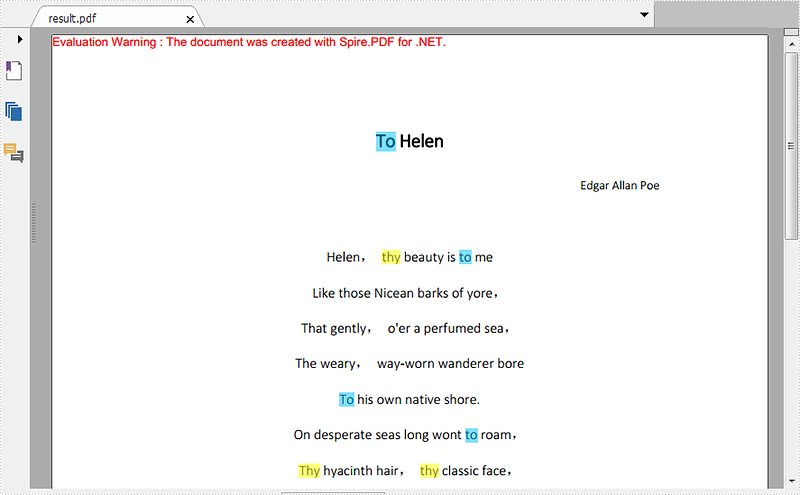
In the following sections, I will demonstrate how to highlight different searched texts with different colors in WPF.
The code snippets are as followed:
Step 1: Initialize a new instance of PdfDocument class and load the PDF document from the file.
PdfDocument pdf = new PdfDocument("ToHelen.pdf");
Step 2: Call FindText() method to search the string "thy" in the first page of the file, then return to Result1. Traverse result1 and call ApplyHighLight() method to highlight all elements in result1. Set the highlight color as yellow.
PdfTextFind[] result1 = null;
result1 = pdf.Pages[0].FindText("thy").Finds;
foreach (PdfTextFind find in result1)
{
    find.ApplyHighLight(System.Drawing.Color.Yellow);
}
Step 3: Repeat step 2 to highlight all the texts "to" on Page 1 with the color of DeepSkyBlue.
PdfTextFind[] result2 = null;
result2 = pdf.Pages[0].FindText("to").Finds;
foreach (PdfTextFind find in result2)
{
    find.ApplyHighLight(System.Drawing.Color.DeepSkyBlue);
}
Step 4: Save the PDF document and launch the file.
pdf.SaveToFile("HighlightedToHelen.pdf", Spire.Pdf.FileFormat.PDF);
System.Diagnostics.Process.Start("HighlightedToHelen.pdf");
Effective screenshot:
Full Codes:
//load the PDF document from the file
PdfDocument pdf = new PdfDocument("ToHelen.pdf");

//highlight searched text "thy" with Yellow
PdfTextFind[] result1 = null;
result1 = pdf.Pages[0].FindText("thy").Finds;
foreach (PdfTextFind find in result1)
{
    find.ApplyHighLight(System.Drawing.Color.Yellow);
}

//highlight searched text “to” with DeepSkyBlue
PdfTextFind[] result2 = null;
result2 = pdf.Pages[0].FindText("to").Finds;
foreach (PdfTextFind find in result2)
{
    find.ApplyHighLight(System.Drawing.Color.DeepSkyBlue);
}

//save and launch the file
pdf.SaveToFile("HighlightedToHelen.pdf", Spire.Pdf.FileFormat.PDF);
System.Diagnostics.Process.Start("HighlightedToHelen.pdf");
'load the PDF document from the file
Dim pdf As New PdfDocument("ToHelen.pdf")

'highlight searched text "thy" with Yellow
Dim result1 As PdfTextFind() = Nothing
result1 = pdf.Pages(0).FindText("thy").Finds
For Each find As PdfTextFind In result1
	 find.ApplyHighLight(System.Drawing.Color.Yellow)
Next

'highlight searched text "to" with DeepSkyBlue
Dim result2 As PdfTextFind() = Nothing
result2 = pdf.Pages(0).FindText("to").Finds
For Each find As PdfTextFind In result2
	 find.ApplyHighLight(System.Drawing.Color.DeepSkyBlue)
Next

'save and launch the file
pdf.SaveToFile("HighlightedToHelen.pdf", Spire.Pdf.FileFormat.PDF)
System.Diagnostics.Process.Start("HighlightedToHelen.pdf")
More...
