
Spire.PDF for .NET (290)
Spire.PDF allows extracting images from signatures using ExtractSignatureAsImages method in PdfFormWidget class. This article demonstrates how we can use Spire.PDF to implement this feature.
Code Snippet:
Step 1: Instantiate an object of PdfDocument class and load the PDF document.
PdfDocument document = new PdfDocument("sample.pdf");
Step 2: Get the existing forms of the document.
PdfFormWidget form = document.Form as PdfFormWidget;
Step 3: Extract images from signatures in the existing forms and put them into an Image Array.
Image[] images = form.ExtractSignatureAsImages();
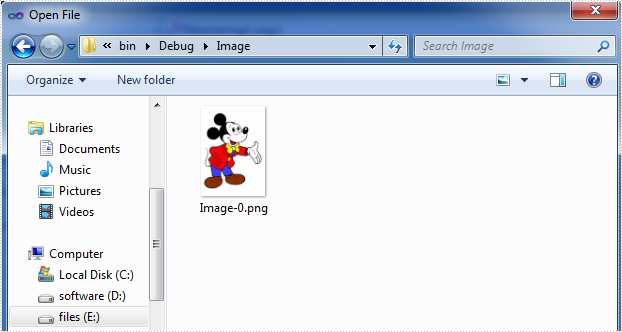
Step 4: Save the images to disk.
int i = 0;
for (int j = 0; j < images.Length; j++)
{
    images[j].Save(String.Format(@"Image/Image-{0}.png", i), ImageFormat.Png);
    i++;
}
Screenshot:
Full code:
using Spire.Pdf;
using Spire.Pdf.Widget;
using System;
using System.Drawing;
using System.Drawing.Imaging;


namespace ExtractImage
{
    class Program
    {
        static void Main(string[] args)
        {
            //Load the PDF document
            PdfDocument document = new PdfDocument("sample.pdf");

            //Get the existing forms of the document
            PdfFormWidget form = document.Form as PdfFormWidget;

            //Extract images from signatures in the existing forms
            Image[] images = form.ExtractSignatureAsImages();

            //Save the images to disk
            int i = 0;
            for (int j = 0; j < images.Length; j++)
            {
                images[j].Save(String.Format(@"Image/Image-{0}.png", i), ImageFormat.Png);
                i++;
            }

            //Close the document
            document.Close();
        }
    }
}
Imports Spire.Pdf
Imports Spire.Pdf.Widget
Imports System.Drawing
Imports System.Drawing.Imaging


Namespace ExtractImage
	Class Program
		Private Shared Sub Main(args As String())
			'Load the PDF document
			Dim document As New PdfDocument("sample.pdf")

			'Get the existing forms of the document
			Dim form As PdfFormWidget = TryCast(document.Form, PdfFormWidget)

			'Extract images from signatures in the existing forms
			Dim images As Image() = form.ExtractSignatureAsImages()

			'Save the images to disk
			Dim i As Integer = 0
			For j As Integer = 0 To images.Length - 1
				images(j).Save([String].Format("Image/Image-{0}.png", i), ImageFormat.Png)
				i += 1
			Next

			'Close the document
			document.Close()
		End Sub
	End Class
End Namespace
Spire.PDF supports the functionality to replace font(s) used in PDF document. The following parts shows how we can use Spire.PDF to replace all the fonts used in an existing PDF document with another alternate font in C# and VB.NET.
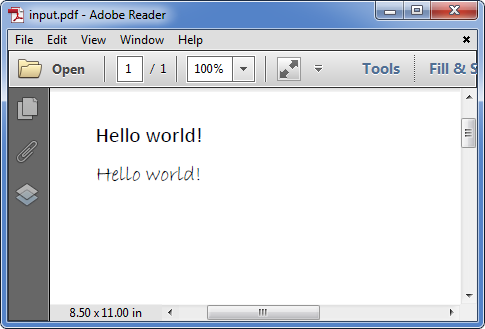
Screenshot before replacing font:
Code snippets:
Step 1: Instantiate an object of PdfDocument class and load the PDF document.
PdfDocument doc = new PdfDocument();
doc.LoadFromFile(@"E:\Program Files\input.pdf");
Step 2: Use the UsedFonts attribute of PdfDocument class to get all the fonts used in the document.
PdfUsedFont[] fonts = doc.UsedFonts;
Step 3: Create a new PDF font. Loop through the fonts and call PdfUsedFont.replace() method to replace them with the new font.
PdfFont newfont = new PdfFont(PdfFontFamily.TimesRoman, 11f, PdfFontStyle.Italic | PdfFontStyle.Bold);
foreach (PdfUsedFont font in fonts)
{
    font.Replace(newfont);
}
Step 4: Save the resultant document.
doc.SaveToFile("output.pdf");
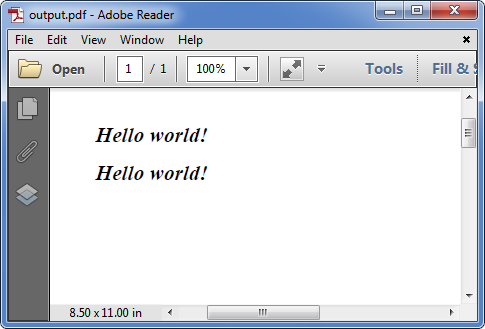
Screenshot after replacing font:
Full code:
using System.Drawing;
using Spire.Pdf;
using Spire.Pdf.Graphics;
using Spire.Pdf.Graphics.Fonts;

namespace Replace_font_in_PDF
{
    class Program
    {
        static void Main(string[] args)
        {
            PdfDocument doc = new PdfDocument();
            doc.LoadFromFile(@"E:\Program Files\input.pdf");
            PdfUsedFont[] fonts = doc.UsedFonts;
            PdfFont newfont = new PdfFont(PdfFontFamily.TimesRoman, 11f, PdfFontStyle.Italic | PdfFontStyle.Bold);
            foreach (PdfUsedFont font in fonts)
            {
                font.Replace(newfont);
            }

            doc.SaveToFile("output.pdf");
        }
    }
}
Imports System.Drawing
Imports Spire.Pdf
Imports Spire.Pdf.Graphics
Imports Spire.Pdf.Graphics.Fonts

Namespace Replace_font_in_PDF
	Class Program
		Private Shared Sub Main(args As String())
			Dim doc As New PdfDocument()
			doc.LoadFromFile("E:\Program Files\input.pdf")
			Dim fonts As PdfUsedFont() = doc.UsedFonts
			Dim newfont As New PdfFont(PdfFontFamily.TimesRoman, 11F, PdfFontStyle.Italic Or PdfFontStyle.Bold)
			For Each font As PdfUsedFont In fonts
				font.Replace(newfont)
			Next

			doc.SaveToFile("output.pdf")
		End Sub
	End Class
End Namespace
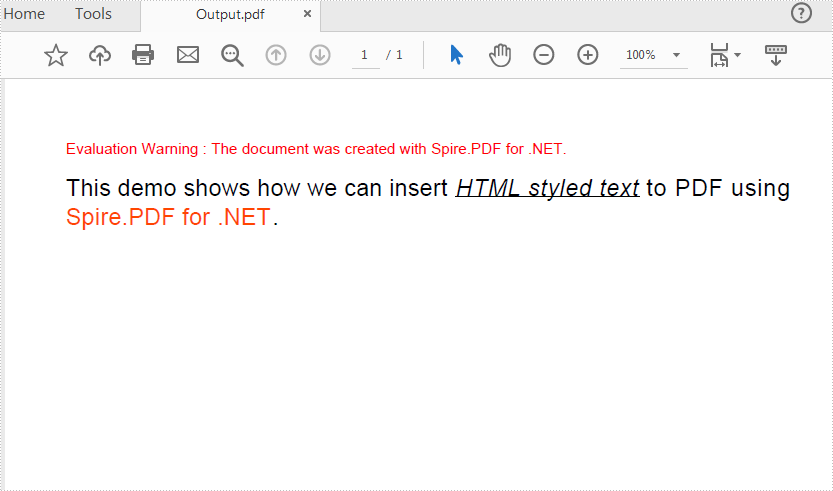
Spire.PDF provides support to render simple HTML string in a PDF document by using PdfHTMLTextElement class. (Only available on .NET, .Net Core/ .NET Standard doesn't offer PdfHTMLTextElement & PdfMetafileLayoutFormat class) This class supports a set of basic HTML tags including Font, B, I, U, Sub, Sup and BR. For complex HTML rendering with CSS, please check Convert HTML String to PDF.
Following code snippets demonstrates how we can insert HTML styled text to PDF.
Step 1: Create a new PDF document, add a page to it.
PdfDocument doc = new PdfDocument();
PdfNewPage page = doc.Pages.Add() as PdfNewPage;
Step 2: Define HTML string.
string htmlText= "This demo shows how we can insert <u><i>HTML styled text</i></u> to PDF using "
                 + "<font color='#FF4500'>Spire.PDF for .NET</font>. ";
Step 3: Render HTML text.
PdfFont font = new PdfFont(PdfFontFamily.Helvetica, 5);
PdfBrush brush = PdfBrushes.Black;
PdfHTMLTextElement richTextElement = new PdfHTMLTextElement(htmlText, font, brush);
richTextElement.TextAlign = TextAlign.Left;
Step 4: Format page layout to enable that the HTML text will break into multiple pages if the content exceeds one page.
PdfMetafileLayoutFormat format = new PdfMetafileLayoutFormat();
format.Layout = PdfLayoutType.Paginate;
format.Break = PdfLayoutBreakType.FitPage;
Step 5: Draw HTML string on page.
richTextElement.Draw(page, new RectangleF(0, 20, page.GetClientSize().Width, page.GetClientSize().Height/2),format);
Step 6: Save the document.
doc.SaveToFile("Output.pdf");
Output:
Full Code:
using Spire.Pdf;
using Spire.Pdf.Graphics;
using System.Drawing;


namespace InsertHTMLStyledTexttoPDF
{
    class Program
    {
        static void Main(string[] args)
        {
            //Create a Pdf document
            PdfDocument doc = new PdfDocument();

            //Add a new page
            PdfNewPage page = doc.Pages.Add() as PdfNewPage;

            //HTML string
            string htmlText = "This demo shows how we can insert HTML styled text to PDF using "
                             + "Spire.PDF for .NET. ";

            //Render HTML text
            PdfFont font = new PdfFont(PdfFontFamily.Helvetica, 5);
            PdfBrush brush = PdfBrushes.Black;
            PdfHTMLTextElement richTextElement = new PdfHTMLTextElement(htmlText, font, brush);
            richTextElement.TextAlign = TextAlign.Left;

            //Format Layout
            PdfMetafileLayoutFormat format = new PdfMetafileLayoutFormat();
            format.Layout = PdfLayoutType.Paginate;
            format.Break = PdfLayoutBreakType.FitPage;

            //Draw htmlString
            richTextElement.Draw(page, new RectangleF(0, 20, page.GetClientSize().Width, page.GetClientSize().Height / 2), format);
            doc.SaveToFile("Output.pdf");
        }
    }
}
Imports Spire.Pdf
Imports Spire.Pdf.Graphics
Imports System.Drawing


Namespace InsertHTMLStyledTexttoPDF
	Class Program
		Private Shared Sub Main(args As String())
			'Create a Pdf document
			Dim doc As New PdfDocument()

			'Add a new page
			Dim page As PdfNewPage = TryCast(doc.Pages.Add(), PdfNewPage)

			'HTML string
			Dim htmlText As String = "This demo shows how we can insert HTML styled text to PDF using " + "Spire.PDF for .NET. "

			'Render HTML text
			Dim font As New PdfFont(PdfFontFamily.Helvetica, 5)
			Dim brush As PdfBrush = PdfBrushes.Black
			Dim richTextElement As New PdfHTMLTextElement(htmlText, font, brush)
			richTextElement.TextAlign = TextAlign.Left

			'Format Layout
			Dim format As New PdfMetafileLayoutFormat()
			format.Layout = PdfLayoutType.Paginate
			format.Break = PdfLayoutBreakType.FitPage

			'Draw htmlString
			richTextElement.Draw(page, New RectangleF(0, 20, page.GetClientSize().Width, page.GetClientSize().Height / 2), format)
			doc.SaveToFile("Output.pdf")
		End Sub
	End Class
End Namespace
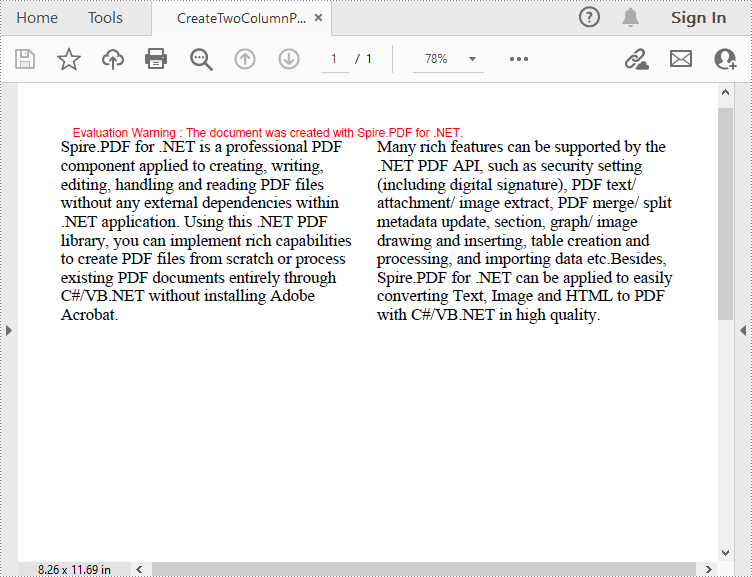
When designing magazines or newspapers, you may need to display content in multiple columns on a single page to improve readability. In this article, you will learn how to programmatically create a two-column PDF from scratch using Spire.PDF for .NET.
Install Spire.PDF for .NET
To begin with, you need to add the DLL files included in the Spire.PDF for .NET package as references in your .NET project. The DLLs files can be either downloaded from this link or installed via NuGet.
PM> Install-Package Spire.PDF
Create a Two-Column PDF from Scratch in C# and VB.NET
Spire.PDF for .NET allows you to create a two-column PDF by drawing text at two separate rectangle areas in a PDF page. Below are the detailed steps to achieve the task.
- Create a PdfDocument instance.
- Add a new page in the PDF using PdfDocument.Pages.Add() method.
- Define paragraph text, then set the text font and text alignment.
- Draw text at two separate rectangle areas in the PDF using PdfPageBase.Canvas.DrawString (String, PdfFontBase, PdfBrush, RectangleF, PdfStringFormat) method.
- Save the result file using PdfDocument.SaveToFile() method.
- C#
- VB.NET
using Spire.Pdf;
using Spire.Pdf.Graphics;
using System.Drawing;

namespace CreateTwoColumnPDF
{
    class Program
    {
        static void Main(string[] args)
        {
            //Create a PdfDocument instance
            PdfDocument doc = new PdfDocument();

            //Add a new page
            PdfPageBase page = doc.Pages.Add();

            //Define paragraph text
            string s1 = "Spire.PDF for .NET is a professional PDF component applied to creating, writing, "
                        + "editing, handling and reading PDF files without any external dependencies within "
                        + ".NET application. Using this .NET PDF library, you can implement rich capabilities "
                        + "to create PDF files from scratch or process existing PDF documents entirely through "
                        + "C#/VB.NET without installing Adobe Acrobat.";

            string s2 = "Many rich features can be supported by the .NET PDF API, such as security setting "
                        + "(including digital signature), PDF text/ attachment/ image extract, PDF merge/ split "
                        + ", metadata update, section, graph/ image drawing and inserting, table creation and "
                        + "processing, and importing data etc.Besides, Spire.PDF for .NET can be applied to easily "
                        + "converting Text, Image and HTML to PDF with C#/VB.NET in high quality.";

            //Get width and height of page
            float pageWidth = page.GetClientSize().Width;
            float pageHeight = page.GetClientSize().Height;

            //Create a PdfSolidBrush instance
            PdfSolidBrush brush = new PdfSolidBrush(new PdfRGBColor(Color.Black));

            //Create a PdfFont instance
            PdfFont font = new PdfFont(PdfFontFamily.TimesRoman, 14f);

            //Set the text alignment via PdfStringFormat class
            PdfStringFormat format = new PdfStringFormat(PdfTextAlignment.Left);

            //Draw text
            page.Canvas.DrawString(s1, font, brush, new RectangleF(0, 20, pageWidth / 2 - 8f, pageHeight),format);
            page.Canvas.DrawString(s2, font, brush, new RectangleF(pageWidth / 2 + 8f, 20, pageWidth / 2, pageHeight), format);

            //Save the result document
            doc.SaveToFile("CreateTwoColumnPDF.pdf.pdf");
        }
    }
}
Apply for a Temporary License
If you'd like to remove the evaluation message from the generated documents, or to get rid of the function limitations, please request a 30-day trial license for yourself.
Spire.PDF for .NET is a PDF library which enables users to handle the whole PDF document with wide range of tasks in C#, VB.NET. Spire.PDF supports to create PDF links, extract PDF links, update PDF links and remove PDF links from a PDF file. This article mainly shows how to extract and update link from a PDF file in C#.
Before the steps and codes, please check the original PDF file at first:
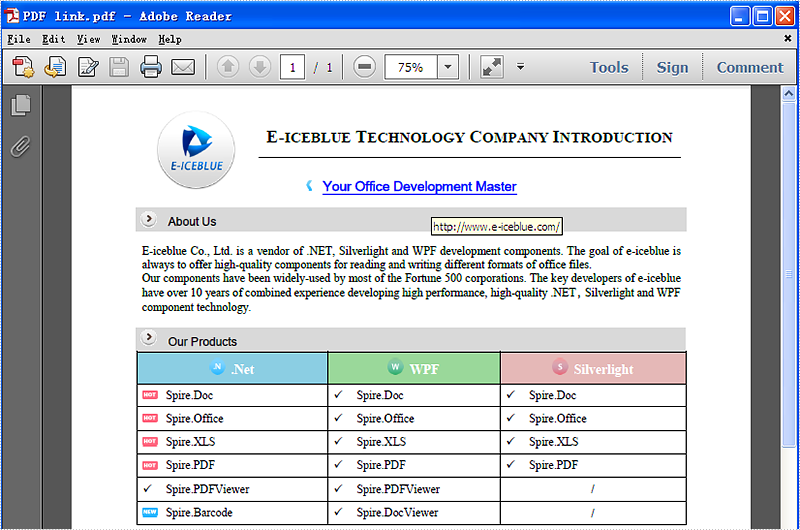
Firstly we need to create a new Document object and load a PDF file which needs to extract and update the links. The links are represented as annotations in a PDF file. Before extract and update the link from a PDF file, we need to extract all the AnnotationsWidget objects.
The following code snippet shows you how to extract links from the PDF file.
//Load an existing PDF file
PdfDocument document = new PdfDocument();
document.LoadFromFile(@"..\..\output.pdf");

//Get the first page
PdfPageBase page = document.Pages[0];

//Get the annotation collection
PdfAnnotationCollection widgetCollection = page.Annotations;

//Verify whether widgetCollection is not null or not
if (widgetCollection.Count > 0)
            {
                foreach (var obj in widgetCollection)
                {

//Get the TextWebLink Annotation
if (obj is PdfTextWebLinkAnnotationWidget)
   {
     PdfTextWebLinkAnnotationWidget link = obj as PdfTextWebLinkAnnotationWidget;
The following code snippet shows you how to update the link in PDF file
//Change the url of TextWebLink Annotation
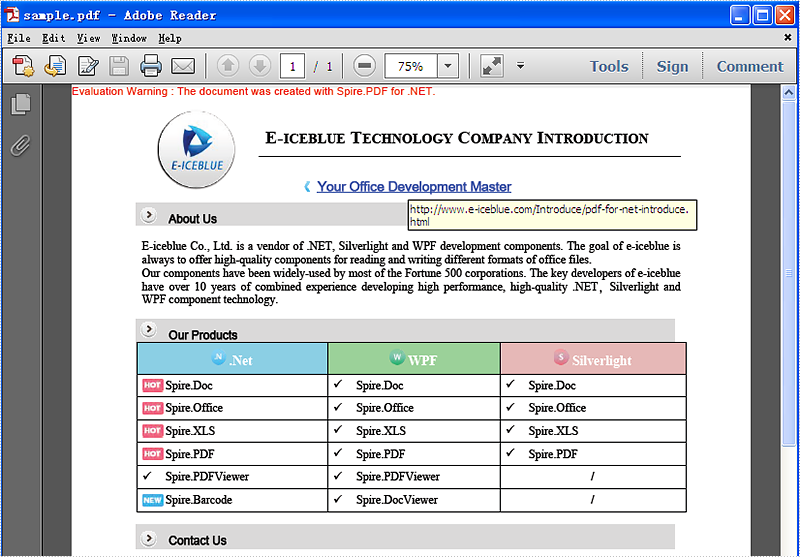
link.Url = "http://www.e-iceblue.com/Introduce/pdf-for-net-introduce.html";

//Saves PDF document to file.
document.SaveToFile("sample.pdf");
This picture will show you the link has been updated in the PDF file.
More...
